How does the SiteGround Site Scanner protect my website?
Site Scanner is a SiteGround security service that checks your website every day for malware, malicious links and domain blacklisting. It alerts you as soon as it finds a threat and helps you clean it up. This guide explains what Site Scanner does, how to use it in Site Tools, and how to purchase it.
An infected website can lose visitors, who are cautious about suspicious sites, and search engines may penalize it. That can damage your traffic, business and reputation, so it pays to catch threats early.
Key takeaways
- Site Scanner is a paid extra you add to a website. It activates automatically after purchase.
- Site Scanner Basic scans your website URLs and checks your domain against blacklists every day, and scans all website files once a week.
- Site Scanner Premium scans your files every day, scans newly uploaded files and can quarantine infected ones, and adds 1-click malware cleanup.
- With both plans, you can run on-demand scans (up to 10 per day) and review the scan history from the last 30 days.
- Both plans include Site Protect, which lets you turn off FTP, SSH, PHP uploads and shell commands run via PHP.
- You get an email as soon as a threat is detected, plus an optional weekly summary.
What you need
- A Site Scanner plan for the website. You can buy one in your Client Area, under Marketplace. Site Scanner is available for websites on primary domains only, not for subdomains.
- Access to the website’s Site Tools.
What is Site Scanner and how does it protect my website?
The SiteGround Site Scanner is a security feature that clients can add to their websites. Once purchased, the tool is activated automatically and starts monitoring your website for online threats such as malware, viruses, and suspicious links.
It automatically performs several critical checks every day and alerts you of any detected threats so you can react in a timely manner, before your website suffers substantial damage. Additionally, you can perform manual on-demand scans of your website at any point through the tool interface.
The Site Scanner Basic comes with the following essential monitoring features:
- Daily URLs scan – Site Scanner performs daily automatic URL scans of your website and checks if they contain any malicious links or content. You will be instantly notified on your account’s administrative email if a potential threat is detected. You will also see a warning in your SiteGround’s Client Area.
- Daily Domain blacklist check – on a daily basis, this scheduled scan also checks whether your domain is blacklisted in the databases of the most popular search engines, browsers, and antivirus organizations. If your domain is found in any of these blacklists, the Site Scanner will notify you promptly via your email.
- Weekly automated files scans – all website files are automatically scanned once a week (including the files of subdomains, staging copies, and subfolders).
- On-demand scans – through the tool’s interface you can perform comprehensive on-demand scans at any time. The manual on-demand scans go over your website URLs and files, as well as the domain blacklist checks.
- Reports history – the tool keeps reports from the manual and automatic scans from the last 30 days, which you can review at any time through the tool’s interface.
- Email notifications – whenever the Site Scanner detects malicious content, it instantly sends an email notification to your administrative email. Additionally, you receive a weekly summary of all the scans from the past week. You can also easily disable or enable the weekly summary reports from the tool’s interface.
- Site Protect – you can allow or limit the website’s access points via FTP, SSH, PHP uploads, and shell or PHP scripts with an intuitive and easy-to-use interface. This is especially handy if you suspect any hacking attempts that you want to stop or prevent.
The Site Scanner Premium adds additional features that protect your website even further:
- Daily Automated files and URLs scans – in addition to the domain blacklist check and URLs scan, all website files are automatically scanned every day (including the files of subdomains, staging copies, and subfolders).
- Automatic scans and quarantine for newly uploaded files – this is an optional feature that you can easily enable or disable at any time. The Site Scanner scans any new file uploaded to your website. In the case that a file is deemed suspicious, it is isolated into quarantine so you can review it and decide if you want to release it or permanently delete it.
- One-click malware cleanup – an option to instantly remove detected malware from your website’s files with a single click. If the detected issue cannot be addressed with the automated file cleanup, our expert support team will be notified with an automated ticket and will review the case manually. In such cases additional clean up fee may apply.
How can I manage the Site Scanner settings?
To access the Site Scanner tool, go to your website’s Site Tools > Security > Site Scanner.
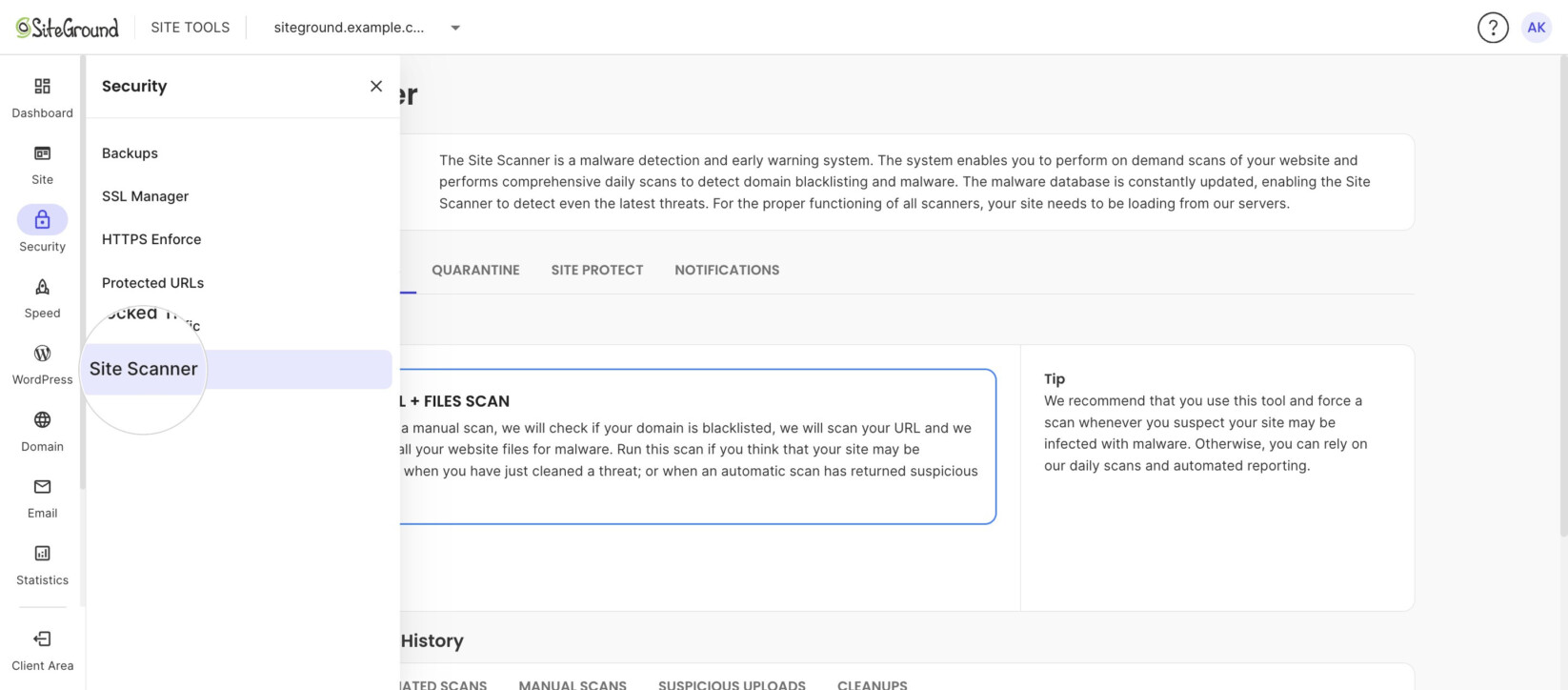
Scans
After accessing the Site Scanner, you will see an option to perform on-demand scans and a history of all scans made to your site from the last 30 days.
If you’re concerned that your website might be infected or you want to check if a malware removal was conducted correctly, you can run an on-demand scan. The Site Scanner allows you to perform up to 10 on-demand scans per day that check the domain blacklists, website URLs, and files.
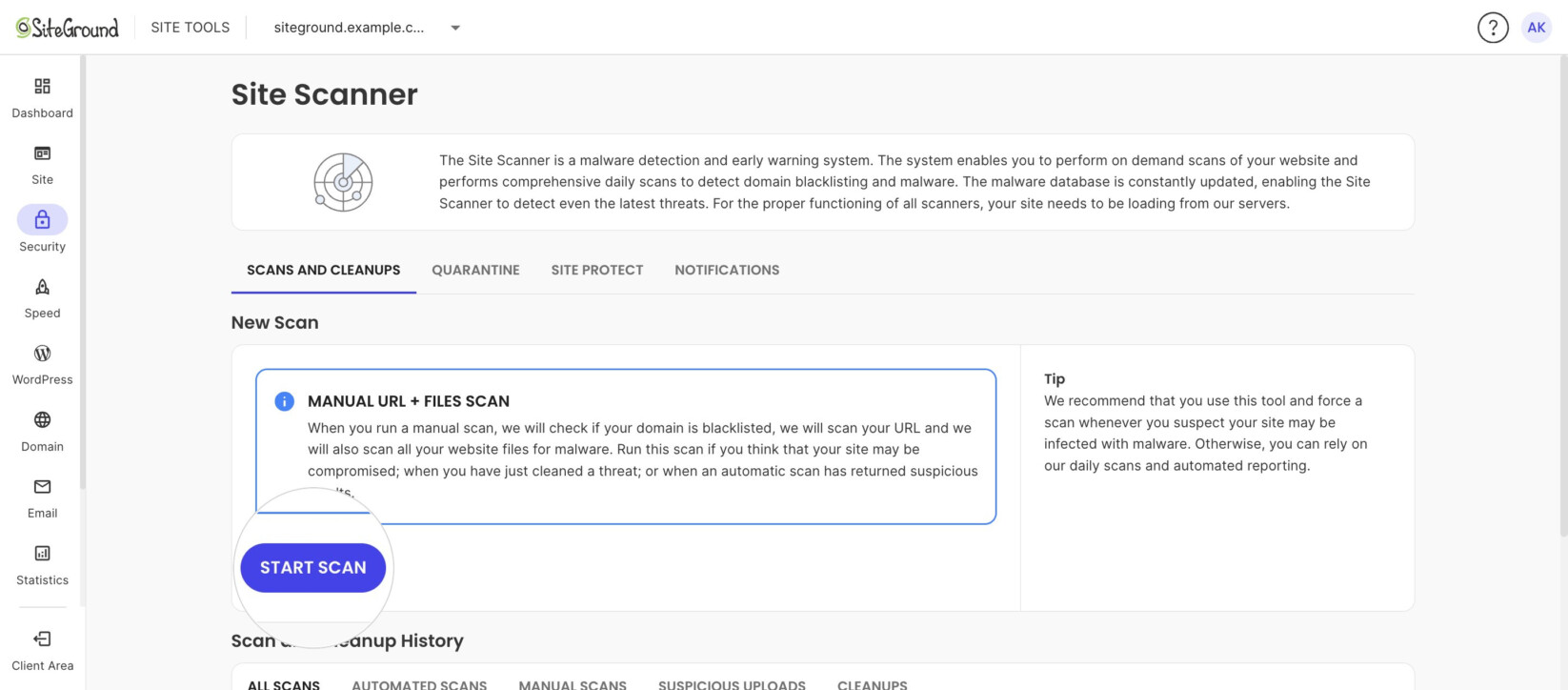
To start a scan:
- Open the Scans and Cleanups tab.
- In the New Scan section, click Start Scan.
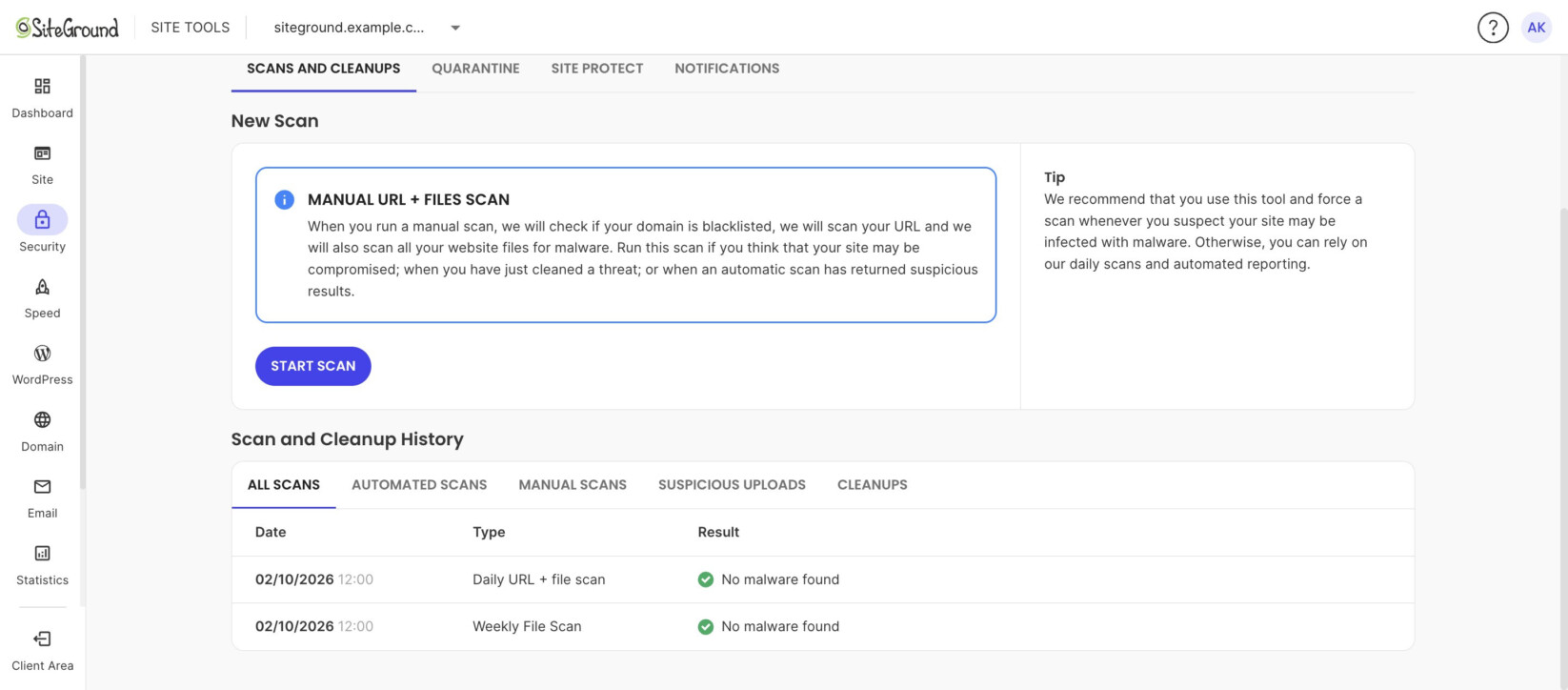
If you want to view your previous scans, scroll down to the Scan and Cleanup History section. Site Scanner keeps a history of all scans from the last 30 days. If malware is detected, the reports will contain detailed information about the infection.
The scans are sorted into five tabs based on different criteria. The first tab All Scans lists the entire scan history, and the following tabs display certain scan types.
Cleanups
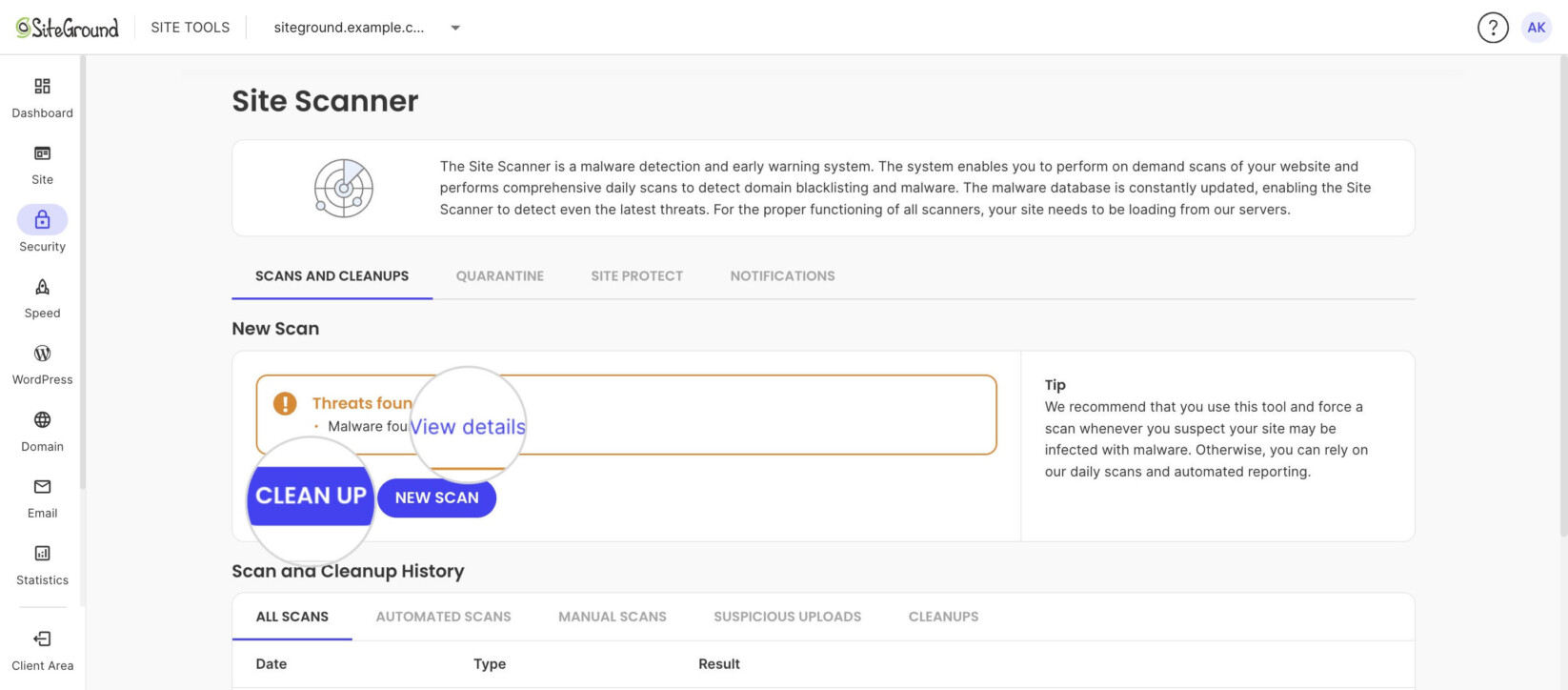
If malware is detected in your last manual scan or one of the automatic ones, you can view detailed information about the infection and access the cleanup options immediately through Site Tools > Security > Site Scanner.
To review and clean up an infection:
- Find the threat notification under the New Scan section.
- Click View details. A pop-up window shows the affected files, URLs, or domains.
- To remove the malicious code, click Clean Up.
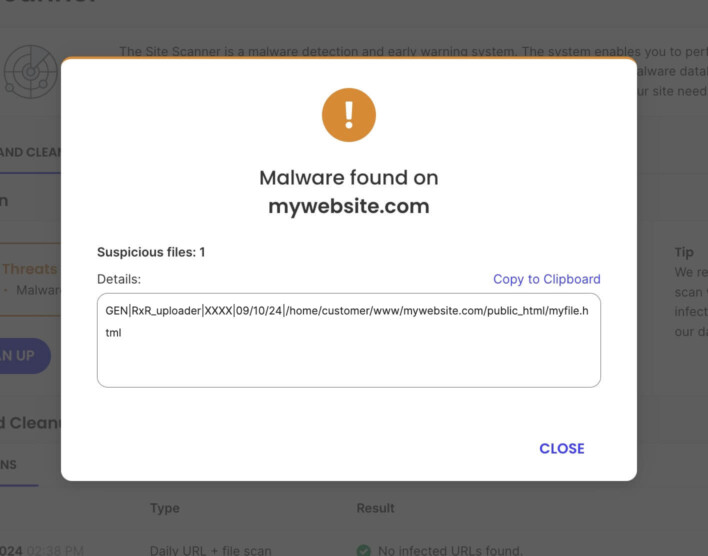
What happens next depends on your plan:
- If you are subscribed to Site Scanner Premium, an automated cleanup will be started.
- If you are using Site Scanner Basic, you will be provided with a link to our professional paid manual cleanup options.
You will be able to see the history of all automated cleanups with information about their results in the Cleanups tab.
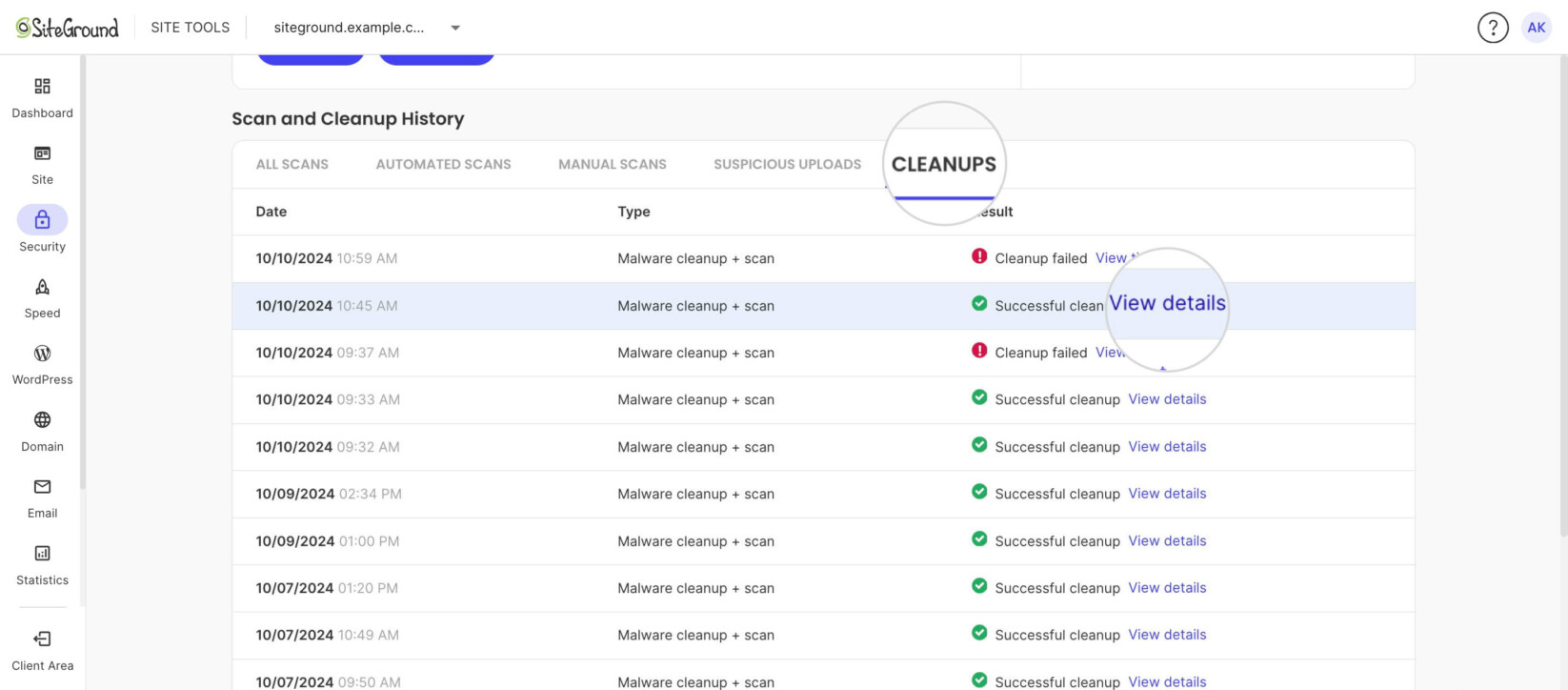
File upload quarantine
The Site Scanner Premium plan adds another layer of protection by scanning newly uploaded files on your website. If a new file is infected, it is isolated to prevent it from harming your website.
You can manage the quarantine options from Site Tools > Security > Site Scanner > Quarantine.
The Quarantine protection is optional and disabled by default. To turn it on:
- Switch on the Quarantine settings slider.
- A pop-up explains that files detected as malicious when they are uploaded are moved outside your document root folder. If a new infected version of an existing vital file is uploaded, quarantining it may cause site access issues. Click Confirm.
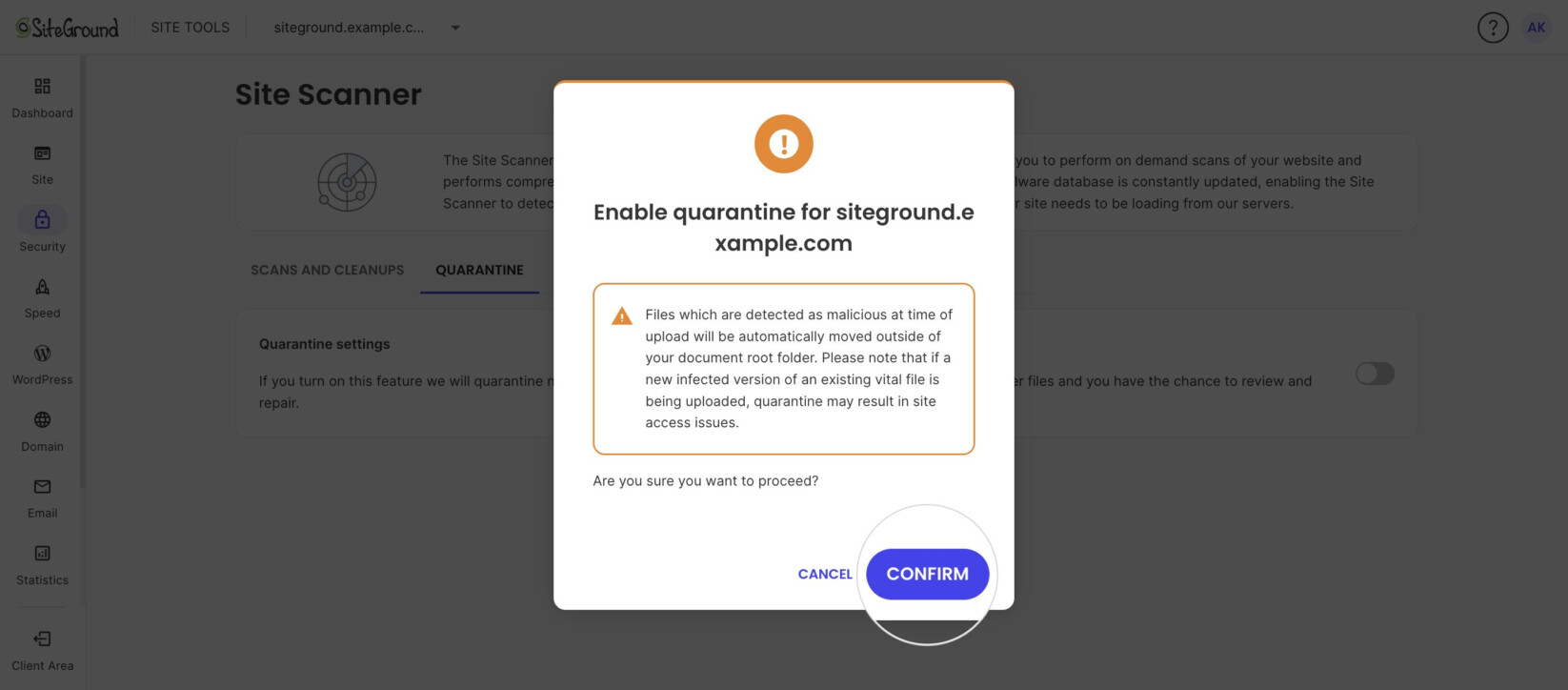
Once quarantine is on, the Manage Quarantined Files section appears below the setting. To turn quarantine off, switch the slider off. No confirmation is needed.
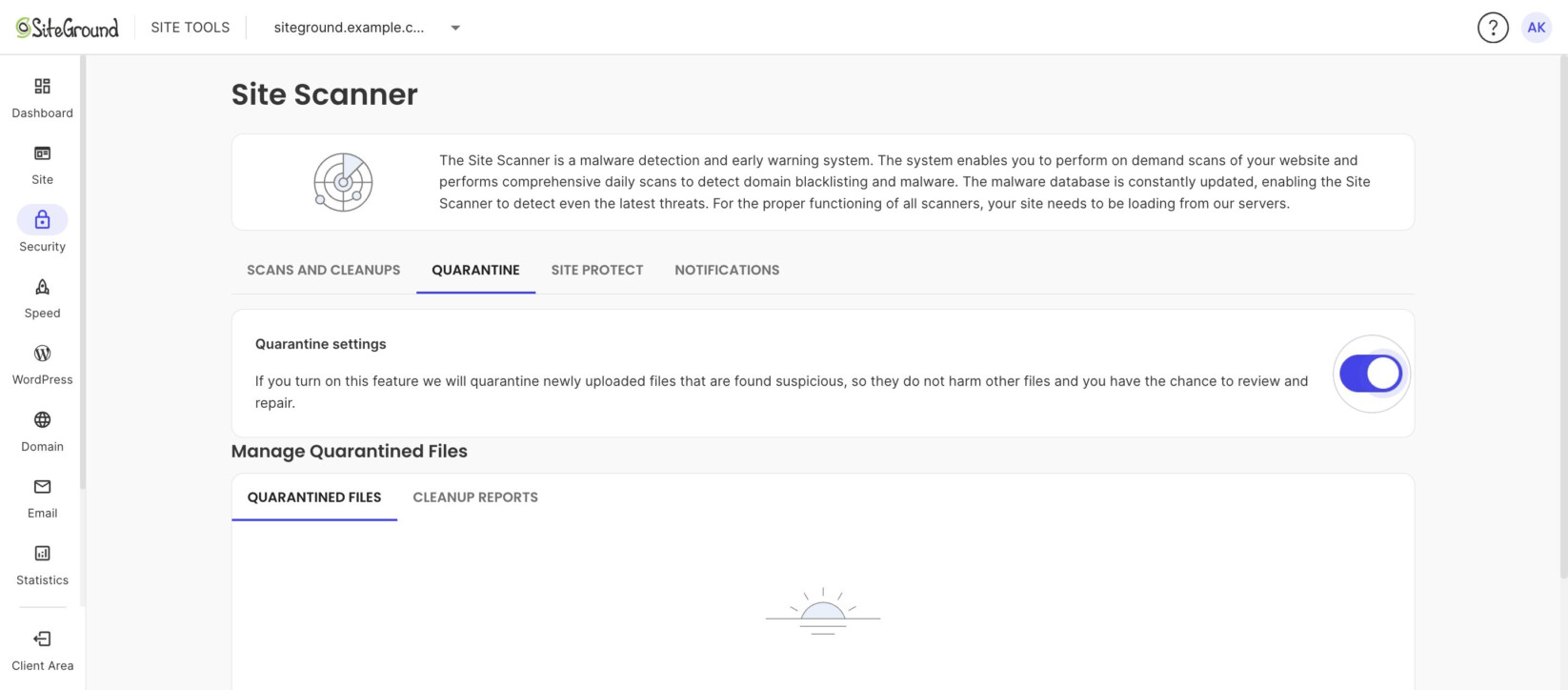
If it is disabled, all new files will be directly uploaded. Keep in mind that if they are infected, they will still be detected by future scans.
If Quarantine is enabled, an infected file will not be uploaded into the website folder but placed in a folder isolated from your website. The file will be listed under the Quarantined Files tab in the Manage Quarantined Files section.
For each quarantined file, you can perform several actions, which you can select from its Actions menu:
- Clean – If you choose to clean the file, our automatic cleanup process will delete the content it considers malicious and move its cleaned version to the public folder.
- Restore – If you choose to restore the file, it will be moved to your public folder without any changes.
- Delete – If you choose to delete, the file will be permanently deleted.
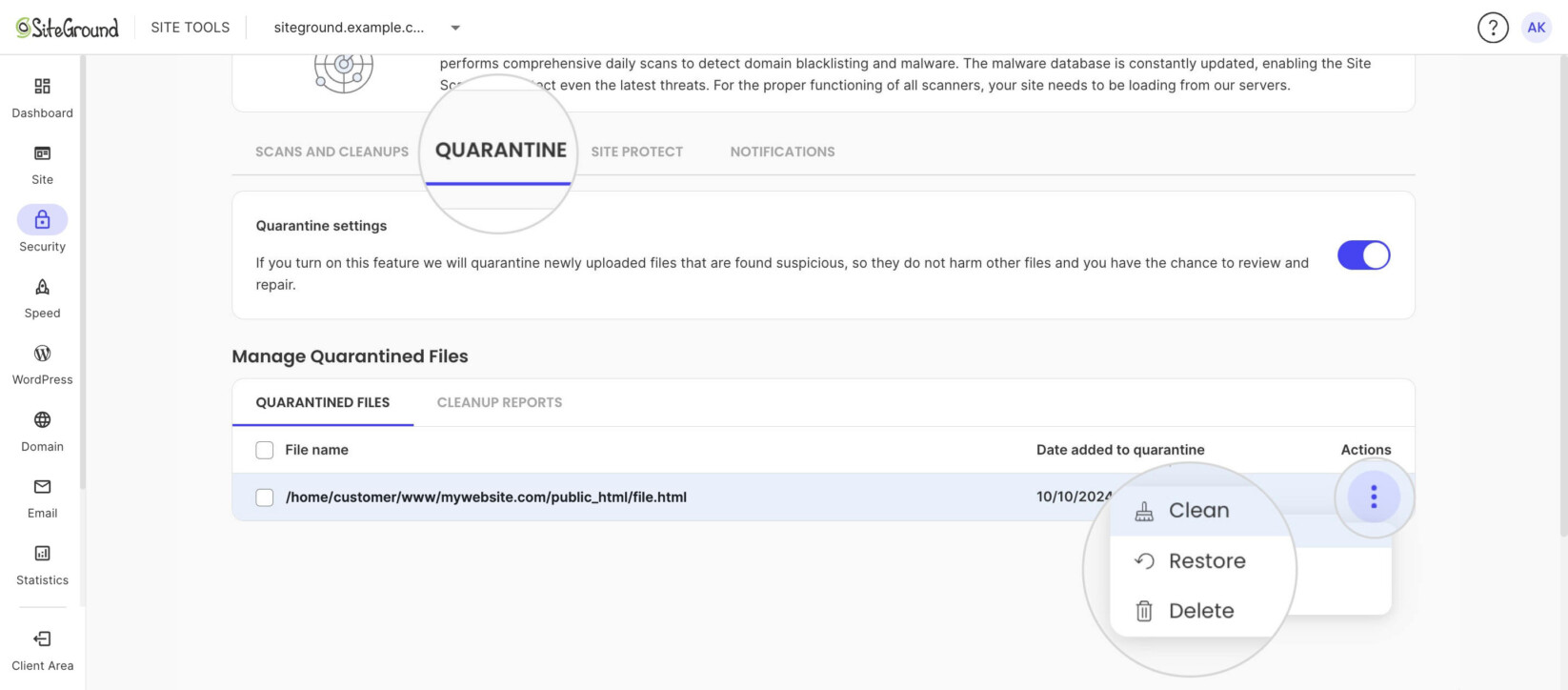
To act on a quarantined file:
- In the Quarantined Files tab, open the Actions menu next to the file.
- Select Clean, Restore or Delete.
- In the pop-up window, click Confirm.
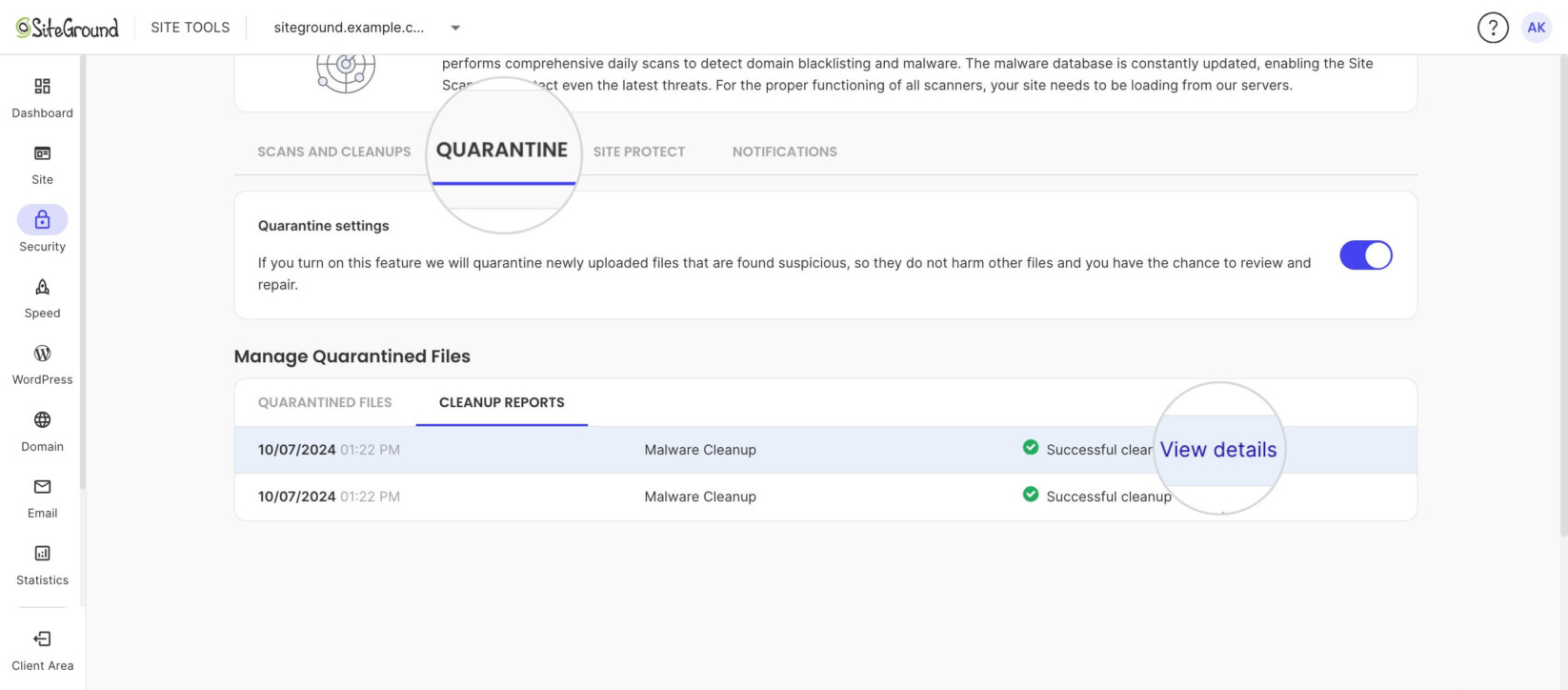
You can see the history of quarantined file cleanups with information about the results in the Cleanup Reports tab of the Quarantine section.
Site Protect
Site Scanner also allows you to limit connection to your website from different access points. It is an extremely useful feature, allowing you to fortify your website security whenever you think your website has been compromised or you want to prevent any unauthorized upload or script execution.
The options are controlled in Site Tools > Security > Site Scanner > Site Protect. You will see the different types of access, which you can disable by switching the slider next to each one.
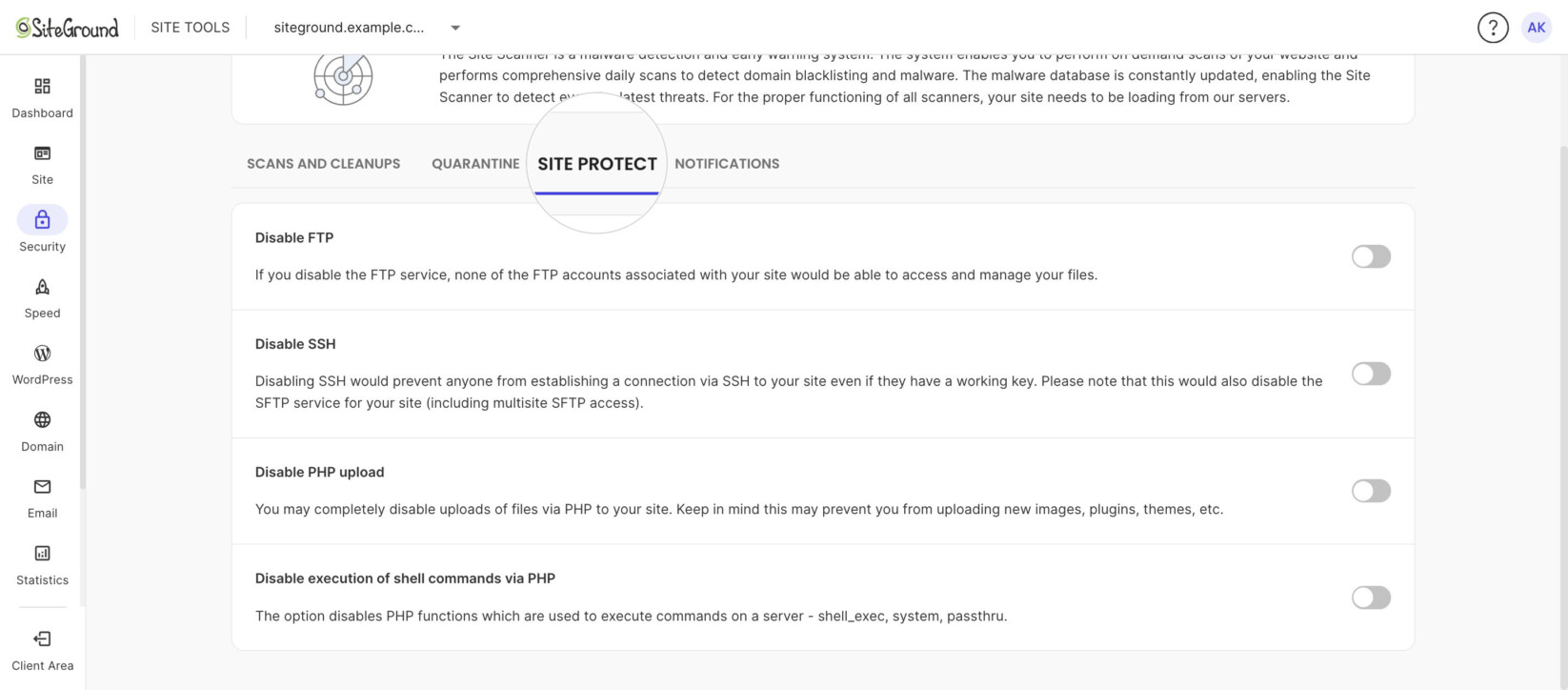
- Disable FTP – Closes all FTP connections towards your site. It prevents any scripts or unauthorized users that obtained FTP access from uploading new files or modifying existing ones. Keep in mind that by disabling FTP, scripts and plugins using an FTP connection will not work, and you won’t be able to connect to your site from your FTP accounts.
- Disable SSH – By turning SSH off, all SSH connections to your website will be rejected even if users have the correct credentials. This prevents scripts or users from executing commands and modifying your website’s files via SSH connection. This also disables SFTP for your site.
- Disable PHP upload – Many malicious scripts infect your website by uploading files via PHP uploads. This feature restricts all uploads via PHP scripts. Many CMS applications (WordPress, Joomla, Drupal) use PHP uploads, and by disabling this feature, you won’t be able to upload media files, themes, or plugins from the application’s dashboard.
- Disable execution of shell commands via PHP – Disables PHP functions that execute commands on the server, which can be used to run malicious code. Such commands are shell_exec, system, passthru, etc.
Email Notifications
If the Site Scanner detects malware on your website, it instantly sends an email notification to your administrative email so you can take timely action. You also receive a weekly summary of your website status regardless of whether the website is infected or clean.
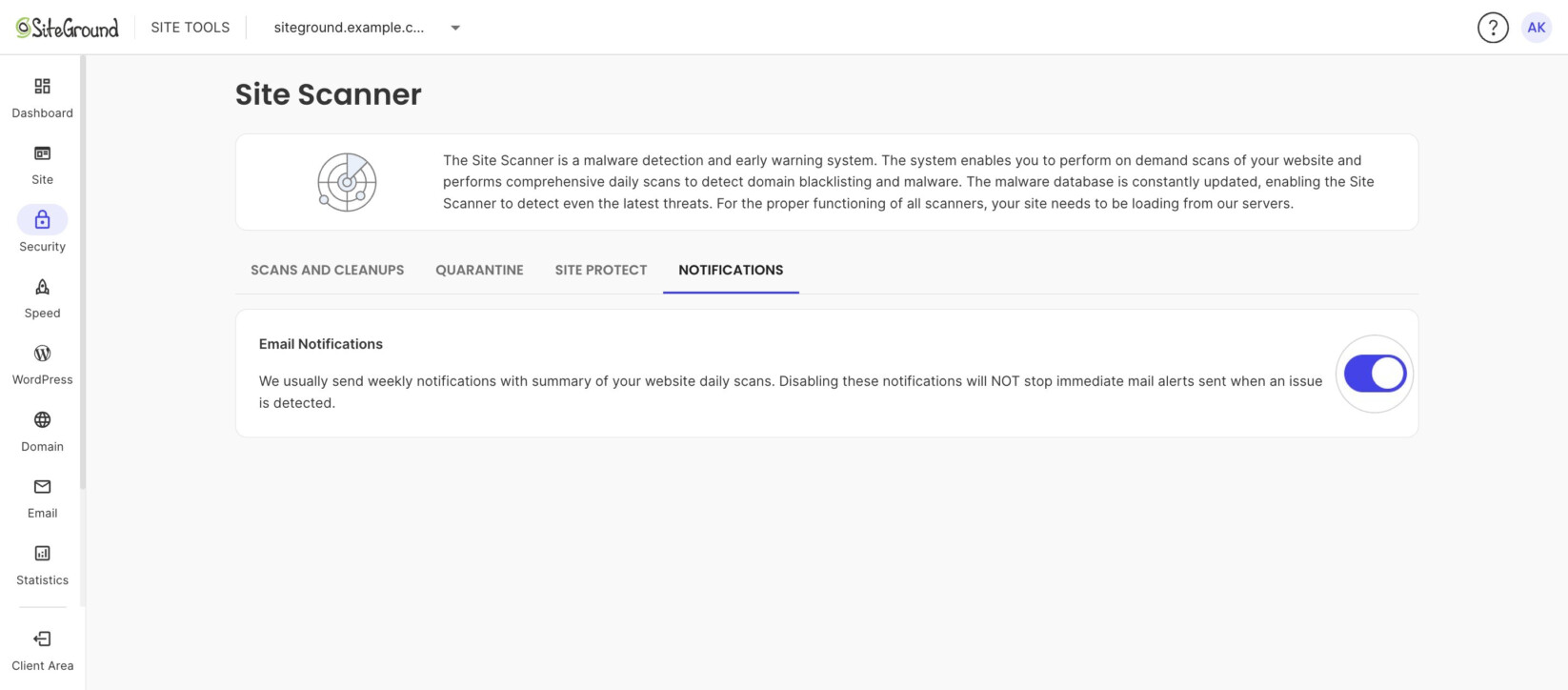
You can choose to disable the weekly reports and only receive warnings if the website is infected. It can be done from Site Tools > Security > Site Scanner > Notifications.
To turn off the weekly reports, switch off the Email Notifications slider. To keep receiving them, leave the slider enabled.
How to maintain your website? – Video Tutorial
Summary
Maintaining strong security is crucial for your website’s performance and reputation. There are a plethora of malware threats that can cause serious harm to your website and reduce your incoming traffic. The SiteGround Site Scanner helps you fortify your website’s security and identify these threats as soon as they arise.
Frequently asked questions
What is the difference between Site Scanner Basic and Site Scanner Premium?
Site Scanner Premium is an upgraded version of Site Scanner Basic. It includes all features found in the Basic plan and adds several exclusive functions that further bolster your website’s security. These functions are:
- Daily automatic scans of website files along with the URLs scan and domain blacklist check
- Automatic scans for all newly uploaded files
- Quarantine for malicious uploaded files
- 1-click malware cleanup option
How can I purchase the Site Scanner?
To purchase Site Scanner:
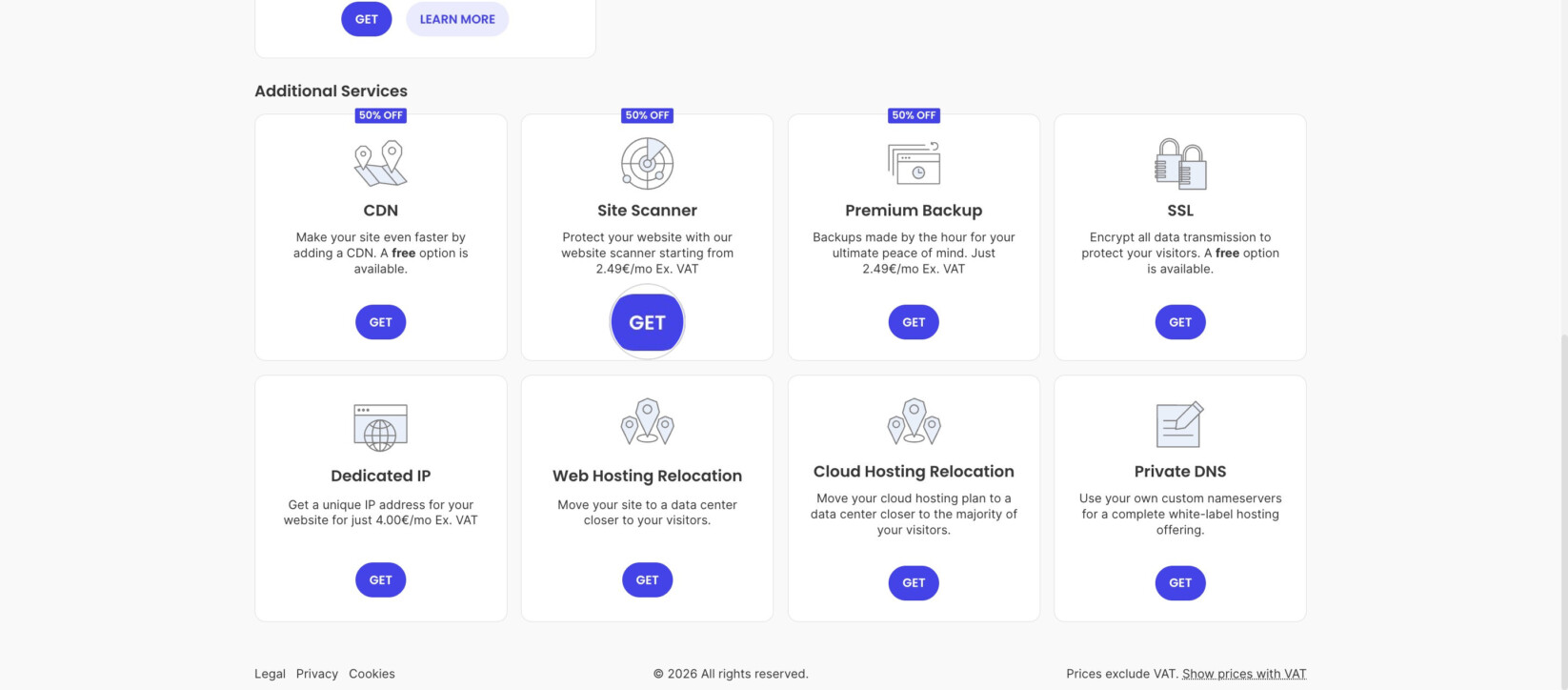
- Go to your Client Area > Marketplace > Hosting.
- In the Additional Services section, click GET for Site Scanner.
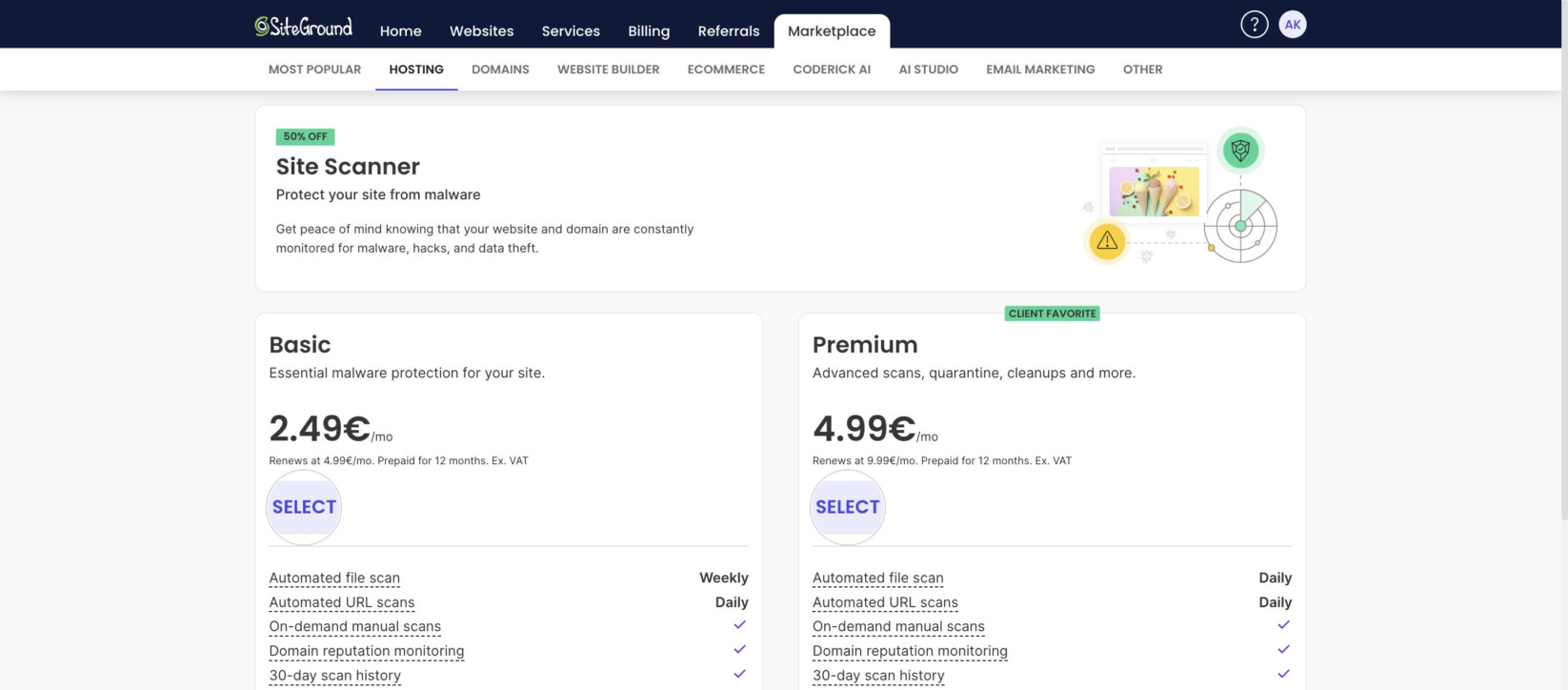
- Click SELECT under the Basic or Premium plan.
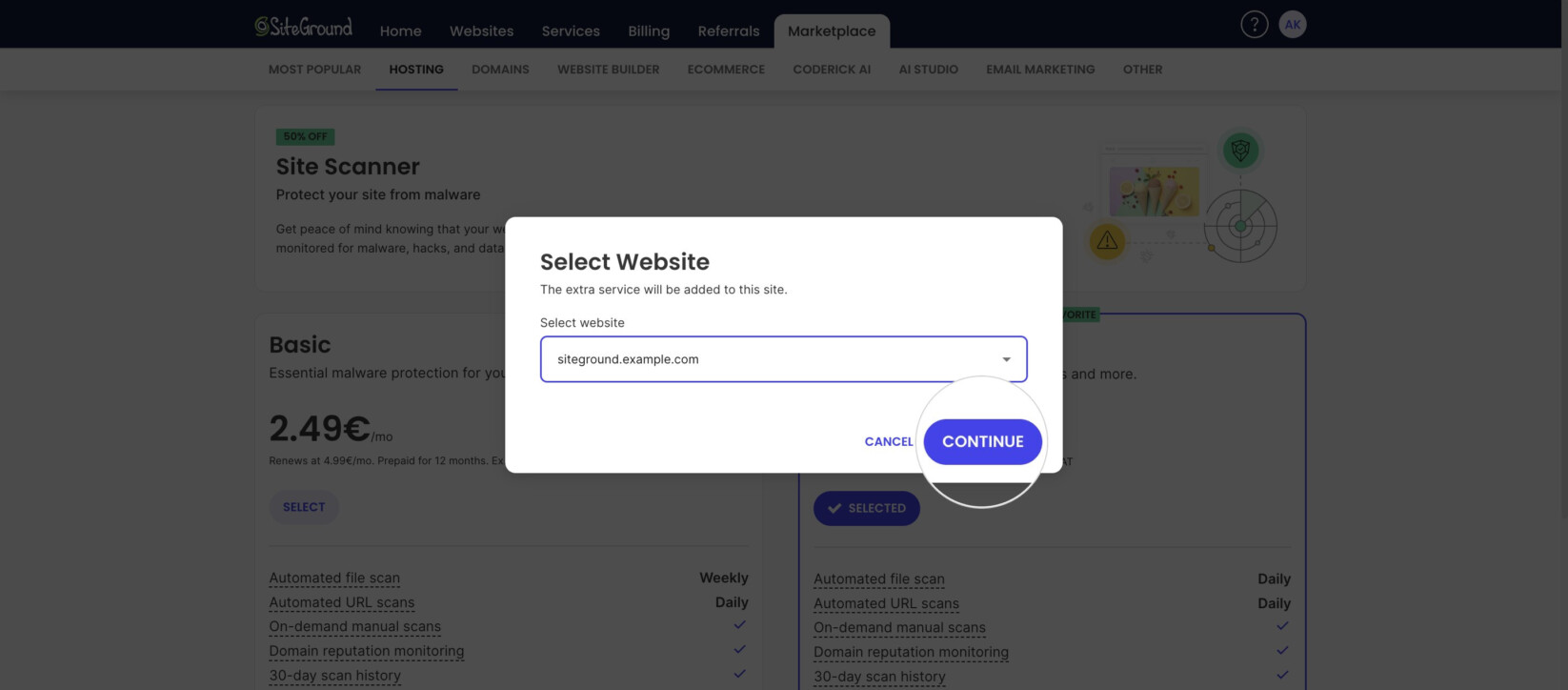
- If you host multiple websites, a pop-up window asks which website to add Site Scanner to. Select the website from the drop-down menu and click Continue.
- Complete the order. Site Scanner activates automatically.
Can I purchase a separate Site Scanner for my subdomain?
It is not possible to purchase the Site Scanner extra service for a subdomain. It can be ordered and activated for websites of primary domains only.
Does Site Scanner renew automatically?
For the convenience of our customers, Site Scanner is set to automatically renew. That way, you don’t have to worry about a possible suspension of this service due to a missed renewal.
To manage the Site Scanner auto-renewal settings:
- Go to your Client Area > Websites.
- Click the kebab menu (⋮) next to the website and select Website Settings.
- Open the Extras tab.
- Under Added Extras, click the kebab menu next to Site Scanner and select Renewal Settings.