How to configure permissions and Power Mode for the AI Agent for WordPress
-
- What you’ll learn
- Before you start: prerequisites and when this does not apply
- Step 1: Choose the right WordPress role for the agent
- Step 2: Understand which actions need Power Mode
- Step 3: Enable Power Mode when you need it
- Step 4: Run your high-impact task safely
- Step 5: Disable Power Mode when the session ends
- Common mistakes and how to avoid them
- Next steps
- Frequently asked questions
Set up the AI Agent for WordPress under the right WordPress role and use Power Mode only when you need it, so the agent can do its job without ever exceeding your intended scope.
This tutorial walks you through the safety configuration for the AI Agent for WordPress in SiteGround AI Studio. You will pick the right WordPress user role, identify which actions need Power Mode, enable Power Mode safely, run a high-impact task, and disable Power Mode when done. By the end, the agent will operate within the smallest blast radius your work allows.
What you’ll learn
- How to pick the lowest-privilege WordPress role that still covers your work
- Which 6 categories of actions require Power Mode and which run in standard mode
- How to enable Power Mode in 2 ways: from the plugin and from a chat session
- How to back up before high-impact actions and how to use staging for risky operations
- How to disable Power Mode at the end of a session so the safety gate stays in place
Before you start: prerequisites and when this does not apply
Make sure each of these is true before you begin. If any are not, fix that first.
- You are a SiteGround customer with AI Studio access.
- You have administrator access to the WordPress site. You need it to install the AI Agent by SiteGround plugin and connect the site to SiteGround AI Studio.
- The AI Agent for WordPress is already connected to your site. This tutorial assumes the connection is complete. If not, follow the dedicated connection tutorial first.
- You have a recent backup or can take one.
This tutorial will not help if:
- You need server, database, or hosting-level changes. The agent does not touch SSH, file system, raw SQL, DNS, SSL, PHP version, or anything in Site Tools.
- You manage non-WordPress applications. Other apps on your hosting account are out of scope.
- You need exact, reproducible scripted behavior. Natural language prompts are not deterministic the way a documented WP-CLI command is. For pipelines that must run identically every time, use a script.
Step 1: Choose the right WordPress role for the agent
The agent inherits the WordPress capabilities of the user account that uses it. Using it from an Administrator account when an Editor would do means the agent can perform plugin and user management even if you never intended to allow it. Map your planned tasks to the minimum role using the table below.
| Use the agent under this role | If your tasks are limited to | You will not be able to use the agent for |
| Administrator | Plugins, themes, users, settings, WordPress core updates, full WooCommerce admin. | Nothing inside WordPress (still capped by Power Mode for high-impact actions). |
| Editor | Posts, pages, categories, tags, comments, Media Library across all authors. | Plugin, theme, user, or settings management; WooCommerce admin beyond Editor capabilities. |
| Author | Drafting and publishing your own posts, uploading media. | Editing other users’ content, managing categories, plugins, or settings. |
| Contributor | Drafting your own posts for review only. | Publishing, uploading media, taxonomy management, anything administrative. |
| Subscriber | Nothing useful. | Almost everything. |
Write down the 3 most common things you actually want the agent to do this month. If all 3 fall inside an Editor’s capability set, use the agent as an Editor. If even one task requires plugin, theme, user, or core management, use an Administrator account. Don’t use a higher role “just in case.”
Step 2: Understand which actions need Power Mode
Before you enable Power Mode, learn exactly when the agent will demand it. Power Mode gates 6 categories of high-impact actions. Everything else runs in standard mode and never prompts you.
| Category | What it covers | Example prompt that will pause for Power Mode |
| Deletions | Removing plugins, themes, users, products, posts, pages, categories, tags, or media files. | “Delete the Hello Dolly plugin from this site.” |
| User management | Creating new users and updating existing user details, including roles. | “Add a new Editor user with email writer@example.com.” |
| Site settings | Changing global WordPress settings such as Site Title, Site URL, Tagline, or Timezone. | “Change the site title to ‘Acme Studio’.” |
| Bulk operations | Mass changes across many records: editing all post titles, mass-deleting drafts, bulk price updates. | “Delete every draft post older than 90 days.” |
| WooCommerce management | Creating or updating orders, cancelling pending orders, deleting transactions, managing products or coupons. | “Cancel all pending orders from the last 24 hours.” |
| Core updates | Updating WordPress core files or language packs. | “Update WordPress to the latest version.” |
If your task is not in this table, leave Power Mode off. Drafting posts, generating featured images, scheduling publication, moderating comments, and adding a single product to a store all run in standard mode.
Step 3: Enable Power Mode when you need it
You can turn Power Mode on in two places.
Method A: From the AI Agent by SiteGround plugin in WordPress Admin
Use this method when you know in advance the session will involve high-impact actions, for example planned maintenance.
- Log into your WordPress Admin dashboard.
- In the left-hand menu, click AI Agent.
- Locate the Power Mode toggle on the plugin page.
- Click the toggle to switch Power Mode on.
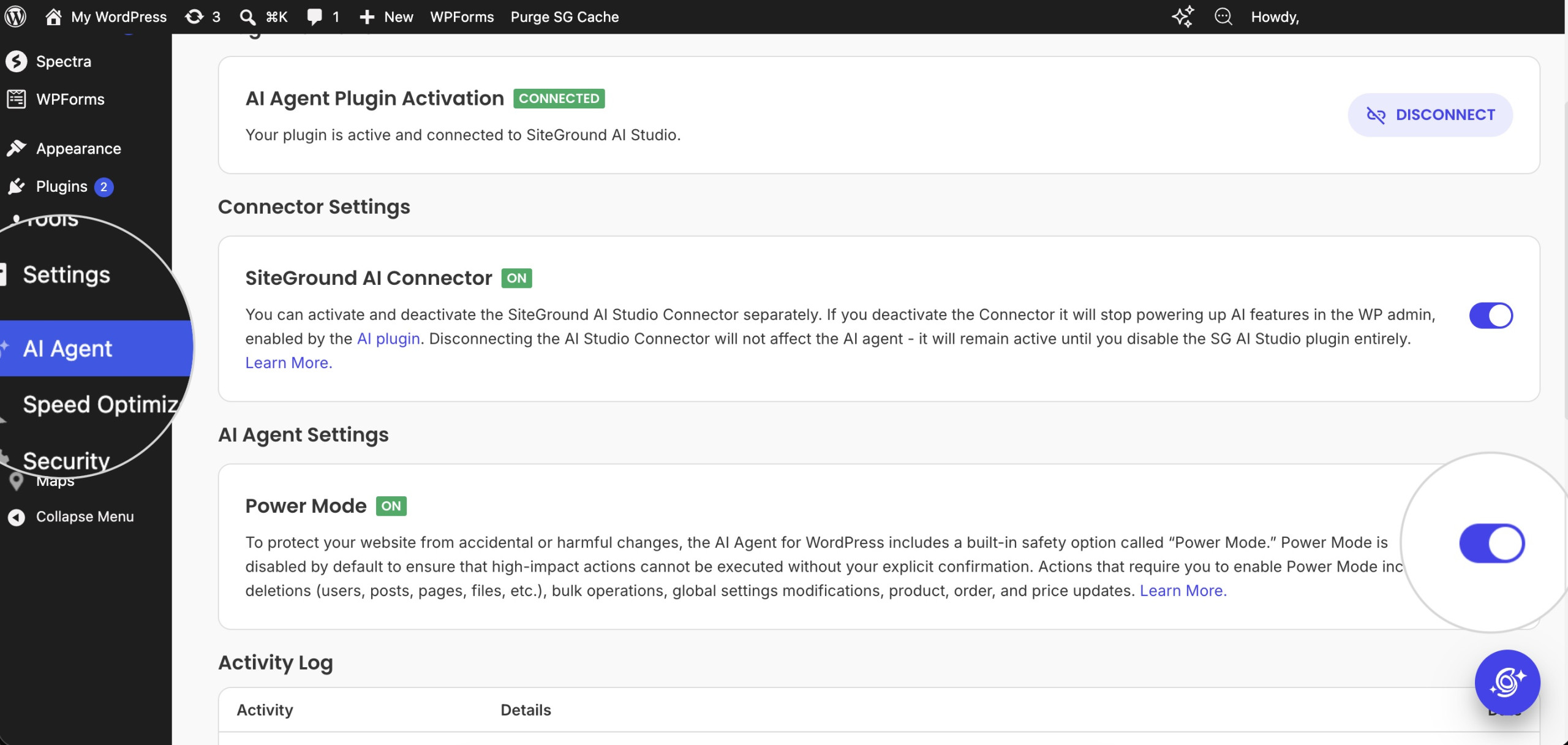
The toggle is per-site. If you manage multiple WordPress installations through AI Studio, enabling Power Mode on one site does not enable it on the others.
Method B: From the chat when the agent prompts you
Use this method when you are mid-conversation and discover that a request needs Power Mode.
- Issue the request in the chat as usual, for example “Delete the Yoast plugin from this site.”
- The agent detects the high-impact action, pauses execution, and shows a message explaining that Power Mode is required.
- Click the Enable Power Mode button inside that message.
- The agent proceeds with the original request automatically.
Step 4: Run your high-impact task safely
Power Mode and role limits are guardrails, not a substitute for backups and staging. Run these two practices around any session that will use Power Mode.
Back up first using Site Tools
- Log into your SiteGround Client Area and open Site Tools for the affected site.
- Go to Security > Backups.
- Click Create New Backup, give it a descriptive name (for example, “before AI agent plugin cleanup”), and confirm.
- Wait for the backup to complete before issuing the high-impact prompt to the agent.
Use a staging environment for risky operations
For anything that touches plugin compatibility, theme structure, WordPress core, or large-scale data changes, test on a staging copy first.
- In Site Tools, go to WordPress > Staging and create a staging copy of your production site.
- Connect the agent to the staging site through AI Studio Connectors.
- Run your high-impact prompt against the staging site.
- Verify the outcome matches your intent.
- Repeat the prompt against production only after staging passes.
After the agent runs the task, ask it to summarize what it just did, then cross-check against WordPress Admin. If you deleted a plugin, the plugin should be gone from Plugins > Installed Plugins. If you bulk-edited posts, spot-check 3 to 5 of them in the editor to confirm the change applied as expected.
Step 5: Disable Power Mode when the session ends
Make this the last action of every maintenance session.
- Open WordPress Admin on the affected site.
- Click AI Agent in the left menu.
- Click the Power Mode toggle to switch it off.
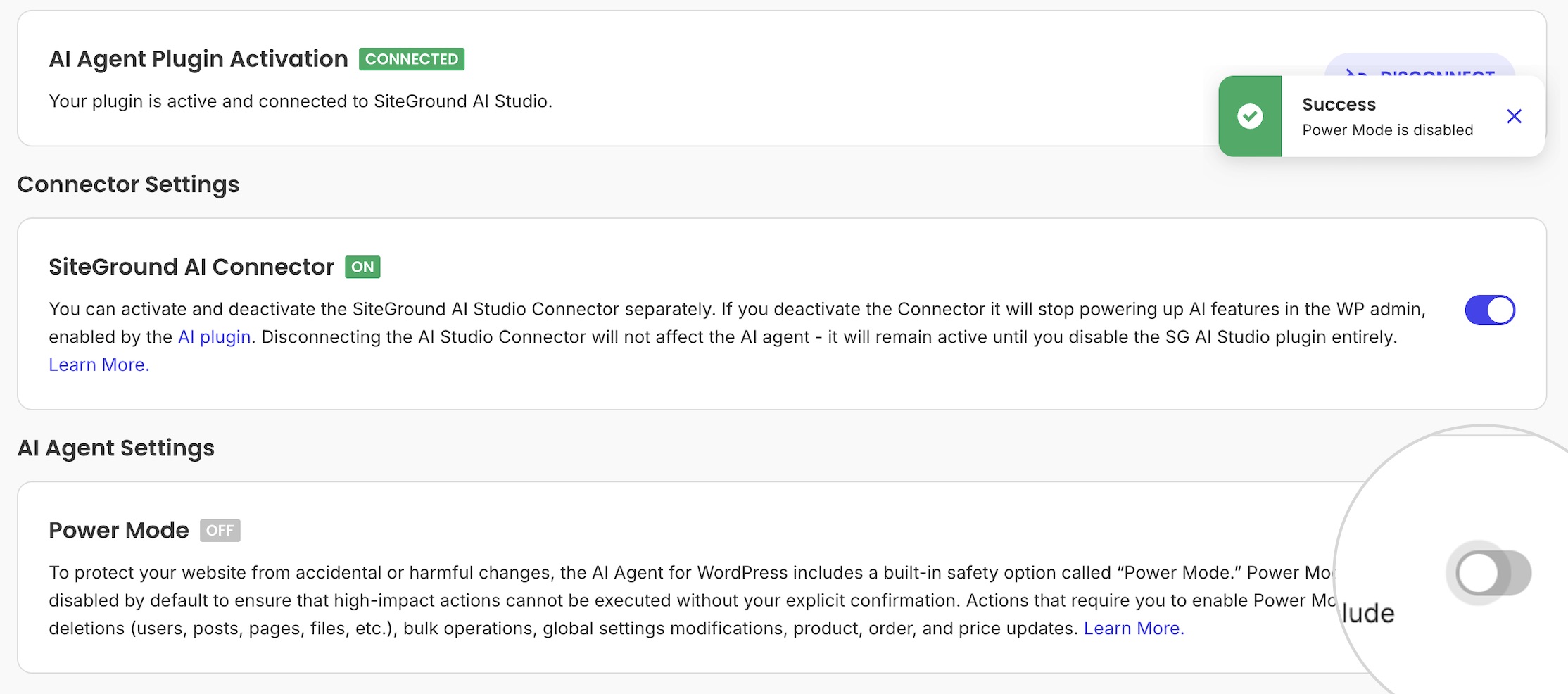
The agent now refuses any of the 6 high-impact action categories until you explicitly re-enable Power Mode. Future prompts have to pass through the safety gate again.
Common mistakes and how to avoid them
Mistake 1: Using an Administrator account when Editor would do
What goes wrong: the agent has plugin and user management capabilities it never needs, so a misinterpreted prompt has more ways to cause damage. Fix: use the agent from an Editor account if your tasks are content-only.
Mistake 2: Leaving Power Mode on after the session
What goes wrong: a routine prompt 3 days later, sent without thinking about Power Mode, executes a high-impact action immediately because the gate is still open. Fix: make Step 5 (disable Power Mode) part of the wrap-up checklist for every maintenance session, the same way you would log out of an admin panel.
Mistake 3: Skipping the manual backup
What goes wrong: the agent does what you asked, but the result is not what you expected, and there is no fast recovery path. SiteGround’s automated daily backup may be hours stale. Fix: take an on-demand backup in Site Tools right before any high-impact session. It costs you 1 to 2 minutes and saves you a recovery incident.
Mistake 4: Running risky operations directly on production
What goes wrong: a bulk price update misformats currency on a live store, or a core update reveals a plugin incompatibility while customers are shopping. Fix: use Site Tools > WordPress > Staging to test the prompt on a clone first. The agent supports staging sites the same way it supports production.
Next steps
Once your agent is configured safely, expand its usefulness gradually:
- Add more sites. Connect additional WordPress installs through AI Studio Connectors and operate on them in bulk from the AI Studio interface.
- Document your standard prompts. Reuse the prompts that worked through the Prompt Library in AI Studio so your team runs the same configured task identically.
- Review role assignments quarterly. If the agent’s job has narrowed or expanded, revisit Step 1 and use the right role for the work.
Frequently asked questions
Is it safe to use AI on my WordPress site?
It is safe when the AI tool respects your existing WordPress permission system and gates high-impact actions behind explicit confirmation. The AI Agent for WordPress does both. It acts only with the capabilities of the WordPress user it is used as, and Power Mode is disabled by default, so deletions, bulk operations, user changes, settings changes, WooCommerce management, and core updates require your opt-in. Pair this with a manual backup before high-impact sessions and a staging copy for risky work.
What can the SiteGround AI Agent change on my WordPress site?
The SiteGround AI Agent for WordPress can manage posts, pages, media, comments, categories, tags, plugins, themes, users, WordPress settings, and WooCommerce data such as products, orders, and coupons. It cannot edit server files, run database queries, or change anything in your hosting panel or Site Tools. The agent’s effective scope is also constrained by the WordPress role it is used as.
Does the AI Agent for WordPress need administrator access?
Yes, administrator access is required to install the AI Agent by SiteGround plugin and connect the site to SiteGround AI Studio. After the site is connected, the agent can only perform actions allowed by the WordPress role of the user who is using it. For content-only work, an Editor role is usually enough. For plugin, theme, user, settings, or core management, use an Administrator account.
Can the AI Agent access my hosting panel or server files?
No. The AI Agent for WordPress operates entirely inside the WordPress application layer through the WordPress REST API. It has no access to your Site Tools control panel, your SiteGround Client Area, your server file system, your databases, your DNS, your email accounts, or your billing. The boundary is intentional.
Will Power Mode stay on after the agent finishes a task?
Yes. Power Mode does not auto-disable when a task completes. Once you turn it on, it stays on until you switch it off manually from the AI Agent by SiteGround plugin settings page. Disable Power Mode at the end of every maintenance session so unrelated future prompts have to pass through the safety gate again.