How to Enable or Disable SiteGround AI Studio as a WordPress AI Provider
-
- What you’ll need (prerequisites)
- Quick overview
- How SiteGround AI appears as a provider
- Confirm SiteGround AI is connected
- What’s available when SiteGround AI is your provider
- How to disable SiteGround AI as a WordPress AI provider
- Troubleshooting and common pitfalls
- Frequently asked questions
- How do I disable SiteGround AI as my WordPress AI provider?
- Can I keep the AI Agent for WordPress active but use a different AI provider for other features?
- Will deactivating the AI Agent by SiteGround plugin remove the AI Agent for WordPress?
- Do I need a SiteGround hosting plan to use SiteGround AI as a WordPress AI provider?
- Why is SiteGround AI not showing in Settings > Connectors?
In WordPress 7.0, the AI Agent by SiteGround plugin automatically adds SiteGround AI as a provider in Settings > Connectors. To disable it without losing the AI Agent for WordPress, use the Connector toggle in plugin settings.
WordPress 7.0 introduces a built-in AI Provider system that lets compatible plugins and core AI infrastructure share a single AI backend. Once the AI Agent by SiteGround plugin is installed and connected to your AI Studio workspace, SiteGround AI is automatically registered as your WordPress AI provider. No manual setup, no extra API keys.
This tutorial covers where to find WordPress 7.0 AI Provider settings, how to confirm SiteGround AI Studio is your active provider in Settings > Connectors, how to disable it or switch to another AI provider, and how to resolve the most common issues.
What you’ll need (prerequisites)
Confirm the following before you start:
- WordPress 7.0 or later. The AI Provider / Connectors screen ships with 7.0 core. On earlier versions, it doesn’t exist.
- Administrator access to your WordPress site. Connector settings require site-wide configuration permissions.
- An active SiteGround AI Studio workspace.
- The AI Agent by SiteGround plugin installed, activated, and connected to your SiteGround AI Studio workspace. The plugin is what links your site to AI Studio and what registers SiteGround AI as an available WordPress AI provider.
With those in place, you don’t need to do anything else to enable SiteGround AI as a provider. The plugin handles registration.
Quick overview
This page covers:
- How SiteGround AI is set up as a connected AI provider in WordPress 7.0.
- How to verify the SiteGround AI provider connection from Settings > Connectors.
- How to disable SiteGround AI as an AI provider while keeping the AI Agent for WordPress functionality.
- Common issues and how to resolve them.
How SiteGround AI appears as a provider
WordPress 7.0 introduces a Connectors layer for AI providers in core. Settings > Connectors lists WordPress AI providers you can configure on your site. For most providers (OpenAI, Anthropic, Google, and others), you connect them by entering an API key that is usually available only for paid subscriptions. SiteGround AI, as a WordPress AI provider, works differently.
When the AI Agent by SiteGround plugin is active and connected to your SiteGround AI Studio workspace, the plugin registers SiteGround AI in the Connectors list and marks it as connected automatically. You don’t enter an API key, and there’s no separate provider-enable step.
Three concepts are worth clarifying, because they look similar at first glance:
| Concept | Where it lives | What it does |
| AI Agent by SiteGround plugin | WordPress Plugins screen | Bridges your WordPress site to your SiteGround AI Studio workspace. Without it, the other two don’t exist. |
| SiteGround AI as a provider | Settings > Connectors | The provider entry that core and AI-aware plugins can use as their AI backend. SiteGround AI supports all AI capabilities introduced in WordPress 7.0. |
| AI Agent for WordPress | Inside SiteGround AI Studio, connected through the AI Agent by SiteGround plugin | An agent that can read and act on your WordPress site. Bundled with the plugin, available as a chat pop-up in WordPress admin.. |
Because of how these layers work together, stopping SiteGround AI means choosing which layer to act on. You can toggle the SiteGround AI Studio Connector off inside the AI Agent by SiteGround plugin settings to stop powering AI features while keeping the agent, switch core and AI-aware plugins to a different connected provider in Settings > Connectors, or deactivate the plugin entirely to remove the provider and the agent together. More on each option below.
Confirm SiteGround AI is connected
To check that SiteGround AI is registered as a provider on your site:
- Go to Settings > Connectors in your WordPress dashboard.
- Look for SiteGround AI in the list of WordPress AI providers, with a status of Connected.
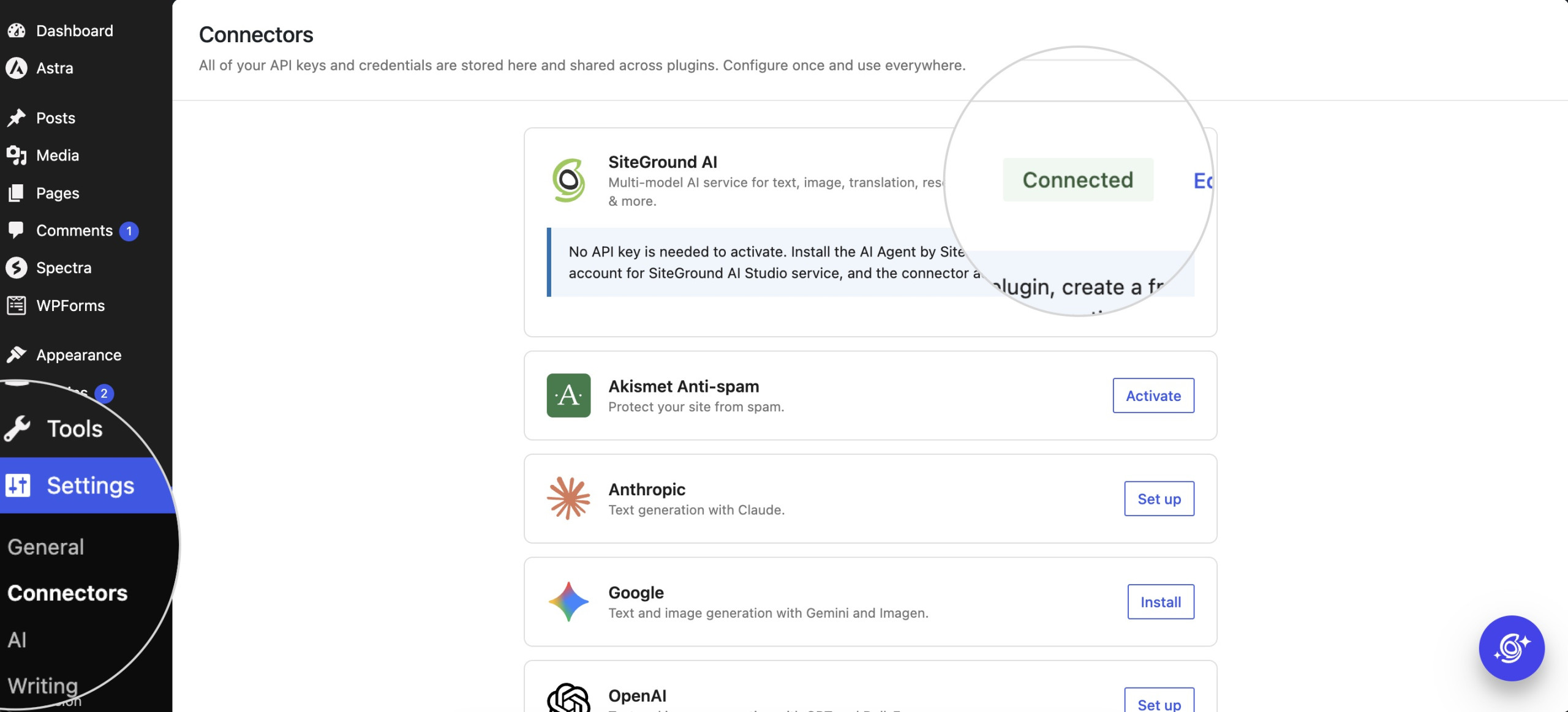
- Open any AI-aware plugin or core AI feature and trigger an AI action. If the provider is wired up correctly, the action completes without prompting you for a separate API key.
What’s available when SiteGround AI is your provider
WordPress 7.0 core doesn’t ship its own user-facing AI features. The Connectors layer is infrastructure: a shared credential and routing system that AI-aware plugins build on. When SiteGround AI is the connected provider, AI-aware plugins use your AI Studio workspace as their backend with no separate API key needed.
What the WP AI Client powers today
The main consumer of the Connectors layer today is the AI plugin from WordPress.org. It adds the following features to the post editor:
- Title generation: AI-suggested headlines from your post content.
- Excerpt generation: short summaries for post excerpts.
- Alt text generation: descriptive alt text for images.
- Content summarization: AI-generated summaries embedded in the post.
- Image generation: featured images and inline images from text prompts.
- Review notes: block-level suggestions for accessibility, readability, grammar, and SEO.
As more plugins adopt the WP AI Client, the list of features that route through SiteGround AI will grow.
What the AI Agent for WordPress does separately
The AI Agent for WordPress is bundled with the AI Agent by SiteGround plugin and operates outside the Connectors layer. It offers broader workflows than the in-editor features above: reading site content, drafting and updating posts, and acting on your site through structured prompts.
How to disable SiteGround AI as a WordPress AI provider
There are three ways to disable SiteGround AI in WordPress 7.0, each acting on a different layer of the plugin.
- Toggle the SiteGround AI Studio Connector off in plugin settings.
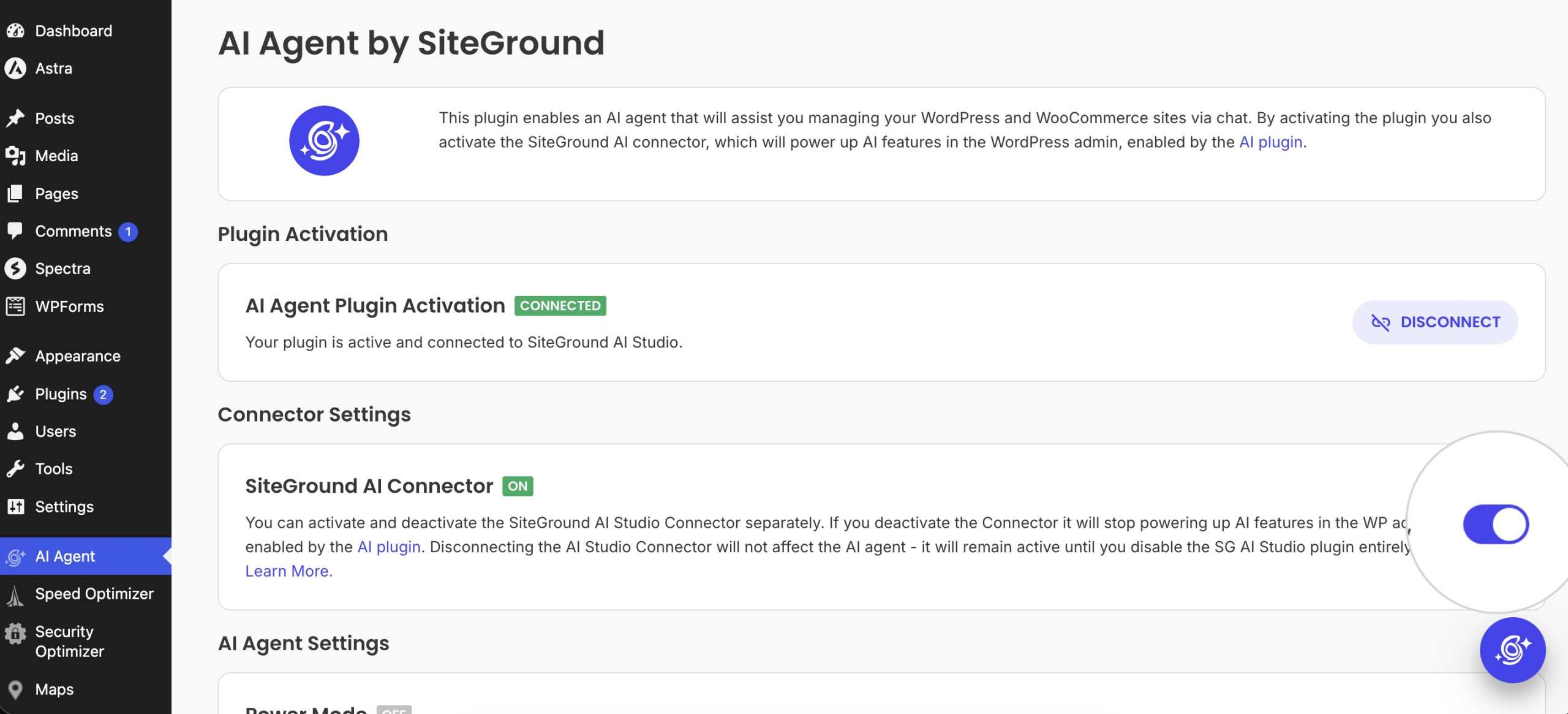
This stops SiteGround AI Studio from powering AI features in WordPress through the Connectors layer. The AI Agent for WordPress keeps working.
- Switch core and AI-aware plugins to a different connected provider.
In Settings > Connectors, connect another provider with its API key. AI features that read from the Connectors layer can then route through the new provider. SiteGround AI Studio stays connected and the AI Agent for WordPress keeps working.
- Deactivate the AI Agent by SiteGround plugin entirely.From the WordPress Plugins screen, deactivate the AI Agent by SiteGround plugin. This removes the provider, the AI Agent for WordPress, and SiteGround AI’s entry in Settings > Connectors in one move. Reactivating the plugin restores all three.
Troubleshooting and common pitfalls
Most issues map to one of the patterns below.
SiteGround AI doesn’t appear in Settings > Connectors
If SiteGround AI isn’t listed at all:
- The AI Agent by SiteGround plugin isn’t installed or active→ Check your Plugins page and install/enable it.
- You’re on a WordPress version earlier than 7.0. → See the version note at the end of this section.
Plugin shows as active, but provider isn’t connected
If the AI Agent by SiteGround plugin is active but the SiteGround AI Studio connector toggle is off, you will see a Set up button instead of a Connected status.
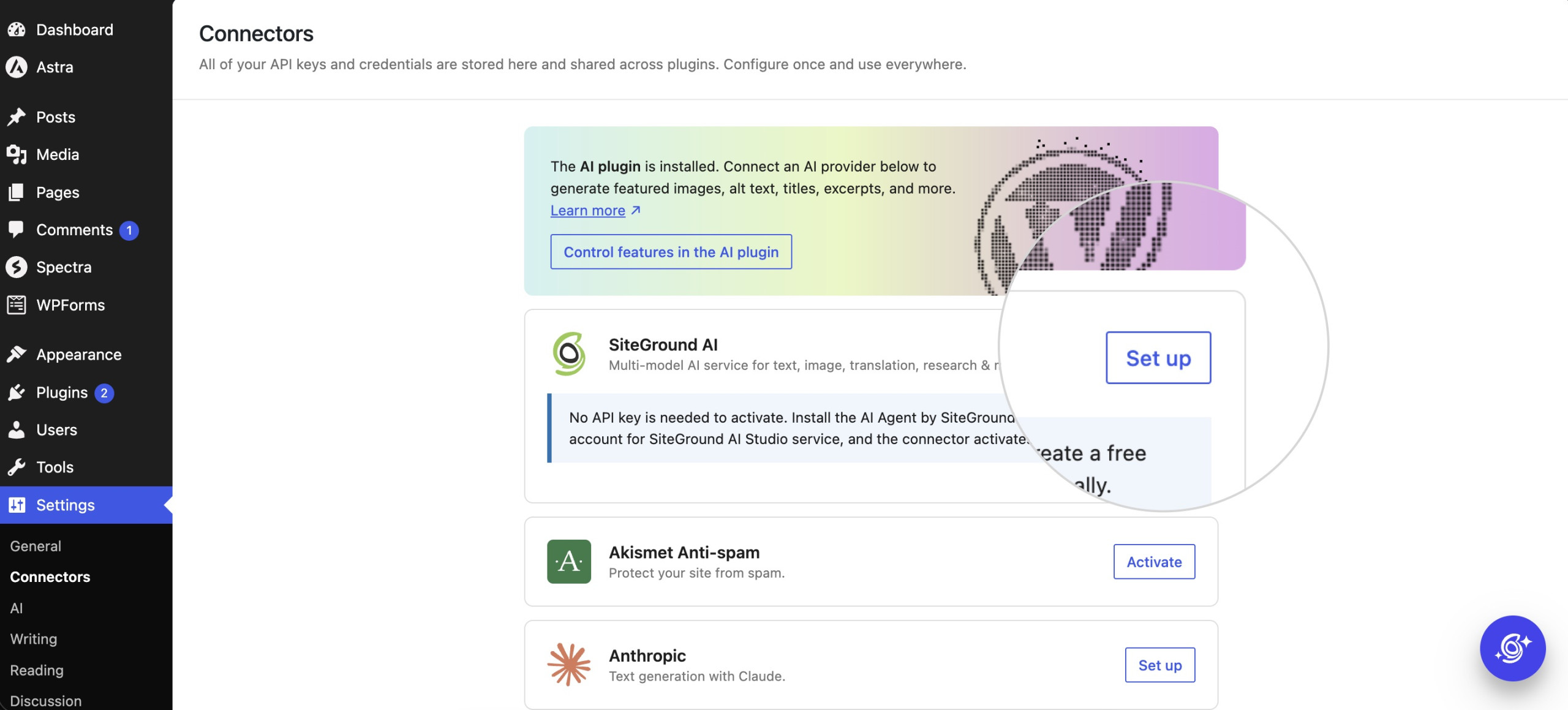
This will take you to the plugin settings page where you can enable the connector.
Provider is connected, but an AI feature still doesn’t work
If Settings > Connectors shows SiteGround AI as connected but a specific plugin can’t reach an AI provider, the most likely cause is that the plugin doesn’t use the WordPress AI Client. Only compatible WordPress AI plugins that read from the Connectors layer route through SiteGround AI Studio automatically. Older AI plugins with separate API key fields keep using those keys regardless of what’s connected.
Things to check:
- The plugin’s documentation, for whether it supports the WordPress AI Client.
- The plugin’s own settings, for a separate AI provider selector that may override the site-wide default.
- Your WordPress error logs for the exact error message.
Deactivating the AI Agent by SiteGround plugin also removed the AI Agent for WordPress
This is the expected behavior, not a bug. The agent runs through the AI Agent by SiteGround plugin, so deactivating the plugin removes the provider and the agent in one move. To get the agent back, reactivate the plugin and re-run its connection to AI Studio. If you wanted to stop the provider from powering AI features without losing the agent, use the SiteGround AI Studio Connector toggle inside the plugin’s settings instead.
WordPress version compatibility
The AI Provider / Connectors screen is part of WordPress 7.0 core. On earlier WordPress versions, the site-wide WordPress AI provider functionalities are not available. However, you can still use AI Studio through the AI Agent by SiteGround plugin directly, including the AI Agent for WordPress. You just won’t see SiteGround AI listed in Settings > Connectors, because the Connectors layer doesn’t exist yet.
With SiteGround AI connected as a WordPress AI provider, compatible plugins and features share a single AI backend without separate API keys, and the AI Agent for WordPress works alongside the same connection.
Frequently asked questions
How do I disable SiteGround AI as my WordPress AI provider?
You have three options. The most targeted one is the SiteGround AI Studio Connector toggle inside the AI Agent by SiteGround plugin settings: turn it off to stop SiteGround AI Studio from powering AI features in WordPress while keeping the AI Agent for WordPress working. You can also connect another provider in Settings > Connectors and route AI-aware plugins through it instead, or deactivate the AI Agent by SiteGround plugin entirely to remove the provider and the agent together.
Can I keep the AI Agent for WordPress active but use a different AI provider for other features?
Yes. Leave the AI Agent by SiteGround plugin active and connected, then add another provider (OpenAI, Anthropic, Google, etc.) in Settings > Connectors. Compatible AI-aware plugins and core features can route through the new provider, while the agent keeps using its direct connection to AI Studio.
Will deactivating the AI Agent by SiteGround plugin remove the AI Agent for WordPress?
Yes. The agent is part of the plugin. Deactivating the plugin removes both at once, plus SiteGround AI’s entry in Settings > Connectors. Reactivating the plugin restores all three. If you want to stop the provider from powering AI features but keep the agent, use the SiteGround AI Studio Connector toggle inside the plugin settings instead.
Do I need a SiteGround hosting plan to use SiteGround AI as a WordPress AI provider?
No. The AI Agent by SiteGround plugin works on any WordPress 7.0 site, regardless of where it’s hosted. You need an active SiteGround AI Studio workspace and the AI Agent by SiteGround plugin connected to it.
Why is SiteGround AI not showing in Settings > Connectors?
The most common cause is that the AI Agent by SiteGround plugin isn’t installed and connected yet. Install and activate it from the WordPress Plugins screen, complete the connection to your AI Studio workspace, then reload Settings > Connectors. If the plugin is connected but the provider still doesn’t appear, confirm your AI Studio workspace is active.
