How white-label clients log into Site Tools
Once you have added a client to any of your websites, you can easily give them white-label access to Site Tools. You can find the login details you should provide to your client by going to your Client Area > your profile icon > Manage Users.
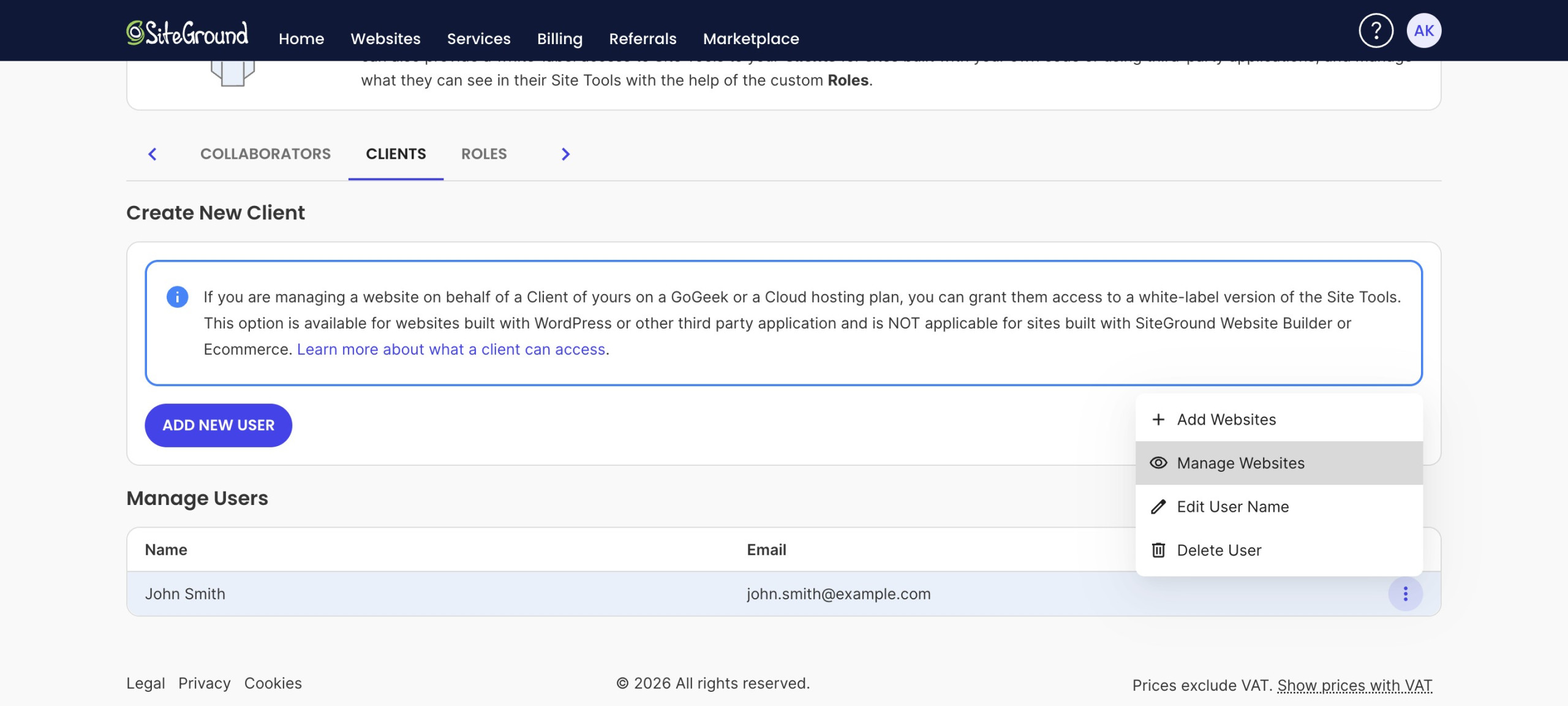
From your list of users, find the client you want to give white label access to, click on the Actions menu on the right and select Manage Websites.
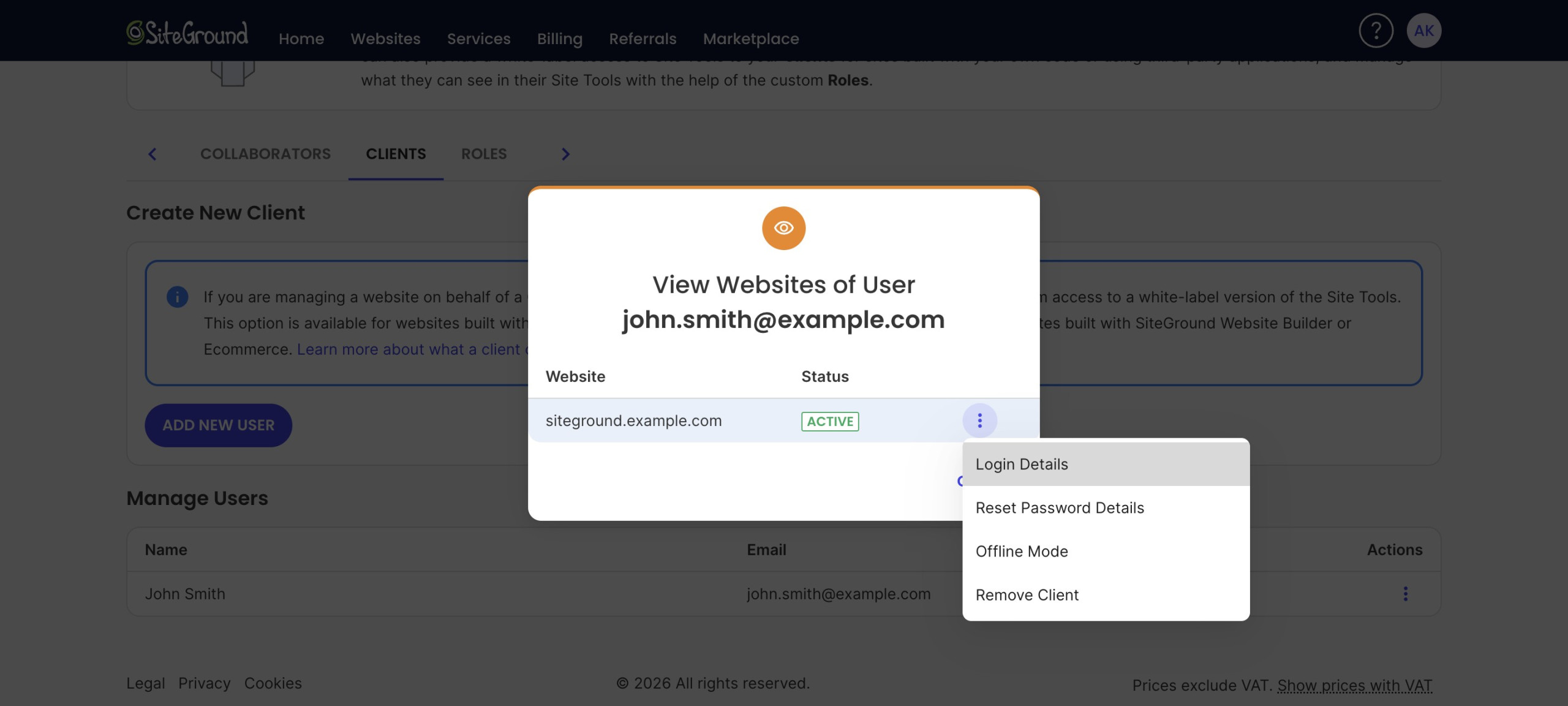
A pop-up window will appear where you can see the websites to which you have added your client. Click on the Actions menu and choose Login Details.
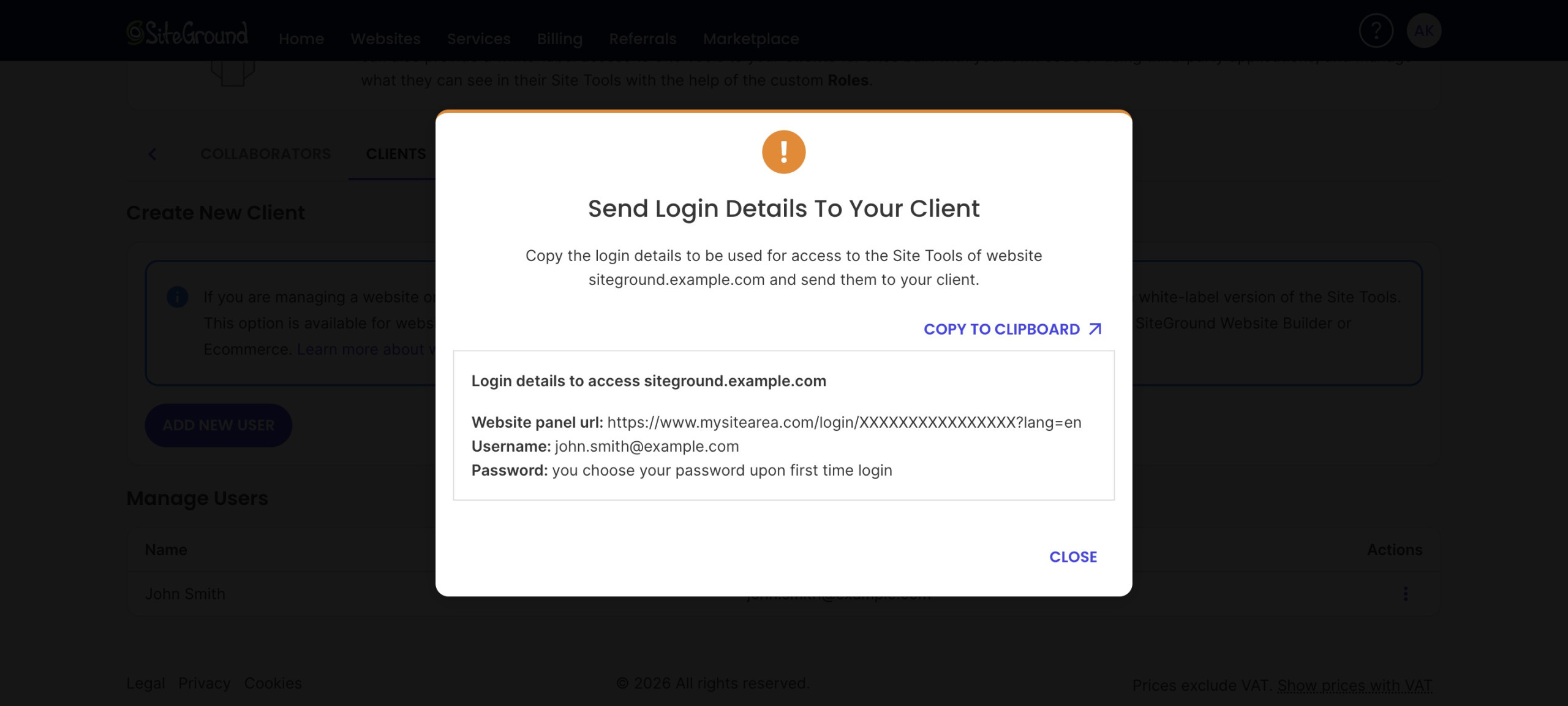
Then, copy the login details (website panel URL and username) and send them to your client. You can quickly copy the login details by clicking on Copy to Clipboard. Note that your client will access Site Tools from a different, white-label URL.
Once your client log into Site Tools, they will be able to use it to manage their site and they will not see any SiteGround branding.

