What Are Inline Citations?
When AI Studio answers you, it often draws on sources: a file you added to your project, or a web page it read while working on your request. Inline citations show those sources directly inside the reply, next to the statements based on them.
This means you can trace any part of an answer back to where it came from, tell at a glance whether a reply is based on your own files or on the web, and reuse AI Studio’s output in client-facing work with confidence in what backs it up.
What an inline citation looks like
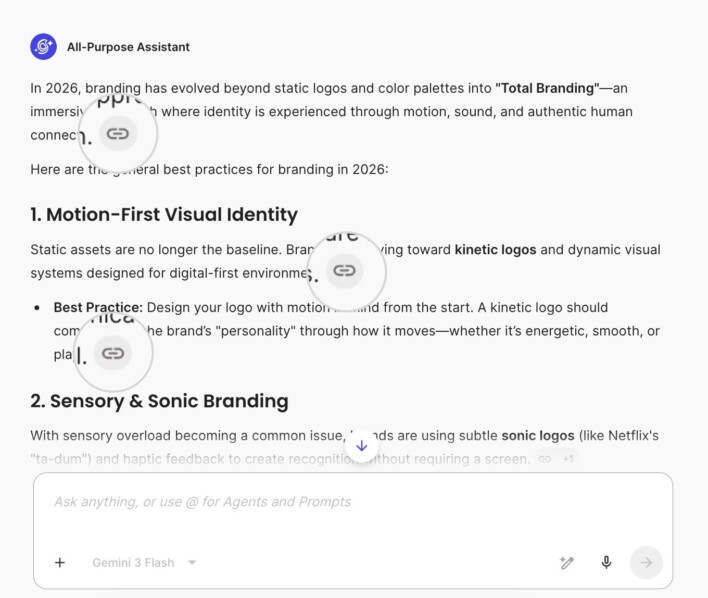
An inline citation is a small chip placed inside the reply text, right after the statement it backs up. Instead of one list of sources at the bottom of the answer, each claim carries its own source marker where you read it.
The chip itself is compact. It shows an icon telling you what kind of source it is:
- a link icon for web pages
- a document icon for files in your project
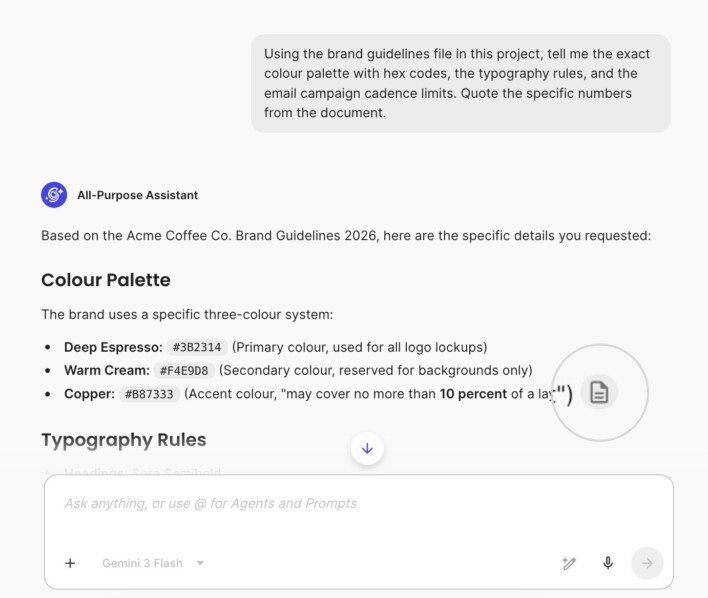
If more than one source of that kind supports the sentence, the chip also shows a count, such as +5. A sentence supported by a single source shows the icon on its own.
Opening a citation
Click on a chip to see what’s behind it. A small card opens showing the source that supports that statement.
When a chip covers several sources, the card has ‹ › arrows and a counter such as 1/6, so you can step through every source behind that one chip without leaving the reply.
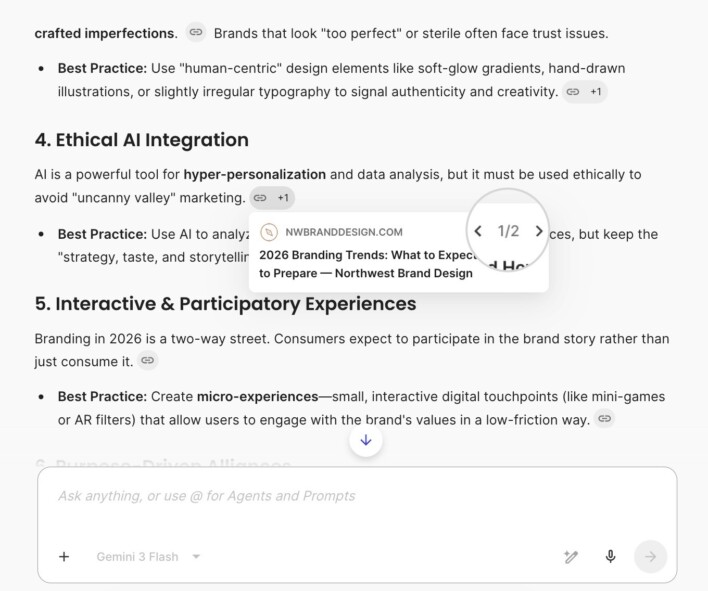
Selecting a chip opens a card for the first source. The counter shows how many sources sit behind that chip.
Citations from web pages
A web citation appears when the reply uses a page AI Studio has read online. Its card shows:
- the site’s favicon and name, such as CNN.COM or REUTERS.COM
- the page title, shortened if it’s long, so the card stays readable
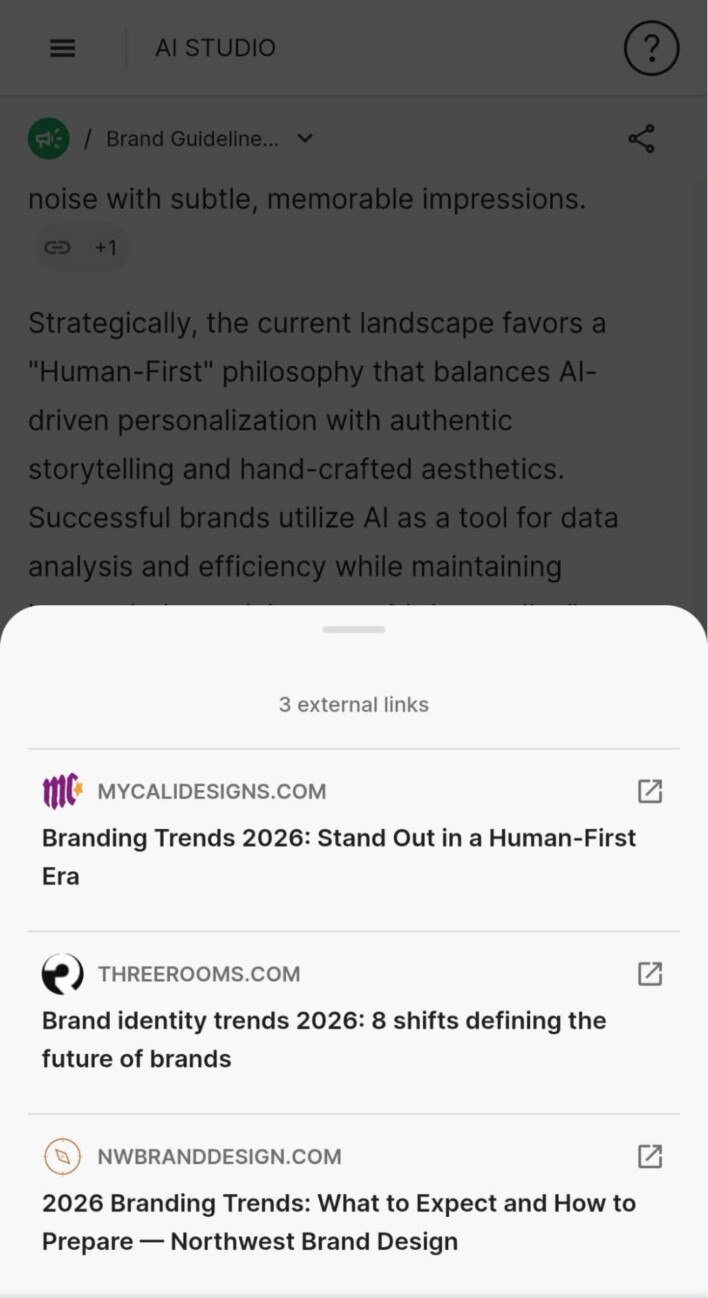
Web citations are clickable: selecting the card opens the original page in a new tab, so your conversation stays where it is.
On mobile, the card opens as a drawer sliding up from the bottom of the screen instead of appearing next to the text.
Citations from project files
A file citation appears when the reply draws on a file that is part of your project’s context. Its card shows:
- file type, such as PDF
- document name
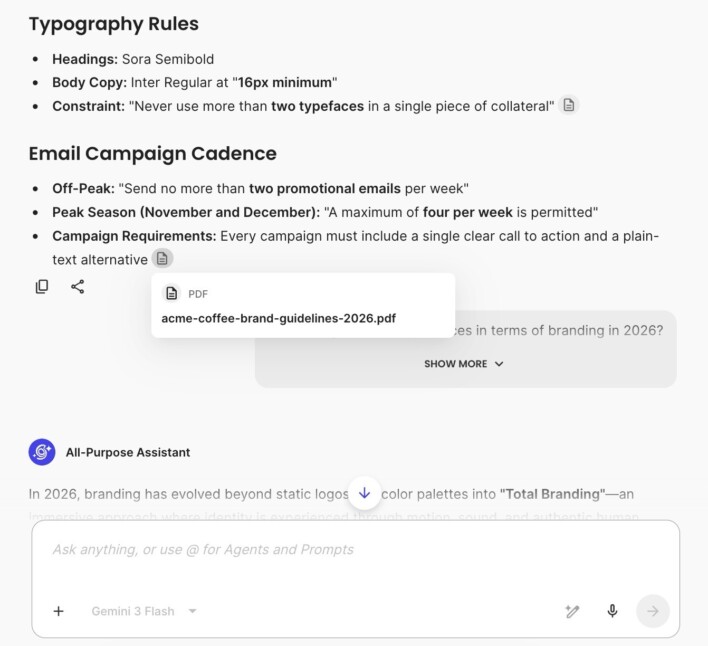
Unlike a web citation, a file citation doesn’t take you anywhere. The card tells you which of your files informed that statement, but the file cannot be opened, previewed, or downloaded from it. This is intended behaviour, not a fault: your file stays available where you added it, in the project or agent.
How far you can rely on a citation
A citation always points to the source AI Studio actually used for that specific statement. It is not a general reading list attached to the answer. Because it’s tied to the statement it sits next to, any claim in the reply can be traced back to its origin.
Keep in mind that a citation tells you where a statement came from, not that the source itself is correct or current. For web sources especially, it’s worth opening the page when the claim matters.
Good to know
- Citations only appear when a source was used. If a reply is drawn from AI Studio’s general knowledge rather than a file or a web page, it won’t have any citations. A reply without citations isn’t an error.
- Web citations don’t show a publication date. The card shows the site name and page title, but not when the page was published. For time-sensitive material such as news articles, check the date on the page itself.
Related: the Sources list
Separately from inline citations, a reply may also end with a Sources list summarising the web sources used in that answer. That is an existing, separate feature, and the two work alongside each other: the Sources list gives you the full sources list, while inline citations tell you which source backs which statement.
