Knowledge Base

Get Expert Website Hosting

Choose website reliability and expertise with SiteGround!

Home / Ecommerce / Managing Orders / How Can I See Single Order Details

How Can I See Single Order Details

Summarize this article with:
Last update: Jul 28, 2026

You can view the details of a single order in SiteGround Ecommerce by following the steps below.

  1. Open the Site Admin > Store Manager > Orders section.
  2. Click on the order number under the Order ID column located on the left.
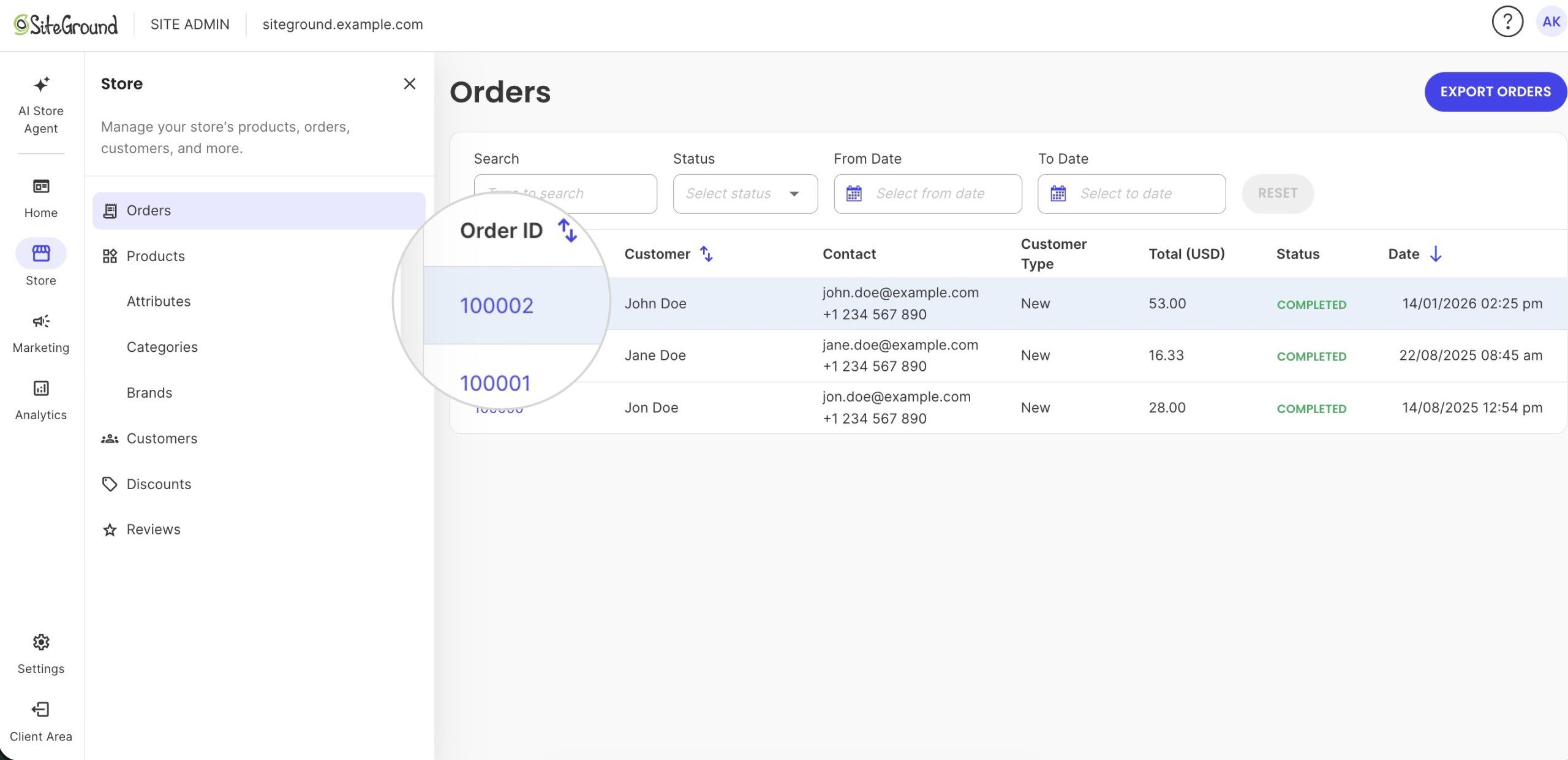
    SiteGround Site Admin Store > Orders page with a spotlight magnifying the "Order ID" column, showing clickable order links 100002 and 100001. The table lists three completed orders — 100002 John Doe USD 53.00, 100001 Jane Doe USD 16.33, and 100000 Jon Doe USD 28.00, all New customers — with an Export Orders button at top right.
  3. On the next page, you can see the full order information – status, customer details, shipping address, billing details, payment information, order summary and action log.
    Single order's details for an order in SiteGround Ecommerce

Here, you can also change the order status. Learn how to do this in the tutorial on how to change an order status.

Share this article

Found this article useful?

Add SiteGround to your preferred Google sources