Knowledge Base

Get Expert Website Hosting

Choose website reliability and expertise with SiteGround!

Home / Ecommerce / How to View and Edit Customer Information

How to View and Edit Customer Information

Summarize this article with:
Last update: Jul 28, 2026

To access your customers’ information in SiteGround Ecommerce:

  1. Go to Store Manager > Customers.
  2. Click on the name of a customer, or alternatively, click the pencil button in the Actions column.
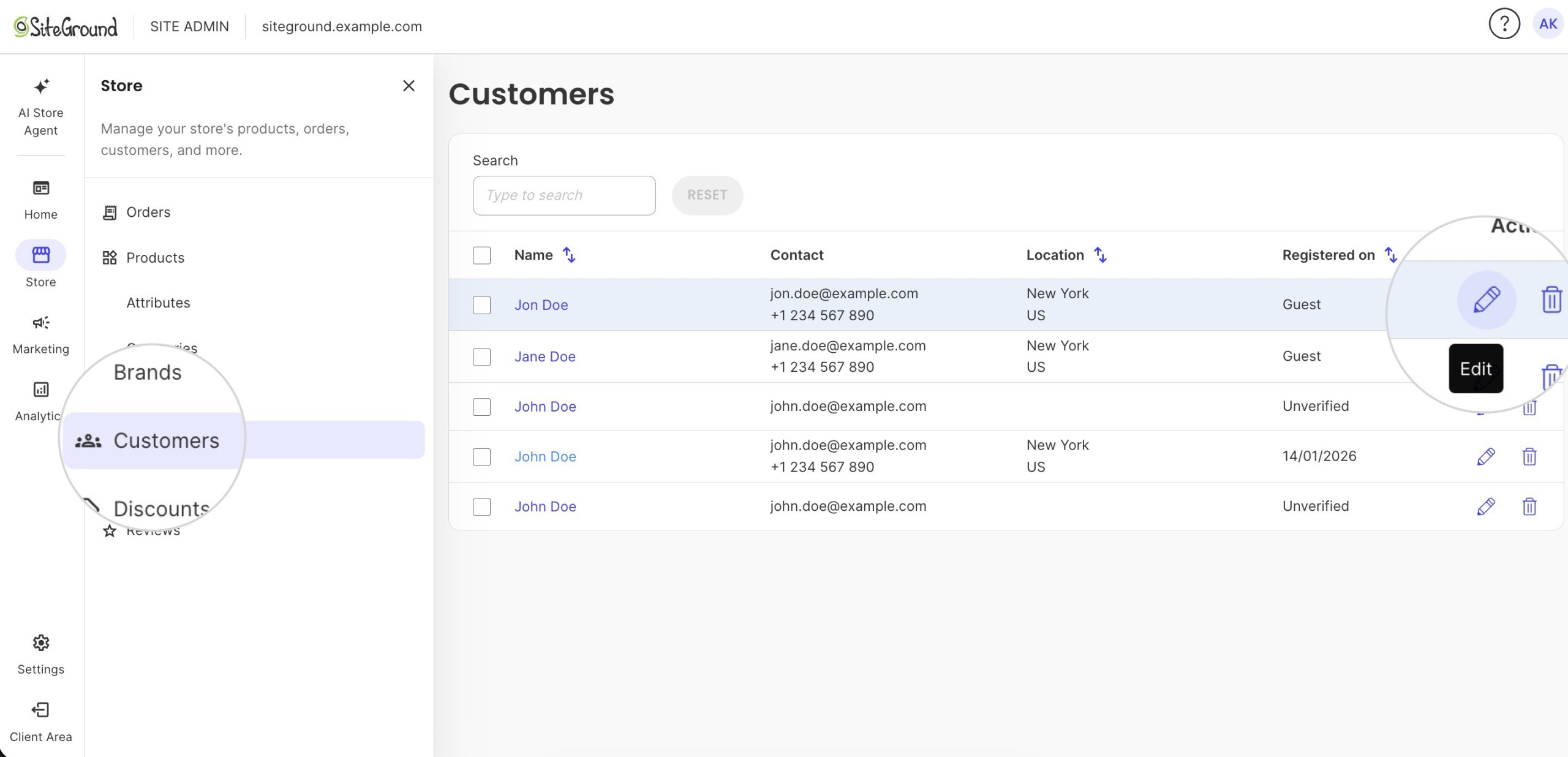
SiteGround Site Admin Store > Customers page, with the Store menu open and "Customers" highlighted, and a magnified spotlight on the row Edit (pencil) action. The table lists five customers — Jon Doe and Jane Doe (both Guest), plus three John Doe entries (Unverified or registered 14/01/2026) — with Name, Contact, Location, and Registered on columns.

On the next page, you’ll see contact, shipping and billing information boxes, and a history of that customer’s orders.

  1. Click the Edit button in the respective box if you wish to change the customer’s shipping or billing details.
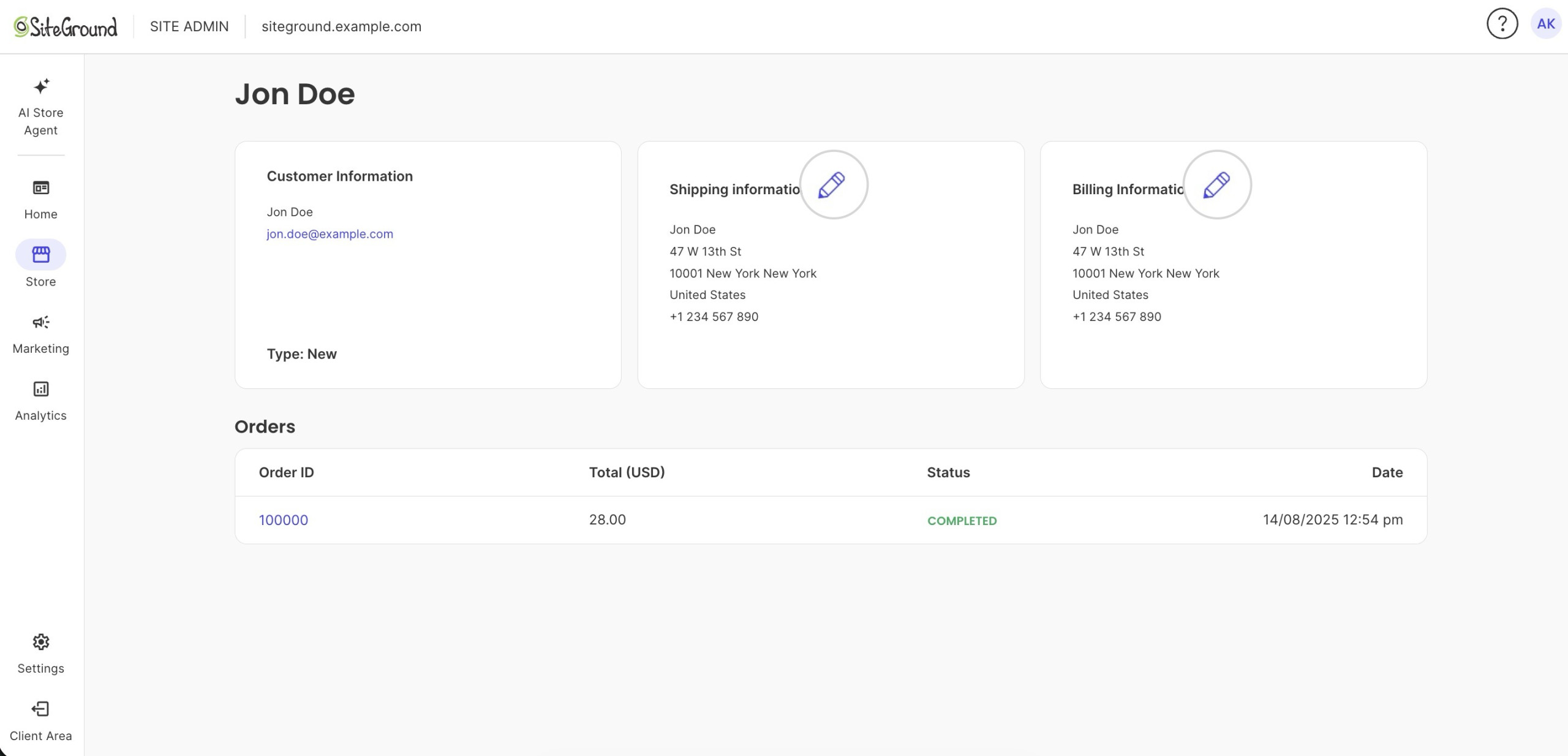
SiteGround Site Admin Store customer detail page for Jon Doe, showing Customer Information (jon.doe@example.com, Type: New), Shipping Information and Billing Information cards (both 47 W 13th St, 10001 New York, United States, +1 234 567 890) each with an edit pencil, and an Orders table listing order 100000, USD 28.00, Completed, 14/08/2025.

After editing the details, click the Save button to apply the desired changes.
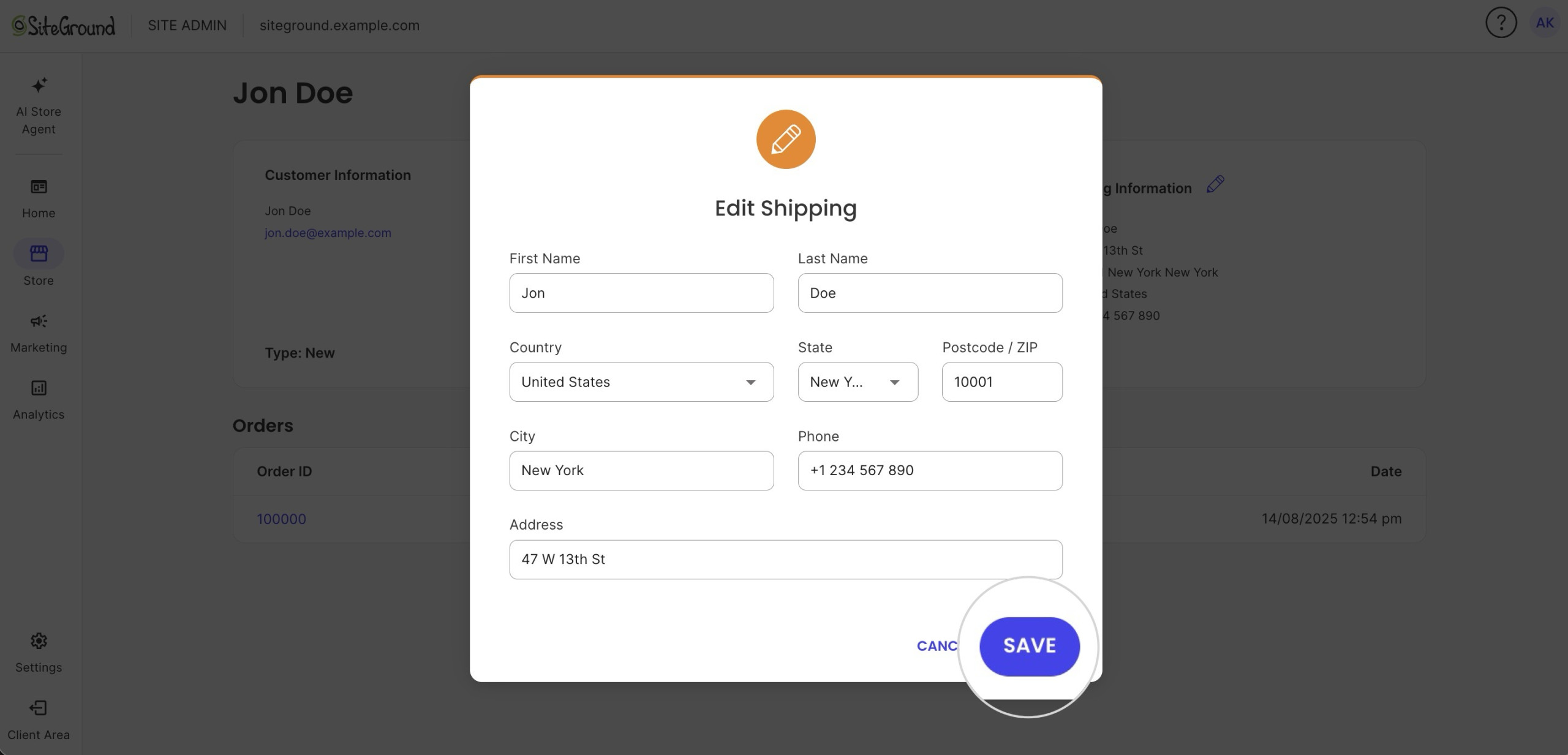
SiteGround Site Admin "Edit Shipping" modal for customer Jon Doe, with fields for First Name (Jon), Last Name (Doe), Country (United States), State (New York), Postcode/ZIP (10001), City (New York), Phone (+1 234 567 890), and Address (47 W 13th St), plus Cancel and a spotlighted Save button.

Share this article

Found this article useful?

Add SiteGround to your preferred Google sources
