Home
/
Website Builder
/
Pages & Content Editing
/
How to use the Search feature for faster navigation in the Admin
How to use the Search feature for faster navigation in the Admin
How can you simplify the navigation and find what you need in a faster way in your Admin? With the Search feature available in SiteGround Website Builder and Ecommerce, you can get to any page or perform quick actions, without clicking through the navigation menu.
How to use the search bar
To do that, simply open Site Admin and click the Search icon on the left-hand side menu.
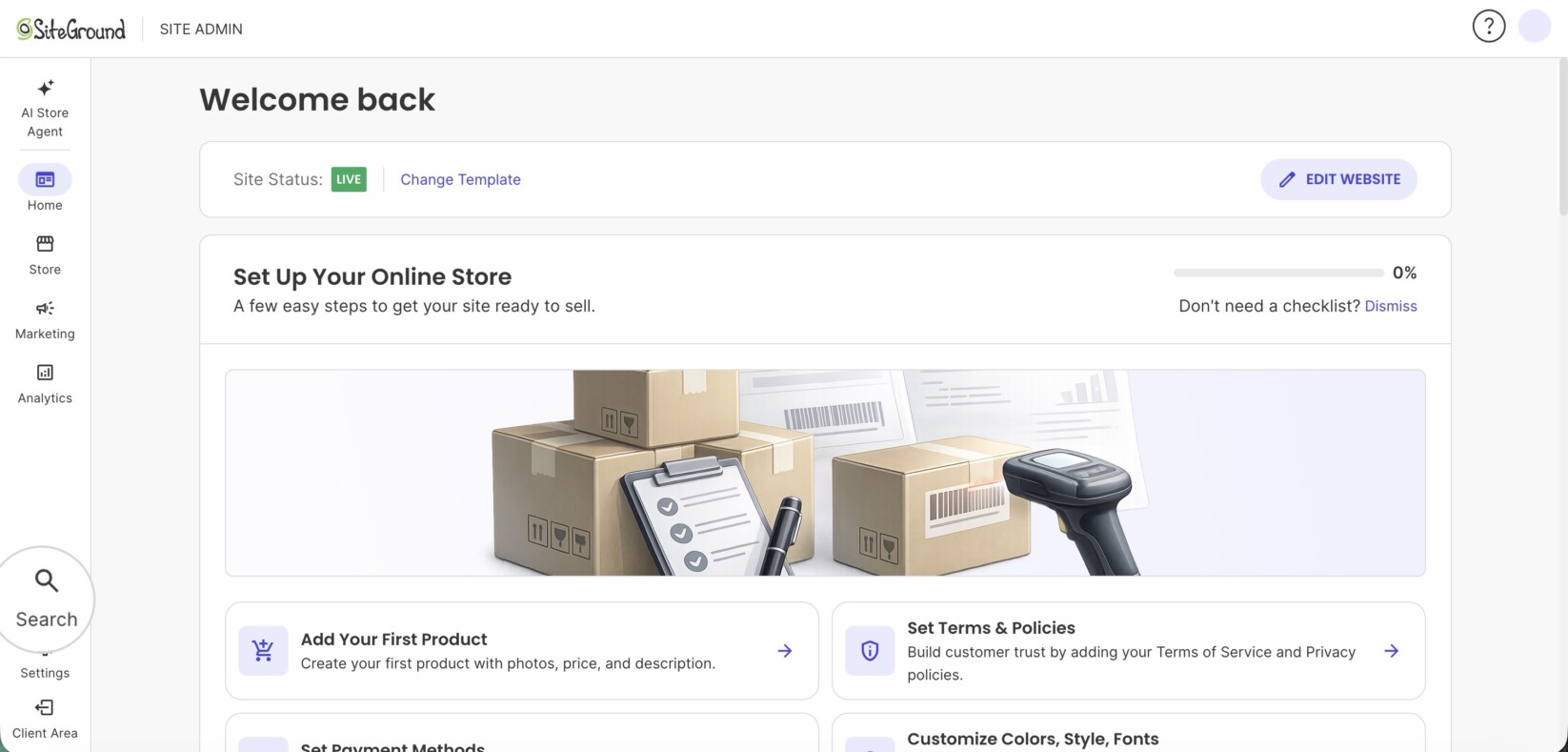
How to use the search feature for a page
- With the Search bar open, start typing the name of the page you want to find (for instance Products, Categories, Settings, etc.).
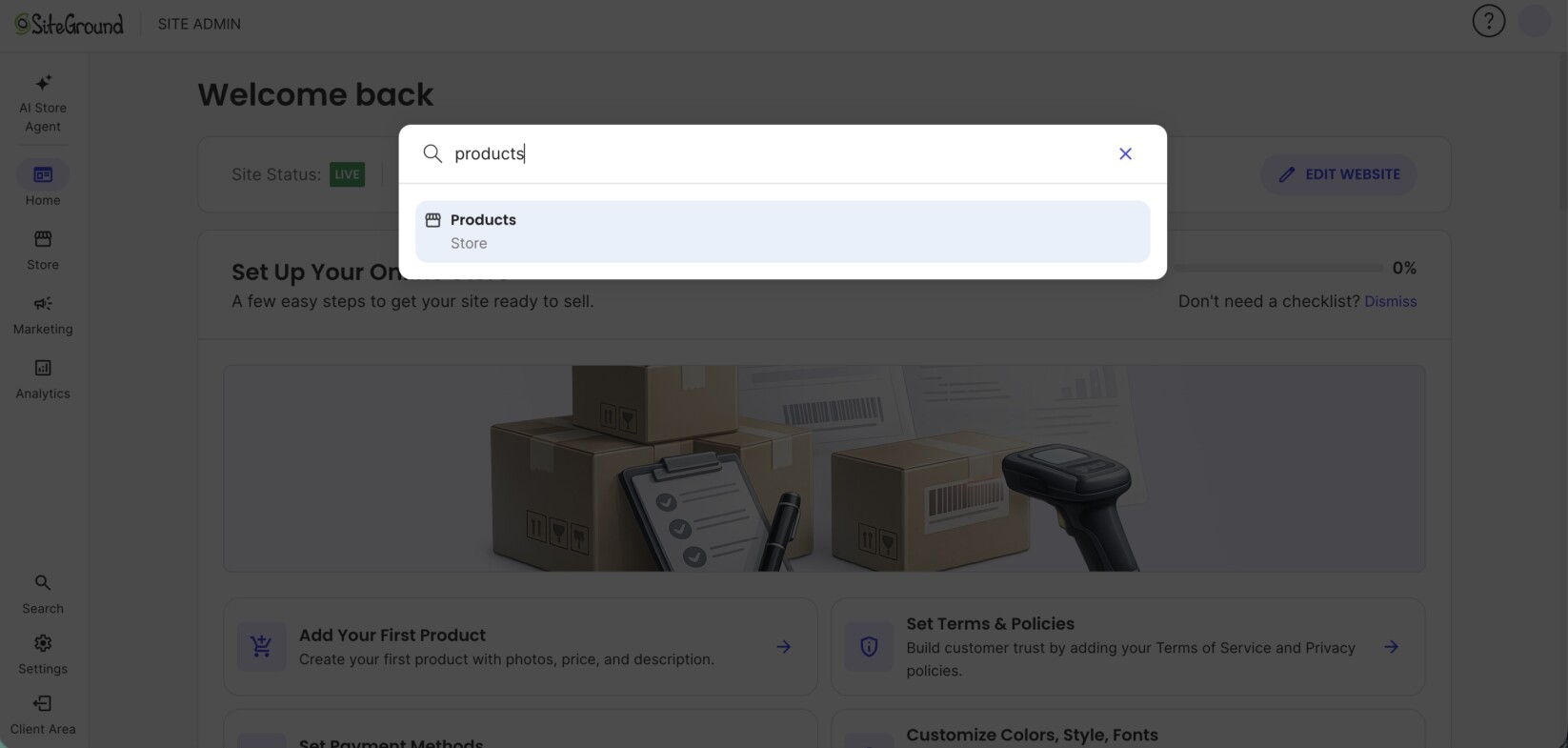
- Review the list of matching results as they appear.
- Click on the name of the page you want to open.
How to use quick actions
Alongside page results, the Search can also display quick actions for common tasks, such as Add new product, Add new category, Add new brand, etc. Quick actions let you jump straight into a task without navigating to the relevant page through the menu on the left.
- Open the Search bar and start typing the action you want to perform.
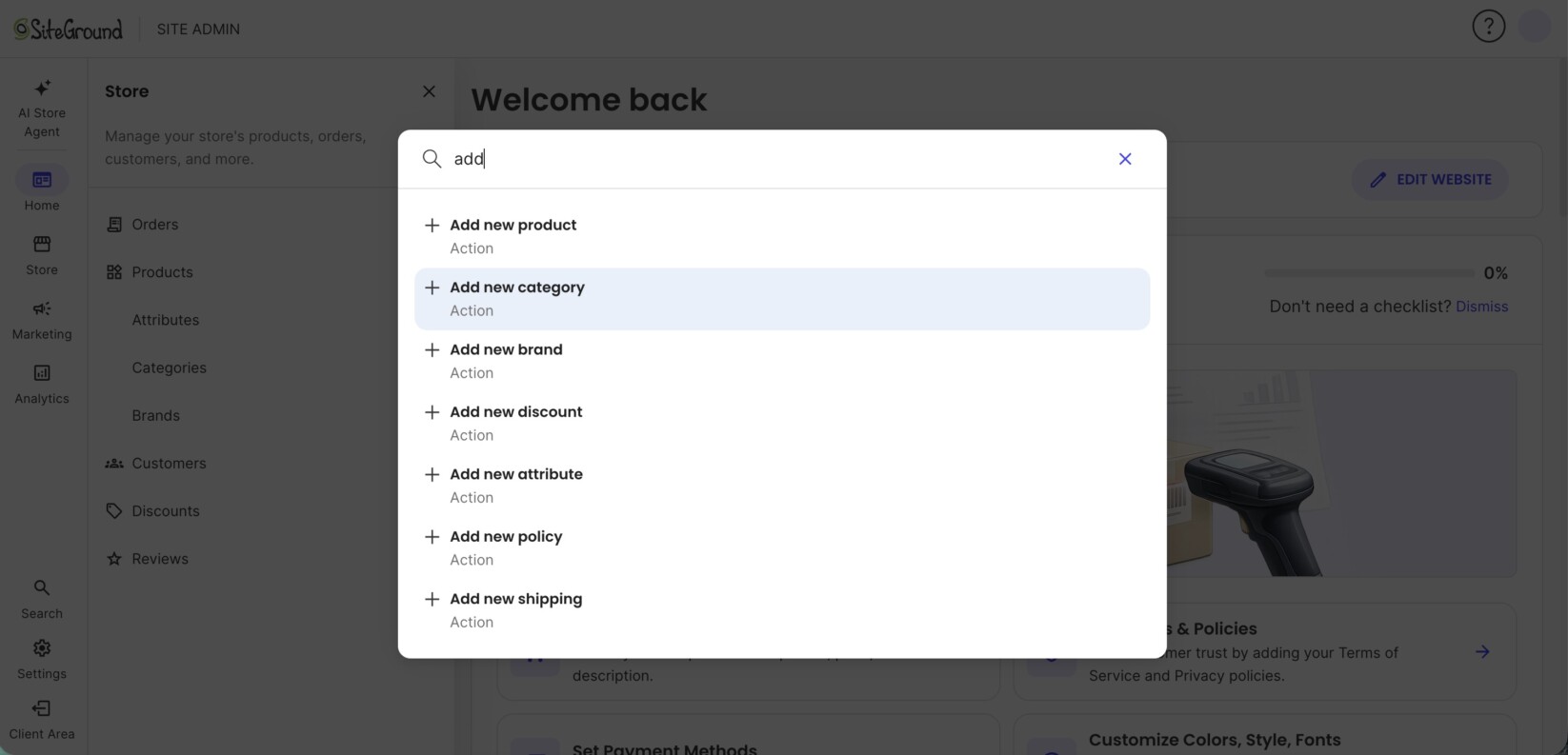
- Select the matching quick action from the results list.
- The corresponding page opens and you can start adding the details immediately.
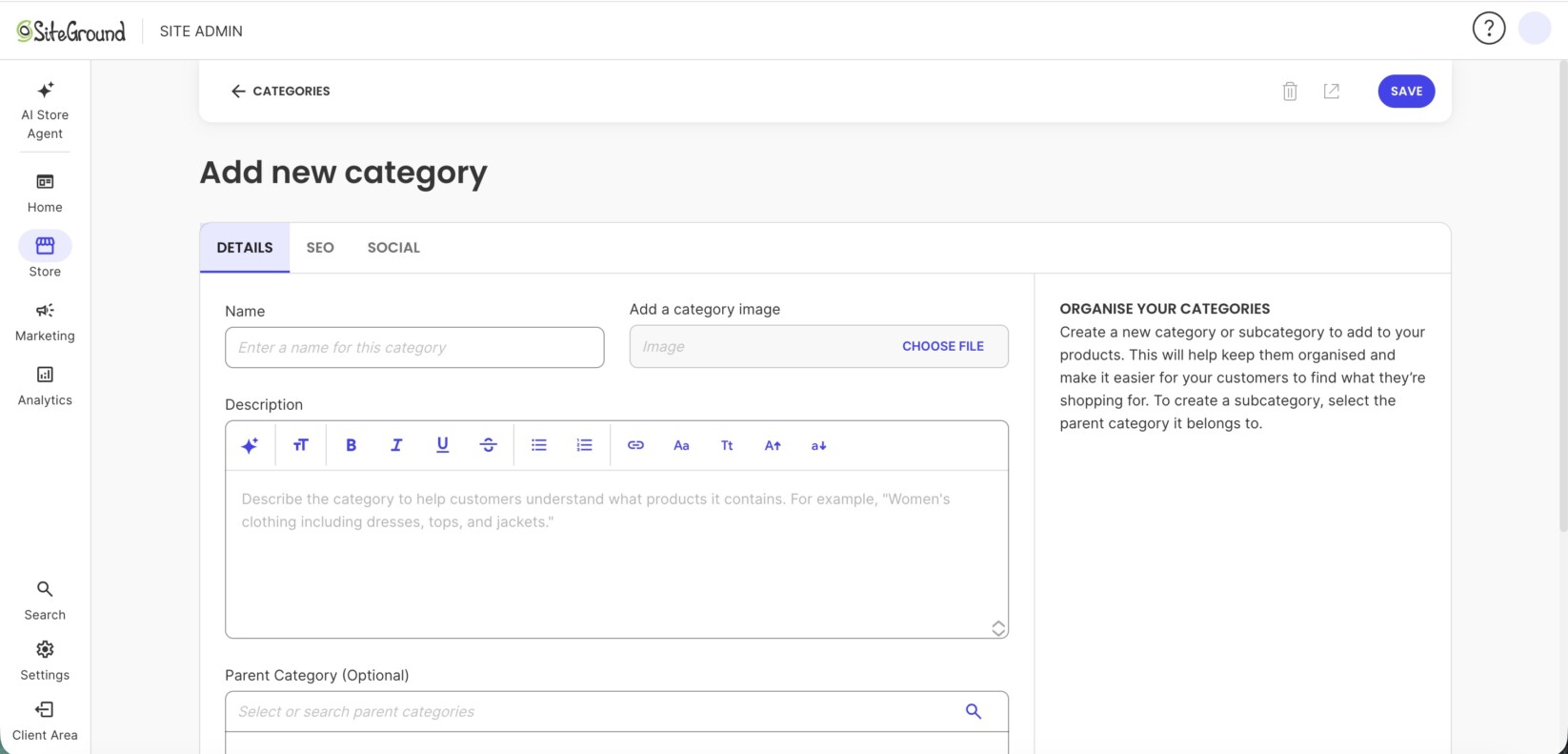
- Click Save to preserve your changes.
