How to use the Code component
Website Builder offers a wide range of components that can add various features to extend your pages’ functionality. However, you may go one step further and add custom code components to embed third-party apps, JavaScript, CSS, Markdown, or HTML that can give your website a unique design and tools.
Here is how you can do that:
- Open the Pages section and select an existing page or create a new one with the Add New button.

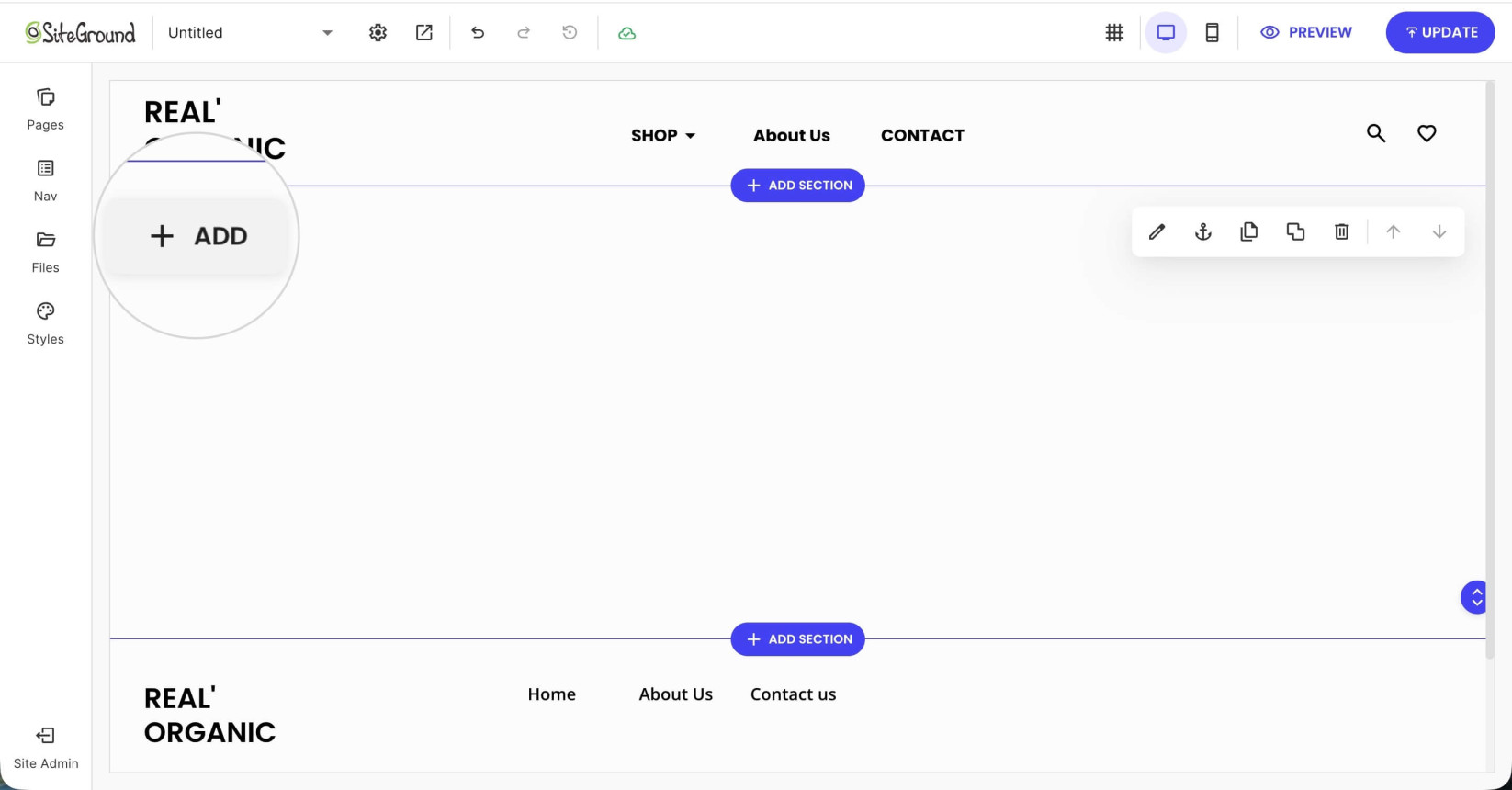
- Hover over the section where you’ll add the component and press the + ADD button in the top-left corner to open the Add Component window.
- Search for/select the Code component.

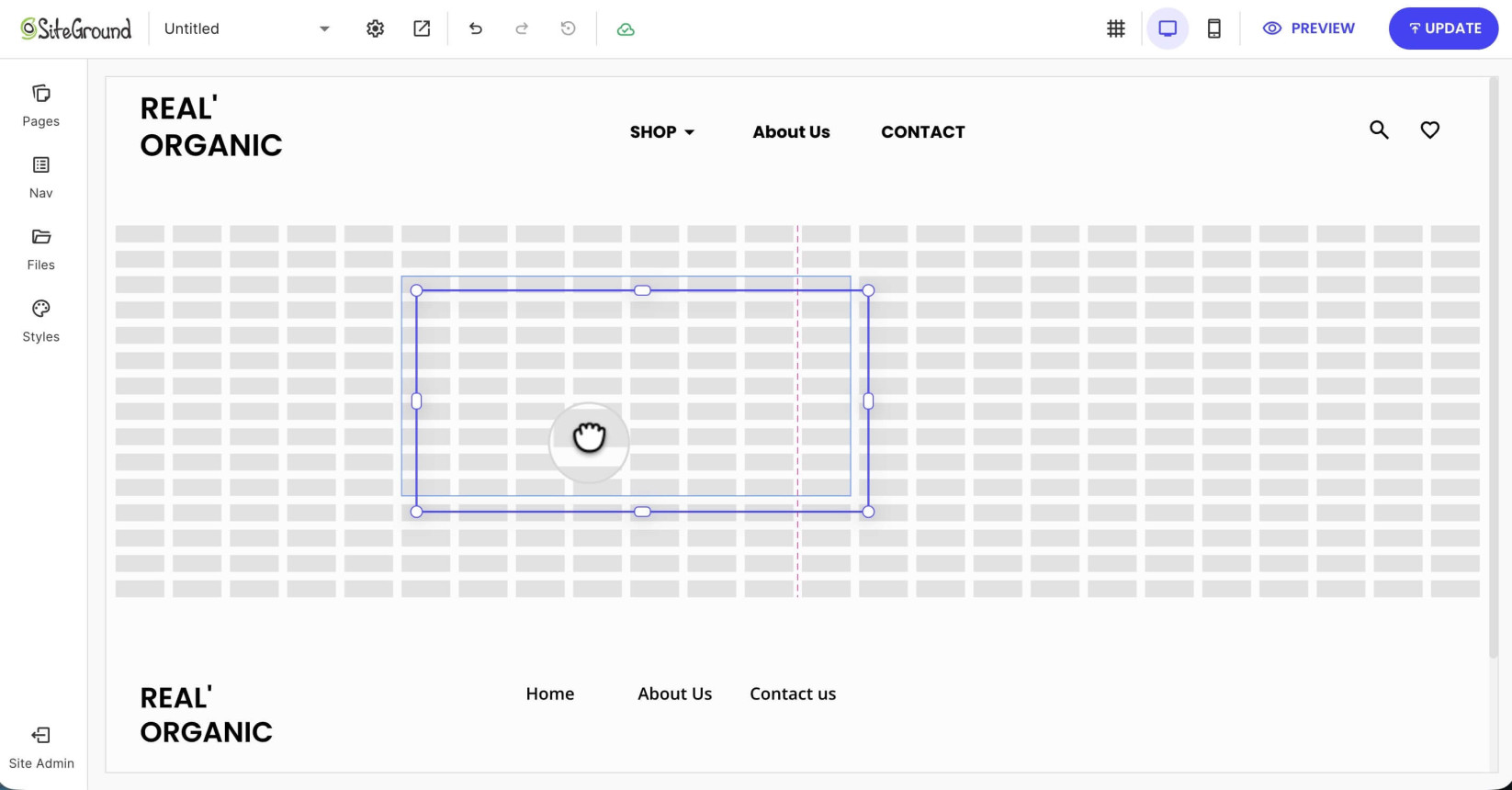
- Click and hold the component’s box to activate the section’s grid view. Then, move the box to your preferred position and release it.
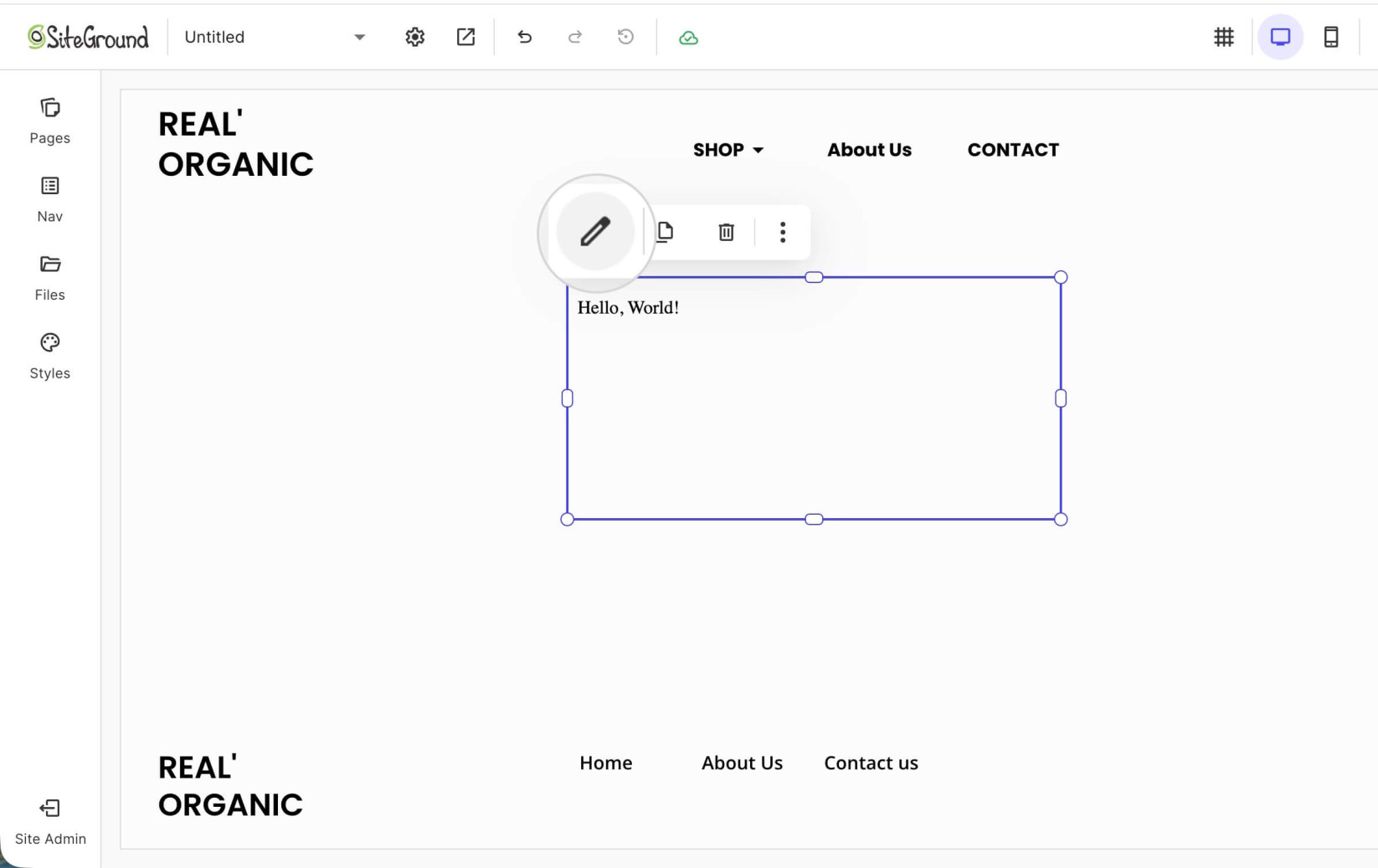
- Click the component and select the pencil icon (Edit) from the toolbar above.
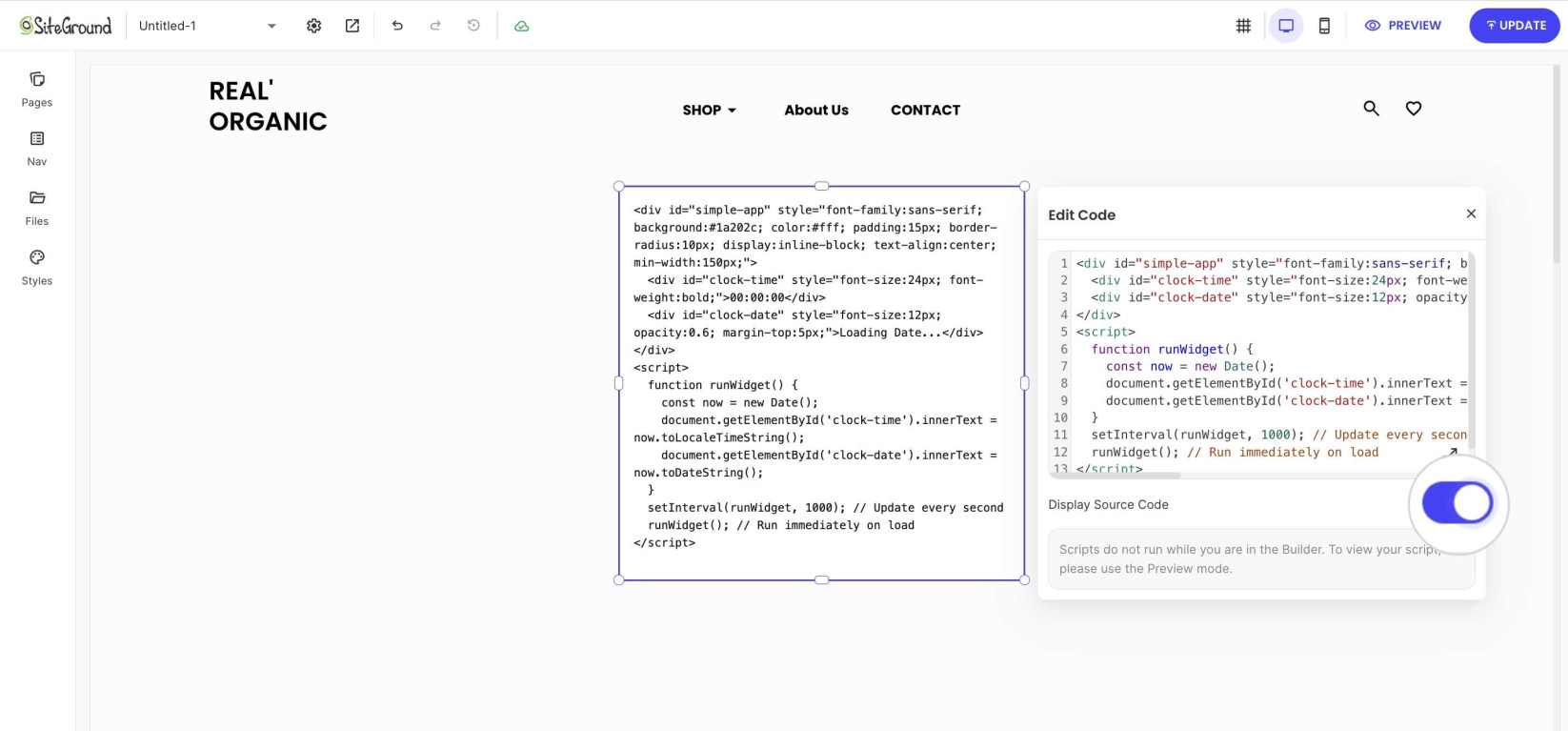
- A new Edit Code window will open where you can write or paste your custom code.
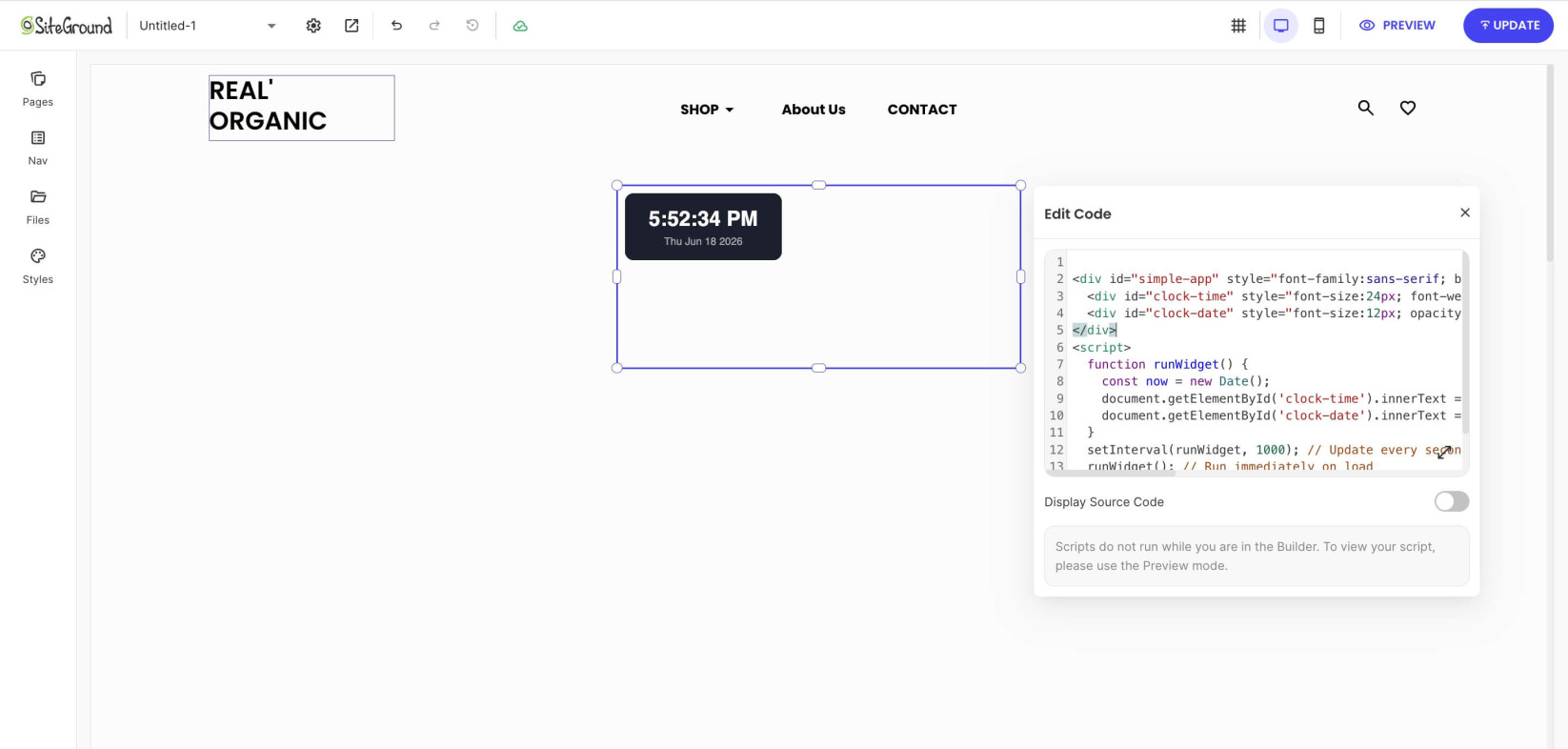
- If the code is too large and you need more workspace, press the Expand icon in the lower-right corner.
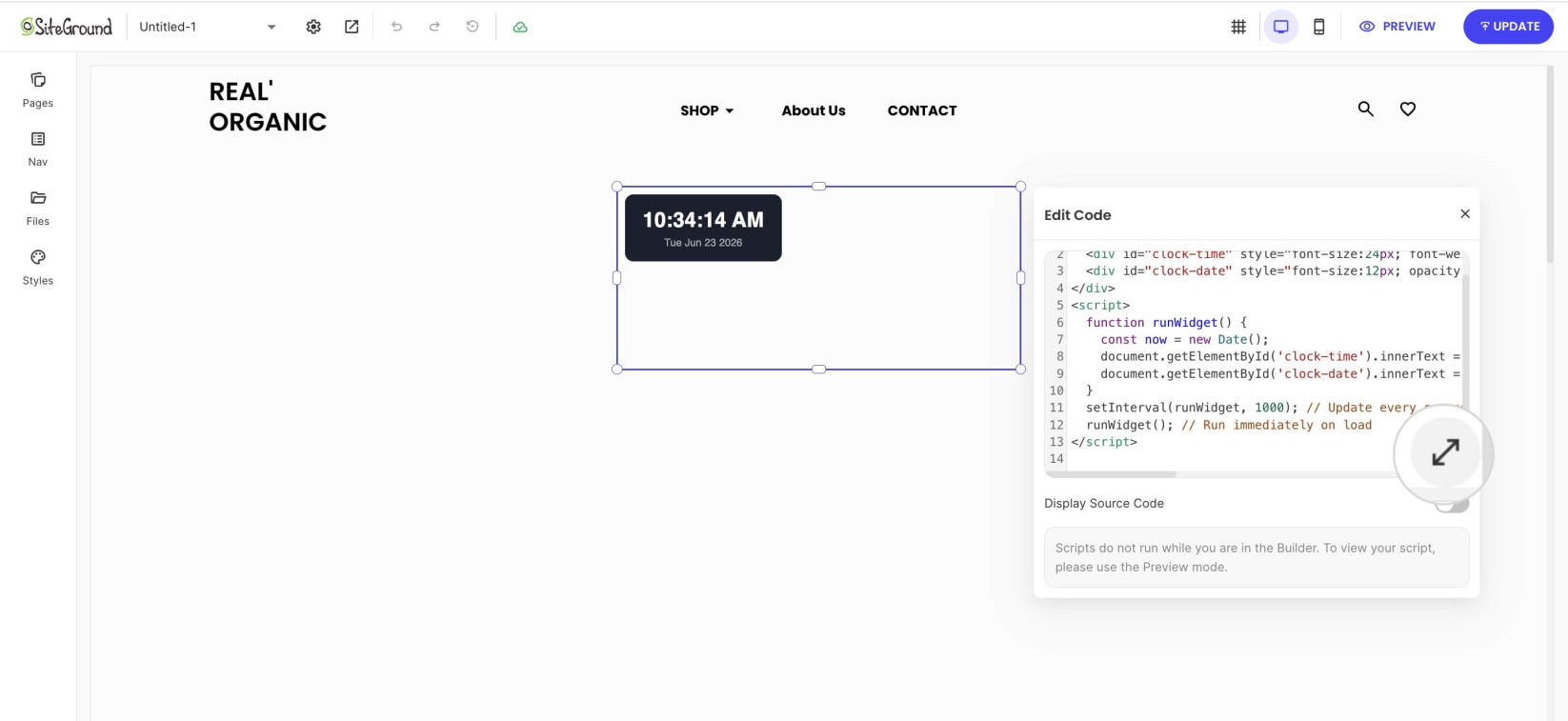
- To go back to the standard view, close the Edit Code window.

- Use the Display Source Code toggle to switch between code view and output view in the component block.