How to set Shadows for texts
If you want to make certain text stand out on your website, you can use the Shadows setting. This quick guide will show you the steps to enable the feature. Here’s how to do it.
Before you start:
- The Shadows settings can be set either globally or for individual text components.
- When set globally, each time you write a new text with the selected heading, it will automatically have the Shadows setting enabled.
- When set separately for each text component, a heading can be individually overwritten even if it has a specific global setting applied.
How to set Shadows for texts globally
- Go to Site Admin >Edit Website > Styles > Typography.

- Click on the heading you want to edit and toggle the Drop Shadows setting from the pop-over menu.
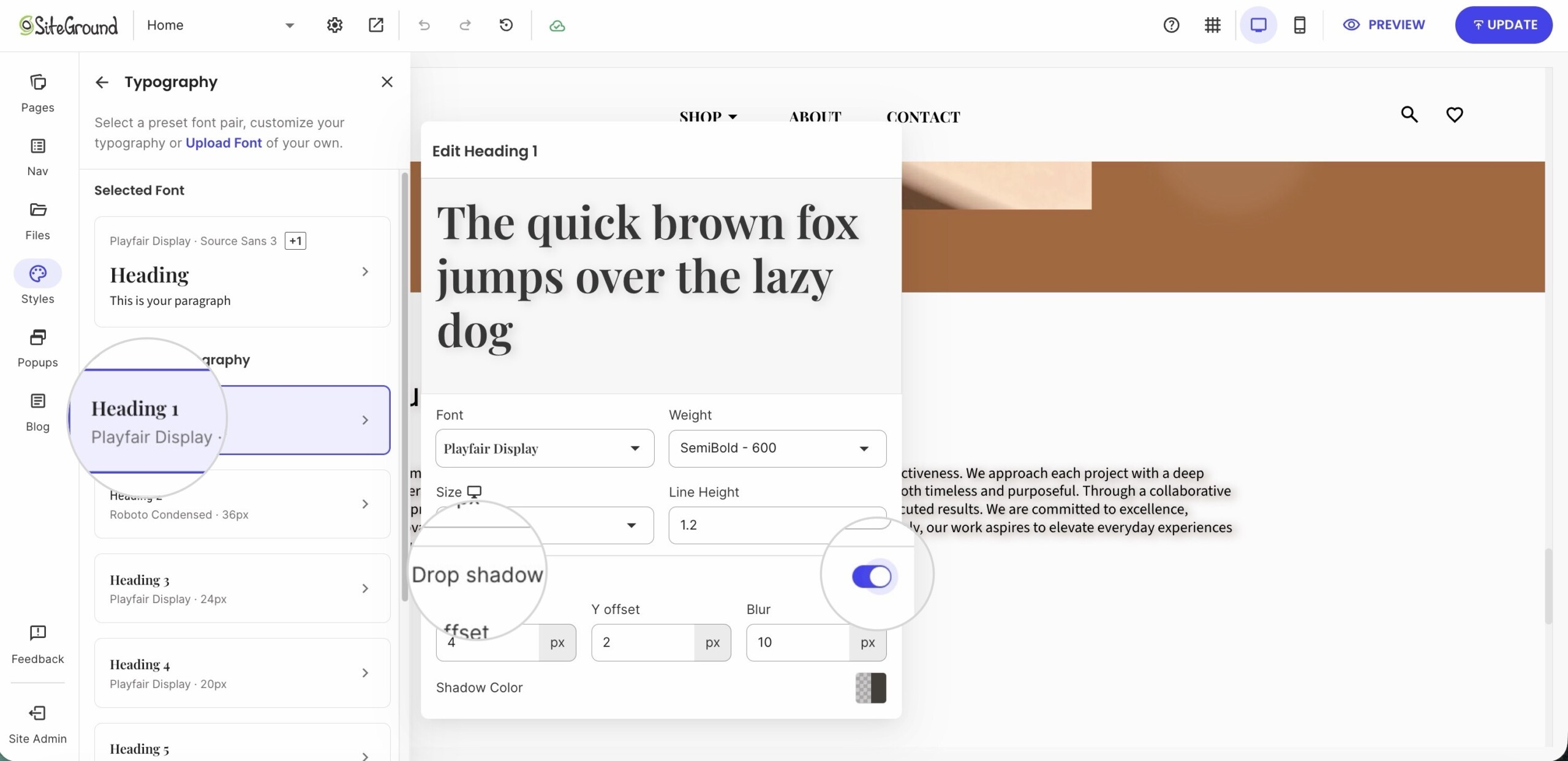
- Readjust the shadow color by clicking on the color picker.
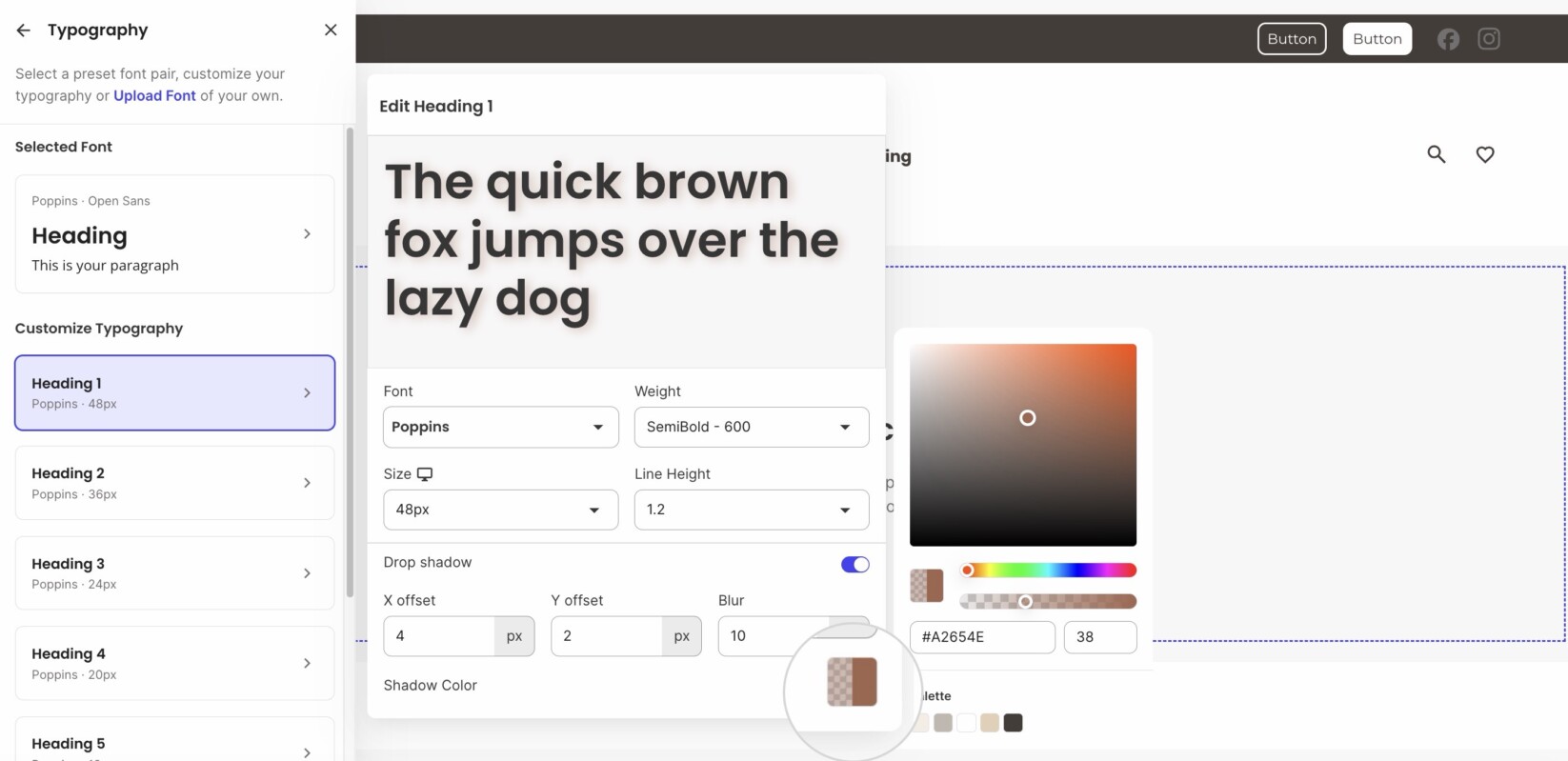
- When ready, click Update in the upper right corner.
And that’s it.
How to set Shadows for each text component
Alternatively, you can apply the settings on a specific text block.
- Navigate to the section you want to edit and click on the text block.
- Press the pencil icon and the text editor toolbar will appear.
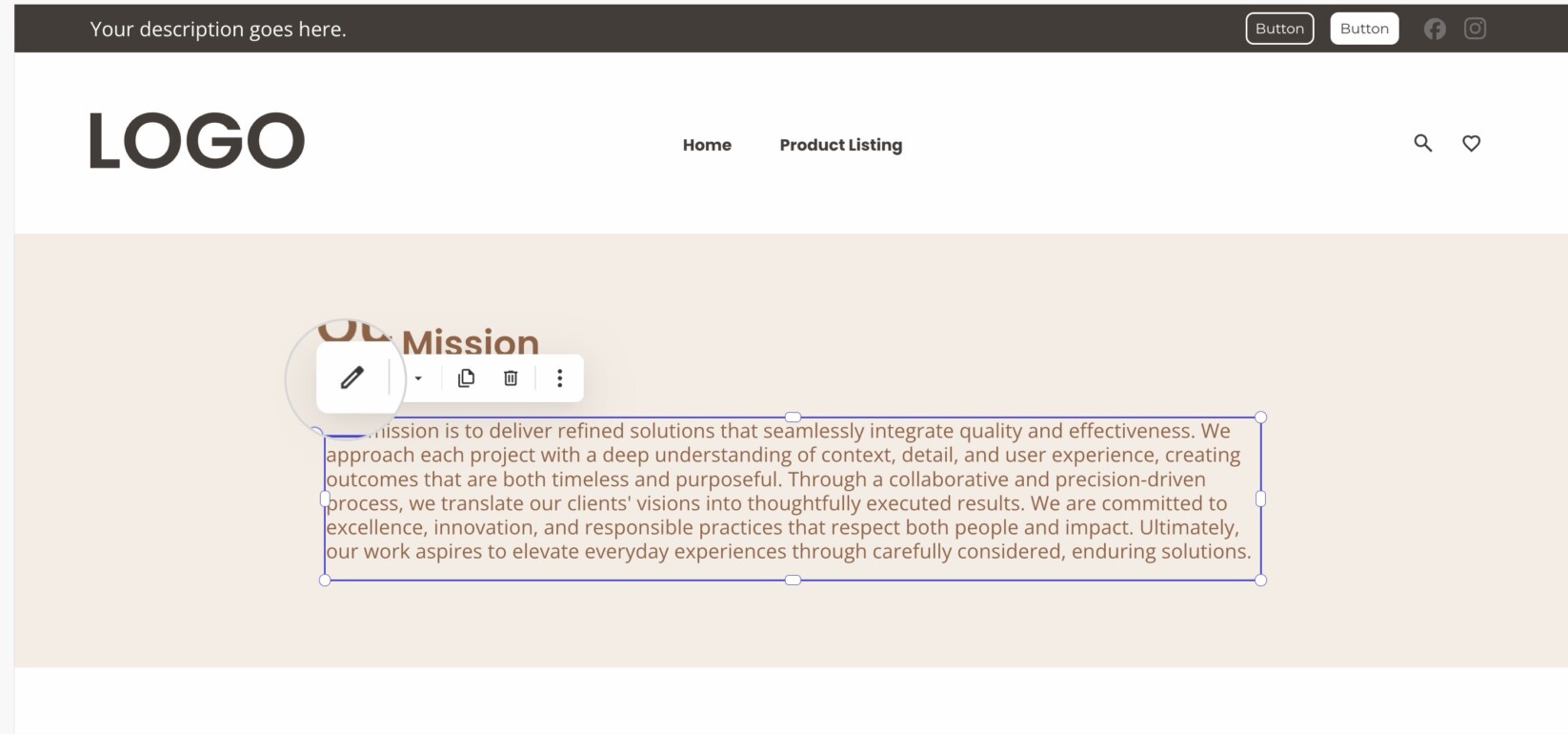
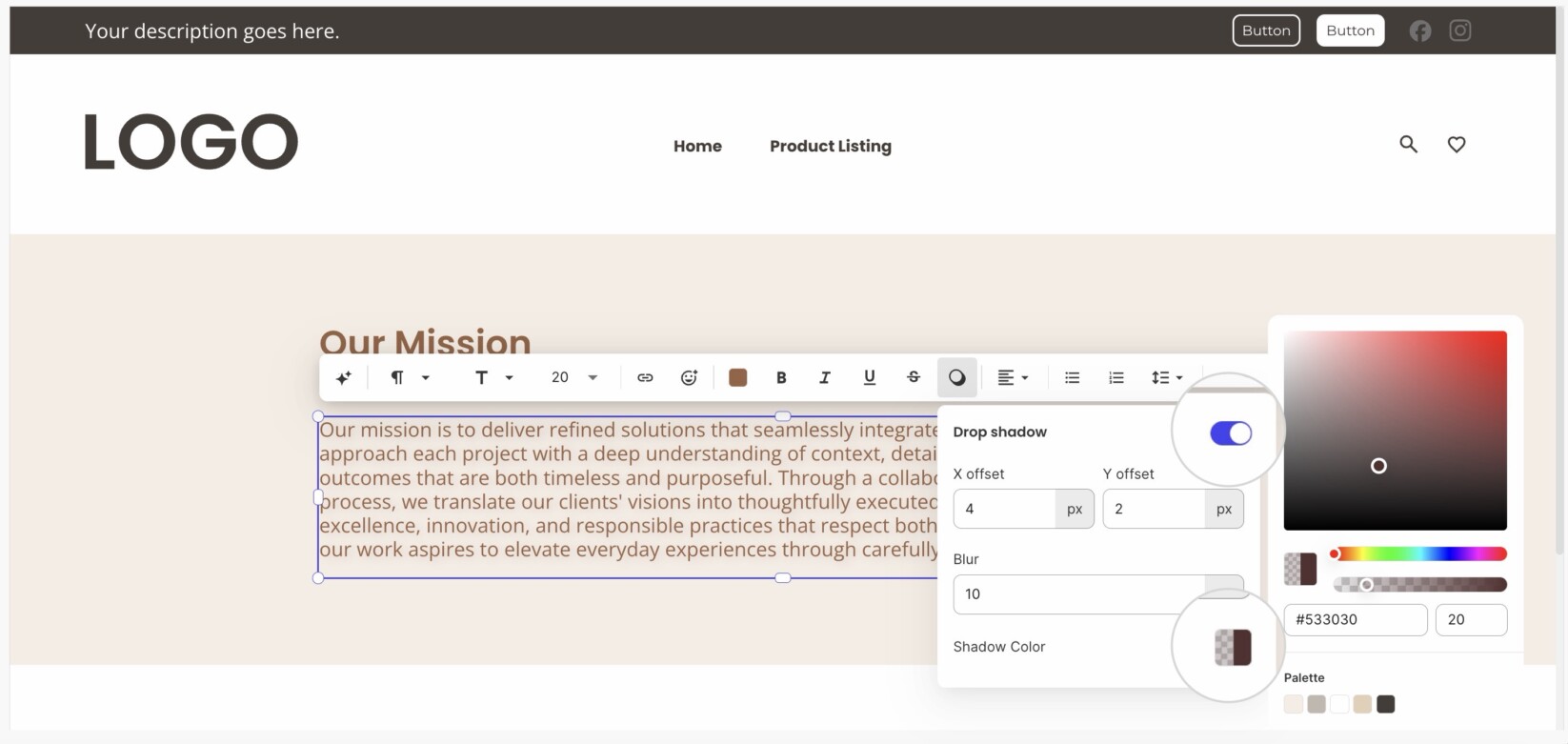
- Click on the Drop Shadow icon.
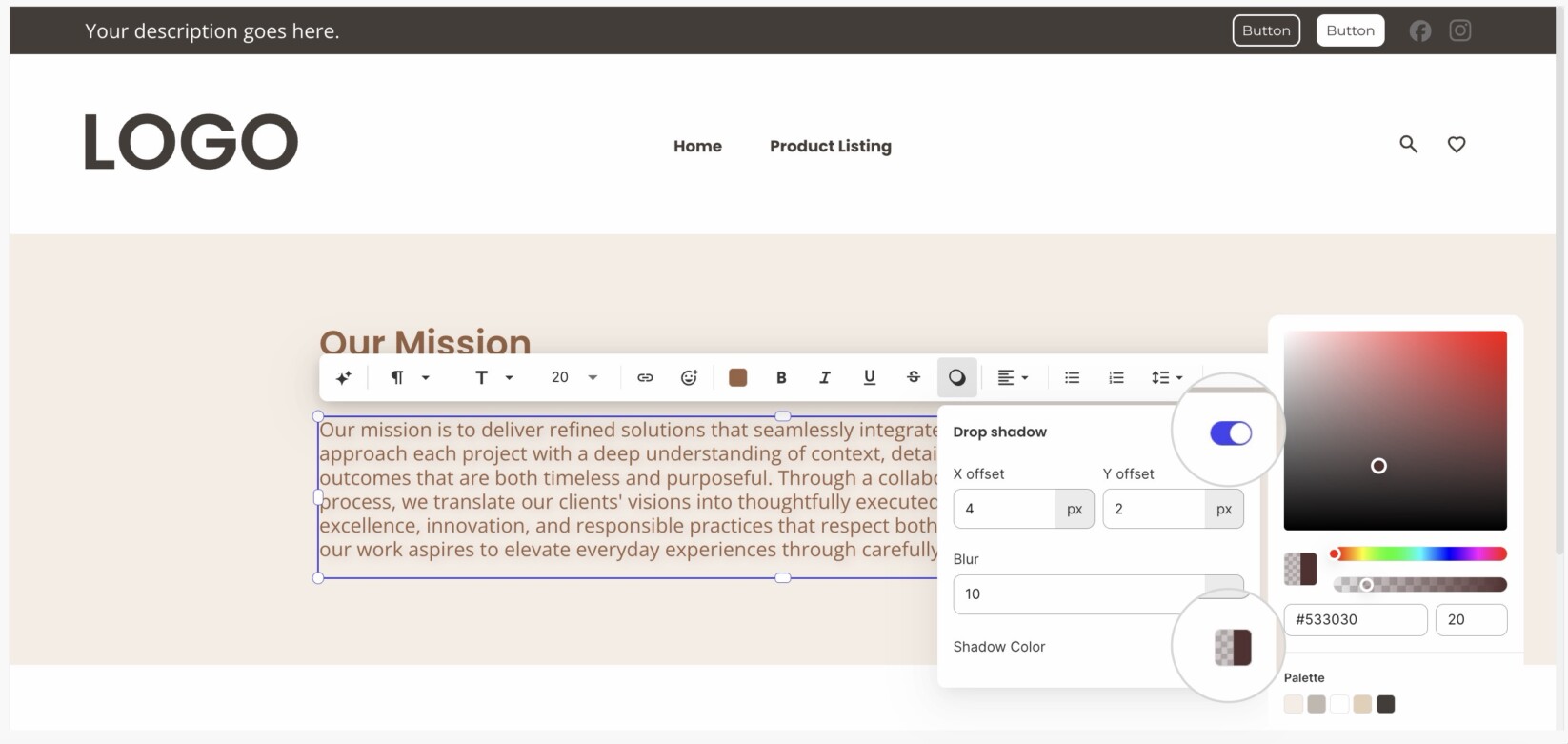
- Toggle the Drop Shadow switch and customize the Shadow Color using the color picker.
- Again, when ready, click Update in the upper right corner.