How to select and edit multiple components
Website Builder is a powerful and versatile platform that allows you to craft eye-catching pages with a custom design. To a large extent, that is possible thanks to the use of components, which are the building blocks that form the pages in Website Builder.
A page is usually composed of multiple components that coexist and complement each other. In this guide, you’ll learn how to select and edit multiple components simultaneously.
How to select multiple components
To select multiple components, you can employ either of the two general methods:
- Click-and-drag selection
- Discontiguous selection
Click-and-drag selection
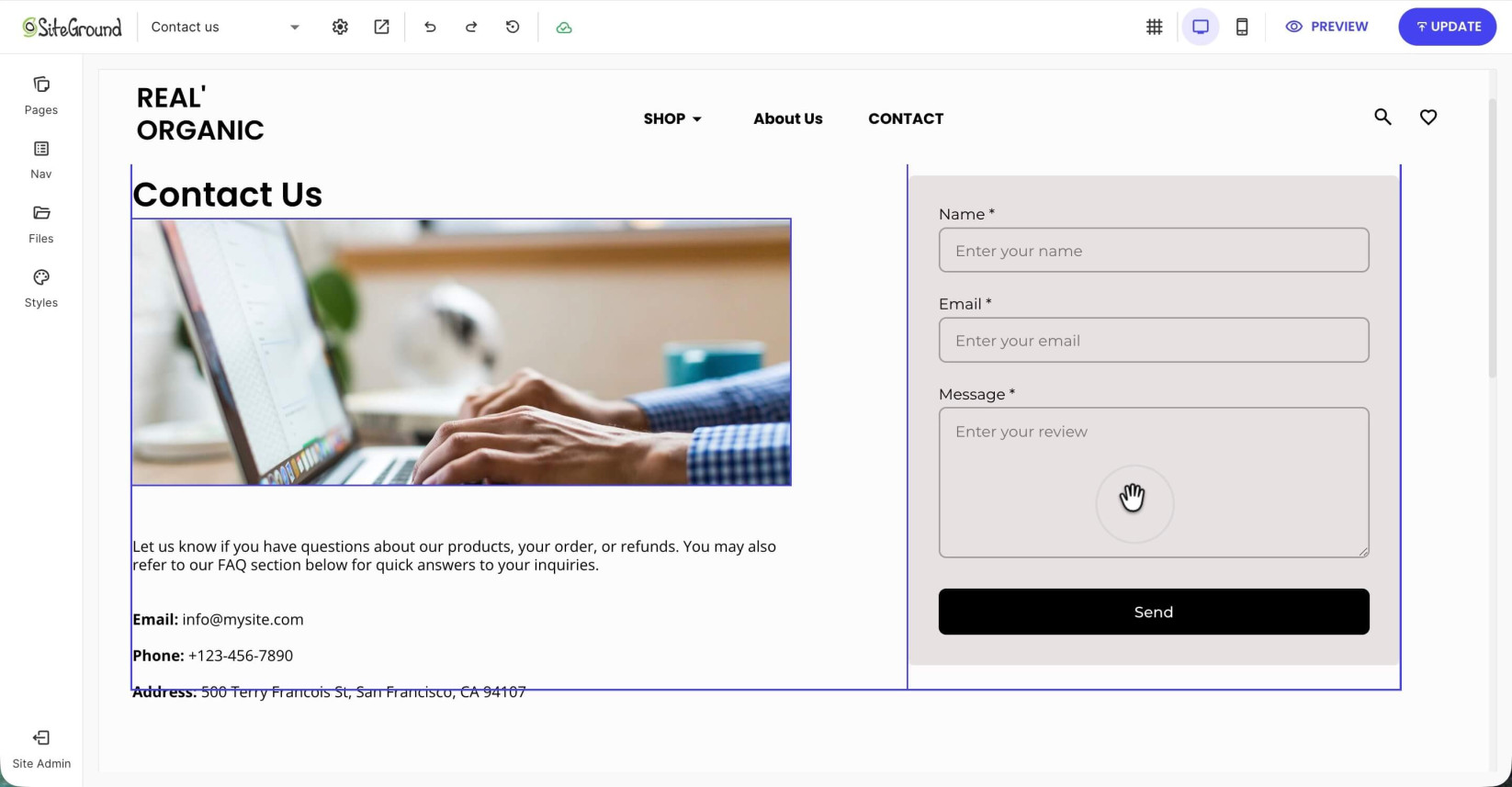
The click-and-drag selection is suitable for components that are close to each other.
In this method, you click and hold the mouse button, then drag in the chosen direction to form and stretch a box selector area. Every component touched by the box will be selected.

Discontiguous selection
To select non-adjacent components, you can use the discontiguous selection method.
Click on the chosen component, then hold CTRL (on Windows) or Command (on Mac), and click on the other components that you want to select.
How to edit multiple selected components
Once you’ve selected the components, you have several options for editing:
- Group move the selected components, keeping the relative distance between them
- Copy the selected components
- Duplicate the components
- Delete the components
How to move multiple components
To move the selected components, click and hold them to activate the grid view. Drag the components to your desired location, then release the mouse button to place them.

How to copy multiple components
Once you’ve selected the desired components, right-click to open the context menu and select Copy. You can then right-click on a chosen area and select Paste to apply the copy.

Alternatively, you can copy the selected components using keyboard shortcuts:
- On Windows – CTRL + C to copy and CTRL + V to paste
- On Mac – Command + C to copy and Command + V to paste
You can paste the components into the same or another section.
How to duplicate multiple components
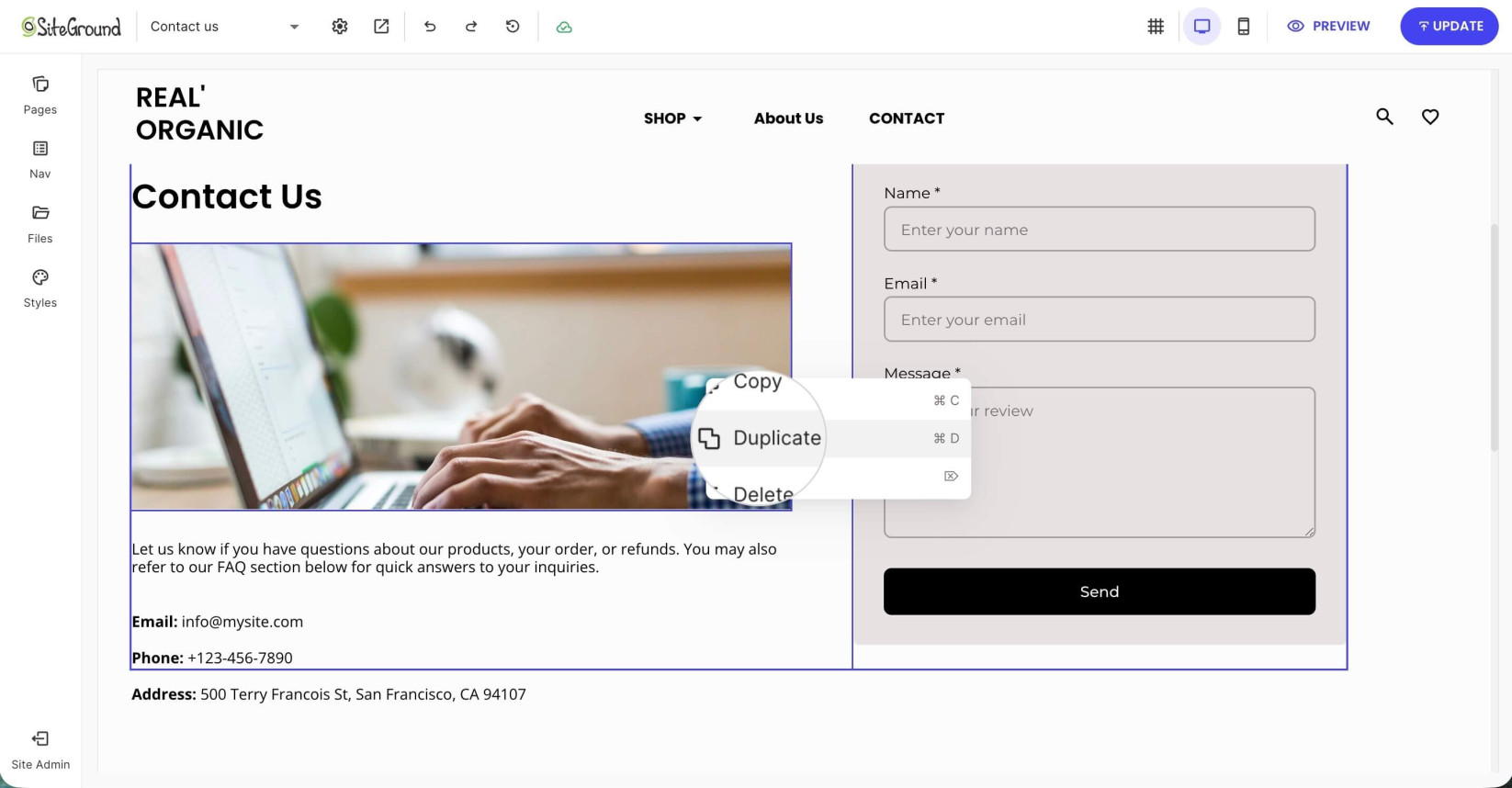
Duplicating components is similar to copying them, but you don’t have to manually paste them. The duplicated selection will be automatically copied and pasted on top of the original, and you can move it to your preferred position.
To duplicate your selection, right-click and select Duplicate.
You can also duplicate components using keyboard shortcuts:
- CTRL + D on Windows
- Command + D on Mac
How to delete multiple components
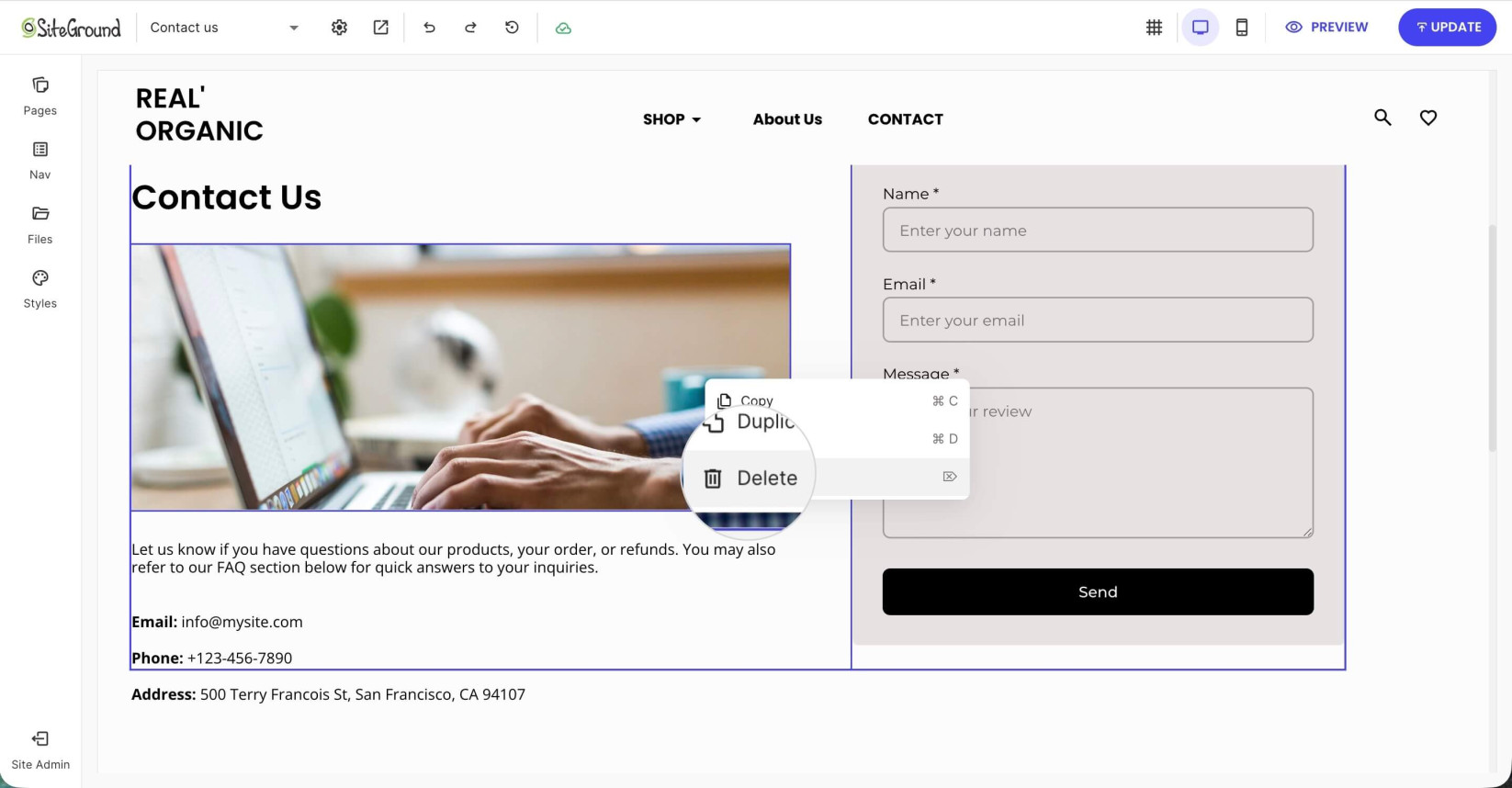
To delete the selected components, right-click to open the context menu and click Delete.
Alternatively, you can use keyboard shortcuts to delete your selection:
- Del key on Windows
- Delete/Backspace key on Mac
