Where Can I See All Orders
You can access and view all orders in the Orders section of your SiteGround Ecommerce.
To access it, go to Site Admin > Store Manager > Orders.
Each order is listed with the following details:
- Order ID – a unique number that serves as an order identifier
- Customer – names of the customer who posted the order
- Contact – the customer’s email address and phone number
- Customer Type – shows whether the order is made by a new or returning customer
- Total – the total amount of the order
- Status – the current status of the order
- Date – date and time of when the order was made
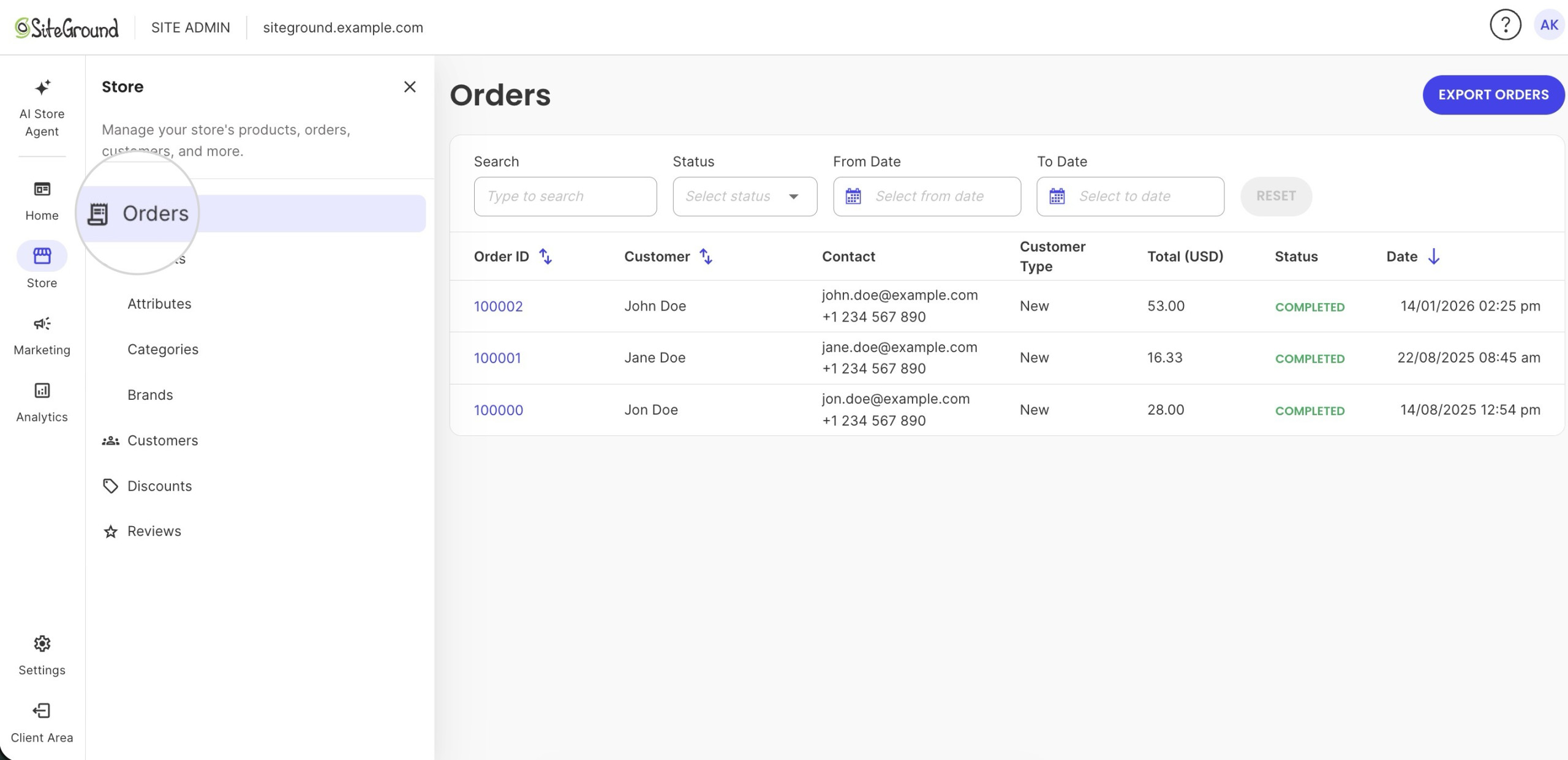
You can quickly find orders by typing an Order ID, customer name, email, phone or total amount in the Search field. Another way to narrow down the orders which you are viewing is to use the status and date range filters.
You can view payment, shipping, and billing details by accessing a single order’s page.
