How to reserve product quantities when added to cart
Order fulfillment is critical for every online shop. Making sure shoppers get what they ordered increases your reputation, drives sales, and attracts more customers.
One mechanism that will help you maintain steady order fulfillment is the reserve feature in SiteGround Ecommerce.
What does the feature do
This feature reserves a product’s cart quantity for a limited time after a shopper adds it to their cart. As a result, the product’s availability temporarily decreases, so other shoppers browsing the same product see the stock reduced accordingly.
If the reserving shopper does not complete their order within the reservation window, the item remains in their cart, but the reservation expires, and the quantity becomes available to other shoppers again.
This prevents overselling limited-stock products during checkout and helps avoid unfulfilled orders.
Requirements
Before enabling the setting, make sure the product you want to protect meets both of these conditions:
- Advanced stock management is enabled on the product, with a specific stock number set (rather than simple in-stock/out-of-stock tracking).
- The “Show Available Quantity” option is enabled on the Single Product page, so shoppers can actually see the live available count.
If either condition isn’t met, the reservation still runs in the background, but shoppers won’t see the available quantity change.
How to enable it
Below, you’ll find the steps to enable the “reserve” feature and use it to its full extent.
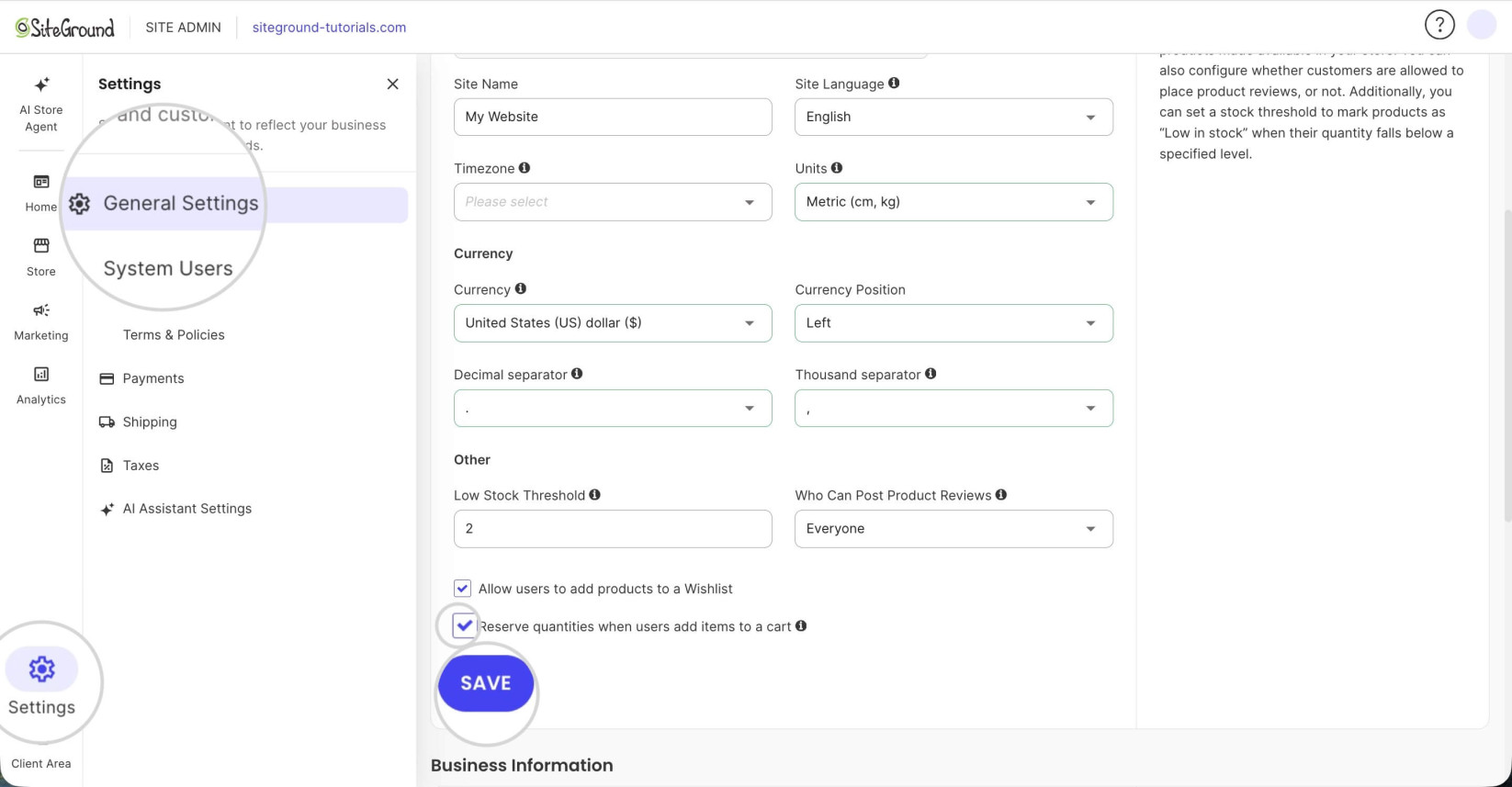
1. How to reserve product stock quantities
- Go to Site Admin > Settings > General Settings.
- Find the option “Reserve quantities when users add items to a cart” and check its box to enable it.
- Click Save to confirm.
2. Set up advanced stock management on the product
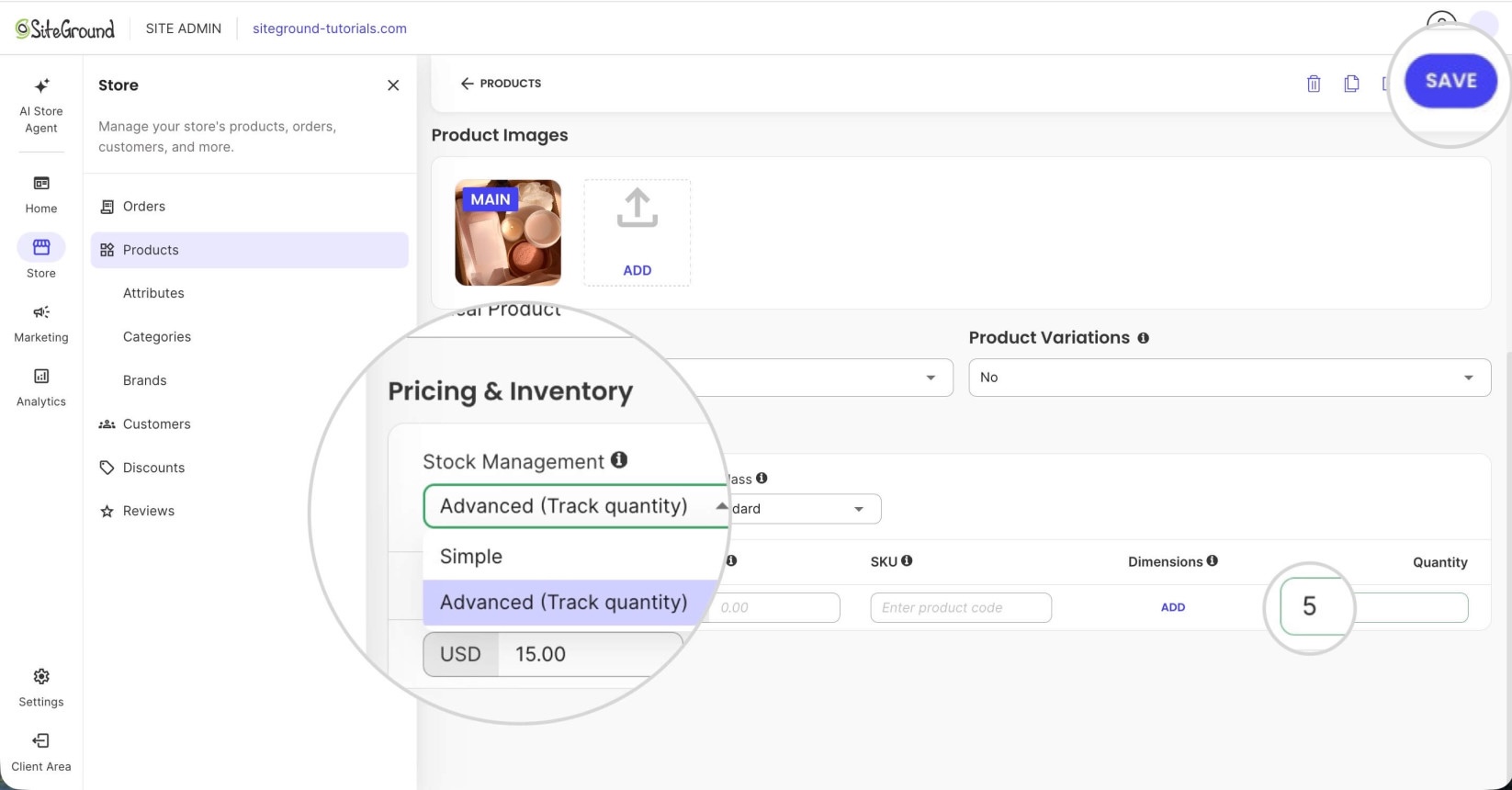
- Go to Site Admin > Store > Products and open the product you want to protect.
- Go to Pricing & Inventory > Stock Management.
- Switch Stock Management to Advanced (Track Quantity).
- Set a specific stock number for the product — for example, 5.
- Press Save to confirm the change.
3. Show the available quantity on the storefront
- Open your store’s Website Builder > Pages > Single Product.
- Open the Edit Single Product popover.
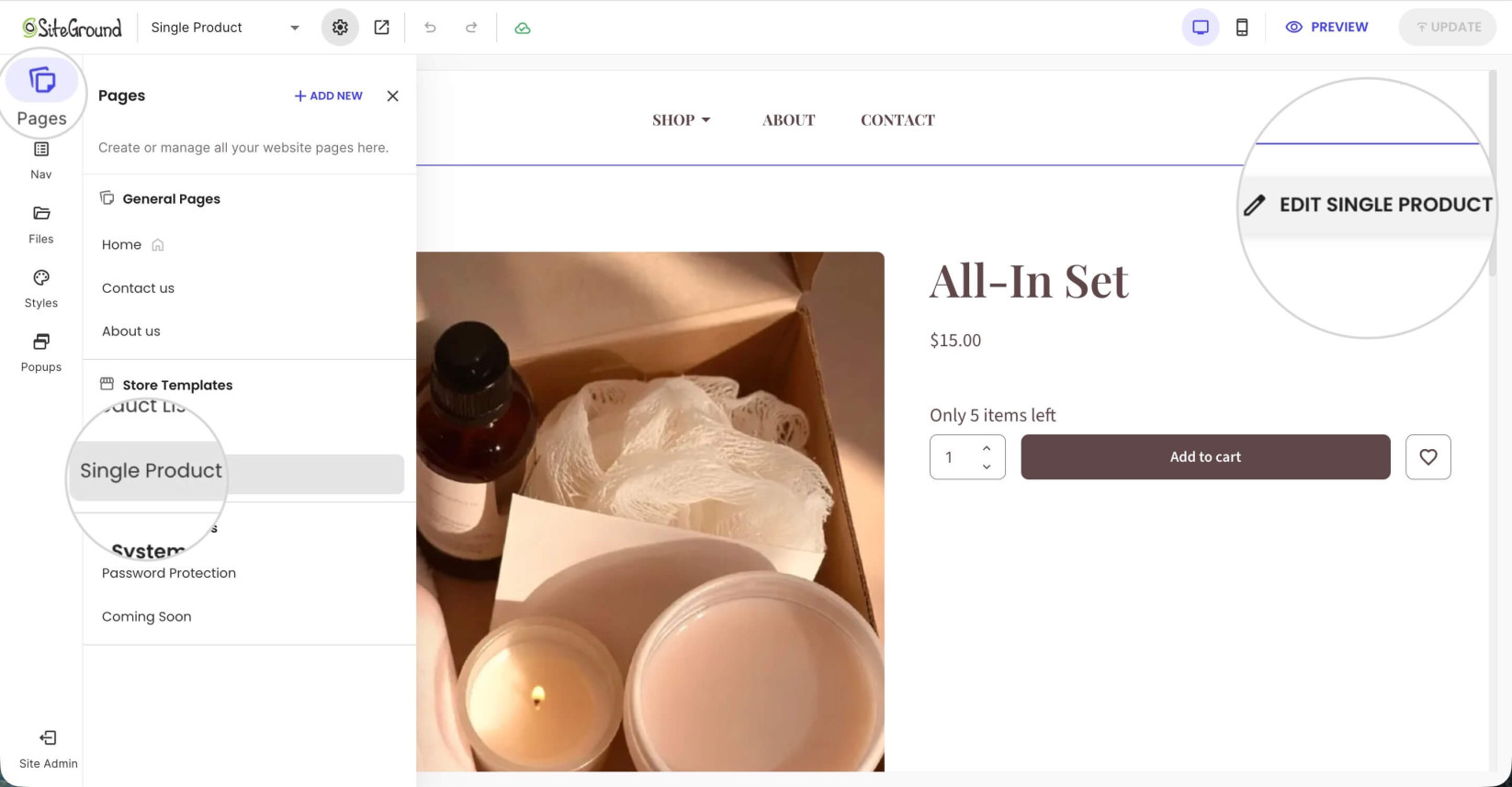
- Enable “Show Available Quantity”.
- Press Update to save the change.
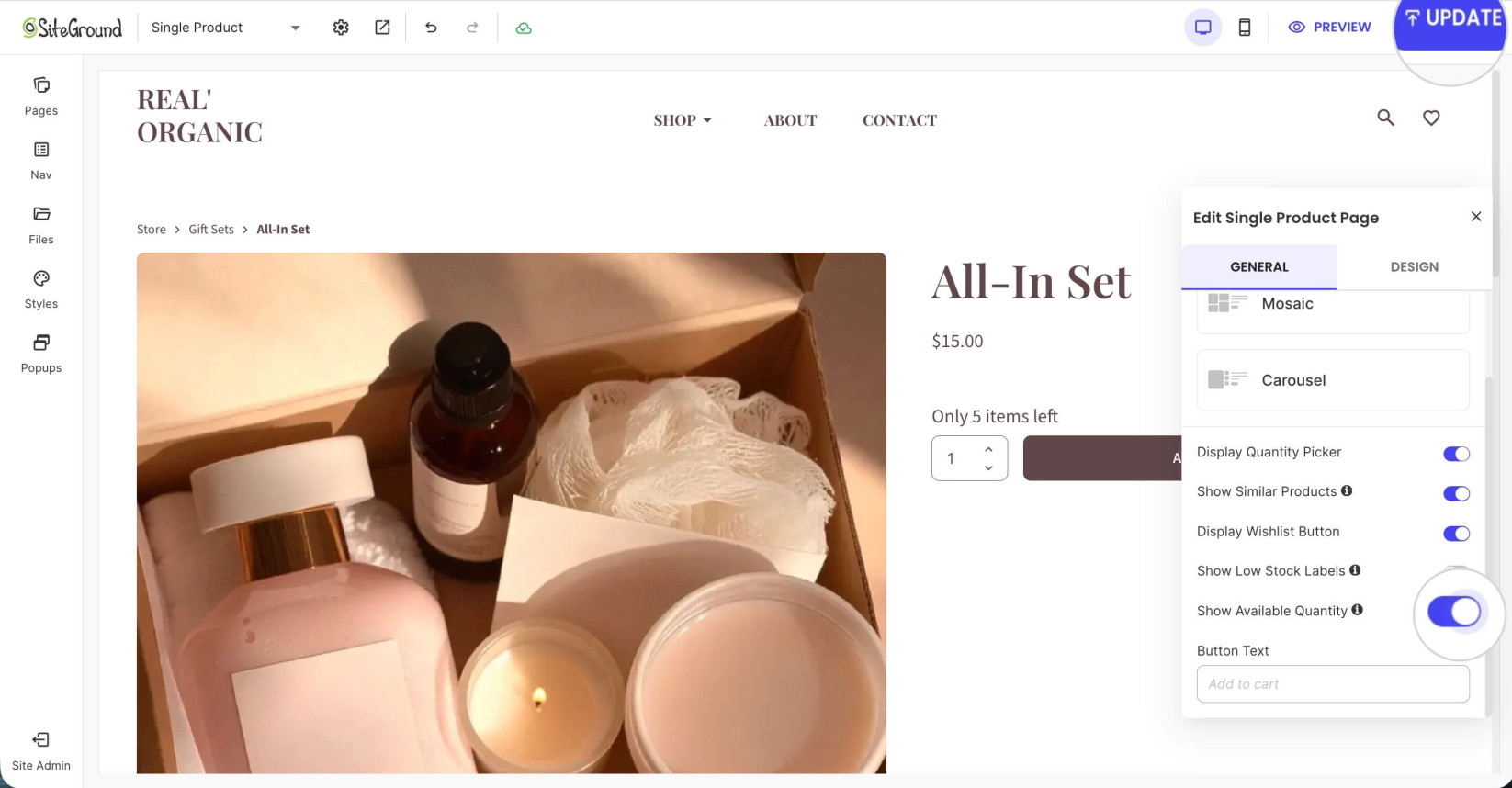
Once all three steps are done, the storefront will display the live available quantity for the product, and that quantity will reflect active reservations.
How the “reserve” feature affects shoppers
Assume a product has 5 units in stock, advanced stock management is on, and “Show Available Quantity” is enabled. Below is an example of how the reserve feature works for visitors shopping on your storefront.
- Shopper A adds 1 unit of the product to their cart.
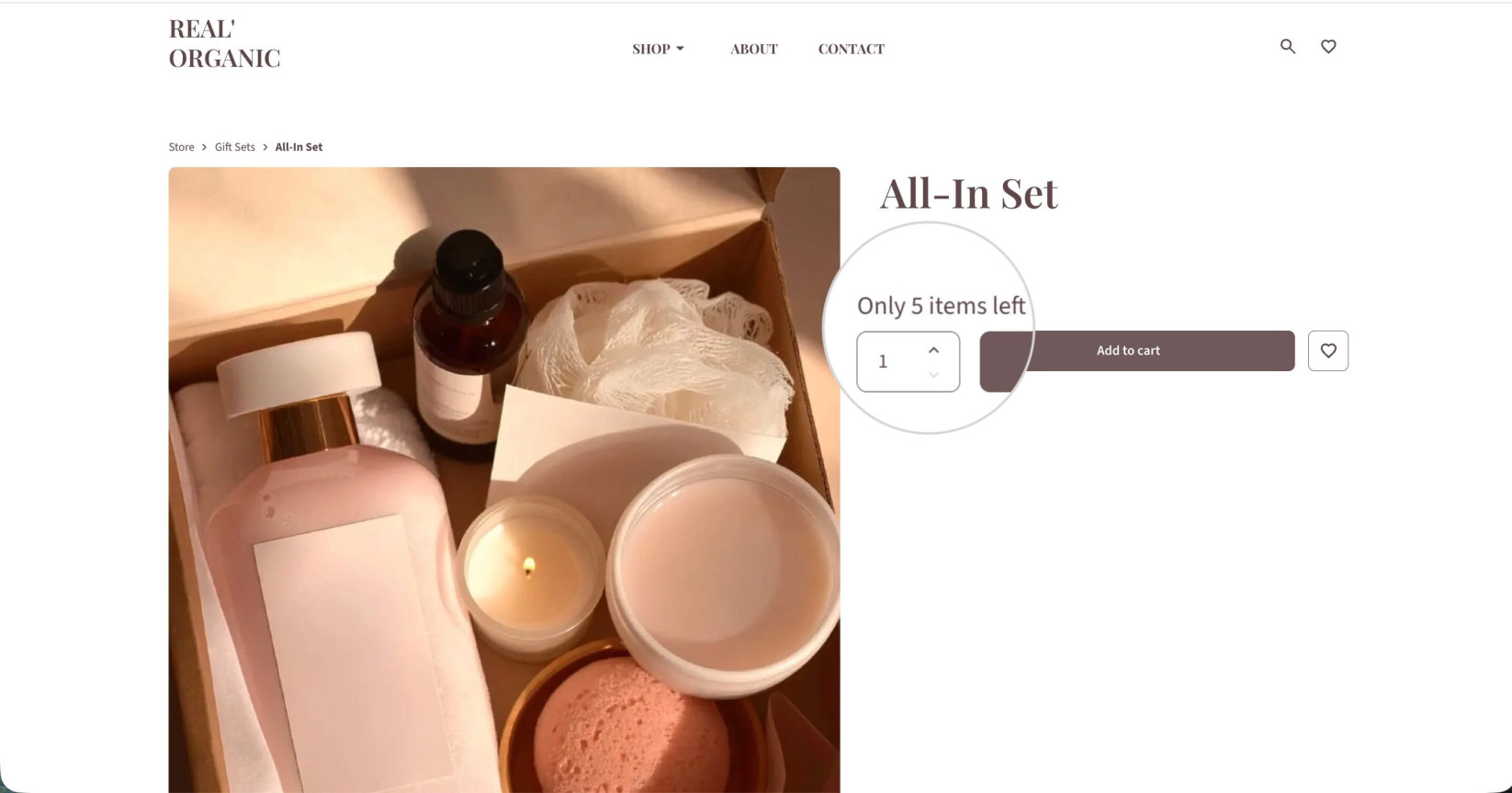
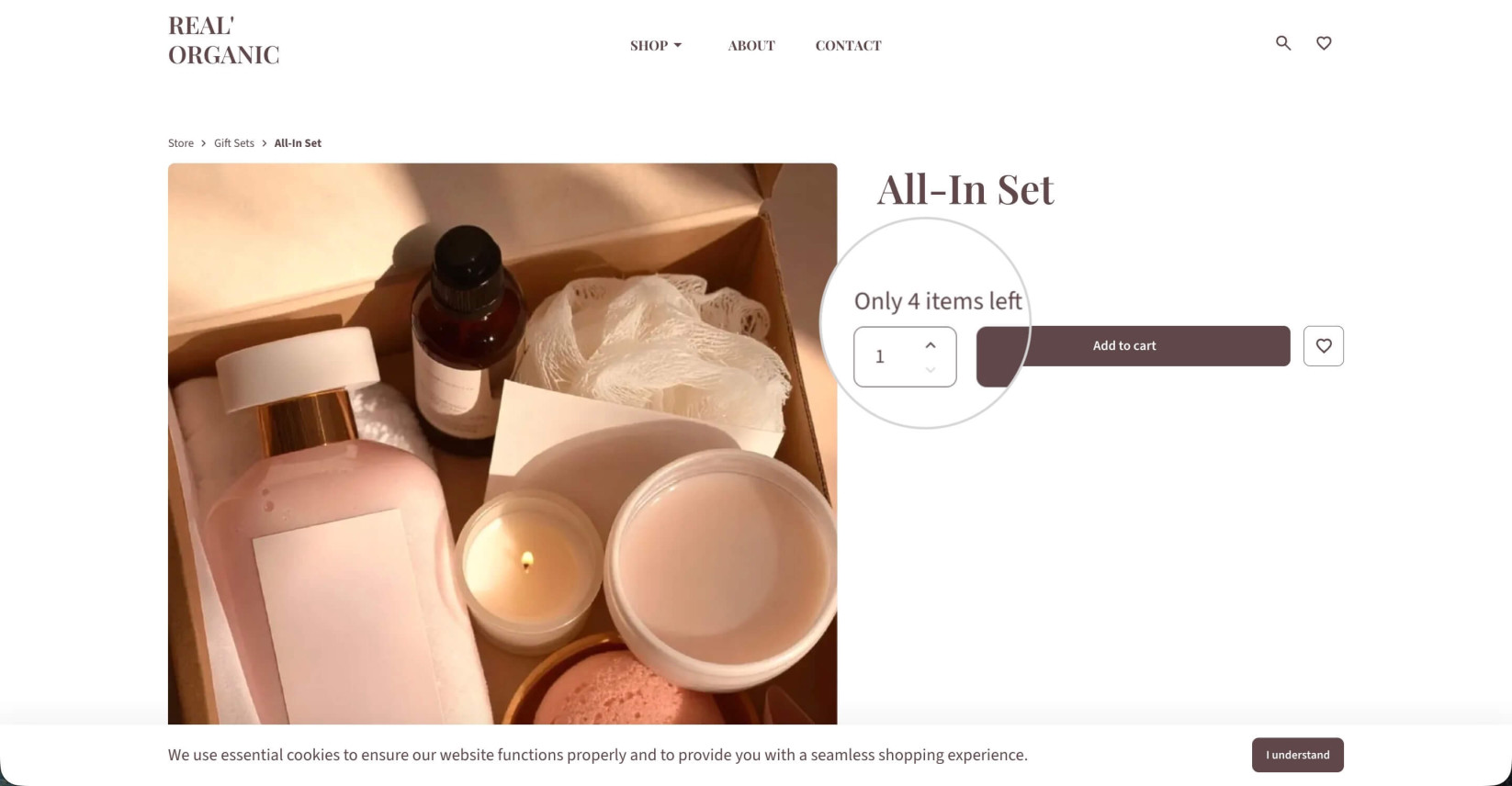
- Shopper B opens the same product page and sees 4 available — the 1 unit Shopper A added is now reserved and excluded from the count shown to others.
- If Shopper A completes their order within 30 minutes, the reserved unit is deducted from stock permanently as part of the normal order flow.
- If Shopper A does not complete the order within 30 minutes:
- The item stays in Shopper A’s cart — it isn’t removed.
- The reservation expires, and the unit becomes available again.
- Shopper B (or anyone else) will now see 5 available again.
To sum it up, the reservation only affects what other shoppers see as available stock. It does not remove items from a shopper’s own cart when it expires.