How to Represent Your Team on a Page
Displaying your team on your website helps visitors get to know the people behind your business.
You can showcase your team by creating a new Team page or by adding a Team section to an existing page.
How to Represent Your Team on a New Page
To create a new Team page:
- Open the Pages tab and click Add New.

- In the page library, select Our Team.

- Choose a layout and click Add Page.
The new page will be added to your site.
You can then update the page settings from the Settings panel, including:
- Page Status
- Page Name
- Page URL

After that, replace the placeholder text and images with your team’s names, roles, photos, and descriptions.
How to Represent Your Team on an Existing Page
To add a Team section to an existing page:
- Go to Site Admin and click Edit Website.
- Open the Pages tab and select the page where you want to display your team.

- Scroll to the desired position and click Add Section.

- In the section library, select Team, choose a layout and click Add Section.

- To customize it, hover over the section and click the Edit Section icon.

- Use the settings panel to adjust the section:
- General – modify the section layout and spacing.

- Design – change colors, background, and other visual settings.

- You can also replace the placeholder text and images directly in the section. To customize the team items further, select the columns component inside the section and click the Edit component icon.

- In the General tab, set the number of Columns and Rows, adjust the Gap, and choose whether to show the Image, Title, Description, and Button elements.

- In the Design tab, customize the appearance by enabling a background container and adjusting the image scale.
How to Represent Your Team with a Component
In addition to adding your team as a full section, you can also insert it as a component to a blank or existing section.
- Click the Add Component button in the top-left corner of the section.

- Search for/Select Columns.
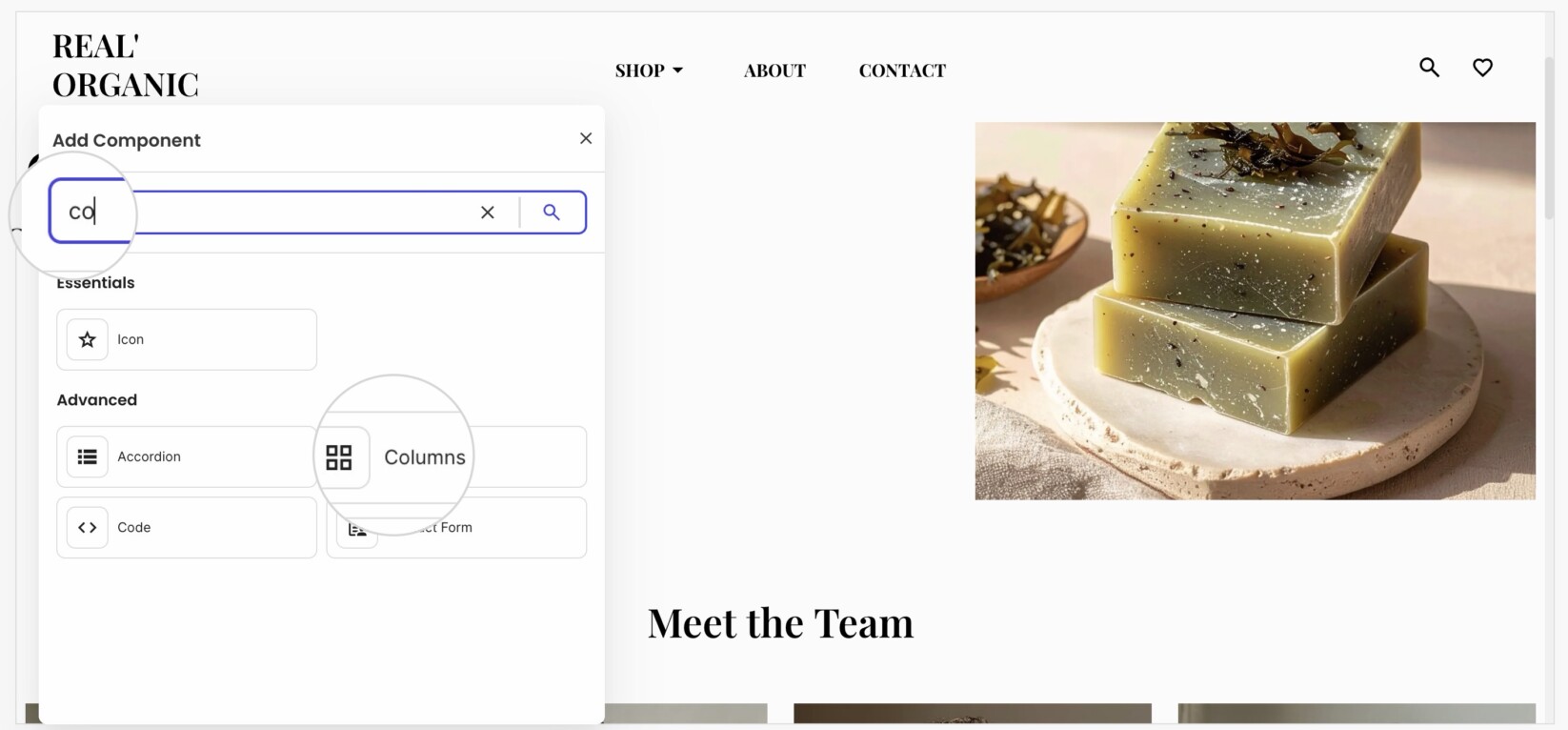
- Place the component anywhere on the page grid.
- To customize it, select the component and click the Edit component icon.

- In the General tab, set the number of Columns and Rows, adjust the Gap, and choose whether to show the Image, Title, Description, and Button elements.

- In the Design tab, customize the appearance by enabling a background container and adjusting the image scale.

