How to rebuild your existing website in Coderick AI
Moving a website from one platform to another has always been one of the major pain points for website owners and developers alike, but not anymore. Coderick AI lets you migrate an existing website from any platform and rebuild it directly into a new Coderick project — no manual copy-pasting required.
How does it work
When starting a new Coderick project, you can choose to submit a URL of an existing website. By entering the address, Coderick crawls the site, copies the layout, images, text, and design, and builds a ready-to-edit version inside the AI workspace.
What gets copied
When you submit a URL, Coderick crawls the existing website and recreates:
- Page layout and structure
- Images
- Text content
- Fonts and color scheme
Coderick AI automatically copies up to 5 pages. Depending on whether the website contains a sitemap or not, these are:
- The first 5 pages from your sitemap (if the website has one). The homepage is always included.
- The 5 most relevant pages, as determined by the AI, if no sitemap is available.
What is not copied
Coderick AI doesn’t copy the following elements:
- Proprietary or licensed fonts
- SVG images
- Complex animations or components with animated text overlays
- E-commerce checkouts or backend databases
- Sites protected by reCAPTCHA (you will receive a notification)
- Websites that do not allow bot crawling (via a robots.txt or ai.txt file)
How to rebuild your website
Here is how to rebuild a website from a URL with Coderick:
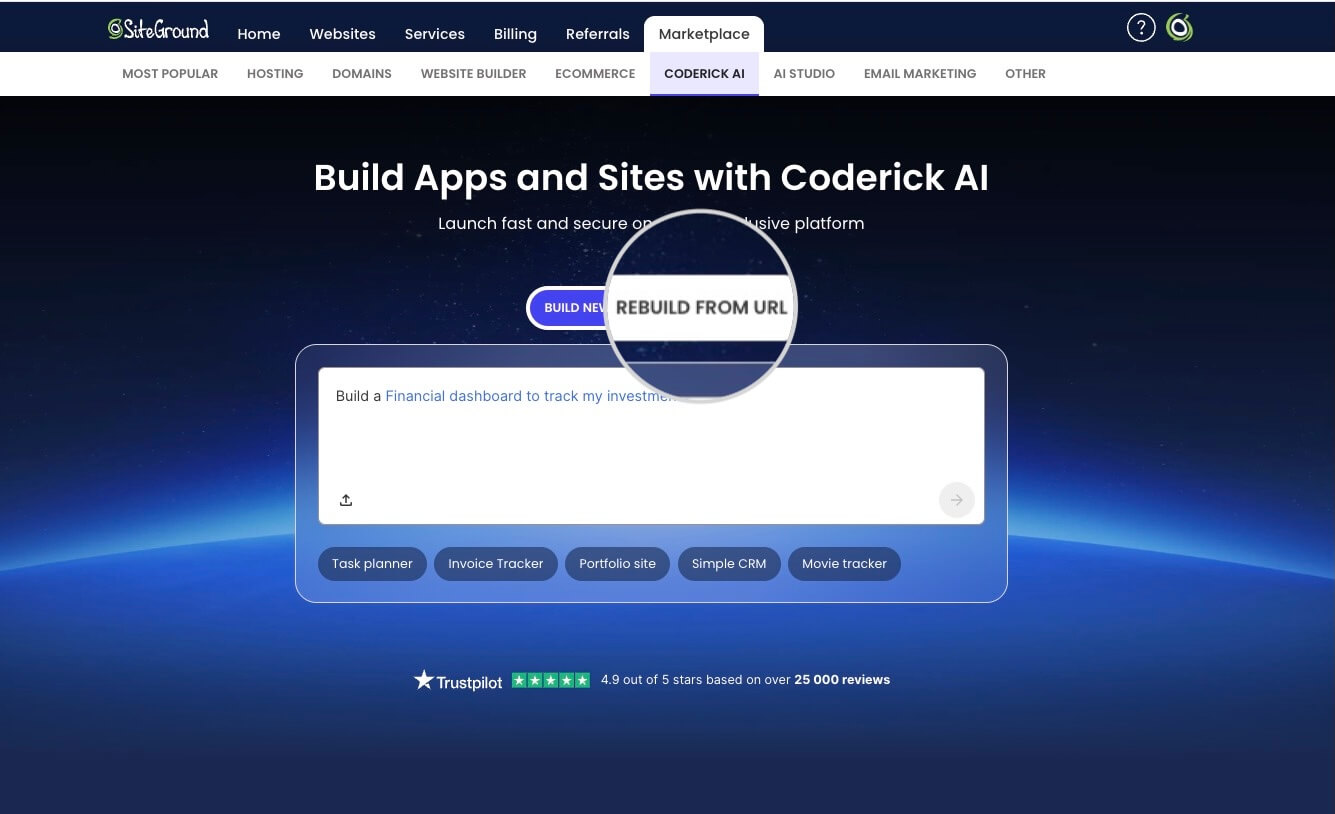
- Go to your Client Area and start a new project from Marketplace > Coderick AI or from Websites > Coderick Projects > New Project button. Alternatively, you can start the chat from the Coderick AI landing page.
- Select the Rebuild from URL button just above the chat box.
- A URL input field appears below the options. Type or paste the address of the website you want to copy. The `https://` prefix is added automatically.
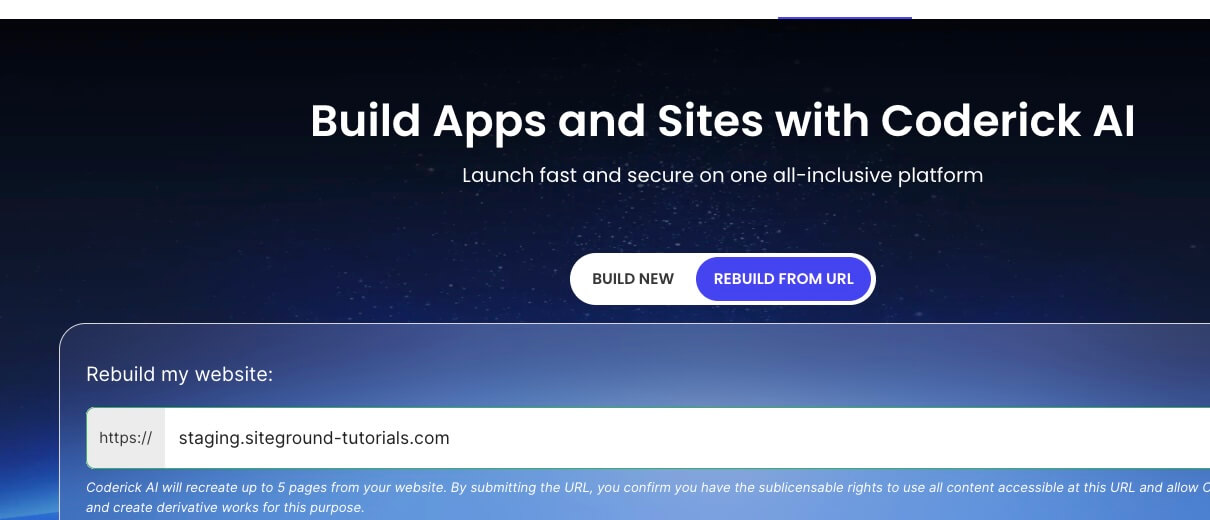
- Read the legal disclaimer shown beneath the input field, then press Enter to submit.
- You will be taken to the Coderick AI chat. The AI analyses your website and begins rebuilding it — this typically takes several minutes. You can follow the progress in the chat as the AI outlines the plan and builds each component.
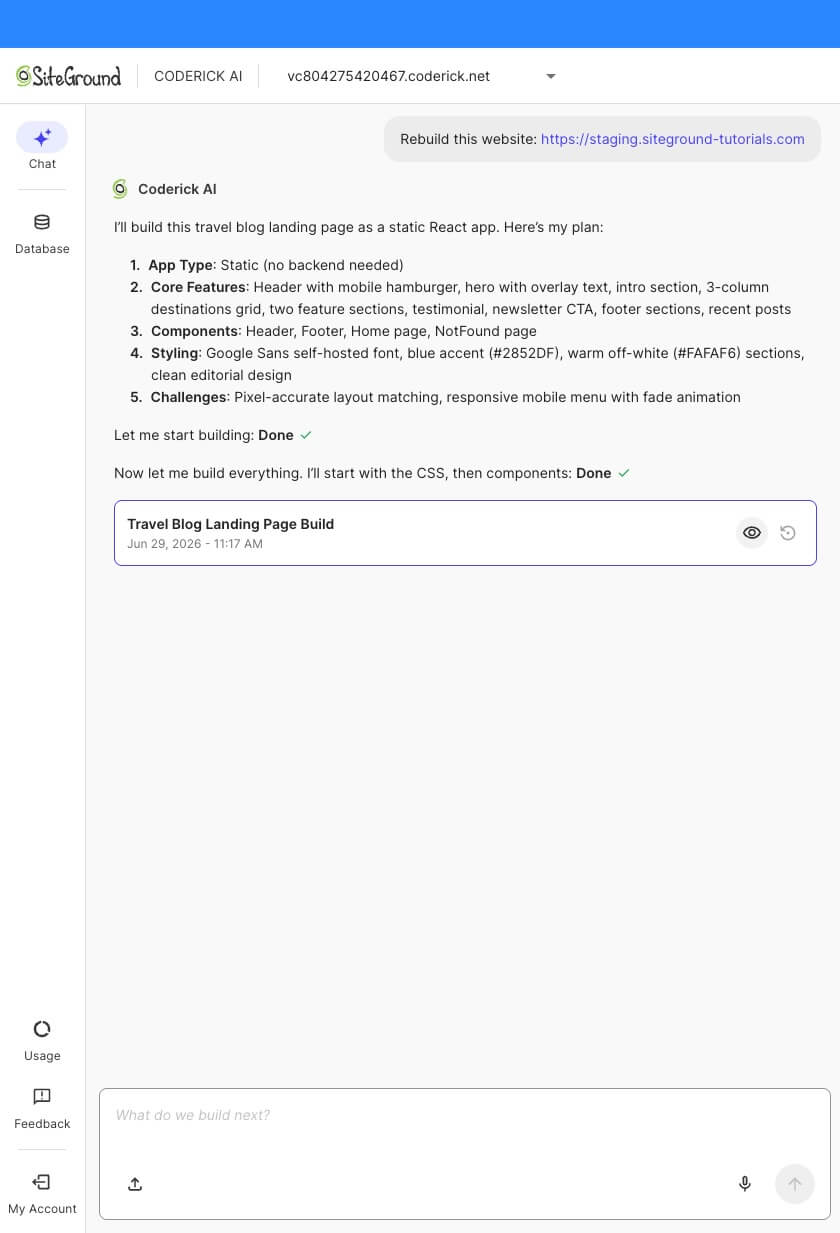
- Your rebuilt website appears in the preview panel on the right. Use the Visual Edit button to make changes directly on the page, or continue refining the site through the chat.

How to copy more than 5 pages
Only the first 5 pages are rebuilt automatically. To copy additional pages, you can utilize the following two approaches:
- Copy pages from screenshots
- Copy pages from HTML/JavaScript/CSS code
Copy pages from screenshots
To copy pages from screenshots, follow these steps:
- Take screenshots of the pages you want to add.
- Upload the screenshots directly into the Coderick AI chat.
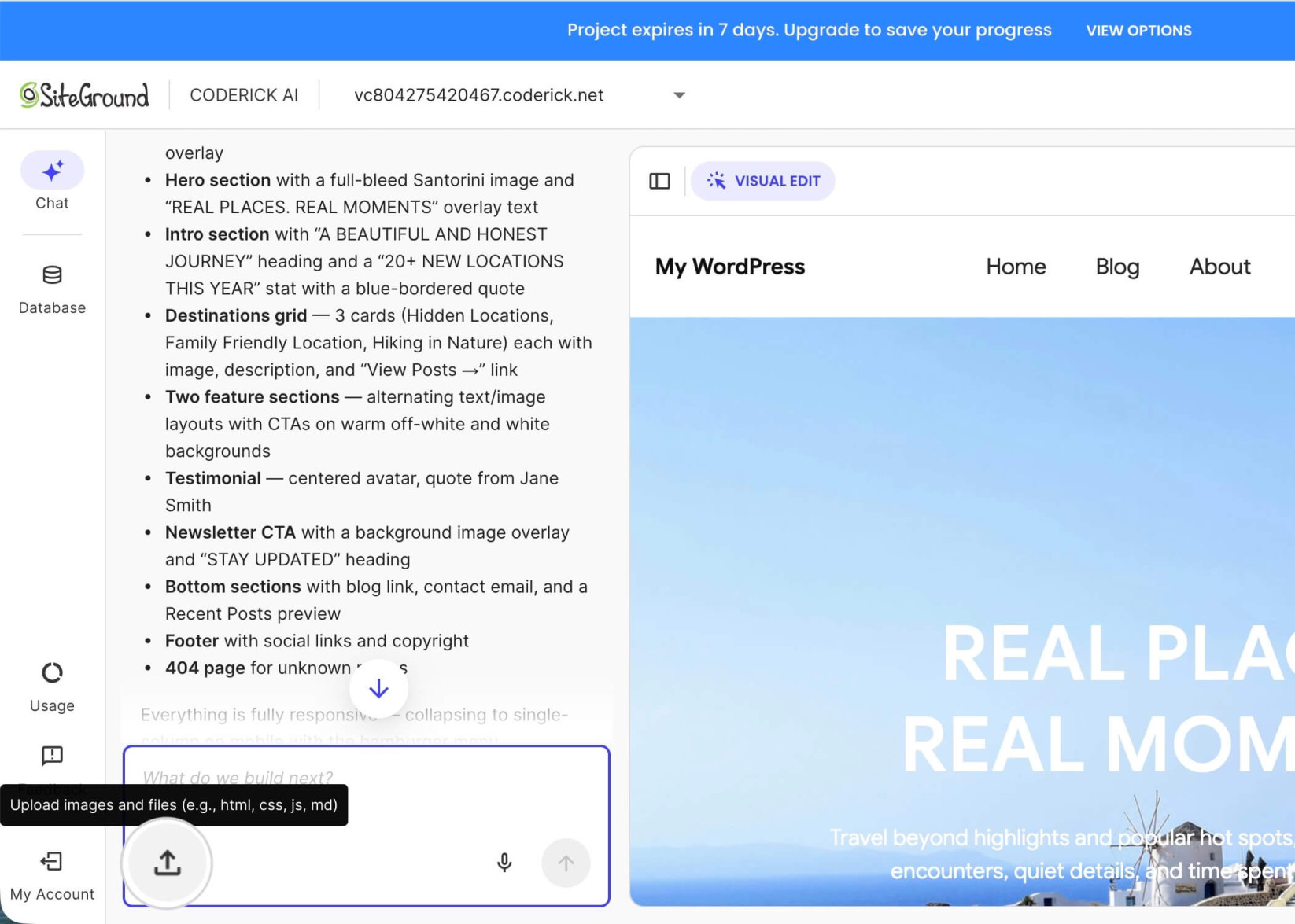
- Ask Coderick AI to recreate those pages based on the screenshots.

Copy pages from HTML/JavaScript/CSS code
You can also copy a page by copying its HTML/JavaScript/CSS code and pasting it in Coderick’s chat. Here are the steps if you are using Google Chrome.
- Open the page you wish to copy.
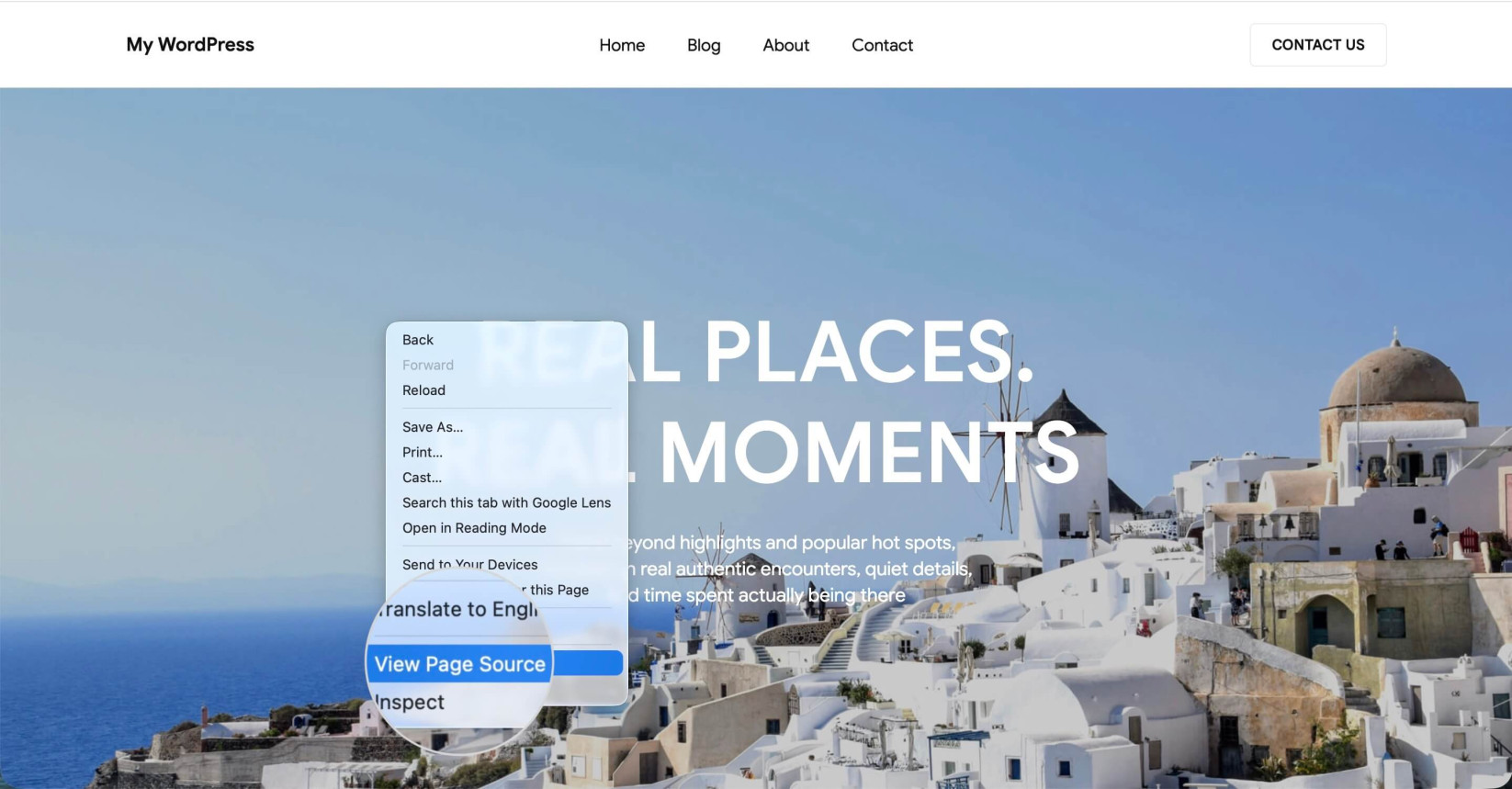
- Right-click and select View Source Code. A new browser tab will open.
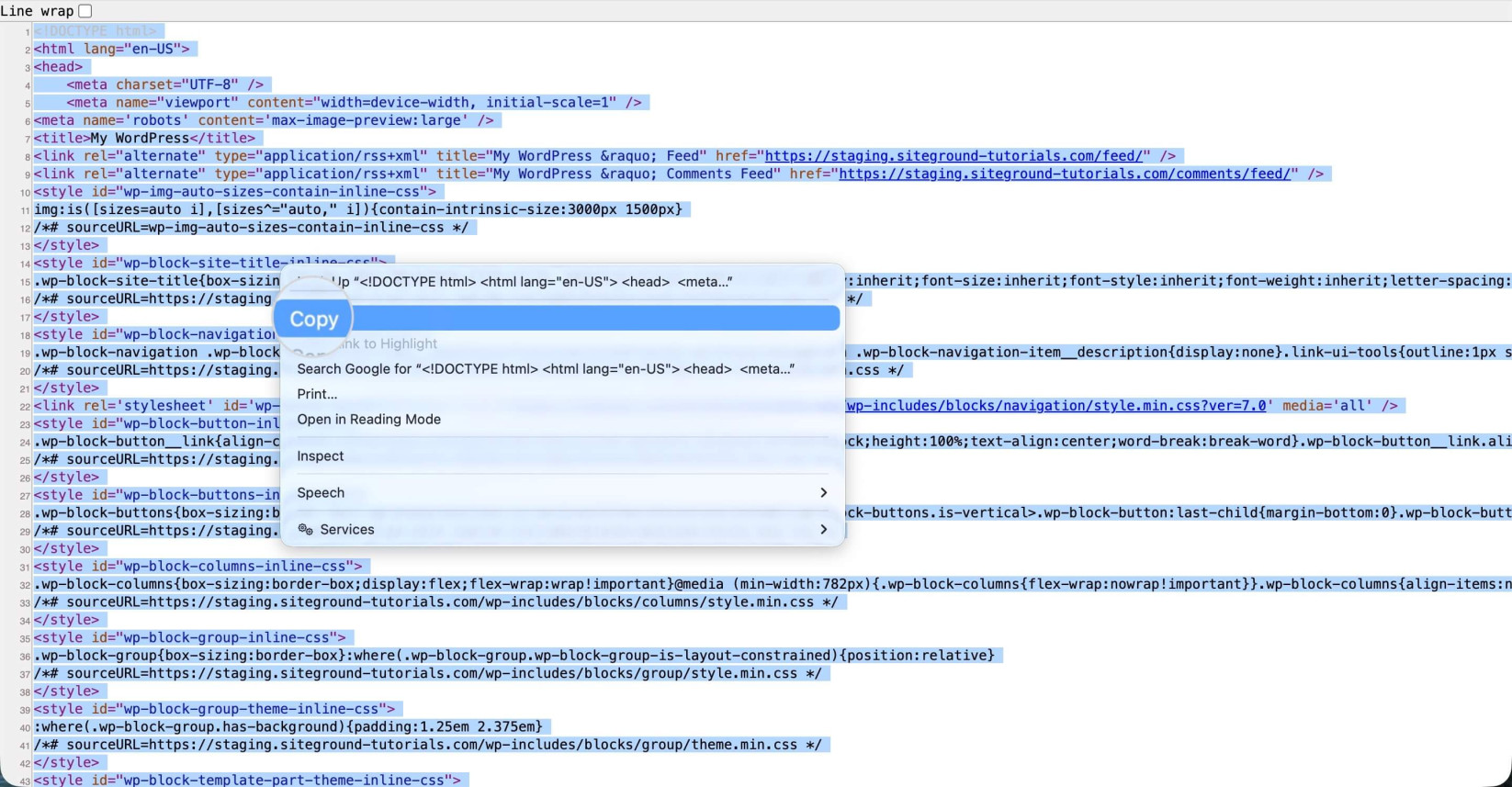
- Select and copy the entire page code. You can use the keyboard shortcut Cmd + A (on Mac) or CTRL + A (on Windows) to highlight the entire code.
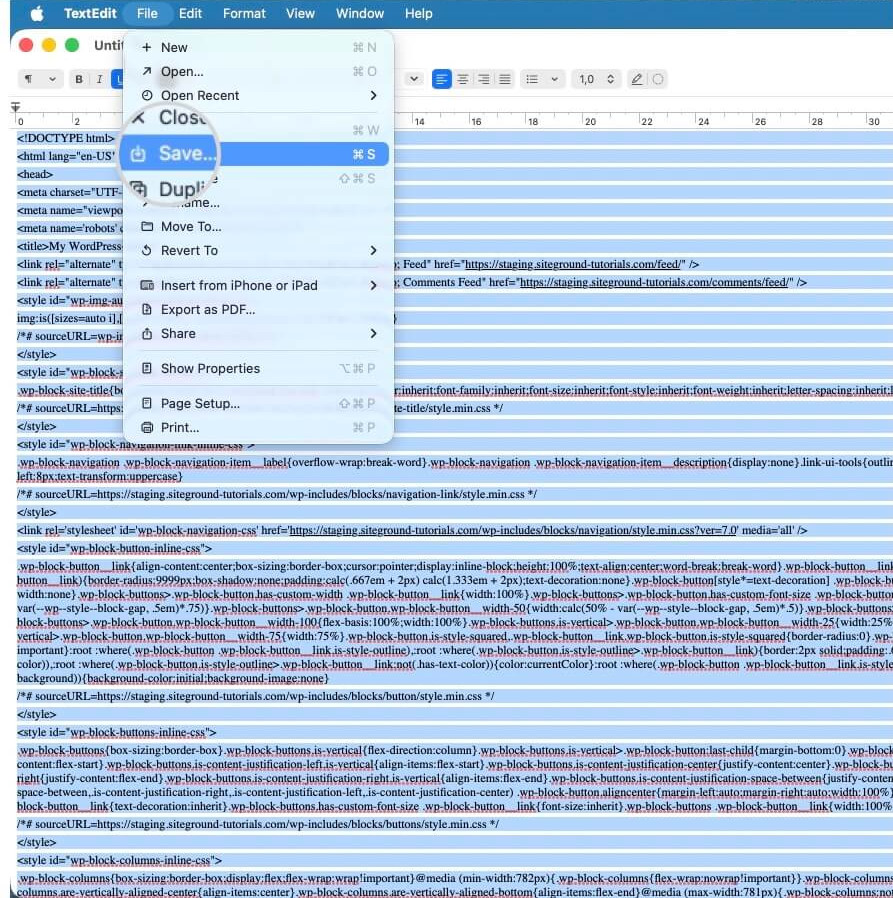
- Open a text editor like TextEdit (on Mac) or Notepad (on Windows), and paste the code.

- Save the file in an HTML format.
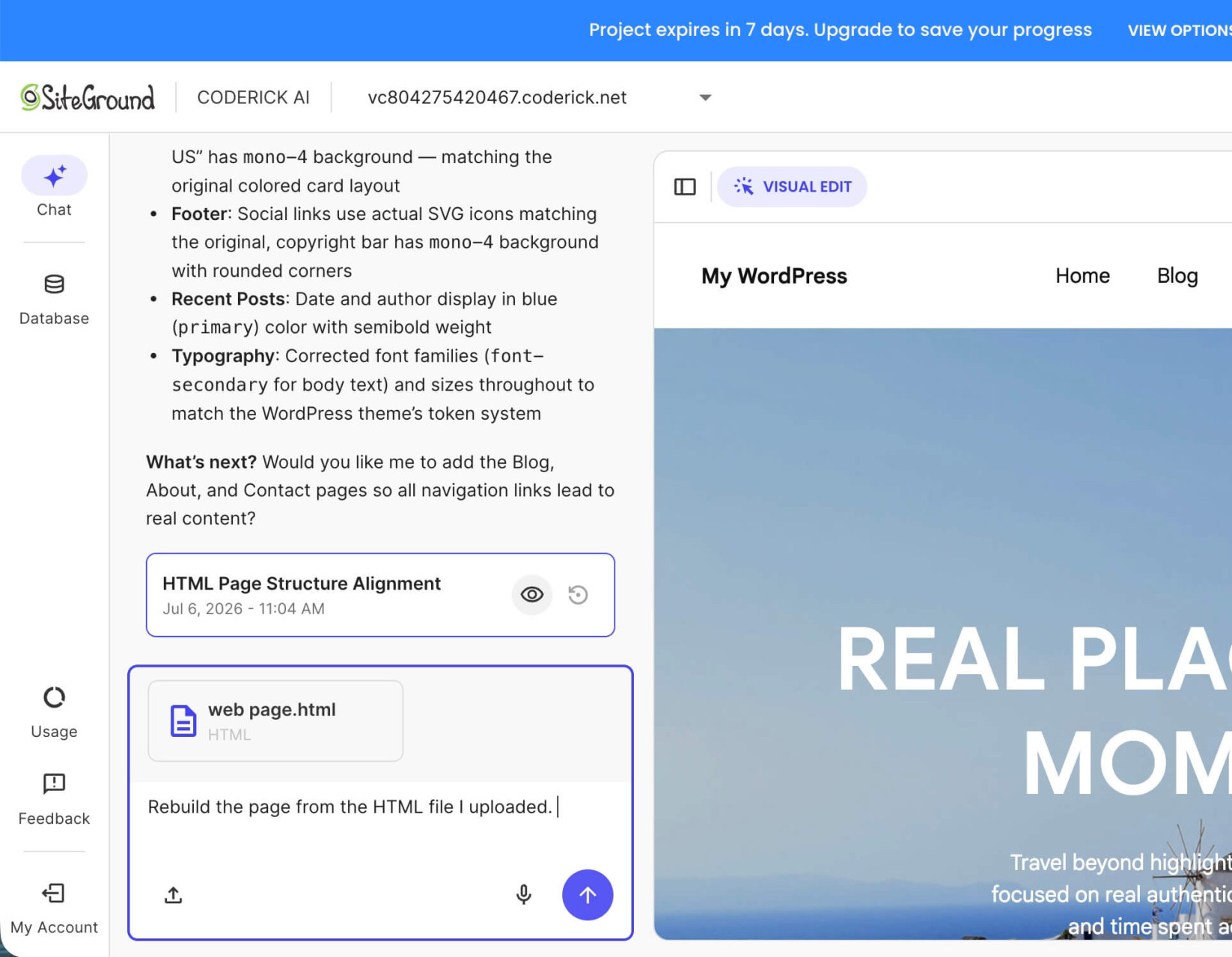
- Go back to the Coderick AI chat interface and upload the HTML file from your device.
- Ask Coderick to rebuild the page from the HTML file you provided.
Use cases for rebuilding a site with Coderick AI
Moving away from an outdated platform
Your site is built on a legacy CMS, an old page builder, or an outdated framework that’s hard to maintain. In this case, you can use Rebuild from URL to transfer your existing design and content into Coderick AI and continue from there — without starting from scratch.
Switching from another website builder
If you have a site on another builder platform and want to take advantage of Coderick AI’s vibe-coding tools, you can copy your existing site over in minutes rather than recreating it manually.
Redesigning an existing site
You can use the existing site as a starting point for a redesign. Crawl your current site to preserve the structure and content, then use the Coderick AI chat to update the look, add new sections, or swap out components.
Prototyping for clients
Agencies and freelancers can crawl a client’s existing site to generate an instant working prototype inside Coderick AI, then iterate on it with the client using the visual editor and chat.
Creating a site inspired by a reference design
If you own the rights to a reference website and want a similar layout for a new project, you can use Rebuild from URL to replicate the structure and then tweak it.
Tips
- Start with your most important pages — If your site has a sitemap, Coderick uses it — so the order in your sitemap determines which 5 pages are copied.
- Clean up after the crawl — Some elements (fonts, complex animations) cannot be replicated. Use the chat to adjust anything that looks off after the initial build.
- Refine the website by chatting — Don’t expect perfect results from the initial migration. Some elements might need fine-tuning. Use the chat to polish the migrated website, alter elements, fix bugs, etc.
- Links to non-migrated pages will return a 404 — This is expected. Those pages simply haven’t been rebuilt yet. Add them manually via screenshots or by asking the AI to create them from scratch.
- The feature is new-project only — If you want to rebuild a site, do it before starting your chat — you cannot trigger a crawl from within an existing project.
- Complex integrations need manual setup — Payment gateways, contact forms connected to external services, and database-driven content must be reconnected or rebuilt separately.
