How to Track Product Stock Quantities?
Keeping an optimal product stock quantity is essential to your business. It ensures uninterrupted sales and a steady flow of income. SiteGround Ecommerce provides all the necessary tools to monitor your product quantities, so you don’t run out of stock.
How to Track Product Stock Quantities in Analytics
- Navigate to Site Admin > Analytics.
- Open the Products tab.
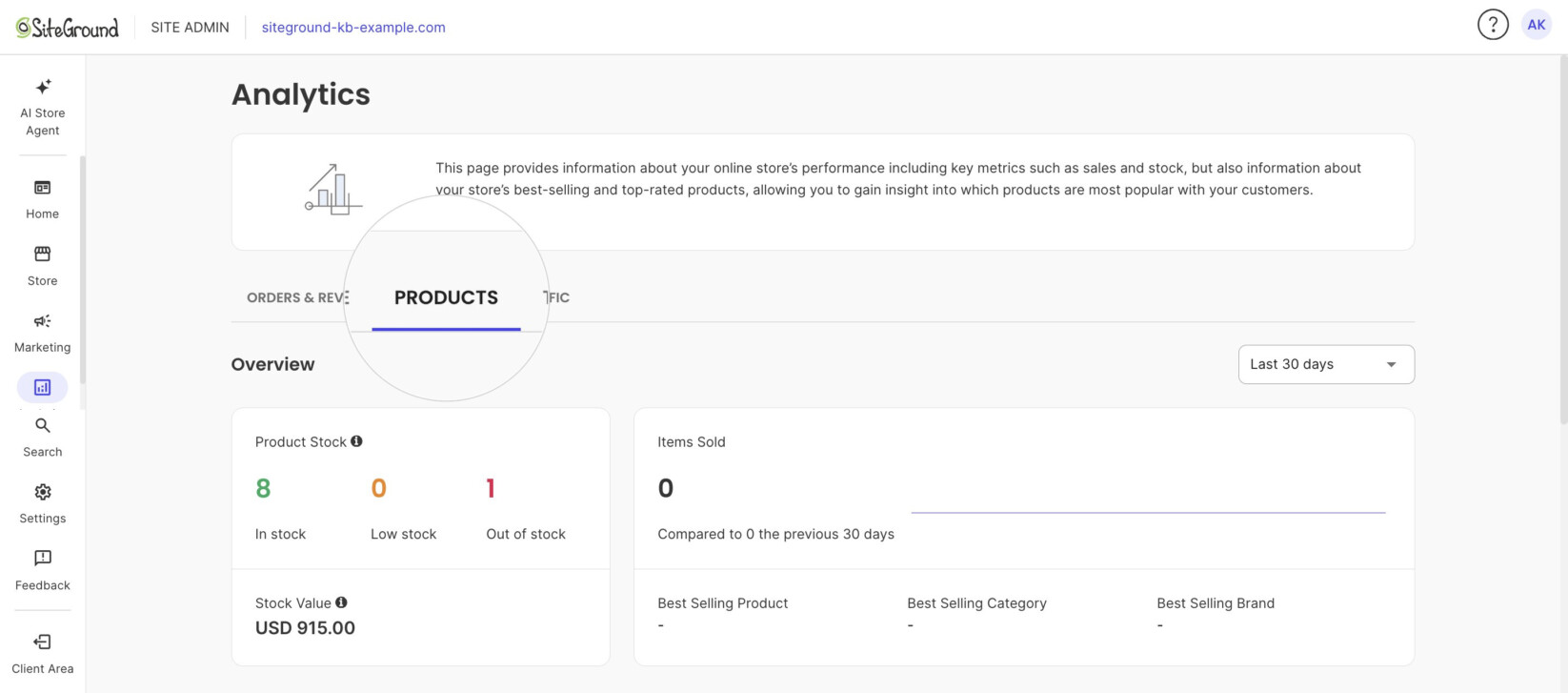
On this page, you can view the general stock statistics in the Product Stock section. These statistics include all live products and their variations, but exclude products in “Draft” status.
- In stock–displays the number of products in stock.
- Low stock–shows the number of products in low stock. The low stock threshold is defined in the store settings.
- Out of stock–the number of products that are out of stock.
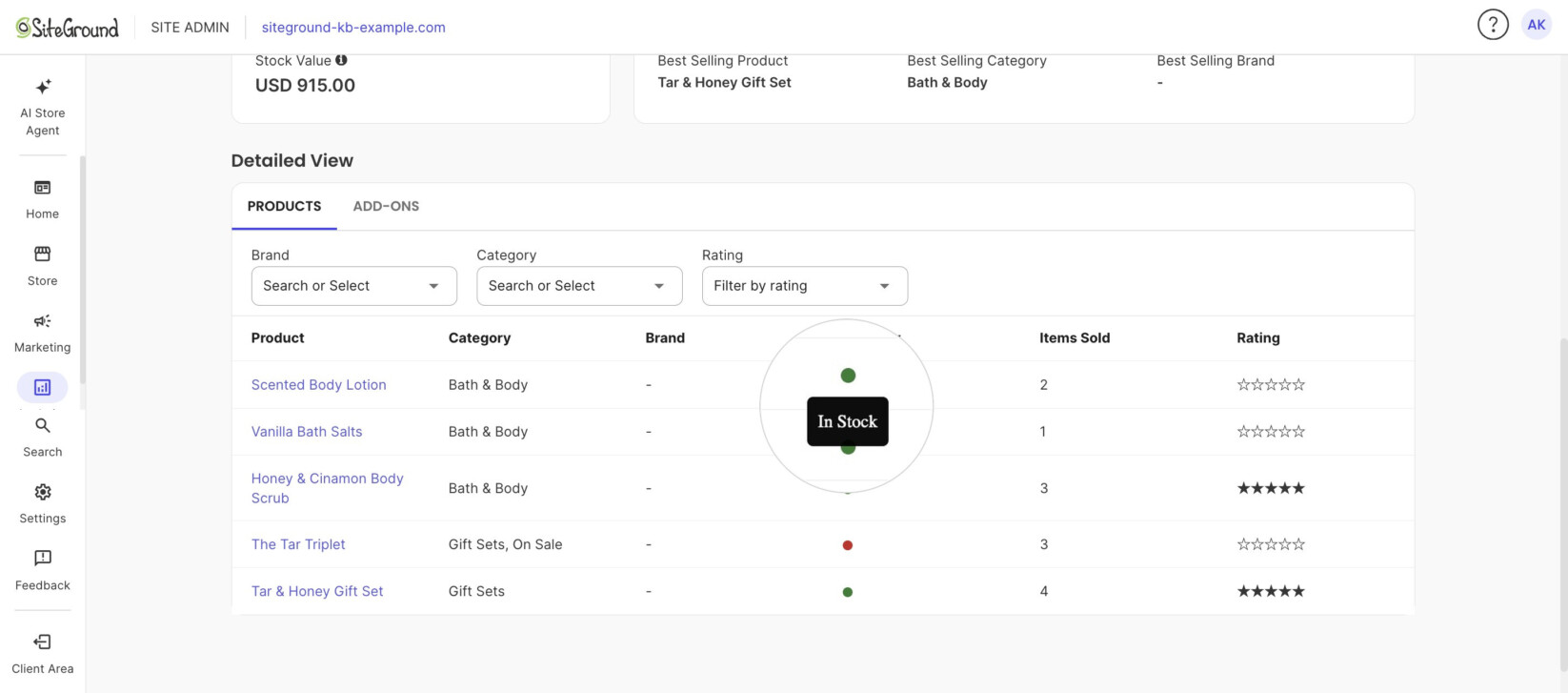
The Detailed View section below lists products that customers ordered. You can see if each of these products is In Stock or Out of stock from its Quantity column.
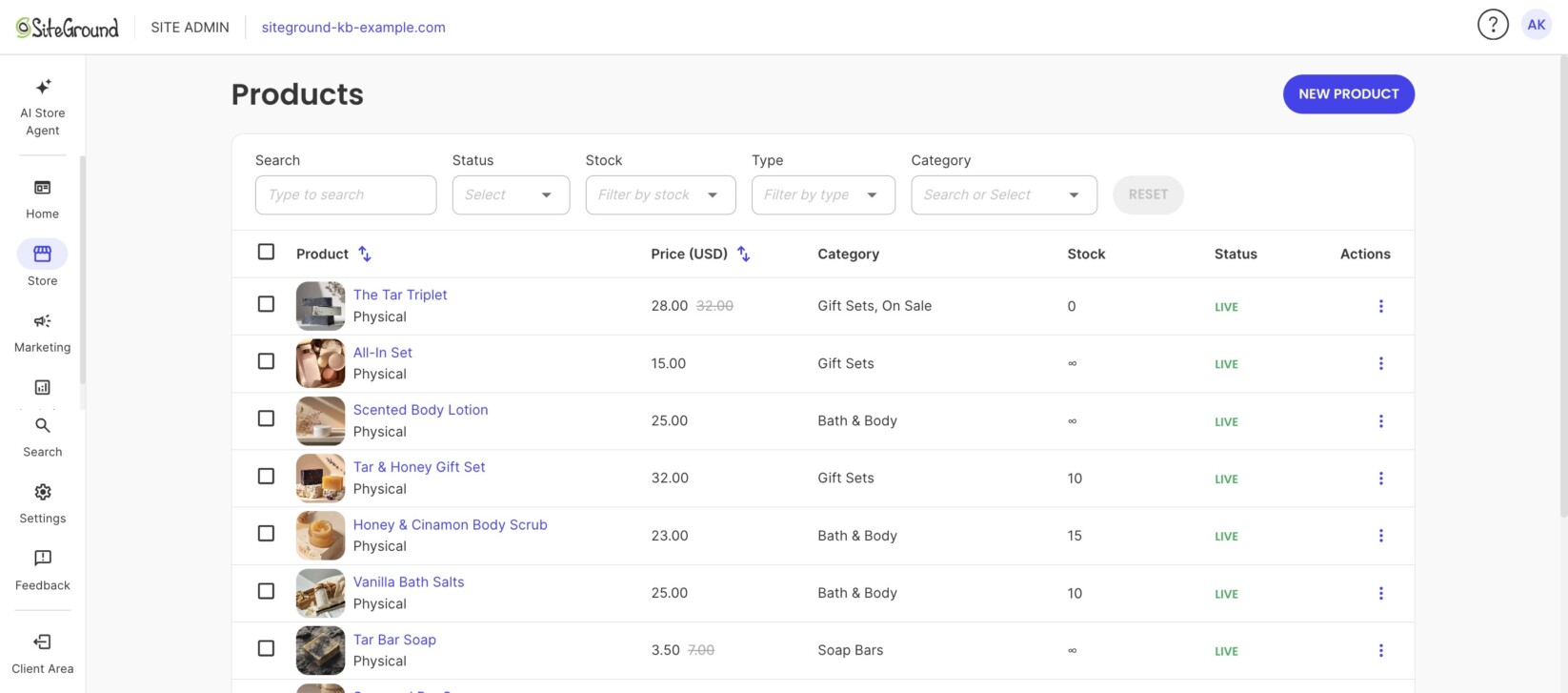
You can view all products and examine their quantities in the Products section.
How to Track Stock Quantities on the Products Page
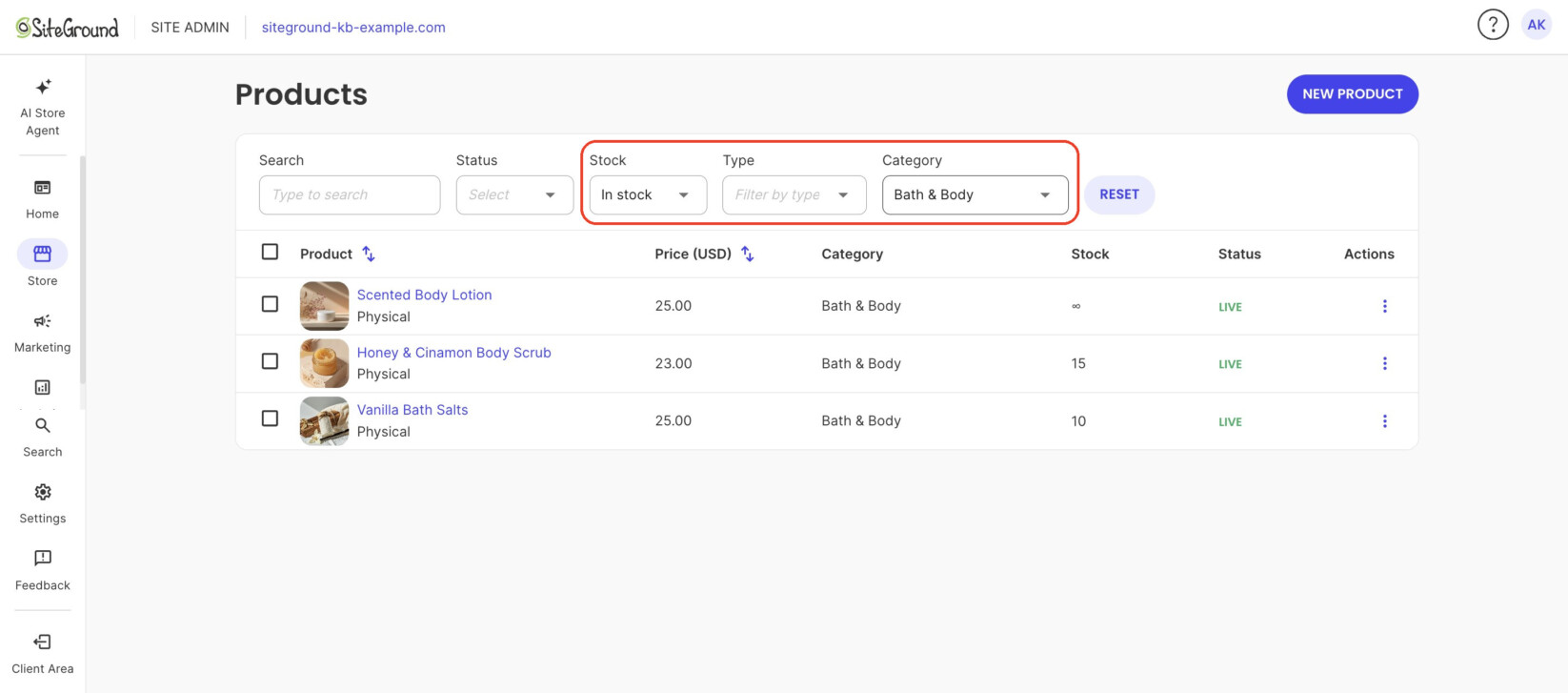
Navigate to Store Manager > Products. By default, this page displays all products regardless of their availability.
To view only products that are in stock, use the Stock filter and select In stock.
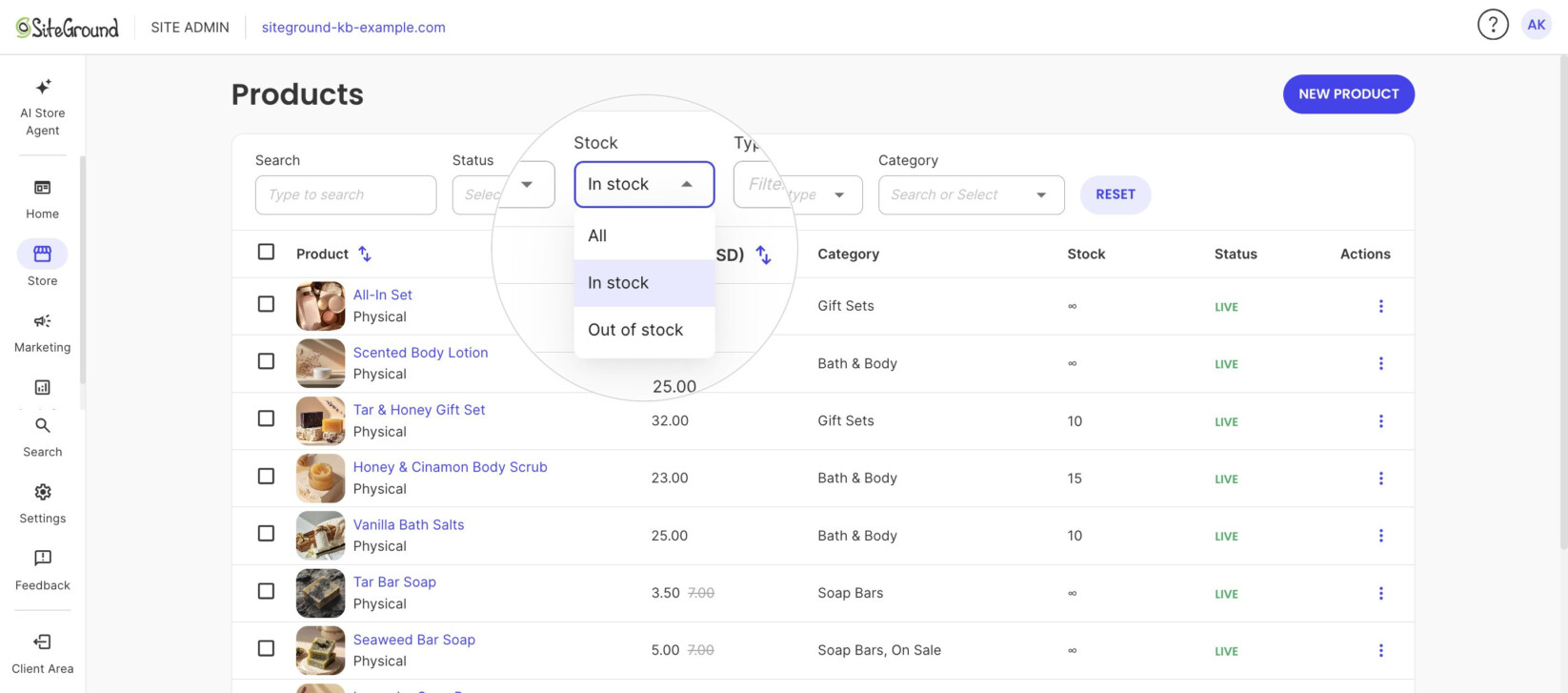
Similarly, select Out of stock to list only the out-of-stock products.
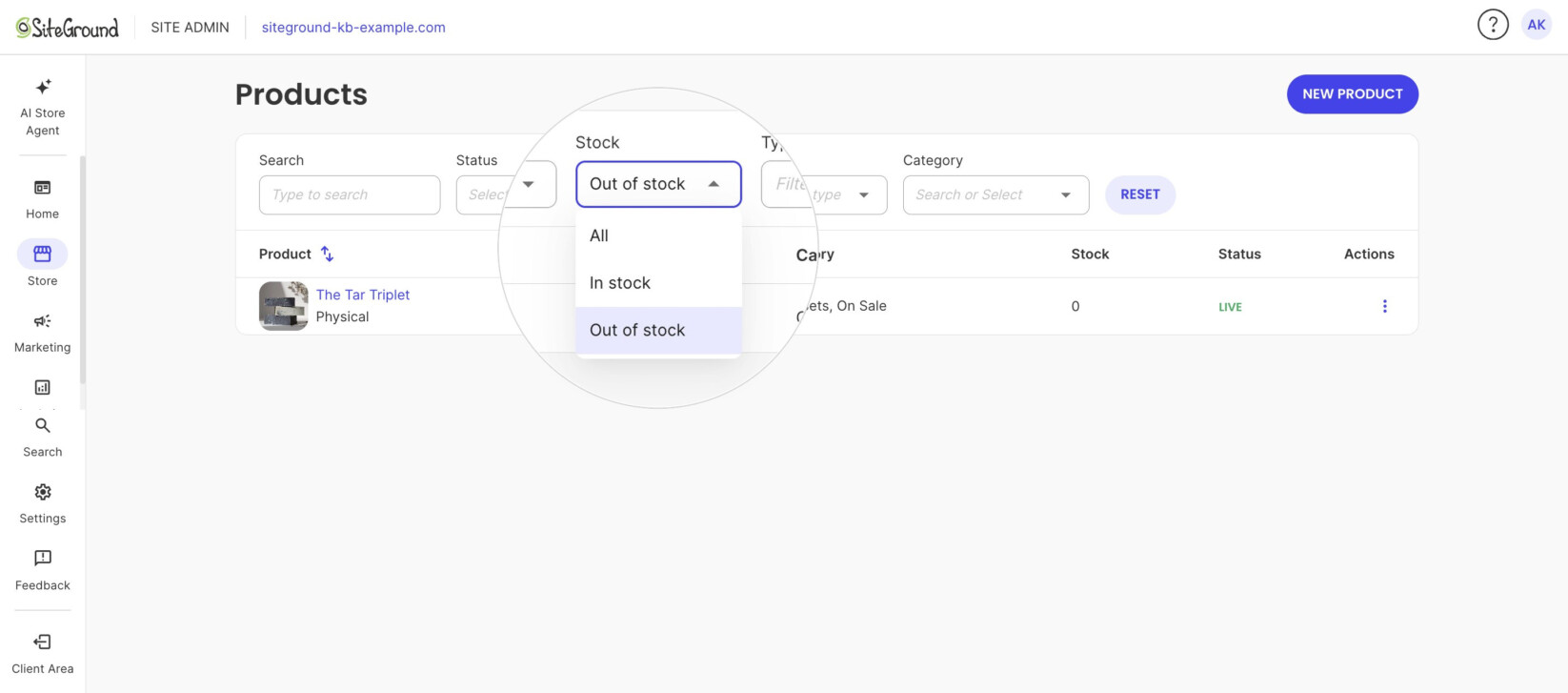
You can also combine the Stock filter with the other filters to see the stock availability for different statuses, brands, categories, and product types. Alternatively, you can use the Search bar to view the availability of a specific product.