How to Password Protect Your Website in SiteGround Website Builder
Password Protection is a system page in the SiteGround Website Builder. When you enable it, your whole site is locked: any visitor who opens any page is redirected to a dedicated Password Protect page and asked to enter your password. Until they enter the correct password, they cannot reach the rest of your site.
Like the other system pages, Password Protection comes with a ready-made design you can edit, and its own text that you can rewrite for your visitors.
In this guide, you will learn what the Password Protection page is, where to find it, and how to turn it on, customize it, and switch it off again.
Where to find the Password Protection page
In the Website Builder, open the Pages panel from the left-hand rail. Your pages are grouped into General Pages, Store Templates, and System Pages. You will find Password Protection in the System Pages group.
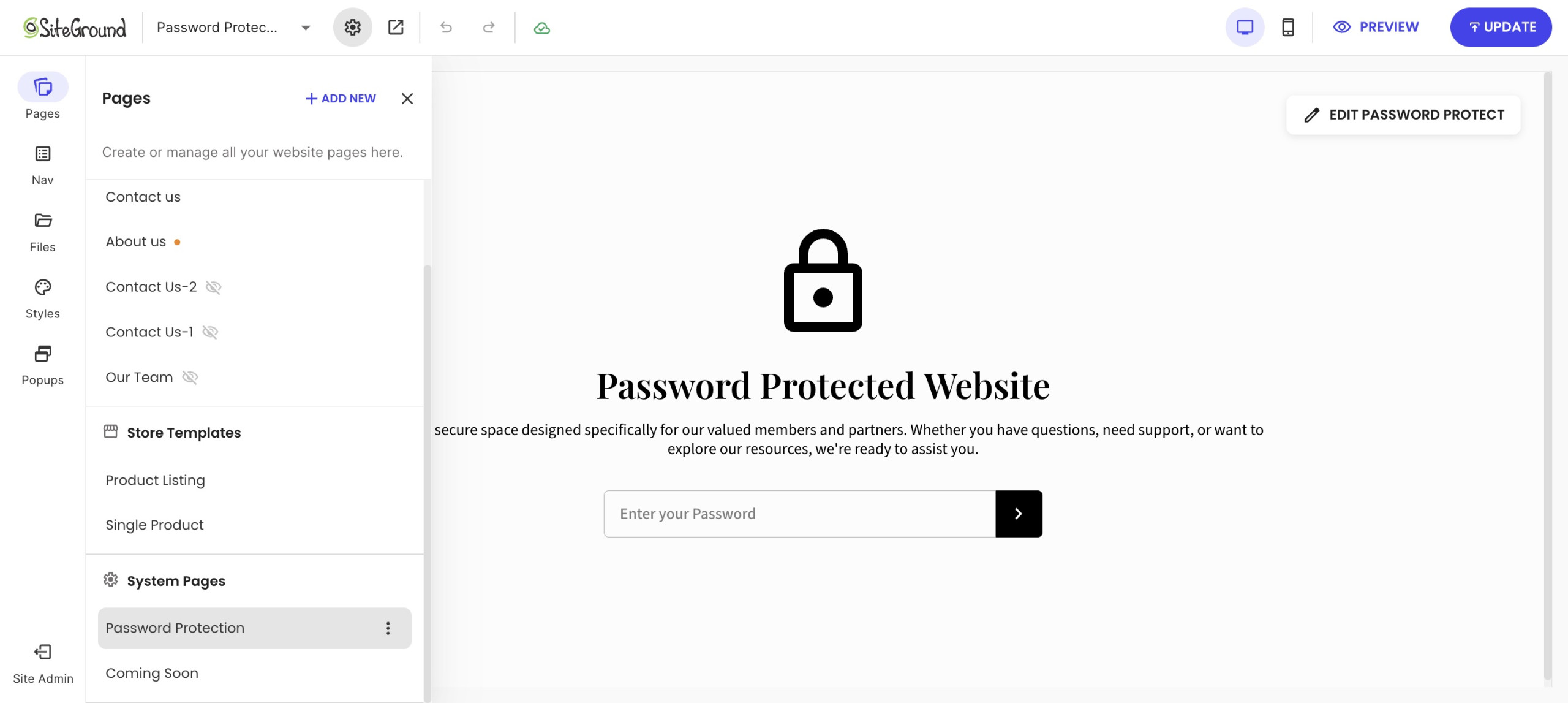
Click Password Protection to open the page on the builder canvas.
What your visitors see
The Password Protection page is the screen visitors land on while your site is locked. By default it shows a lock icon, a Password Protected Website heading, a short message, and a field where visitors type the password to gain access.
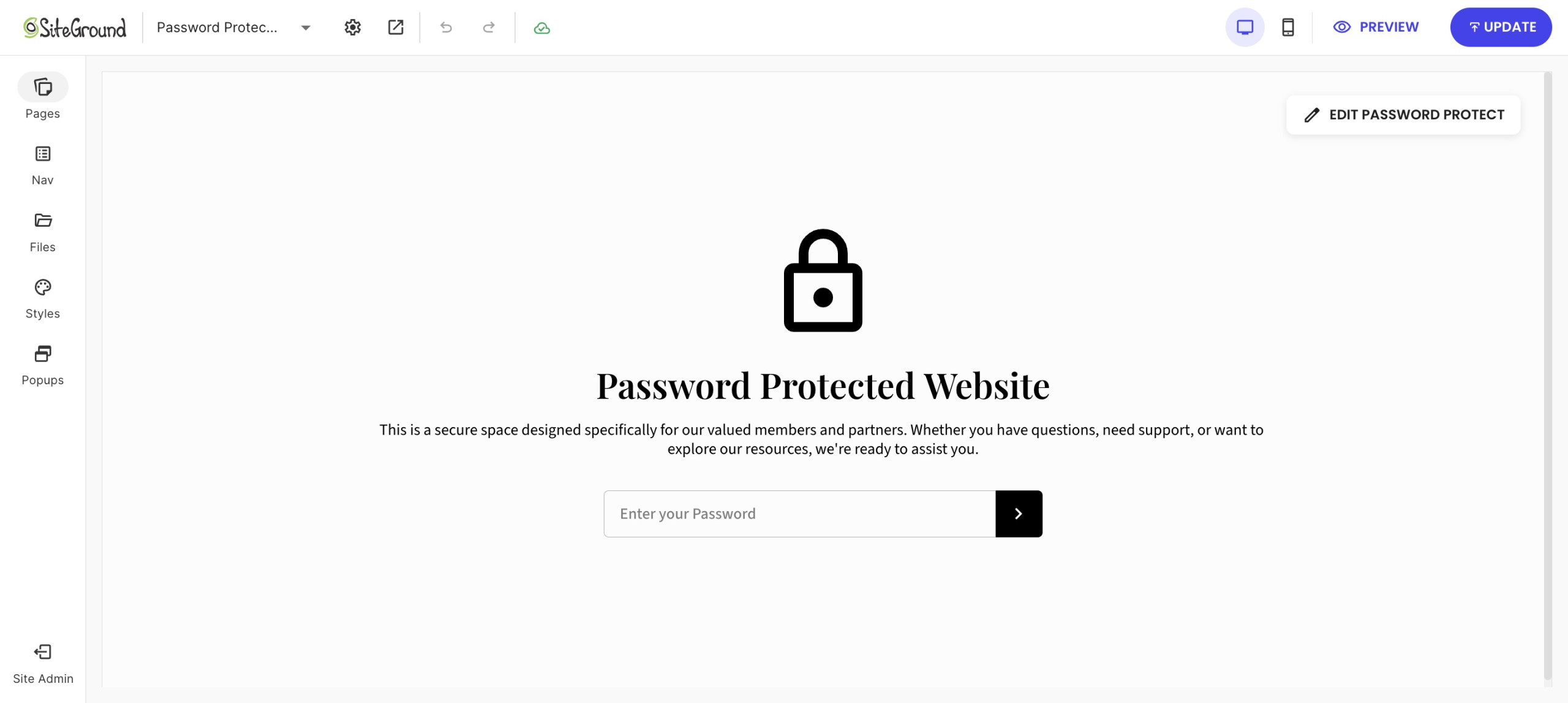
To configure the page, use the EDIT PASSWORD PROTECT button in the top-right corner of the canvas.
How to enable Password Protection
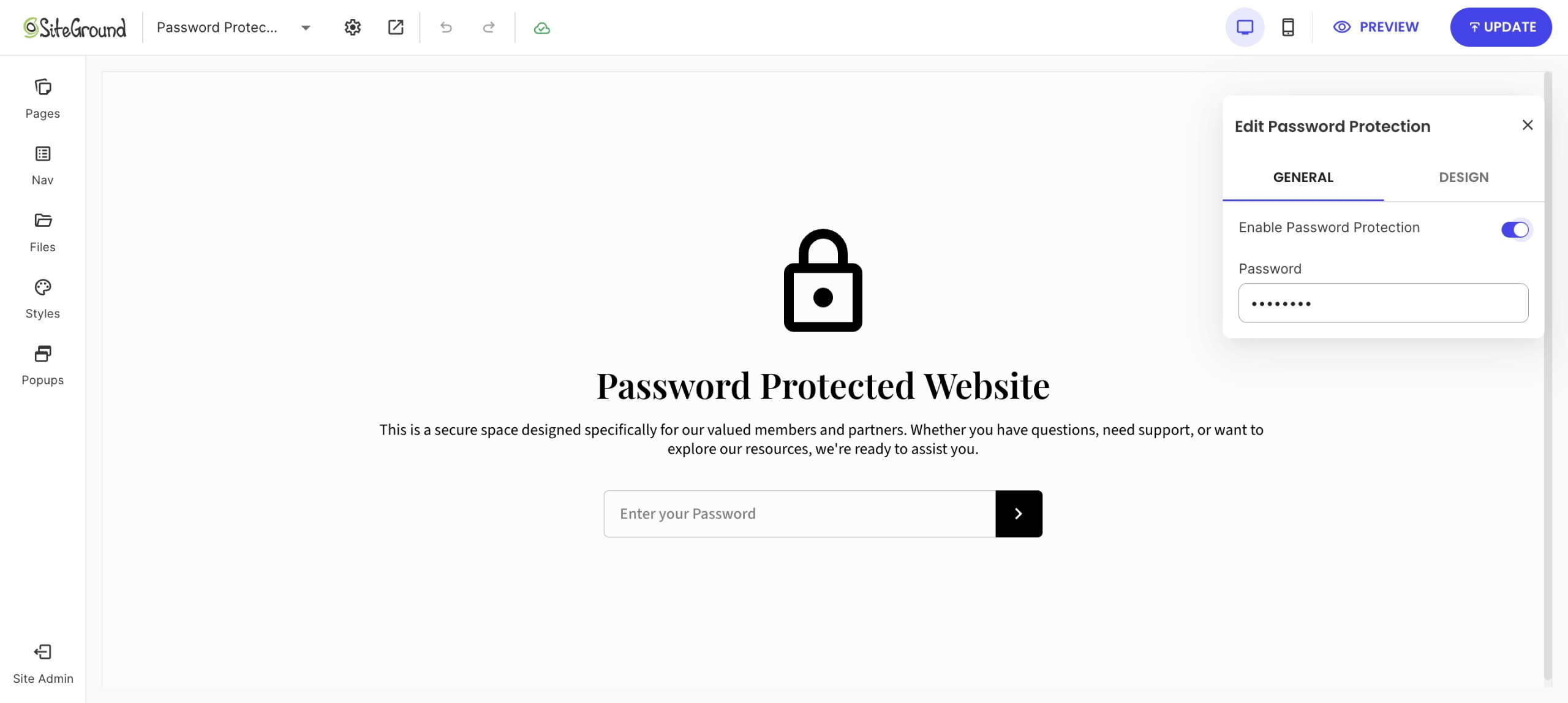
The Edit Password Protection popover has two tabs — General and Design. The General tab holds the Enable Password Protection toggle, which is off by default.
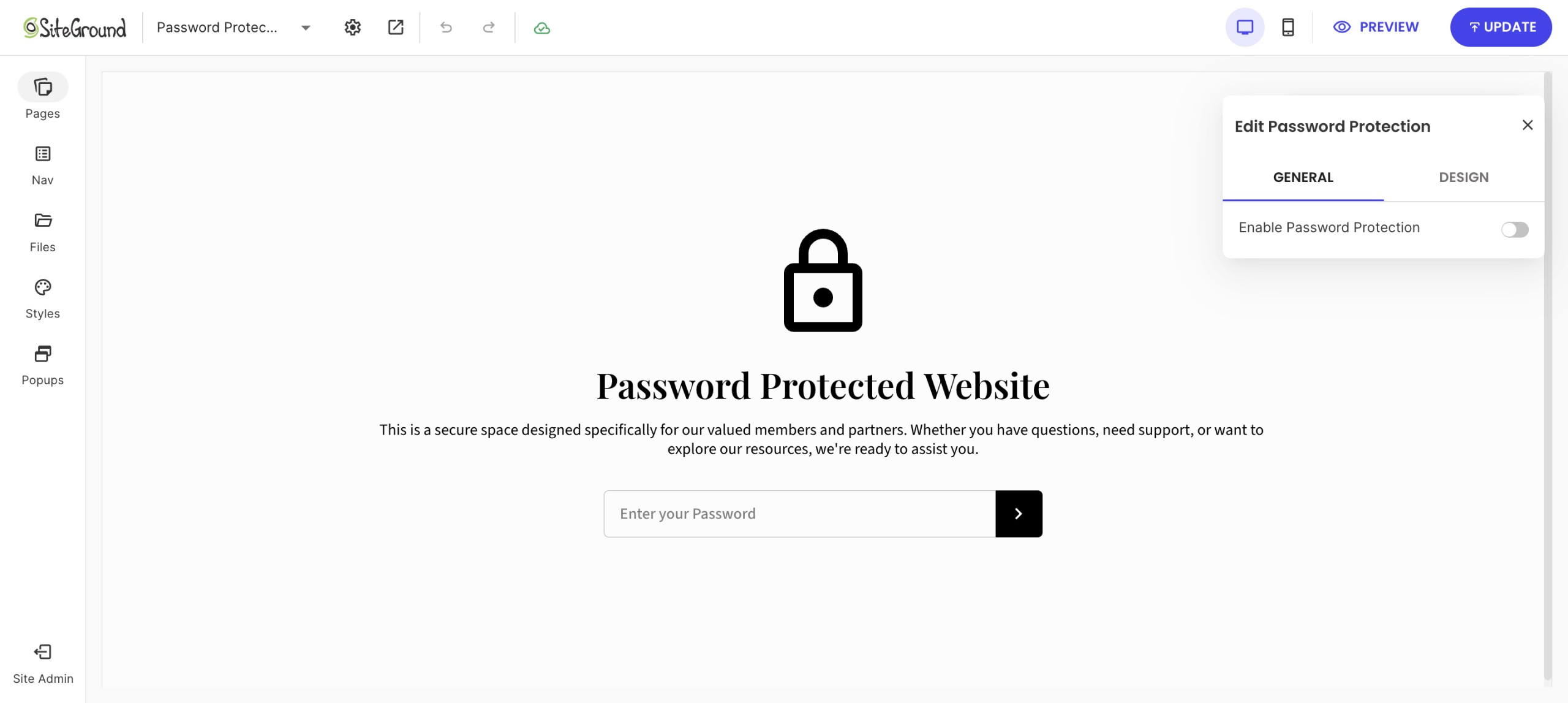
Switch the Enable Password Protection toggle on. Because turning it on changes who can see your site, the Builder asks you to confirm first:
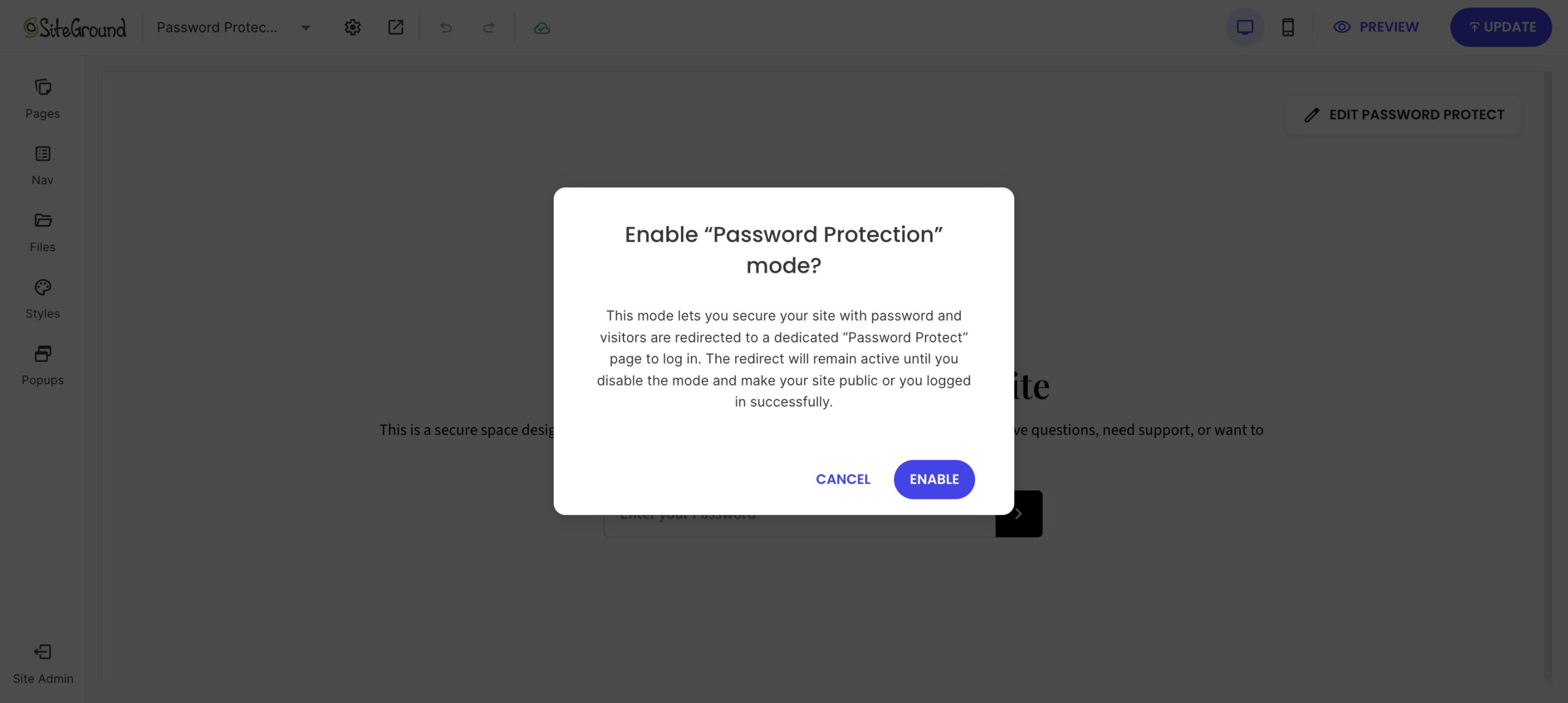
Click ENABLE to continue, or CANCEL to leave your site public.
Once enabled, a Password field appears on the General tab. Type the password your visitors will need to enter to access the site. Use the eye icon to reveal or hide what you have typed.
How to customize the design
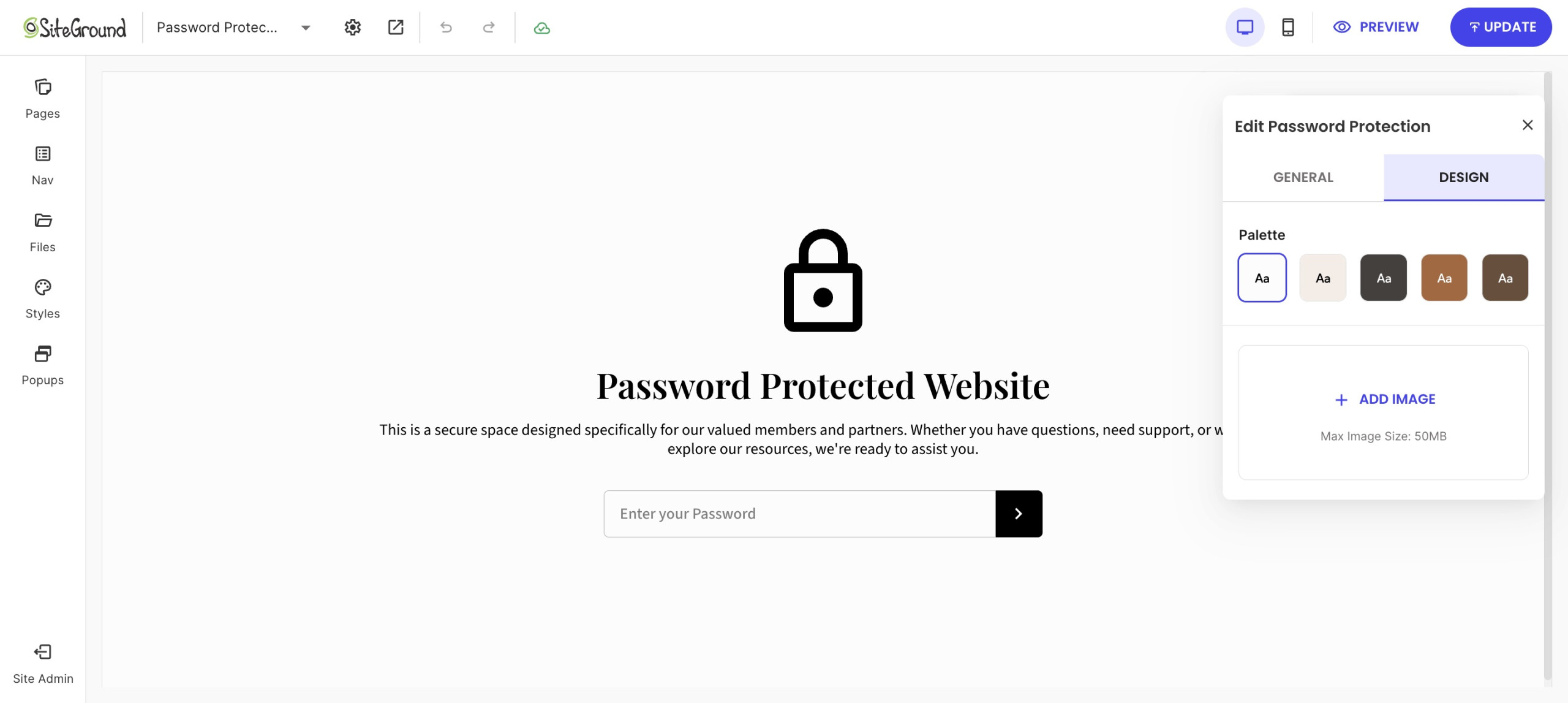
Open the Design tab of the Edit Password Protection popover to change how the page looks. You can pick one of the ready-made Palette colour sets, or use Add Image to set a background image for the page (up to 50 MB).
How to edit the page text
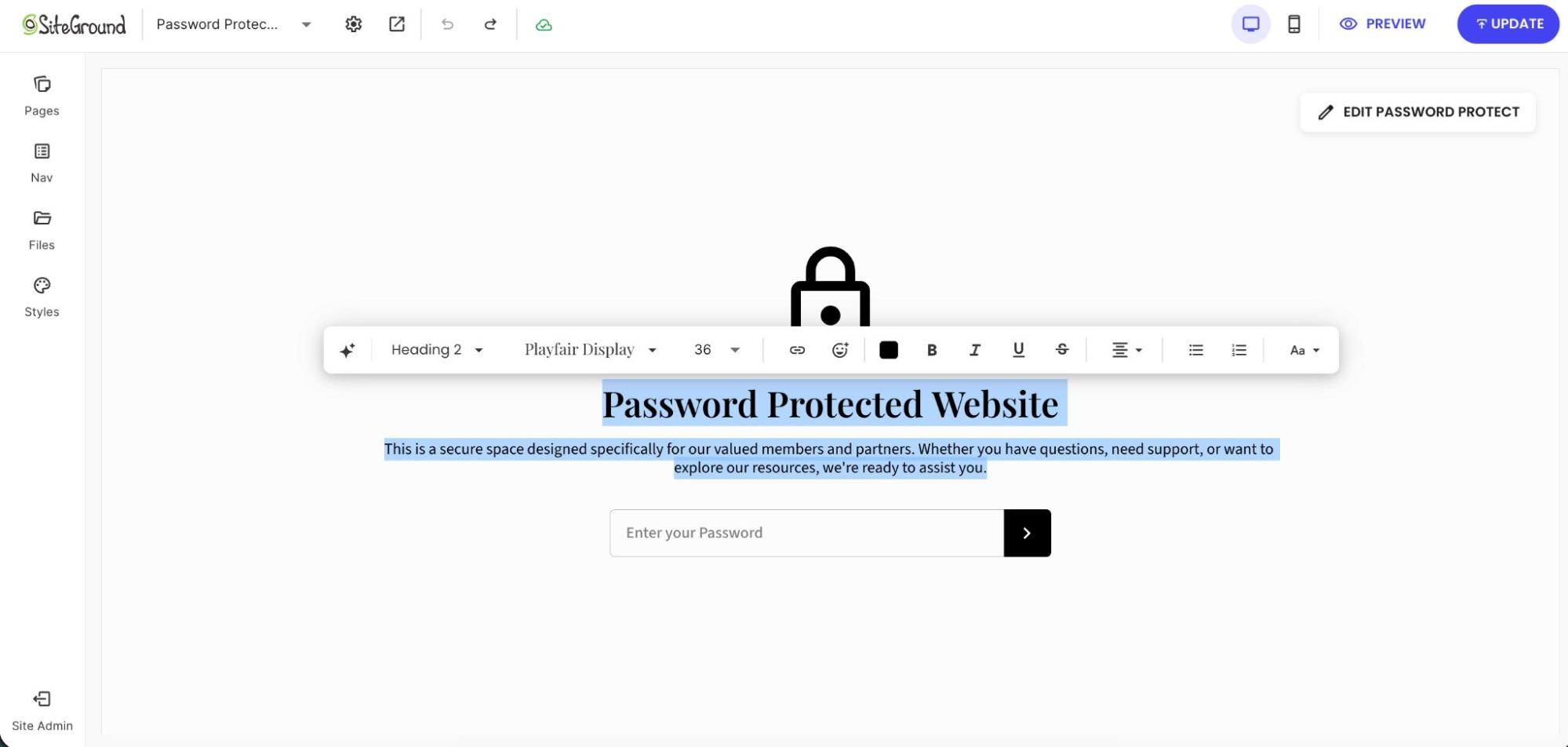
You can replace the default wording with your own message. On the builder canvas, click the heading or the paragraph text on the Password Protection page and edit it inline, exactly as you would on any other page. This is where you tell visitors why the site is locked or how to get the password.
How to disable Password Protection
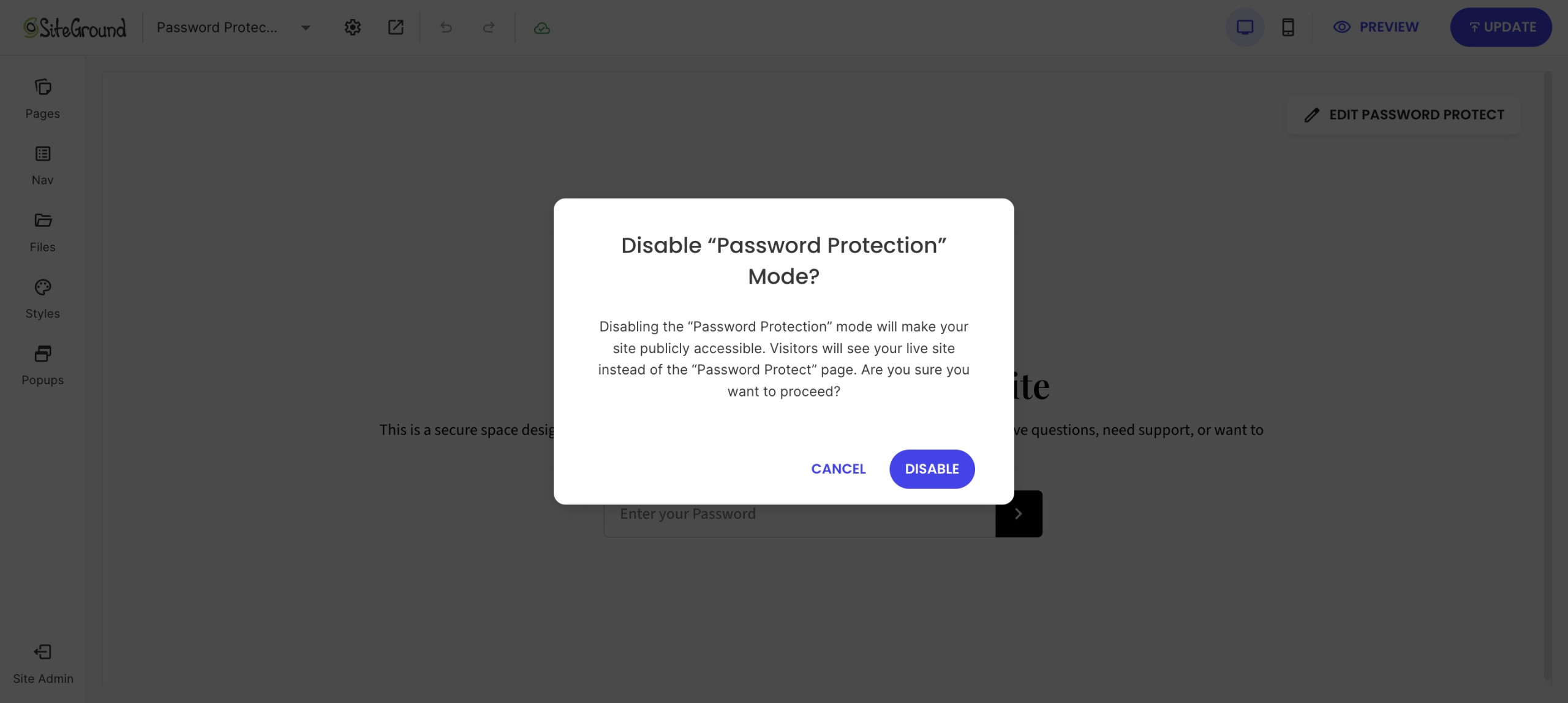
When you are ready to open your site to everyone again, click EDIT PASSWORD PROTECT, go to the General tab, and switch the Enable Password Protection toggle off. The Builder asks you to confirm, reminding you that disabling the mode makes your site publicly accessible and that visitors will see your live site instead of the Password Protect page.