Home
/
Hosting Subscription
/
Client Profile
/
How to Log Into Your SiteGround Client Area with Your Apple Account
How to Log Into Your SiteGround Client Area with Your Apple Account
SiteGround provides an intuitive, user-friendly Client Area interface to all users, allowing them to control every facet of their hosting subscription. In addition to the standard username and password login, you can also enter your Client Area using your Apple Account.
How to connect your Apple Account
- Log into your Client Area with your regular username and password.
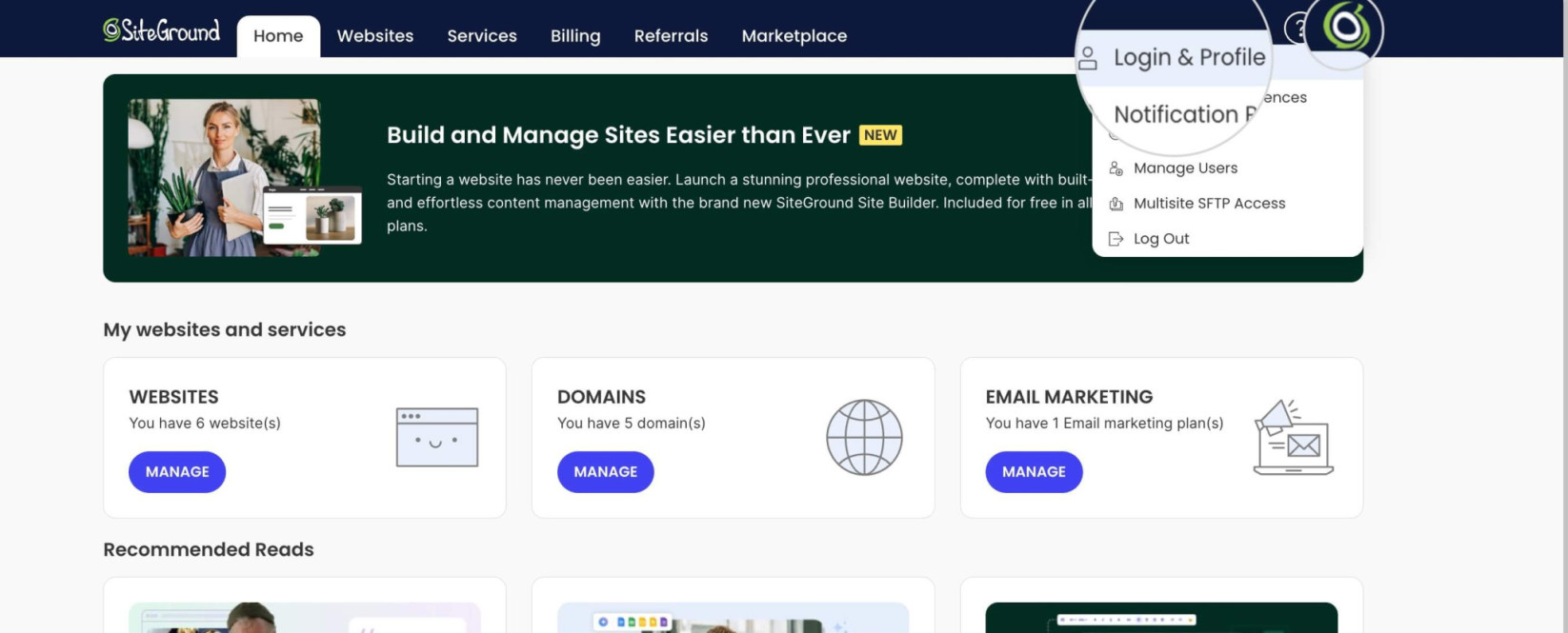
- Click on your logo in the top-right corner of the screen.
- Select Login & Profile.
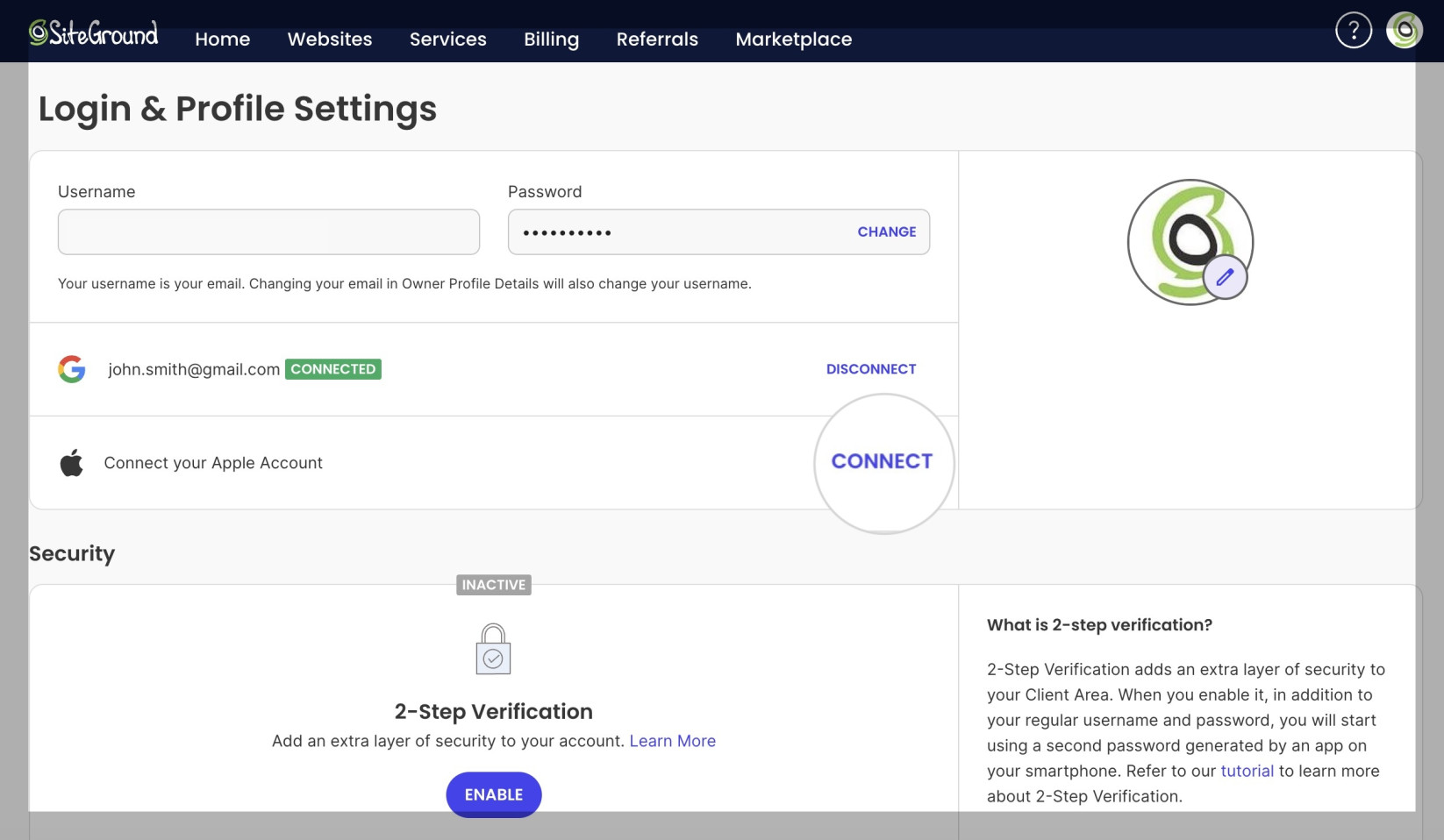
- Navigate to the section Connect your Apple Account and press the CONNECT button.
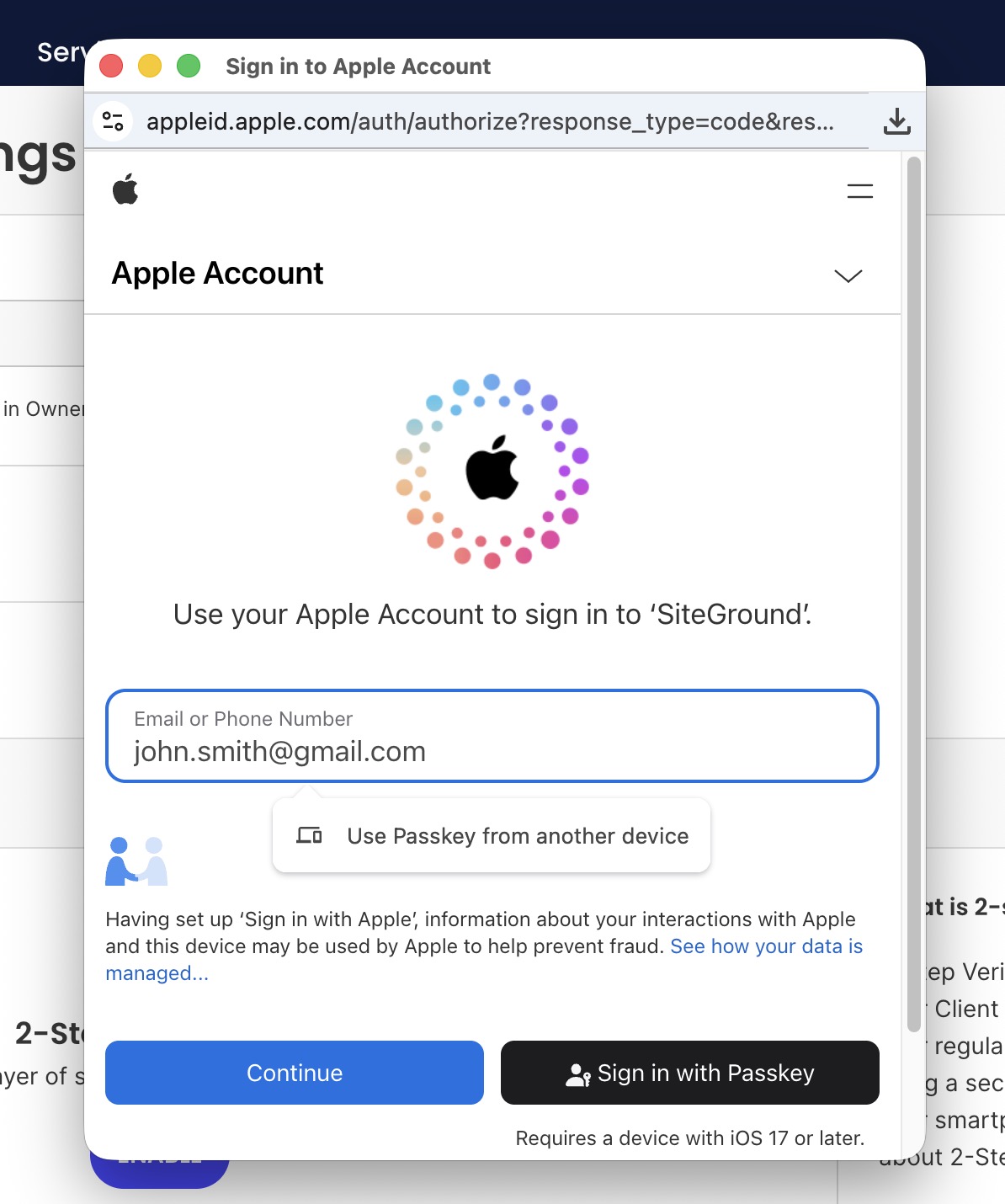
- An Apple Account login popup will appear. Enter your Apple ID email address or phone number and follow the on-screen instructions to complete the setup. Alternatively, you can choose Sign in with Passkey.
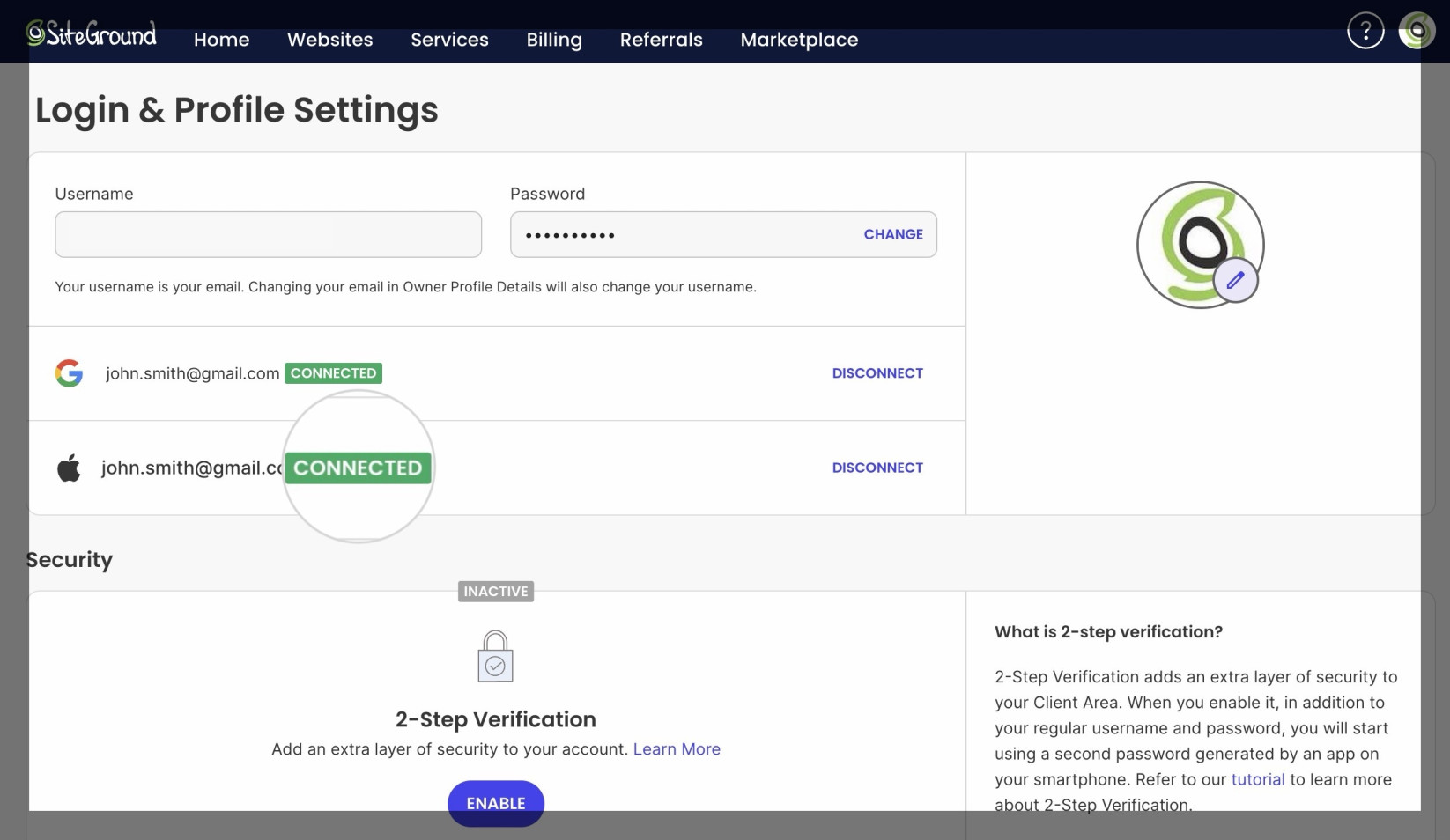
- If your Apple Account is successfully connected to your SiteGround Client Area, it will be displayed under the regular logins with the green label CONNECTED.
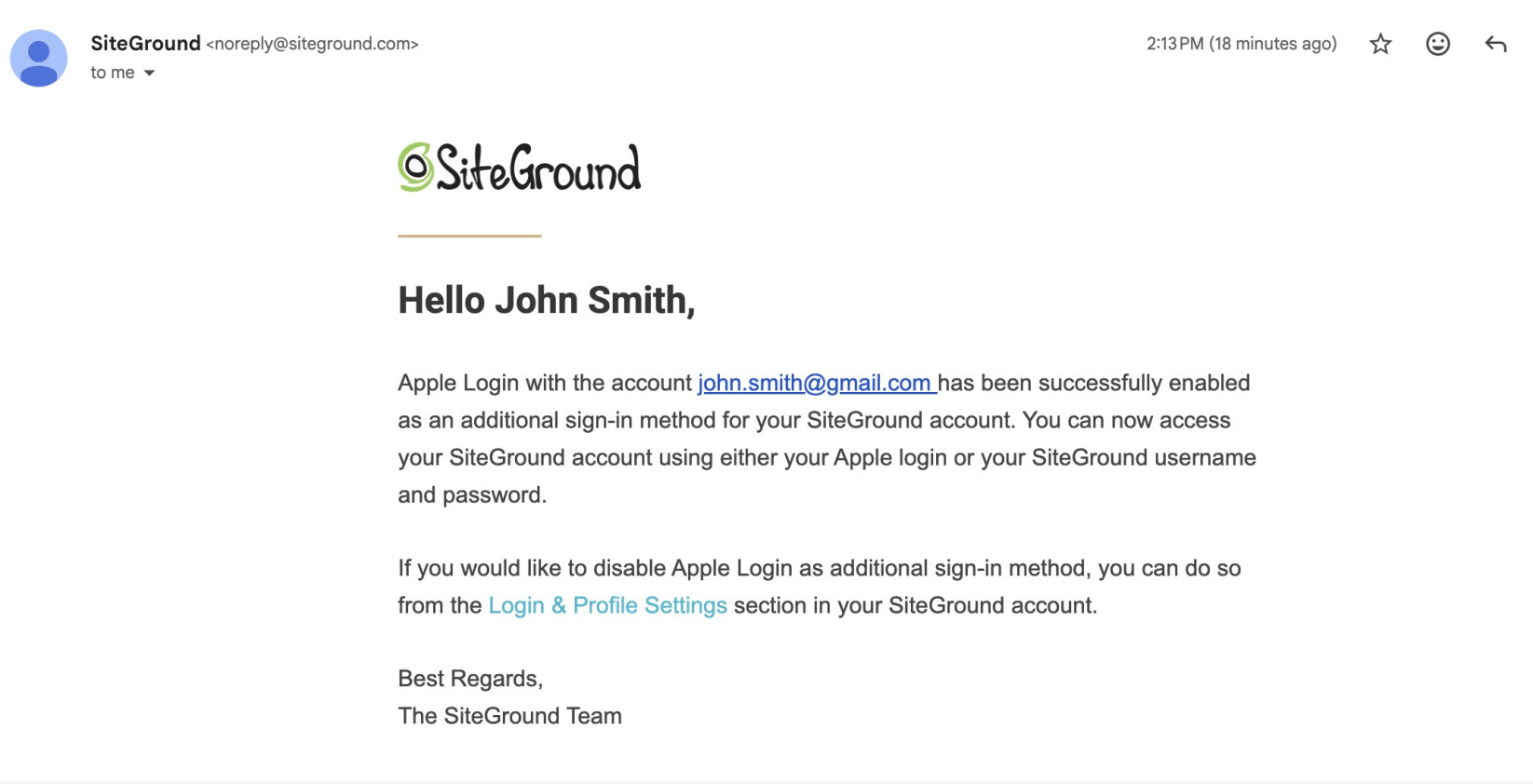
You will also receive a confirmation mail, so make sure to check your inbox.
How to log into your Client Area with your Apple Account
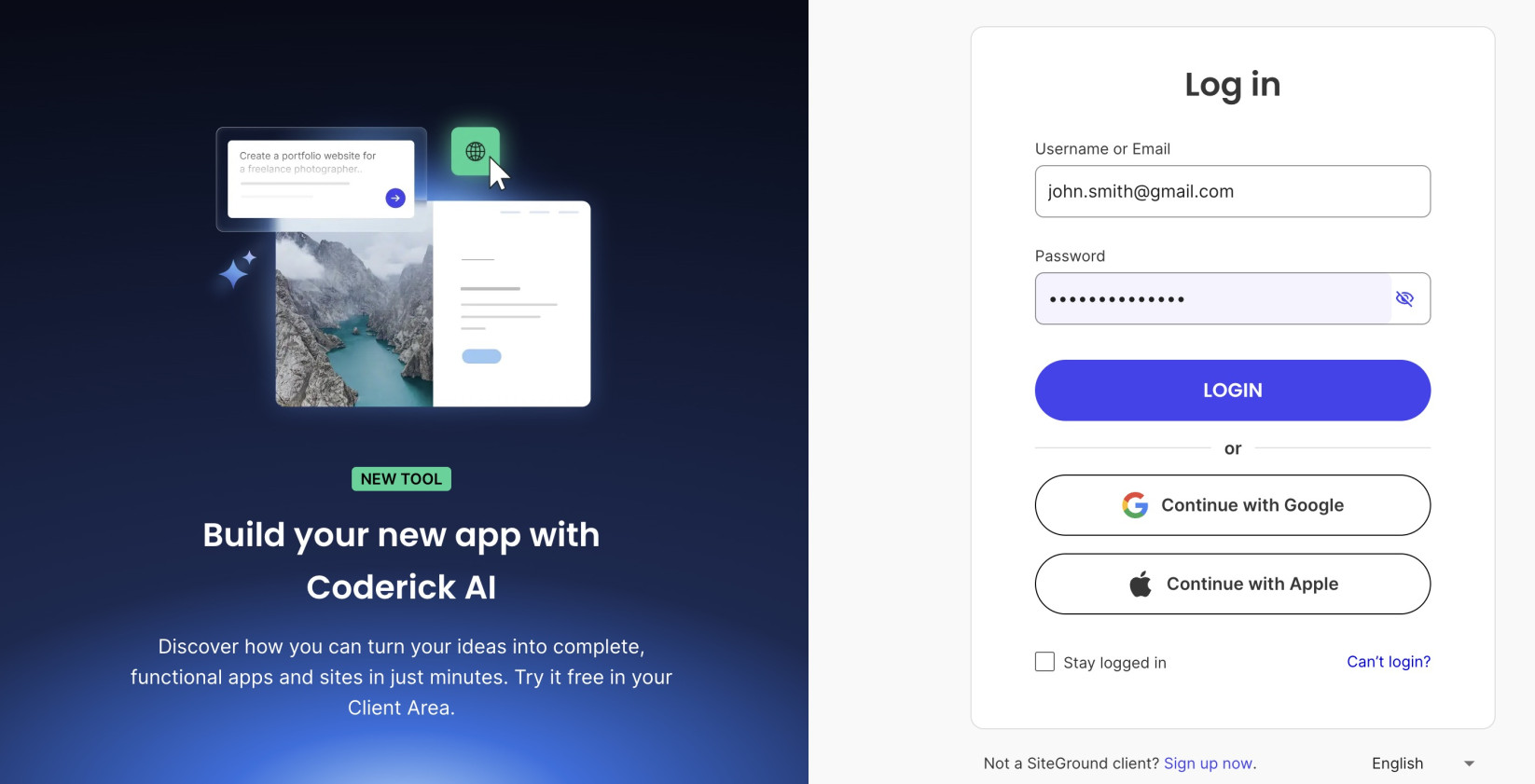
- Open the SiteGround Login Page.
- Click on the Continue with Apple button below the Continue with Google button.
- An Apple Account login popup will appear. Enter your Apple ID email address or phone number and click Continue. Alternatively, you can choose Sign in with Passkey.
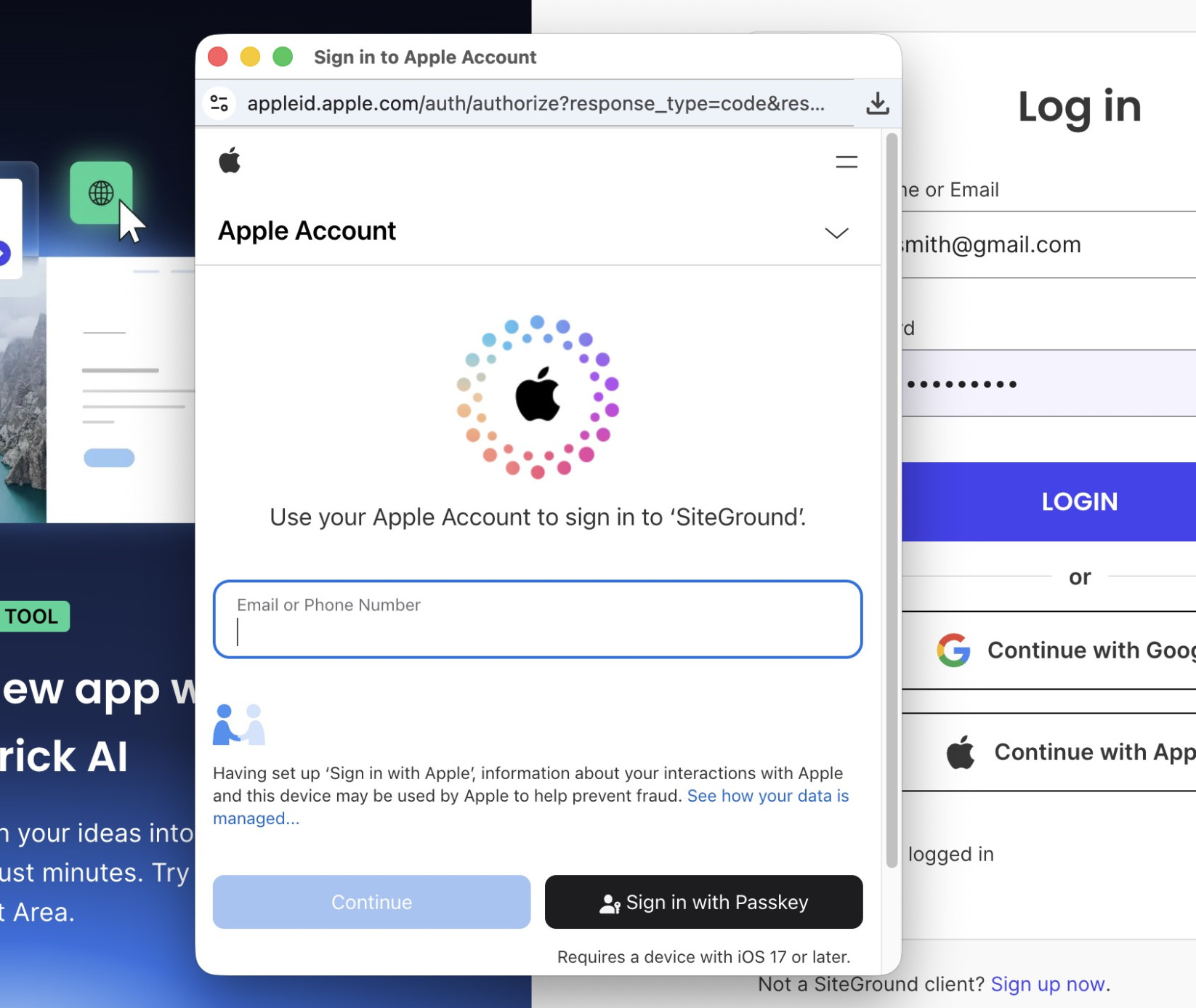
- Follow the on-screen instructions to complete the login.
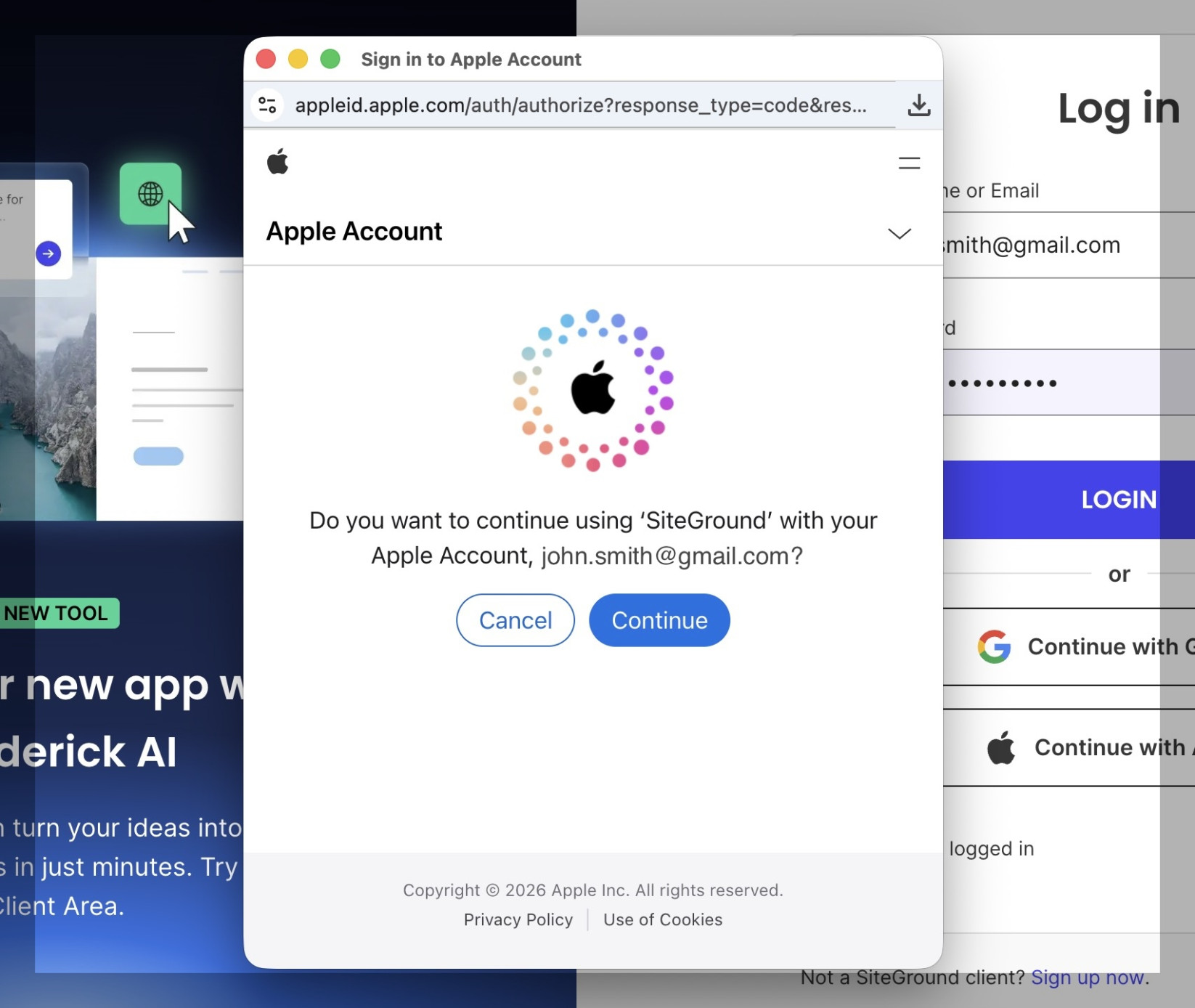
- Once you’re ready, you will also see a confirmation window where you can select to continue using ‘SiteGround’ with your Apple Account.