How to use two-step verification to log into your SiteGround account
-
- Key takeaways
- What is two-step verification?
- Why should you use a two step verification login?
- How to turn on two factor verification for your SiteGround account
- How to log into your SiteGround account using 2-step verification
- How to remove two-step verification
- Troubleshoot problems with two-factor login
Two-step verification adds a second step to your SiteGround login: after your username and password, you enter a 6-digit code generated by an authenticator app on your phone. This article shows you how to turn it on, log in with it, change or turn it off, and what to do if you can’t get your code.
With a password alone, anyone who gets hold of it can access your account. The second step stops that, because they would also need your phone.
What you need
- A smartphone with an authenticator app.
- A mobile phone number for the backup SMS. It can be on a different phone.
- Access to your Client Area.
What is two-step verification?
Two step verification is a process of electronic authentication that requires two factors to prove your identity in order to access your account. This process works by combining something that only you know (username & password) with something only you have access to (your smartphone).
When this verification is turned on, in addition to entering your username and password, every time you log in, you trigger a secondary authentication. This code is the second factor of verification, and an application on your smartphone generates a new one every 30 seconds.
Thus, when you enter your username and password, you’re only able to login after entering the security code. Therefore, your data is still secure, even if one of the two factors is compromised.
Why should you use a two step verification login?
Fraudsters may use techniques like email spoofing, brute-force attacks, and malware infections, to gain access to your account. Nowadays, a cybersecurity attack can come even from not-so-tech-savvy hackers. Pairs of credentials are sold on the Dark Web daily, which gives hackers even more opportunities to harm you.
With your password in the hands of a hacker, you can end up in all sorts of trouble. A password breach allows a hacker to perform an account takeover (ATO) and impersonate you for various malicious purposes.
Therefore, you need to enhance your security settings to protect your account.
So far, multi-factor authentication is the best solution against such security breaches. With the second security layer it adds, even if your password is compromised, your account cannot be taken over, as the second factor isn’t present to complete the verification. This way two factor authentication protects you from identity theft and account takeovers.
How to turn on two factor verification for your SiteGround account
Securing your account with two-step login is a quick and straightforward process that improves your protection against hacking and identity theft.
Enable two-factor login & start generating codes
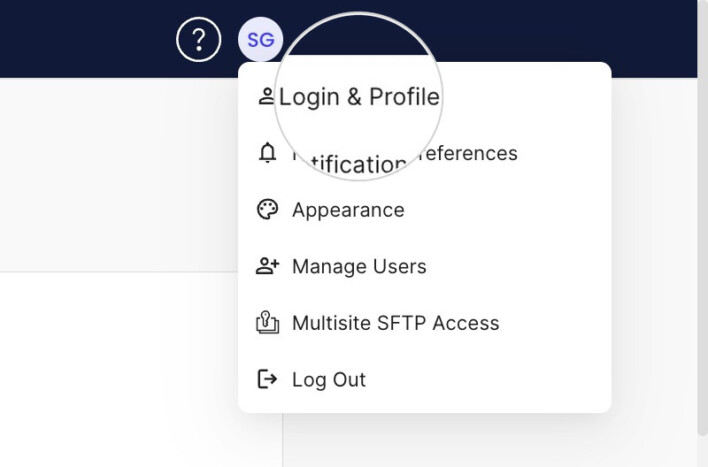
- In your Client Area, click the profile icon in the top right and select Login & Profile.
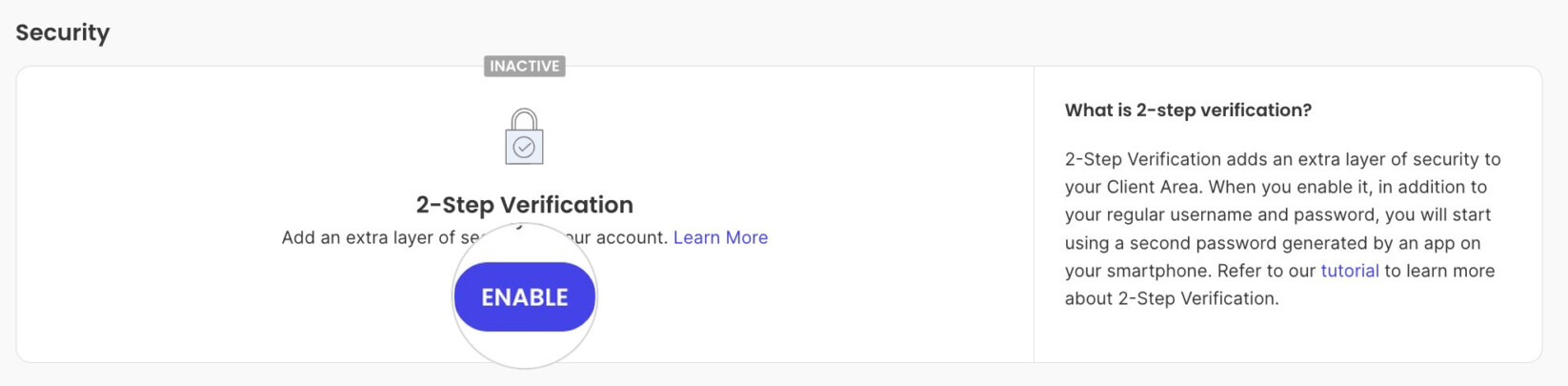
- In the Security section, under 2-Step Verification, click Enable.
There are several steps you need to follow before you successfully enable two-step verification for your account. At any point in the process, you can go back to a previous step if you need to check or verify the information you have provided.
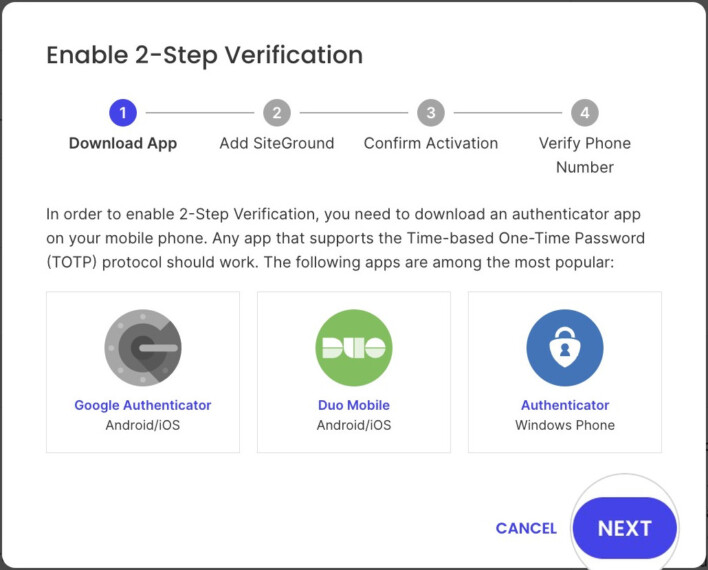
Download the authenticator app to your smartphone
SiteGround uses the Time-based One-time Password protocol (TOTP, defined in RFC 6238) to operate our two-factor login mechanism. To use it with your account, you need an app that supports this protocol. There is a compatible application for every major smartphone platform, and some of the most popular include:
- Google Authenticator (Android/iOS)
- Duo Mobile (Android/iOS)
Download and install the app of your choice to your smartphone. Google Authenticator can also back up your codes to your Google Account, but signing in to it is optional.
- Once the app is installed, click Next.
Add your SiteGround account
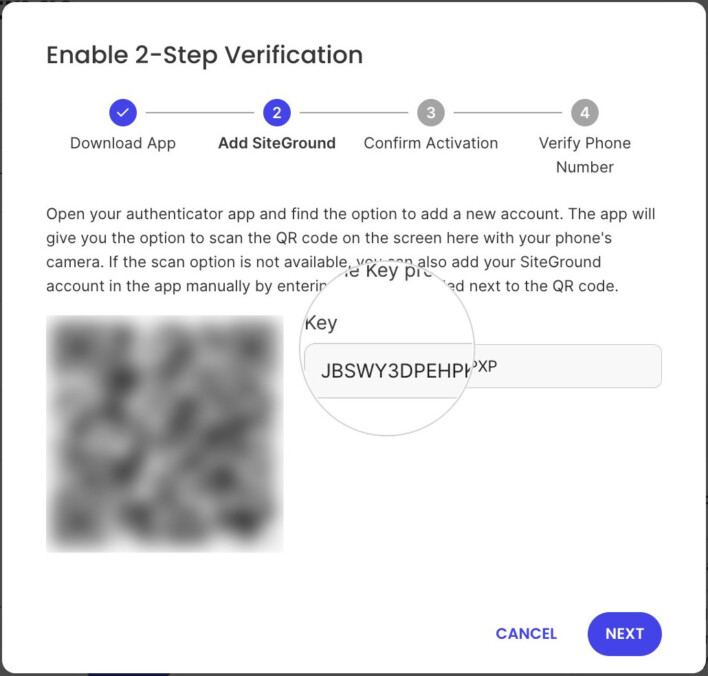
On this step, you’ll see a unique QR code and Key generated for your account.
- In your authenticator app, choose the option to add a new account and scan the QR code on the screen with your phone’s camera.
- If you can’t scan the code, add the account manually instead: enter a name for it and the Key shown next to the QR code. If the app asks for the type of key, choose time-based.
- Click Next.
Confirm successful activation
Once you have successfully added your SiteGround account to the authenticator app, you will see a code that changes every 30 seconds.
- Enter the current 6-digit code from the app in the Enter Security Code field and click Next.
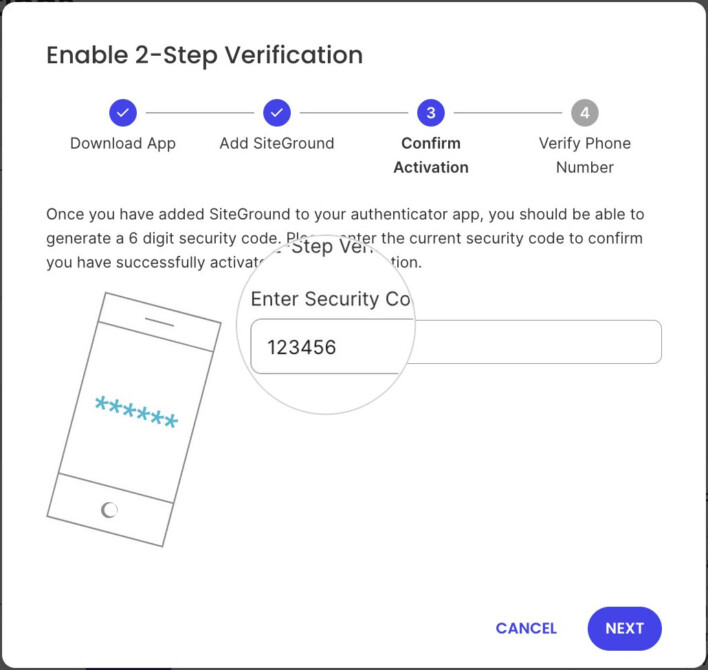
The last step of the setup process is verifying the phone number you’ll use as a backup to your authenticator app.
- Enter your mobile phone number, starting with a + sign and the country code, and click Send Code.
- Enter the code you receive by SMS and click Finish.

Note that once you complete this step, the two-factor login is active and you will need to provide the code from the authenticator app to verify your identity.
How to log into your SiteGround account using 2-step verification
Go to your Client Area and log in, as usual, using your account username and password. You will be asked to enter the code from the authenticator app.
Open the authenticator app on your phone and find the code currently generated for your account. Enter it in the Verification Code field and click Sign In to enter your account securely. Note that on different devices and applications the code may appear with spaces between the digits. You need to enter the code without these spaces when logging in to My Account.
How to remove two-step verification
To remove two-step verification from your SiteGround account navigate to the Login & Profile part of your Client area. Scroll down to the Security section and check the available options.
Review and reconfigure two-step verification
When your two-step authentication is active, you can revisit the interface under Login & Profile in your Client Area to configure the different options or turn off 2-step verification altogether.
There are three options under 2-Step Verification:

- Add Extra Device – If multiple people access your SiteGround account, all of them need to add SiteGround to their authenticator apps. To add more devices, click the Add Extra Device tab and scan the QR code. Alternatively, you may add the account manually using the Key. When adding the account on additional devices you don’t need to confirm by entering the code on the next step since two-factor login has already been enabled for your account.
- Edit Backup Phone – This option allows you to edit the backup phone as well. You can use your primary phone (the one with the authenticator app on it) or another phone number (for example that of a close relative) to use in case you lose your phone.
- Disable – You can use this option to turn off two factor authentication. A pop-up will appear asking you to confirm that you would like to have the service disabled. Click Confirm and the 2-step verification will be disabled. You will then be able to access your account with only your regular SiteGround username and password.
Troubleshoot problems with two-factor login
If you don’t have access to your authenticator app/phone and cannot log in, you can turn off two-step verification with a code sent to your backup phone:
- On the login screen that asks for your code, click Can’t get your code?.
- Click Send Code. We send a text message with a verification code to your backup phone, shown partly hidden on the screen. Some carriers take a few minutes to deliver it.
- Enter the code in the Verification Code field and click Sign In. If the message doesn’t arrive, click Resend Code.


This action will disable two-factor authentication and you can log into your account with just your username and password. SMS requests are limited per hour. If you reach the limit, wait and try again later.
In the event of loss of access to your mobile phone number, send an email with an explanation of the case to compliance@siteground.com so we can assist you. See What to do if you lost access to your account for the documents we need.
