How to import a design from Claude Design or Google Stitch into Coderick AI
If you’ve already designed your app in Claude Design or Google Stitch, you can easily use that design as the starting point for a new Coderick AI project. Simply upload the design file you exported and Coderick AI will do the rest.
To see the exact steps, read this tutorial. It will explain how to export your design in a compatible format, how to import it when you start a new Coderick AI project, and what happens while Coderick AI builds your app.
| Design tool | Supported file formats |
| Claude Design | ZIP or a standalone HTML file |
| Google Stitch | ZIP file only |
Keep the following in mind before you begin:
- You can import a design only when you start a new project. The import option isn’t available inside Coderick AI for existing projects. After your project is created, you can keep iterating on it through the chat, but you can’t import another design into the same project.
- You can upload one file at a time.
- Figma designs aren’t supported.
- A design file and a prompt are both required. You can’t start generating your app with a design file alone.
How to export your design from Claude Design
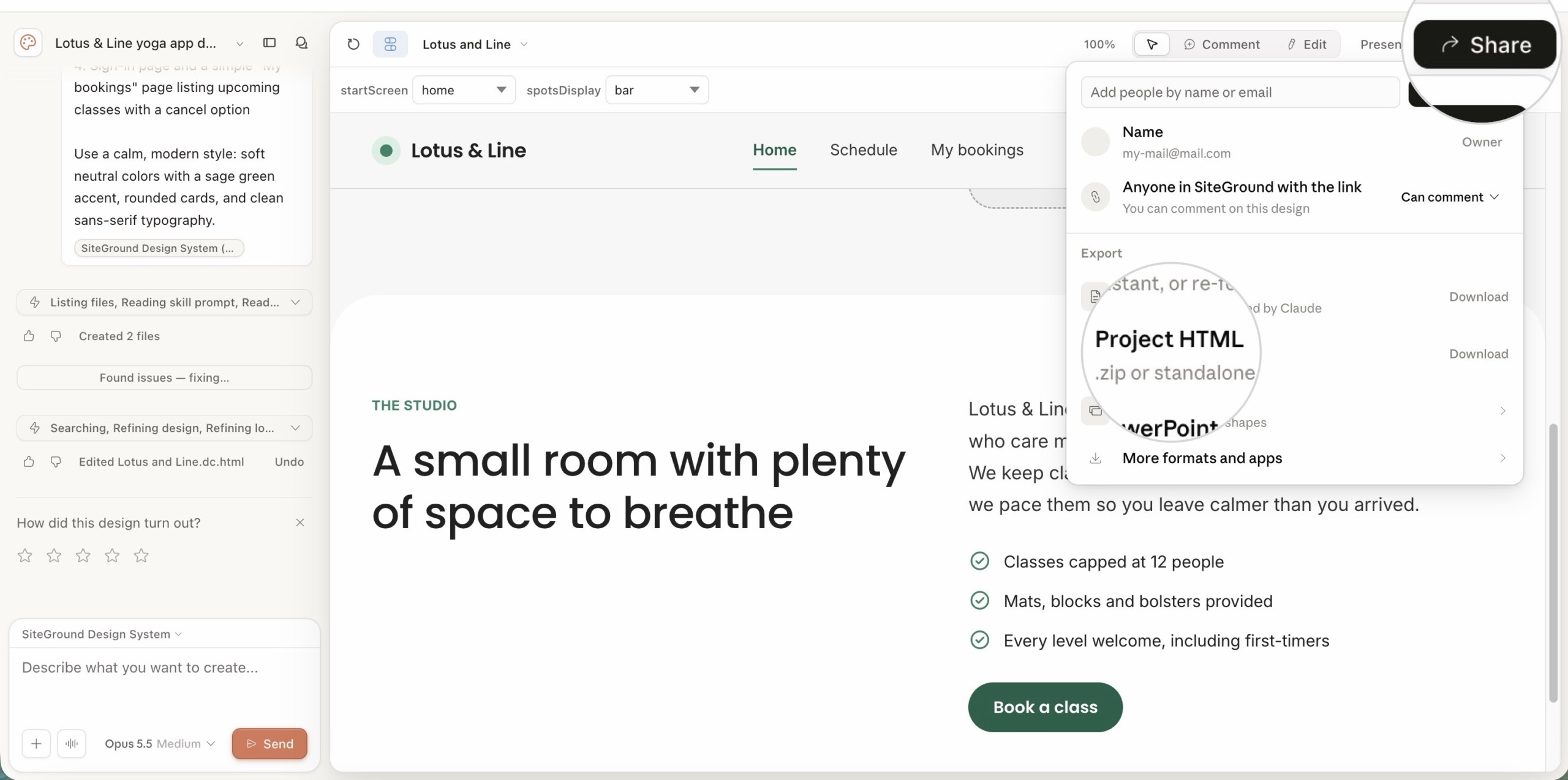
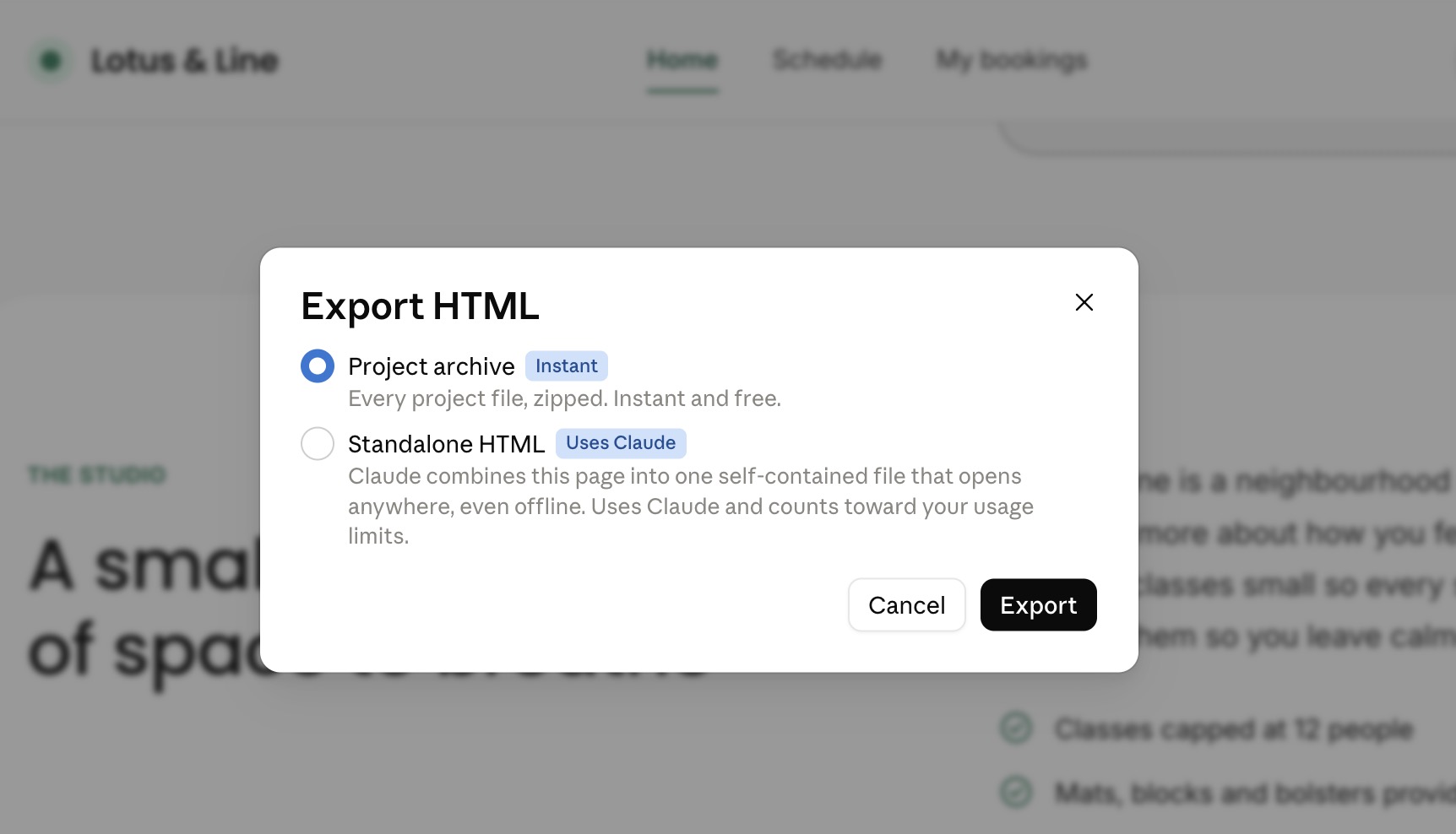
Claude Design lets you download your project in various formats. The options compatible with Coderick AI are a ZIP file or a standalone HTML file (please note that choosing the HTML option consumes Claude tokens).
- Click Share in the top-right corner.
- Choose one of the formats that’s compatible with Coderick AI (HTML or .zip).
- Click Export to save the file to your device.
How to export your design from Google Stitch
- Open the project you want to turn into an app or start a new one by describing it.
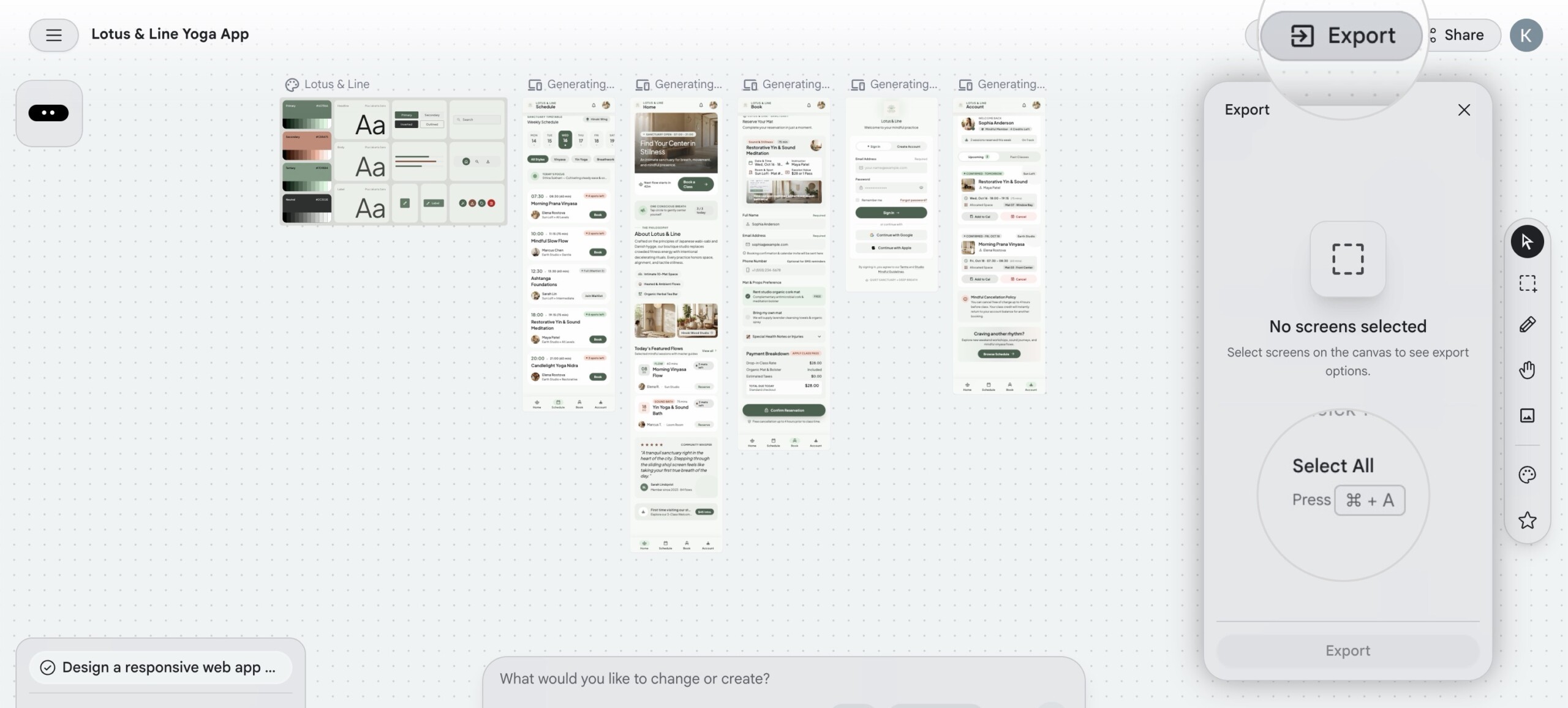
- Click Export in the top right corner and select the screens you want to include in your app.
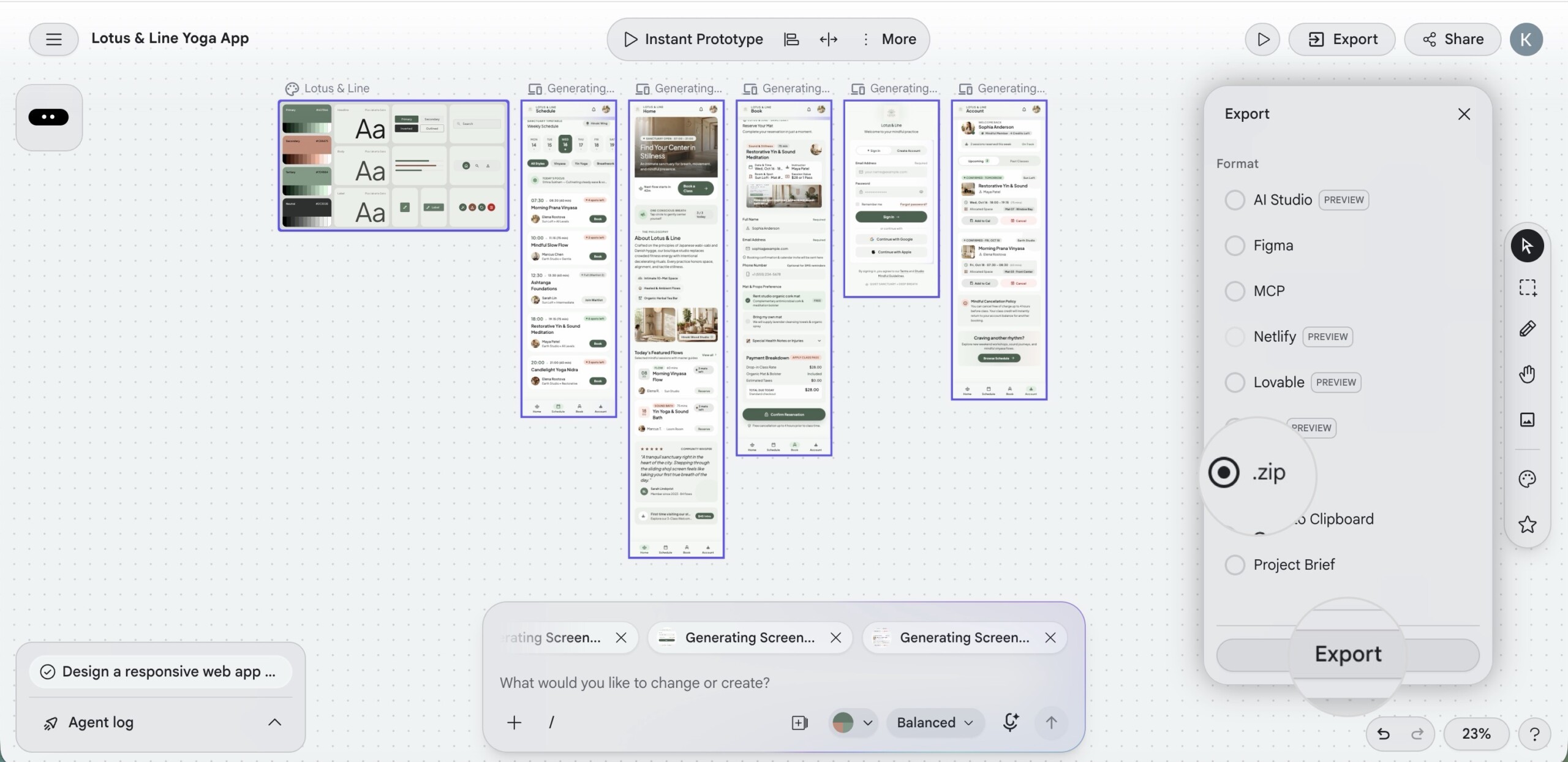
- Choose to save them as a ZIP file and click the Export button at the end.
How to import your design into Coderick AI
You can import a design from any of the following Coderick AI entry points:
- In your SiteGround User Area, go to Marketplace > Coderick AI.
- In your SiteGround User Area, go to Websites > Coderick Projects and click New.
Once you’re on the Coderick AI start screen, follow these steps:
- Click on Import.
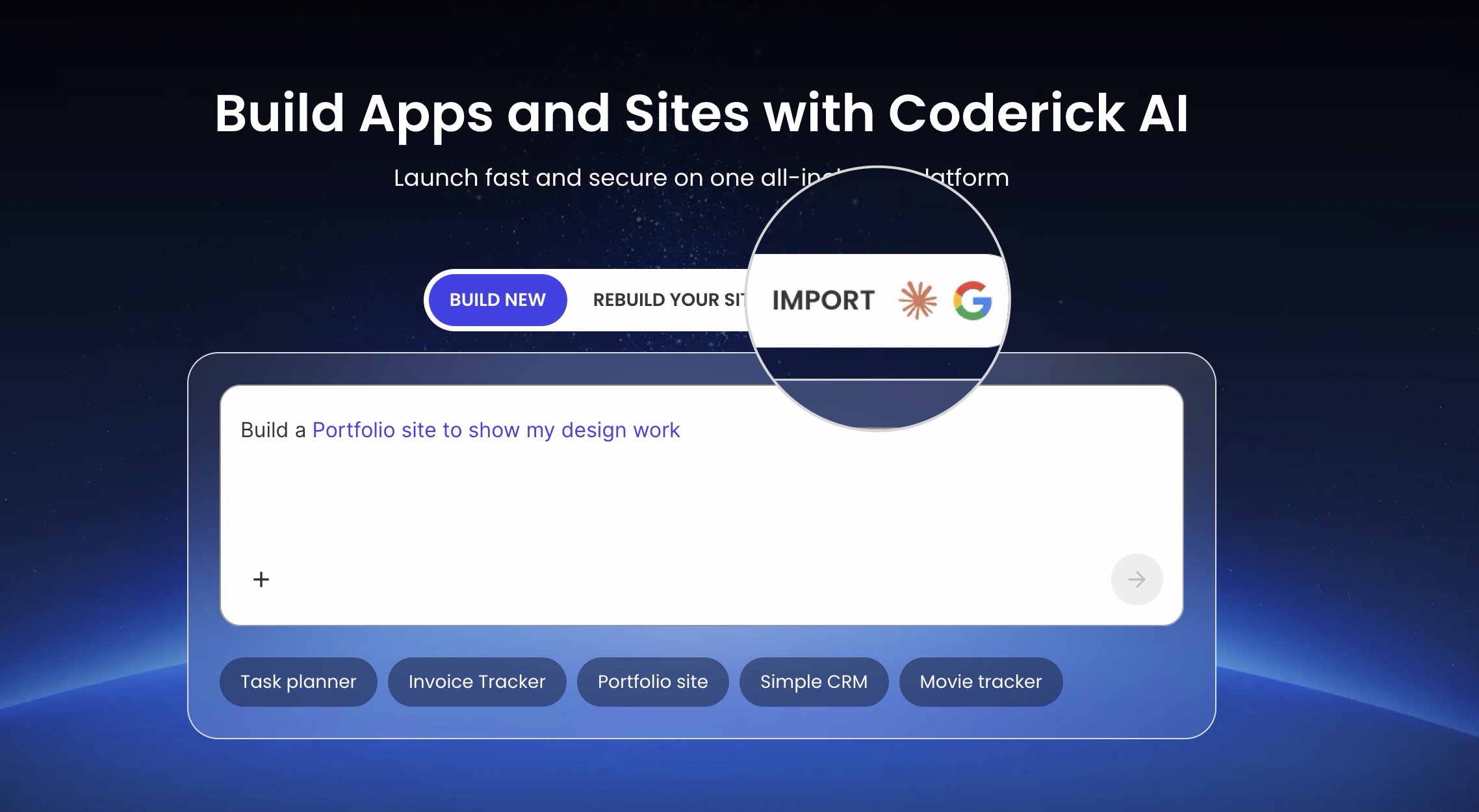
- Next, select whether to upload a file from Claude Design or Google Stitch, depending on the tool you used.
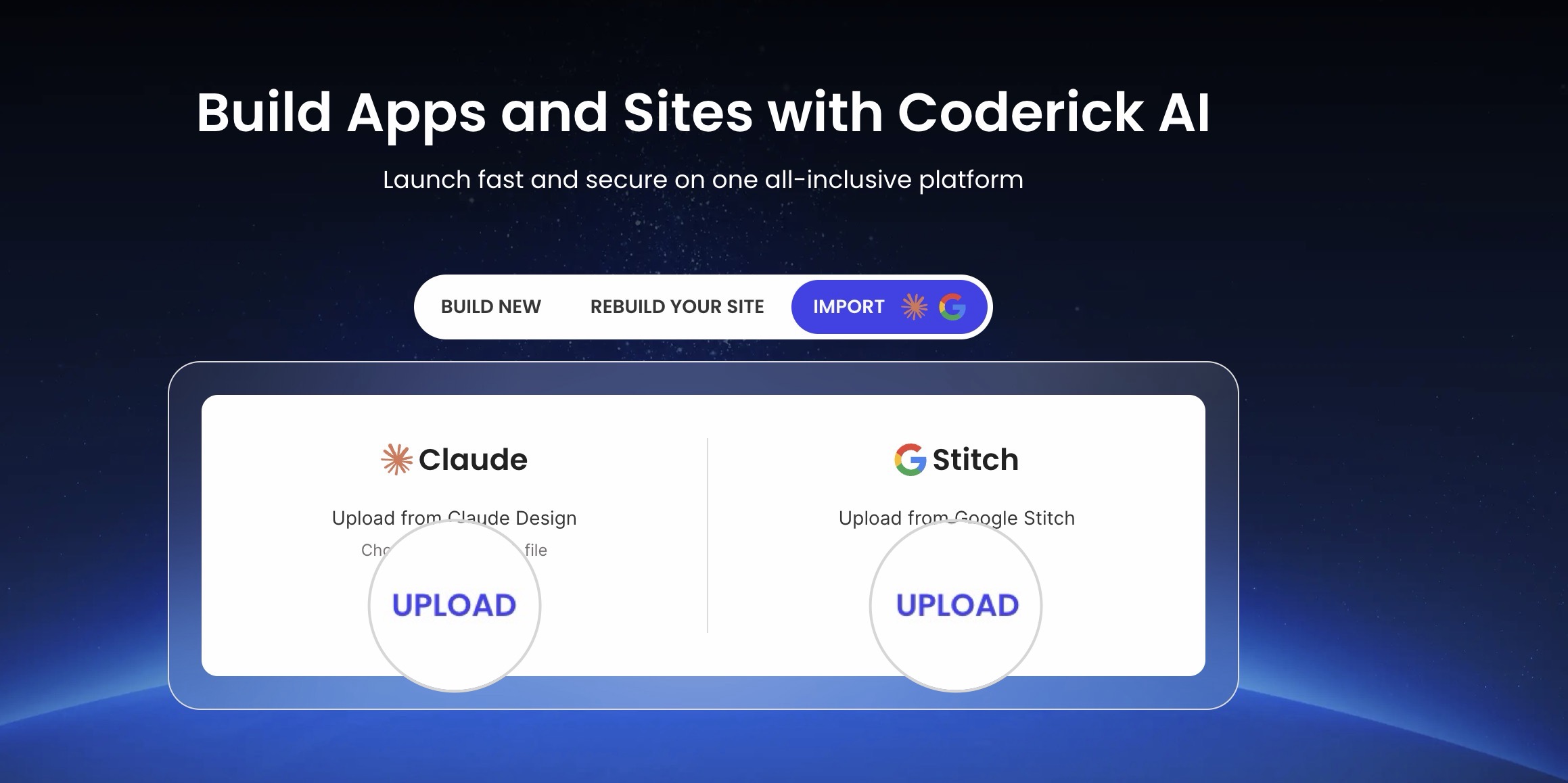
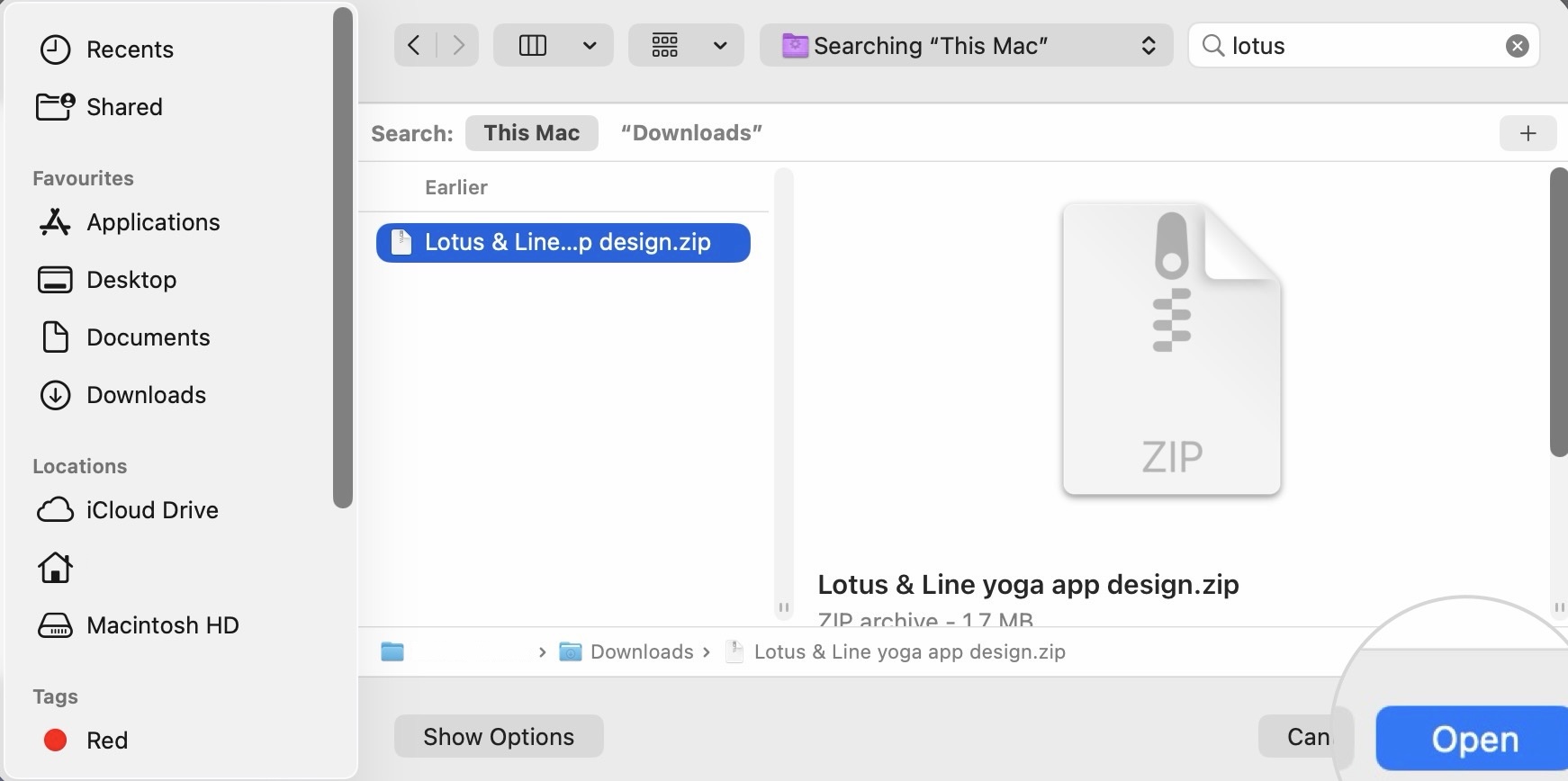
- From the file selection pop-up, choose your exported ZIP or HTML file and click Open.
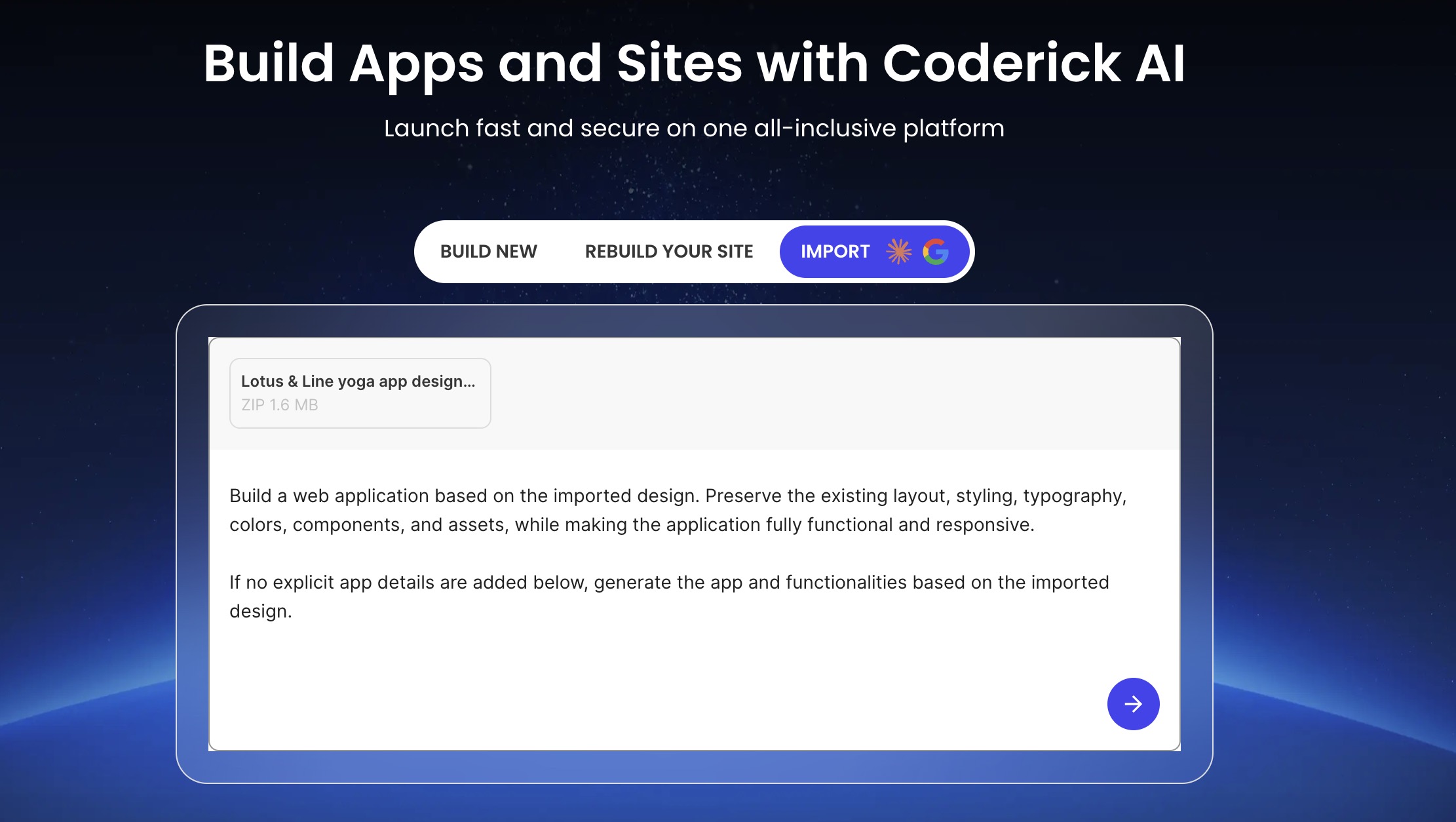
- Review the pre-filled prompt that appears below your uploaded file.
- Keep the prompt as it is, or add details about the functionality you want Coderick AI to build.
- Click the arrow to submit your request.
Following the progress of your new app
After you submit your request, you’re redirected to Coderick AI, where your project is created. You can follow its progress in the chat area.
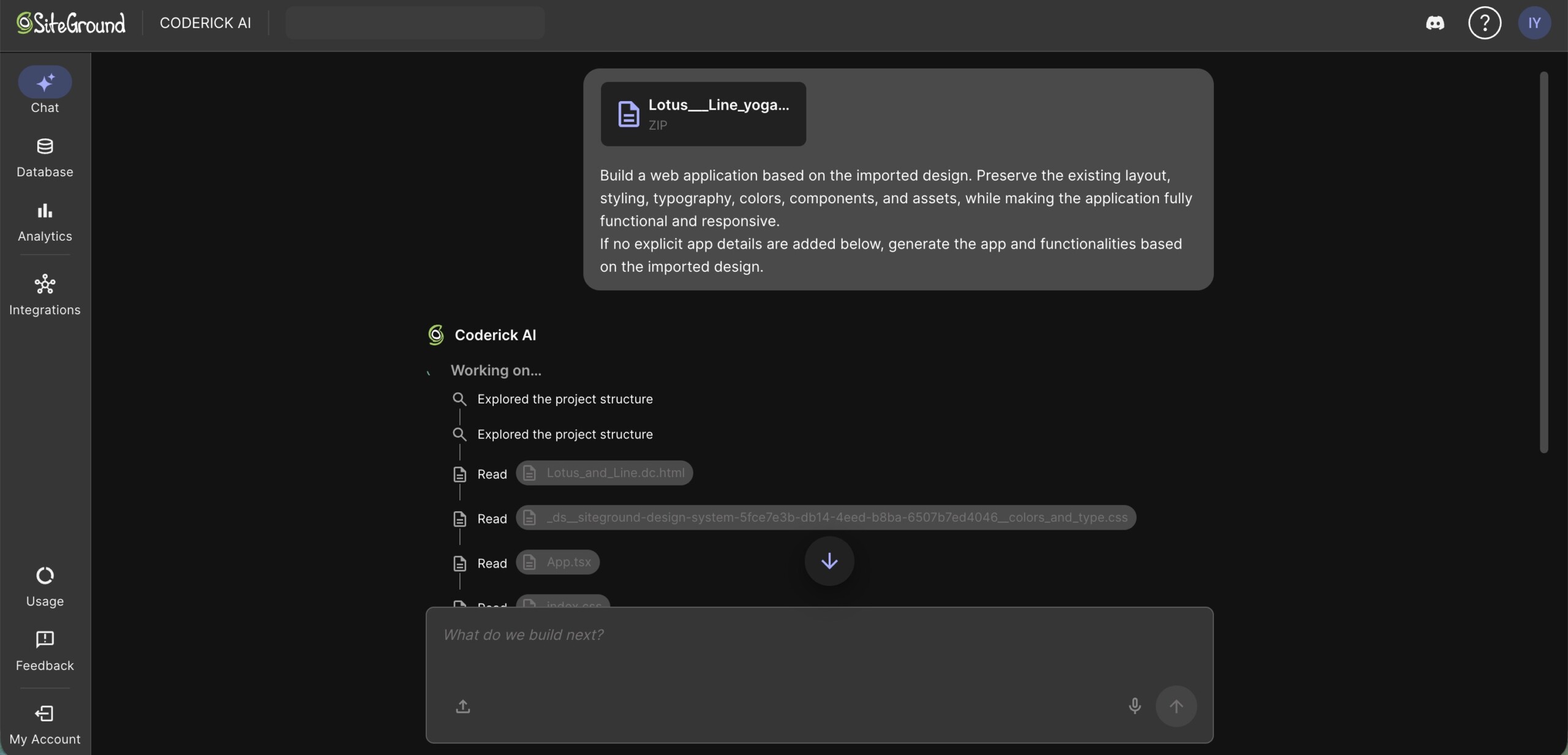
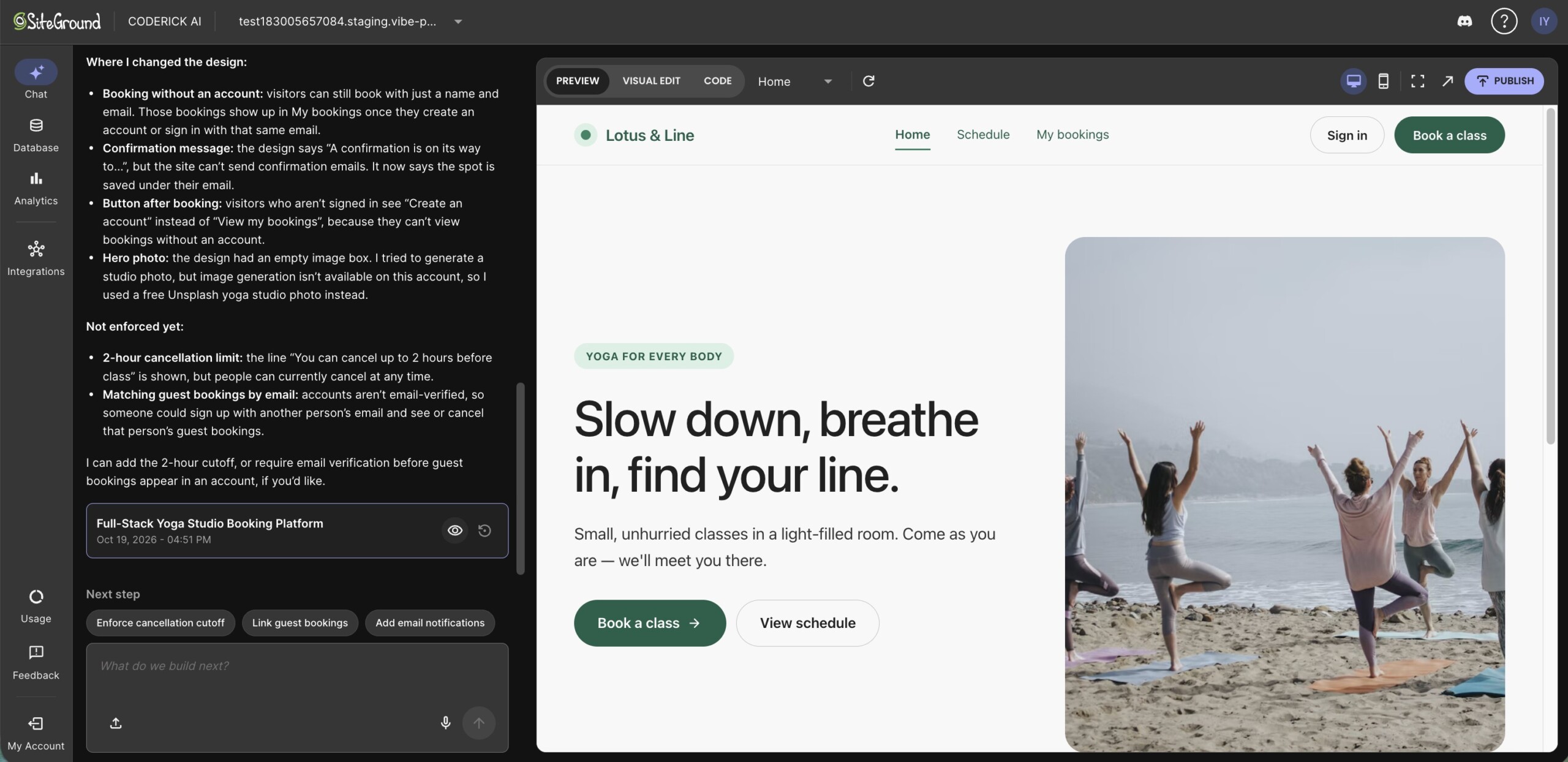
When the generation is complete, your app appears in the preview area. To make further changes, continue the conversation in the Coderick AI chat, just as you would with any other project.
Frequently asked questions
- Can I import a design into a project I’ve already created? No. You can import a design only when you start a new project. After the project is created, you can refine the app through the Coderick AI chat, but you can’t import a new design into it. To build an app from a different design, start a new project.
- Can I import a design from Figma? Not at the moment. Importing currently supports designs exported from Claude Design and Google Stitch only.
- Can I upload more than one file? No. You can upload one ZIP or HTML file per project.
- Why can’t I submit my request? Check that you’ve uploaded a design file and that the prompt isn’t empty. Both are required to start generating your app.
- Why isn’t my Claude Design PDF or PowerPoint file accepted? For Claude Design, only ZIP and standalone HTML exports are supported. Export your design again using one of these formats.
