How can I transfer my website?
Professional manual website migration
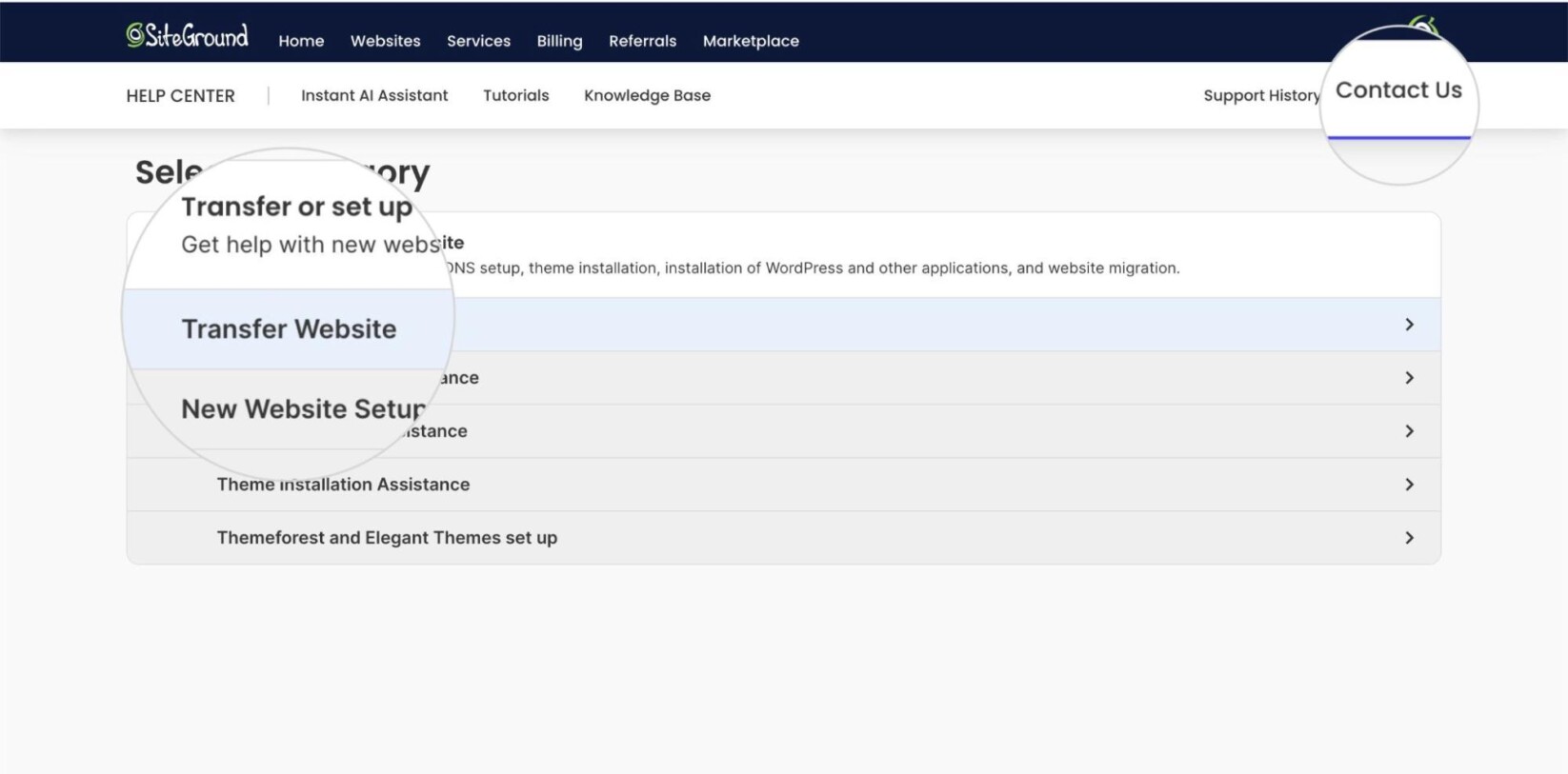
You can order the transfer from your Client Area > Help Menu (?) > View Help Center > Contact Us > Transfer or set up a new site > Transfer Website.
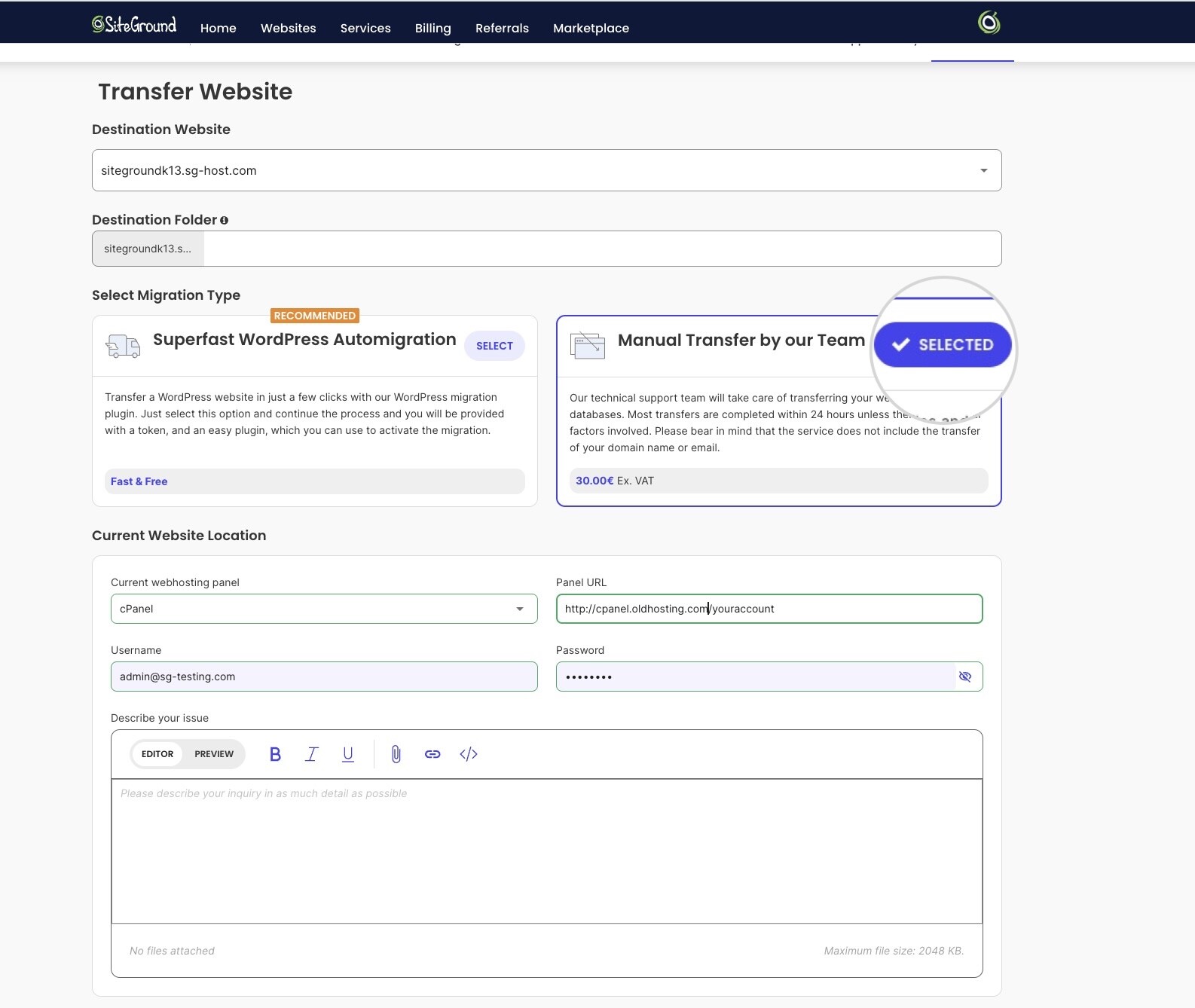
Open the Destination Website menu to select the website’s location.
- Choose one of the existing websites, if you wish to migrate the website to its Site Tools.
- Choose New Website to create a brand new Site Tools panel.
Then, provide the login details for the current hosting that our team can access and migrate the website from.
What the website transfer includes
SiteGround’s manual website transfer is a paid service and includes:
- Transferring the database(s) of the application;
- Transferring all of the website files;
- Configuring the client’s main website to work with the newly transferred files and database(s). This includes adjusting all necessary file paths and databases information.
What the website transfer does not include
- Transferring the domain name. This is another service which can be ordered from your Client Area > Services > Domains > Transfer.
- Configuring more than one web application. By default, SiteGround will transfer and reconfigure your main web application found in the webroot. In case you’d like to have a different one reconfigured, you will have to state it explicitly in the website transfer ticket.
- Outgoing web application transfers from SiteGround to other hosting providers.
WordPress Migrator
If your website is WordPress-based, you can migrate it without any hassle from your Site Tools > WordPress > Migrator.
WordPress Migrator Plugin transfer option includes:
- Transfer website content, themes, and plugins in a safe and encrypted way;
- An easy way to transfer all your sites into one account.
For new accounts, our SiteGround Migrator option is also available from our Setup wizard.
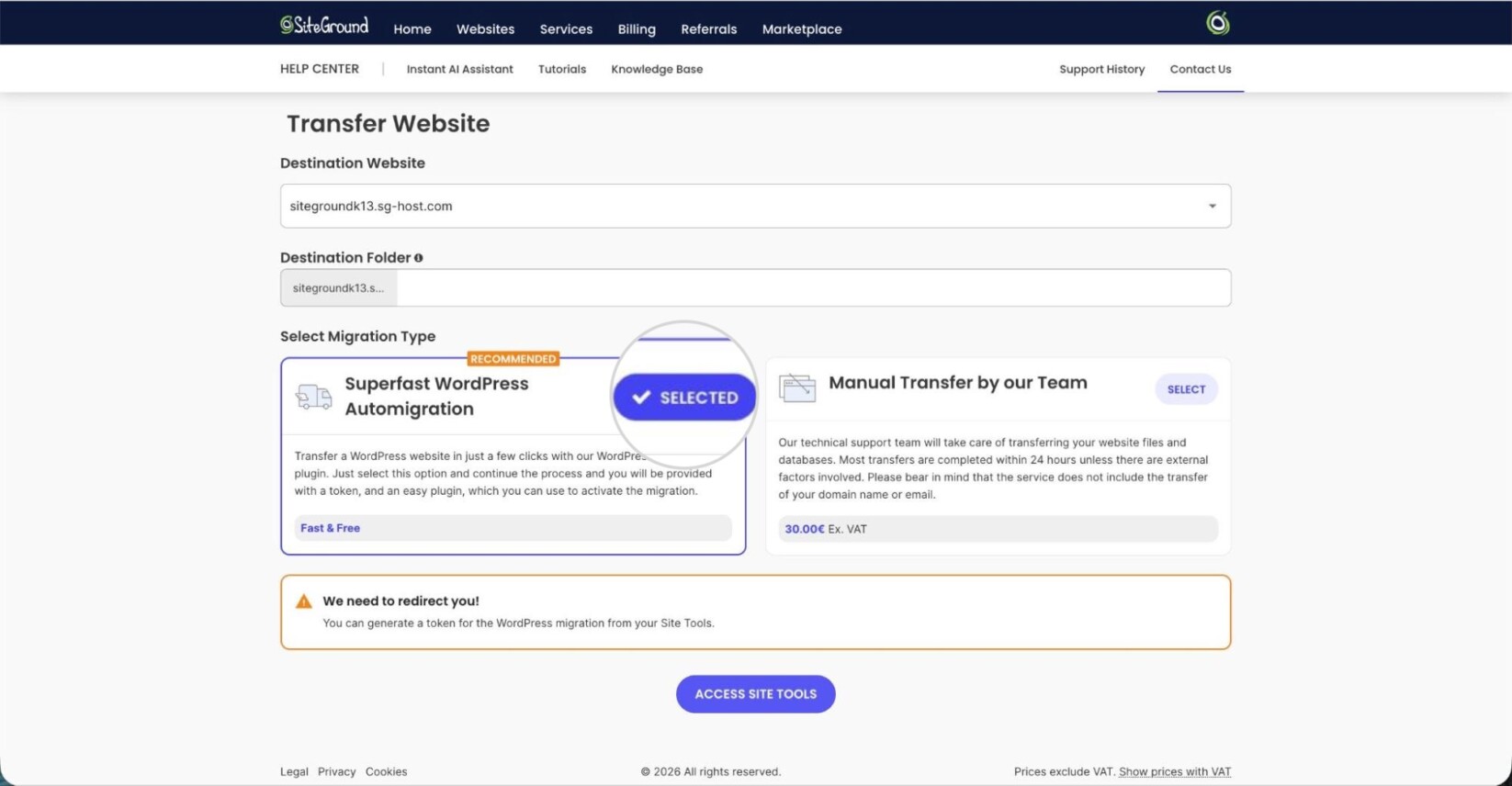
You can find step-by-step instructions in this guide on how to migrate a WordPress site with SiteGround Migrator.