How to use the AI Store Agent
The AI Store Agent is an AI-powered assistant built directly into your SiteGround Ecommerce administration panel. It lets you manage your store using plain, natural language instead of clicking through multiple admin screens.
Rather than manually creating products, editing categories, or updating prices, you simply describe what you want to do in a chat, and the assistant carries out the supported action for you.
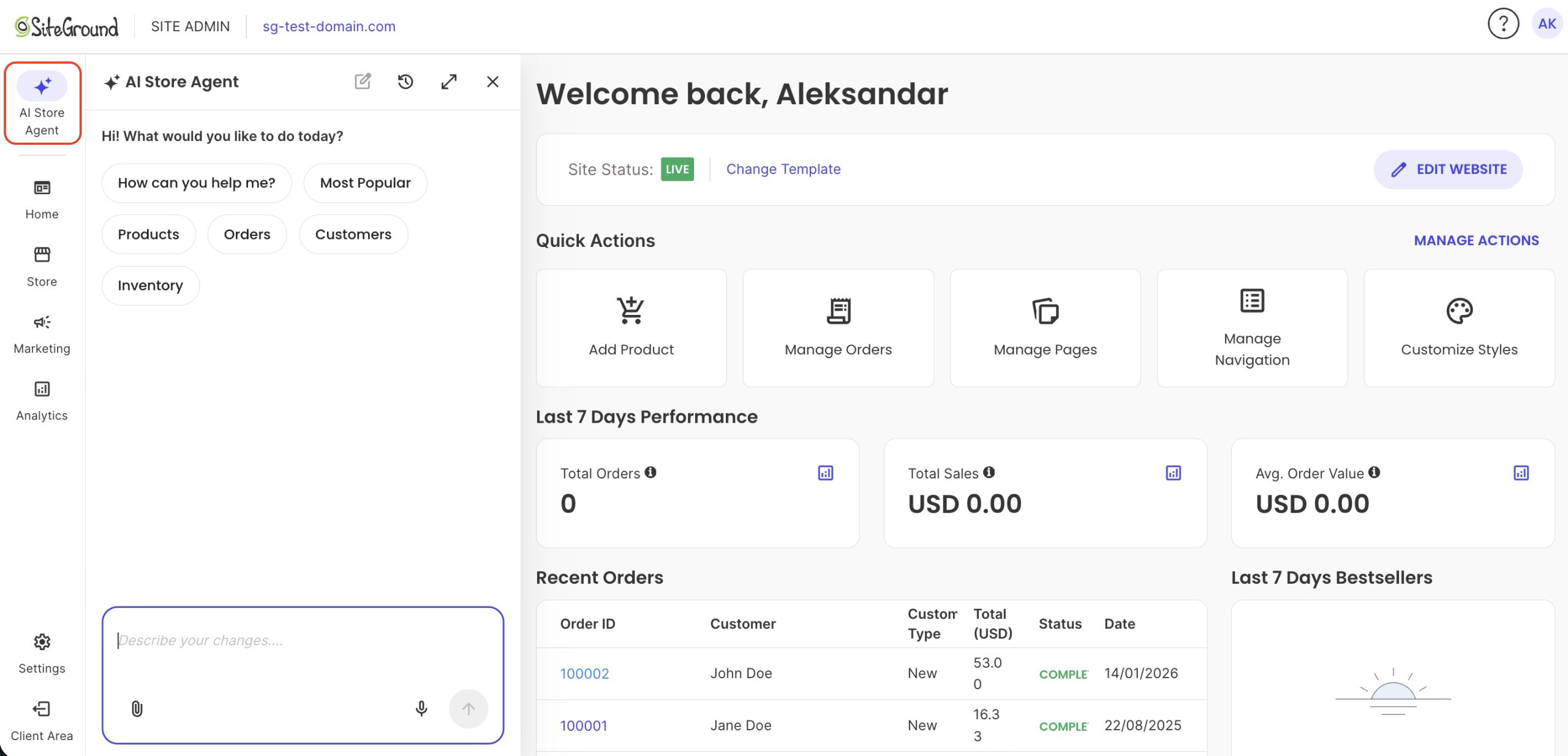
To use it, simply click the AI Store Agent button in the upper-left corner of the Ecommerce dashboard.
What the AI Store Agent can do
Through the chat interface, the agent can help you perform administrative tasks such as:
- Product management — create, update, and edit products
- Category management — create and rename categories
- Brand management — create and edit brands
- Attribute management — manage product attributes
- Price updates — adjust prices, including in bulk (for example, “Increase all shoe prices by 5%”)
- Bulk operations — apply changes across many items at once using a single instruction
You describe your goal in natural language, and the assistant interprets your intent and performs the supported action within your store.
Example prompts
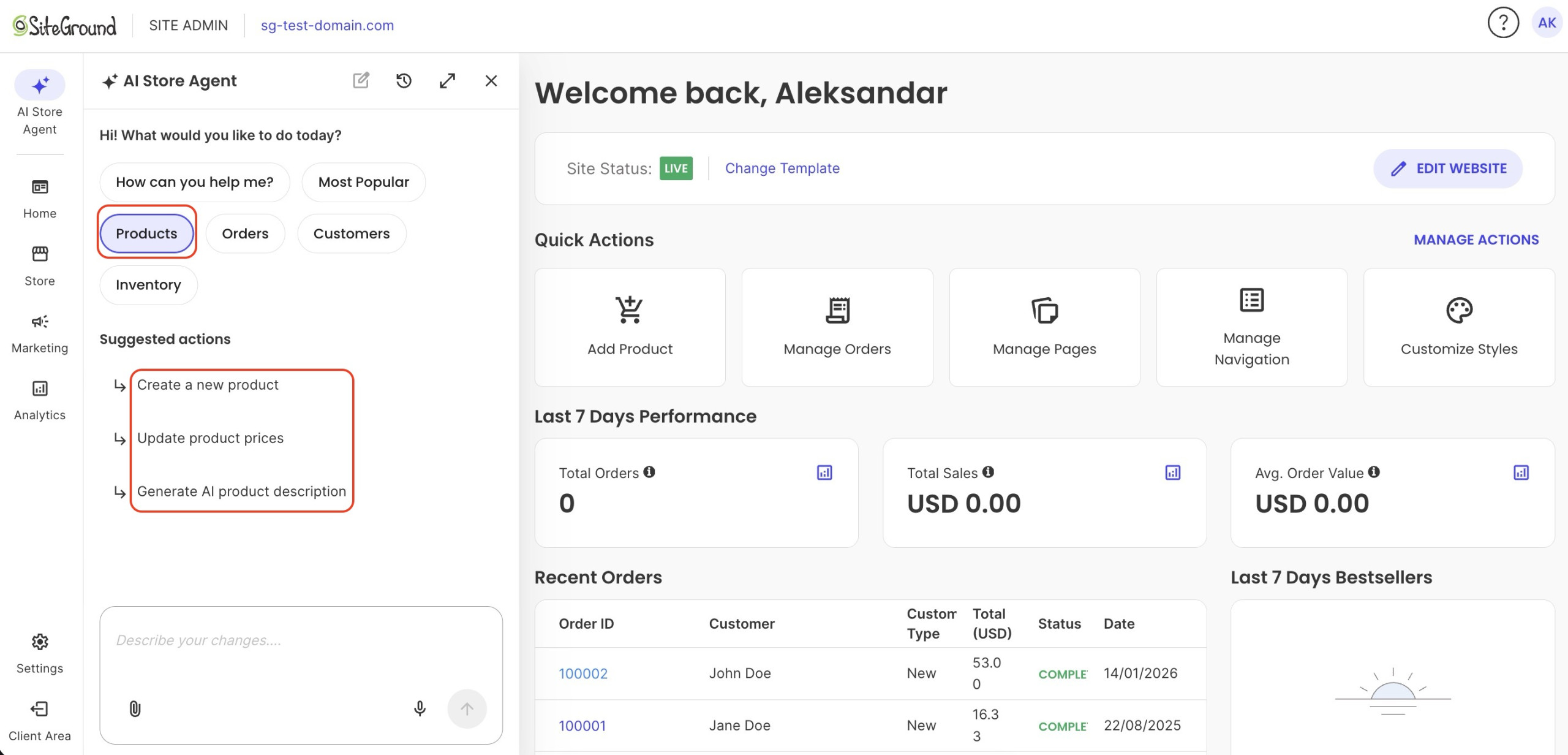
To help you get started, the interface shows a set of suggested example prompts. Selecting one places its text into the input field, where you can edit it or submit it as-is. These examples are usability guidance only — they illustrate the kinds of requests the assistant supports.
Typical requests look like:
- “Create a new product from this spreadsheet.”
- “Increase all shoe prices by 5%.”
- “Rename this category.”
- “Create a new brand called Alpine Outdoor.”
- “Import these products from the attached CSV.”
Who can use the AI store agent
The store agent is available only inside the authenticated ecommerce administration panel. Store owners and store managers are its intended users. It is not available to your storefront visitors or customers.
Attaching files
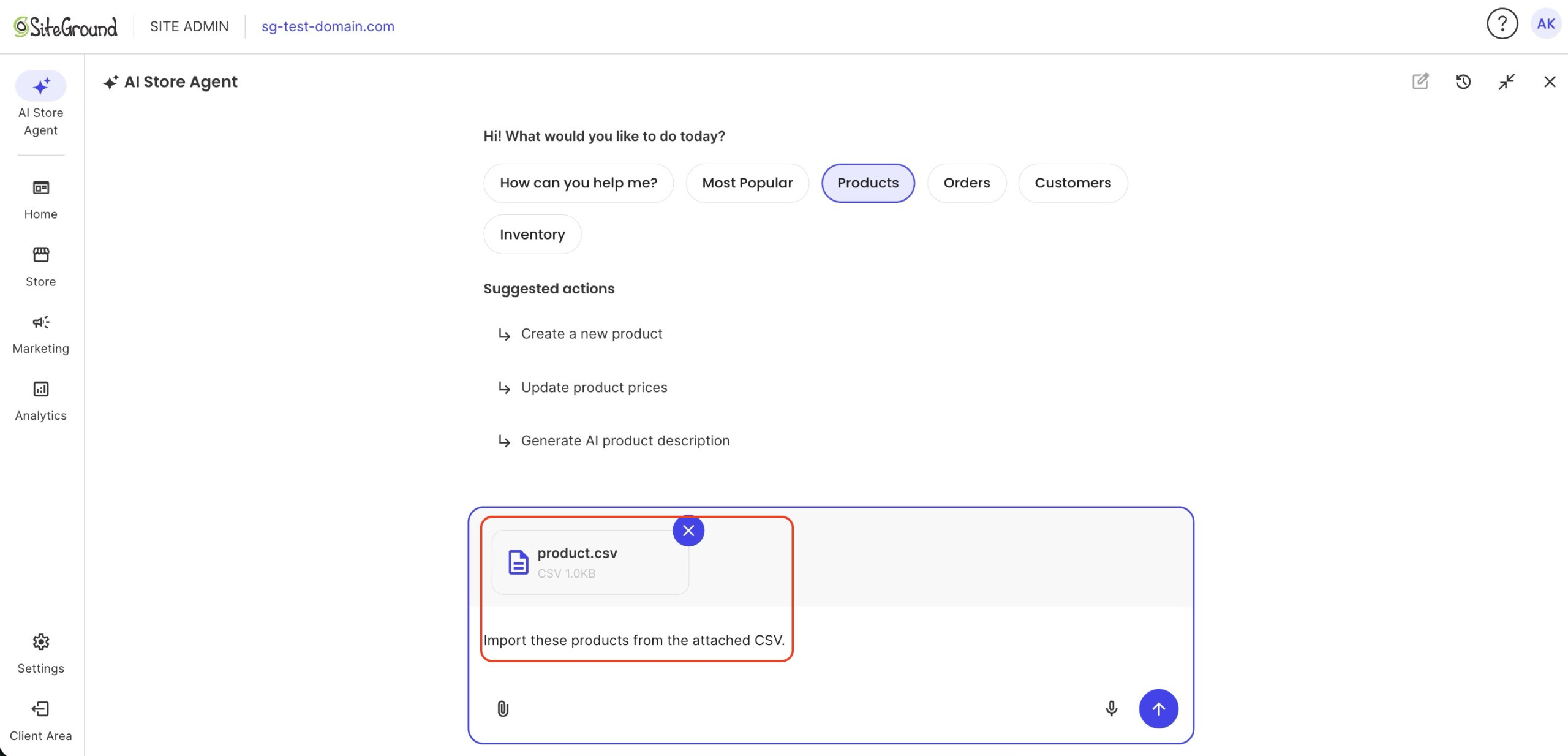
You can attach a file to give the assistant additional context for a request. For example, to import products, process a price list, or read a supplier document.
Supported file formats:
- CSV
- XLSX
- JSON
- XML
- DOCX
- TXT
File restrictions:
- The maximum supported file size is 20 MB.
- A file cannot be submitted on its own — every uploaded file must be accompanied by a text instruction telling the assistant what to do with it.
- Unsupported file formats are rejected with an error message.
Using voice input
The assistant supports voice input. You can record speech, which is transcribed into text using the platform’s speech-to-text functionality. To use it, click the microphone button in the chat input field.
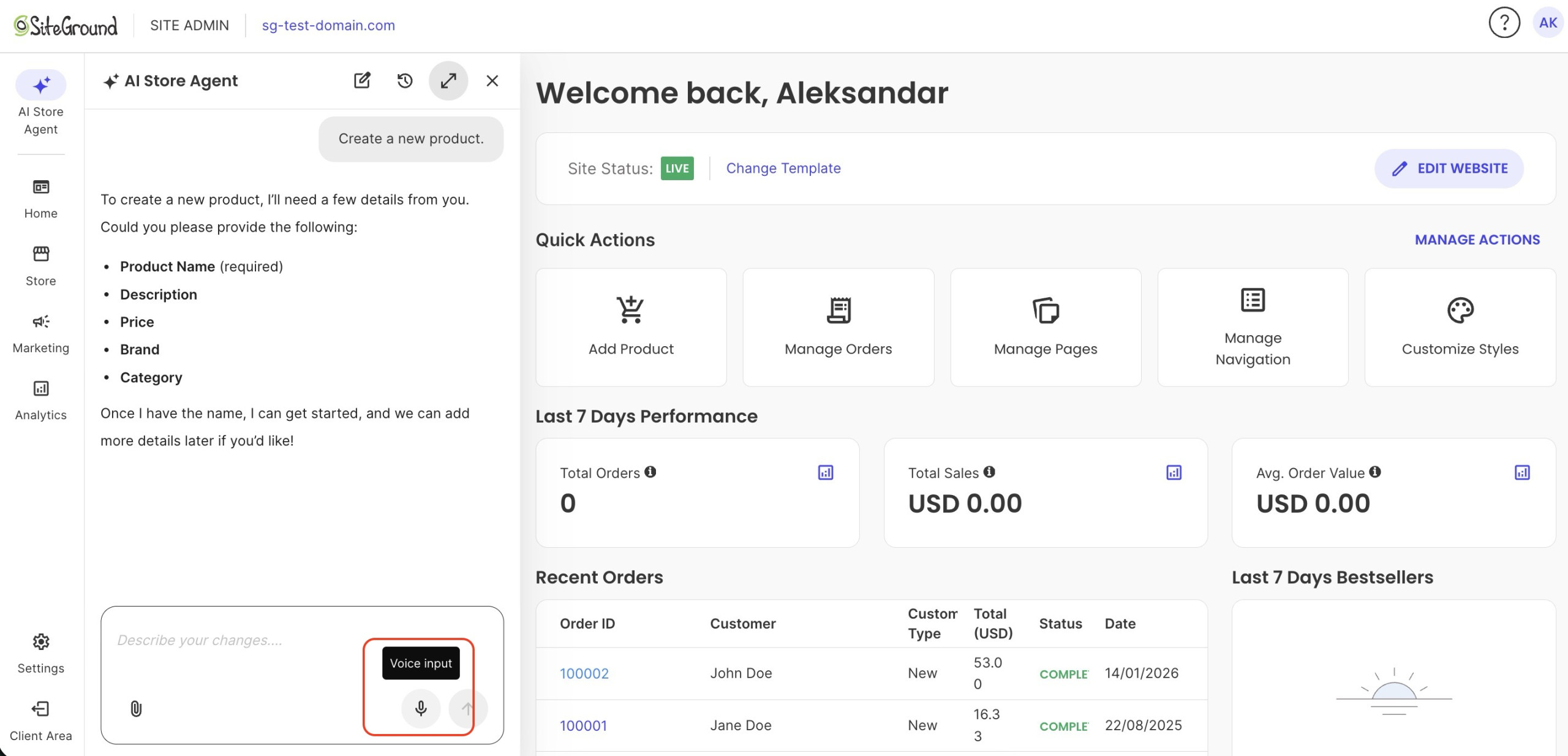
Only the resulting transcribed text is placed into the conversation — you review it and remain responsible for submitting the final prompt. Voice recordings are used solely for transcription.
Conversation history
Each chat session is saved as a conversation, so you can pick up where you left off. Click the History button in the toolbar to open it.
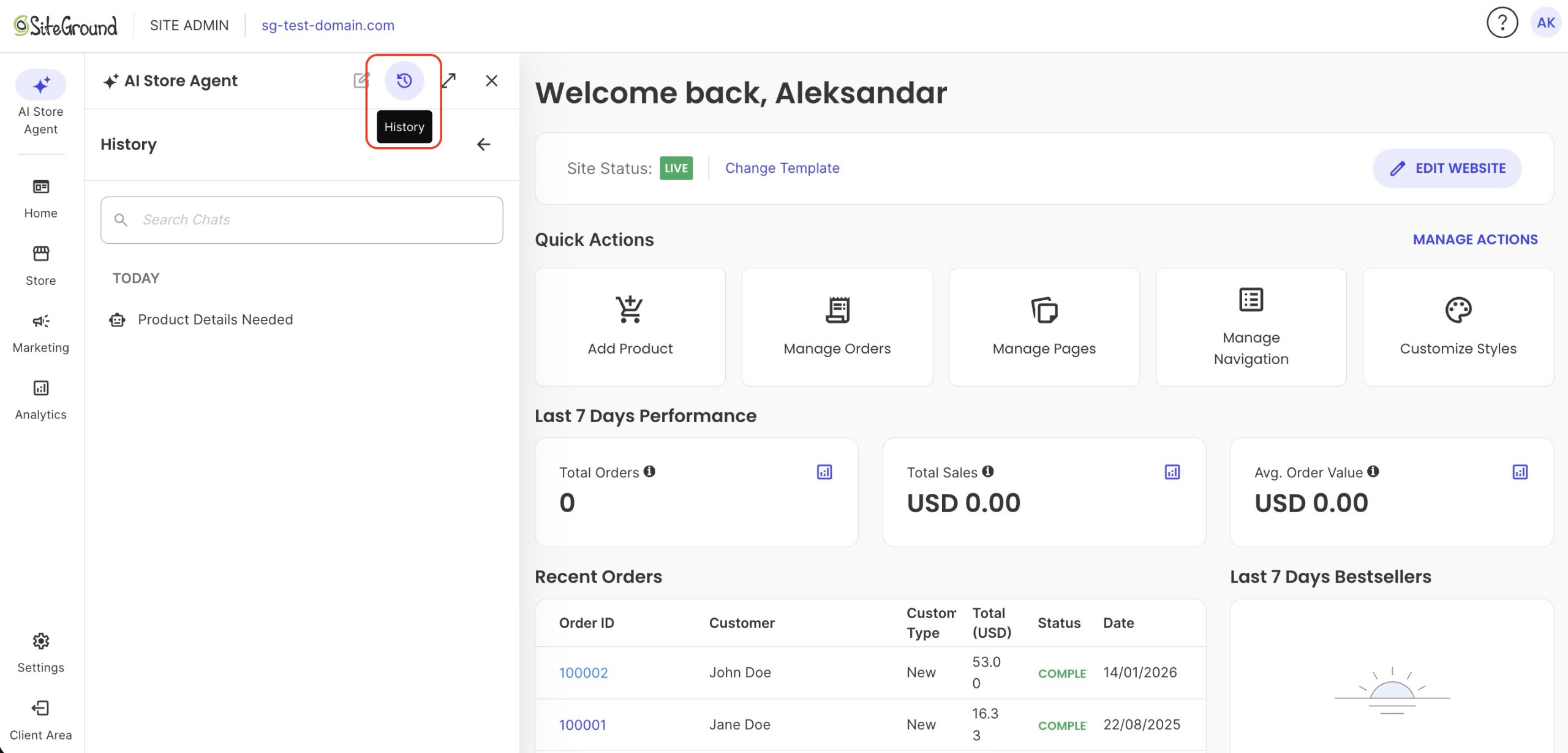
Conversations are grouped by date for easier navigation, and are retained for 30 days.
Power Mode
Some actions carry a higher operational risk. Such actions include, deleting entities, bulk updates, product or order updates, and price changes. To reduce the chance of running such an action accidentally, these require Power Mode to be enabled.
Key points about Power Mode:
- It is disabled by default.
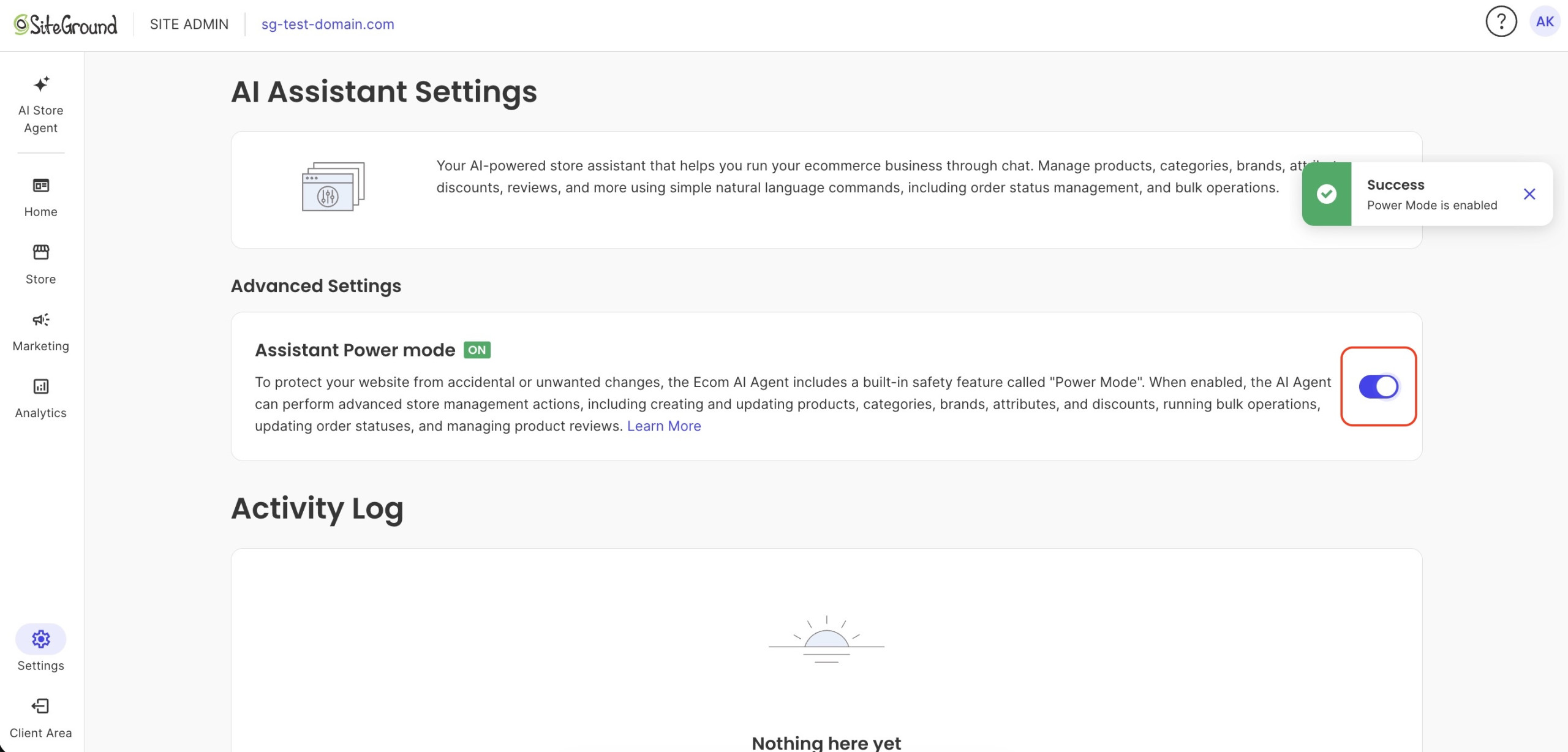
- Enabling it is an explicit choice you make — either directly in the chat interface or from the AI Store Agent settings page.
- It is a built-in operational safeguard, not a permissions or authorization mechanism. It controls which actions the assistant will carry out for you; it does not grant any access you don’t already have.
With Power Mode off, the assistant can only read your store data. With Power Mode on, it can also create, update, and perform bulk changes on most resources. Deleting is more restricted even with Power Mode on.
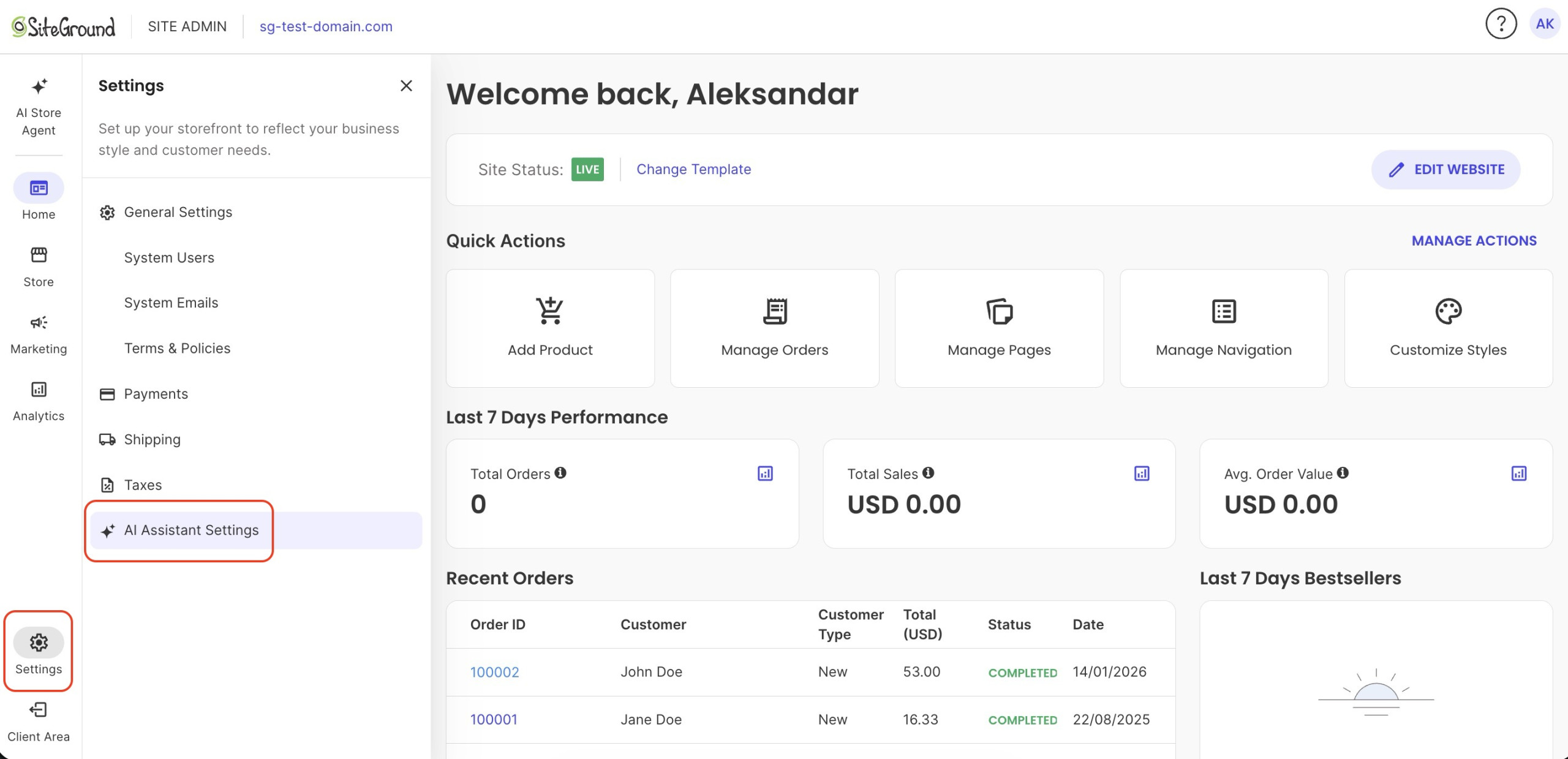
You can enable Power Mode from Settings > AI Assistant settings
Click the toggle button to switch it on.
The table below summarizes what the assistant can do for each resource type in each mode:
| Resource type | Read | Create | Update | Bulk | Delete |
| Orders | Yes | No | Off / On* | Off / On* | No |
| Products | Yes | Off / On* | Off / On* | Off / On* | No |
| Categories | Yes | Off / On* | Off / On* | Off / On* | No |
| Brands | Yes | Off / On* | Off / On* | Off / On* | No |
| Attributes | Yes | Off / On* | Off / On* | Off / On* | No |
| Discounts | Yes | Off / On* | Off / On* | Off / On* | No |
| Reviews | Yes | No | Off / On* | Off / On* | No |
Off / On* means the action is unavailable when Power Mode is disabled and available when Power Mode is enabled. Reading is always available. Deleting is not available for any resource even when Power Mode is on.
Activity log
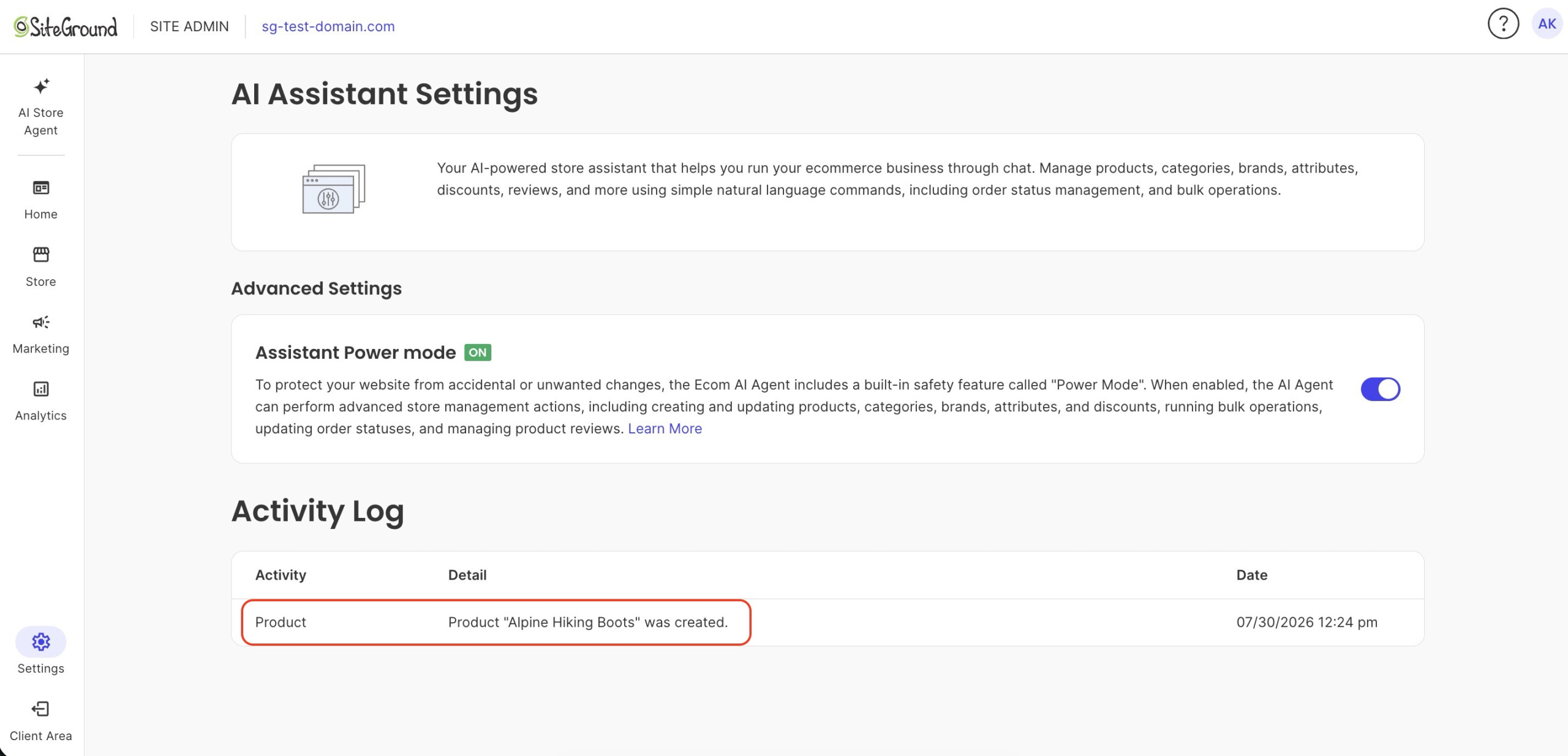
The assistant keeps an activity log of the administrative actions it performs, giving you transparency and a way to audit AI-assisted changes. Examples of logged actions include “Product created”, “Category updated”, “Brand created”, and “Order modified”.
Each record includes:
- The affected resource
- The action performed
- A timestamp
Records are paginated, sorted newest-first, and automatically retained for 30 days before being deleted. They are available on the AI Assistant Settings page.
What the AI Store Agent can’t do
The following are not supported in the current release of the AI Store Agent:
- Image inputs — the assistant does not accept images or image-based requests. Only the supported document formats listed above can be uploaded.
- Creating or editing orders — order creation and modification must still be done through the standard ecommerce administration interface.
- Dynamic prompt suggestions — the example prompts are static; they are not tailored to your specific catalog or store data.
- AI usage page — there is no dedicated page for monitoring AI usage, consumption, or quotas.
- Mobile app — the AI Store Agent is not available in the mobile application in this release.
Because the assistant operates on top of your existing store, it can only perform actions the ecommerce platform already supports, and always keeps you in control — you review and submit each request.
