How to Change Shapes
To change the shapes of fields, images, and other elements on your website, first go to Site Admin > Website Builder, and press the Edit Website button.
Then navigate to the Styles tab and click on Shapes.

From there, you can individually customize the shapes of Form and Columns and Image Shapes.
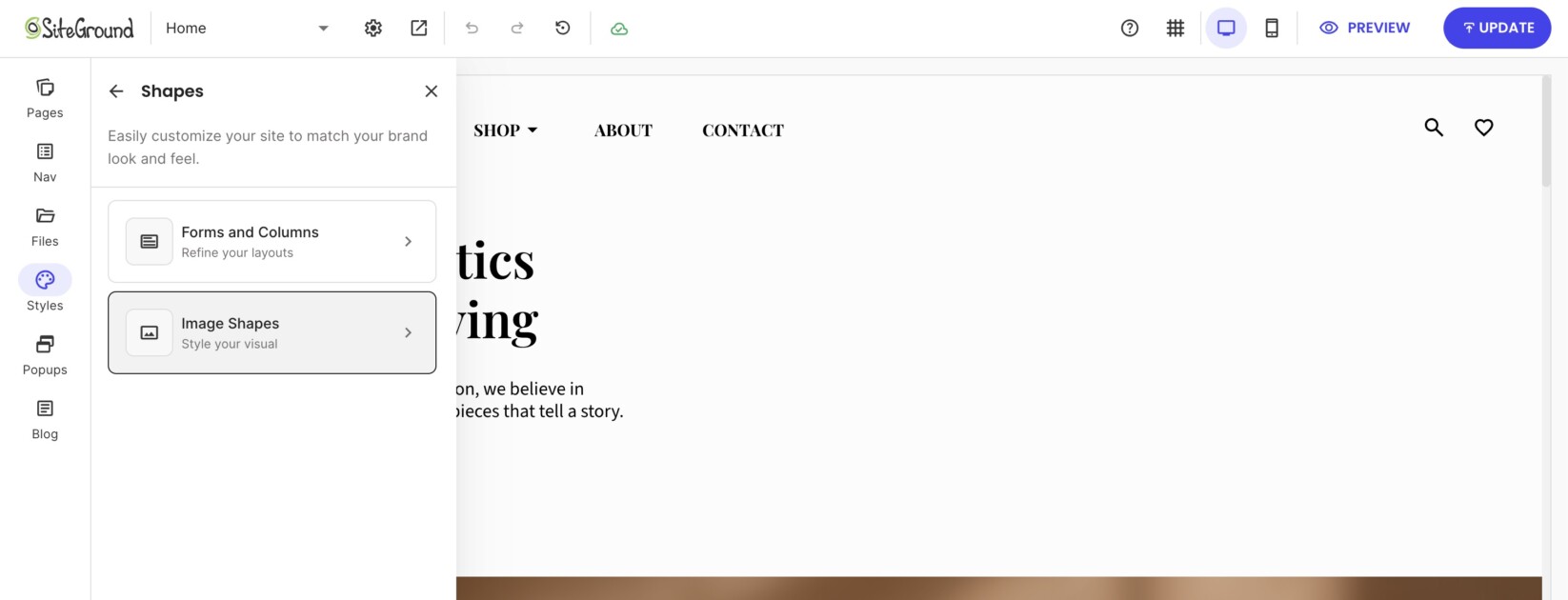
Once you click on a category, an additional menu will open, allowing you to edit it. Regardless of the category, you can set the corner radius of shapes to None, S, M, L, or Custom.
You can customize the shape of an individual image via its Design settings. To do so, click the image, click the pencil icon in the floating toolbar, and select Shapes under the Design tab.
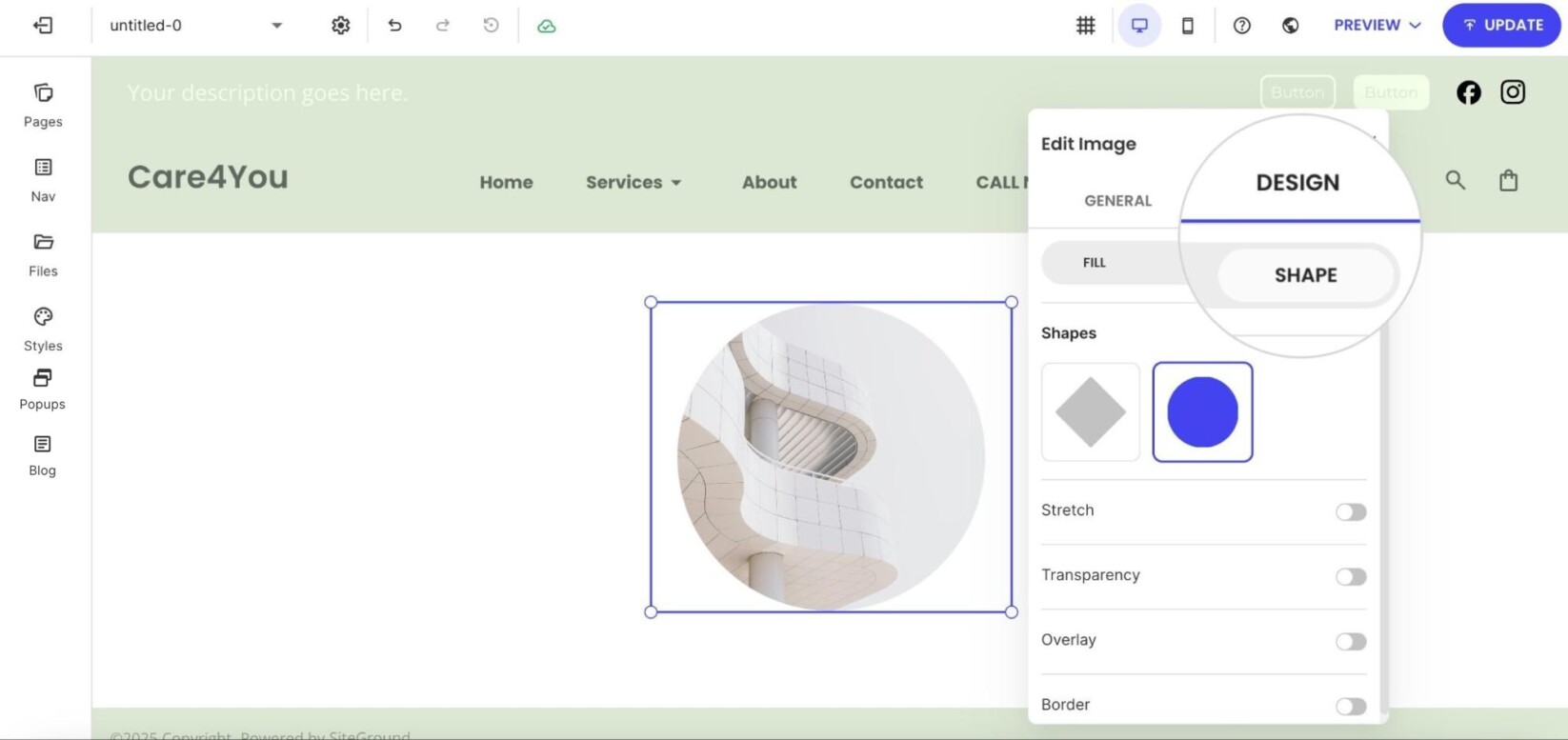
This is also applicable to the Testimonials and Columns components, where you can edit each image individually.
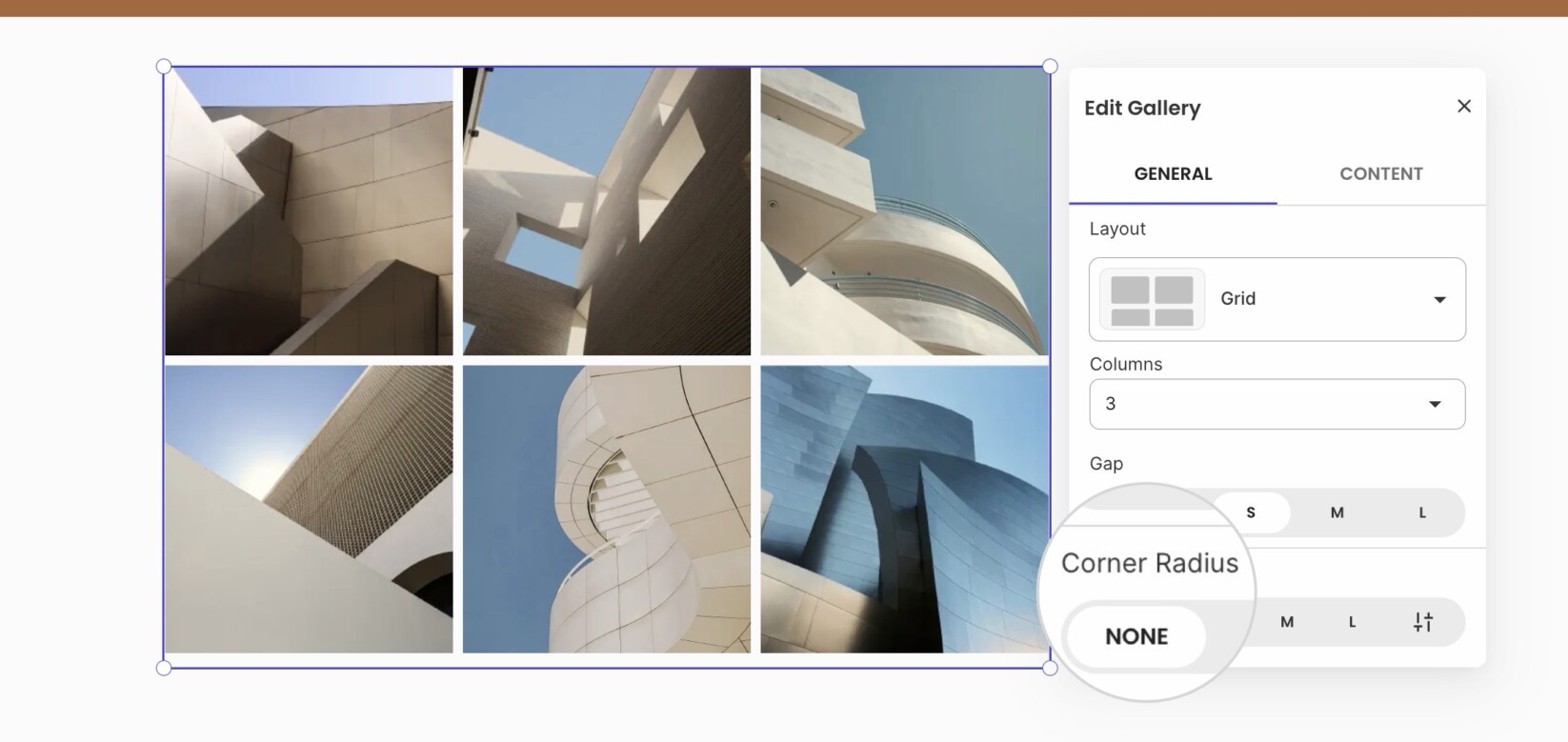
You can also change the corner radius of images in the Gallery component. To do so, click the pencil icon in the floating menu. In the Edit Gallery menu you can adjust the Corner Radius of the images, as well as customize other gallery features.