How to Add a Video to a Page
Add a video as a section
To add a video section to a page:
- Open the Pages tab and select the page where you want to place the video.

- Scroll to the desired position and click Add Section.

- In the section library, open the Video category.

- Choose a layout and click Add Section.
The video section will be added to the page. To customize it, hover over the section and click the Edit icon. From there, you can adjust the section layout and design and set the video source.

Add a video as a component
SiteGround Website Builder also lets you add a video as a component from the Add button in the top-left area of the editor.
- Open the page where you want to add the video.
- Click Add in the existing section where you wish to add a video.

- Select Video from the available components. You can use the search bar to find it more quickly.
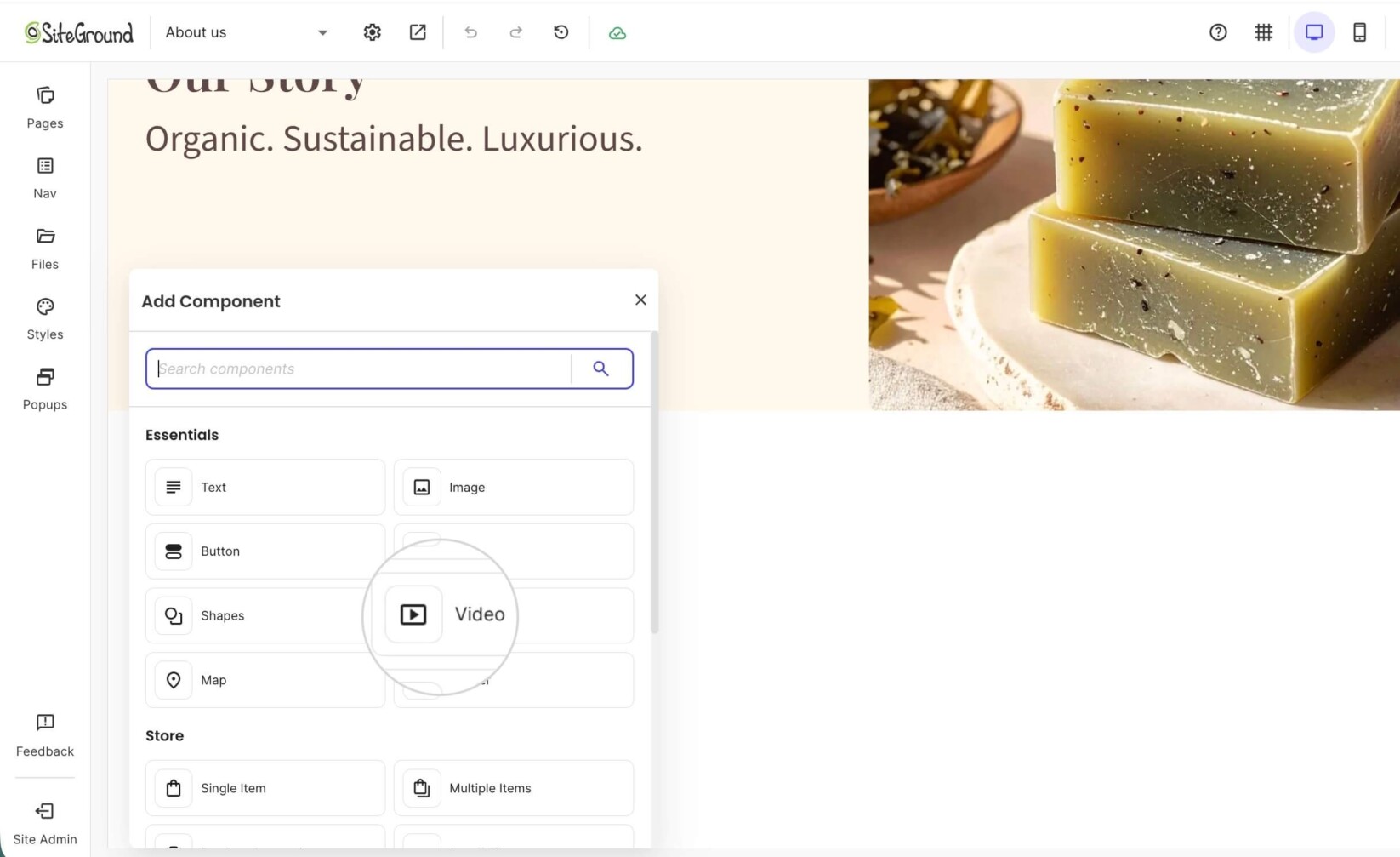
- Place the component in the desired section or area of the page and click “Edit”

- Add your video source and adjust its settings.

Video source options
After adding the video section or component, click Add Video and choose one of the available sources:
- Upload Video – upload a video file from your computer. The maximum file size is 256 MB.
- Open My Files – select a video file from your existing files.
- Add YouTube Link – embed a video from YouTube.
- Add Vimeo Link – embed a video from Vimeo.
You can also adjust the available playback settings, such as Autoplay, Loop, Mute Video, Show Video Controls, and Allow Fullscreen.

