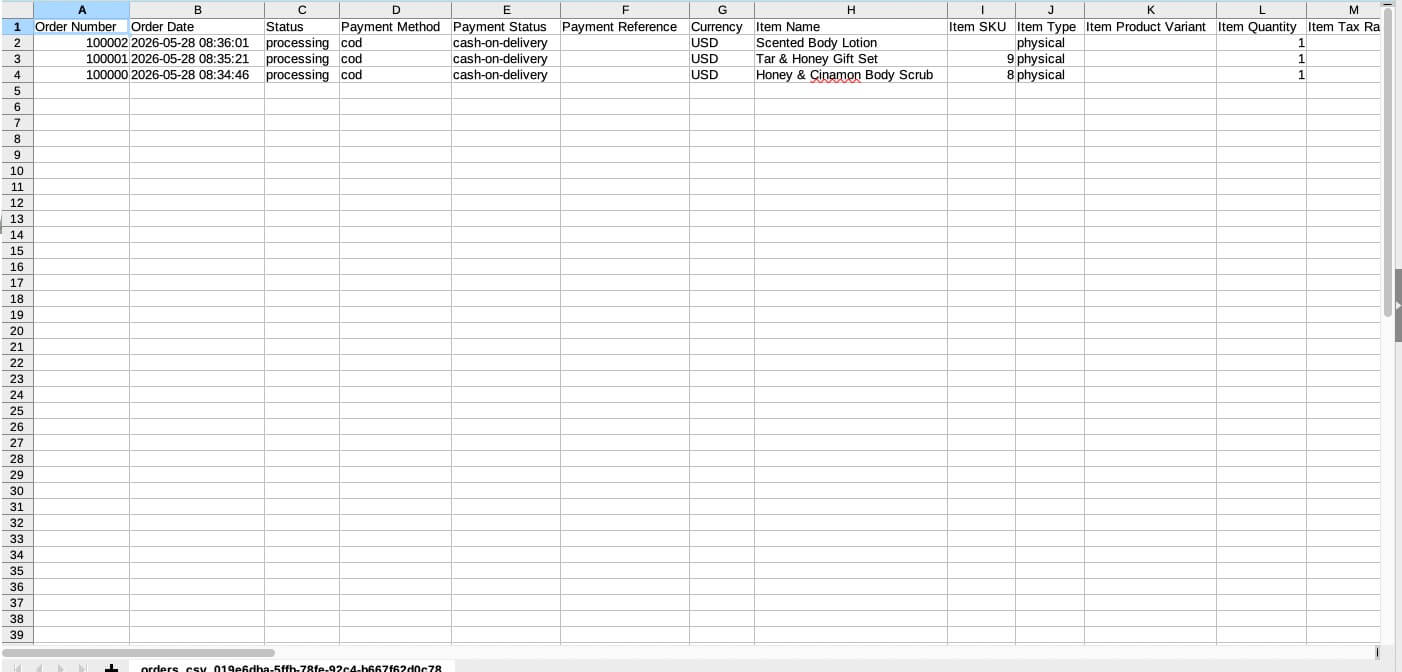
How to export orders
SiteGround Ecommerce gives you all the necessary tools to effortlessly manage your store’s orders inside Site Admin. However, on some occasions, you may need to export them, whether to present a spreadsheet to an accountant or a business analyst, or to feed a third-party application with order data.
Read the following instructions to learn how to easily export your orders into a CSV file with a few clicks in your Ecommerce store.
- Log in to your Site Admin.
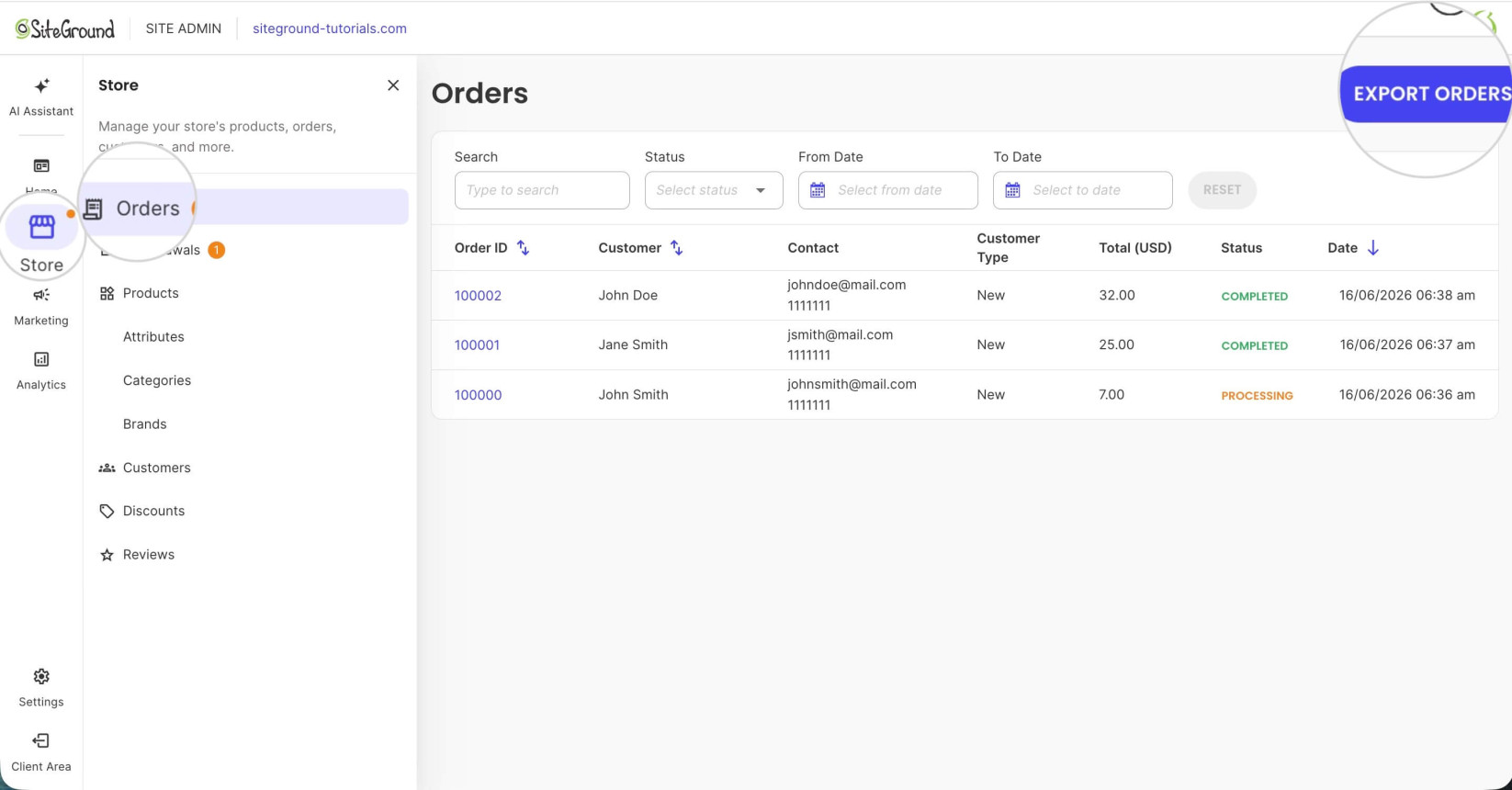
- Open Store > Orders.
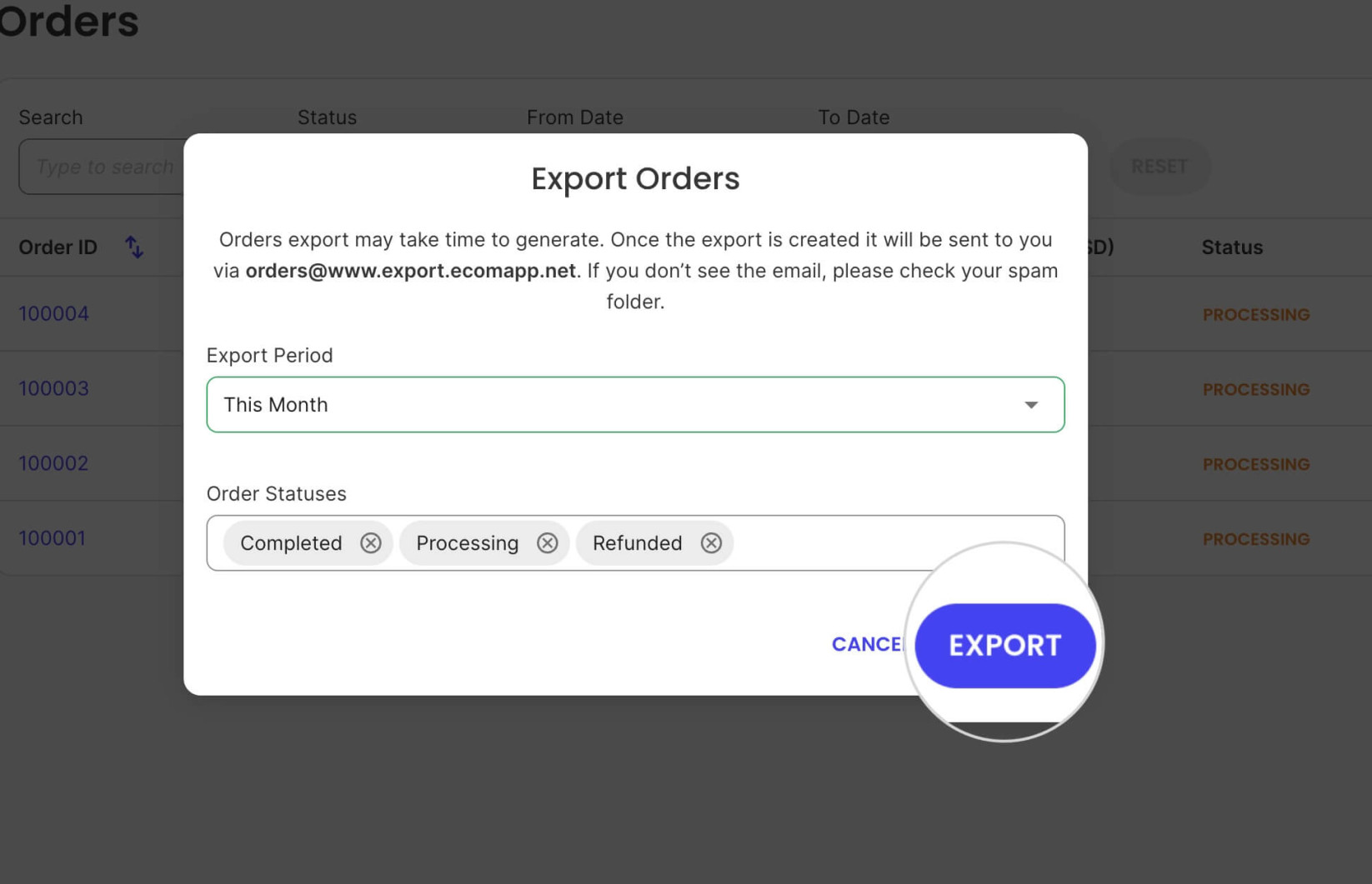
- Click Export Orders in the top-right corner to open a new pop-up window.
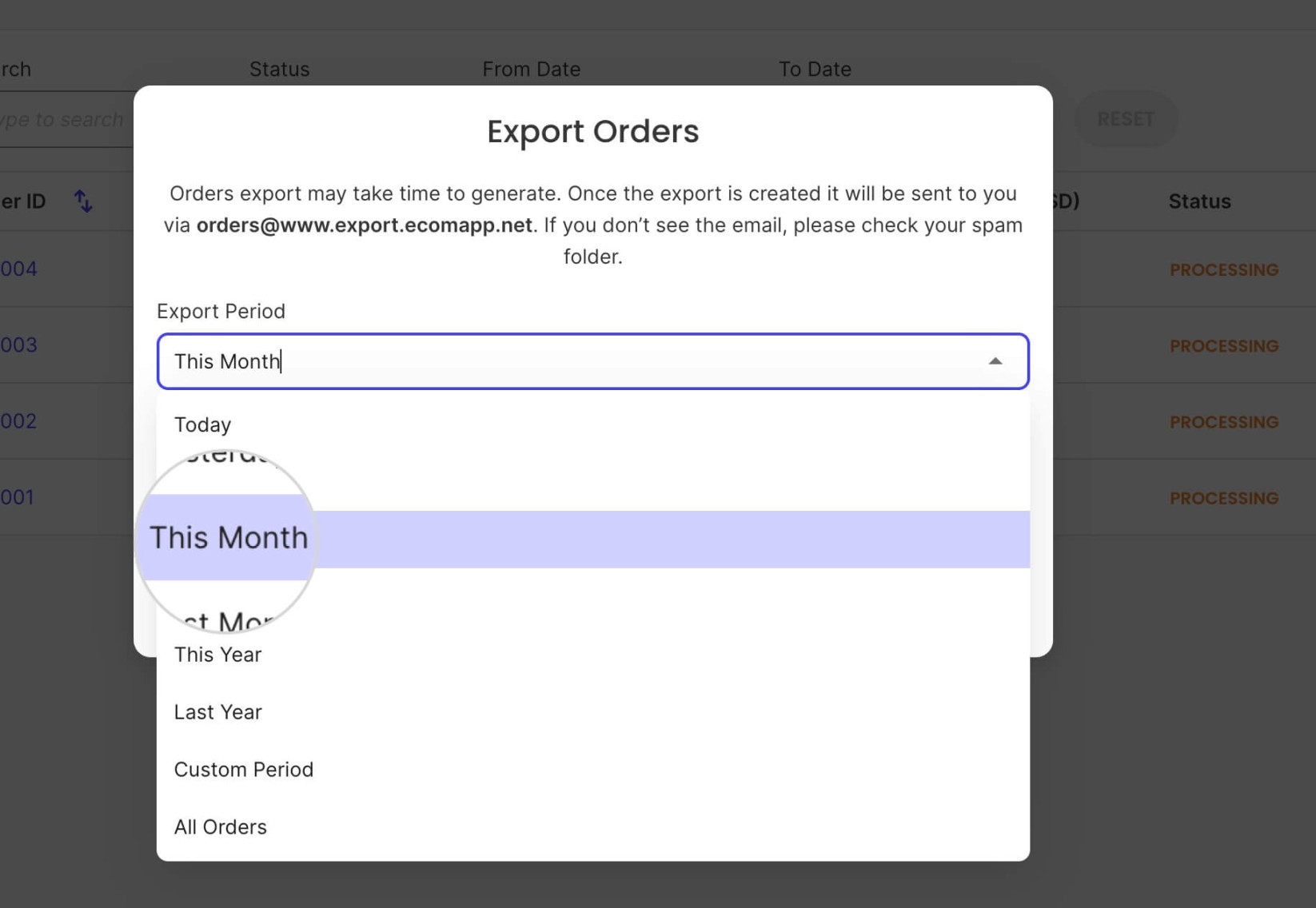
- Open the Export Period menu and select the timeframe to filter the orders included in the export. You can select either a prefixed date range, a Custom Period with start and end dates, or All Orders.
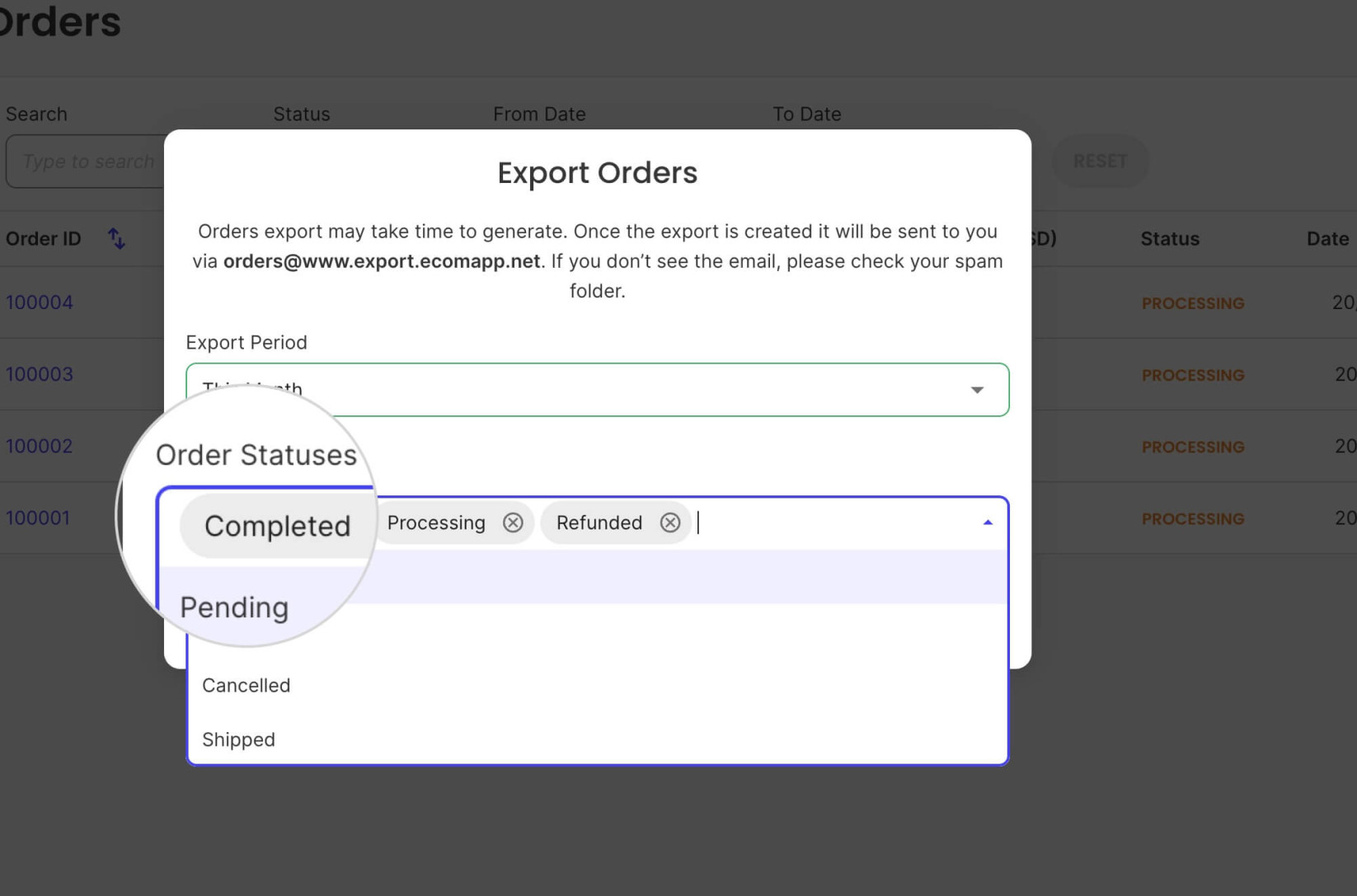
- From the Order Statuses menu, you can filter which orders will be included in the export based on the selected statuses.
- Press Export to generate the CSV file and send it to the store’s business email.
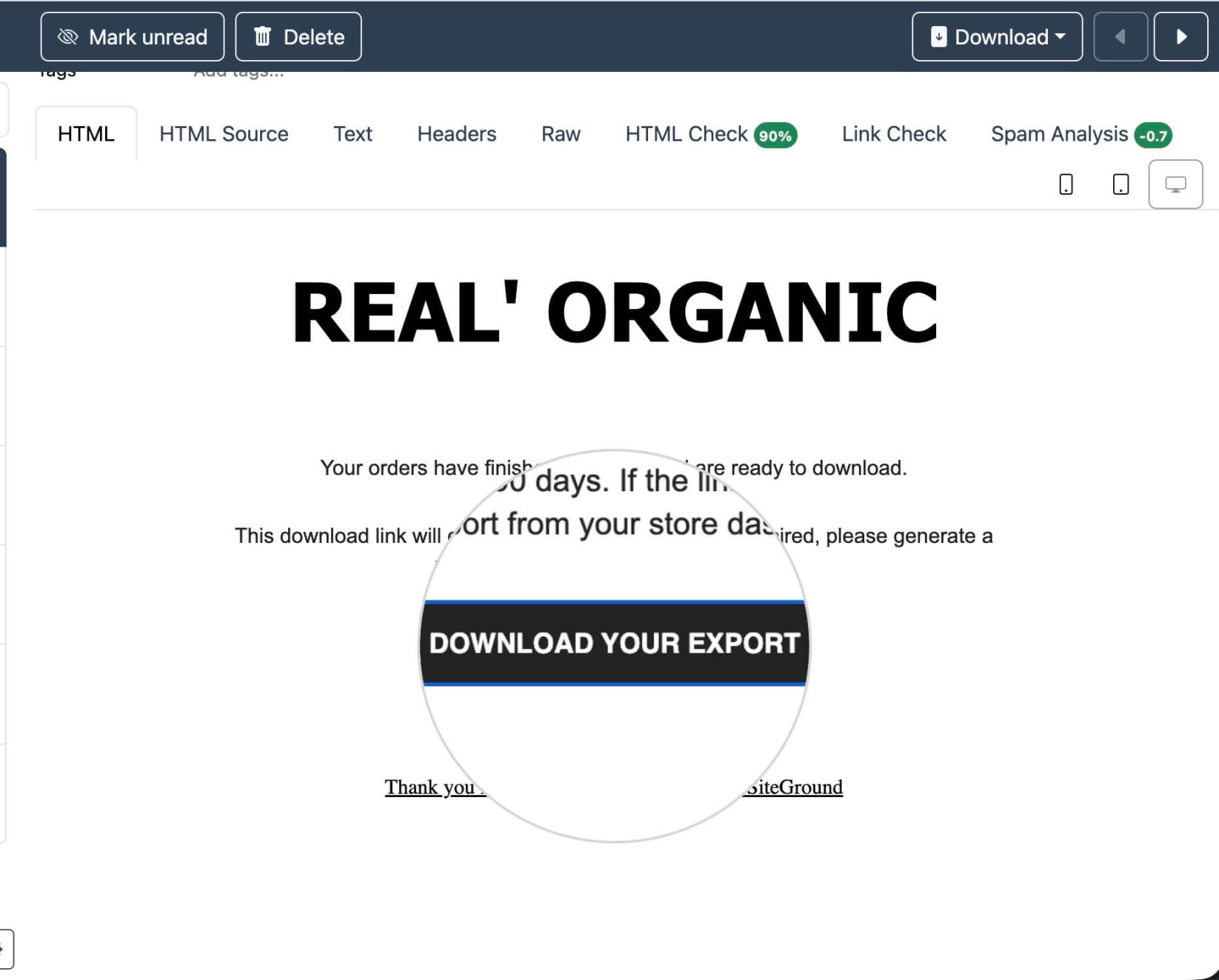
- Open your inbox and find the email sent from your Ecommerce store. Click the Download your export button inside the message to download the CSV file to your device.
- Open the CSV file with your preferred CSV reader application to view or edit the orders.