How to enable a withdrawal option in your Ecommerce store
If you are an online store owner, you should know that there’s a new EU rule (EU Directive 2023/2673) that took effect on June 19th, 2026. In essence, all online businesses selling to consumers in the EU must now provide an easily accessible and clearly visible way to withdraw from a purchase/order when using the website/app.
This guide will help you implement the EU withdrawal button on your Ecommerce website.
How to enable the withdrawal functionality
SiteGround Ecommerce Service allows you to add a withdrawal function to your online store so consumers can submit withdrawal requests. Here are the steps you need to implement in order to activate it.
- Navigate to Site Admin > Home > Edit Website.
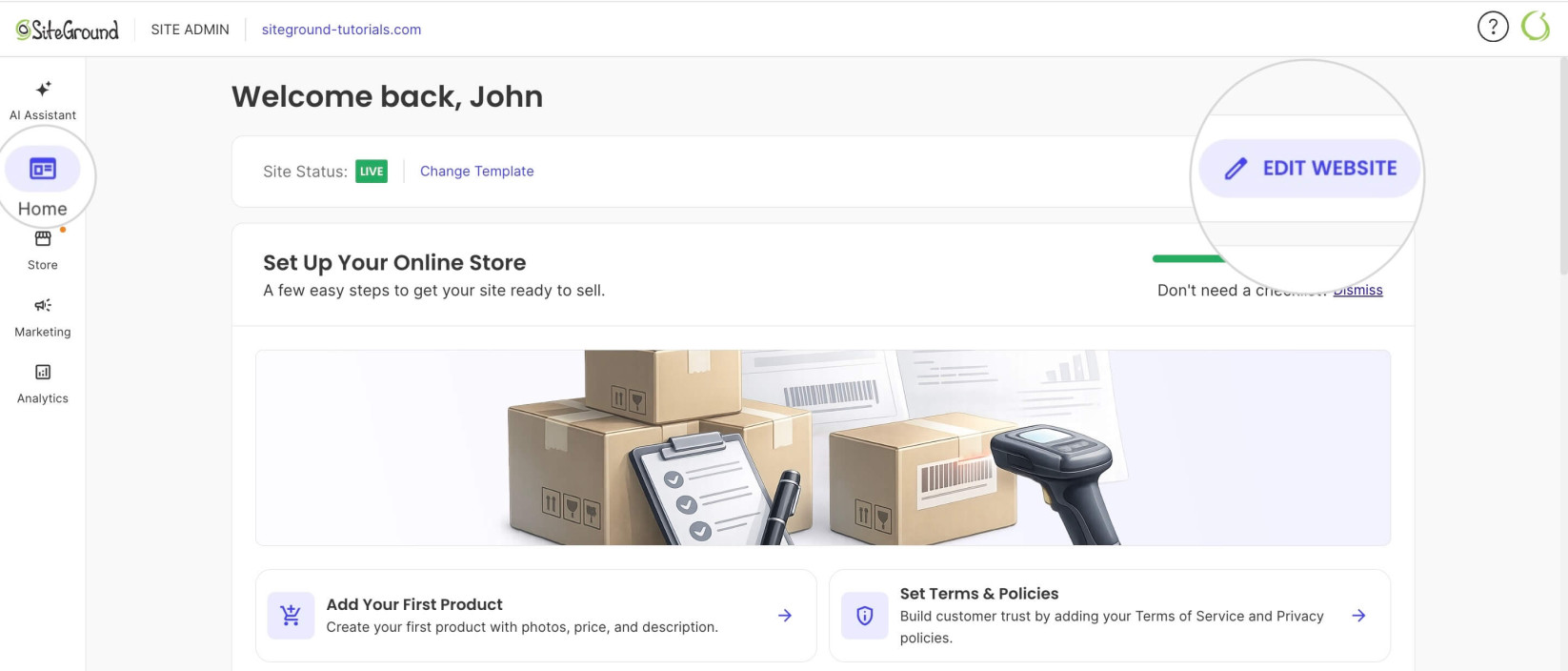
- Scroll down to the Footer area of your site and click on it.
- Toggle the menu to enable Show Withdraw from Contract link.
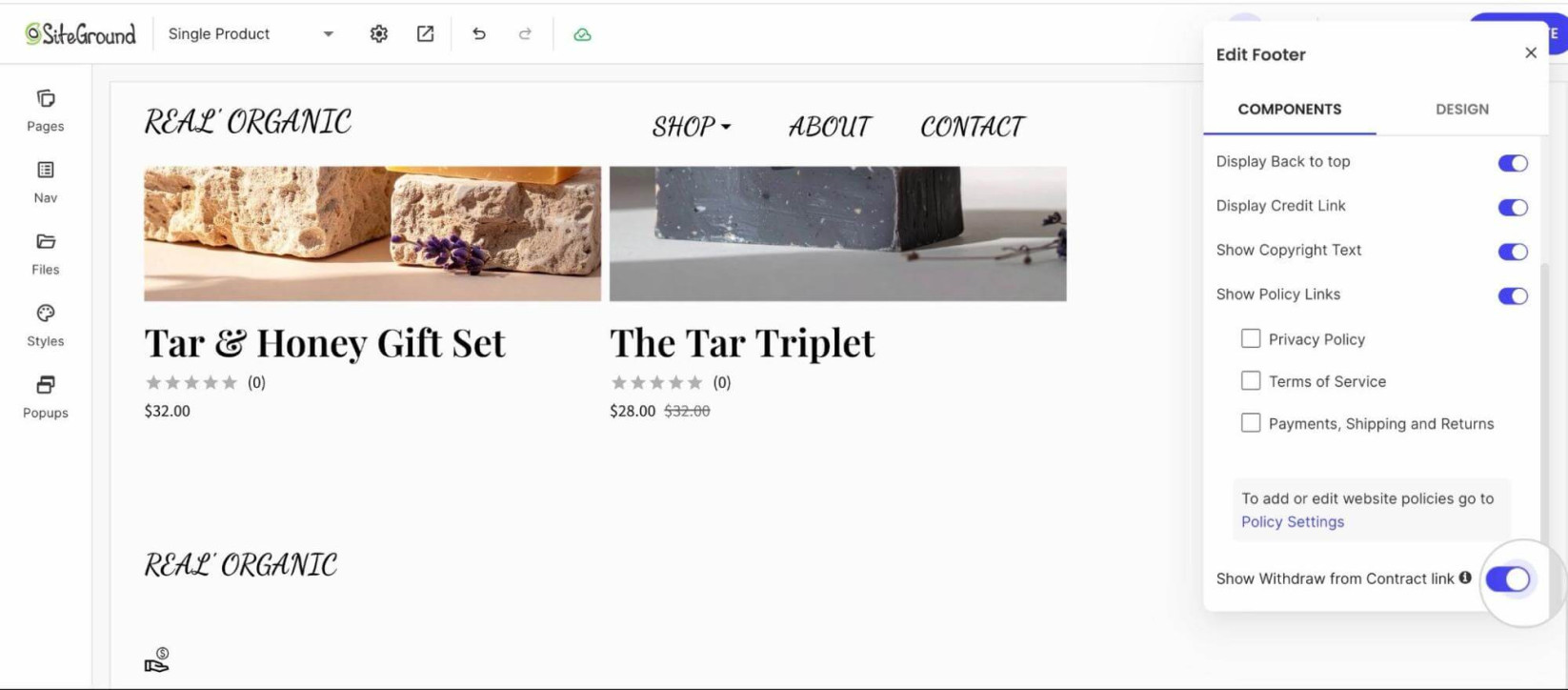
And that’s it. Once the toggle is active, your clients will see a “Withdraw from Contract” link in the footer when browsing your online store, regardless of whether they are logged in.

When they click it, they will be presented with a withdrawal form that they will have to fill in to request cancellation of their order.
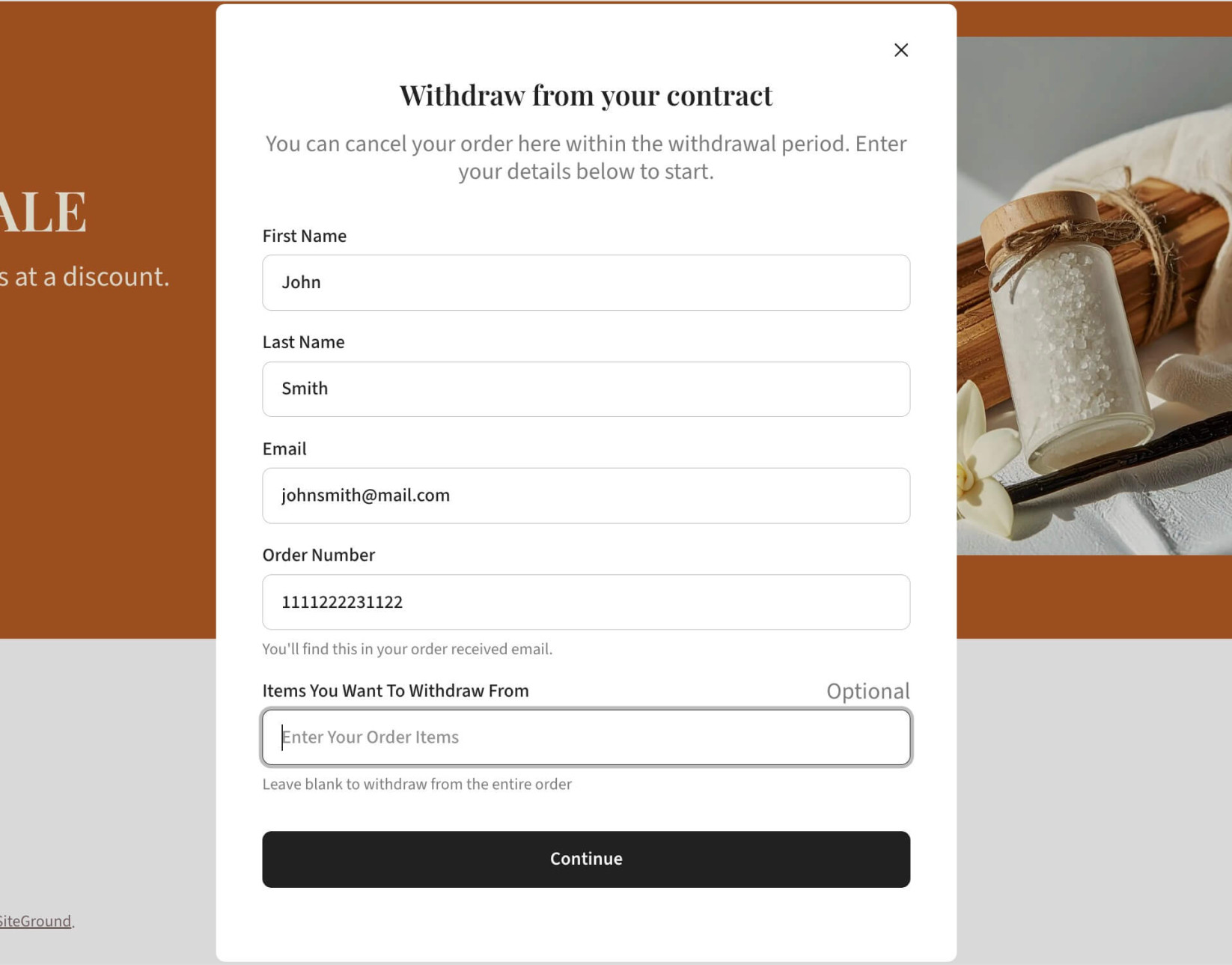
How to manage the withdrawal requests dashboard
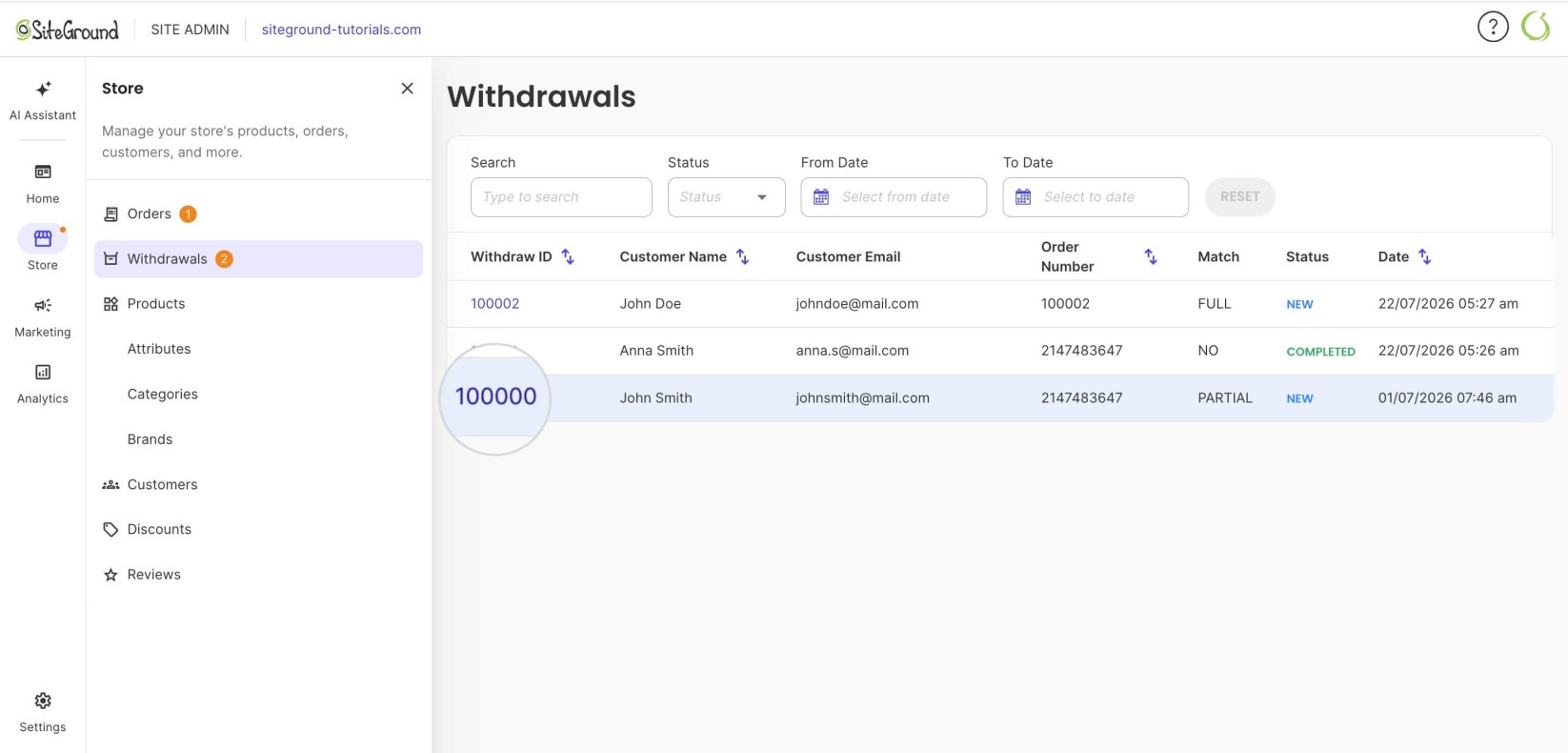
If you go to Site Admin > Store, you will notice that the left-hand side menu now features Withdrawals (previously unlisted there). Here you can find all the withdrawal requests from customers.
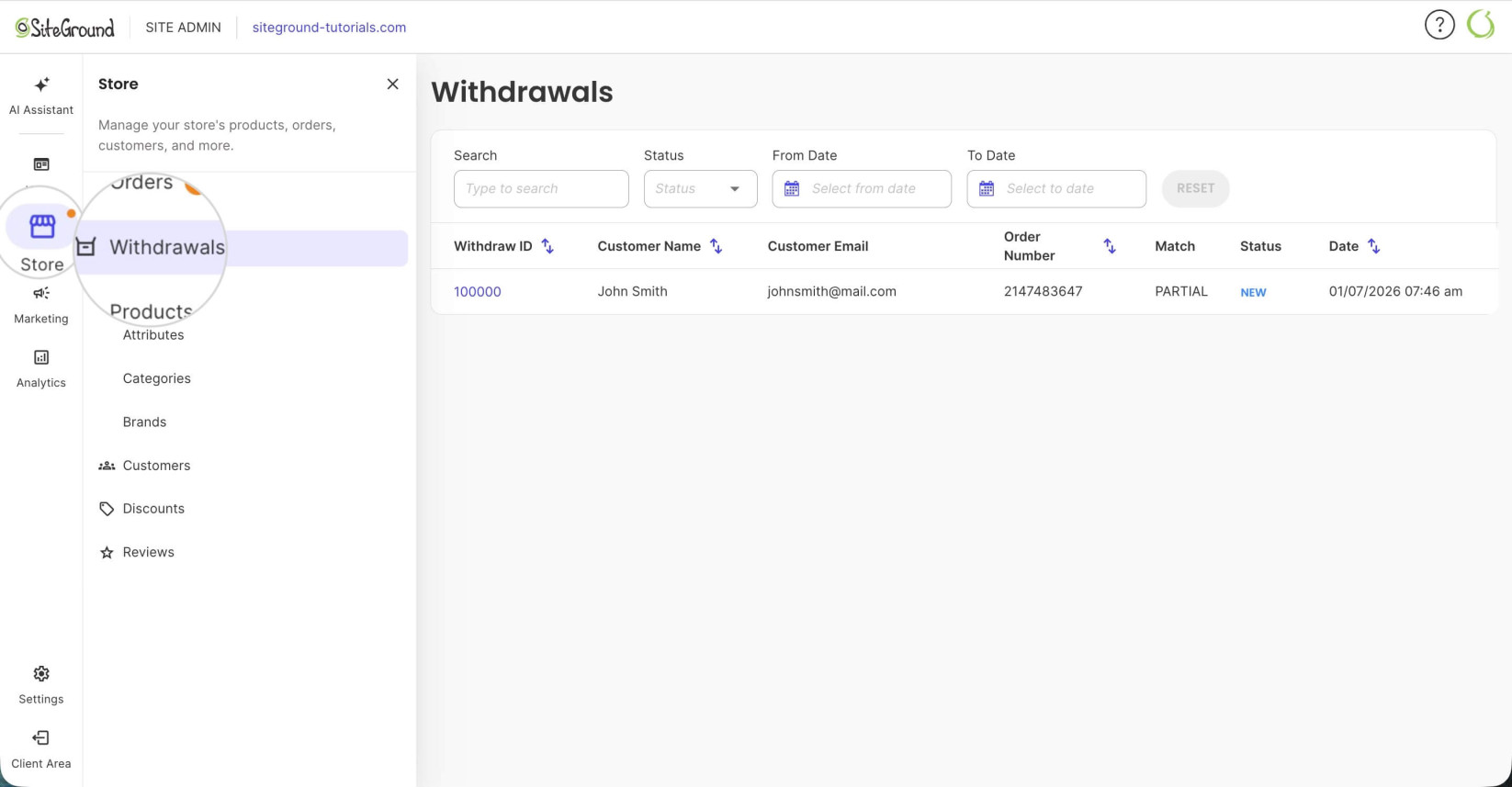
- When you’ve received more than one withdrawal, you can filter requests by status, from-to date, or search using a withdraw ID.
- To manage individual withdrawal requests, click on the Withdraw ID.
- From the new Show Page, you can see customer data, view order details, check System Match, and change the status of the request.
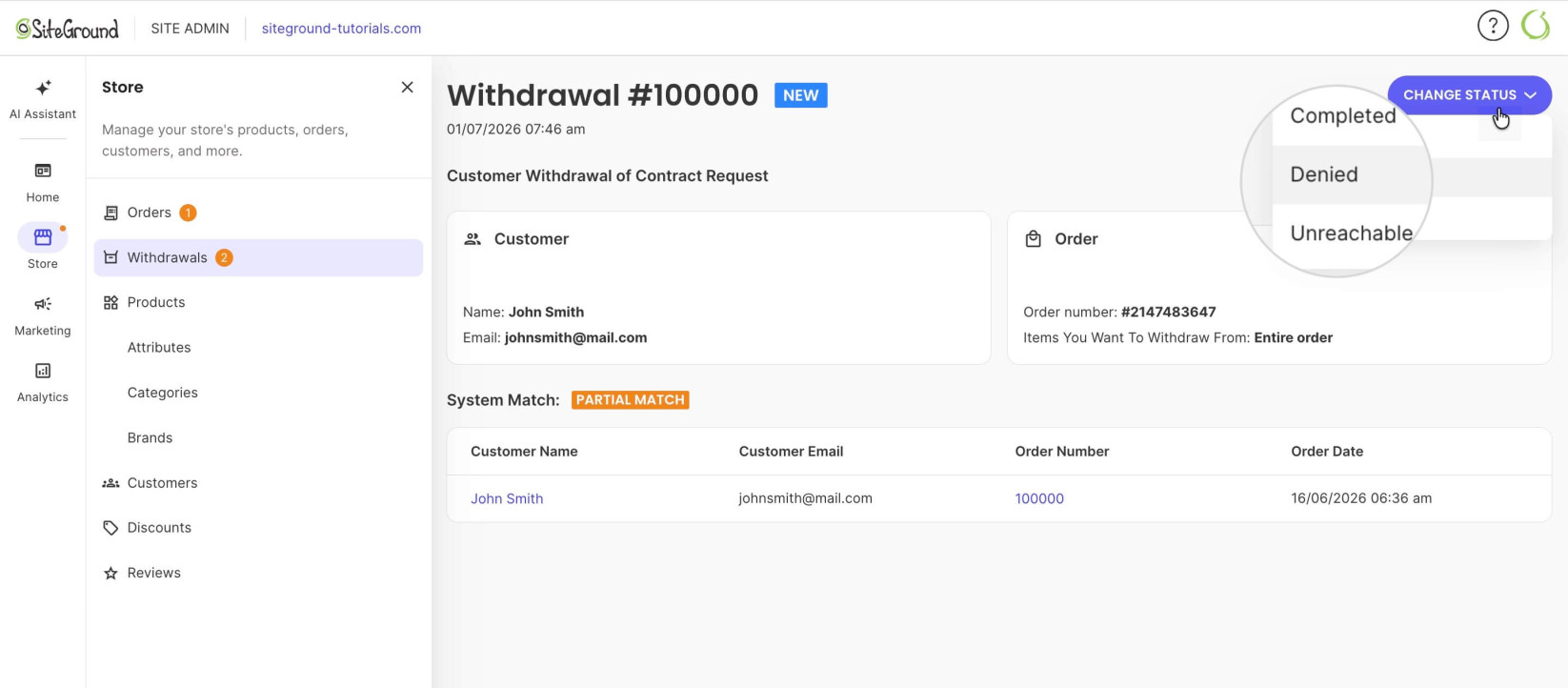
- No Match — The system doesn’t find any order with a matching order number, email, or First Name + Last Name
- Partial Match — The system finds an order with a matching order number, email or First Name + Last Name, but not all the details match.
- Full Match — The system finds an order that fully matches the combination of order number, email and First Name + Last Name.
When you change the status of a withdrawal request, it will be saved automatically, and your Withdrawals dashboard will be updated accordingly.
