How to enable Product Add-Ons in SiteGround Ecommerce?
From selecting special gift wraps to customizing T-shirts with different inscriptions and lettering, personalizing products is something that can win back and retain customers on your online store. To take advantage of this, you can enable the Product Add-Ons feature in SiteGround Ecommerce.
After enabling the feature, you can configure add-ons to be completely free of charge or paid; define whether they are optional or mandatory; allow advanced options for some display formats (like choosing multiple add-ons for a single product.)
How to enable the Add-Ons feature for a product?
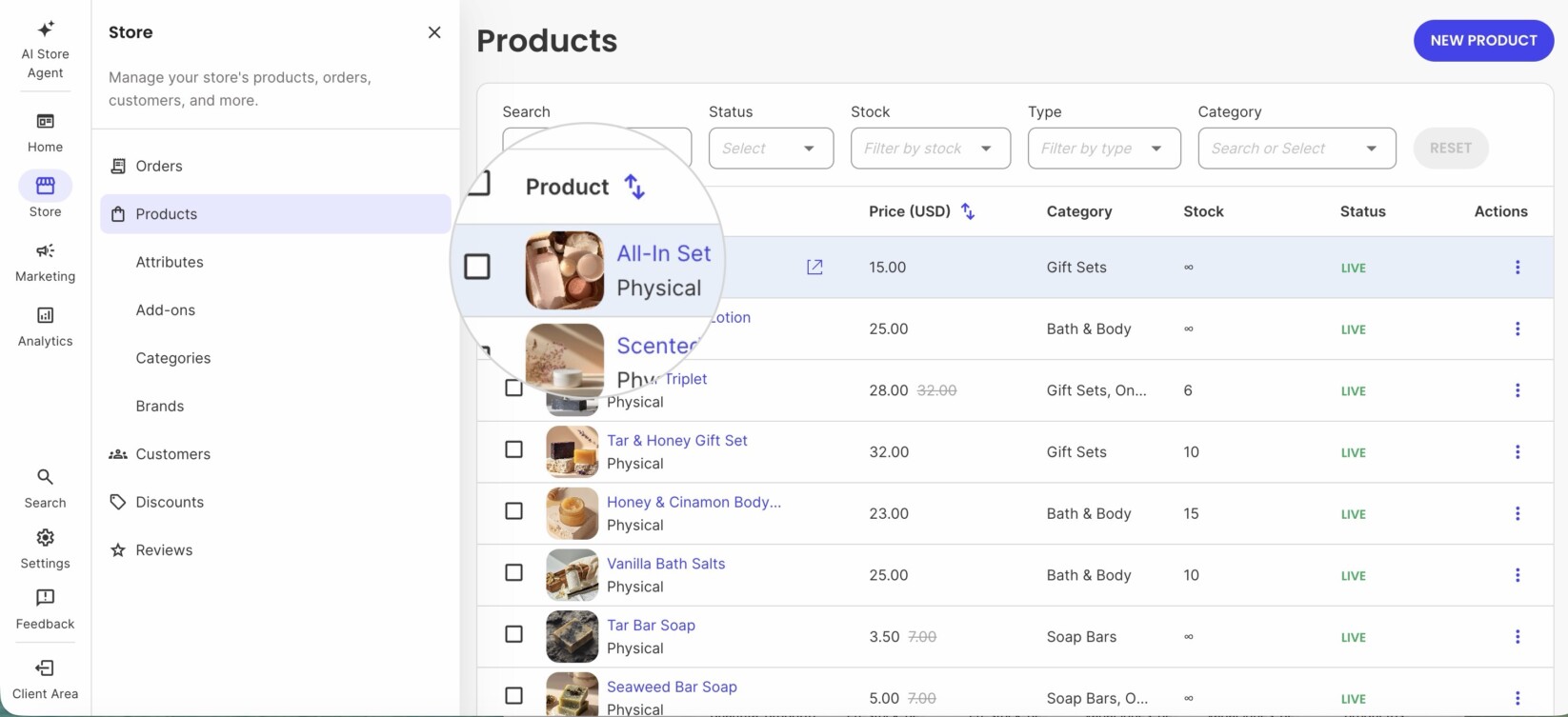
- Open Site Admin > Store and navigate to Products.
- Click on the name of the product for which you want to enable an add-on.
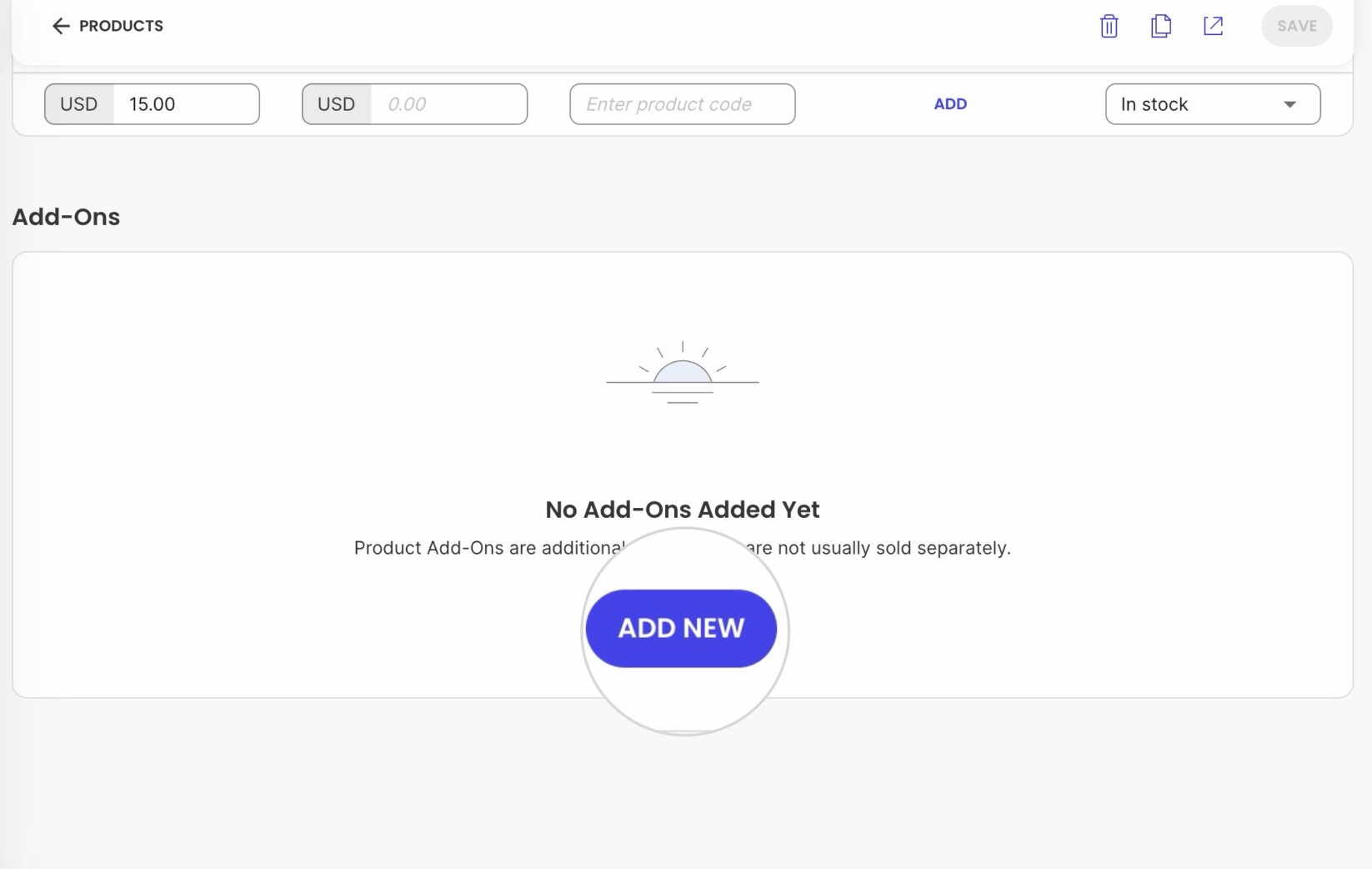
- Scroll down to the add-ons area and press ADD NEW.
- From the new dialog that pops up, you can easily manage the add-on’s:
- Name
- Description
- Display Format
- Status (mandatory or optional)
- Values (they appear after choosing a Display Format)
How to manage Product Add-ons
You have two options: choosing from predefined templates or manually specifying your add-on.
When using a preset template, you will be presented with predefined fields.
- Choose a name from the drop-down menu.
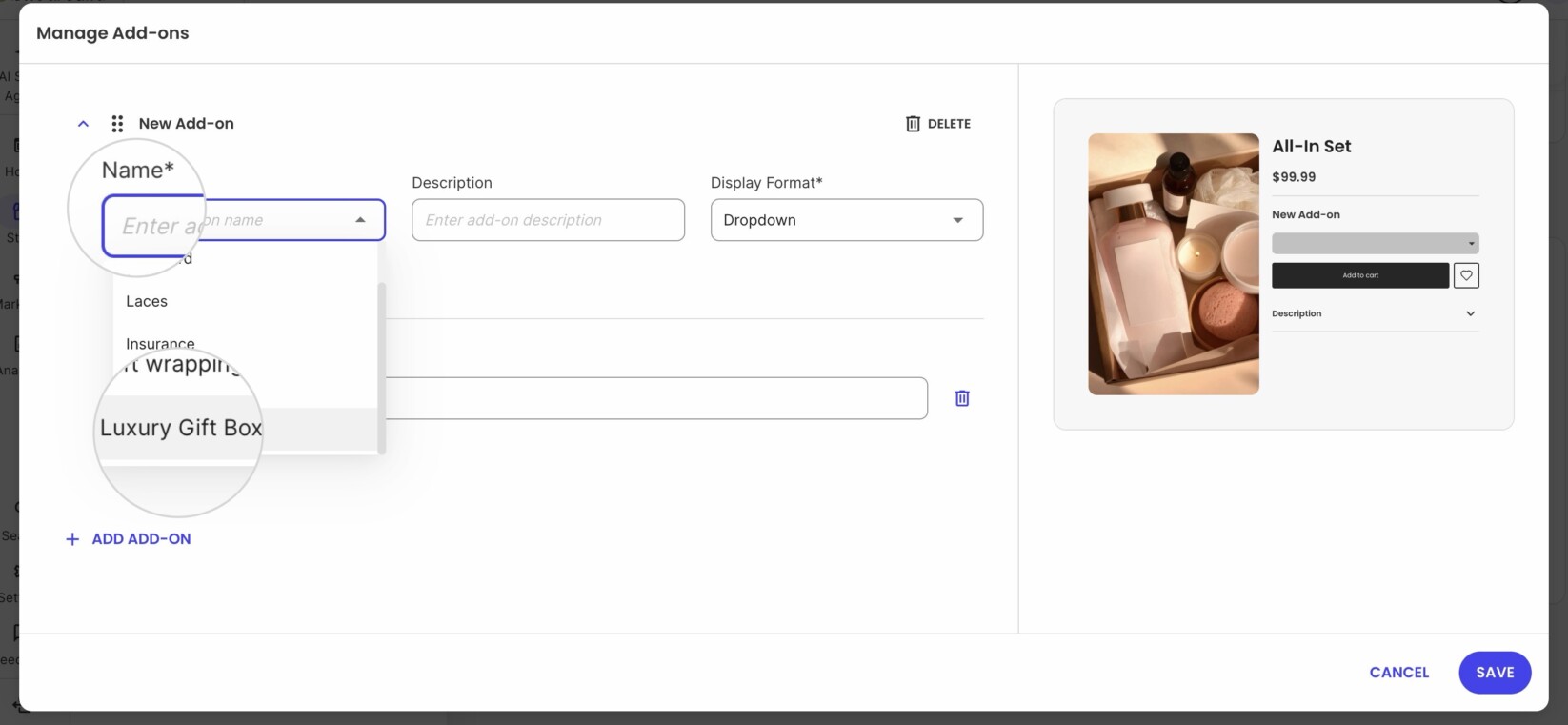
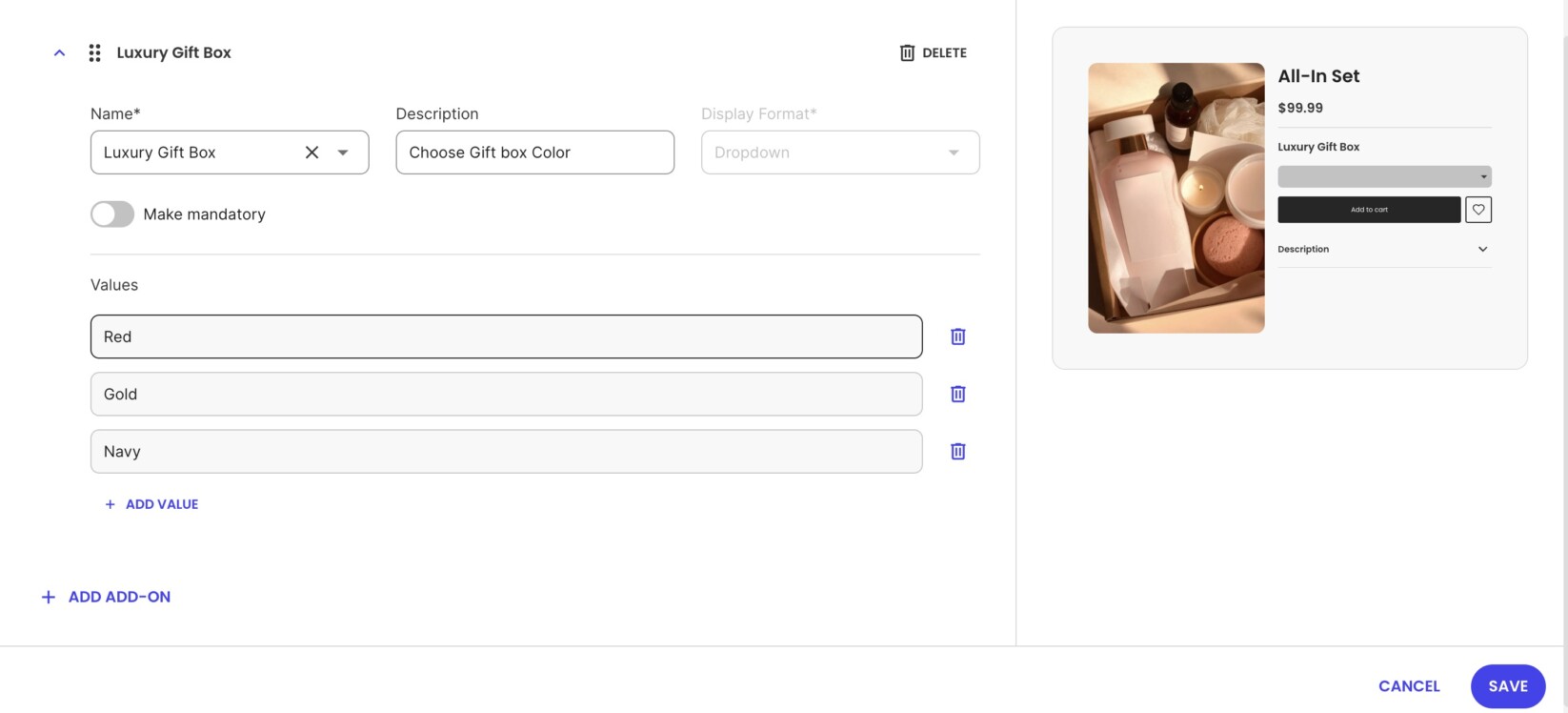
- Depending on the option you select, it will automatically generate description and values. Even though it’s a pre-set template, you can still add more values if necessary.
Alternatively, you can set everything as new on your own, including typing in a specific name, writing a description, and setting the Display Format to one of the options::
- Dropdown
- Colors
- Button
- Image
- Multi-select (checkboxes)
- Input Field
This will allow you to customize and create your add-on the way you prefer, depending on the use case and your purpose.
- When you’re ready, click SAVE and you will be redirected to the Edit product page.
- Next, you can apply additional add-ons Stock Management settings for each item:
- Price
- Sale Price
- SKU (Stock Keeping Unit)
- Quantity
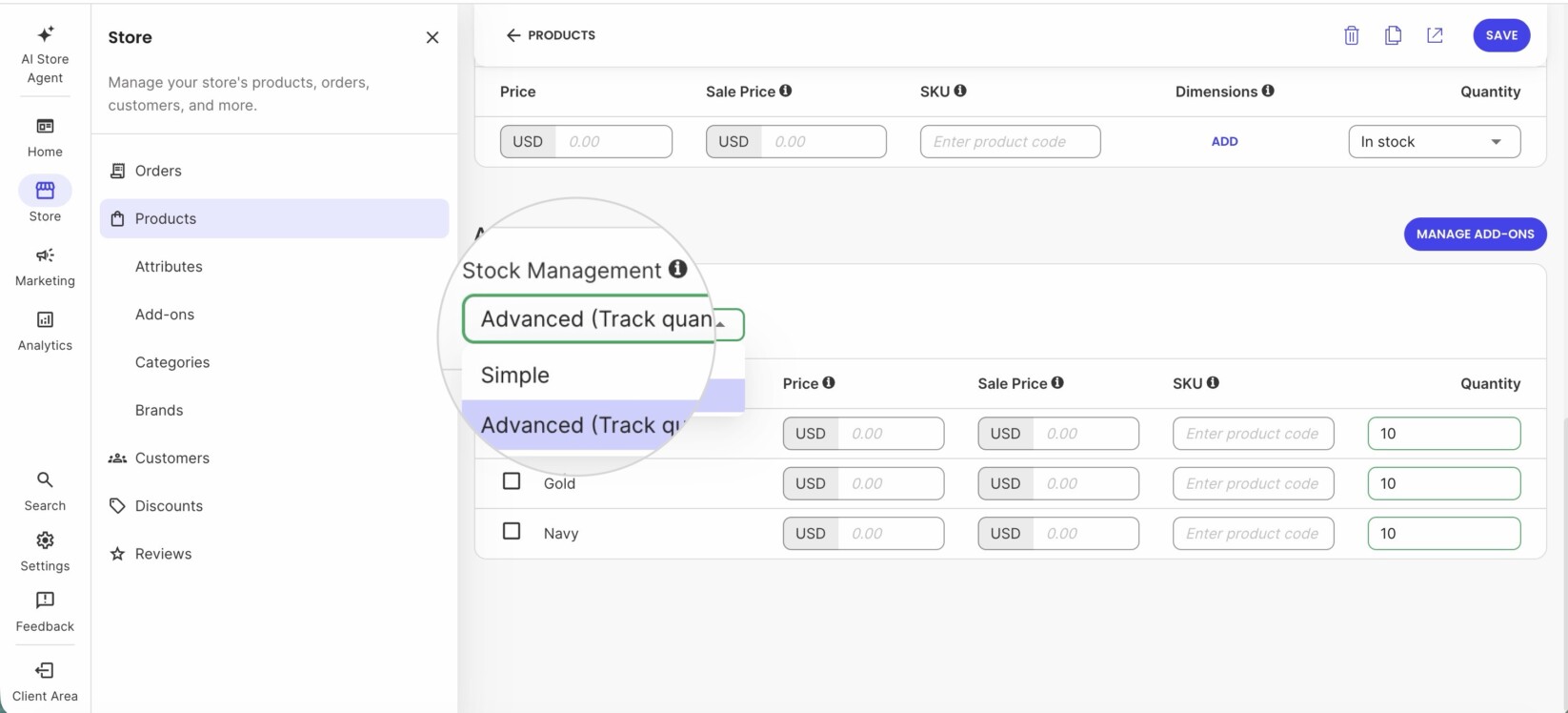
Click SAVE when all is completed.
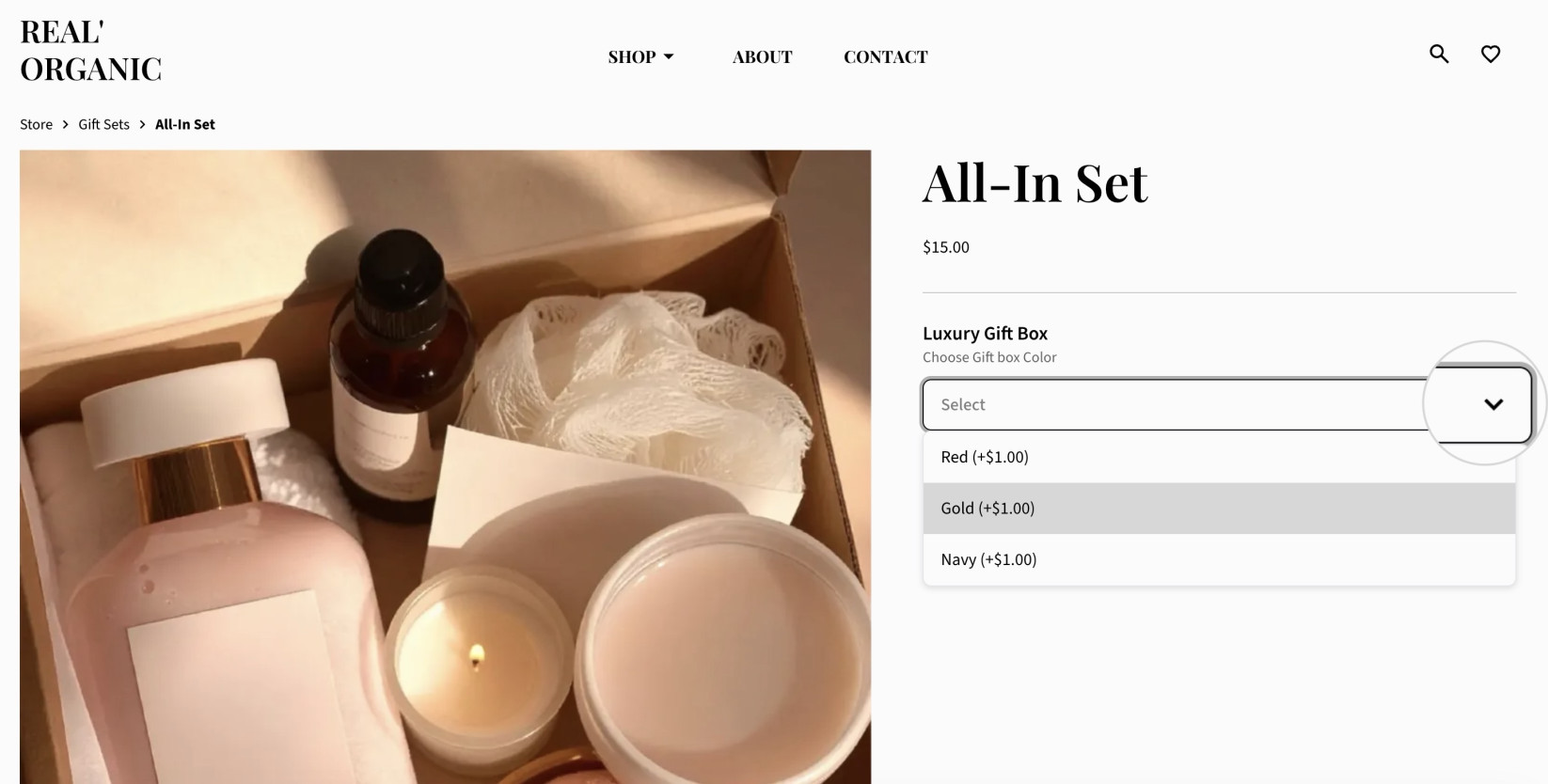
Here’s a preview of the Luxury Gift Box product add-on and the way your customers will see it on your online store.
How to preview existing add-on templates
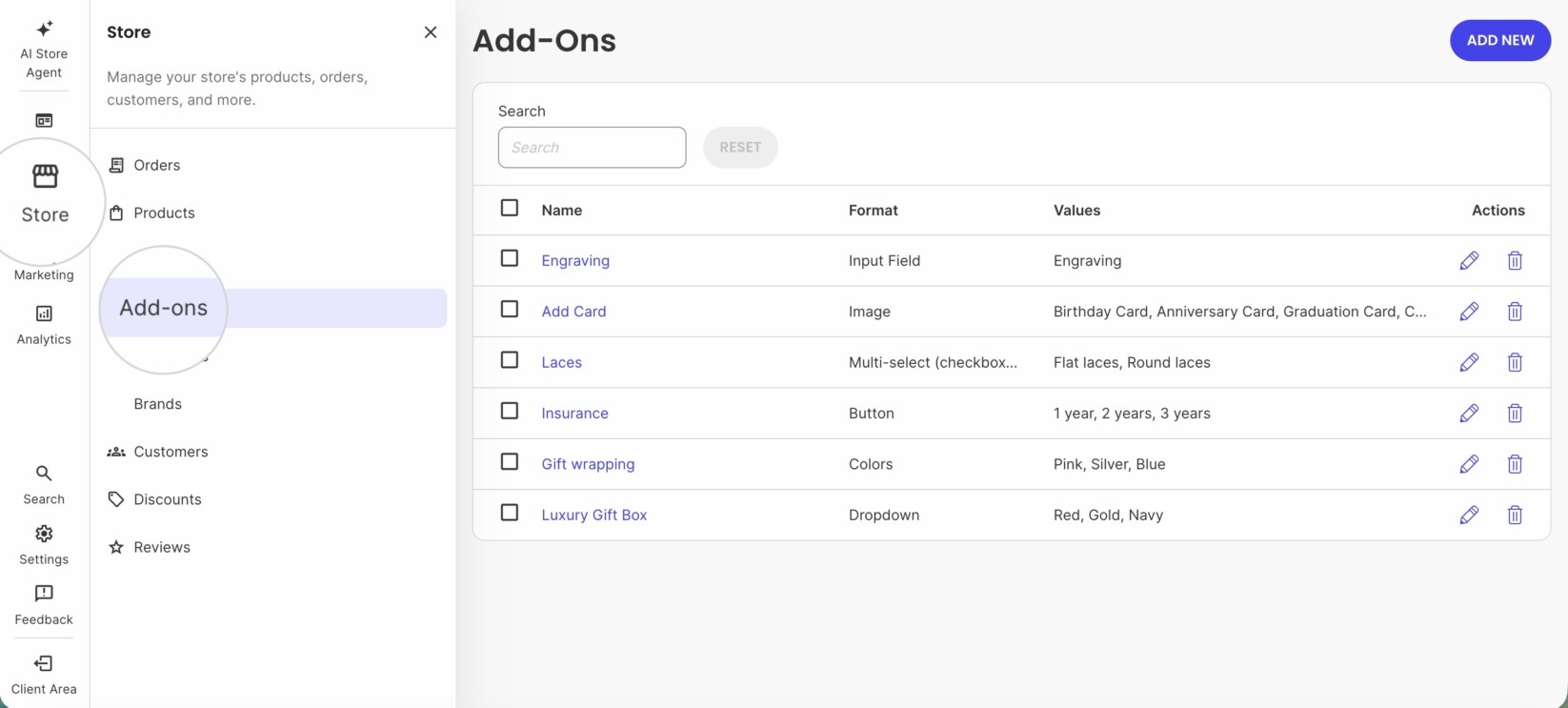
To preview existing add-ons, go to Store > Add-ons. Here you will see the available options: Luxury Gift Box, Gift wrapping, Insurance, Card, Laces, Engraving.
How to create new add-on tempaltes
- To create a new add-on template, click ADD NEW in the top right corner.
- From here, you can add a Name, Description, and Display Format. Optionally, you can also set your add-on as mandatory, meaning the customer won’t be able to add the main product to the cart without choosing an add-on for it.
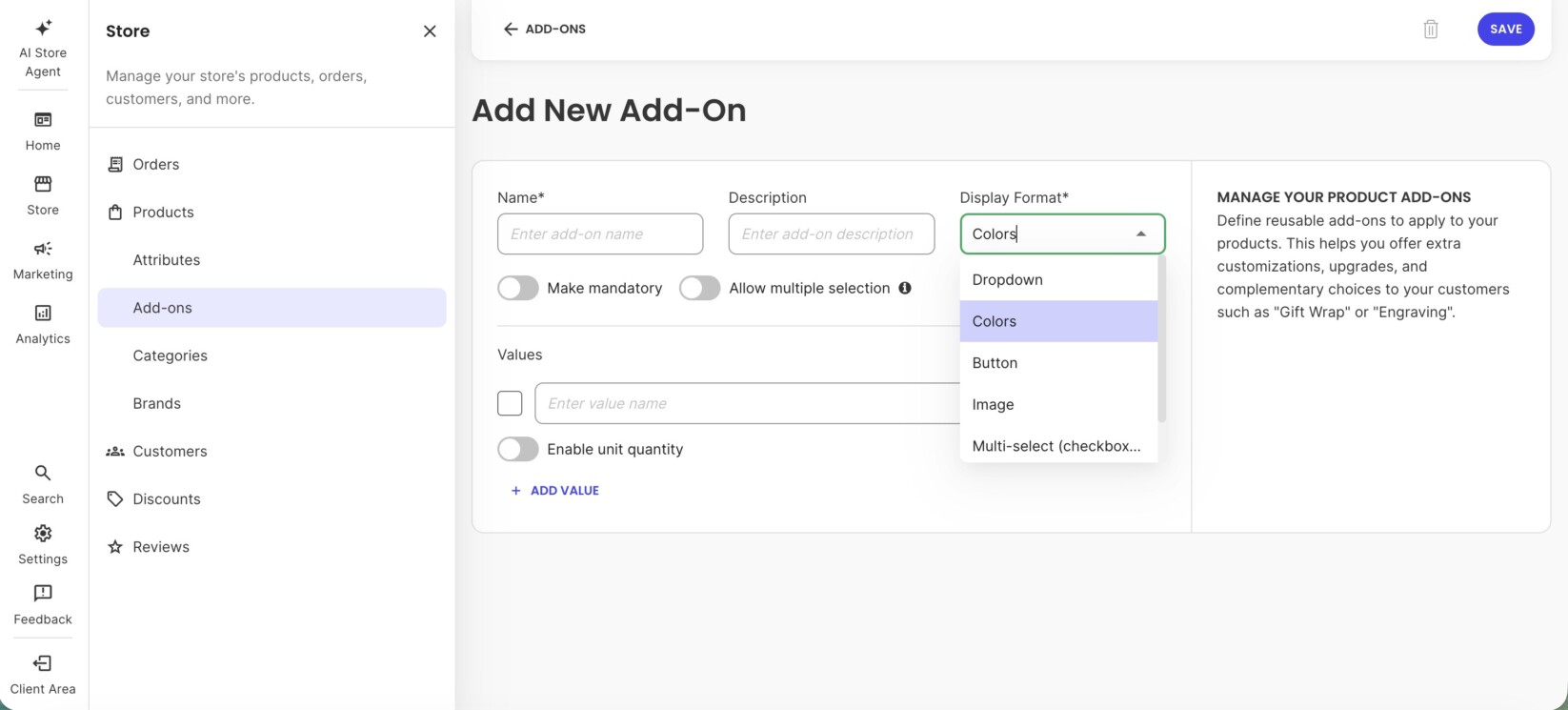
Each Display Format will trigger different fields, such as:
- Single value field
- Multiple selection (multiple values)
- Unit quantity specification
- Custom Message and character limits
When ready, click SAVE.
Keep in mind that these are global add-ons. They aren’t attached to any product by default. As a store owner, you can easily attach them from the Single Product page of each product.
