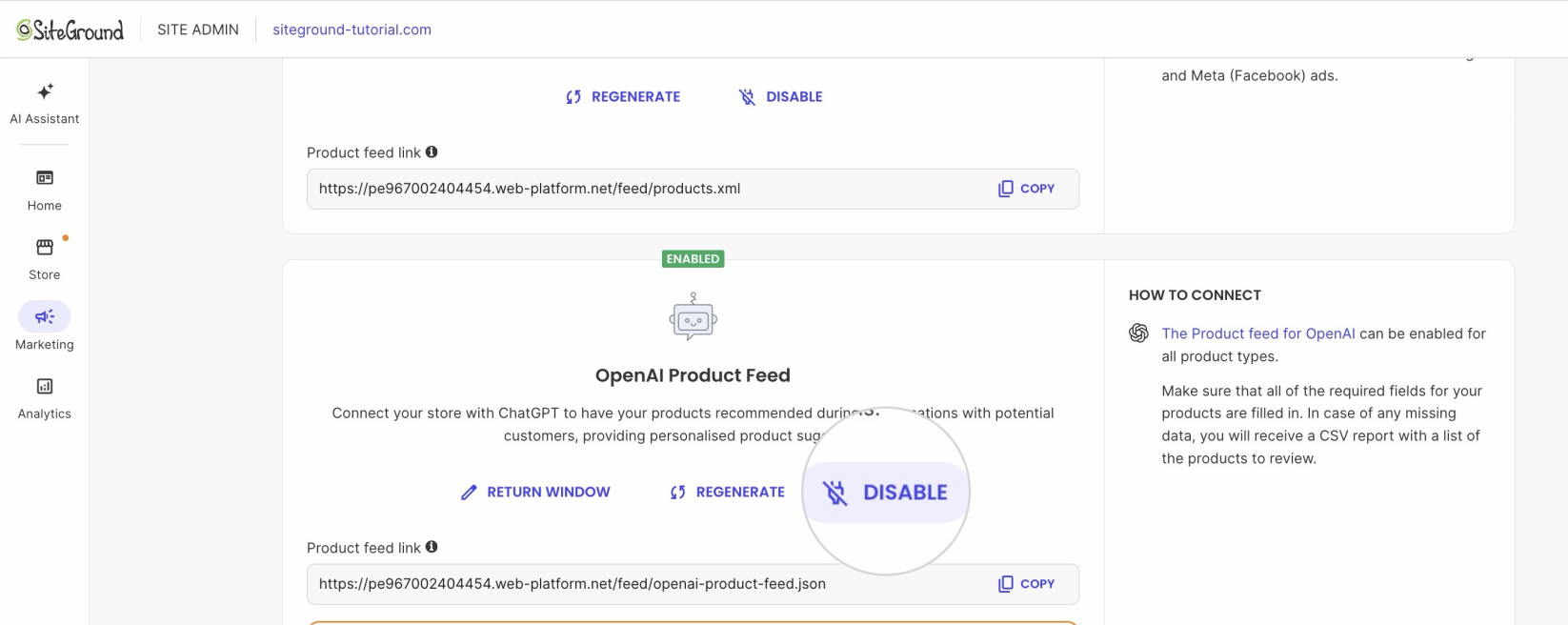
How to enable OpenAI Product Feed
Traditional product feed marketing through search engines and social media platforms remains effective and essential for most businesses. However, a new channel is rapidly gaining traction: AI-powered shopping assistants. OpenAI’s product feed functionality allows your products to appear directly in ChatGPT search results, representing an emerging opportunity that forward-thinking business owners are beginning to explore.
This guide will walk you through everything you need to know to enable OpenAI Product Feed in SiteGround Ecommerce.
What is OpenAI Product Feed
An OpenAI product feed is a structured data file containing your product catalog that allows ChatGPT to discover, display, and recommend your products to users asking shopping-related questions.
This feature enables your products to appear as suggestions when ChatGPT users ask questions like “What are the best running shoes for trail running?” or “I need a waterproof laptop bag under $100.” The AI analyzes your product data and presents relevant items with accurate pricing, availability, and descriptions—all without the user leaving the ChatGPT interface.
How to enable OpenAI Product Feed
To enable the OpenAI Product Feed for your Ecommerce store, follow these steps:
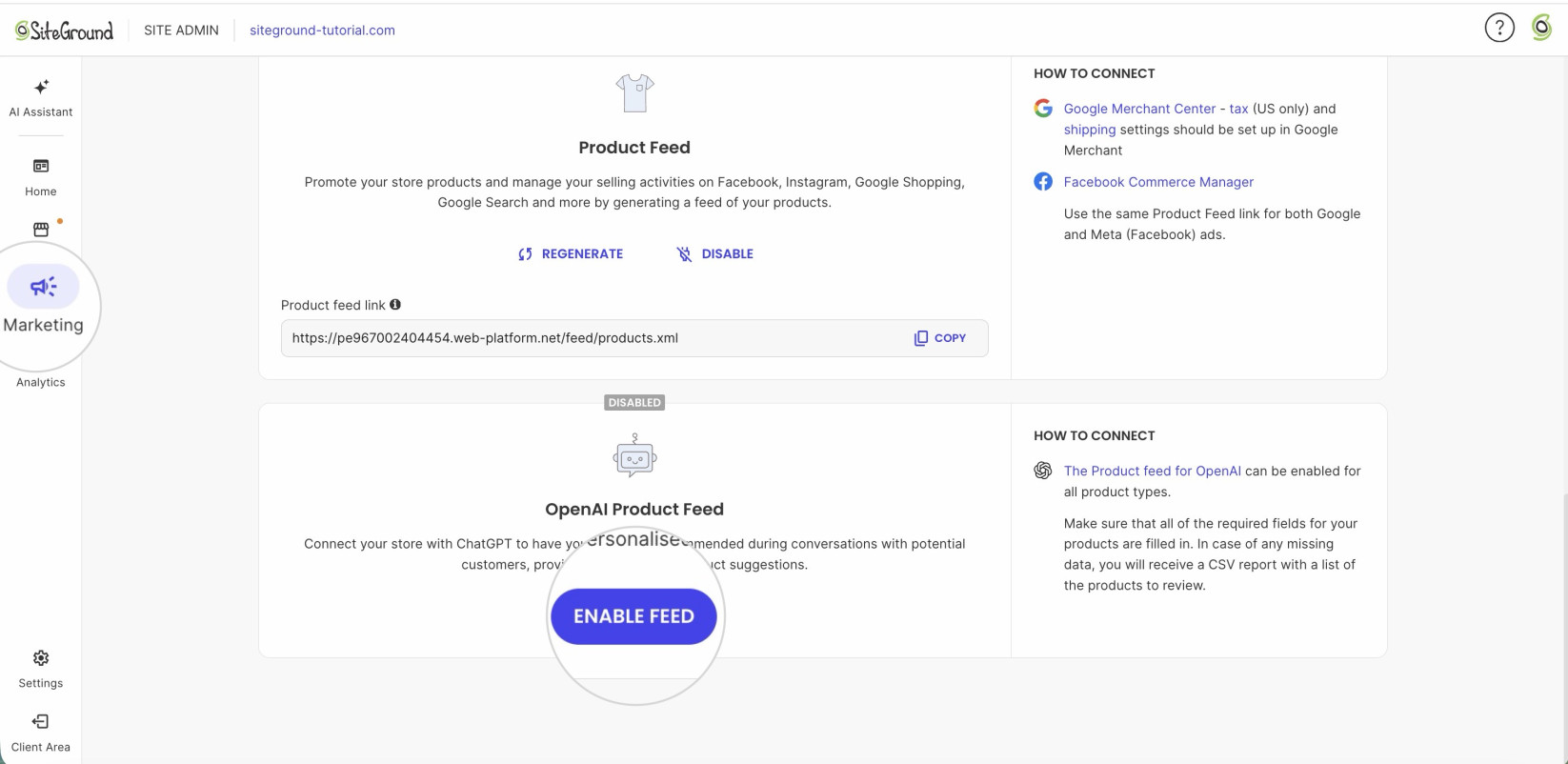
- Open Site > Marketing, and navigate to the OpenAI Product Feed section.
- Click Enable Feed.
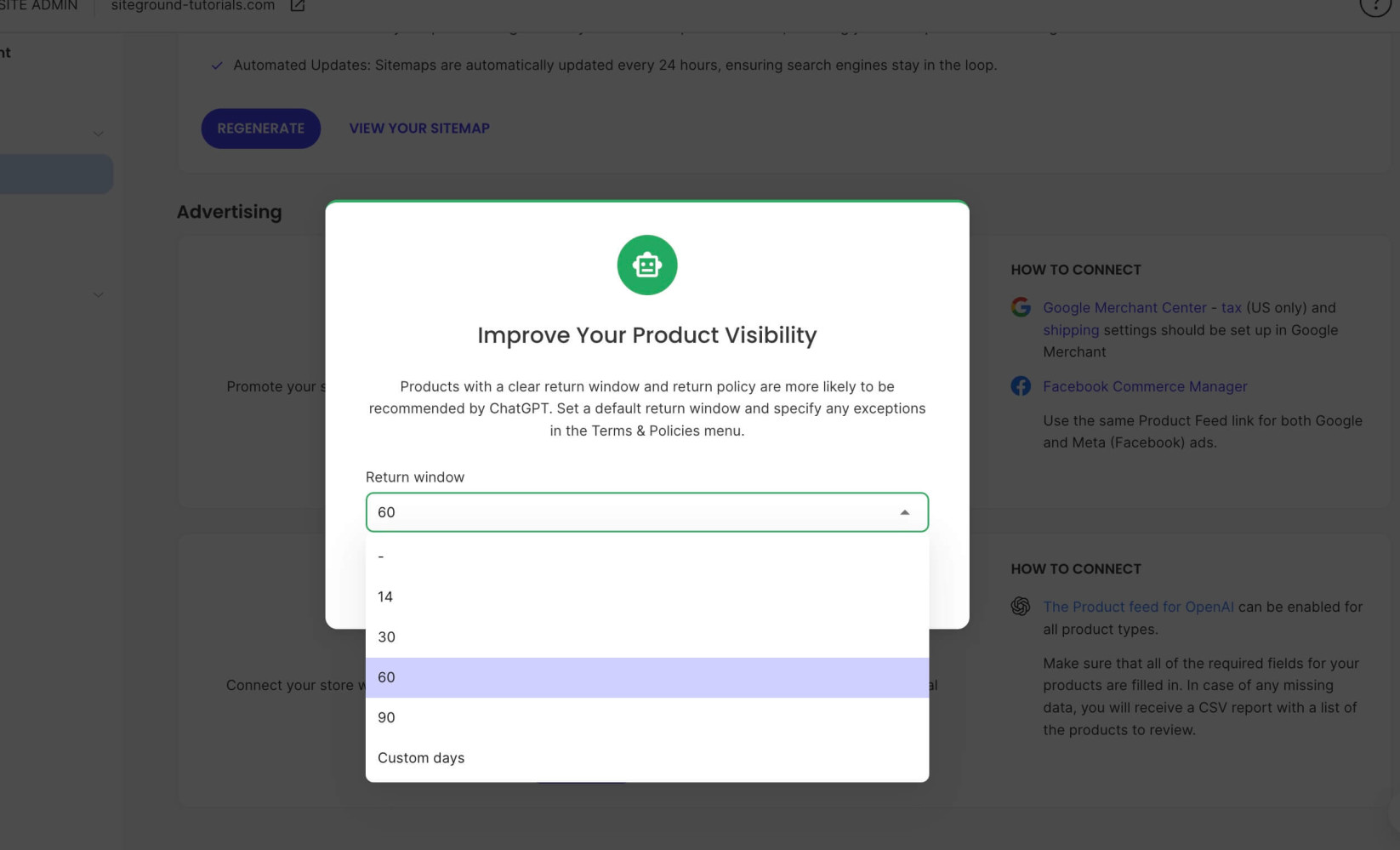
- In the following pop-up window, you will be prompted to specify a return window period for your products from the drop-down menu. If Custom days is selected, you can write down the value in the field Add Custom Days.
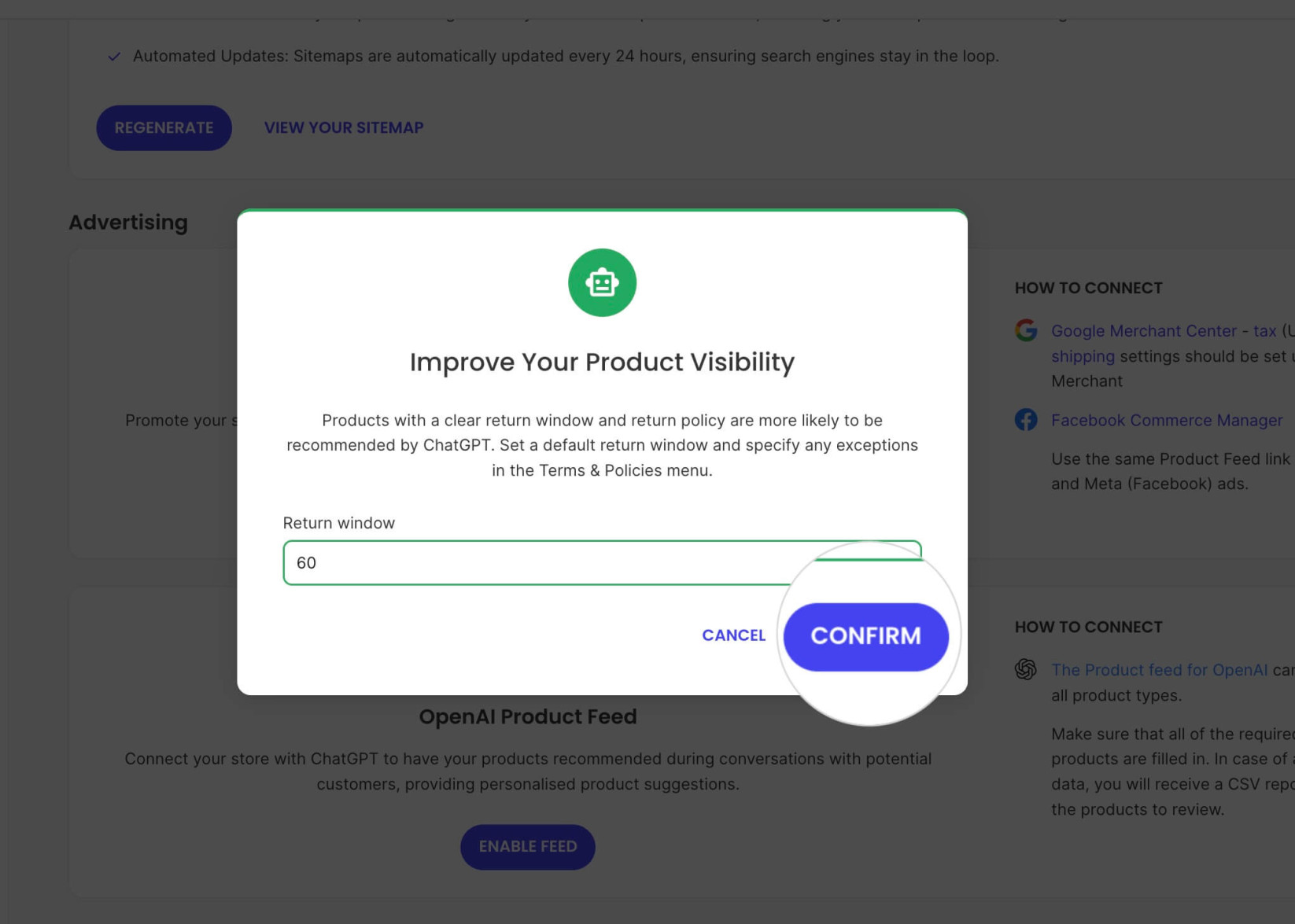
- Press Confirm to create the product feed JSON file.
That’s it! Once the file is created, it will be automatically connected and configured with OpenAI’s ChatGPT, and your products will start appearing as suggestions.
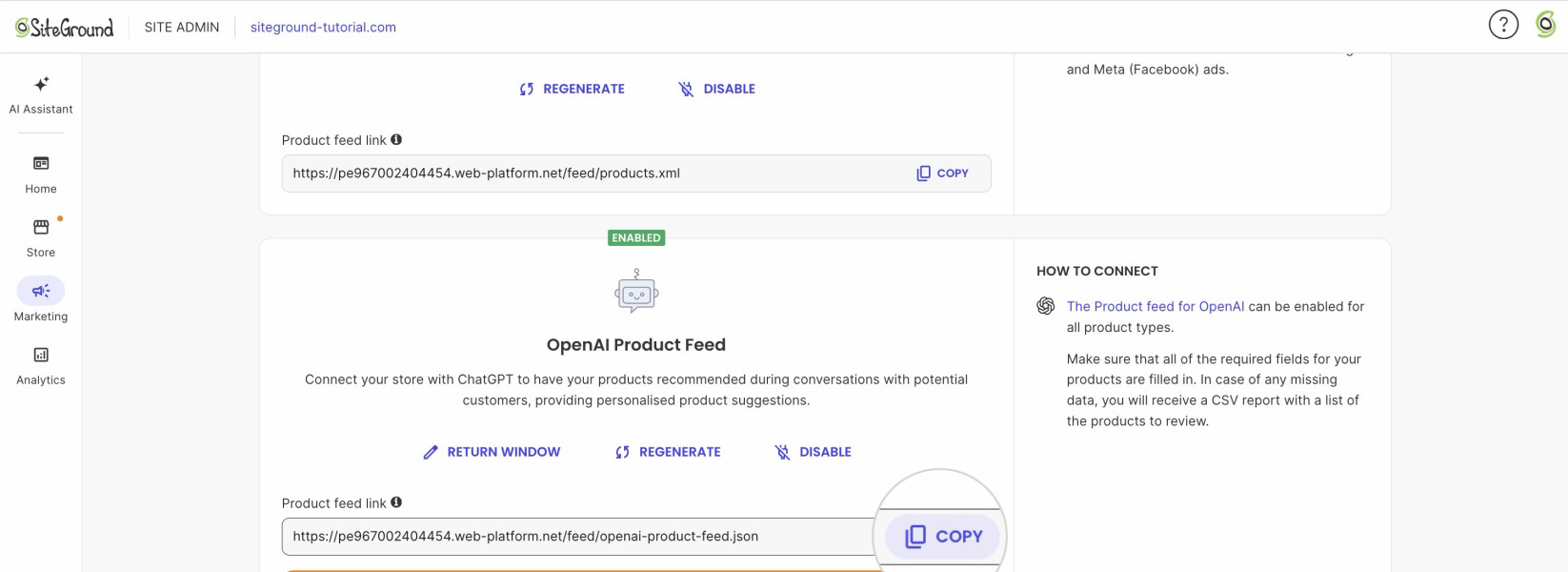
You can preview the product feed in your browser from the link address in the Product feed link field in the OpenAI Product Feed section.
You can also change the return window policy at any time by clicking the Return Window button.
OpenAI Product Feed requirements
ChatGPT will showcase your offers only if your store meets OpenAI’s product feed requirements. They include:
- Your store should provide clear and concise business information
- Each product must have a URL address
- Each product must feature an image
- Each product must contain a clear and accurate description
- Each product must have a price
- Each product must have an assigned brand
- The availability of all products should be specified
- Your store must have clearly defined terms of service and a privacy policy
If the product feed file contains products that fail any of the requirements, you will see a warning in the OpenAI Product Feed section, which contains a download link for a CSV file.
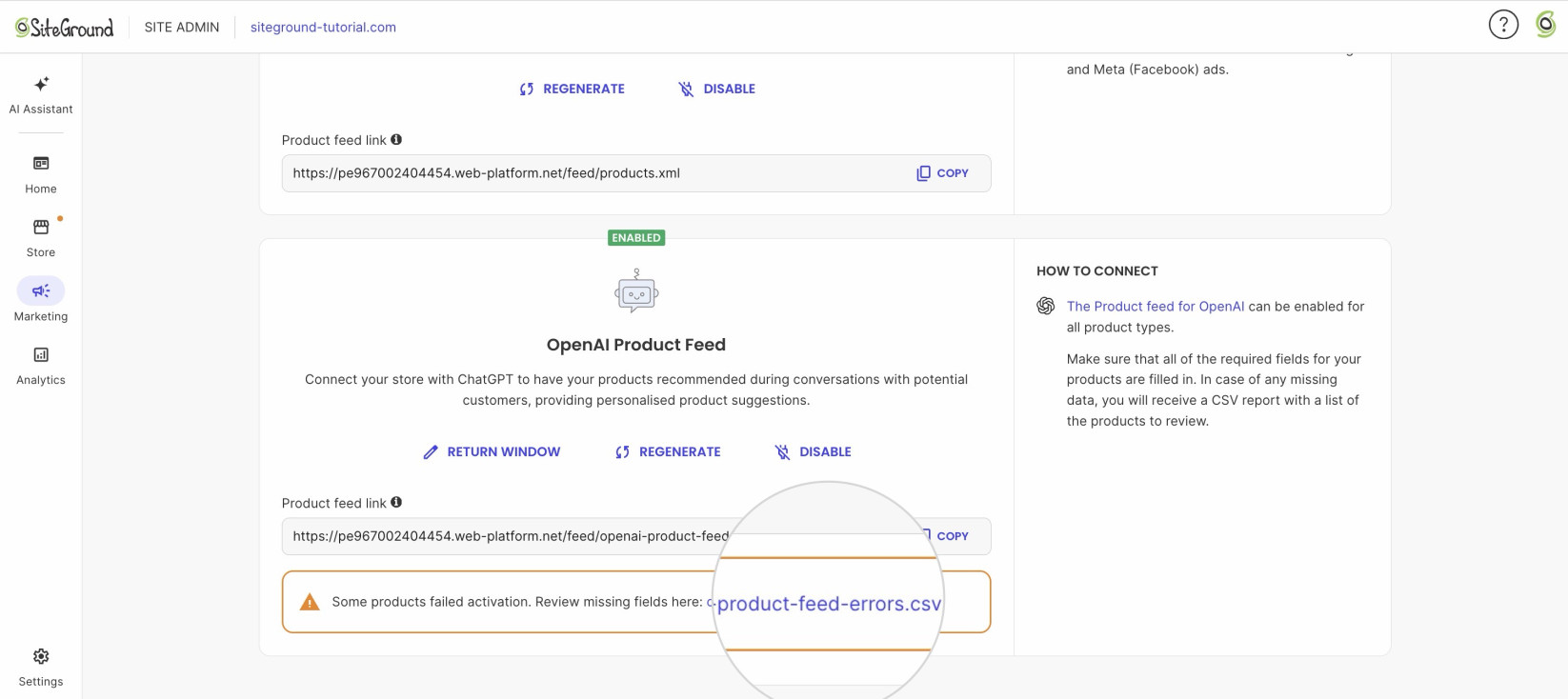
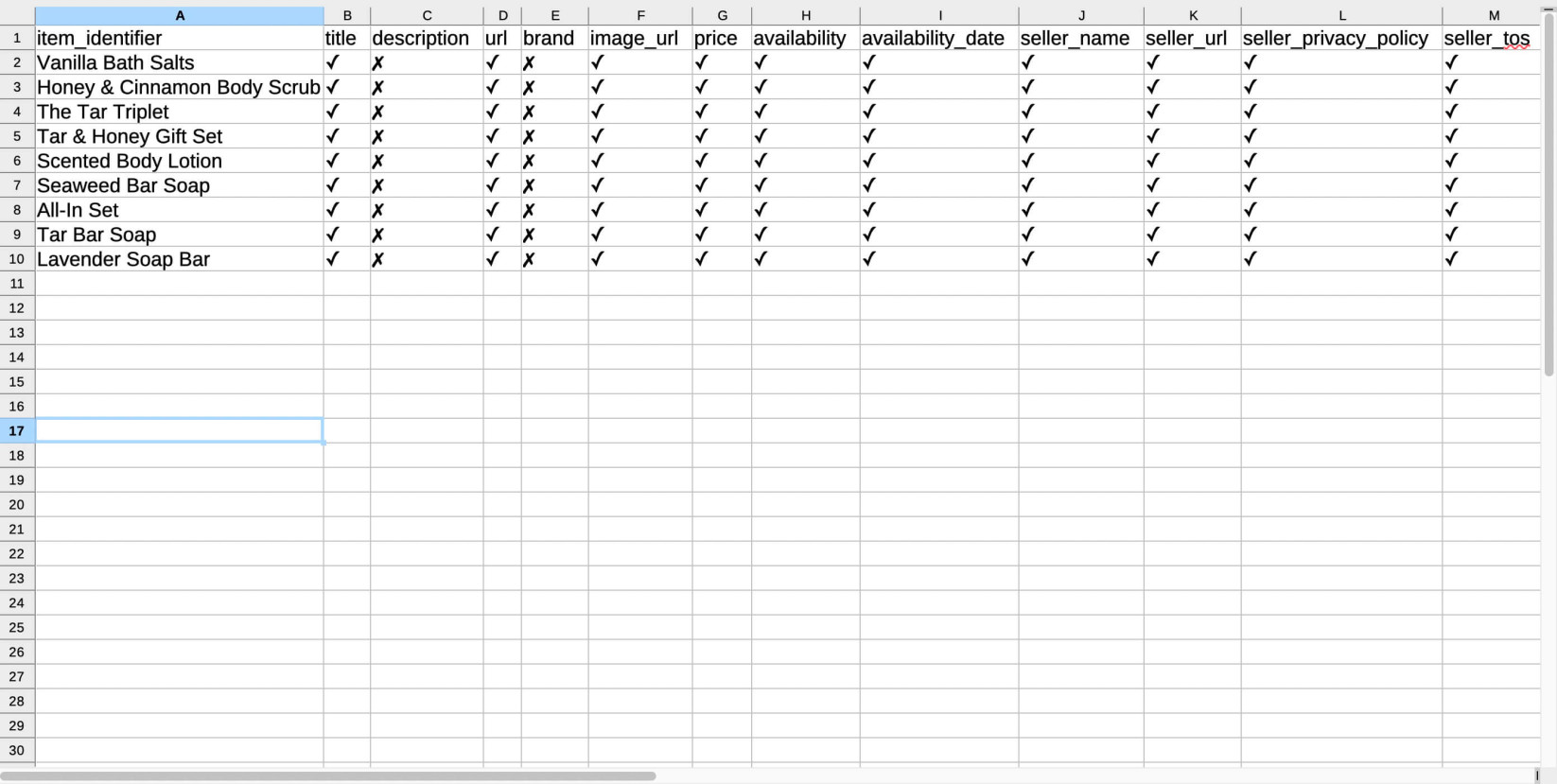
Download the file and open it with a CSV reader, such as Excel or LibreOffice, to view the problematic products. The requirements they are failing are marked with an “X” symbol.
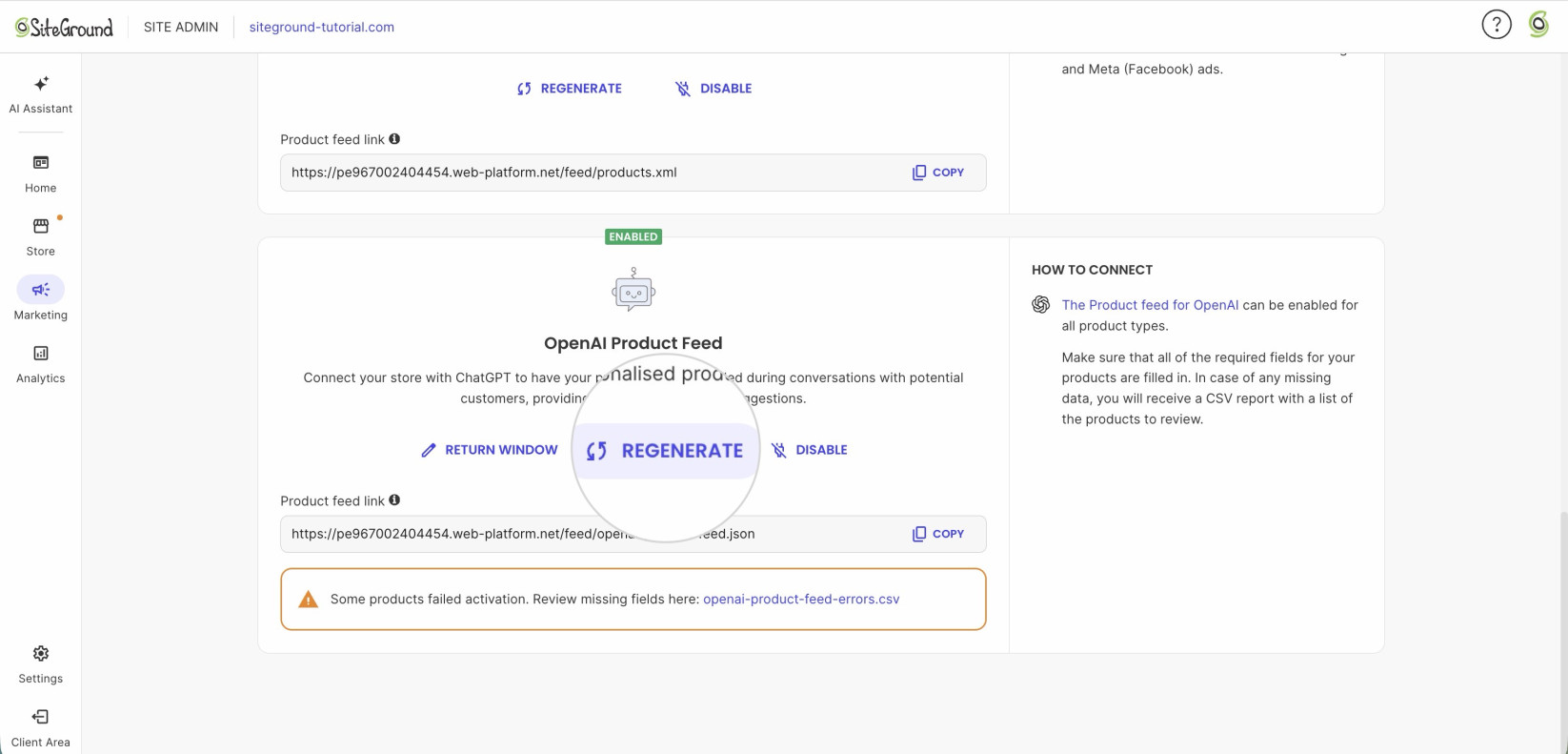
Once you’ve sorted these issues, you can regenerate the OpenAI Product Feed file by pressing the Regenerate button in the OpenAI Product Feed section.
How to disable OpenAI Product Feed
If you wish to stop advertising your products in ChatGPT, you can disable the product feed. To do that, go to Site Admin > Marketing and click the Disable button in the OpenAI Product Feed section.