Home
/
Collaborators and White-Label Clients
/
Manage White-Label Clients
/
How to Edit a Custom Role
How to Edit a Custom Role
To edit a custom client role, go to your Client Area, click on your profile icon, and go to Manage Users. From the Roles tab, find the desired role, click on its Actions menu and select Edit Role. Make the desired changes in the pop-up menu and when ready, click Confirm.
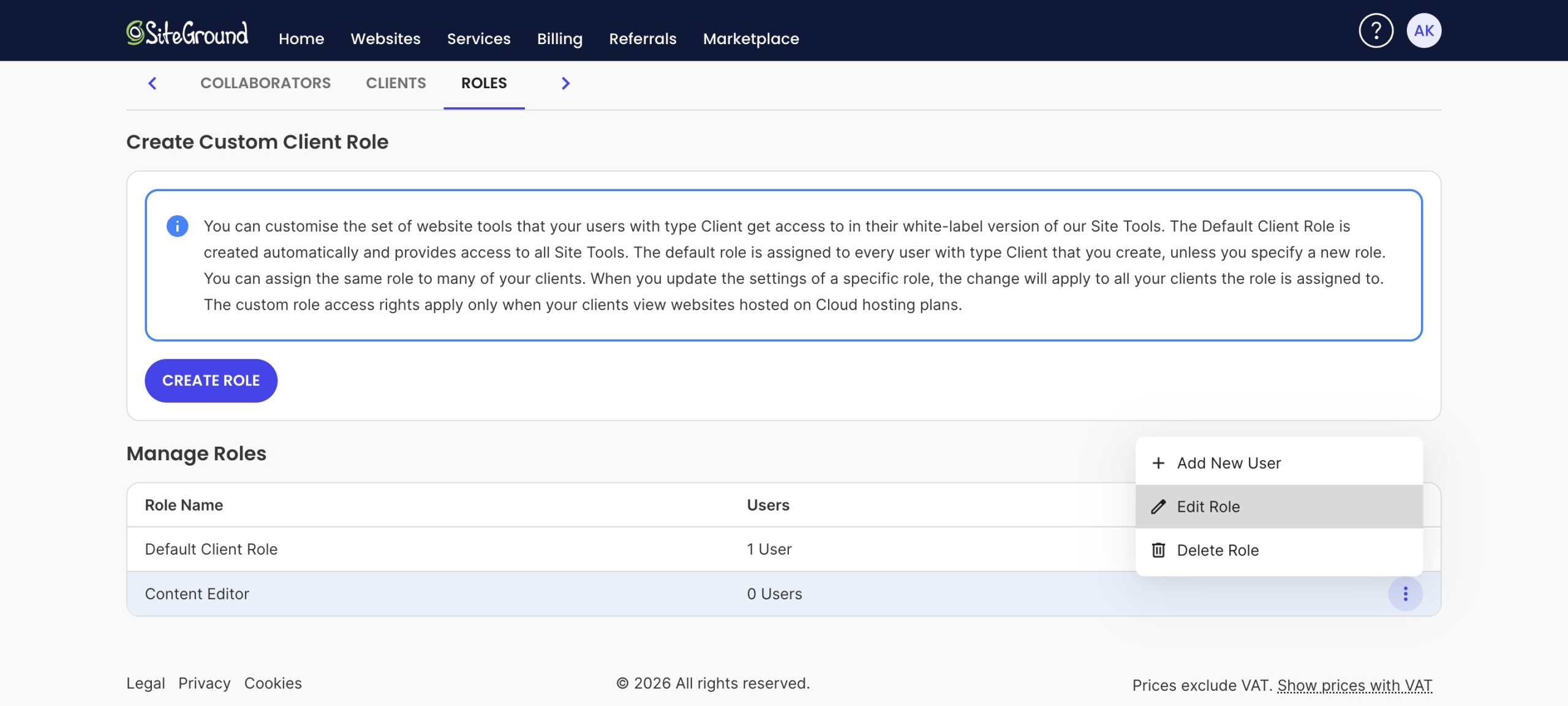
Note that after you edit a custom role, all users assigned to it will automatically start seeing the new set of tools in their Site Tools.
