Ecommerce Home Page Overview
The Home page is the first thing you see when you access the Site Admin of your Ecommerce website. From there, you can monitor your store’s performance, access your most-used tools with one click, and find expert tips to help you grow your online business.
Below, you’ll find a breakdown of all sections on the Home page.
Site Status Bar
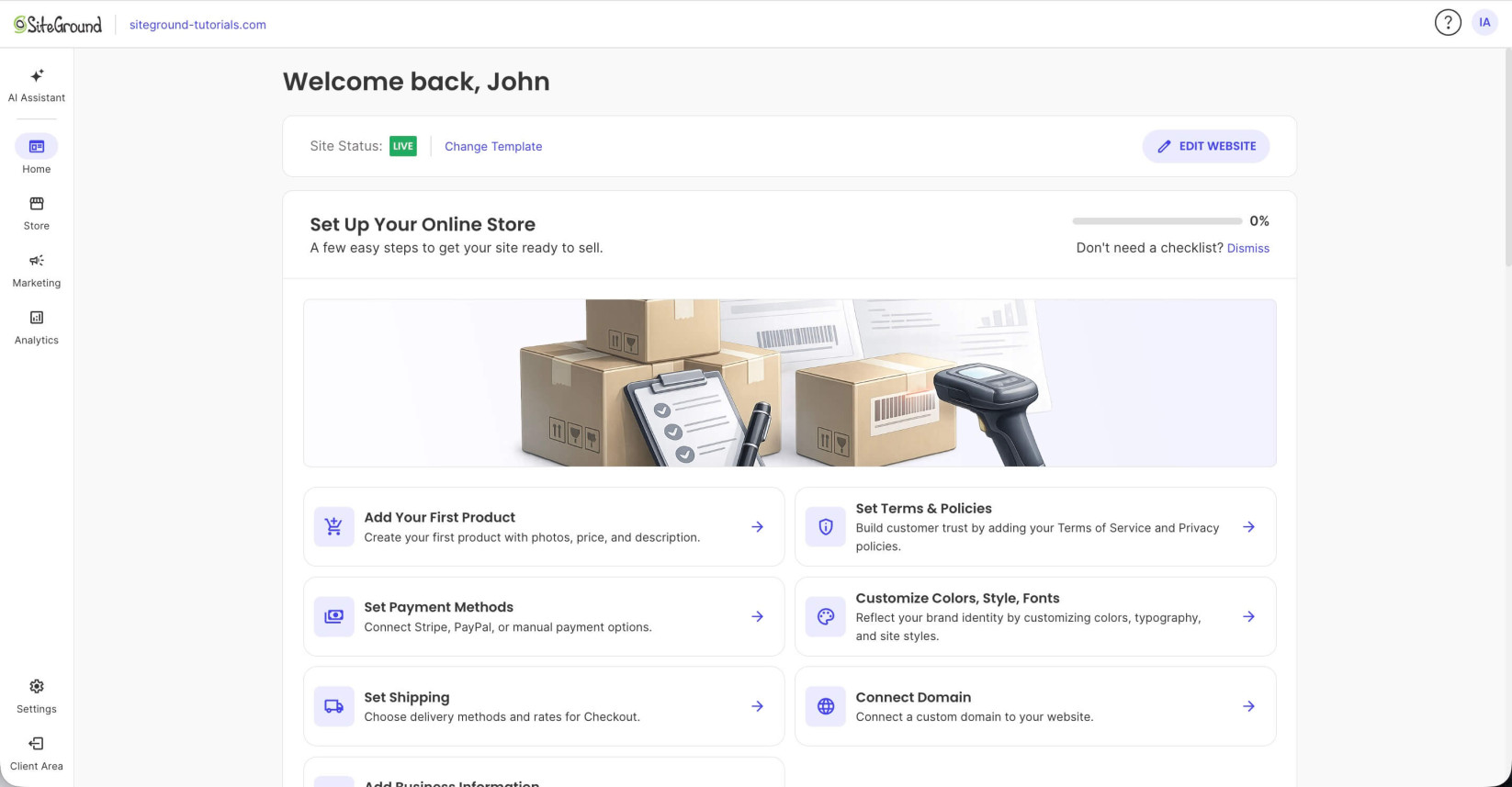
At the top of the Home page, you can see your site’s current status. It could be Live or Coming Soon.
Edit Website opens the Website Builder so you can customize your site’s style and pages.
The Change Template button lets you preview and apply a different template to your site.
Store Setup Checklist
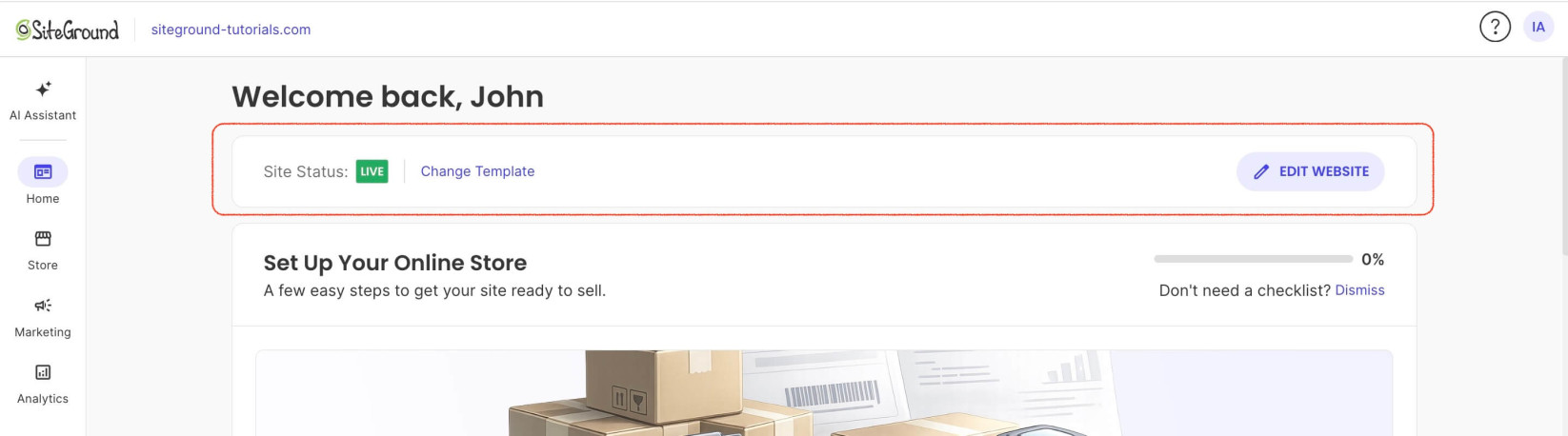
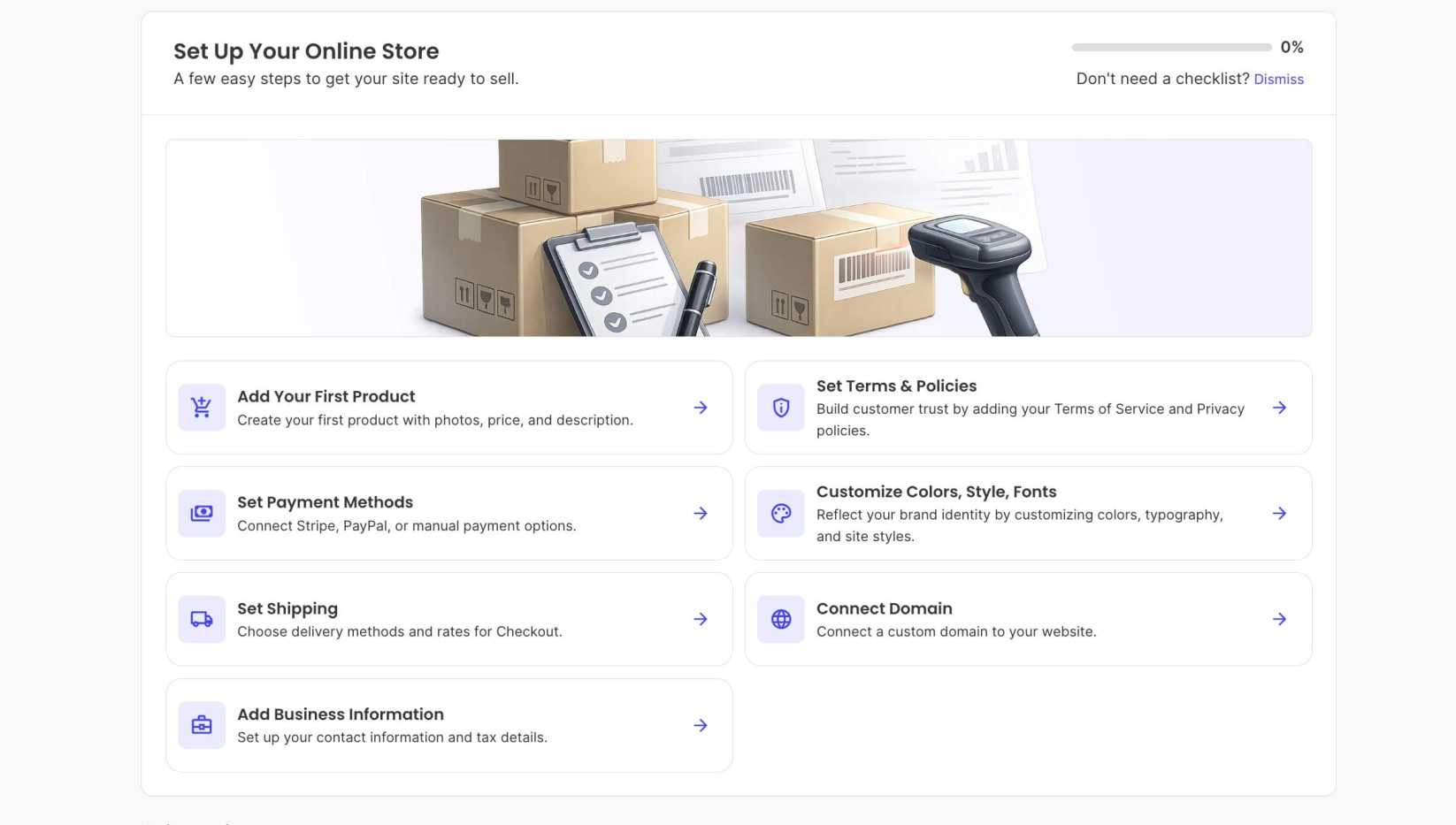
For new stores, the Set Up Your Online Store checklist guides you through the essential steps to launch successfully.
The checklist includes:
- Add Your First Product – Create your first product with photos, price, and description.
- Set Terms & Policies – Build customer trust by adding your Terms of Service and Privacy policies.
- Set Payment Methods – Connect Stripe, PayPal, or manual payment options.
- Customize Colors, Style, Fonts – Reflect your brand identity by customizing colors, typography, and site styles.
- Set Shipping – Choose delivery methods and rates for Checkout.
- Connect Domain – Connect a custom domain to your website.
- Add Business Information – Set up your contact information and tax details.
In the section’s top-right corner sits a progress bar that fills up as you complete each task. If you wish to hide the checklist, click Dismiss just below the bar.
Quick Actions
This section provides one-click shortcuts to your most-used tools. The default actions are:
- Add Product — opens the editor for adding a new product to your store
- Manage Orders — forwards you to the Orders section in Site Admin
- Manage Pages — takes you to the Pages section in Website Builder
- Manage Navigation — opens the Nav section in Website Builder, where you can organize the navigation menus
- Customize Styles — opens the Styles section in Website Builder, where you can customize the fonts, colors, and typography.
You can customize the menu of available actions with the Manage Actions button.
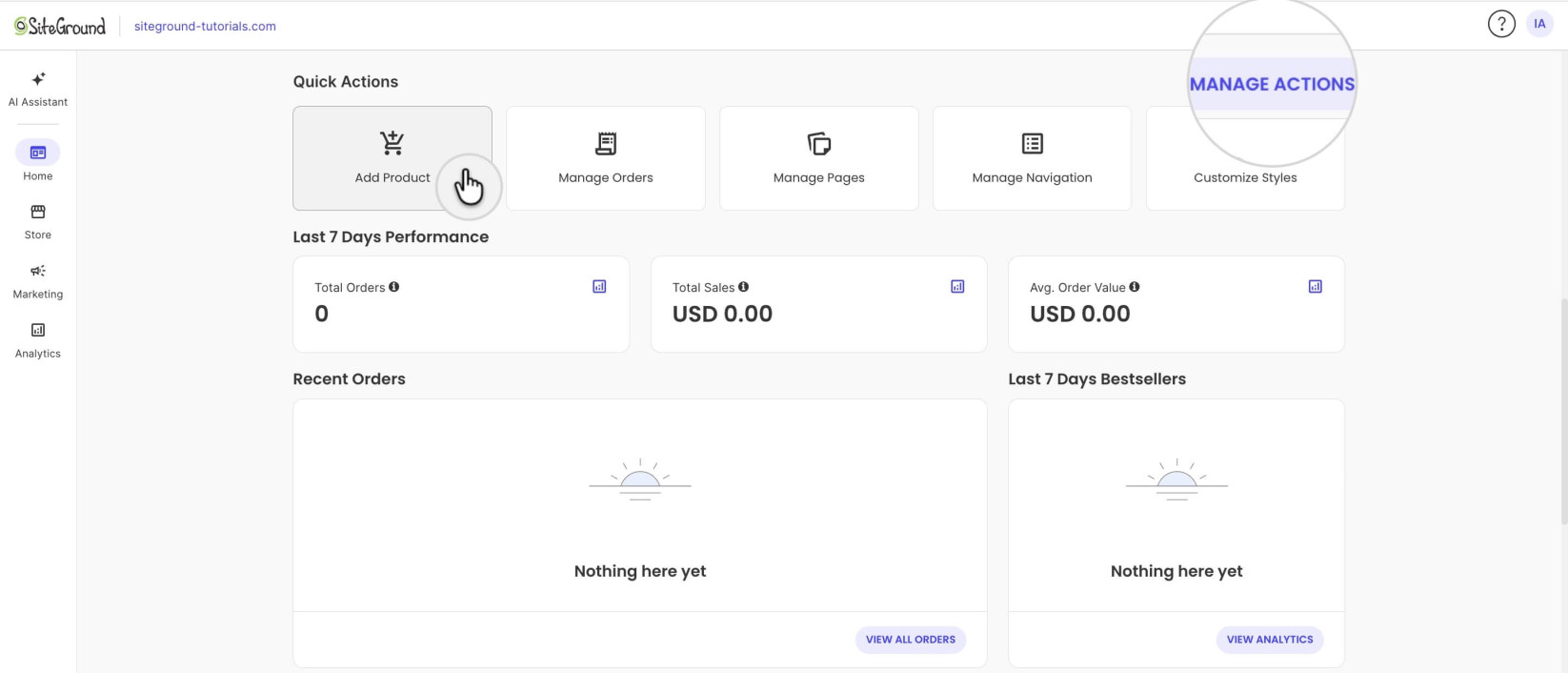
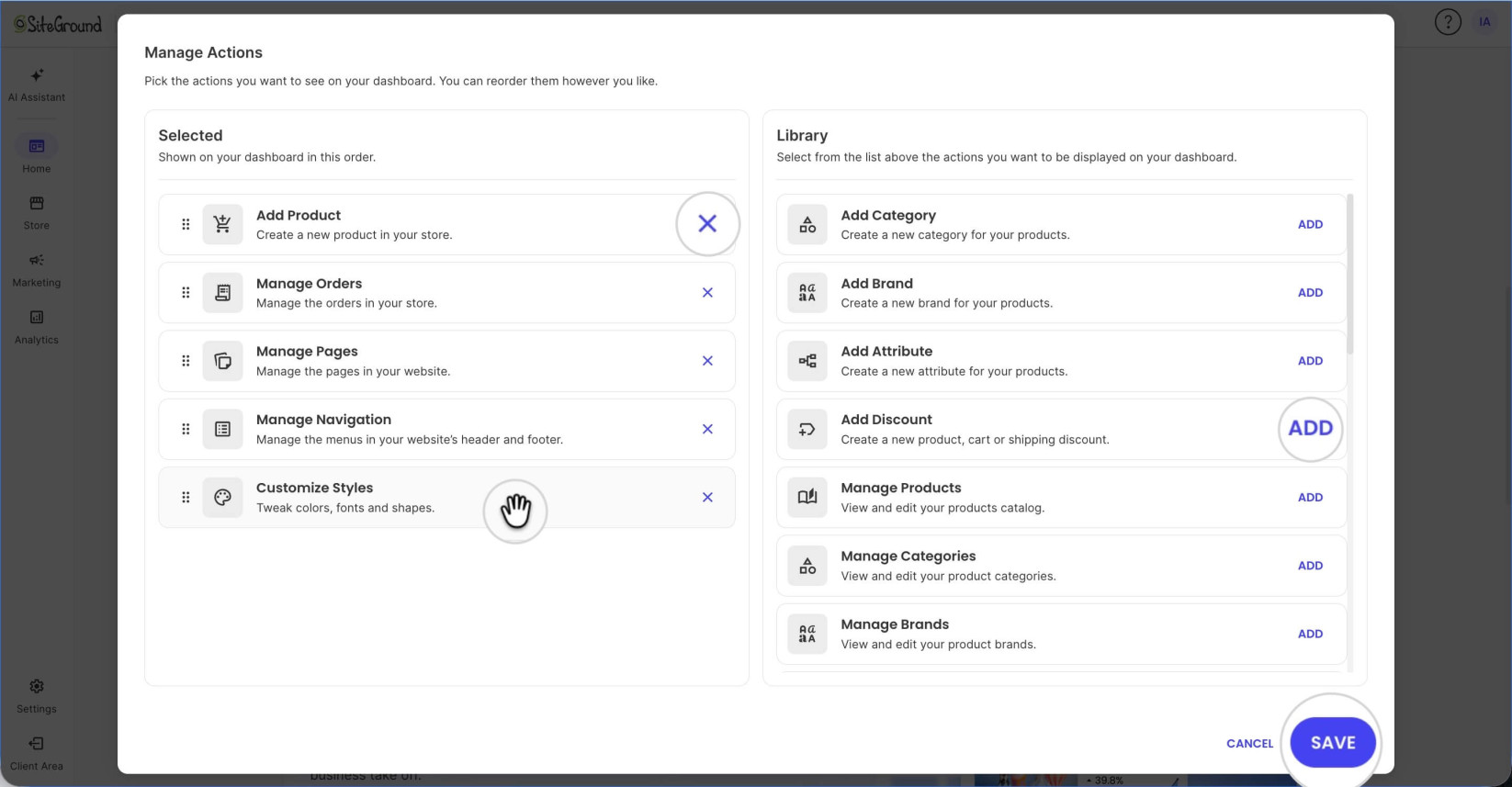
It opens a customization window where you can browse the library and click Add next to any action to include it as a shortcut on your Home page.
Use the drag-and-drop icon to reorder your selected actions, or click X on any action to return it to the library.
Press Save to confirm the changes to the Quick Actions menu.
Last 7 Days Metrics
Performance
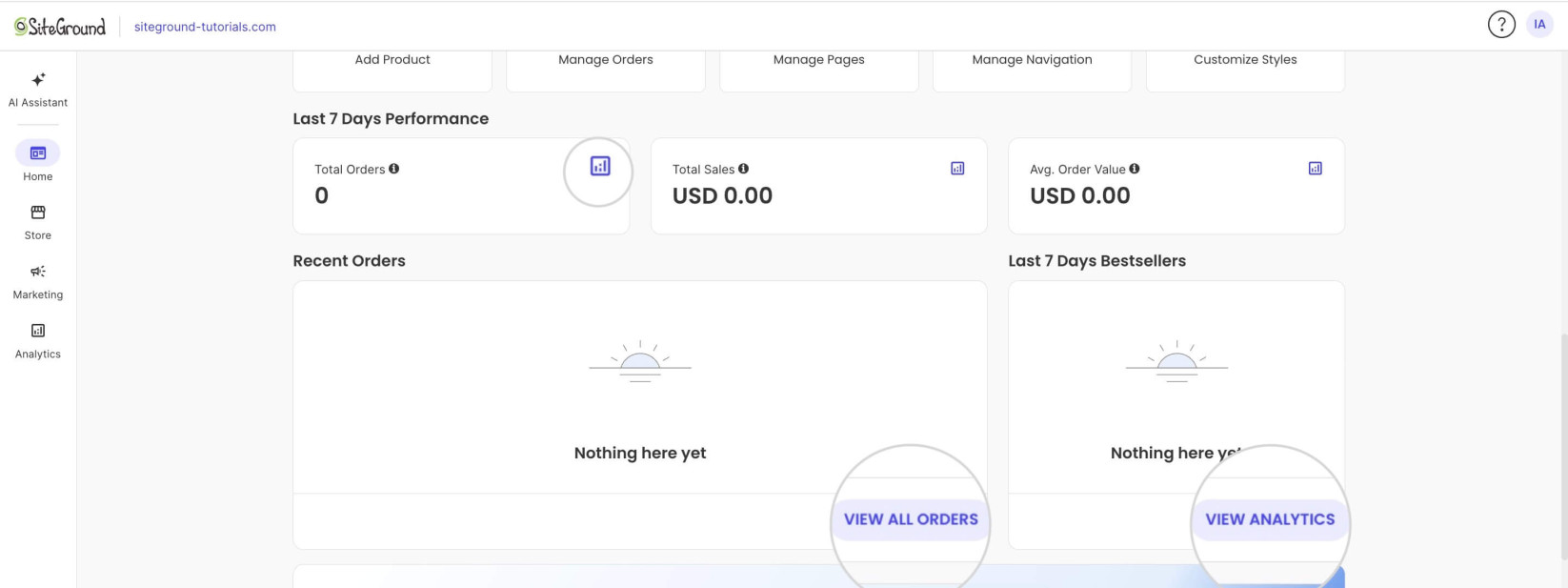
This section displays key performance metrics for your store over the past seven days. You can see your Total Orders, Total Sales, and Average Order Value at a glance.
Click the Table icon in the top-right corner of each card to see a detailed breakdown of all metrics in the Analytics page.
Recent Orders
Below the summary cards, Recent Orders shows your latest incoming orders. The View All Orders button takes you directly to the Orders manager.
The Last 7 Days Bestsellers panel highlights your top-selling products. Click View Analytics to access your full analytics dashboard.
Useful Tips & Tutorials
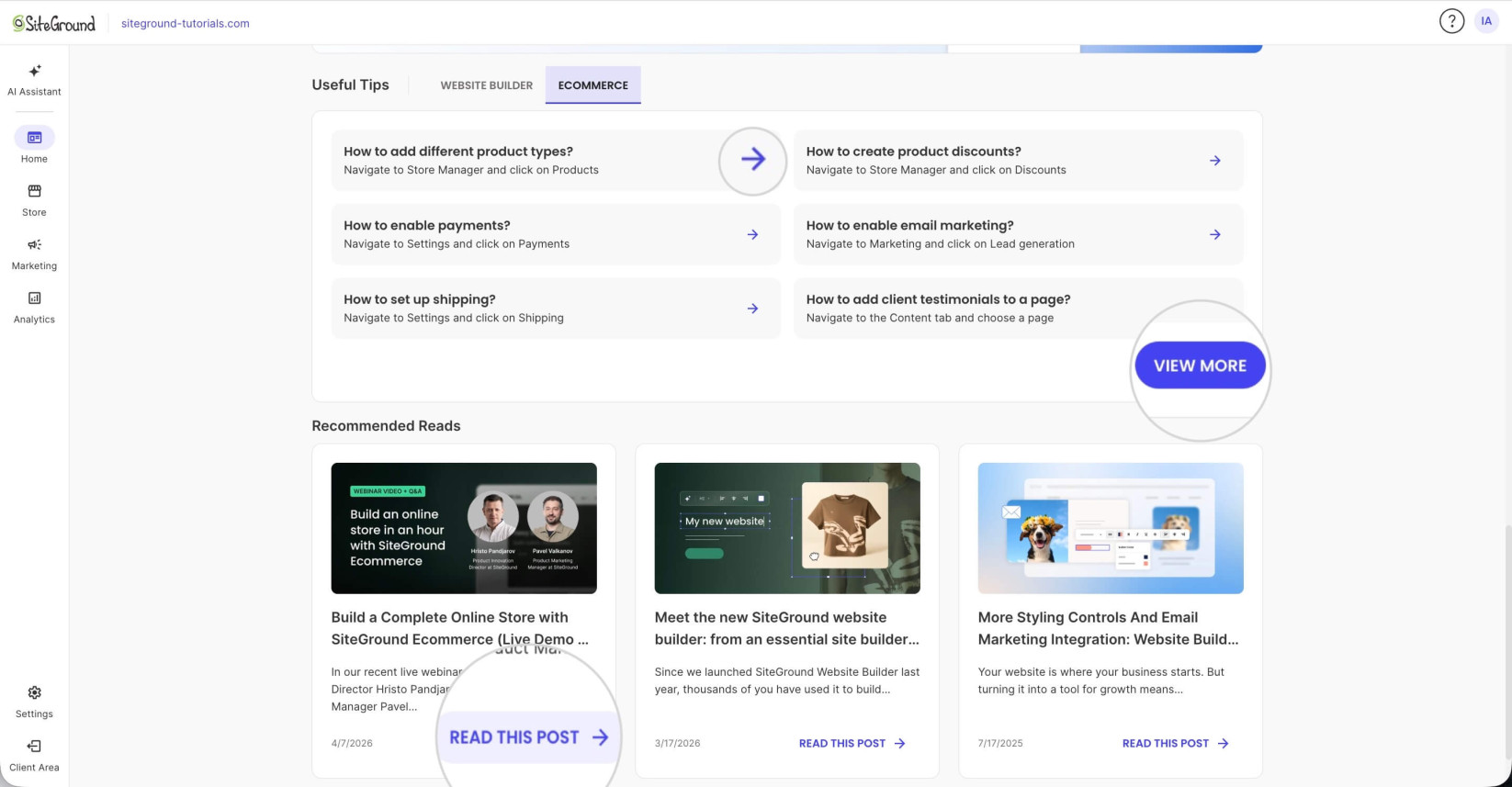
At the bottom of the Home page, you will find curated quick-help tips organized into two tabs: Website Builder and Ecommerce. The Ecommerce tab includes shortcuts to common tasks such as adding product types, creating discounts, enabling payments, setting up shipping, and more. Click any tip to navigate directly to the relevant section. Click View More to see the full tips library.
Below the tips, you will also find Recommended Reads — a selection of blog posts and tutorials to help you get the most out of your store.