Knowledge Base

Get Expert Website Hosting

Choose website reliability and expertise with SiteGround!

Home / Ecommerce / How to Delete a Customer's Account

How to Delete a Customer's Account

Summarize this article with:
Last update: Jul 27, 2026

Here is how to delete a customer account from your SiteGround Ecommerce store. Follow these simple steps to permanently remove a customer’s information.

  1. Click on Store Manager > Customers
  2. Click the Delete button for that customer
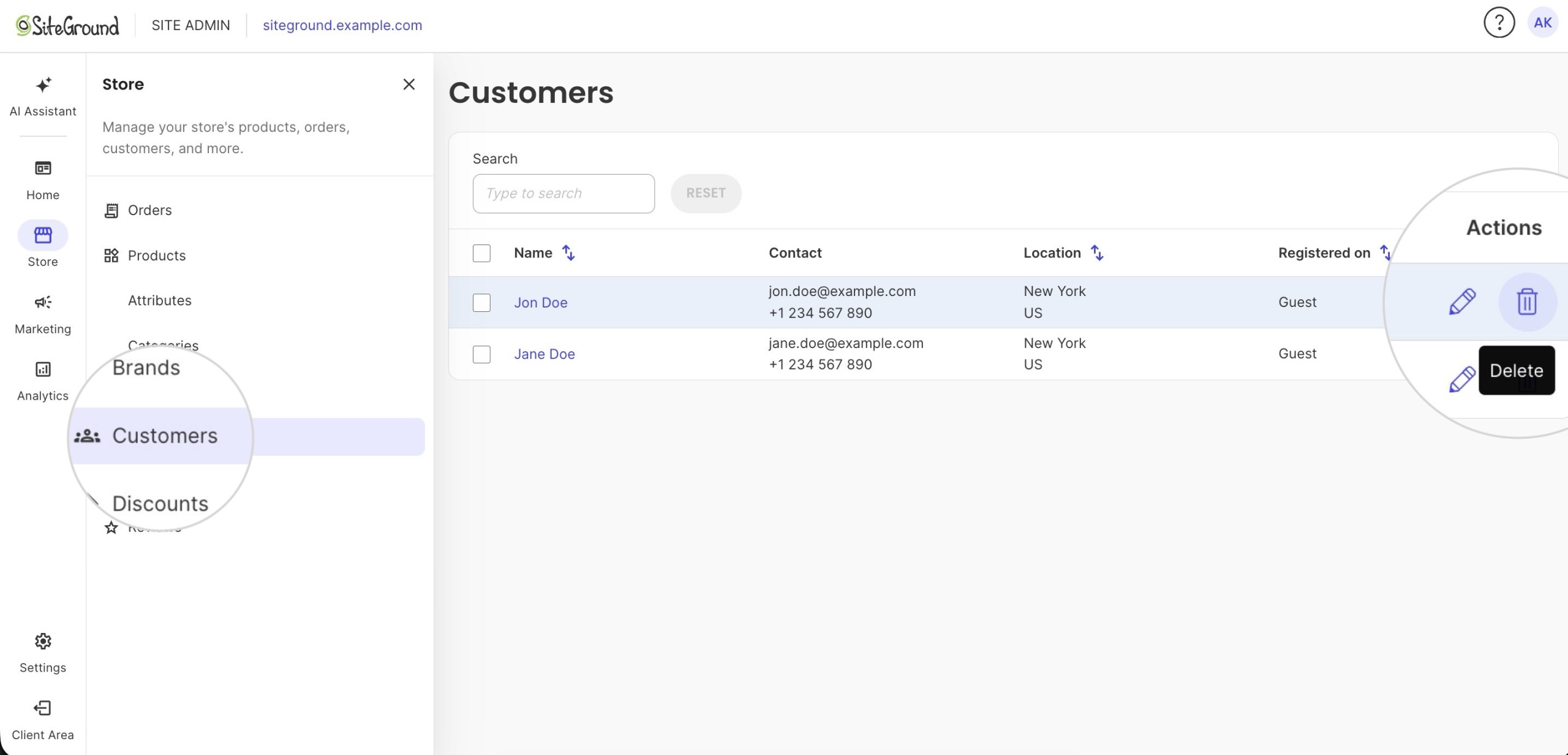
SiteGround Site Admin Store > Customers page, with the Store menu open and "Customers" highlighted. A search box sits above a table listing two guest customers — Jon Doe (jon.doe@example.com, New York, US) and Jane Doe (jane.doe@example.com, New York, US) — with a magnified spotlight on the row Actions column showing Edit (pencil) and Delete (trash) buttons.
  1. Click Confirm
Confirmation pop-up in the SiteGround Ecommerce Store Manager asking to delete a customer. The dialog shows a red trash bin icon, the text “Delete Customer,” a warning that the action cannot be undone, and two options: Cancel and a highlighted blue Confirm button.

NOTE: Keep in mind once a customer’s account is deleted, it cannot be restored.

Share this article

Found this article useful?

Add SiteGround to your preferred Google sources
