Knowledge Base

Get Expert Website Hosting

Choose website reliability and expertise with SiteGround!

How to Create a Privacy Policy

Summarize this article with:
Last update: Jul 24, 2026

With the creation of your site a Privacy Policy page is automatically generated. To add text to it, navigate to Settings – Terms & Policies and click on the Edit button.
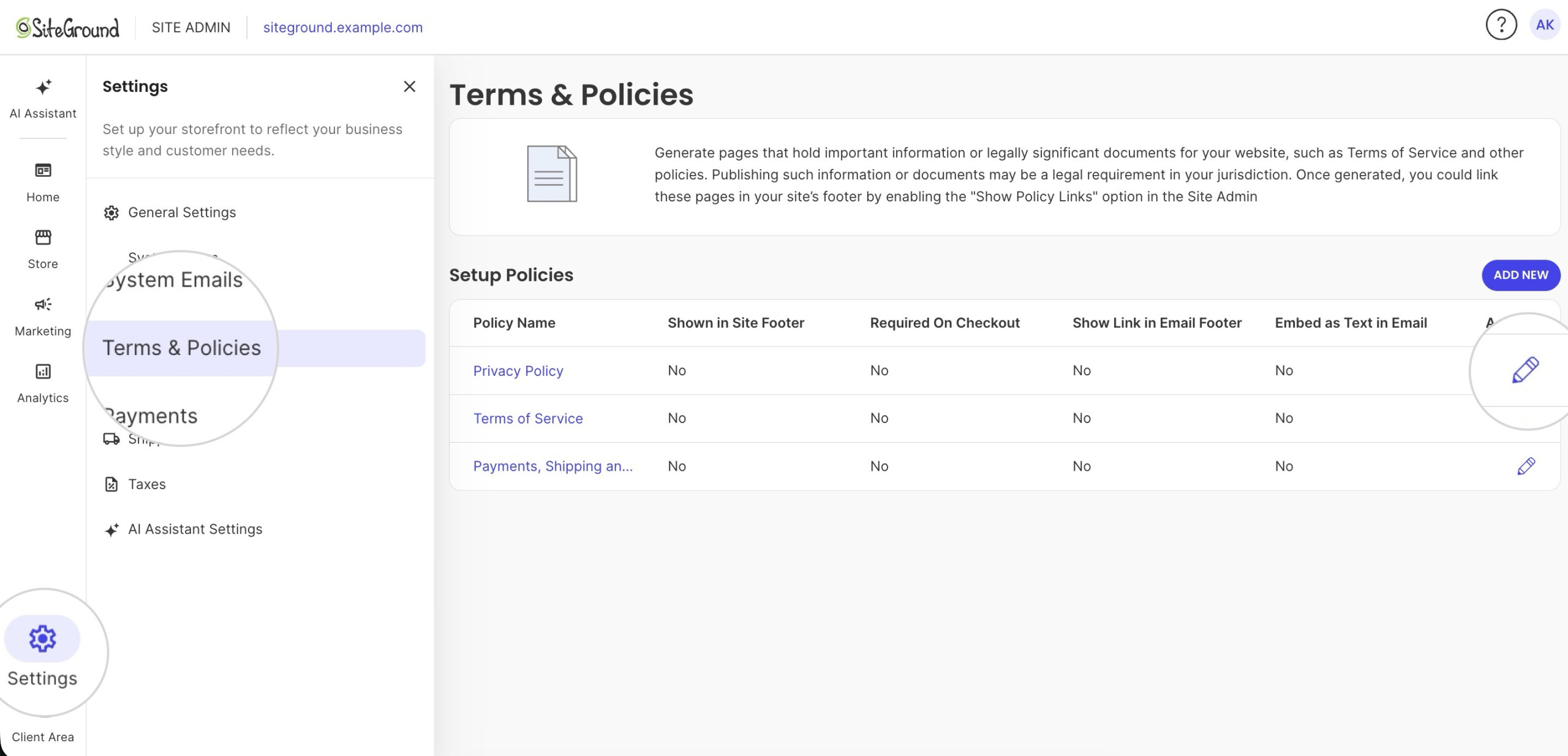
SiteGround Site Admin Settings > Terms & Policies screen, with the Settings menu open and "Terms & Policies" highlighted. The Setup Policies table lists Privacy Policy, Terms of Service, and Payments, Shipping and… — all showing No for Shown in Site Footer, Required On Checkout, Show Link in Email Footer, and Embed as Text in Email — each with an edit (pencil) action.

From there you can change the Privacy Policy name, add text, format it and add links to it. 
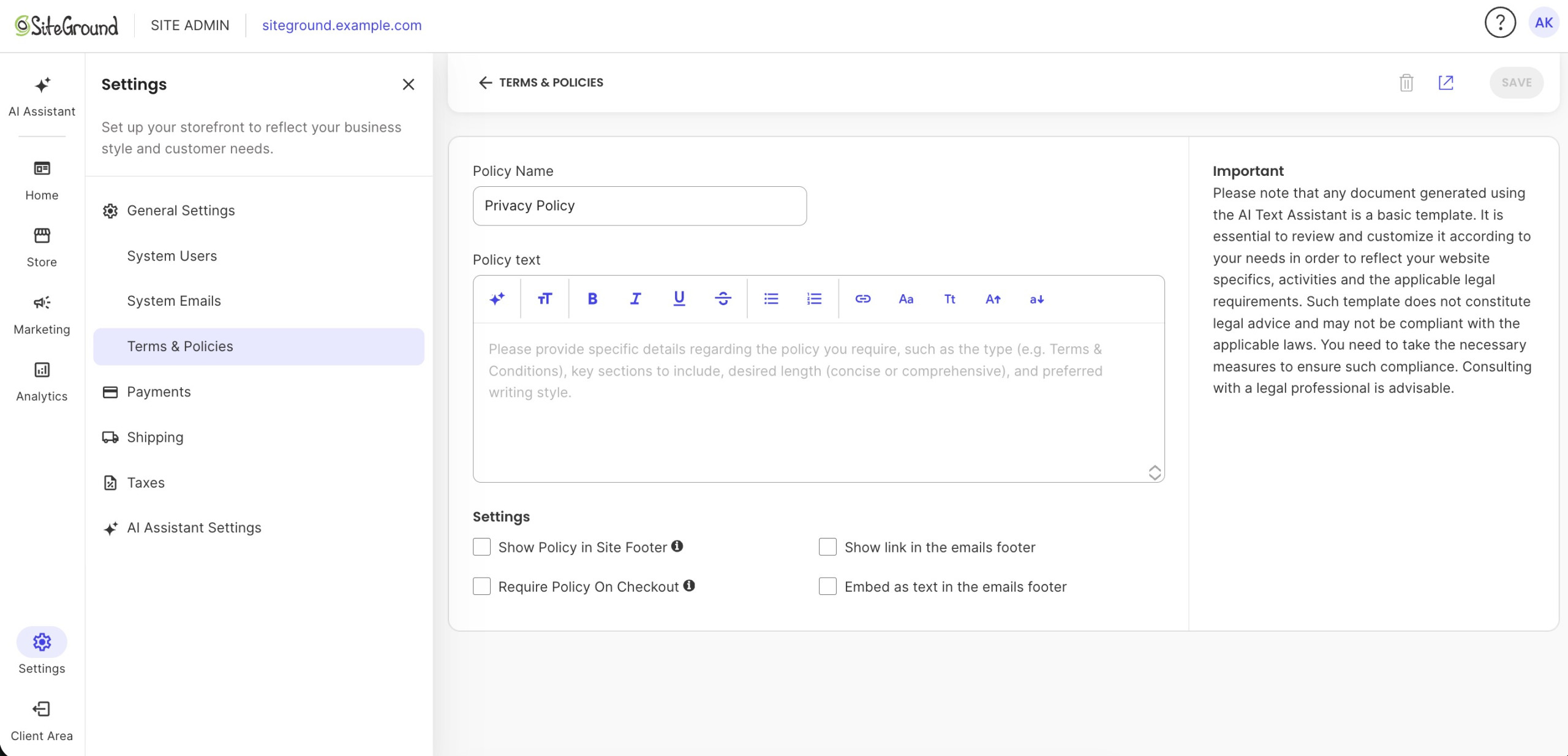
SiteGround Site Admin Settings > Terms & Policies editor for the "Privacy Policy" policy, showing a Policy Name field, an empty AI-assisted Policy text rich-text editor, and toggles for Show Policy in Site Footer, Require Policy On Checkout, Show link in the emails footer, and Embed as text in the emails footer. A sidebar note warns that AI-generated documents are basic templates and not legal advice.

Note: You can add multiple policies, and they will automatically appear in the footer of your site.

Share this article

Found this article useful?

Add SiteGround to your preferred Google sources
