How to Create a Cart Discount
Boost your sales by offering a discount code that lowers the total cart value, encouraging additional purchases. This code applies to the entire cart and is perfect for promoting bulk buying or rewarding loyal customers.
Create a Cart Discount
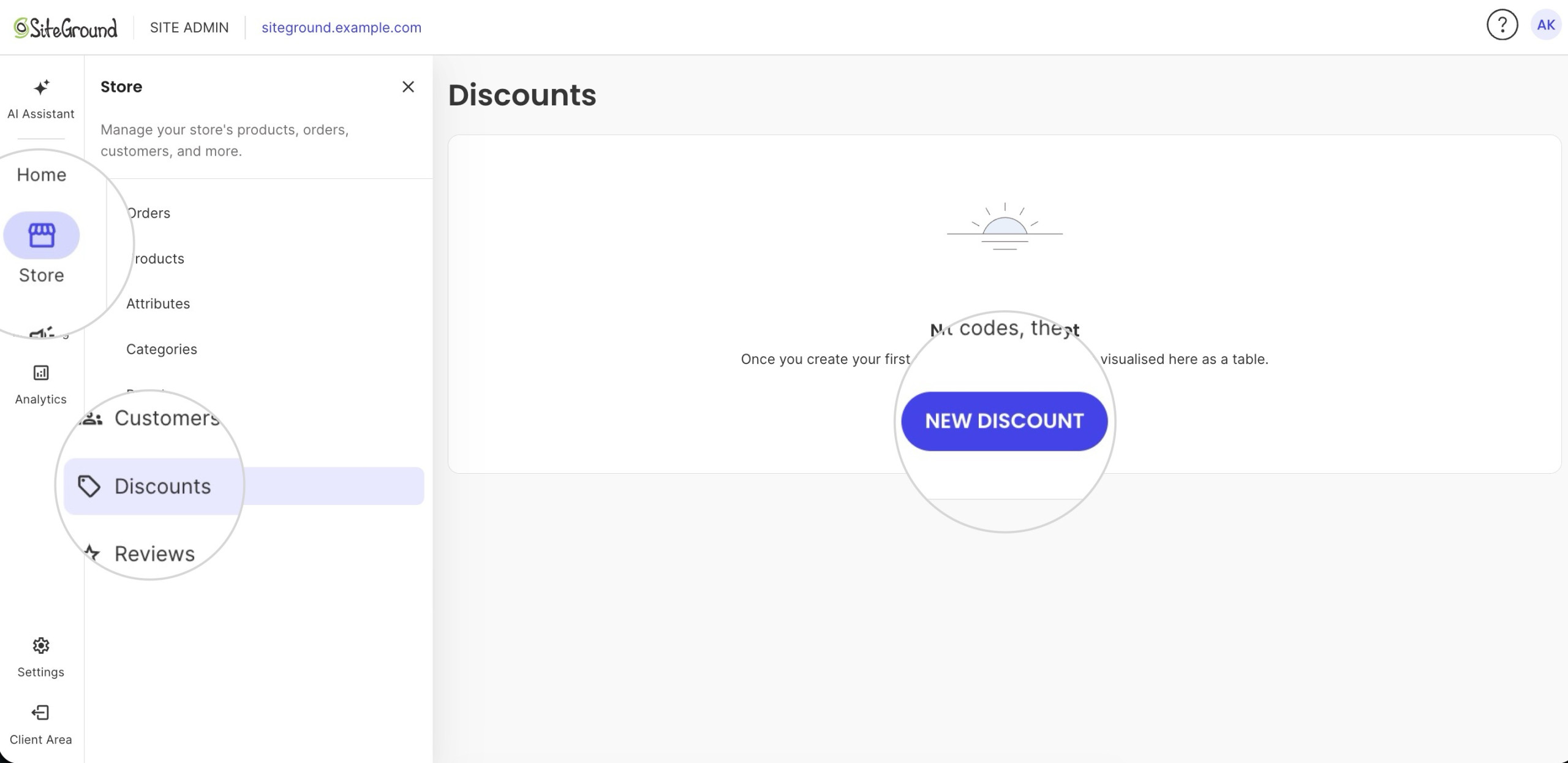
- Click on Store Manager -> Discounts. On this page, you will see a list of any existing discounts.
- Click the New Discount button in the upper right to add a new one.
- Select Cart Discount from the Discount Type menu.
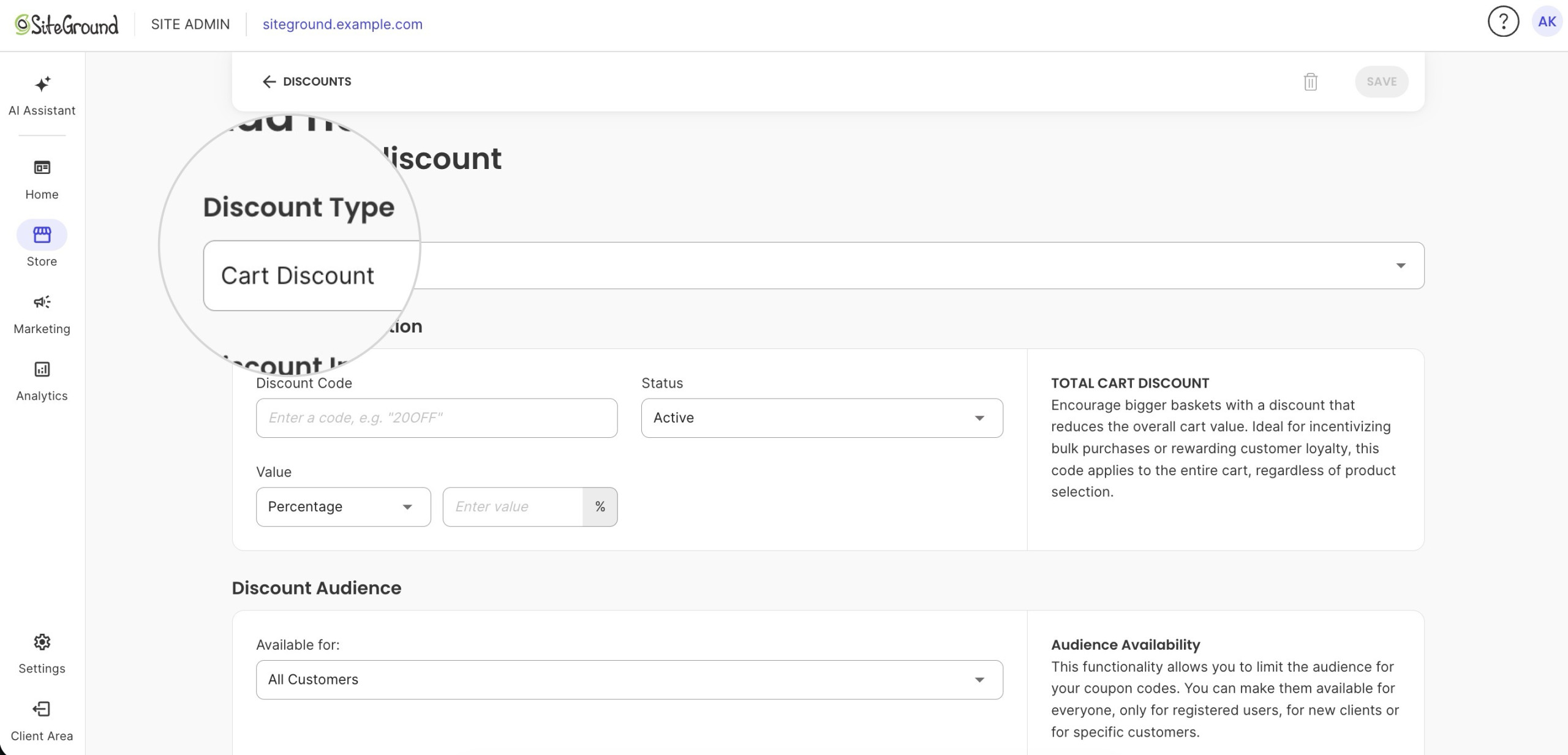
- Add the Discount Code name, Value (Percentage or Fixed amount) and set a Status.

- In the Discount Audience section, use the drop-down menu to choose who can use the discount:

- All Customers
- New Customers
- Registered Customers
- Specific Registered Customers
If you select Specific Registered Customers, start typing the name of a registered customer and choose them from the list.
Only the selected customers will be able to apply the discount, and they must be logged in to their accounts at checkout. Customers with Guest or Pending status will not appear in the list.
- Set Active Dates

You can set a Start and Expiry date to specify how long the discount code should be active.
If you leave the Expiry Date field blank, the code will be active until you manually set that Discount to “Inactive”
- Set additional Discount Restrictions

You can define minimum and maximum spend thresholds, limit total code redemptions, and set per-customer usage limits for Discount Codes to prevent misuse and protect your margins.
- Click Save in the upper right.
And you’re done! Once you’ve created discount codes, you can easily edit them from the management page. Click on Store Manager > Discounts > Actions menu (three-dots) to Edit, Delete, or change the Status of a Discount.
SiteGround Ecommerce also offers other discount types such as:
