How to create and edit a “Contact Us” page
Most Website Builder templates contain a “Contact Us” page by default, so you don’t have to create such a page from scratch. However, if you’ve chosen to start with a blank site or selected a template that doesn’t have a “Contact Us” page, you’ll have to create the page. Here are the steps:
- Navigate to the Pages tab and click the Add New button.

- In the following pop-up window, open the Contact Us category from the menu on the left, then hover over a layout and press the Add Page button.

How to edit the “Contact Us” page
These steps are applicable to both the SiteGround Website Builder and SiteGround Ecommerce. To edit an existing “Contact Us” page:
- Open the Pages tab from the left menu toolbar, and choose the Contact Us page.

- Here you can edit the pre-designed Contact us page as you see fit. You can add new sections with the Add Sections button, delete existing sections with the Delete Section button from a section’s toolbar, or directly edit the placeholder content. Additionally, you can add components to a section with the Add button in its top-left corner.

- To change the page’s general settings, navigate to the Pages tab, hover over the Contact Us page, and open the Settings (kebab) menu.

- Open the General settings to change the page title, URL, and status.

- To change the SEO title and meta description, open the SEO settings.
- To change the title and description that appear when the page is shared on social media, open the Social settings.
How to set up the contact form
Once you are ready with the page’s general settings and appearance, you can move on to customizing the contact form.
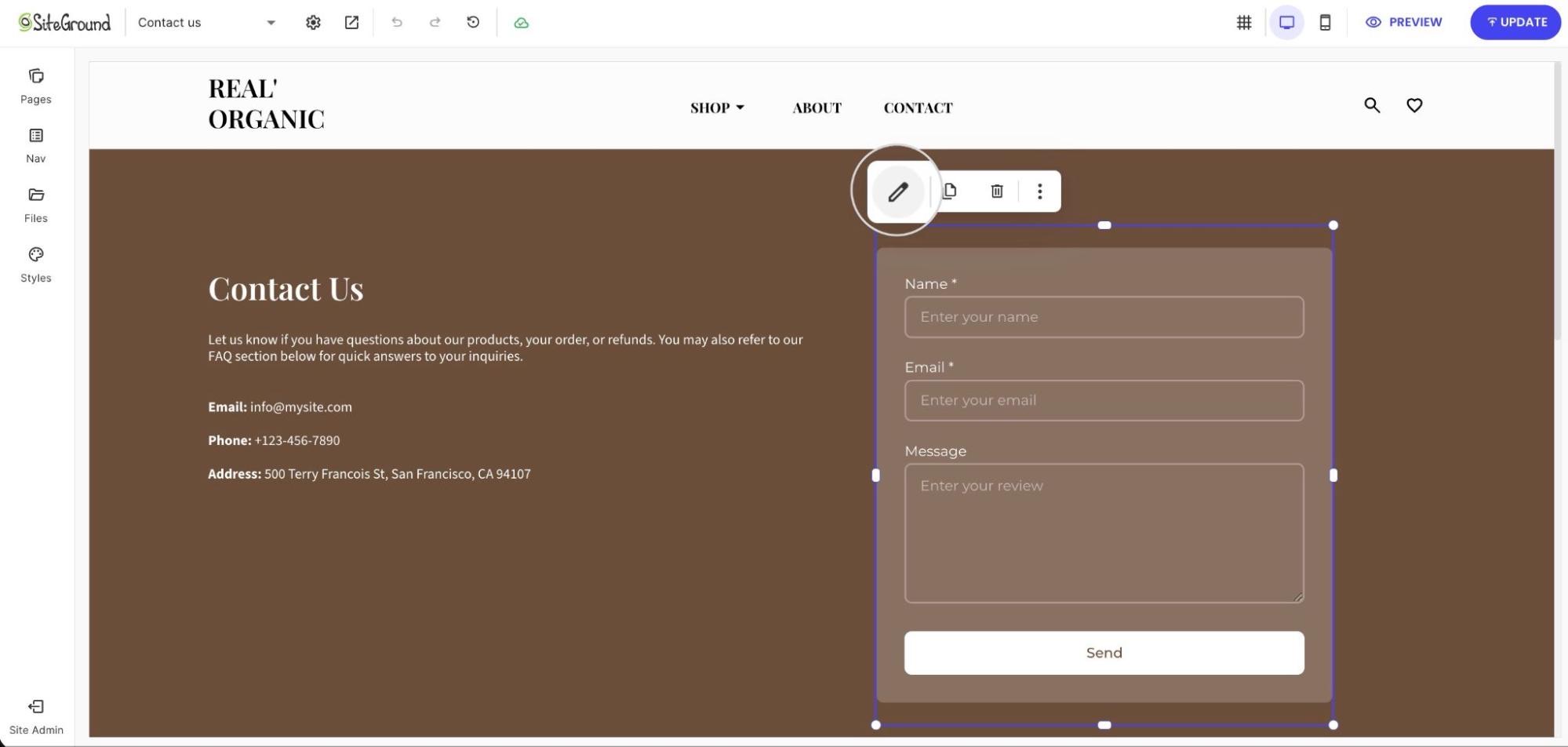
- Click on the contact form, and press the Edit icon from the toolbar above to modify it.
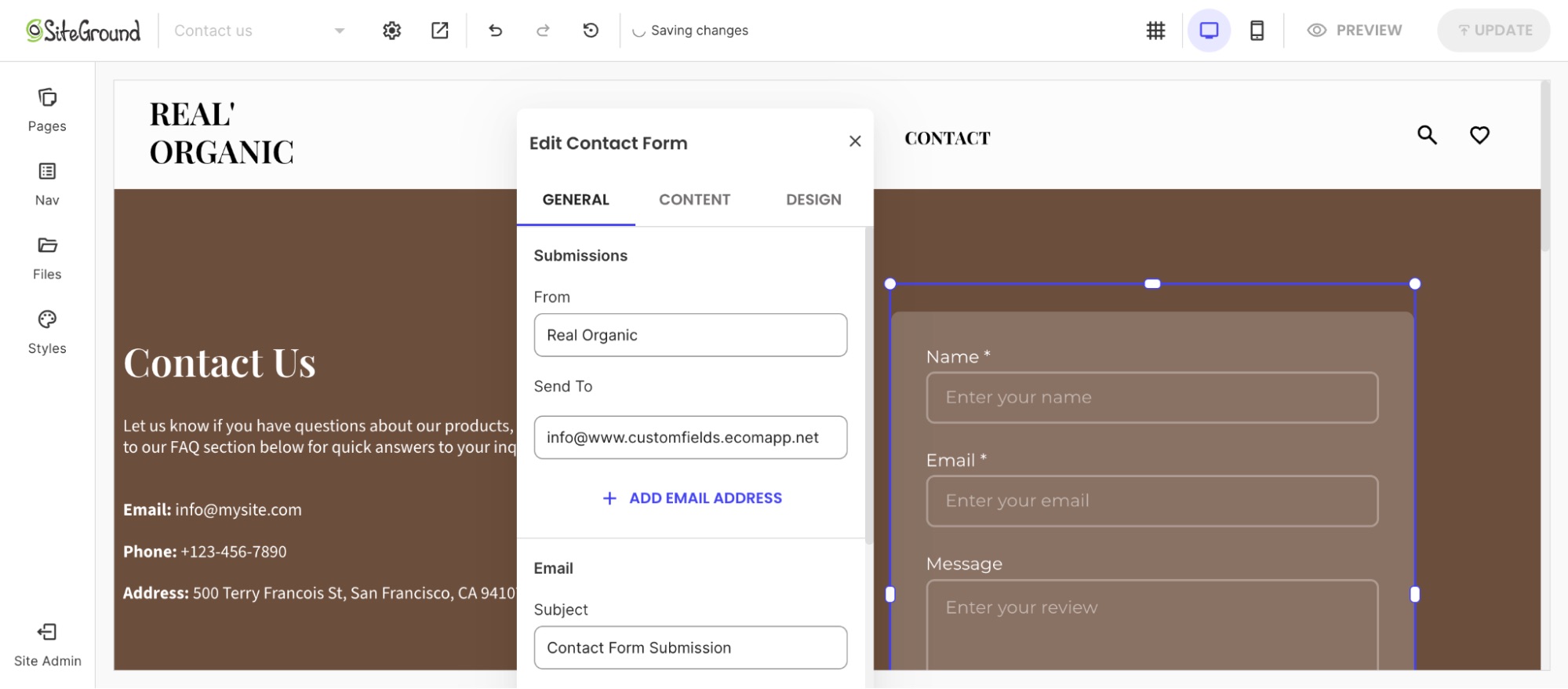
- In the contact form settings pop-up window, you can update the Email Address (multiple addresses are supported), Subject, and Thank You Message
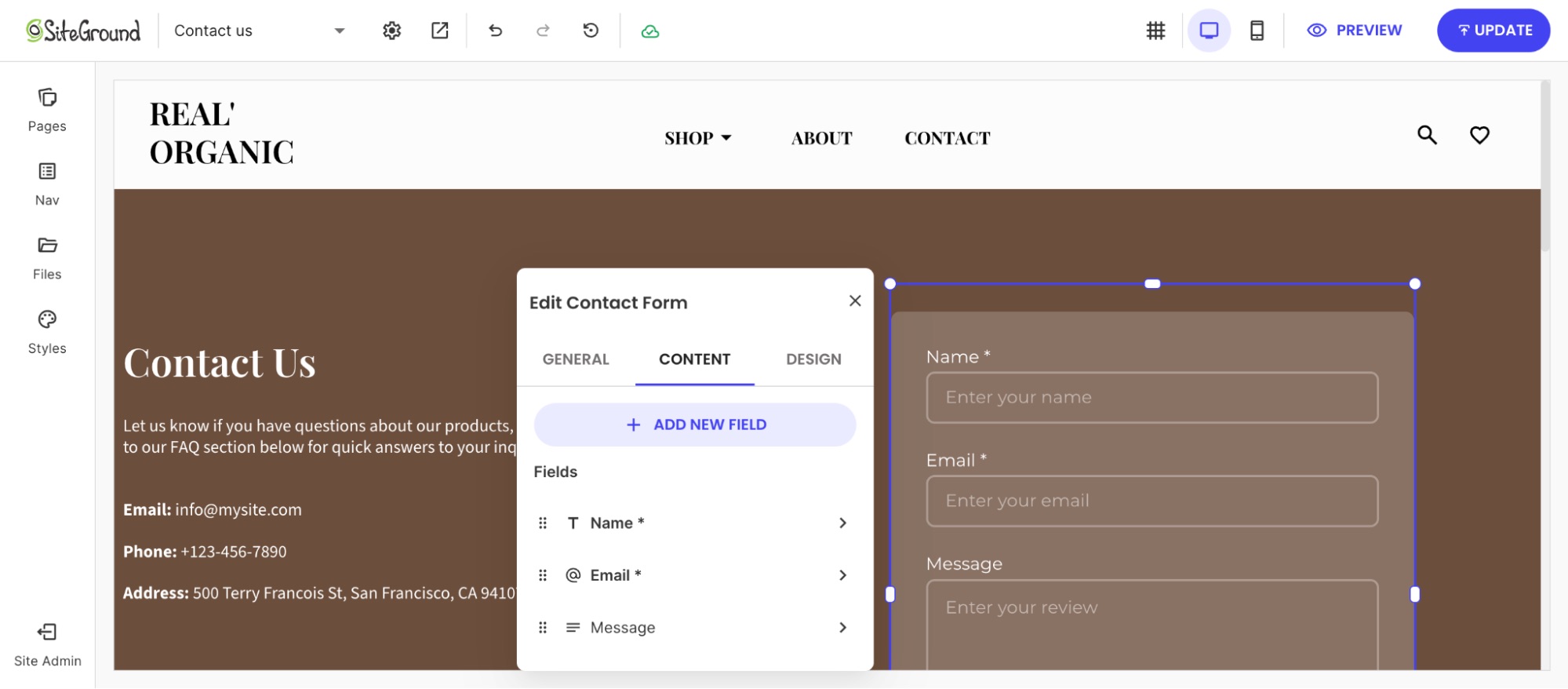
- Open the Content tab to modify the form fields. You can delete some of the default fields or add more from the list of available fields.
- To change the form’s appearance, open the Design tab.
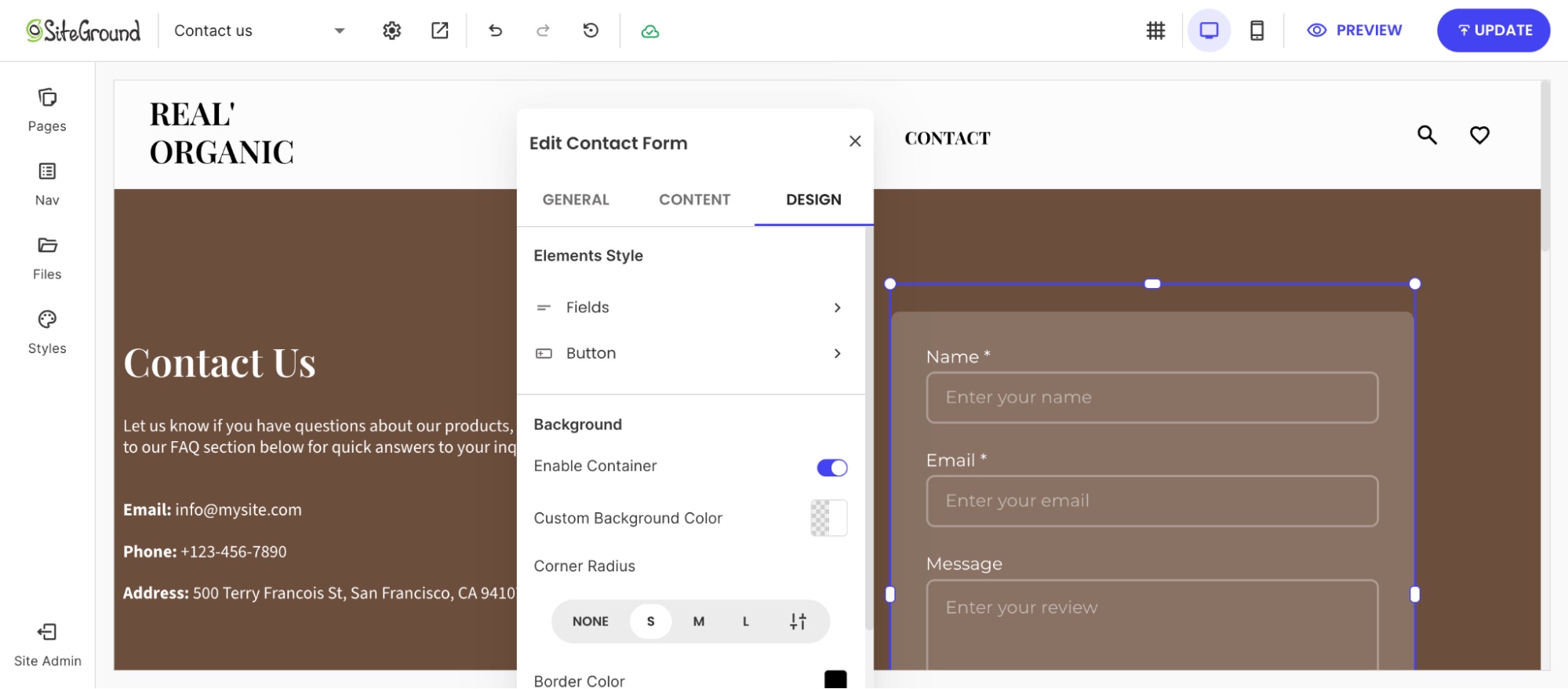
- Click Fields for additional form fields design settings. You can switch between the default and hovered field state tabs.
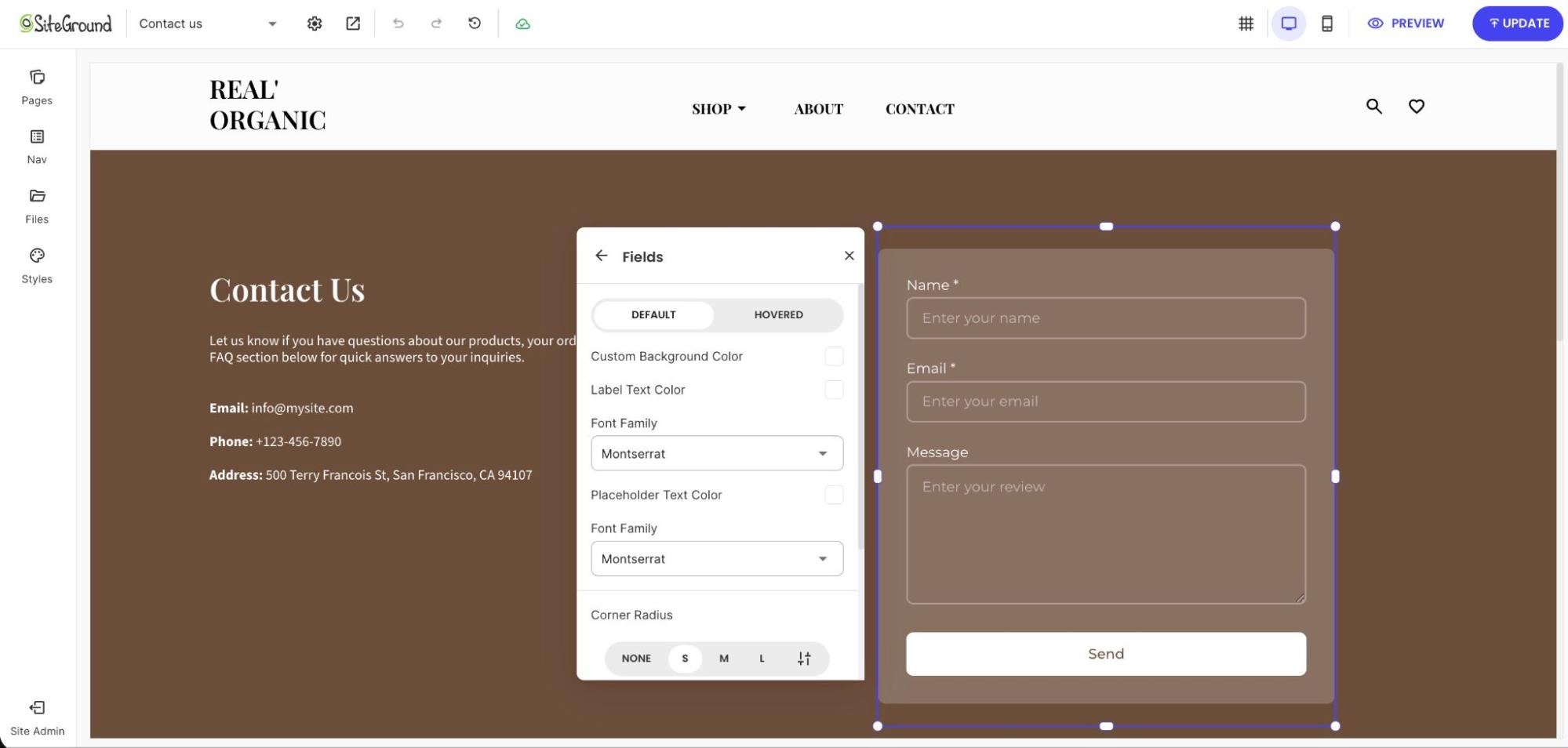
- Choose Buttons from the design tab to change button text and how buttons look. Similar to the Fields tab, there are Default and Hovered sub-tabs for customization.
