Knowledge Base

Get Expert Website Hosting

Choose website reliability and expertise with SiteGround!

Home / Website Builder / Colors, Fonts & Style / How to Change the Color Palette of My Site

How to Change the Color Palette of My Site

Summarize this article with:
Last update: Oct 05, 2026
  1. To change the color palette of your site, first go to Site Admin > Website Builder, and press the Edit Website button.
  2. Then navigate to the Styles tab and click Colors from the left column.
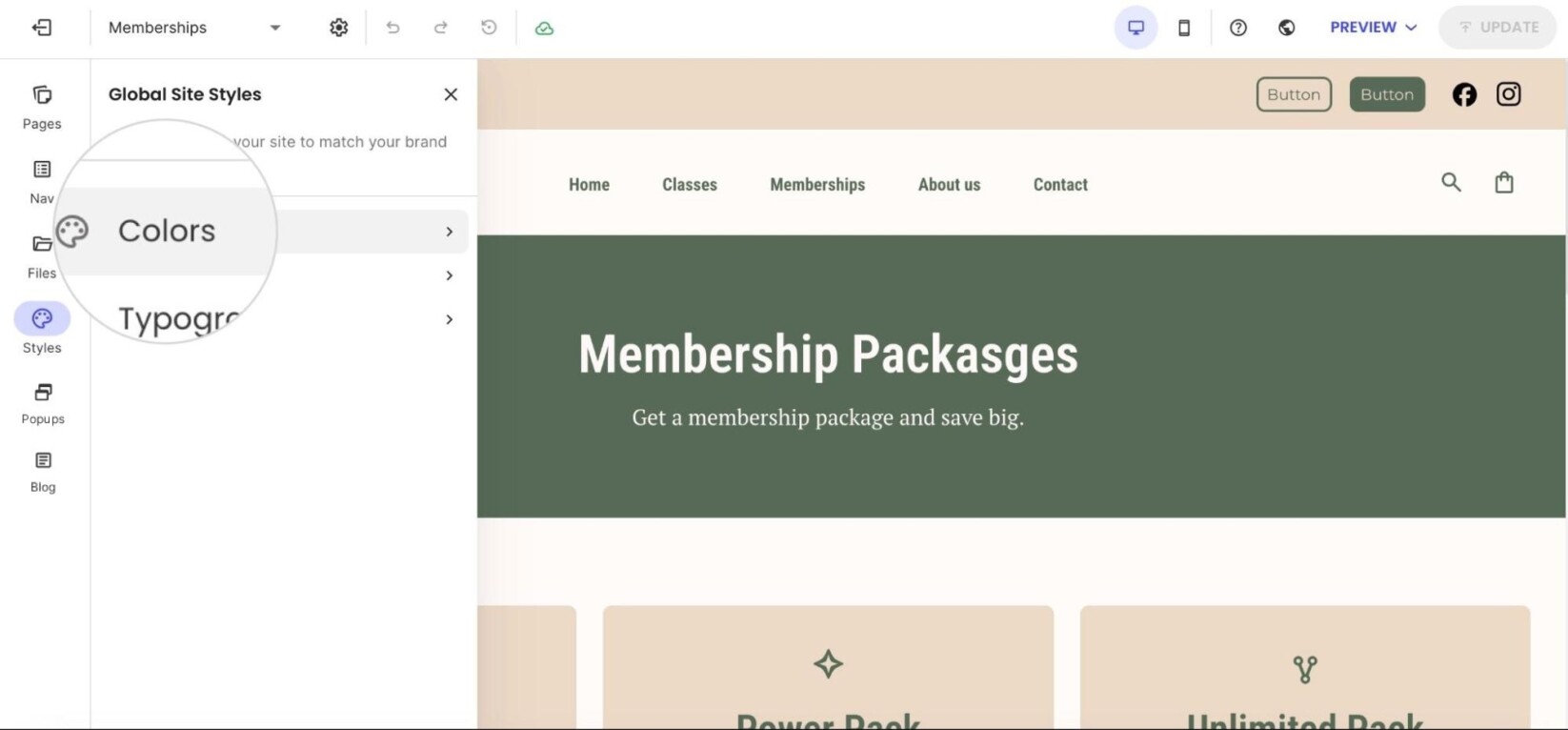
    The Global Site Styles menu in the website editor with the Colors section highlighted for brand customization.
  3. From there, you can select an existing palette or customize specific colors. Simply click on each color to choose a new text and background combination via the color box.
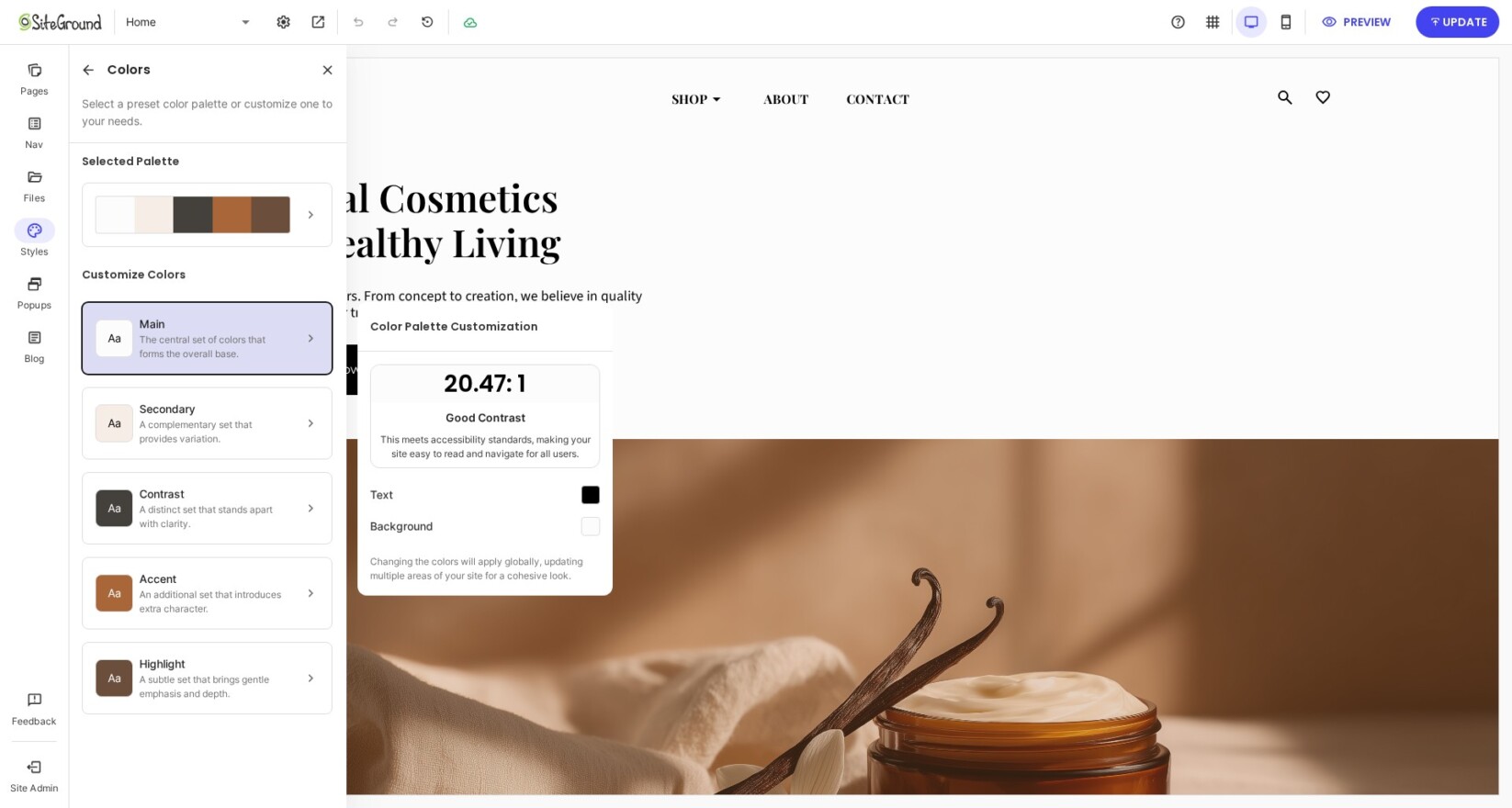
    Global color palette customization panel showing accessibility contrast ratios and options for main, secondary, and contrast colors.

When choosing colors, a contrast indicator will appear to show how well they work together. We strongly encourage you to follow our recommendations, as low contrast can negatively impact your users’ experience.

Note: Keep in mind that color palette changes will be applied to your entire site. That said, you can change and choose different section-specific color combinations for body, header, and footer from the page or section you are editing. 

Share this article

Found this article useful?

Add SiteGround to your preferred Google sources