Home
/
Email Marketing
/
Creating Emails
/
How to change the color of your email footer in SiteGround Email Marketing?
How to change the color of your email footer in SiteGround Email Marketing?
In this guide, we’ll show you how you can customize the colors of your email footer.
To change the color of your email footer:
- Login to your SiteGround Email Marketing account from your Client Area > Services > Email Marketing

- Either Edit or create a New Campaign

- In the Email Builder, click the Design tab and select Colors
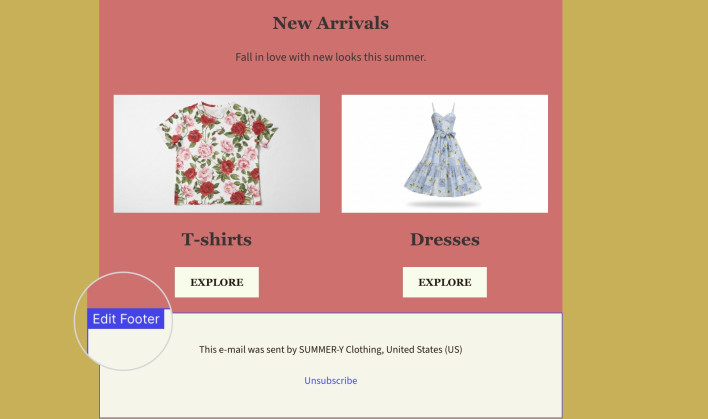
- Click on it and a new Edit Section will appear on the left sidebar where you can start editing the colors of your email footer.
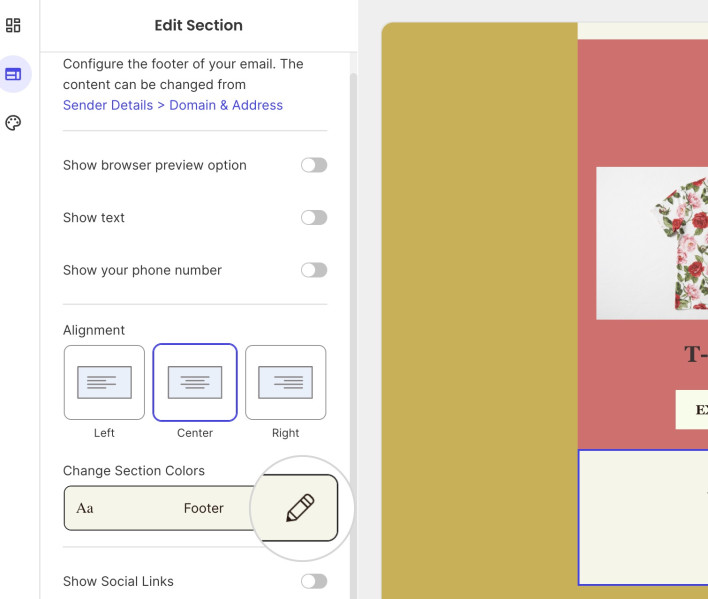
- Go to the Change Section Colors area at the bottom, hover over it, and click on the pencil icon.
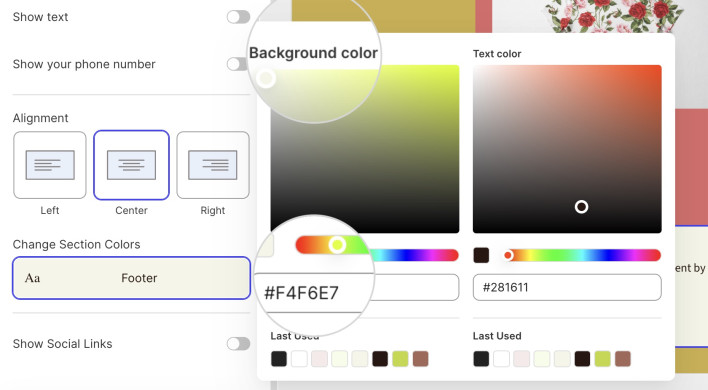
- Choose a background color to your preference by sliding the pointer in the color picker or by entering the HEX color code (e.g. #FFFFFF) in the input field below.
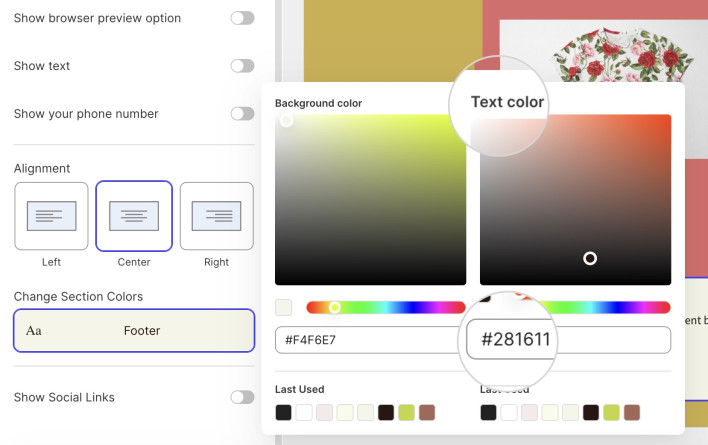
- You can also adjust the text color by moving the text color pointer or by entering a Hex color code (e.g. #FFFFFF).
The applied changes will be saved automatically.
