How can I add a collaborator to my website?
To add a collaborator, follow these steps:
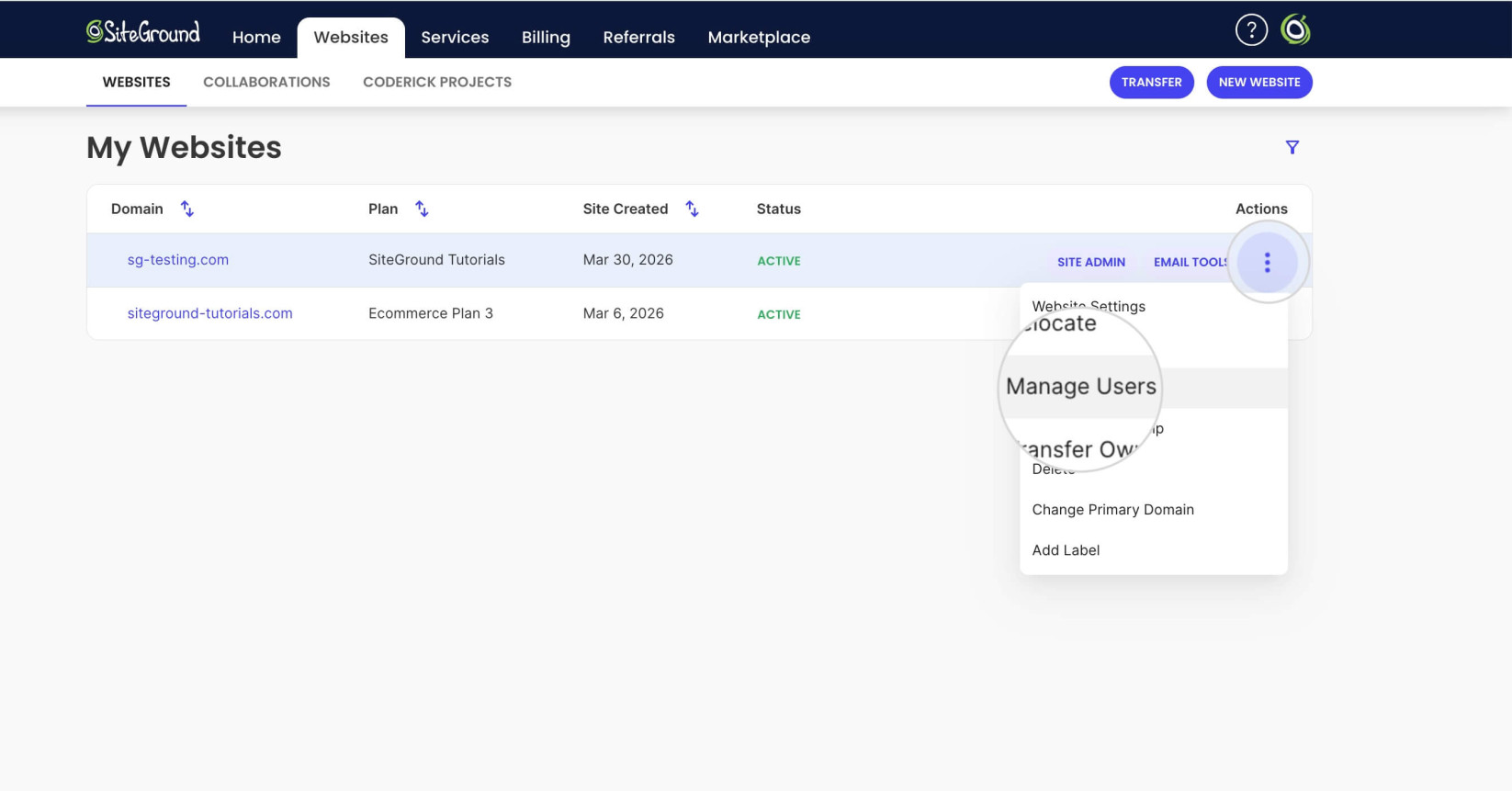
- Log in to your Client Area and go to Websites.
- Click the Actions (three dots) menu of the chosen website, and select Manage Users.
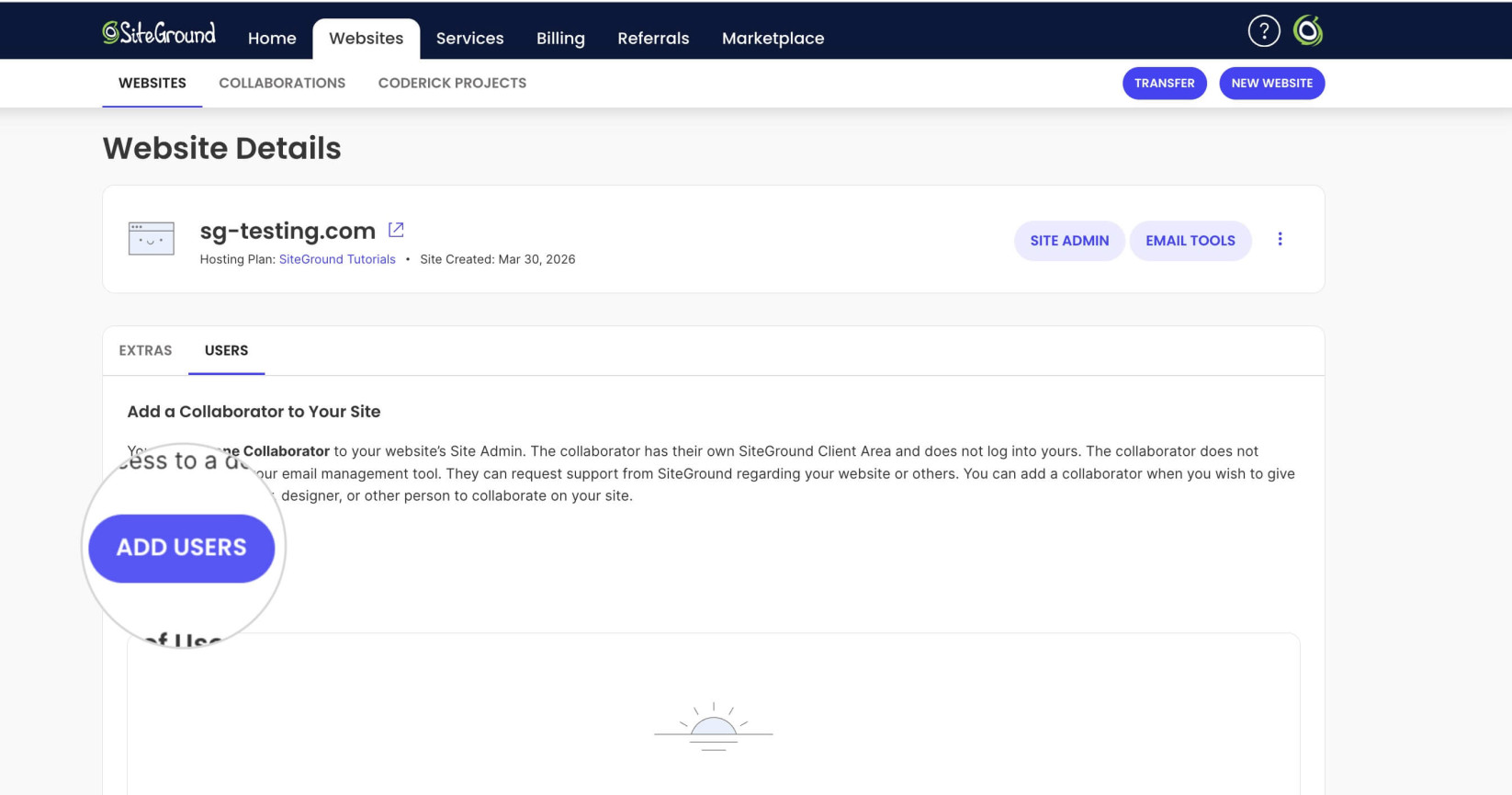
- On the Users tab, click Add Users.
- If this is the first time you’re working with this person, select the New User option. Enter the user’s Name and Email into the fields and click Add.
If you’ve previously granted this person access to other sites/services, click on their name from the drop-down menu and click Add.
SiteGround emails the invitation to the collaborator. Once the invitation is accepted, collaborators can access the websites from their Client Area.
What a collaborator can access
Collaborators can access only the Site Admin or Site Tools of the websites they are added to from their Client Area. They can:
- Modify the website files and settings
- Edit the website design
- Manage settings, products, customers, reviews, and orders.
Website Builder and Ecommerce
A collaborator can access Site Admin of a Website Builder/Ecommerce site from the Websites > Collaborations section in their Client Area. The Email Tools button is not available.
WordPress and other websites
Collaborators can access Site Tools from the Websites > Collaborations section of their Client Area. All sections inside are available except for Email.
What collaborators are not permitted
Collaborators are restricted from:
- Deleting a website
- Changing the website’s primary domain
- Using the email accounts associated with the primary domain
- Accessing and changing the billing information and account details of the website owner
Invitation duration
The invitation is valid for 48 hours. If it expires before the collaborator accepts, send a new one from Manage Users. Learn more about invitations in this guide about collaborator invitation management.
How to manage or remove an existing collaborator
You can manage your collaborators from the Manage Users page. This is your central hub for all collaborator permissions. From there, you can grant or remove access as your team’s needs change. For a detailed walkthrough, read the full guide on Collaborator Management.
How to add collaborators to Email Marketing
You can also add collaborators to your Email Marketing service. To find out how, read this guide on how to add collaborators to Email Marketing.
Frequently asked questions
Can a collaborator see my billing or account details?
No. They only see your website through their own Client Area.
How many collaborators can I add?
One for Website Builder and Ecommerce sites; multiple for WordPress, other CMS apps, and custom sites.
Why can’t my collaborator accept the invitation?
The invite may have expired. Each invitation lasts for 48 hours. Send a new invitation from Manage Users.
Does my collaborator need a SiteGround account?
When collaborators accept an invitation, they are invited to create their own Client Area. If a collaborator already has a Client Area, the websites will be added to it.
How do I remove a collaborator?
Open Manage Users for the site and remove the user. For detailed instructions, read the Collaborator management guide.
Is a collaborator the same as a client?
No. Collaborators contribute to your websites, while clients are usually site owners, and you manage their websites on their behalf. Thus, they have different access to the website. For in-depth information, read this guide on what is the difference between a collaborator and a client.
