How to apply Animations to a website
How to manage your site’s identity in a more visual way using SiteGround Website Builder and Ecommerce? With real-time previews and new global settings for animations, you can ensure a consistent look and feel across your entire website with just a few clicks.
Before you start:
- You will need an active Website Builder or Ecommerce plan.
How to apply Animations
- Open Site Admin > Edit Website.
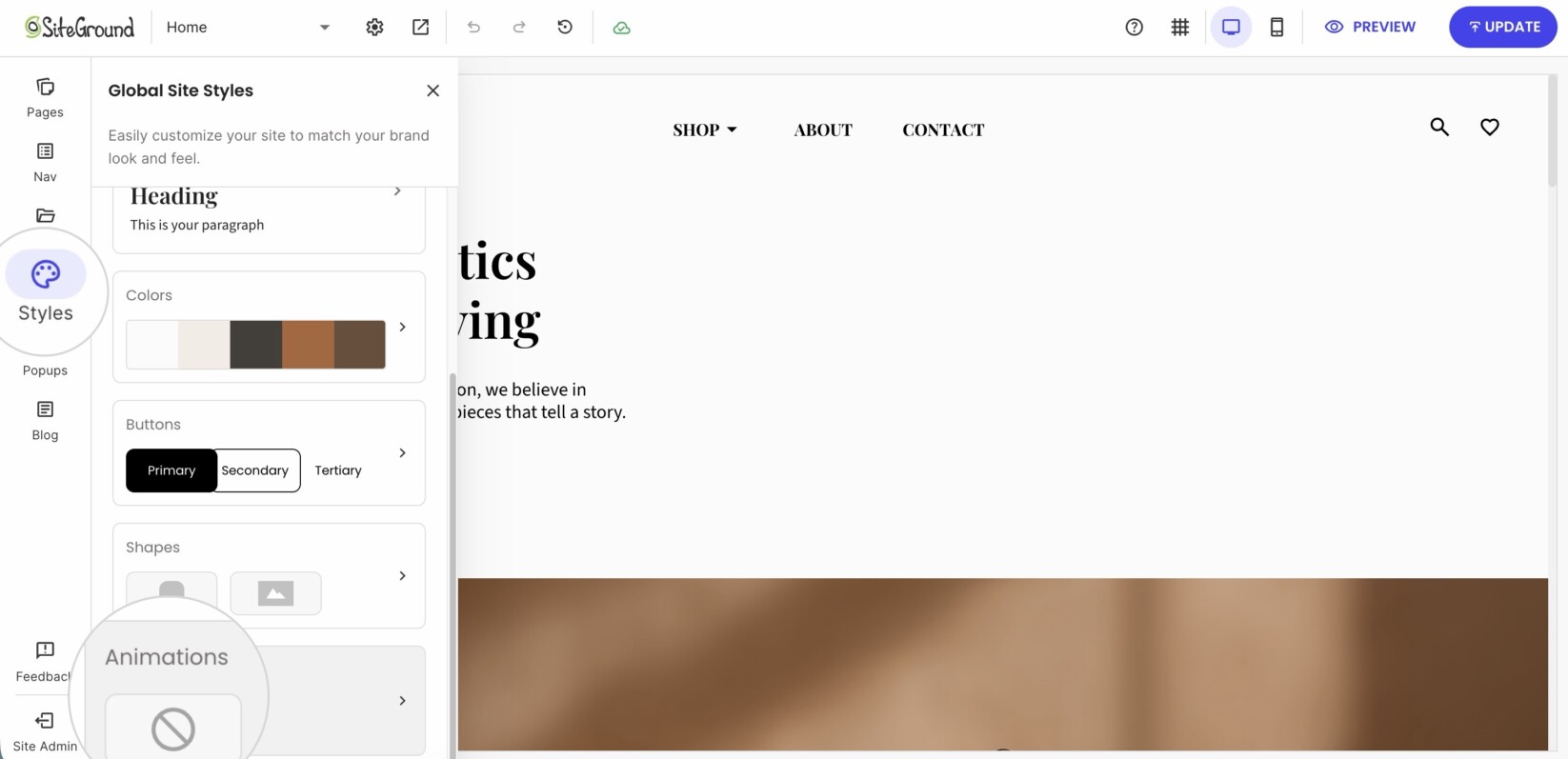
- Click on Styles from the left-hand sidebar, scroll down and click on Animation.
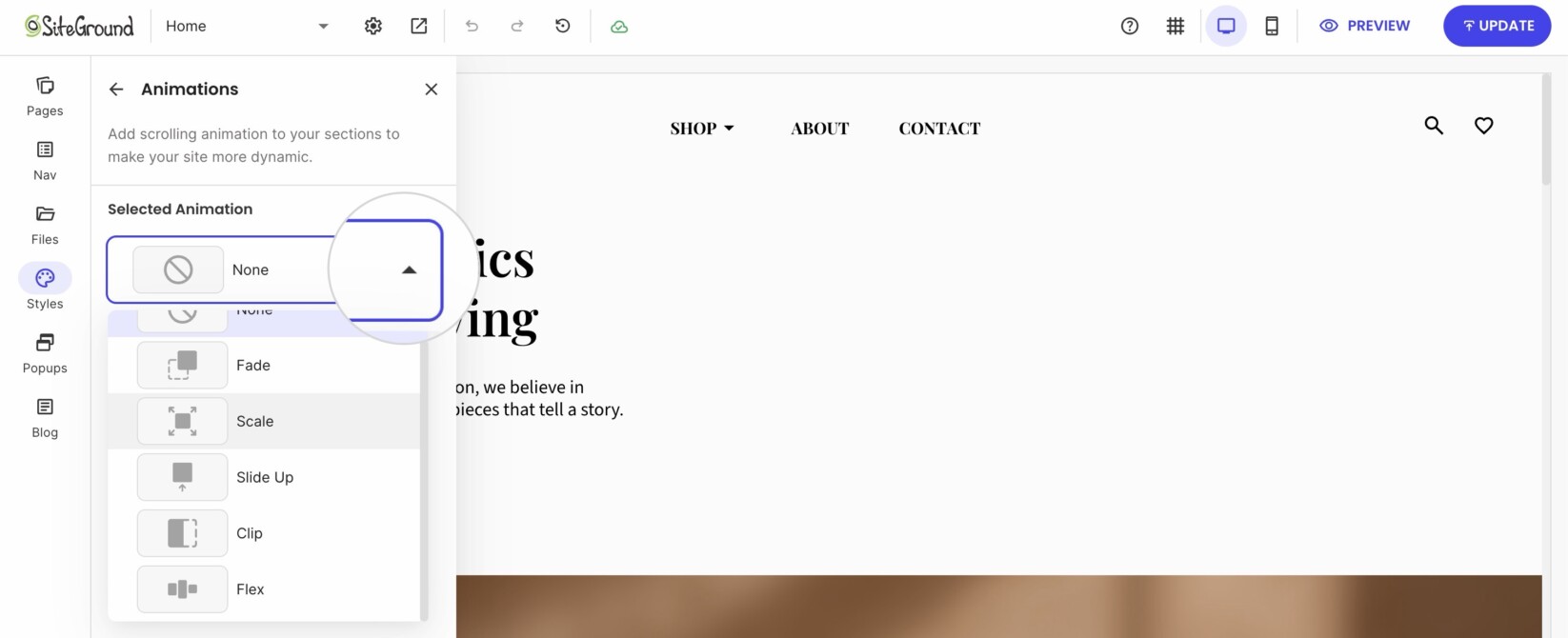
- From the dropdown menu, choose the type of Animations you want to add: Fade, Scale, Slide up, Clip, or Flex.
- Once selected, you can adjust the speed in the new dialog.
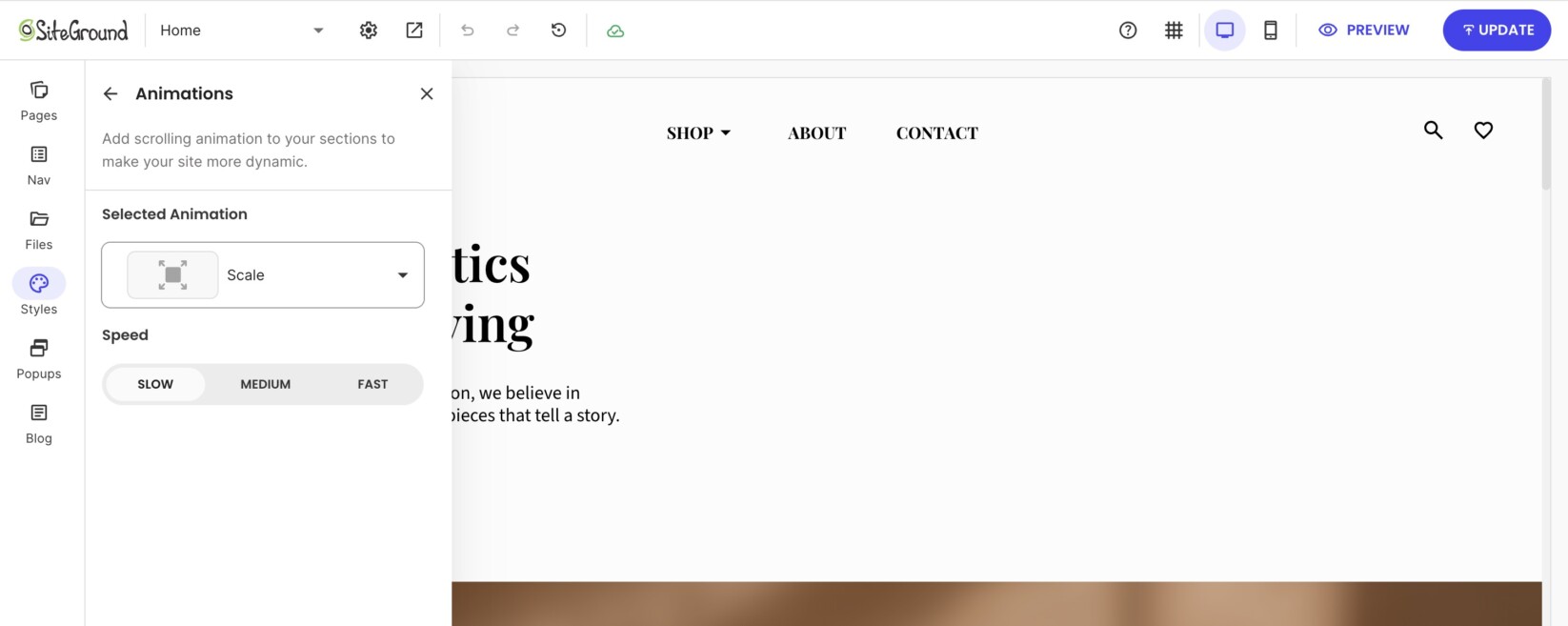
Here, you can once again use the dropdown menu to preview other аnimation options. The drawer updates in real time to show exactly how the animations will look like on your page.
Note that for performance and clarity, global animations will not appear on system-critical pages, such as Cart, Checkout, 404, Product Listing, or Search Results.
