Home
/
Website Builder
/
Pages & Content Editing
/
How to add Text sections and components to a page
How to add Text sections and components to a page
How to add text as a section
- Navigate to the Pages tab and select the specific page where you want to add the text section.

- On the selected page, hover over any existing section to make the + ADD SECTION button appear. Click on it.

- From the pop-up list of section types, choose Text Only under Essentials, then select the section template you wish to add.

- Then select the section template you wish to add and click ADD SECTION.

- To update the text, select the placeholder and click on the pencil icon, or simply double click the text to begin editing. A floating toolbar with text editing options will appear.

- Click PREVIEW to see how it will appear on your website, or click UPDATE to publish the changes.

How to add text as a component
Components are individual content elements placed inside a section layout. Unlike sections, which span the full width of a page, components can be positioned freely within a grid, allowing you to create more flexible and customized layouts.
- Navigate to the Pages tab and select the page where you would like to add the text. On that page, hover over or click an existing section to reveal the + ADD button in the top-left corner of the section.

- Selecting it opens a menu with component options, including Text. You can use the search bar to find it more quickly.
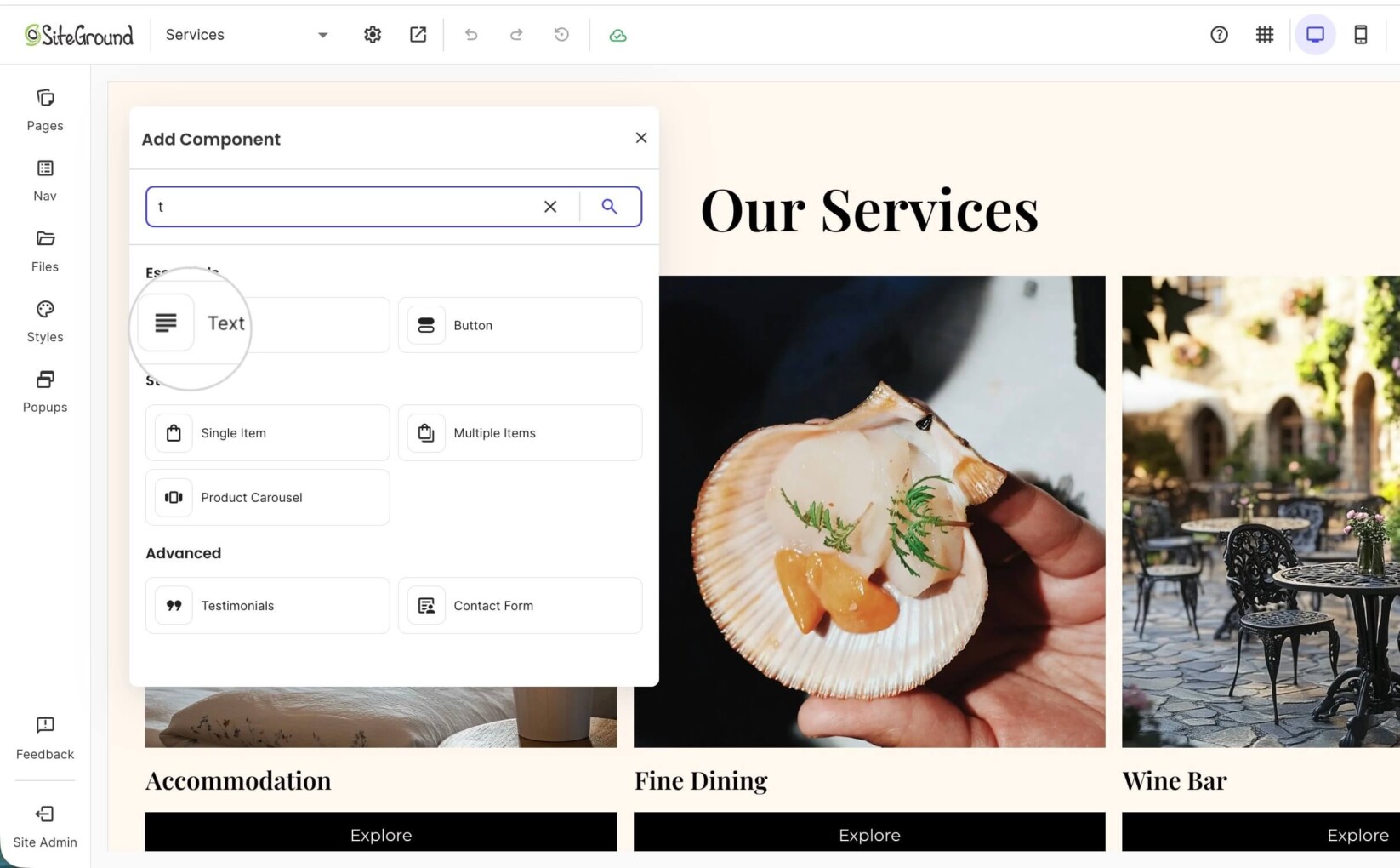
- After selecting the Text component type, a placeholder appears on the grid. You can then move the placeholder anywhere within the grid.

- To update the text, hover over the placeholder and click on the pencil icon, or simply double click the text to begin editing. A floating toolbar with text editing options will appear.

- Click PREVIEW to see how it will appear on your website, or click UPDATE to publish the changes.