Knowledge Base

Get Expert Website Hosting

Choose website reliability and expertise with SiteGround!

Home / Website Builder / Pages & Content Editing / How to Add Client Testimonials to a Page

How to Add Client Testimonials to a Page

Summarize this article with:
Last update: Sep 21, 2026 • 1 min read

Client testimonials help build trust by showing feedback from real customers.

Add Testimonials as a section

To add a Testimonials section:

  1. Open the Pages tab, and select the page where you want to add testimonials.
    Pages panel with About Us page selected in Website Builder
  2. Scroll to the desired position and click Add Section.
    Add Section modal with layout preview and Add Section button highlighted
  3. In the section library, select Testimonials, choose a layout and click Add Section.
    Add Section modal showing Testimonials section layouts with preview cards and Add Section button highlighted
  4. To customize the section, hover over it and click the Edit Section icon.
    Edit Section panel open with design options including color palette and background settings for the testimonials section
  5. Use the settings panel to adjust it:
  • General – modify layout options such as grid spacing and section padding.
    Testimonials General tab showing portrait layout, three columns selected, spacing controls, and display toggles
  • Design – change colors, background, and visual styling.
    Section design settings panel showing background color, container toggle, border radius, and image scaling options
  1. You can also replace the placeholder text and images directly in the section. To customize the Testimonials items further, select the component inside the section and click the Edit component icon.
    Selected Testimonials section on the page with edit toolbar visible and sample customer testimonials displayed
  2. In the General tab, set the Layout, number of Columns, adjust the Gap, and choose whether to show the Image, Title, and Question Mark elements.
    Edit Testimonials panel on General tab displaying layout style, column count, gap options, and visibility toggles
  3. In the Design tab, customize the appearance by enabling a background container and adjusting the image scale.
    Testimonials Design tab with container enabled, custom background color, corner radius, and image scale control

Add Testimonials as a Component

In addition to adding testimonials as a full section, you can also insert them as a component.

  1. Click the Add Component button in the top-left corner of the section

    Note: You can add a blank section or add a component to an existing one.

    Add button for inserting a new component in the Website Builder editor
  2. Search for/select Testimonials from the component list
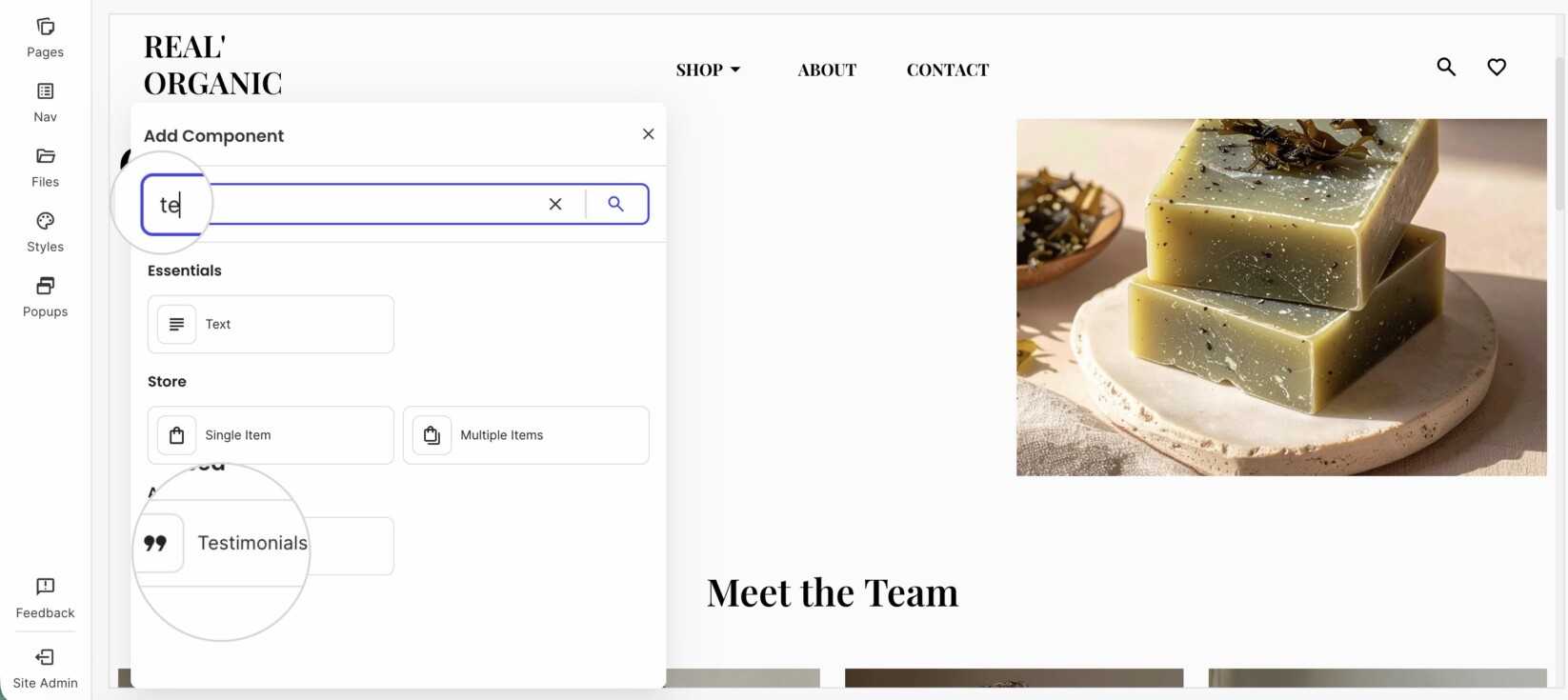
    Add Component panel in the website builder with the Testimonials component highlighted under the General tab
  3. Place the component anywhere on the page grid
    Testimonials component placed on the page canvas with placeholder images and quotation text fields in a three-column layout
  4. Click Edit Component to customize it.
  5. In the General tab, set the Layout, the number of Columns, adjust the Gap, and choose whether to show the Image, Title, and Question Mark elements.
    Section General settings panel with grid gap, row gap, and padding options for arranging testimonial layout
  6. In the Design tab, customize the appearance by enabling a background container and adjusting the image scale.
    Edit Testimonials panel open on Design tab showing background and image container settings with scale slider

Share this article

Found this article useful?

Add SiteGround to your preferred Google sources
