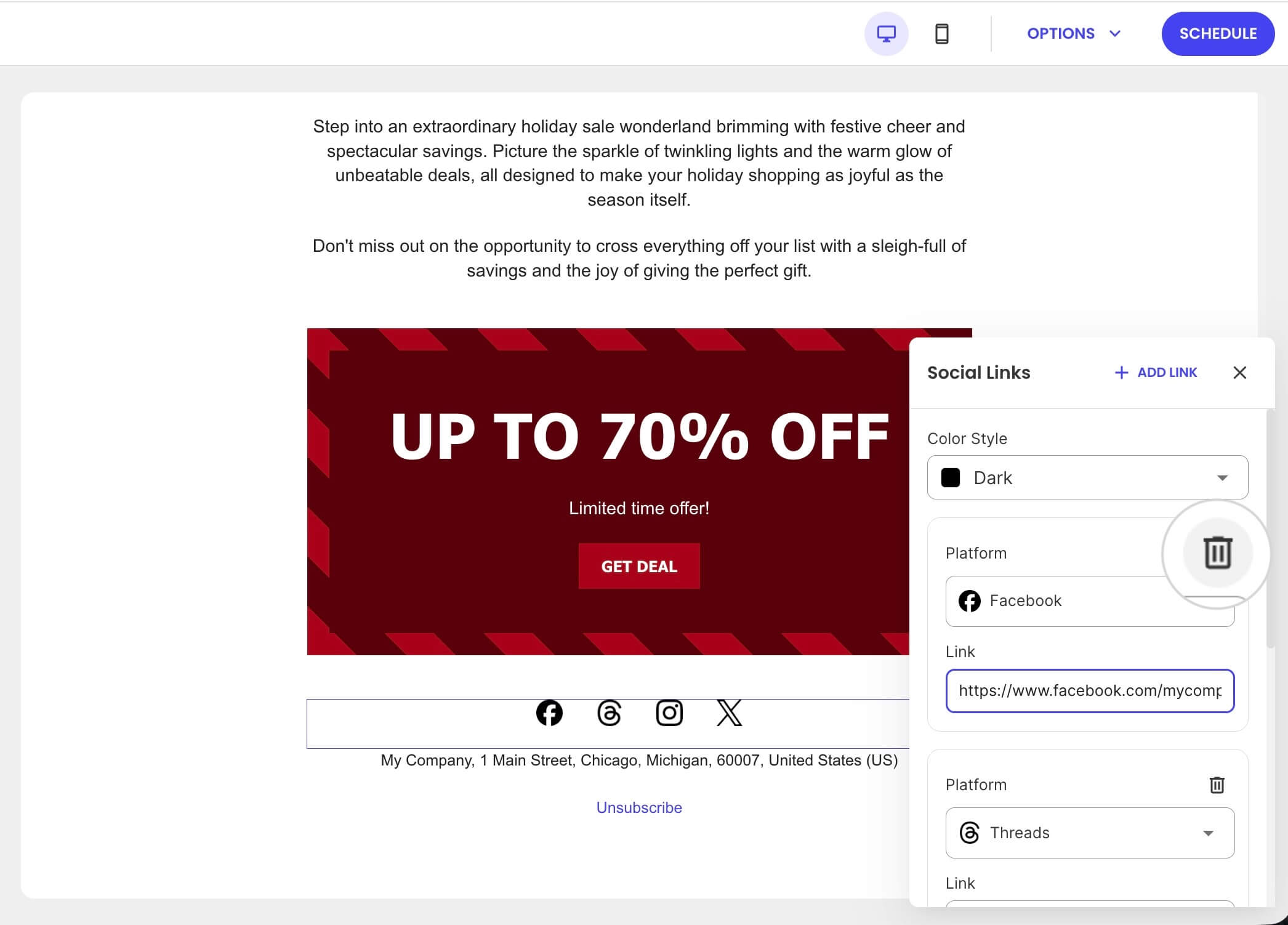
How to Add Social Media Links to SiteGround Email Marketing
Email marketing and social media are two powerful tools you can leverage to establish your brand’s identity, drive conversions and increase your business performance.
SiteGround Email Marketing lets you combine the power of the two business channels by facilitating the integration of social media links into your email marketing campaigns. Read this guide to learn how social media links work and how to add them to your emails.

Recipients who click on them will be forwarded to your brand’s corresponding social media profile.

This way, you can use your marketing campaigns to steer recipients to other promotional channels where they can see other content and offers.
How to Set Up Social Media Links in Brand Identity
You can set up social media links in your Email Marketing profile. These links will be saved so you don’t have to set them up from scratch when building a campaign.
Follow these steps for detailed instructions.
- Open your Client Area > Services > Email Marketing.
- Press the Manage button of the selected service.
- Navigate to Email Marketing > Sender Details > Brand Identity > Social Media Links.
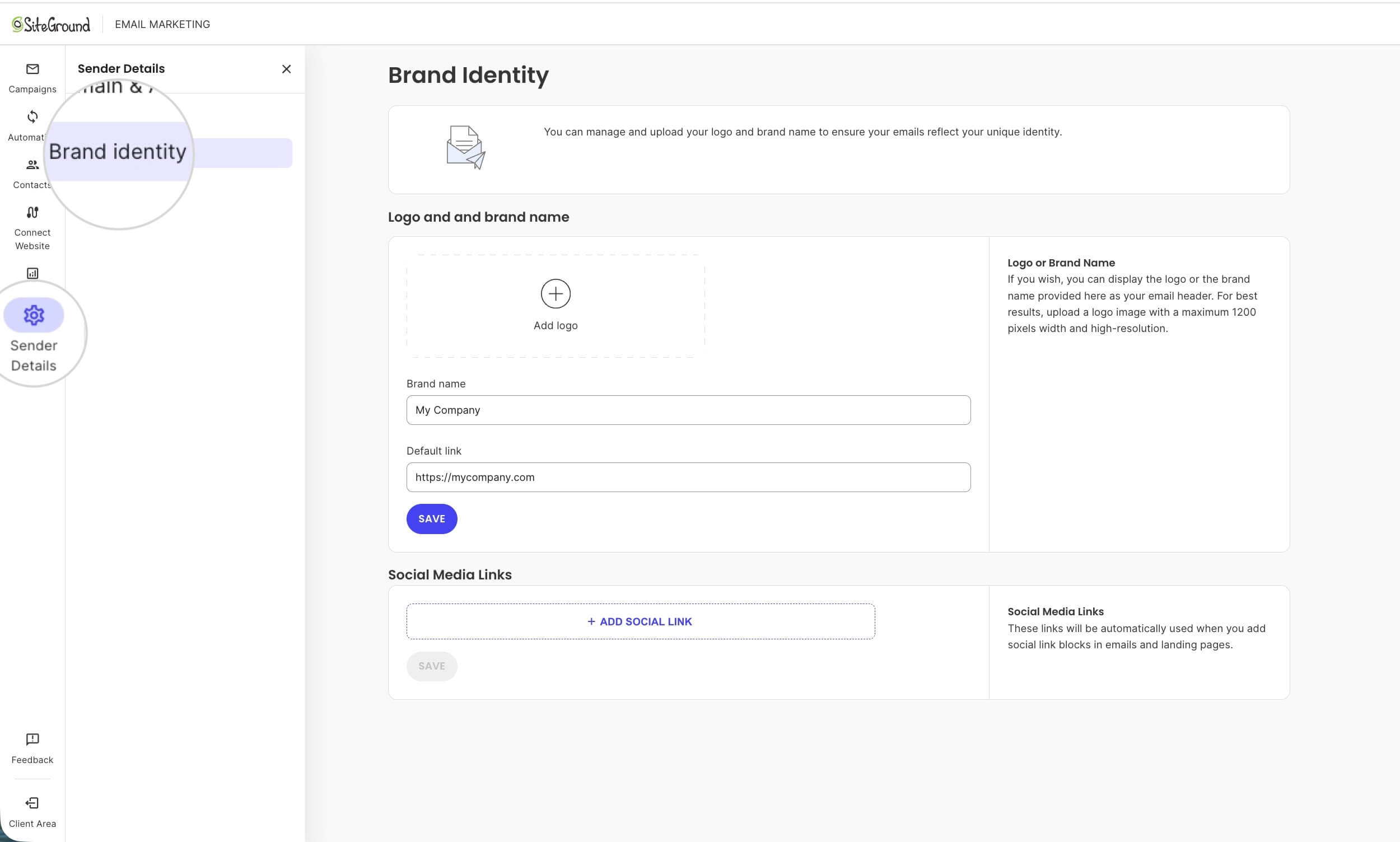
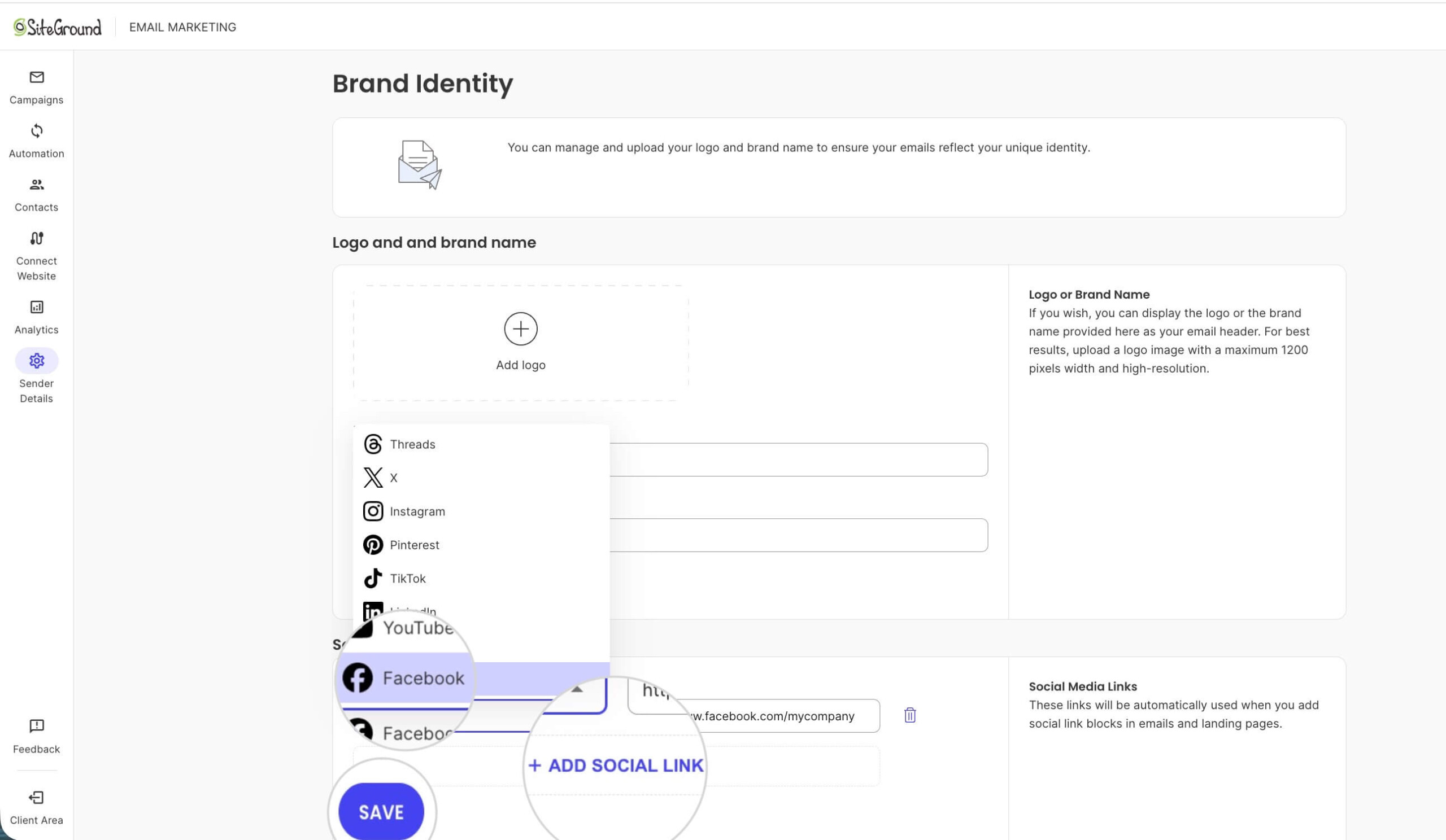
- Choose a social media type from the Platform drop-down menu.
- Write down the link to your profile for the respective platform. Note that the link will be accepted only if it matches the selected platform’s address.
- If you want to add more links, use the Add Social Link button.
- Confirm the links with the Save button.
- If you wish to delete one of the links, press its corresponding Delete (Trash) icon.
How to Add a Social Media Link to an Email Campaign
You can add social media links to an email campaign in the Email Builder of Email Marketing. Below you will find step-by-step instructions.
- Navigate to your Client Area > Services > Email Marketing.
- Press the Manage button of the selected Email Marketing service.
- Go to Campaigns.
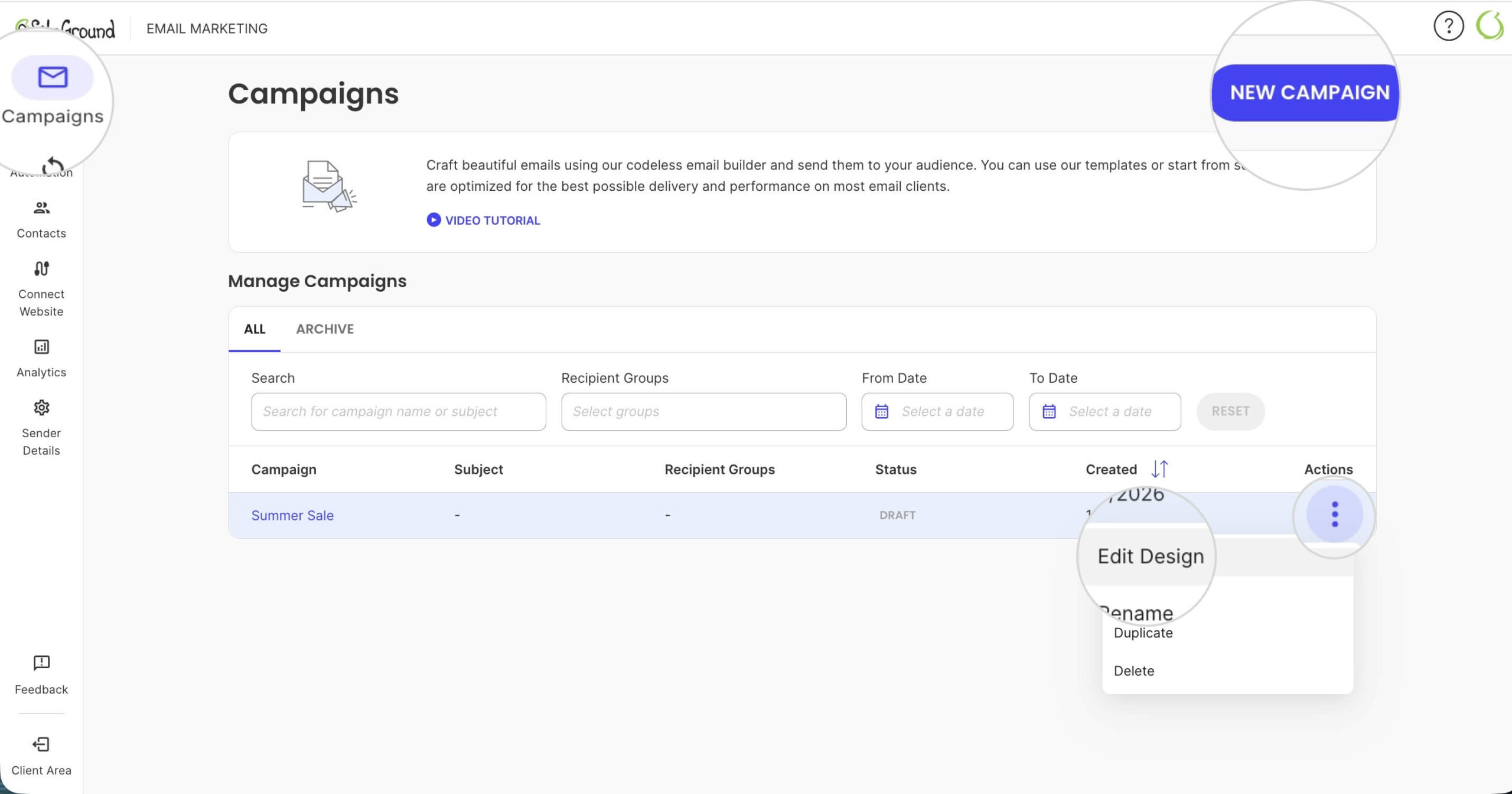
- Open the Email Builder by creating a new campaign with the New Campaign button, or editing an existing campaign by clicking on its name or selecting its Actions menu > Edit Design.
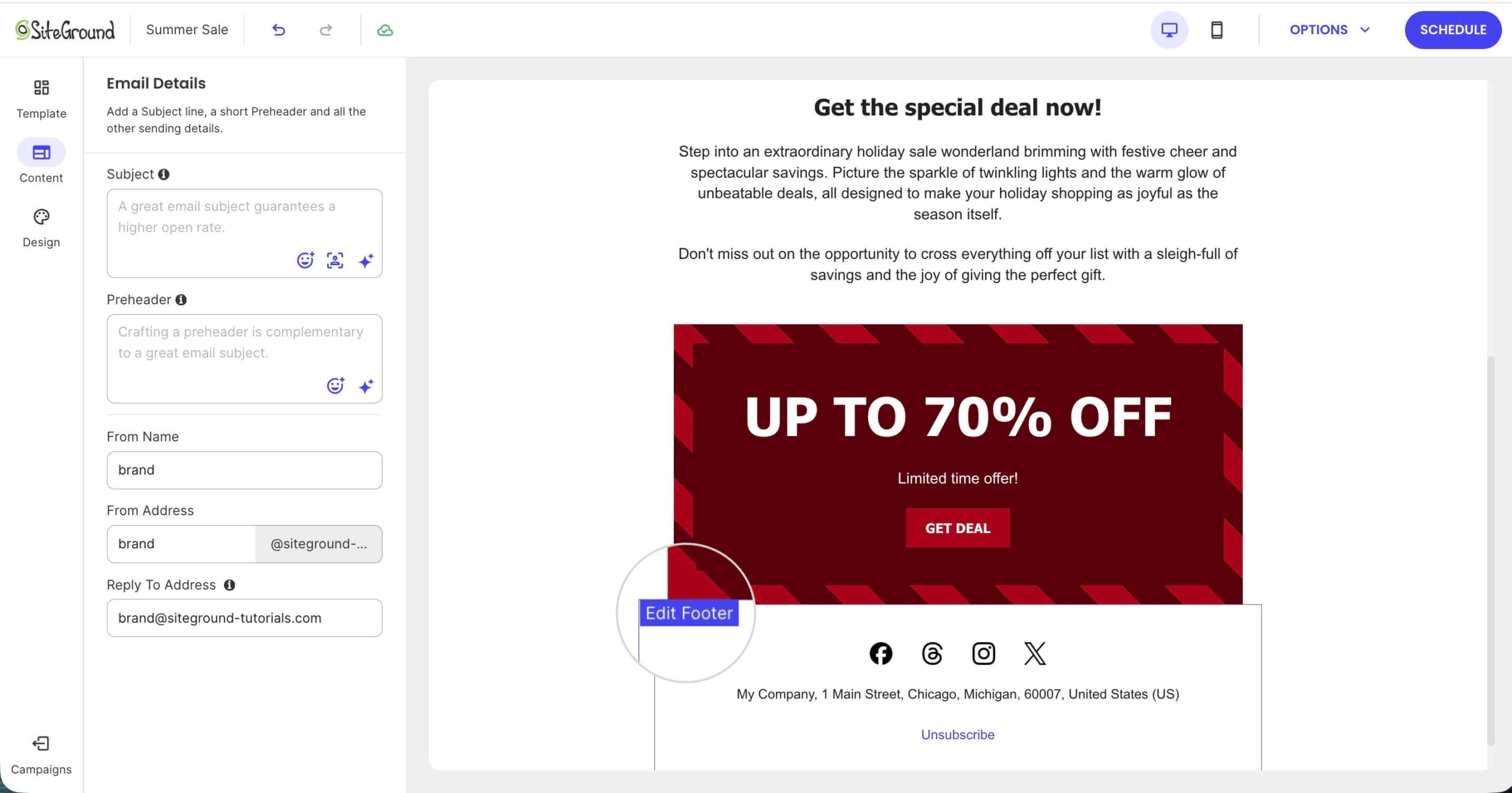
- Inside the Email Builder, navigate to the Footer area and hover over it to see Edit Footer.
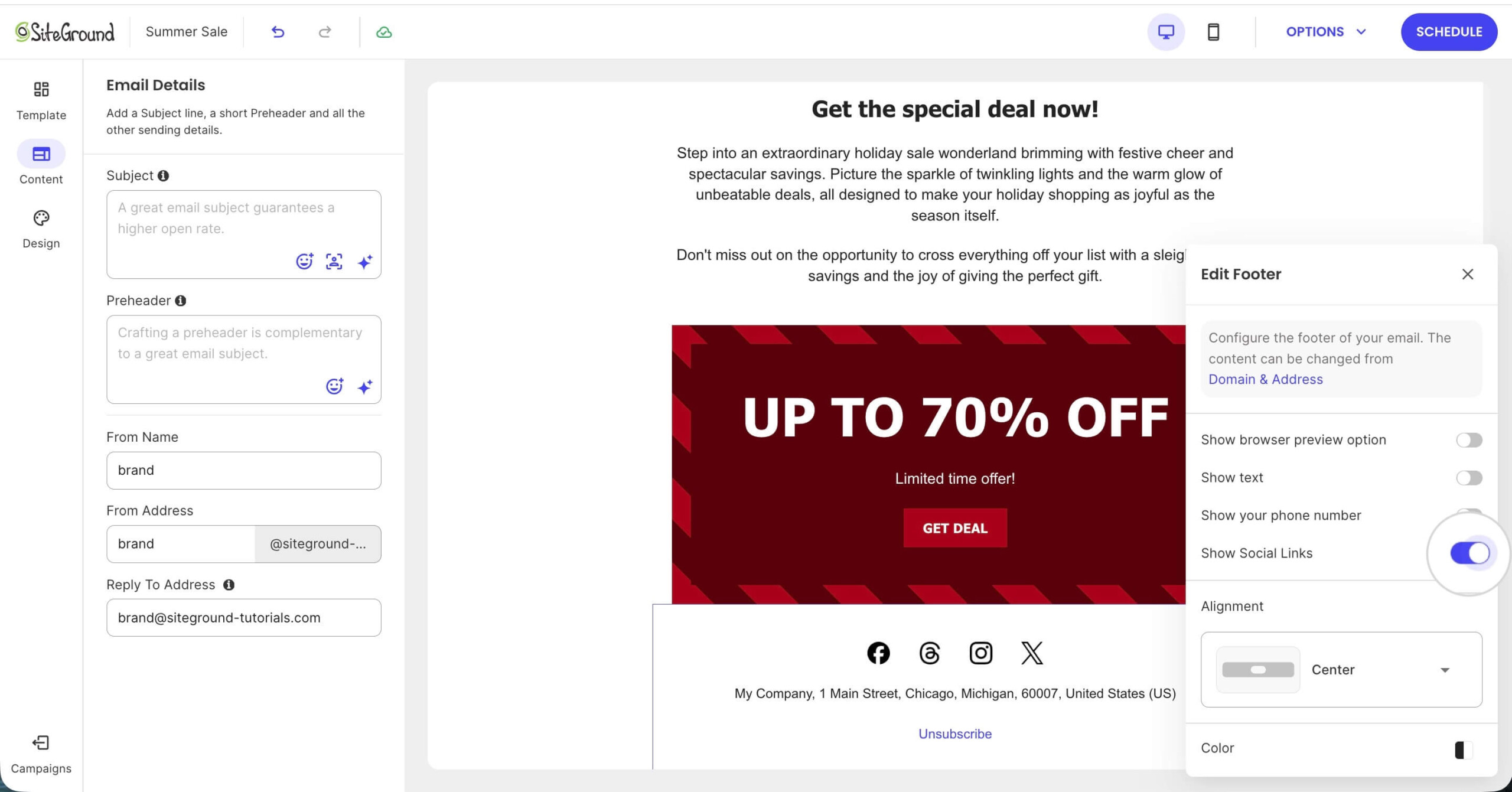
- Click on the Footer, and a new Edit Footer window will appear.
- Click on the Show Social Links toggle button to enable them.
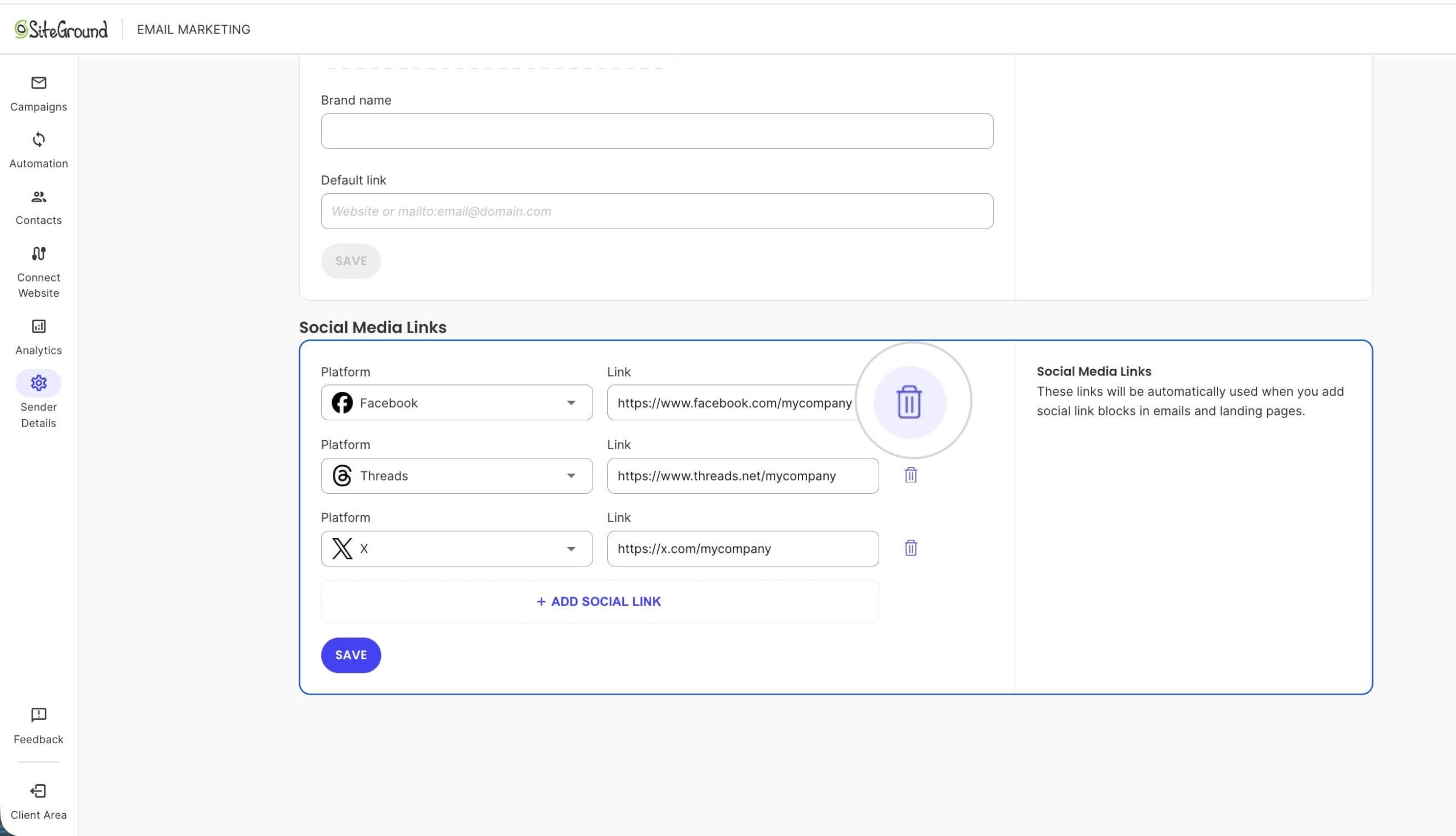
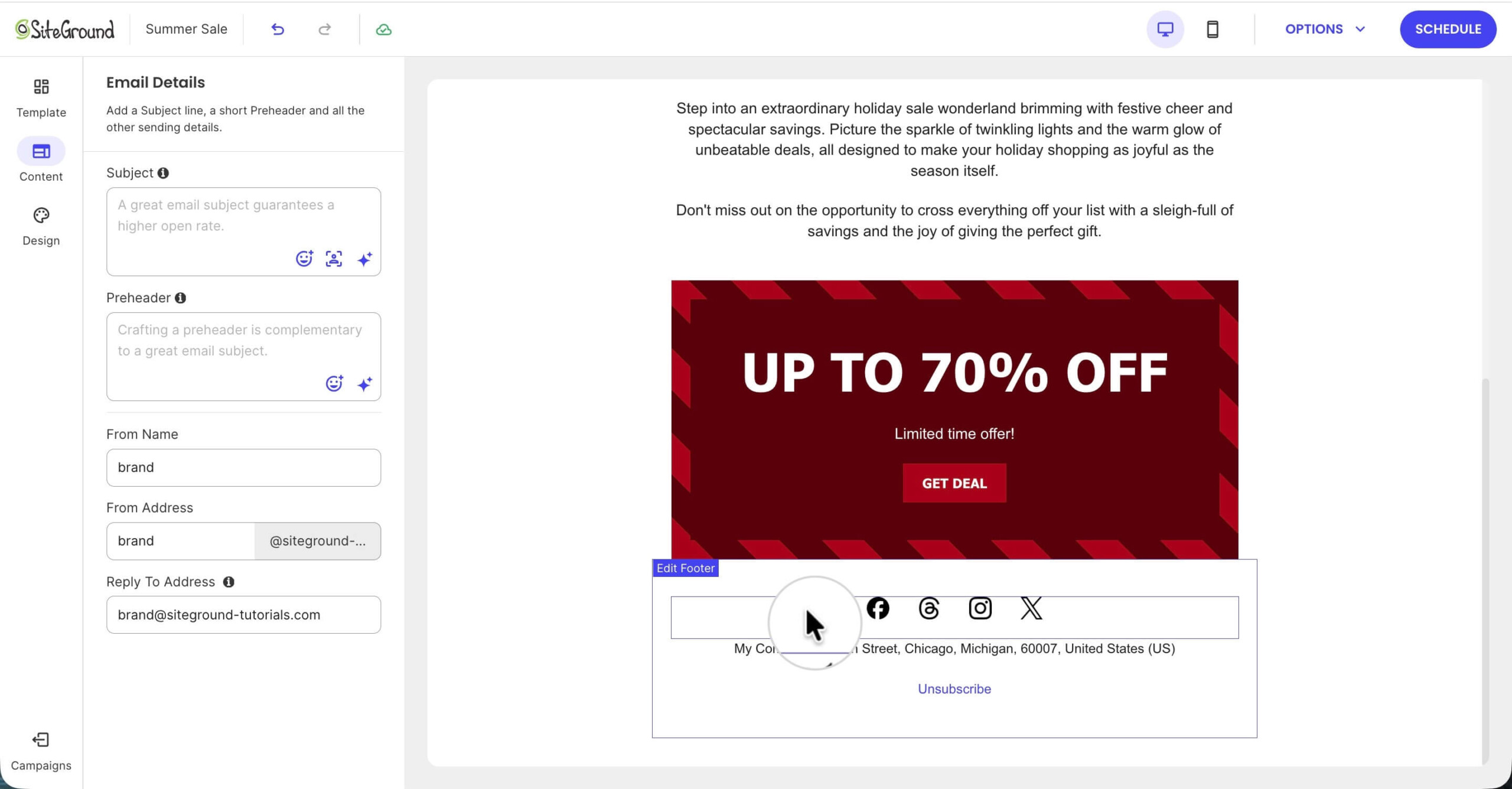
- The social links component will appear in the campaign’s footer area. Click on it to edit it.
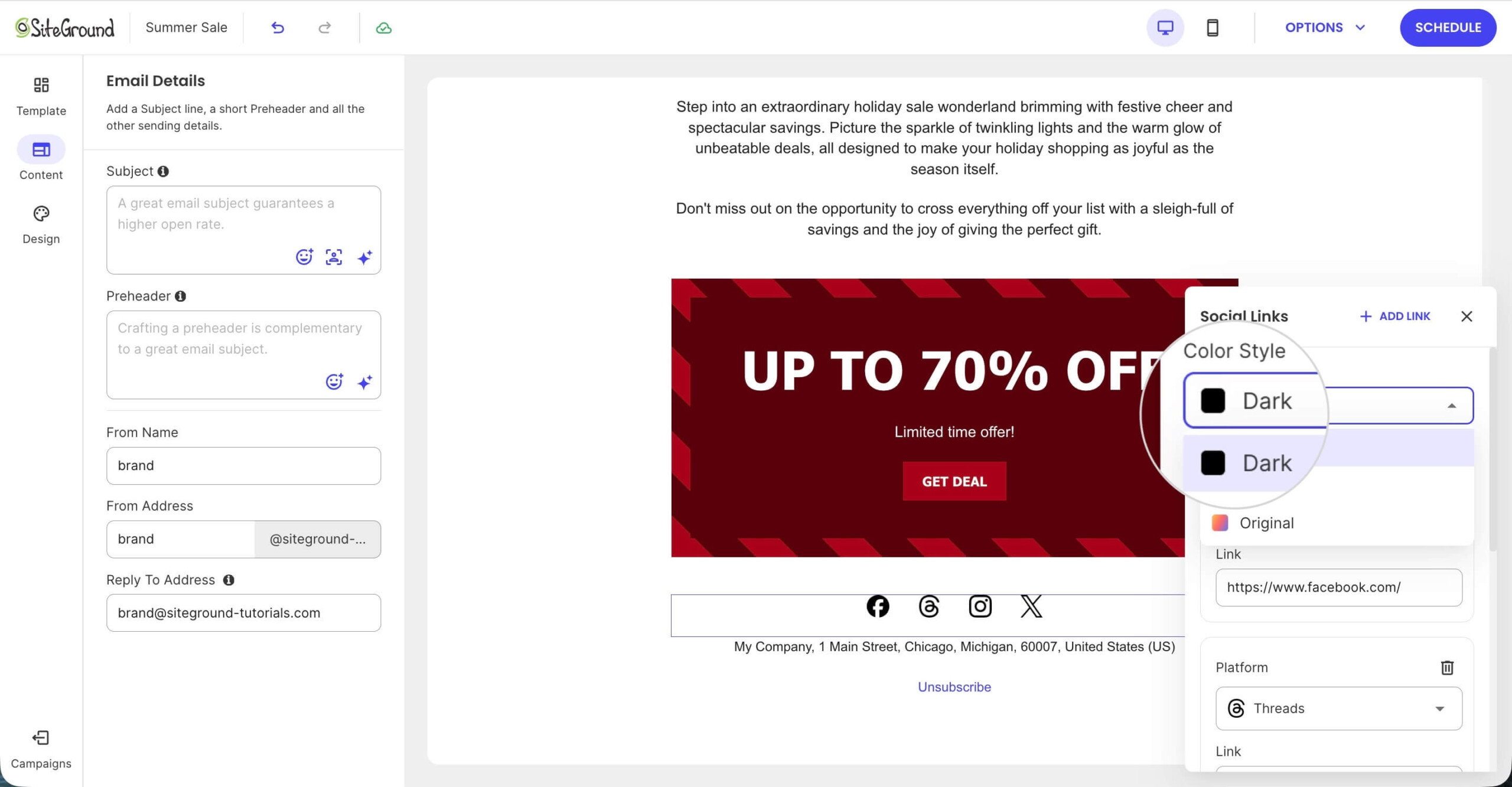
- Choose a color scheme for the links from the drop-down Color Style menu.
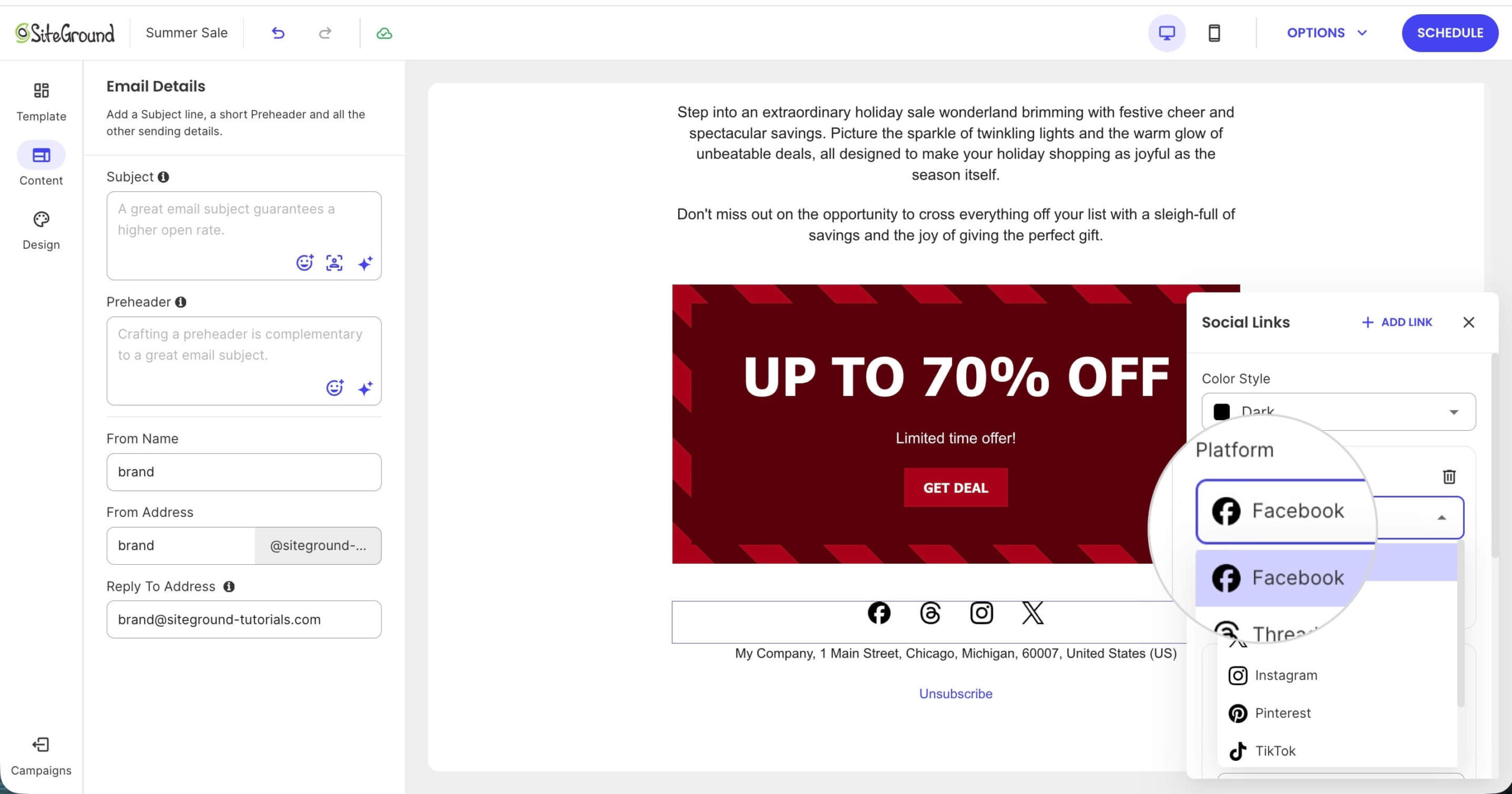
- If you’ve already set social links in Brand Identity, they will be added automatically. From the Platform menu select the social media type you want to link out to.
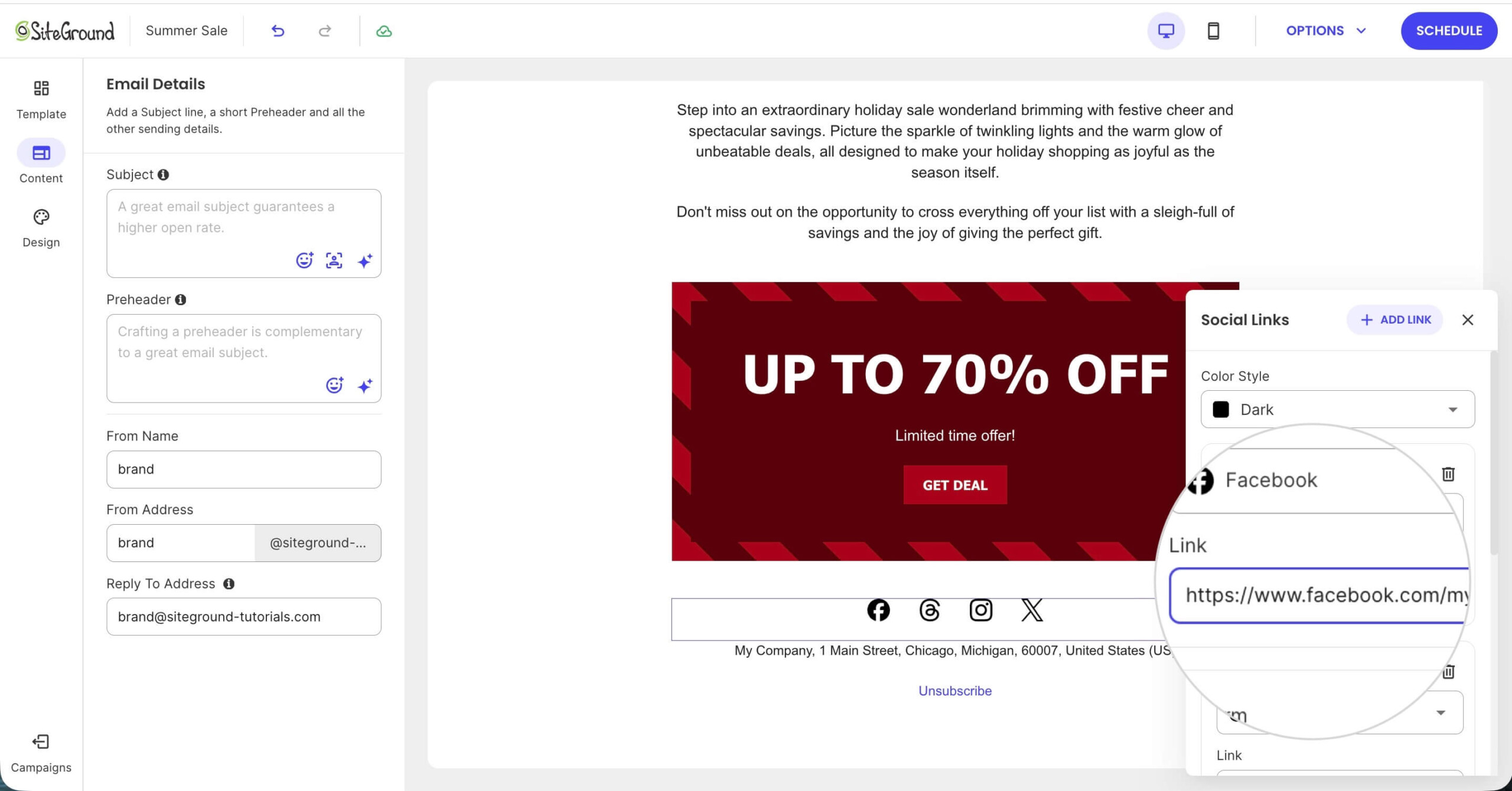
- Enter the address of your profile on the selected social media platform in the Link field.
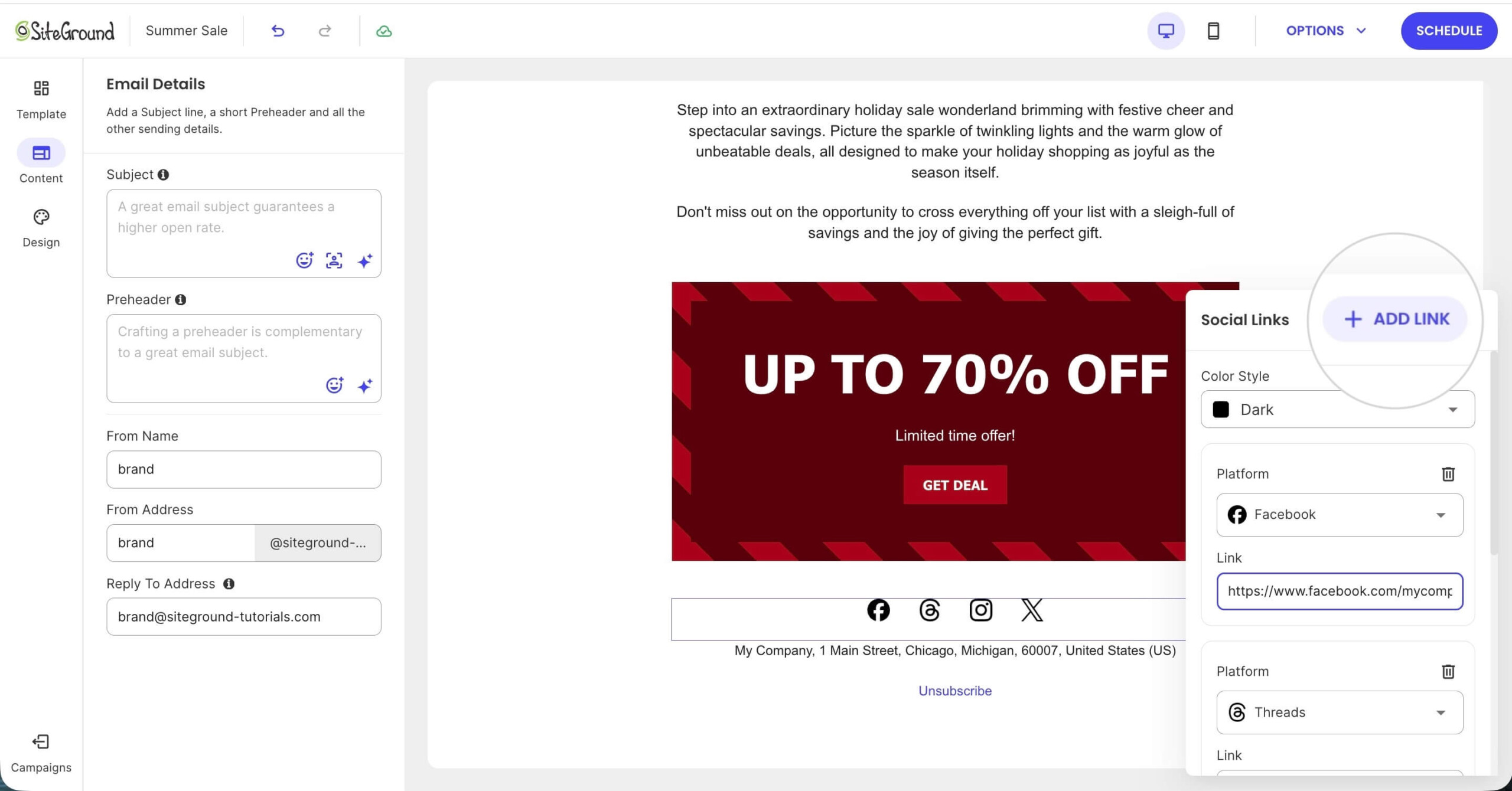
- If you want to add an additional social link slot, press the Add Link button.
- If you need to remove a social link, press its Delete (Trash Bin) icon.