How to add Social icons to a page
Having a strong social media presence is essential to every website, increasing traffic, attracting new leads, and improving its online reputation.
The Website Builder allows you to easily incorporate social profile links to your web pages with the Social Icons component.
How to add a social icon and edit it
Here are the steps for adding a new social icon:
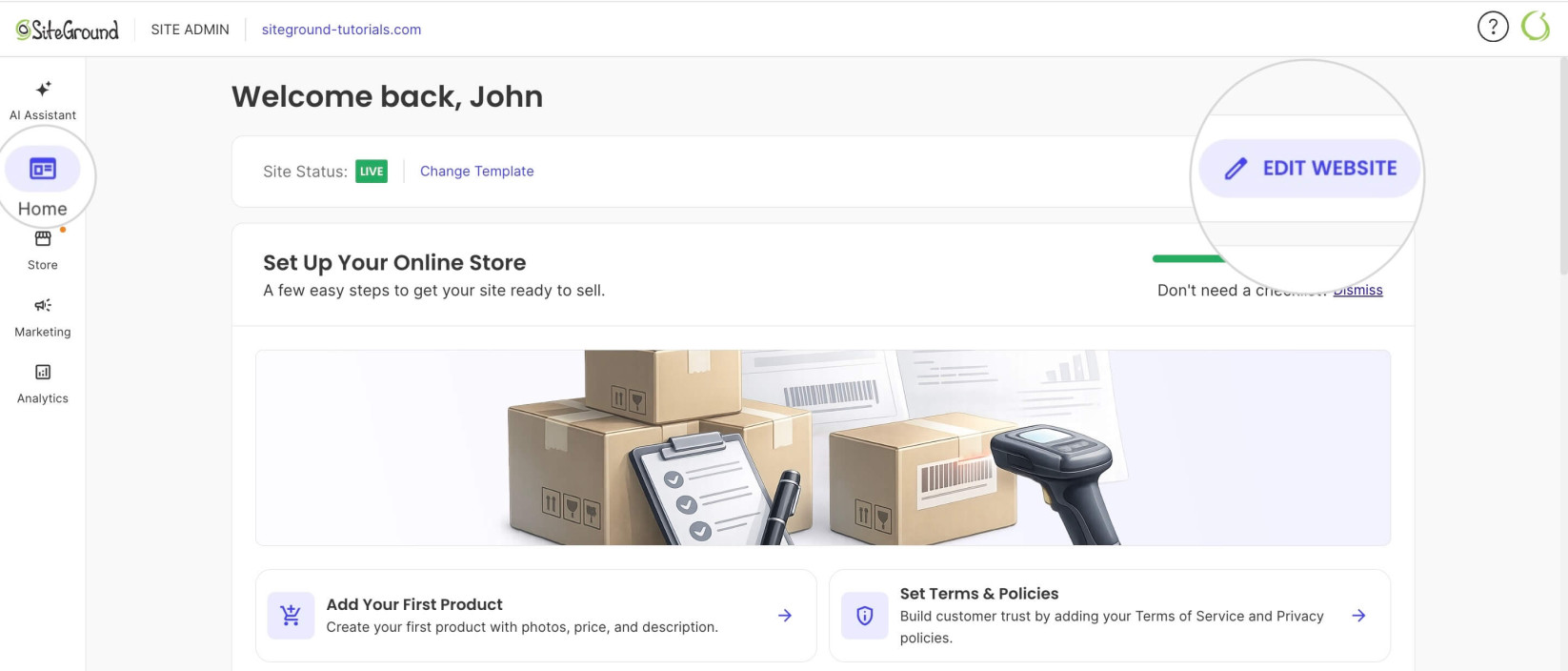
- Go to Site Admin > Home and press Edit Website to enter your site’s Website Builder.
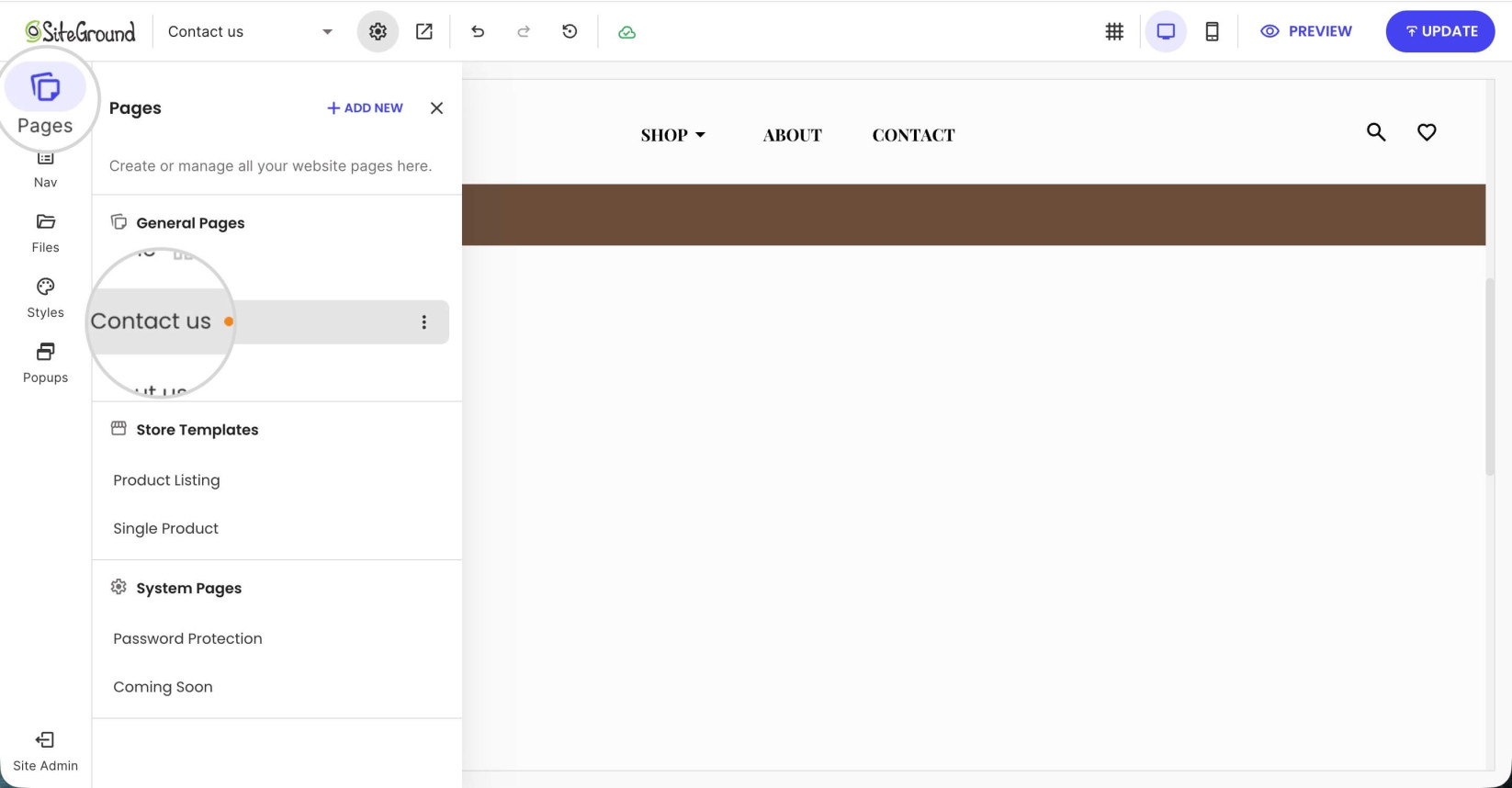
- Navigate to Pages, and select the page where you want to add the social links.
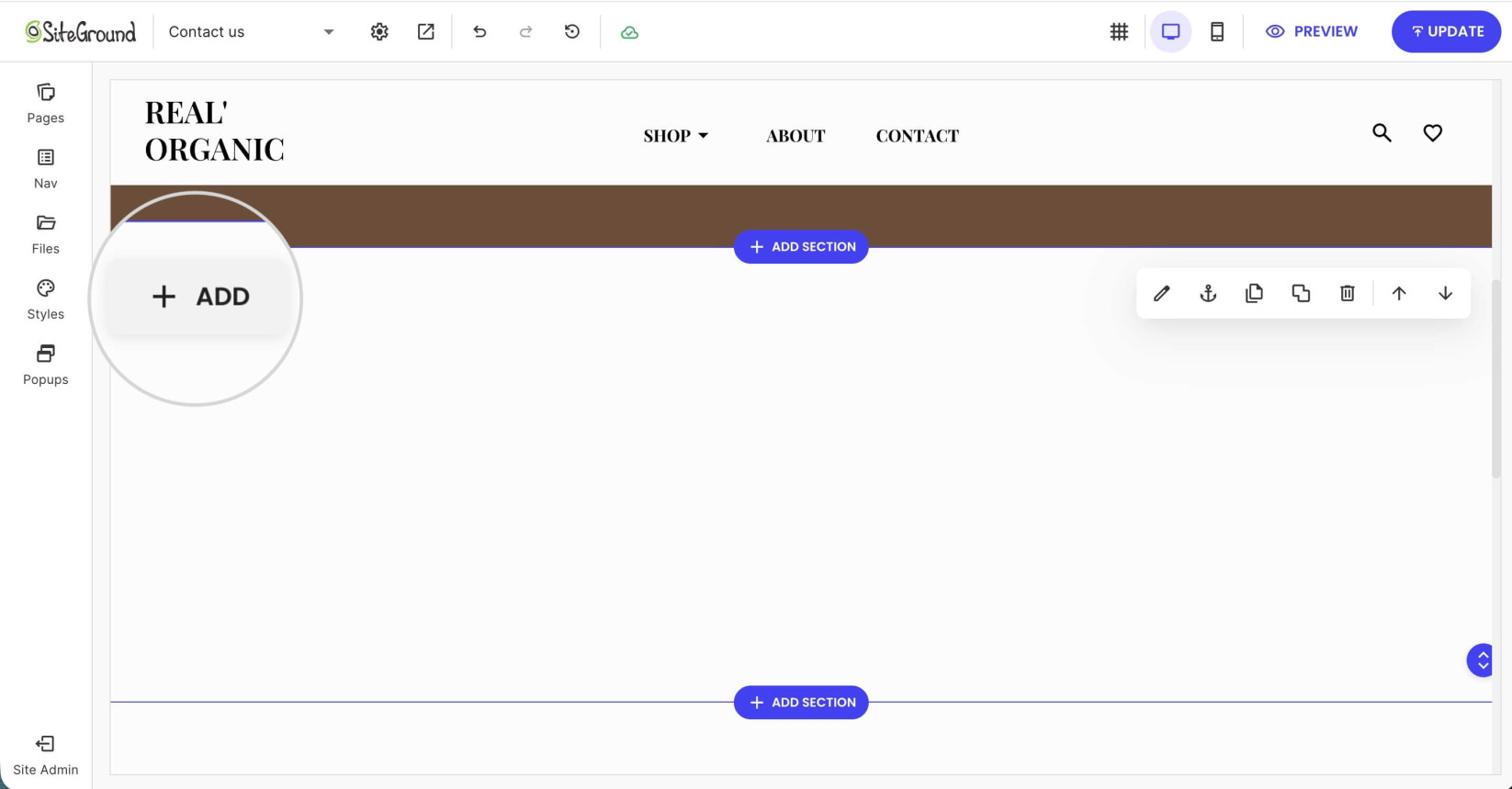
- Choose a section, then press the Add button in the top-left corner.
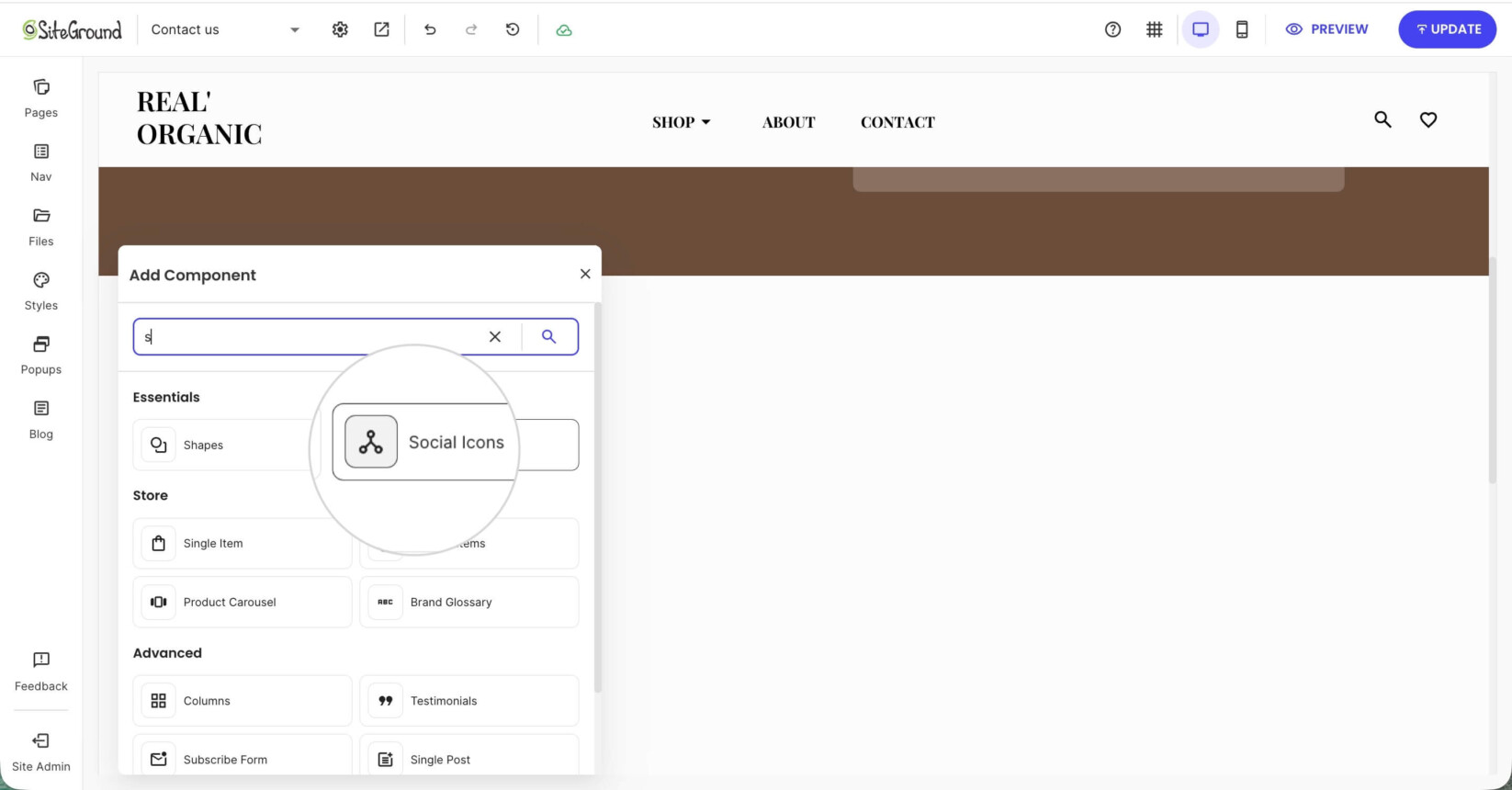
- From the Add Component window, choose Social Icons. You can use the search bar to find it more quickly. The component will be created with default pre-selected social icons.
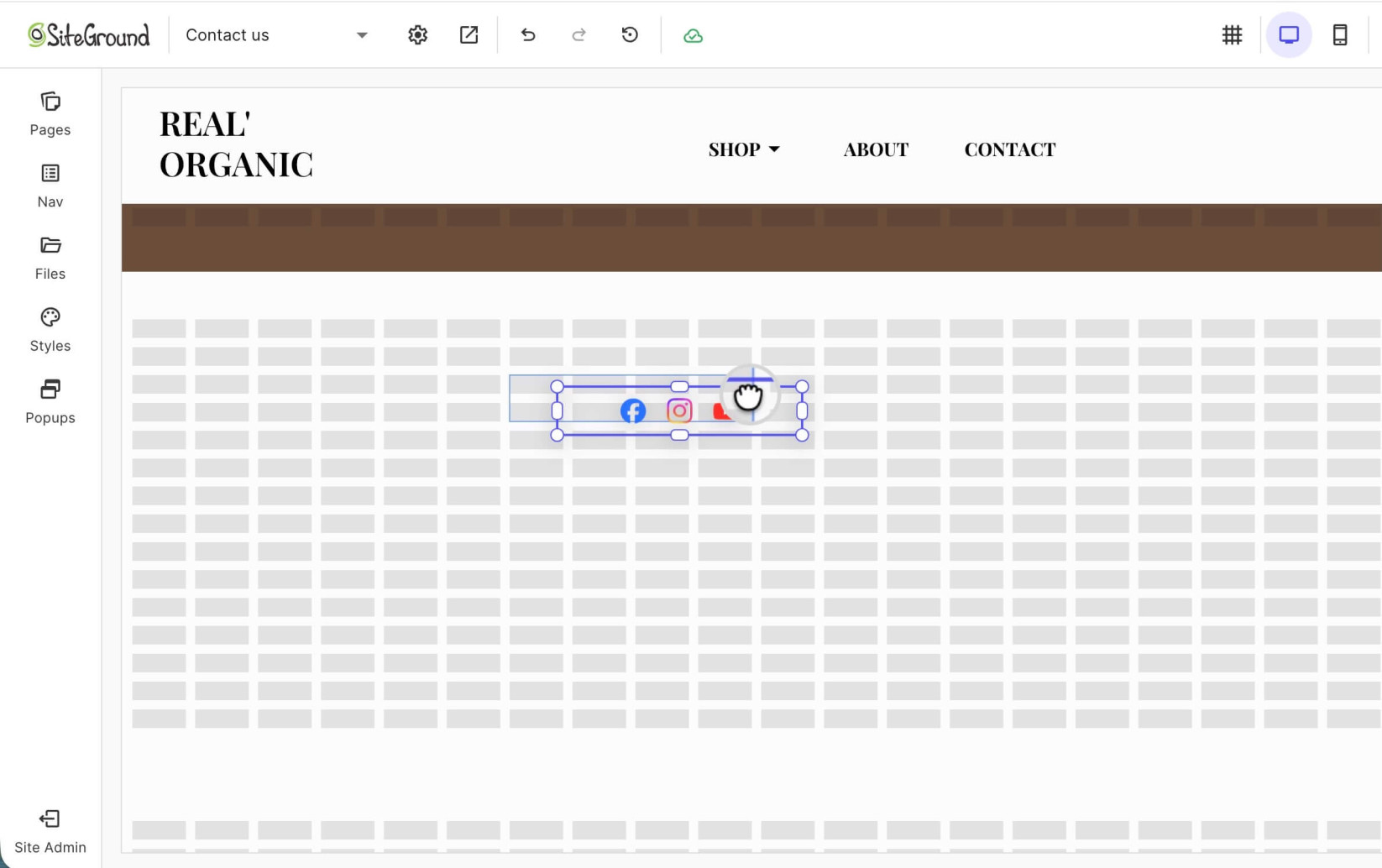
- Drag and drop the component to the preferred position on the activated section grid view.
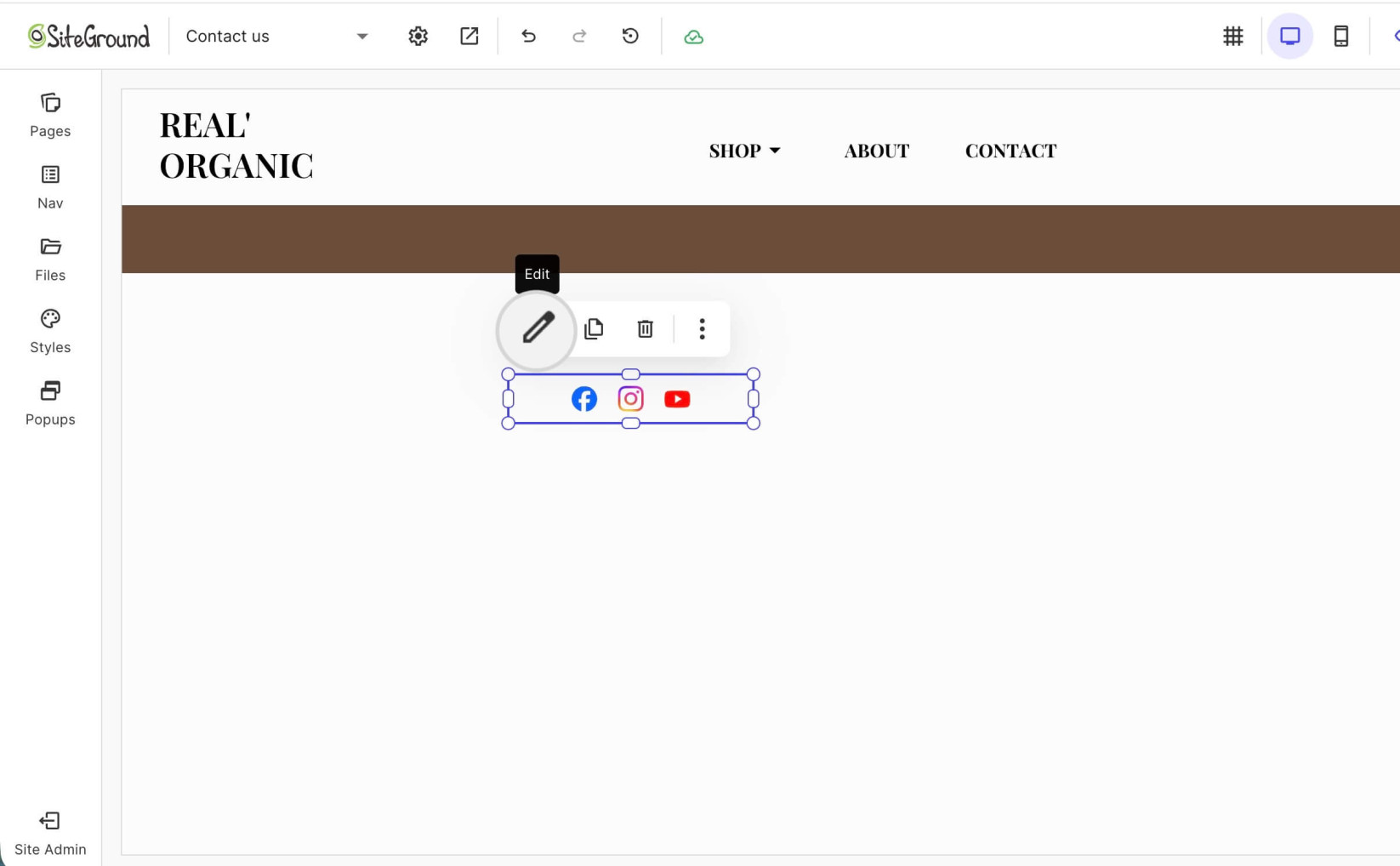
- Click on the component and select Edit from the toolbar above.
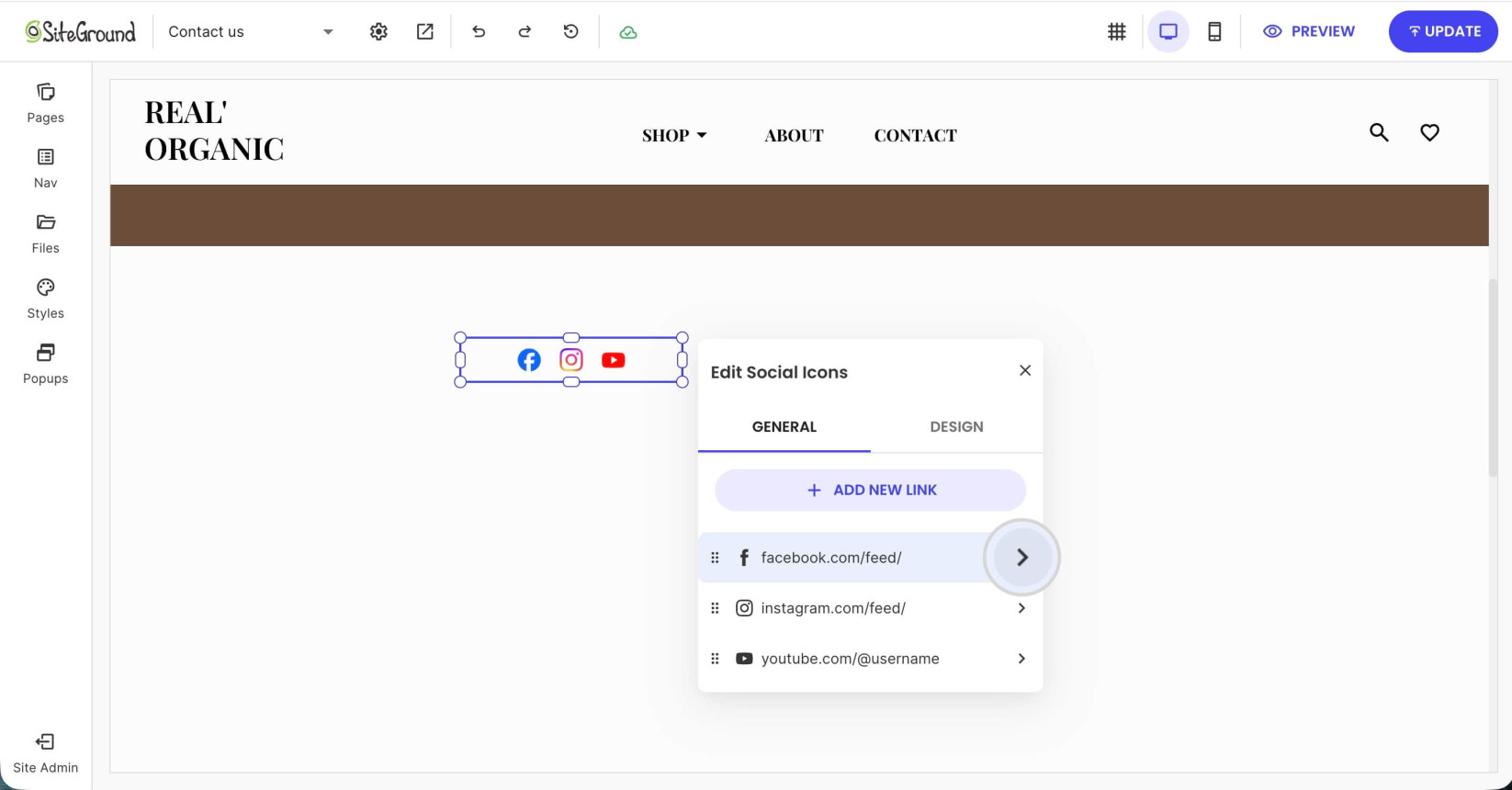
- To add a new icon, press Add New Link.
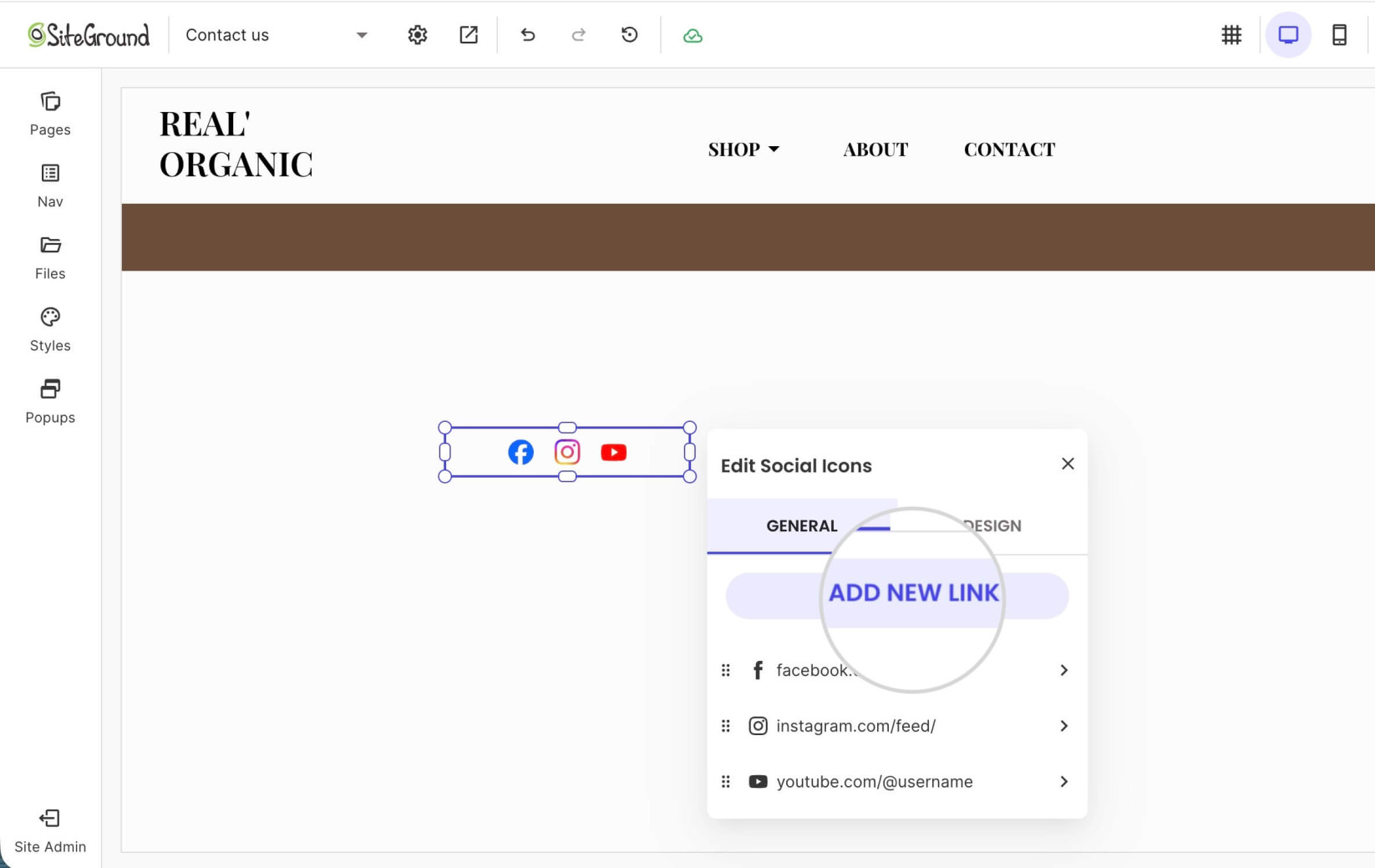
- The new link will be added to the list of existing preset icons. To edit either icon, hover over it and press its arrow (>) button.
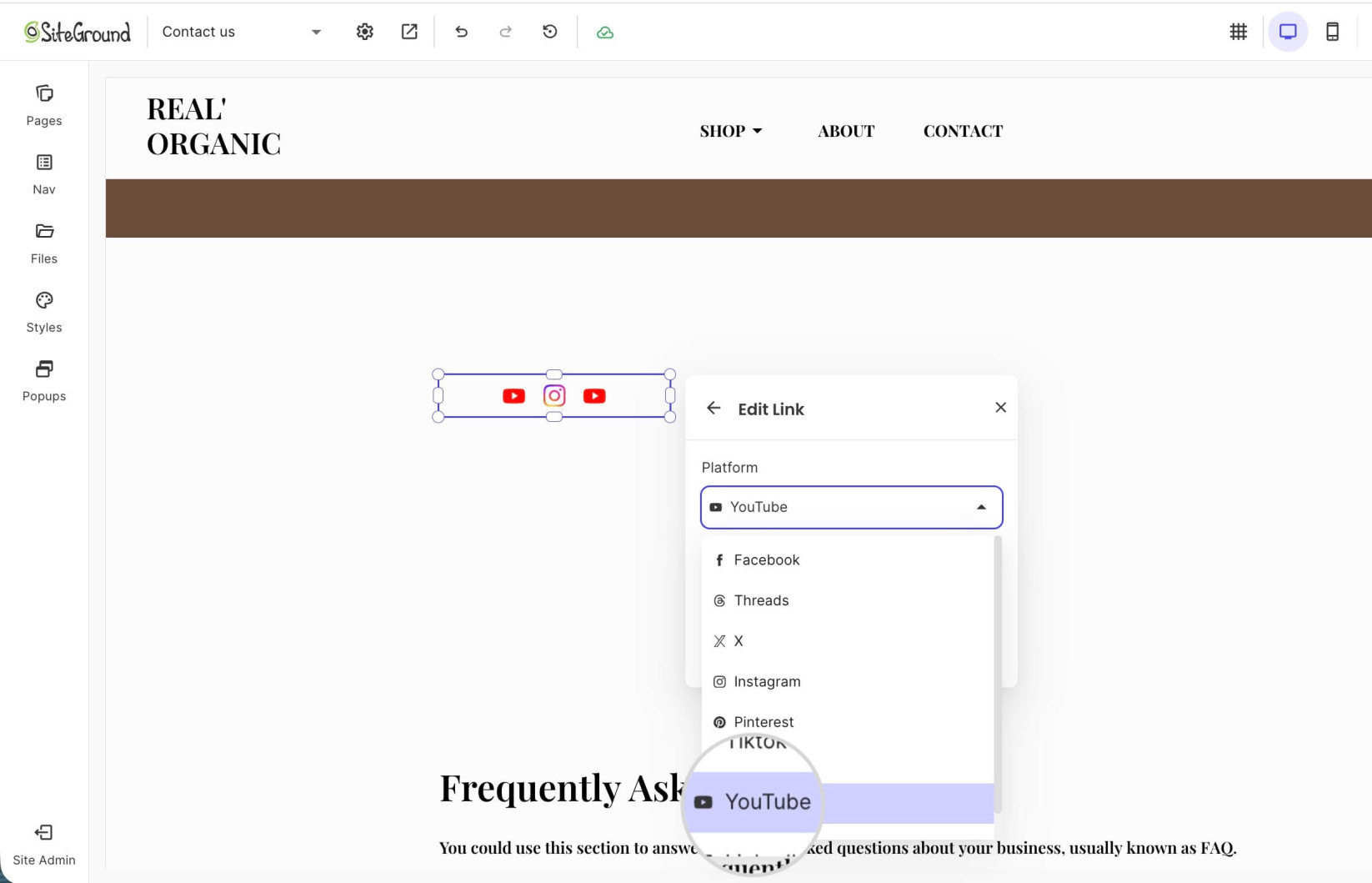
- In the following window, open the Platform menu to select the social media type.
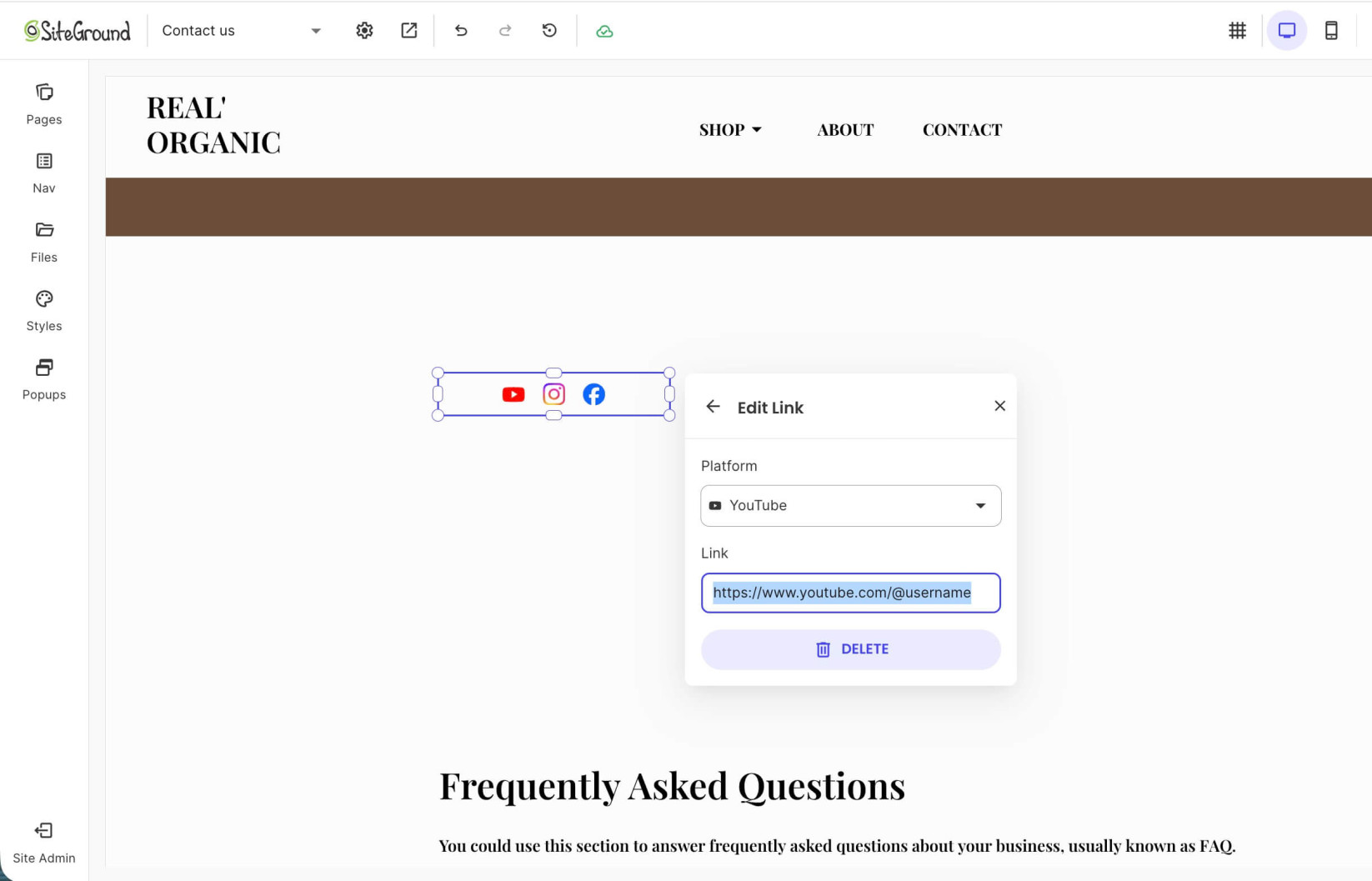
- Submit the address of your social profile in the Link field.
How to rearrange the social icons
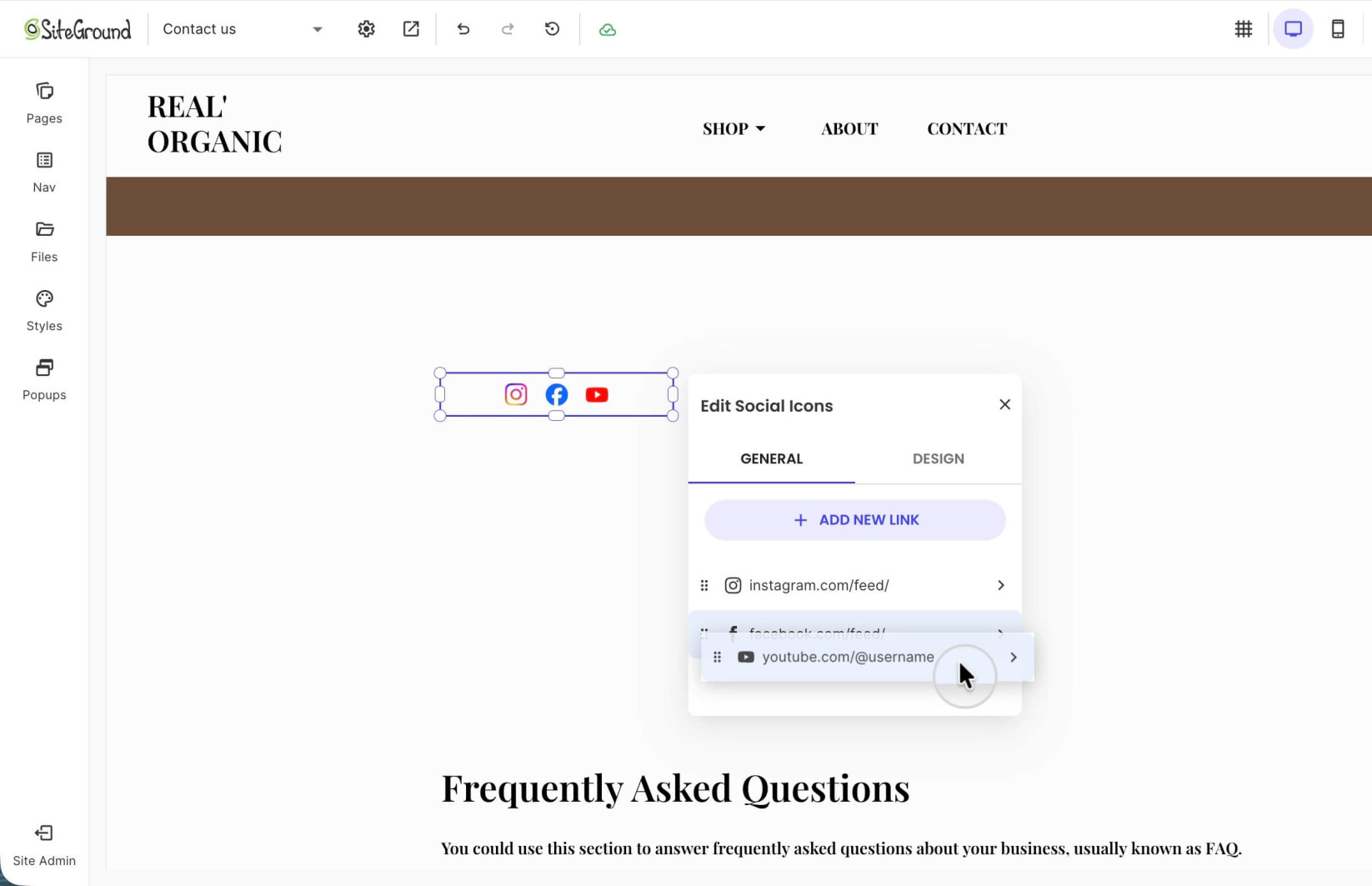
Click the Social Icons component and choose Edit from its toolbar. Select one of the icons, drag it up or down, and drop it to your preferred position.
How to change the design of the social icons
To change the color scheme of the icons, select the parent component and press Edit. In the following window, open the Design tab.
Then, open the Color Style menu and select one of the three options:
- Original — uses the original colors of the icon’s social media logo
- Black — uses a monochromatic black-and-white design. Suitable for lighter backgrounds.
- White — the icons are completely white. Only suitable for very dark backgrounds.
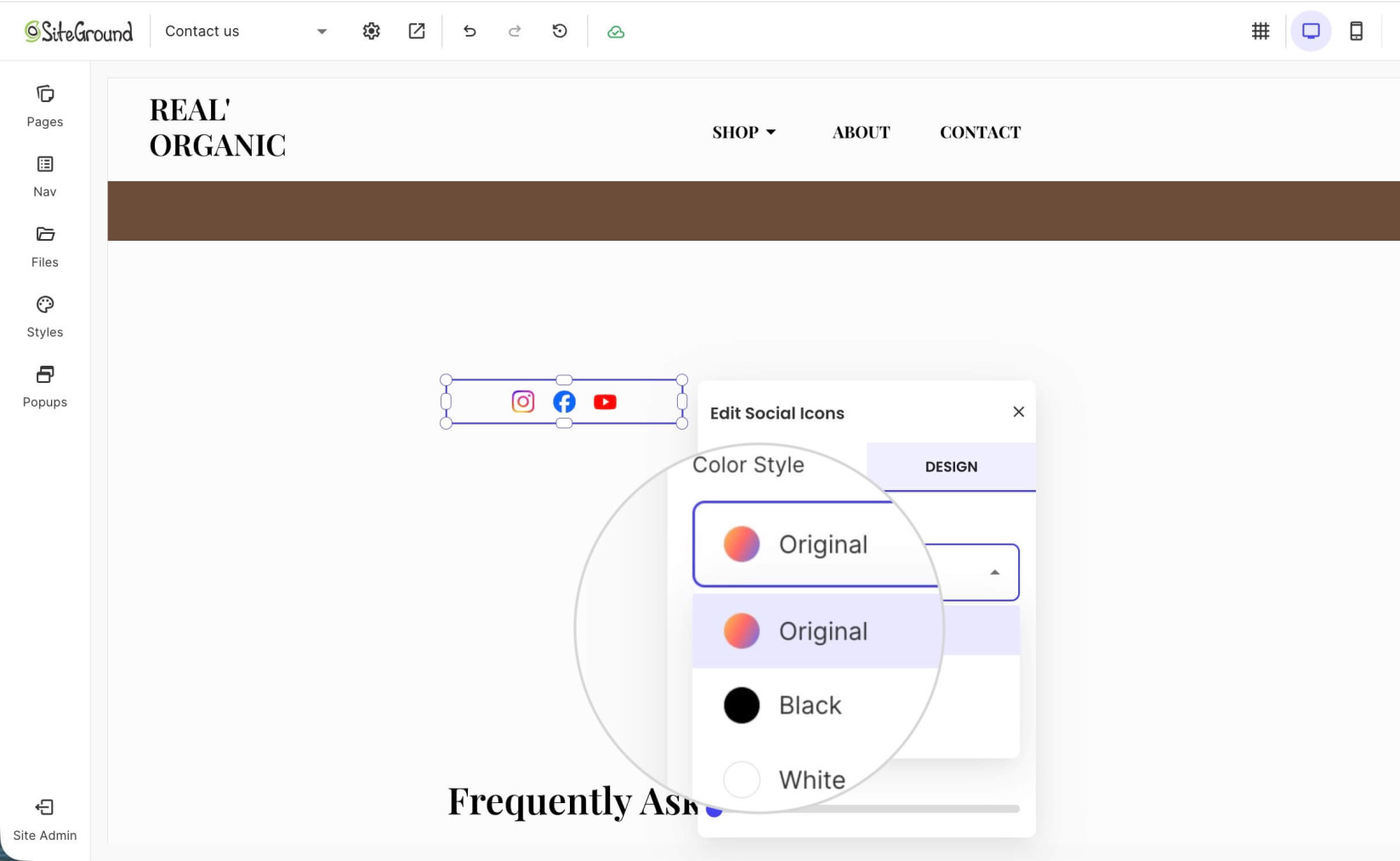
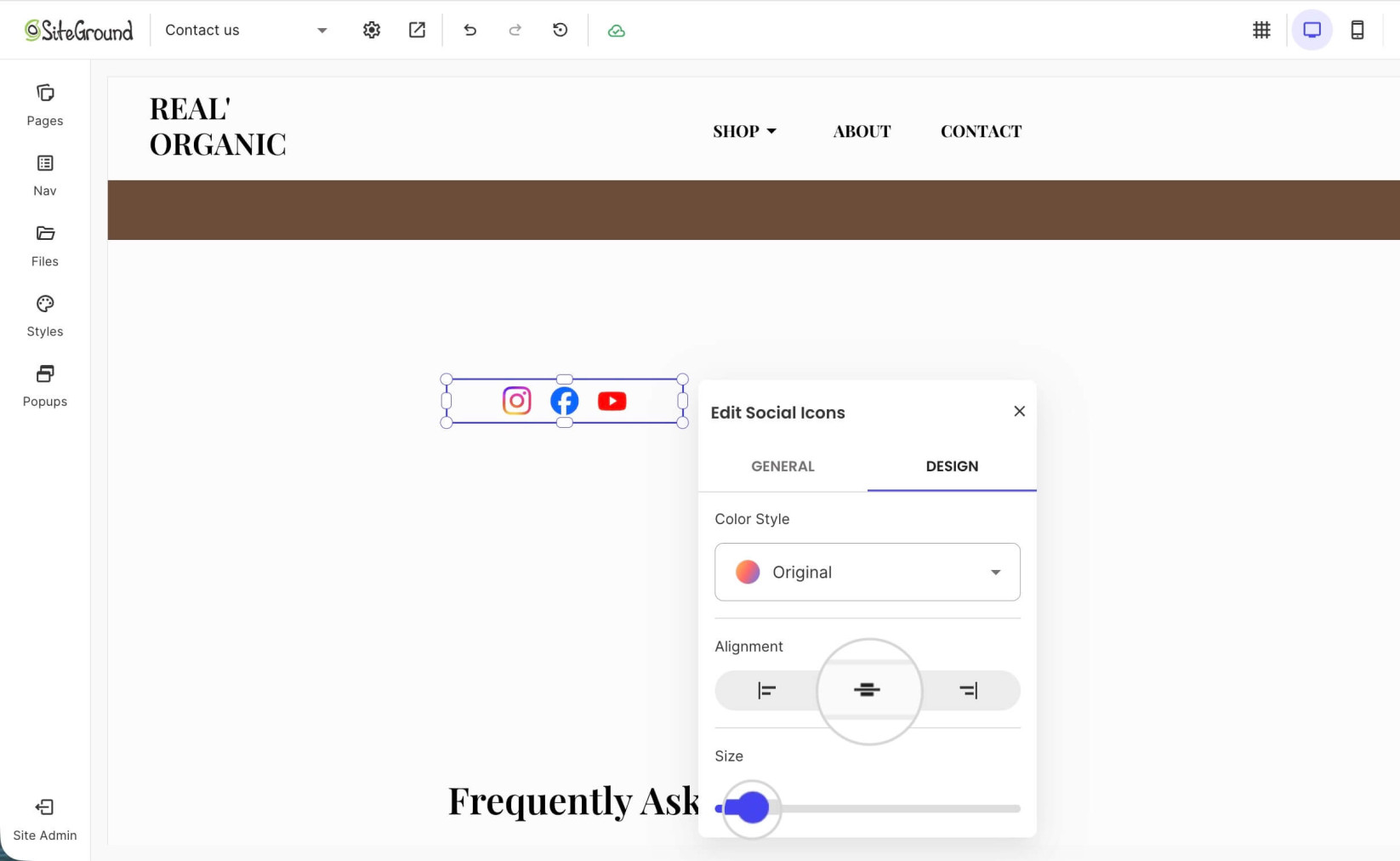
In addition to the color, you can also change the icons’ alignment and size. Choose one of the three available alignment options (left, center, right) from the Alignment menu, and move the Size slider to modify the icons’ size.
How to delete a social icon
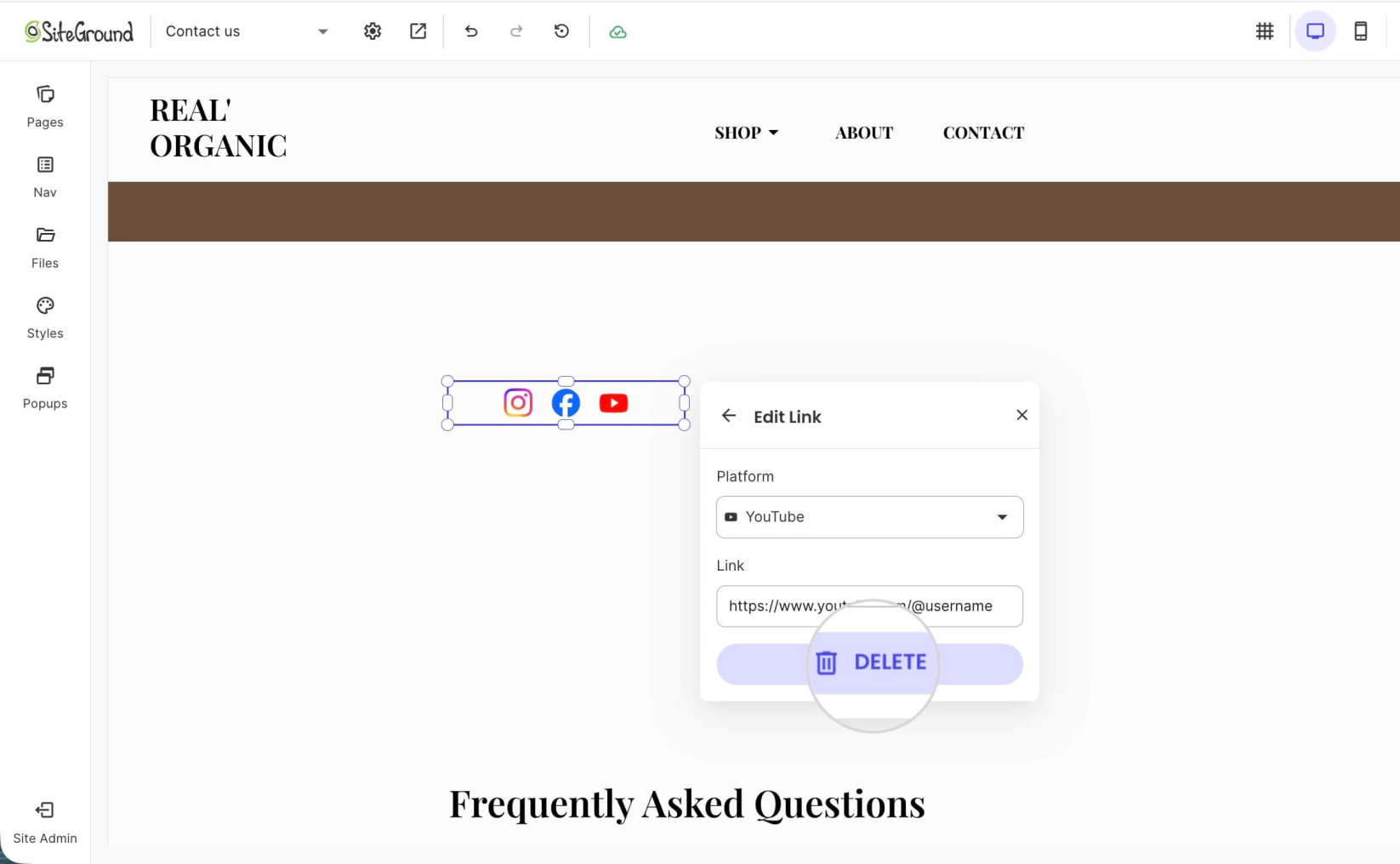
To delete an icon, click the parent component and select Edit from its toolbar. Choose the icon you wish to delete, and press its arrow icon (>). In the following window, hit Delete to remove the icon from the component.