How to Add a Link to a Specific Section on a Page
You can create links that go directly to specific sections of a page. These links can be added anywhere on your site, including menus, footers, buttons, or within text. Direct section links improve the user experience by letting visitors jump straight to important information without scrolling through the entire page. They are especially helpful for single-page websites, where smooth navigation is key.
In this article, we will show you how to create anchor links and how to use them effectively on your site.
To start, go to Site Admin > Website Builder, and press the Edit Website button.
Creating a Section Anchor ID
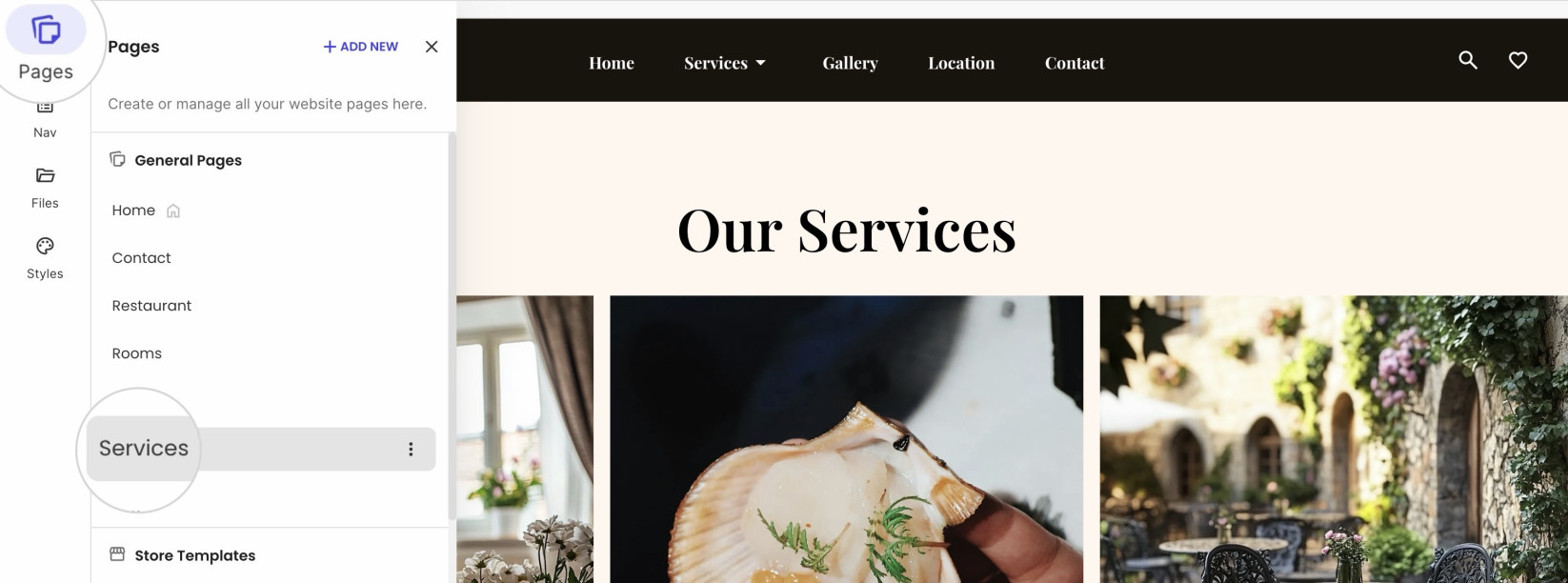
To add a link to a specific section on a page, go to the Pages tab, and click the page that contains the section you want to link to.
Hover over the section you wish to link to, then click on the Section Anchor ID button.
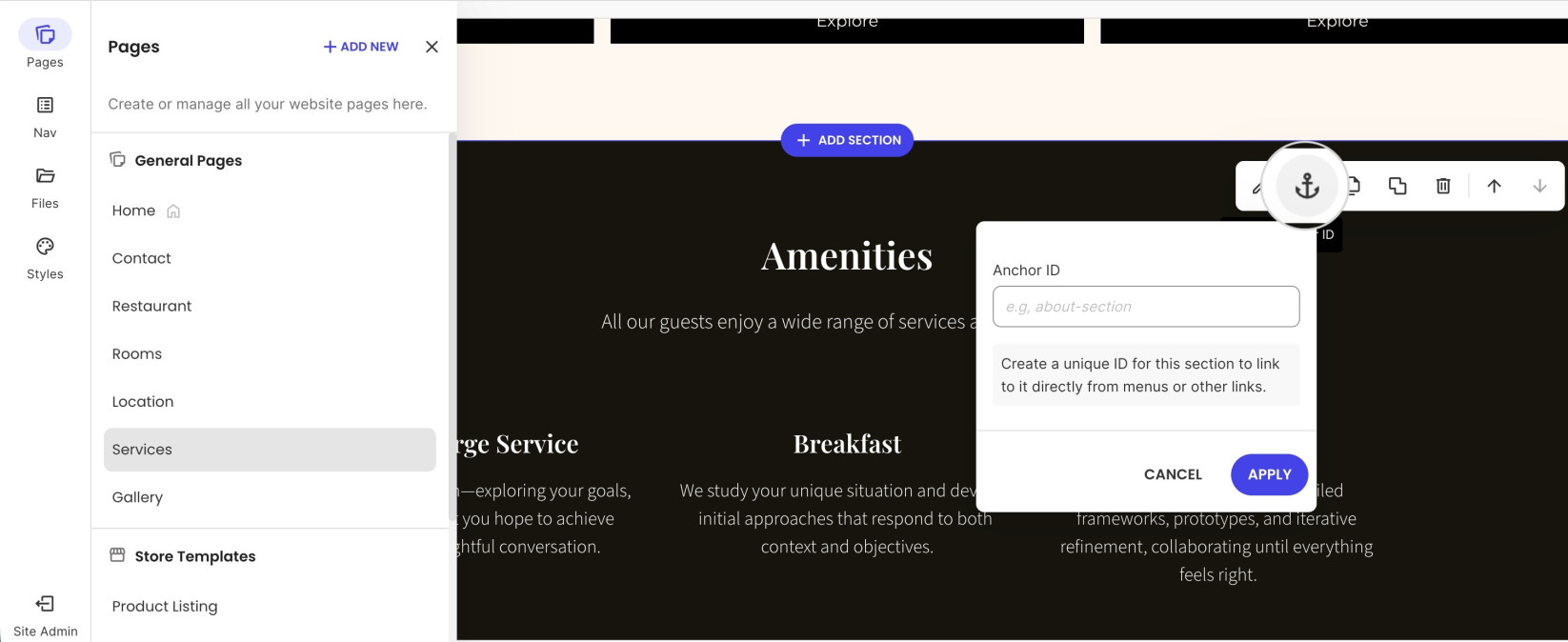
Next, enter a name for the Anchor ID and click APPLY. This name (anchor ID) can now be added to menus, buttons, or text across your site.
Add Section Link to Main Menu
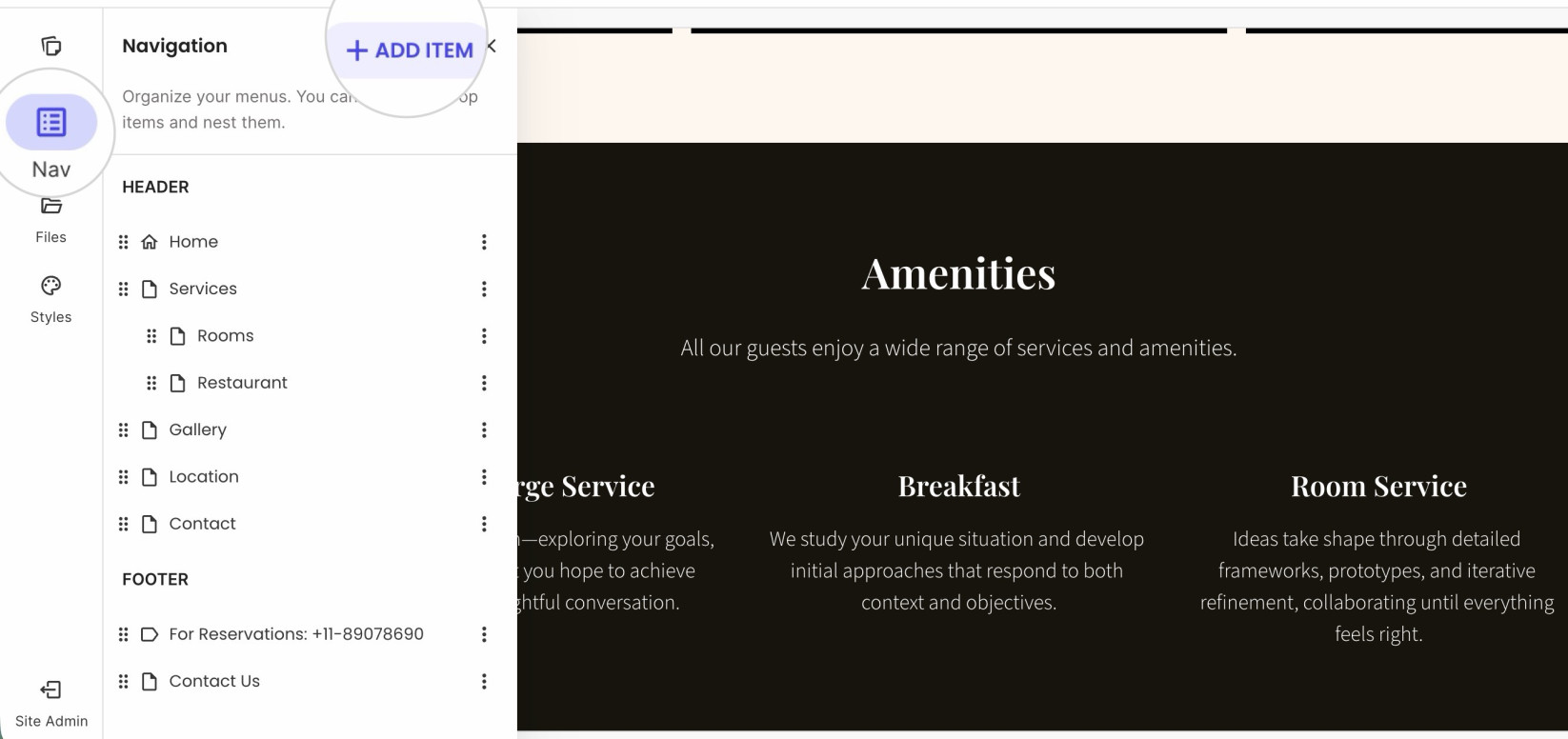
To add the section link to the main menu, go to the Nav tab and click Add Item.
Next, ensure the Link Type is set to Page, and then Choose a page to link to. In the Section ID dropdown, select the section you wish to link, using the name that was set up in a previous step.
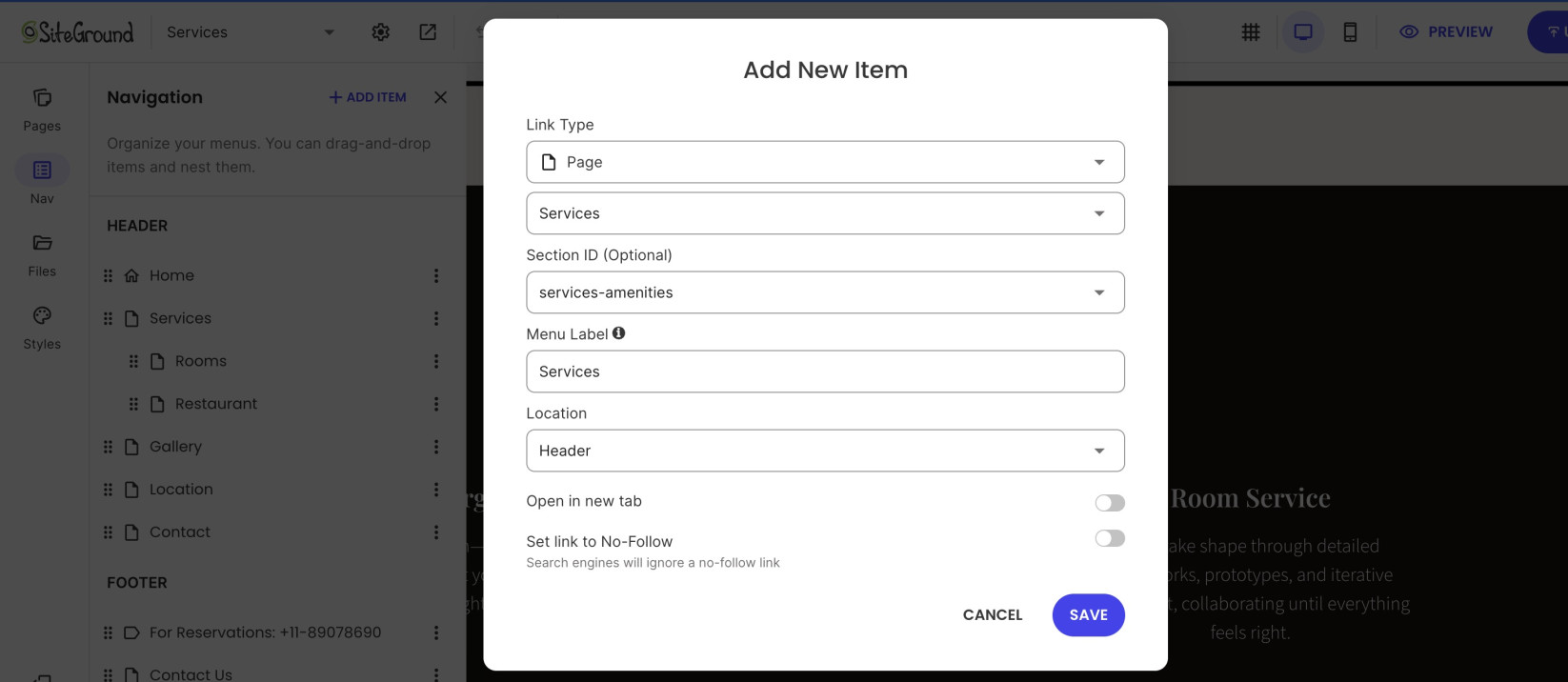
After that, enter the Menu Label name (this is the label that will appear in the menu) and select Header as its location. Then click Save.
Add Section Link to Footer
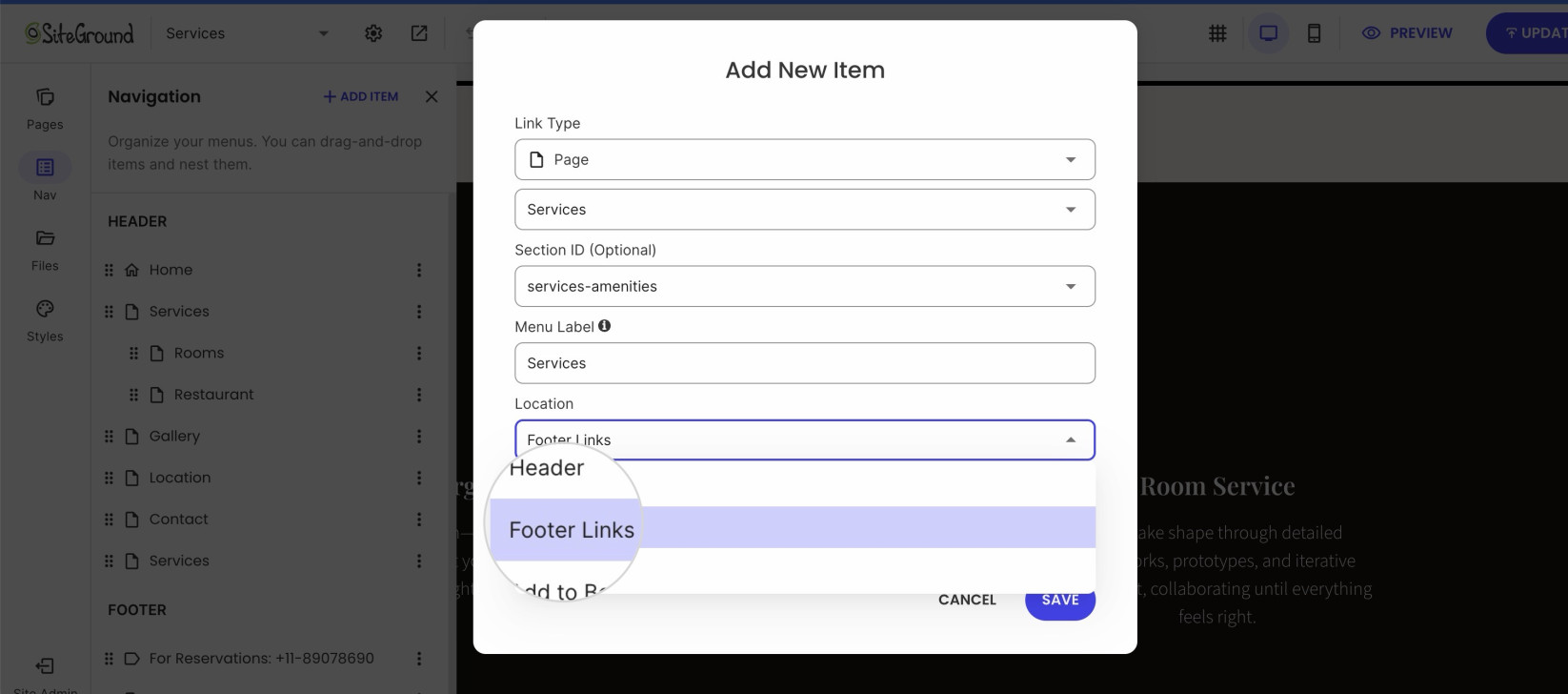
To add the section link to your Footer Links, go to the Nav tab and click Add Item.
Next, make sure Link Type is set to Page and then Choose a page to link to. After that, choose the appropriate section from the Section ID dropdown. Finally, enter the Menu Label name (this is the label that will appear in the menu) and select Footer Links as its location. Click Save.
Add Section Link to Buttons
To add the section link to a button, navigate to the Pages tab and click the page where you want to place the link.
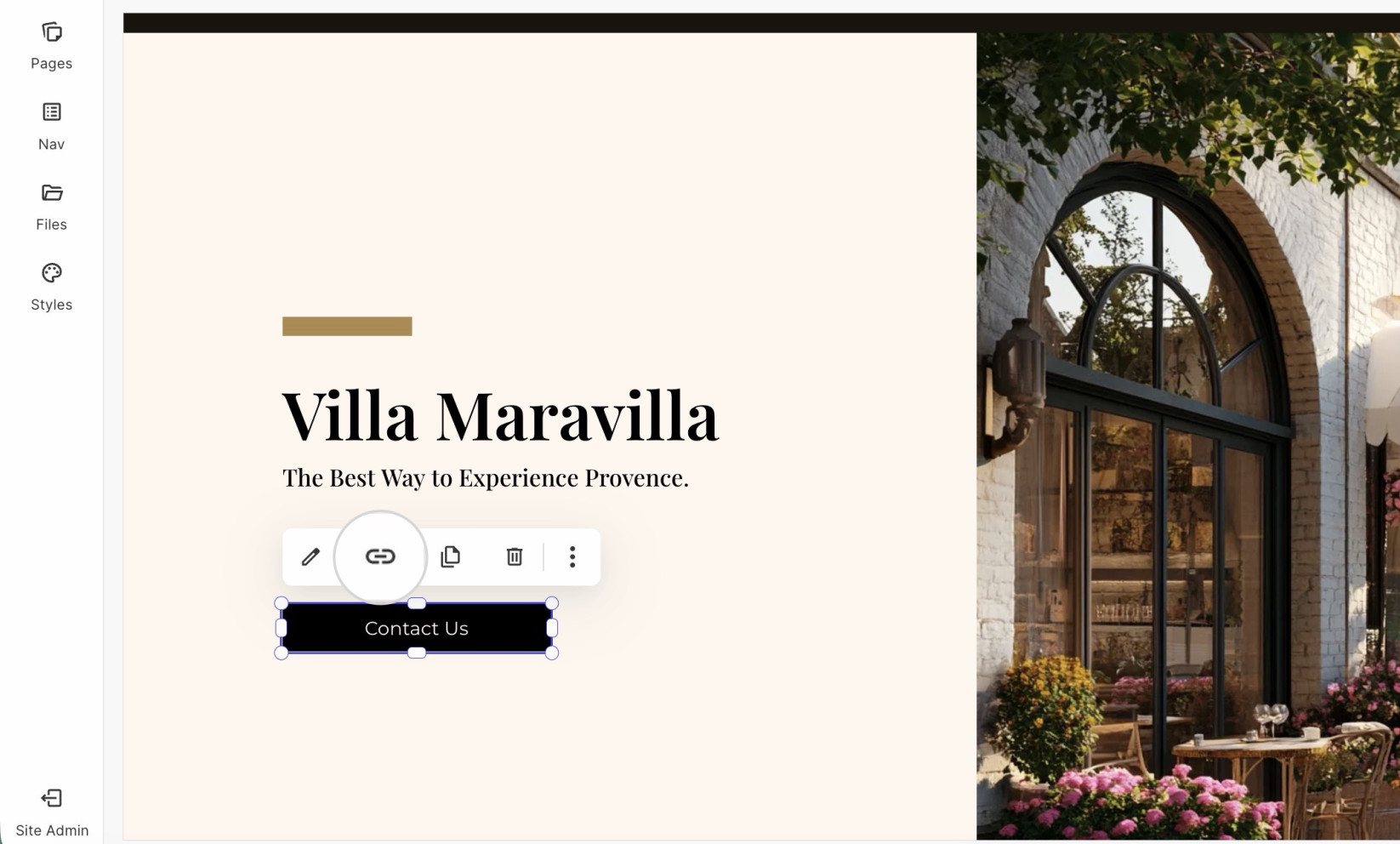
Next, select the button where you want to add the section link, and then click the Add link button.
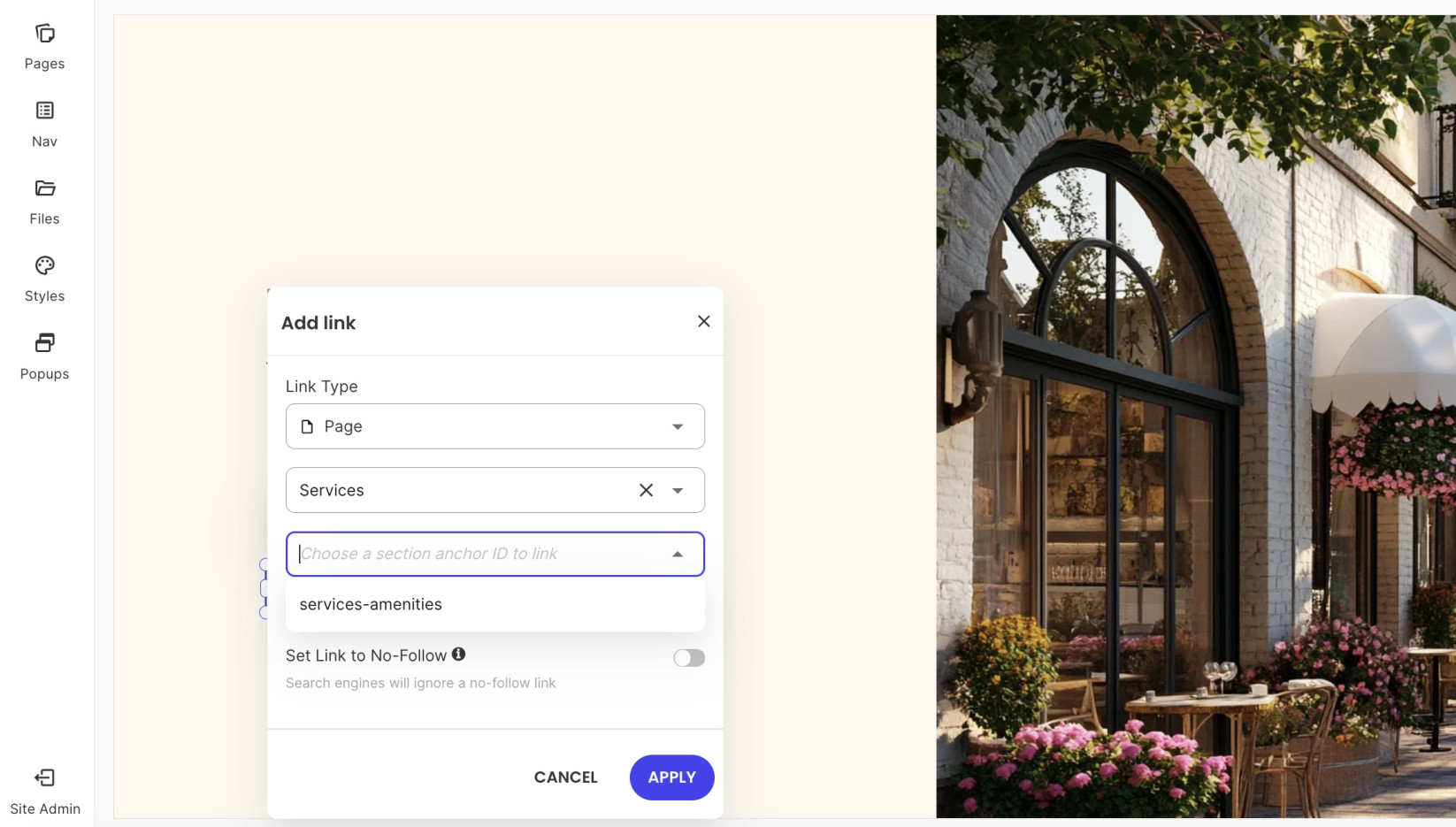
Make sure the Link Type is set to Page. Next, Choose a section anchor ID to link to from the dropdown. Click Apply.
Add Section Link Within Text
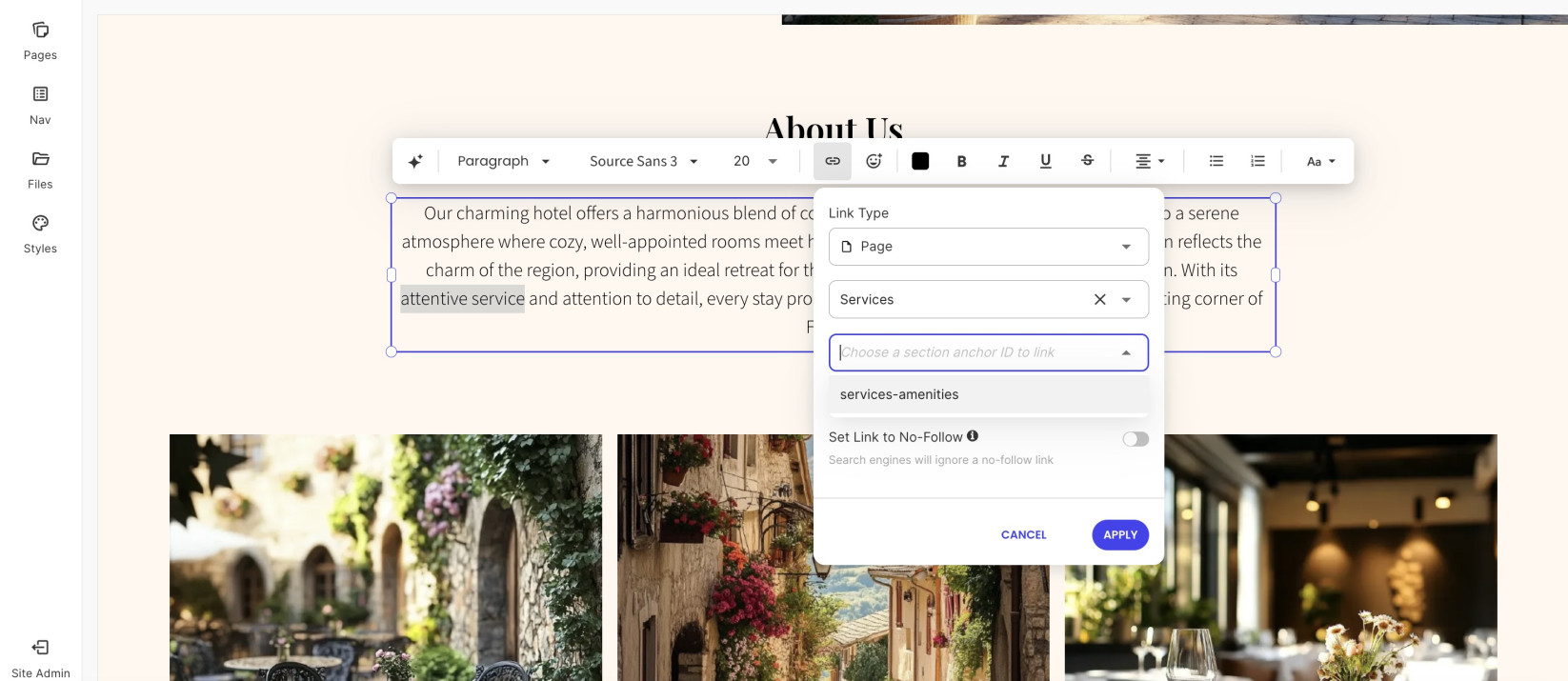
To add a section link within your text, highlight the text you want to turn into a link, then click the Insert Link button.
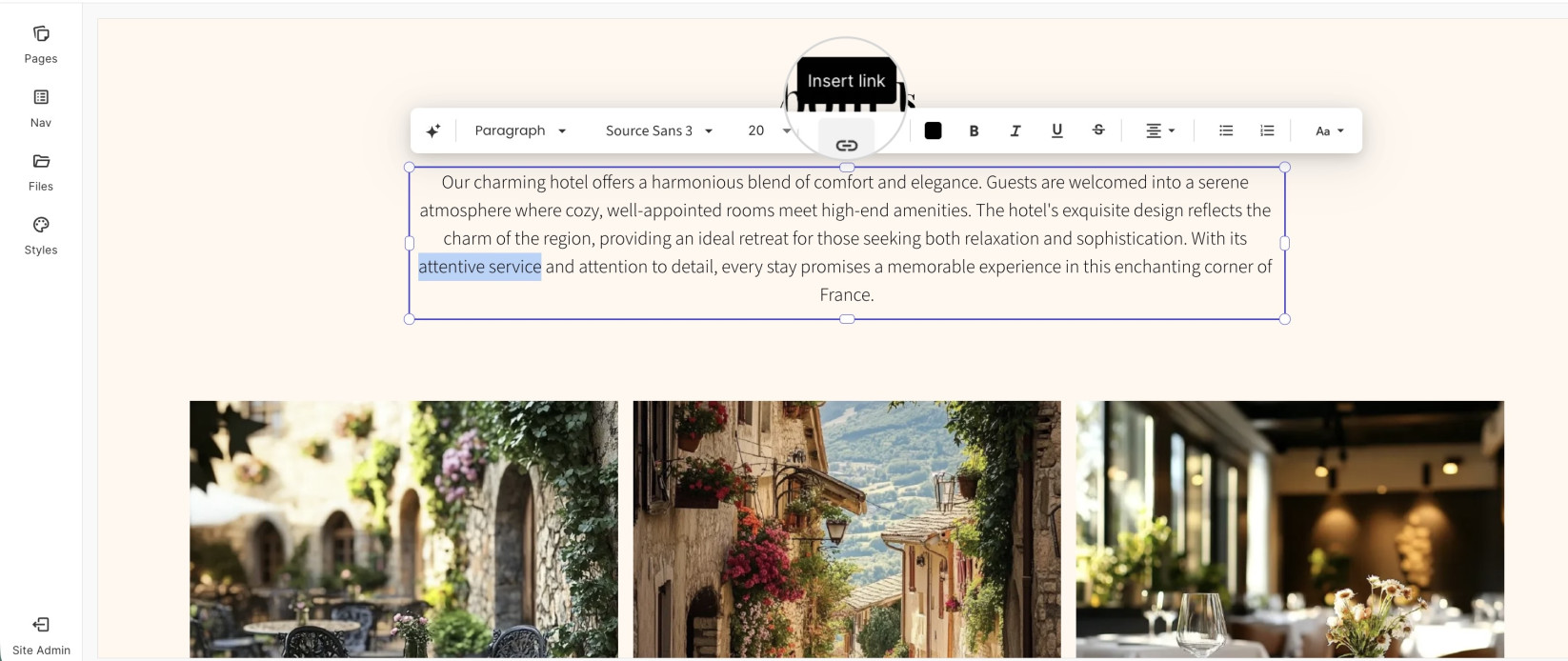
Make sure the Link Type is set to Page, then Choose a page to link to. Next, Choose a section anchor ID to link to from the dropdown. Click Apply.