How to Add Links to Buttons and In-Text
This article covers the steps for adding links to text, buttons, and images in the SiteGround Ecommerce and Website Builder, as well as the types of links.
Navigate to the Pages tab and select the page where you want to insert the links.
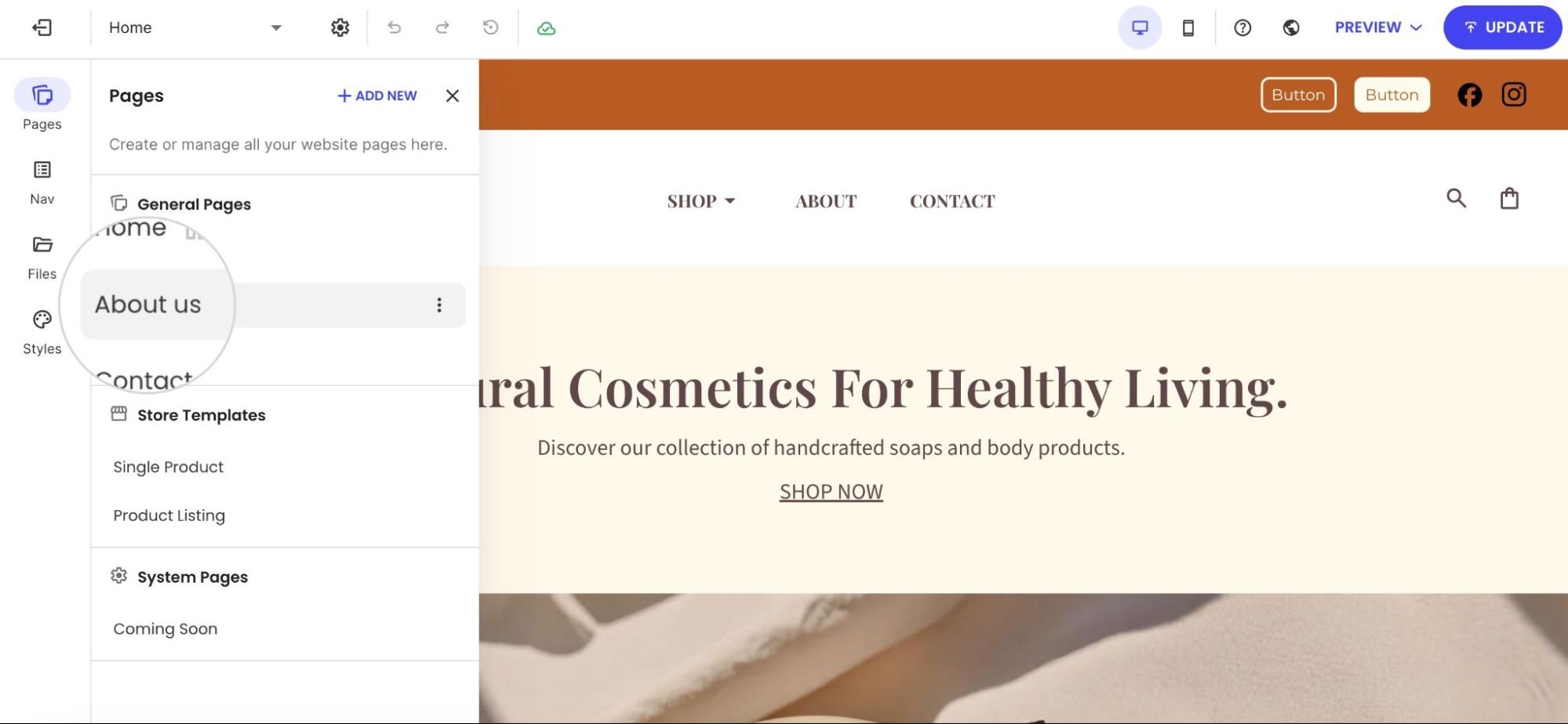
Where You Can Add Links
First, let’s explore where you can add links, then we’ll explain the different types of links that can be added.
Add an In-Text Link
To add an in-text link, click on the text in the section to open the horizontal toolbar with formatting options. Highlight the text where you want to add the link, then click the Insert Link button.
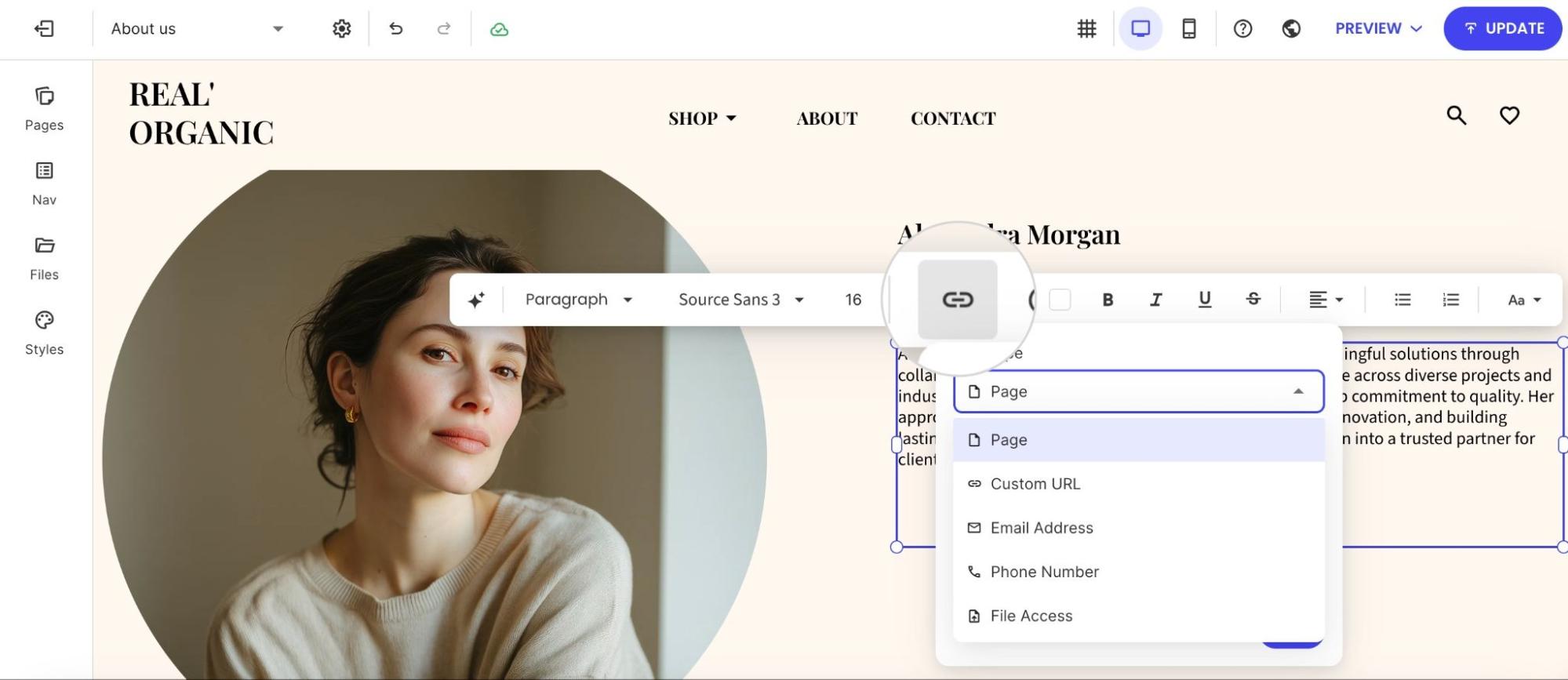
You can then choose the type of link you want to add: a Page on your website, a Custom URL, an Email Address, a Phone Number, or File Access.
Additionally, you can choose to open the link in a new tab by toggling Open in new tab, or prevent search engines from following the link by toggling Set Link to No-Follow.
Add Link to a Button
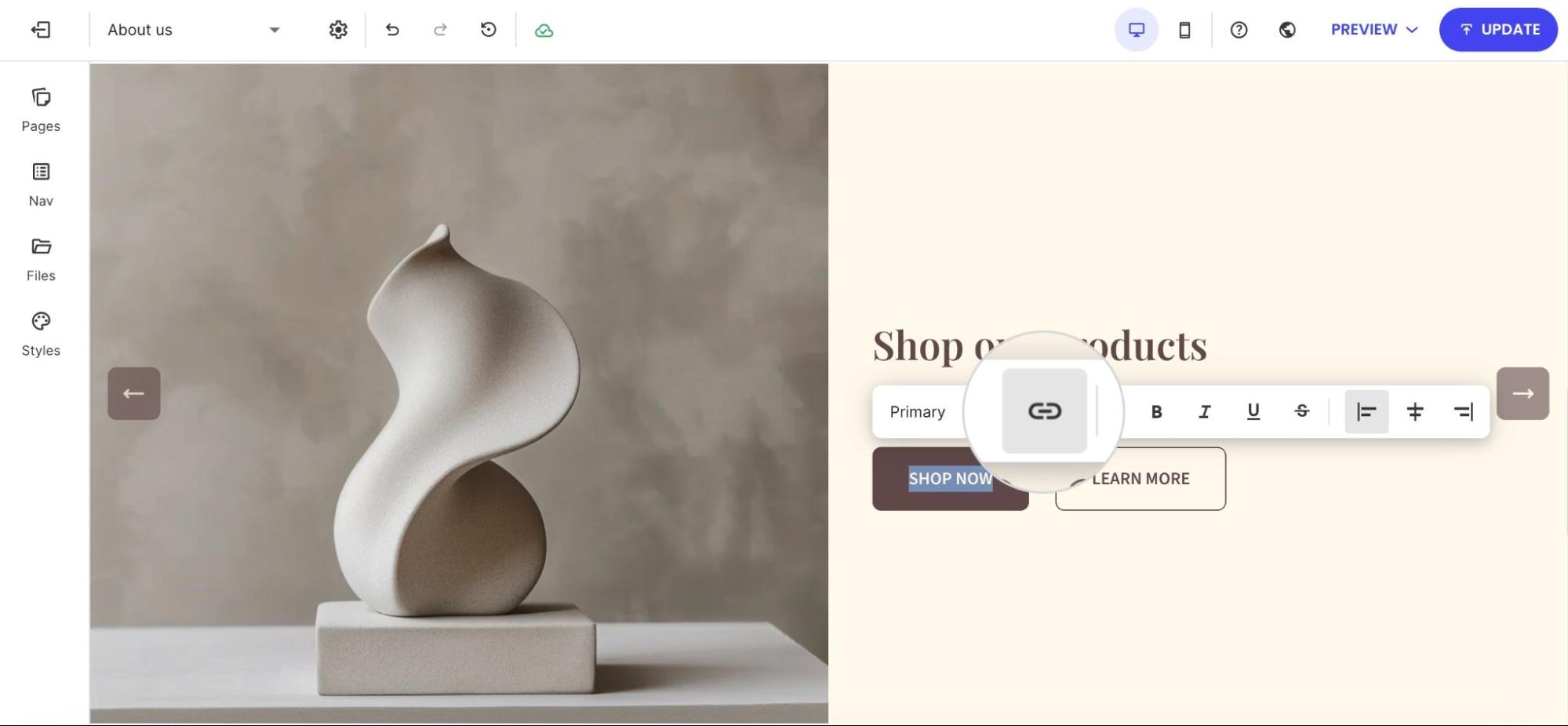
To add a link to a button, click the button and then select the link icon. The same link settings available for in-text links will appear.
Add Link to an Image
To add a link to an image, select the image and click the link icon.
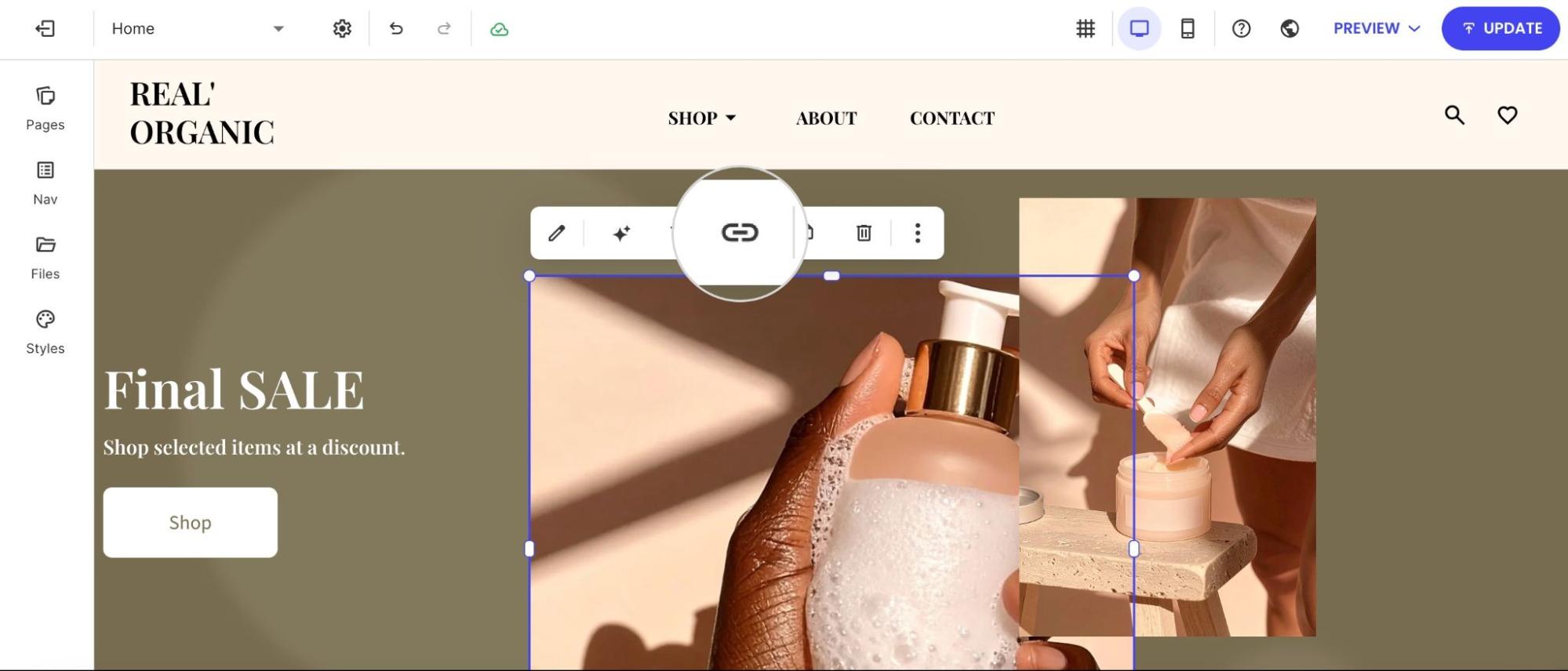
An Add Link pop-up will appear, letting you link the image in the same way as you would for text or buttons.
Available Link Types
Add a Link to a Page
To add a link to a page, highlight the text or select the element that you wish to link, and click the link icon.
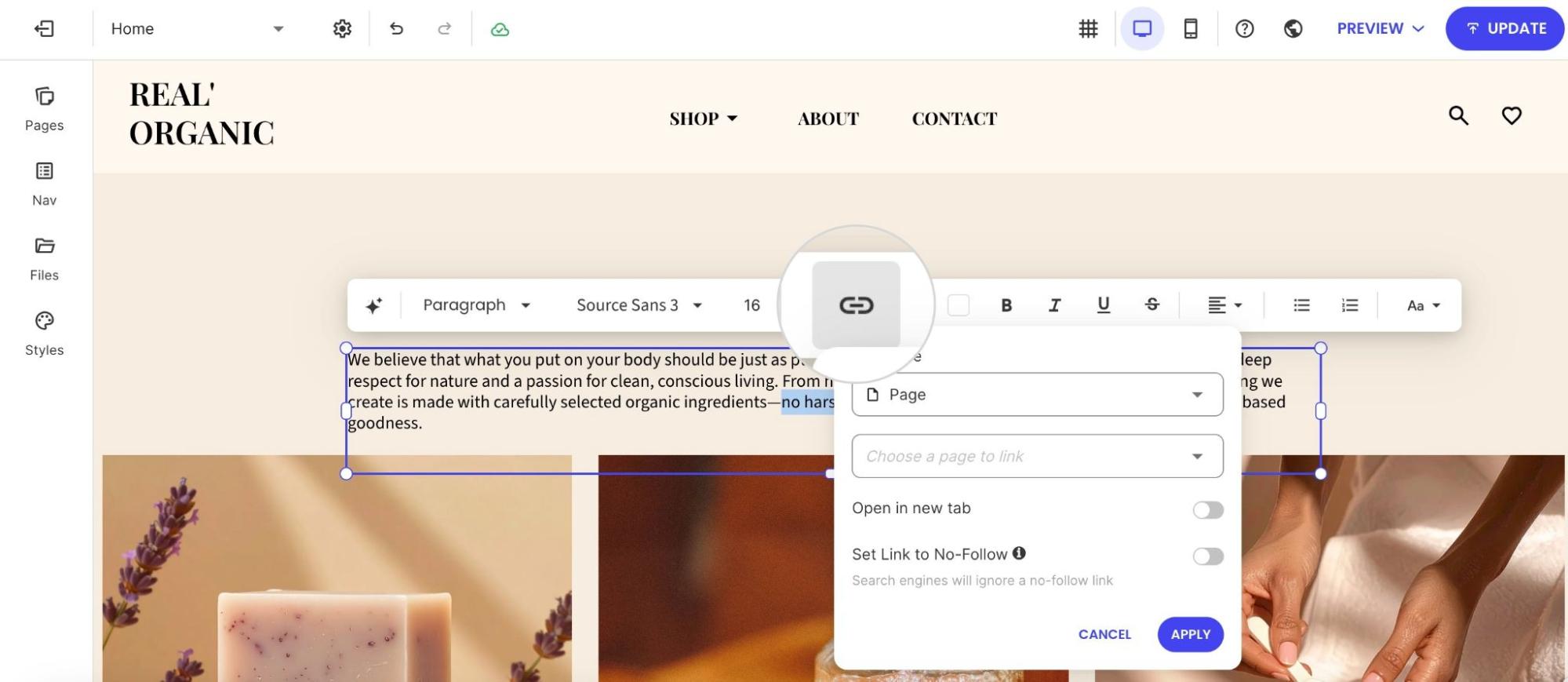
Select Page as the Link Type from the dropdown, then Choose a page to link to from the dropdown. Click APPLY.
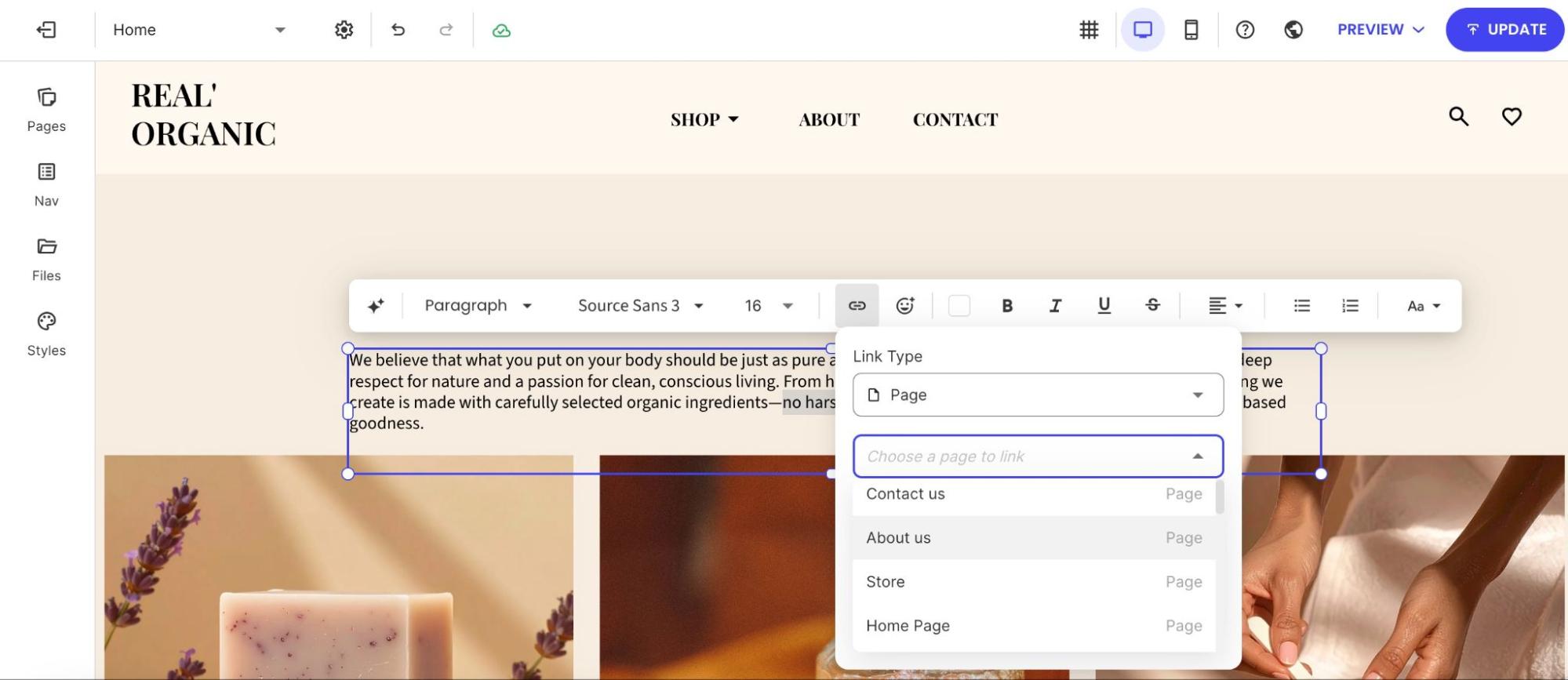
Add a Link to a Custom URL
To add a link to a customer URL, highlight the text or select the element that you wish to link, and click the link icon.
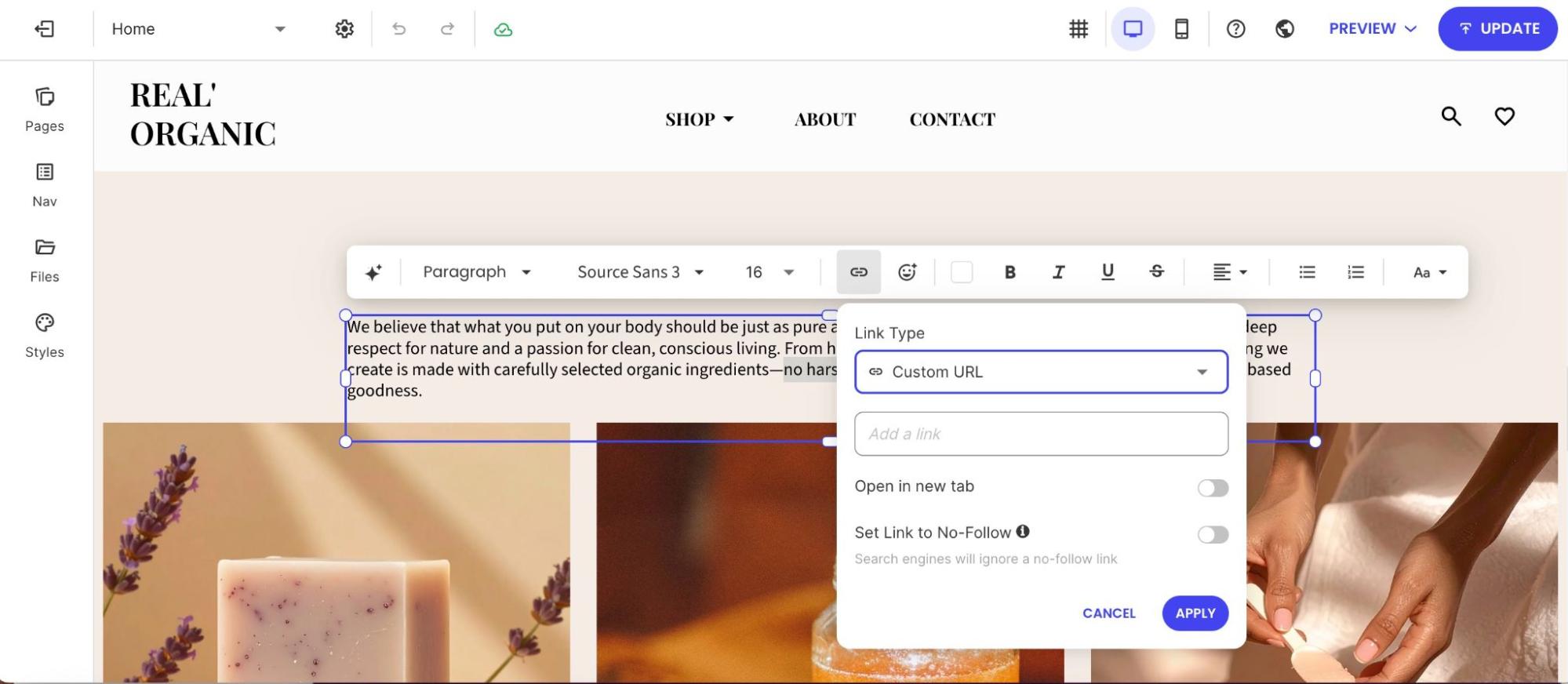
Select Custom URL as the Link Type from the dropdown. Paste your link in the Add a link field. Then click APPLY.
Add a Link to an Email Address (mailto)
To add a link to an email address, highlight the text or select the element where you want the link to be added. Then click the link icon.
Select Email Address as the Link Type from the dropdown. Add the email address, and click APPLY.
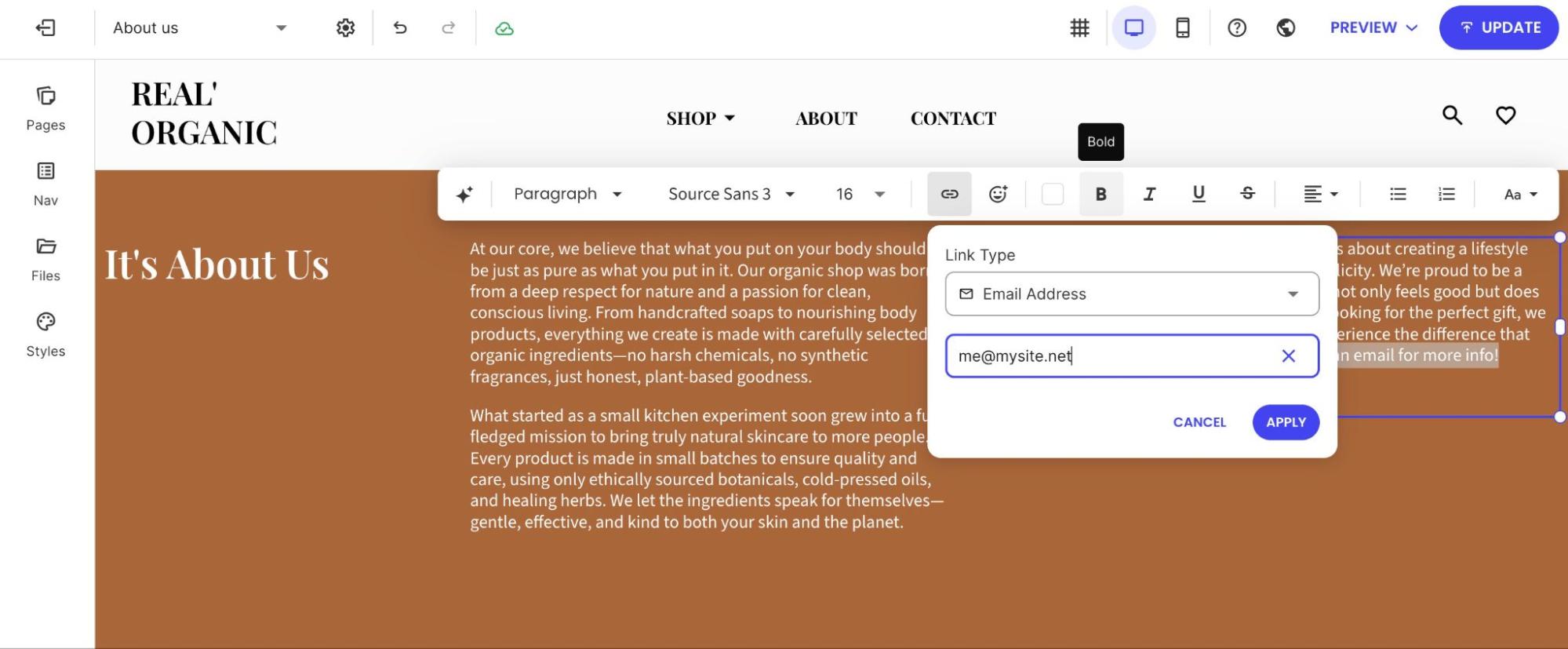
Once applied, clicking on the linked word will open an email window with the recipient field prepopulated with the email address you added.
Add a Phone Number Link
To insert a Phone Number link, highlight the text or select the element where you want to add the link. Then click the link icon.
From the Link Type dropdown menu, select Phone Number. Add the phone number you wish to link and click APPLY.

On smartphones, clicking a phone link will typically open the phone interface with the number ready to be dialed.
Desktop behavior may vary. Some browsers might attempt to use a VoIP application if installed, or prompt the user to choose an application to handle the call.
Add a Link to a File
To attach a file to text, highlight the text or select the element to which you want to add the link. Select File Access as the Link Type from the dropdown.
Click the CHOOSE FILE button to select a file from the gallery and click APPLY.
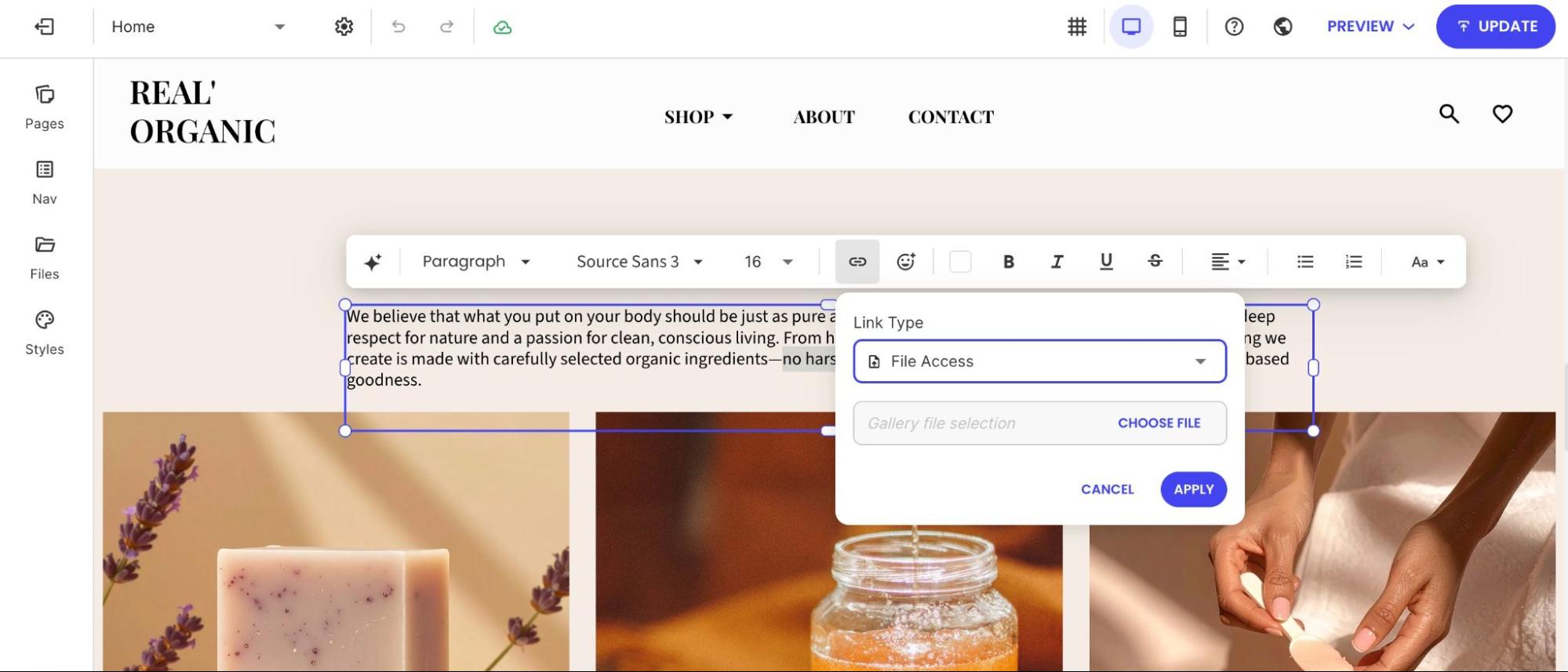
Once selected and applied, clicking the highlighted text will automatically download the linked file.