How to add images to my project?
Based on the nature of your project, Coderick AI can add images in a few ways — it can generate or find images based on your prompt, or use an image you provide yourself.
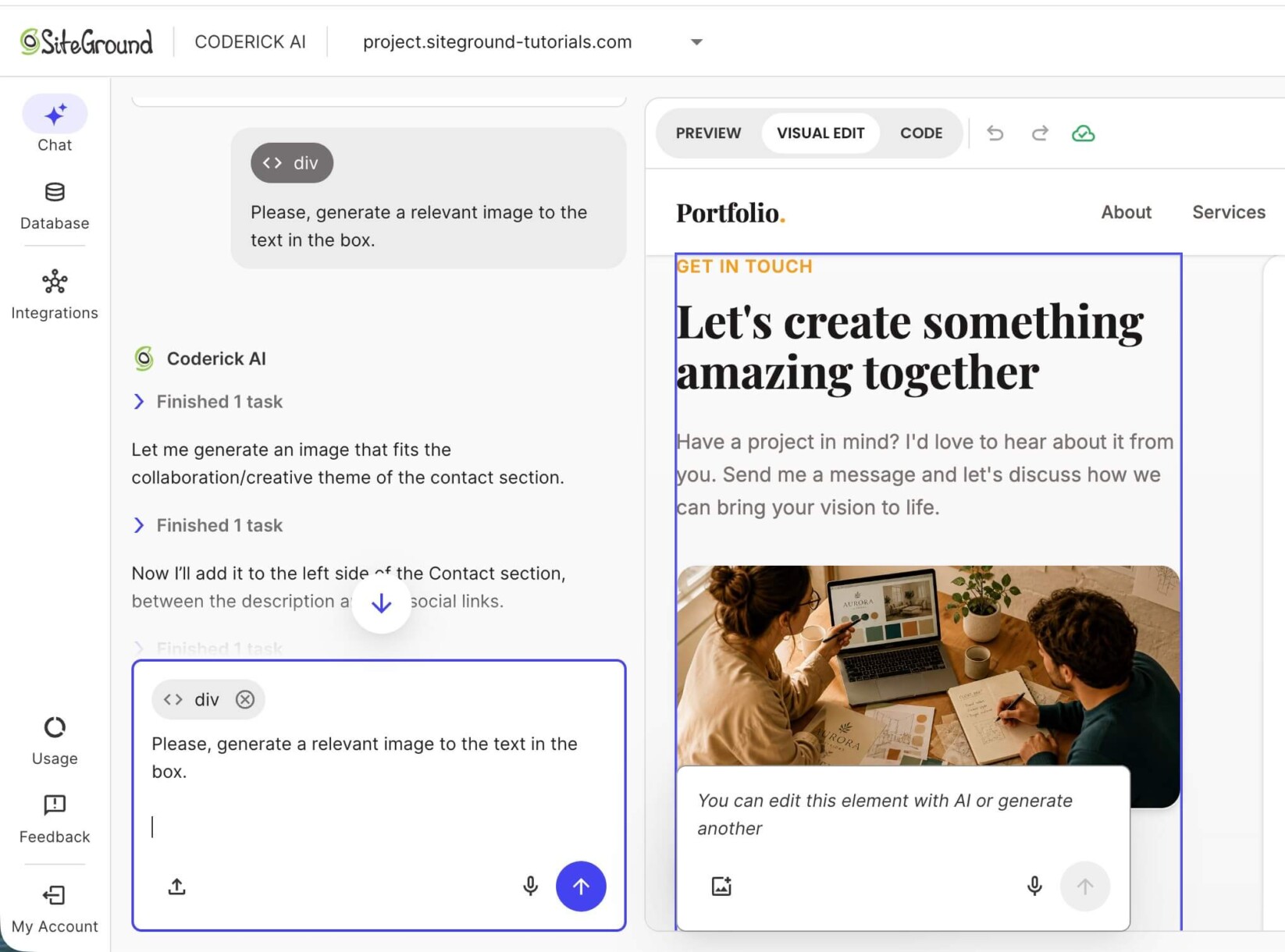
Using the chat interface, you can prompt Coderick AI to add, replace, or remove images by simply describing what you want. It will decide whether to generate a new image or use a suitable existing one:
- Generation — Use the chat interface to describe exactly what you need. You can instruct Coderick AI to generate entirely new images from scratch, or ask it to add, replace, and remove existing visuals simply by describing your requirements.
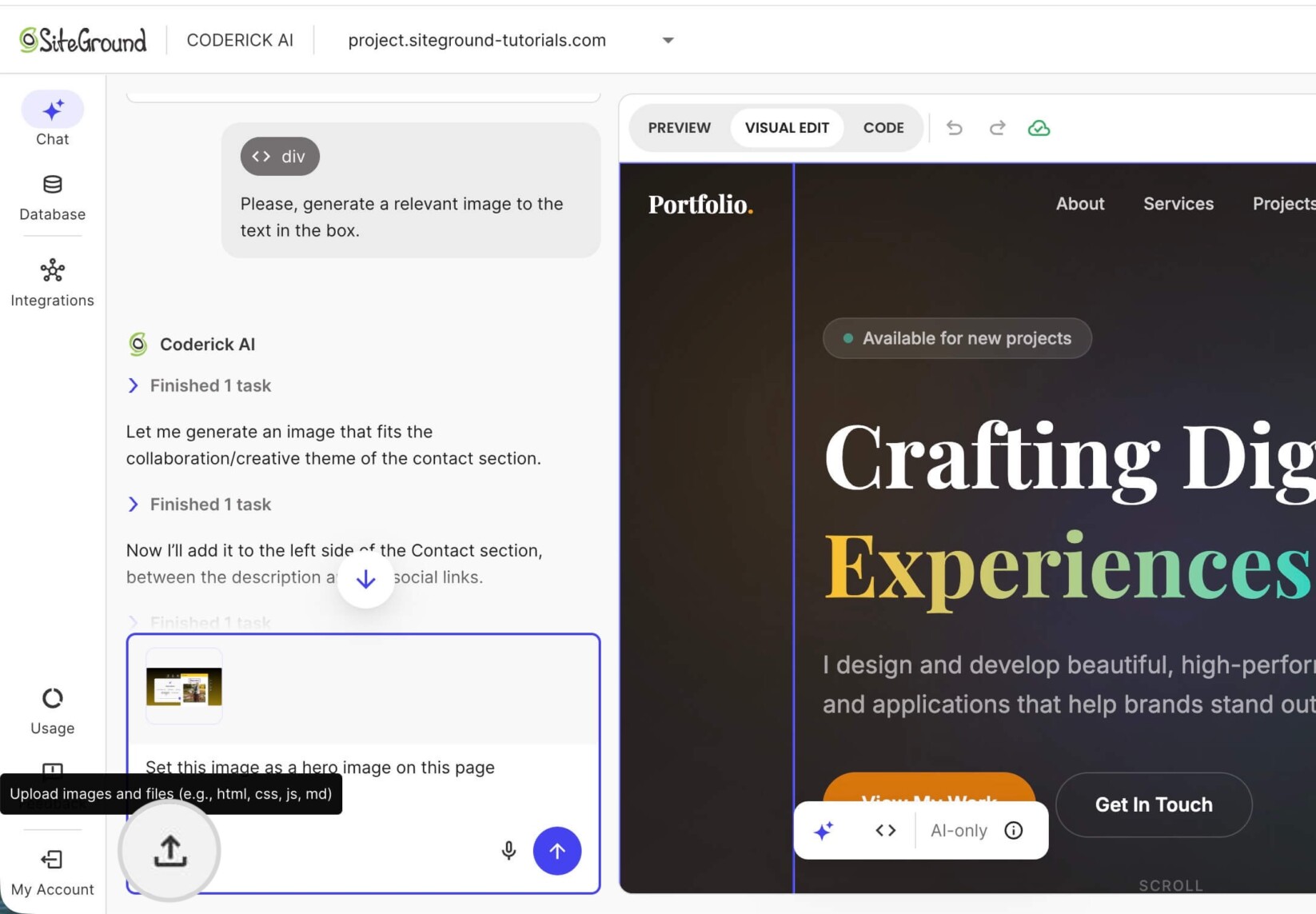
- Attaching an image — Use the “Attach” functionality to upload your own specific files. Once uploaded, you can give Coderick context on how to use them—for example: “Set the attached image as the hero section of my landing page.”