How to activate back-in-stock notifications
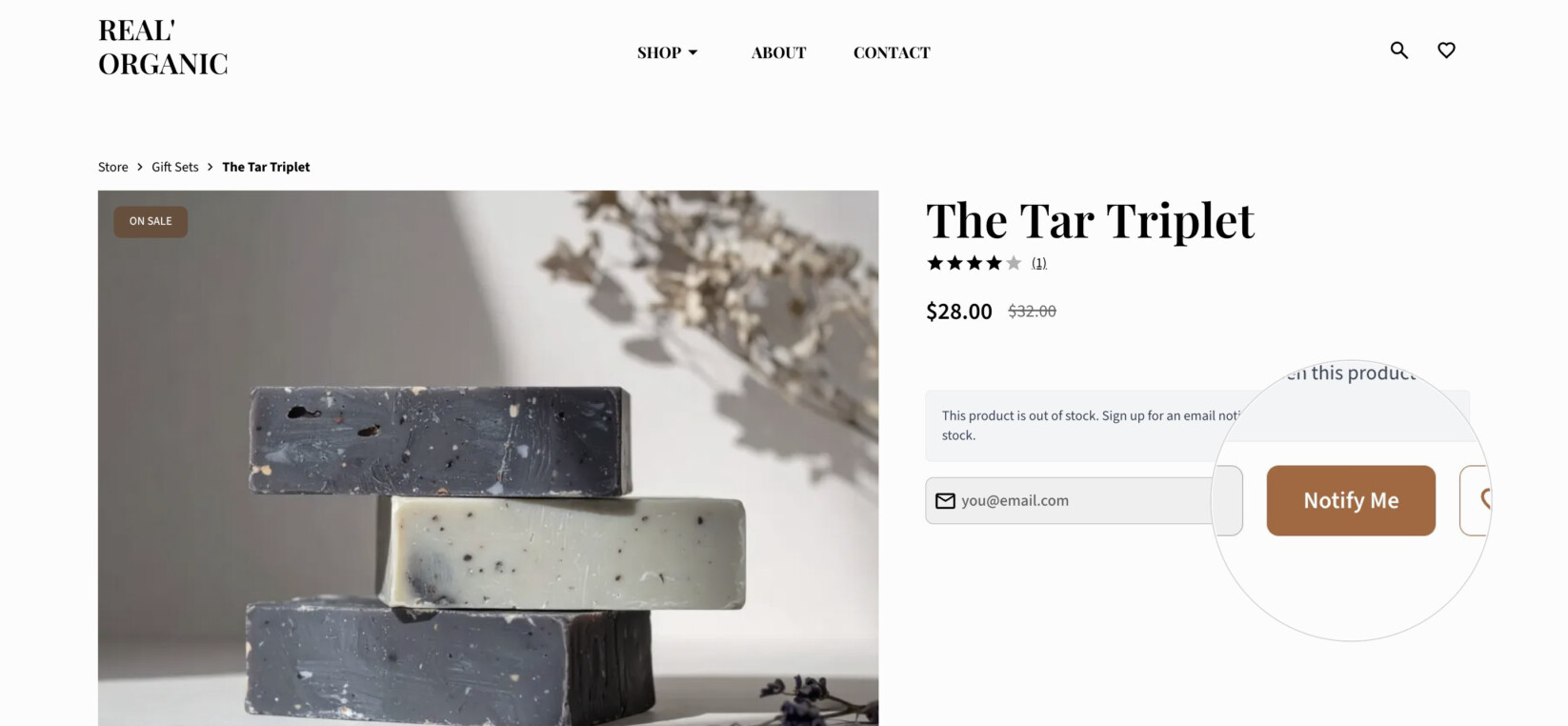
Back-in-stock notifications let customers sign up to receive an email when an out-of-stock product becomes available again. Once you turn the feature on, a Notify Me button and an email field appear on any product (or variation) that is out of stock.
You can enable or disable it at any time.
Activate the feature
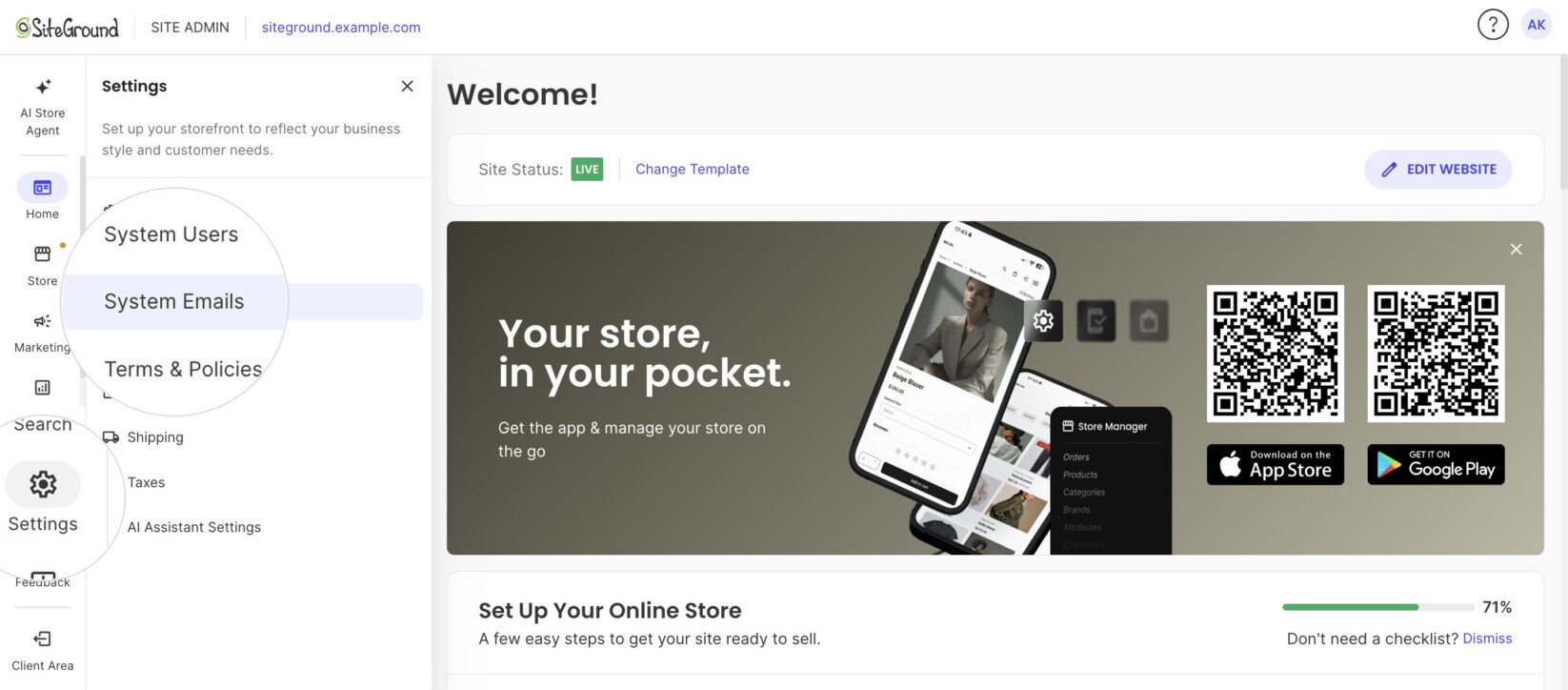
- In Site Admin, go to Settings > System Emails.
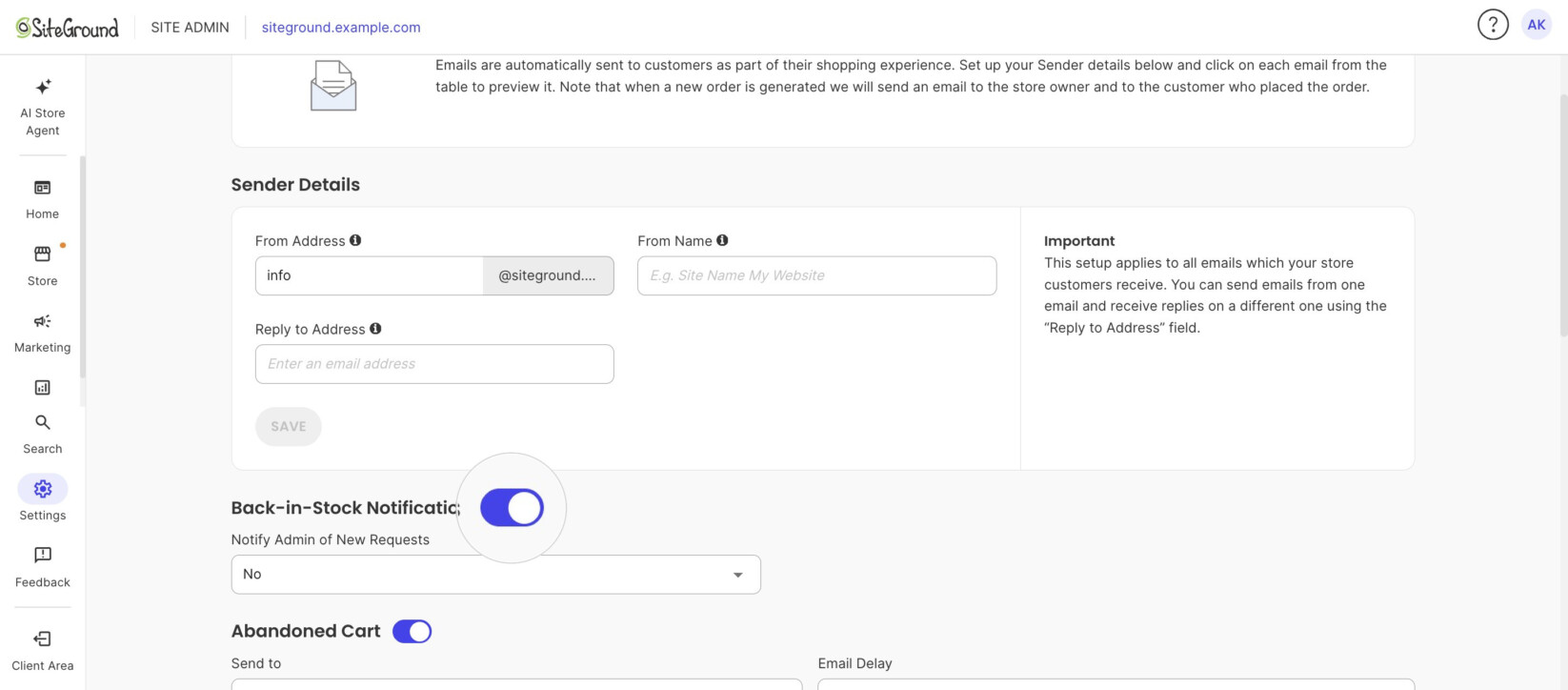
- Switch the Back-in-Stock Notifications toggle on.
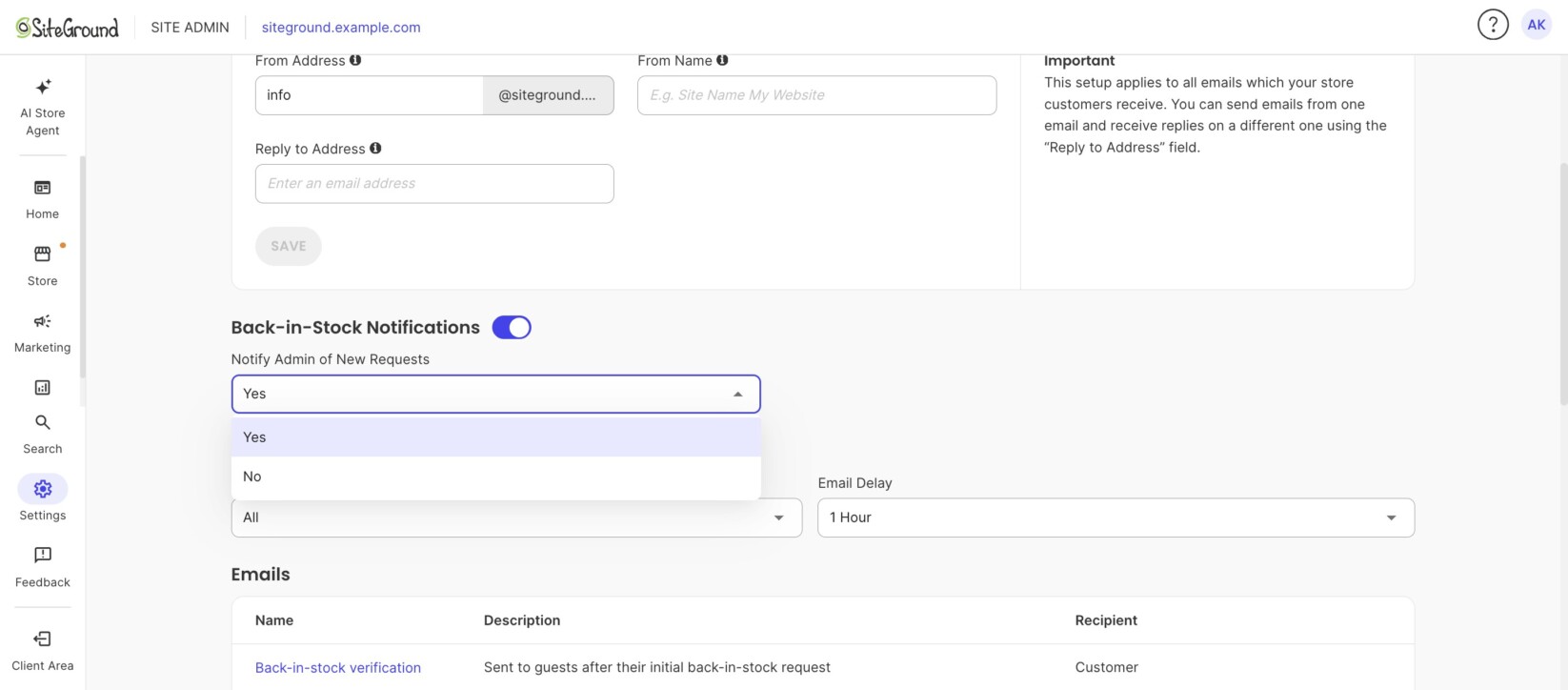
- Under Notify Admin of New Requests, choose Yes if you want to receive an email every time a customer requests a notification, or No to skip those emails.
What your customers see
On any out-of-stock product or variation, customers now see a short message and a Notify Me button. Guests are also asked for an email address, as shown below, and receive a verification email first. Logged-in customers only need to click Notify Me — their account email is used and no verification is required.