Coderick AI Import Design: turn your Claude Design or Google Stitch design into a fully functional site or app
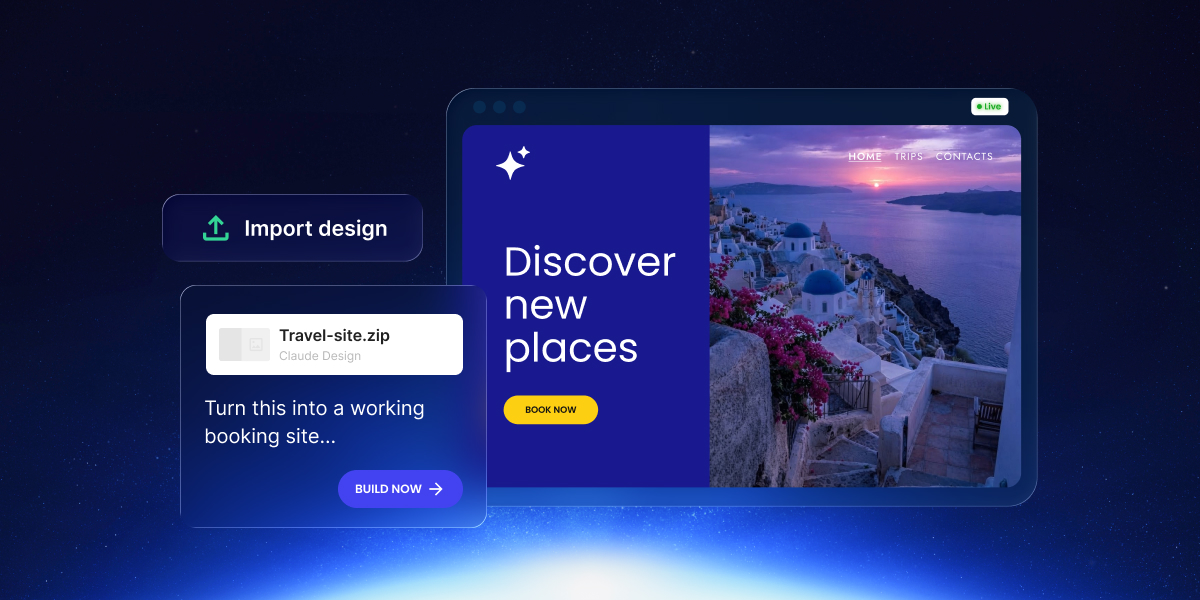
With Coderick AI Import Design, you can now bring a design from Claude Design or Google Stitch into Coderick and turn it into a fully functional website or web app.
Upload your export and Coderick keeps your layout, colors and content. Then it adds what your design cannot do on its own: working forms, a database, and the backend behind them, so your design can go live as a real site people can use.
Import Design is available on every Coderick AI plan at no extra cost, including free trials.
When to start a project with Import Design
Use Import Design when your idea already exists as a Claude Design or Google Stitch project but doesn’t do anything yet. It works especially well for:
- Business owners who mocked up their site and want it live, with forms that collect and save customer inquiries.
- Freelancers and agencies with a client-approved design who need to build it without hand-coding every screen.
- Founders and teams with an app prototype who want a first version they can test with real users.
If you start in a design tool, you no longer have to spend your first prompts describing how every screen should look. Coderick already has that from your export, so you can focus on what the site or app needs to do.
Import Design starts a new project from a whole design export. To add a single page, component or stylesheet to an existing project, use file uploads in the chat instead.
How Coderick AI turns your design into a site or app with a backend
A Claude Design or Google Stitch project shows exactly how your site or app will look, but it can’t run on its own. Even if you can click through the screens, the forms don’t save what people type, nothing is stored anywhere, and there’s no address where anyone can visit it.
When you import your project, Coderick goes through every screen in your export. It keeps your layout, colors, typography and content as close to the original as it can. Then it looks at your buttons, forms and links to figure out what each one should do, and builds everything needed to make them work: the logic behind each action, a database to store information, and the backend that connects it all.
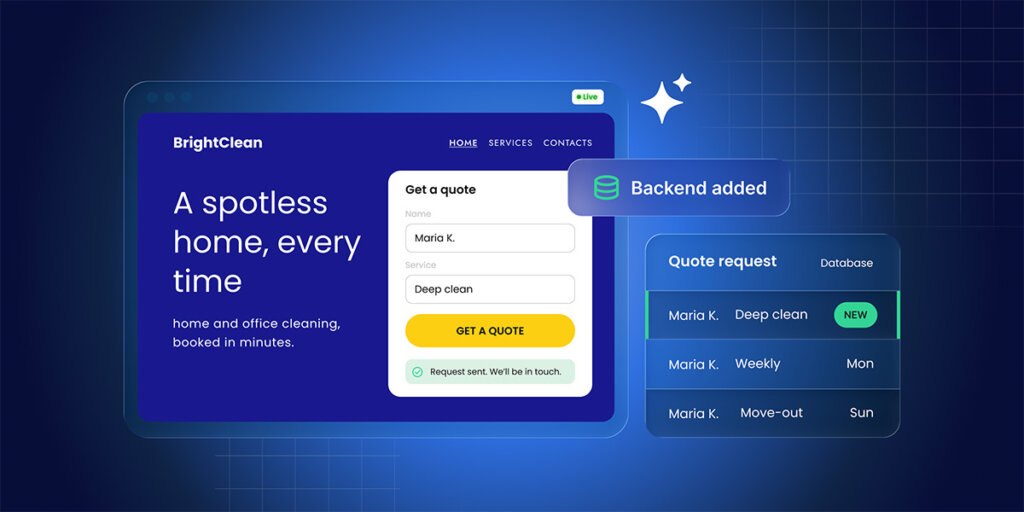
For example, say you designed a site for a cleaning company in Claude Design, with a “Get a quote” form. In your design, the form only looks like one. After the import, it’s a real form: every request is saved to a database, and visitors see a confirmation message after they submit it.
Start with the prefilled prompt
Every import comes with a prefilled prompt that tells Coderick to keep your design and make it fully functional and responsive. Since your design already shows Coderick what to build, that’s usually all it needs for a first version. The only things worth adding are the ones a design can’t show, such as an extra page or what should happen after someone submits a form.
Keep building after the first version
Once your first version is ready, Coderick suggests useful additions based on your project, such as a testimonials section or an admin panel. Add the ones you want (if any), then fine tune the rest the way you would in any other Coderick AI project:
- Add features one request at a time through the chat.
- Adjust the look with Visual Edit.
- Open the Code tab to see every file.
- Revert to an earlier version if a change doesn’t work out.
How to import your design files into Coderick AI
- Export your design. In Claude Design, click Share and export your design as a ZIP or standalone HTML file. In Google Stitch, click Export, select every screen you want in your app, and save them as a ZIP file. Only the screens in your export are imported.
- Start a new project. You can start from the Coderick AI page, or if you’re a SiteGround client, click New under Websites > Coderick Projects in your User Area.
- Choose Import and upload your file. Click Import next to Build and Rebuild, select Claude Design or Google Stitch, and upload your design export (up to 20 MB).
- Review the prompt. Keep the prefilled prompt or add your own details, then click the arrow to submit.
- Let Coderick build. Your new project opens and Coderick starts building. Follow the progress in the chat, and your app appears in the preview when it’s ready.
- Publish your app. When you’re happy with it, publish it with one click. Premium SiteGround hosting is included in every paid plan, with a free SSL certificate, a CDN, backups, a smart firewall and AI bot protection. To give your app its own address, connect a domain you own. On the Free plan or a trial, upgrade when you’re ready to publish.
For detailed export steps in each tool, see the full guide: How to import a design from Claude or Google Stitch into Coderick AI.
You’ve already created the design. Now turn it into something people can visit and use. Import it into Coderick AI, add the functionality it needs, and keep improving it as your project grows.
New to Coderick AI? Start for free:



Comments ( 0 )
Thanks! Your comment will be held for moderation and will be shortly published, if it is related to this blog article. Comments for support inquiries or issues will not be published, if you have such please report it through our official channels of communication.
Leave a comment
Thanks! Your comment will be held for moderation and will be shortly published, if it is related to this blog article. Comments for support inquiries or issues will not be published, if you have such please report it through our official channels of communication.