What is WordPress MCP? How it works, uses, and limitations
You may have heard that you can ask Claude or ChatGPT to update your WordPress site for you, through something called MCP. It sounds simple. In practice, it can mean several different setups, each with its own steps and limits.
WordPress MCP connects AI assistants such as Claude and ChatGPT to a WordPress site through the Model Context Protocol, an open standard for linking AI tools with other software. An MCP server on the site tells the assistant which actions it may take, such as reading posts or changing settings, and the assistant carries them out on request.
Key takeaways:
- WordPress MCP connects AI assistants such as Claude and ChatGPT to your site. The assistant works through an MCP server, which decides what it’s allowed to do.
- What an assistant can do depends on what your site exposes. WordPress core and your plugins register the actions, so two sites with the same MCP server can offer very different options.
- The official route, the MCP Adapter plugin, is built for developers. It’s free, but setting it up takes an Application Password, extra plugins, and sometimes a configuration file.
- Two other routes can simplify setup. MCP plugins handle much of the setup for you, and AI agents such as AI Agent for WordPress work inside the WordPress admin with no MCP server to set up.
How WordPress MCP works
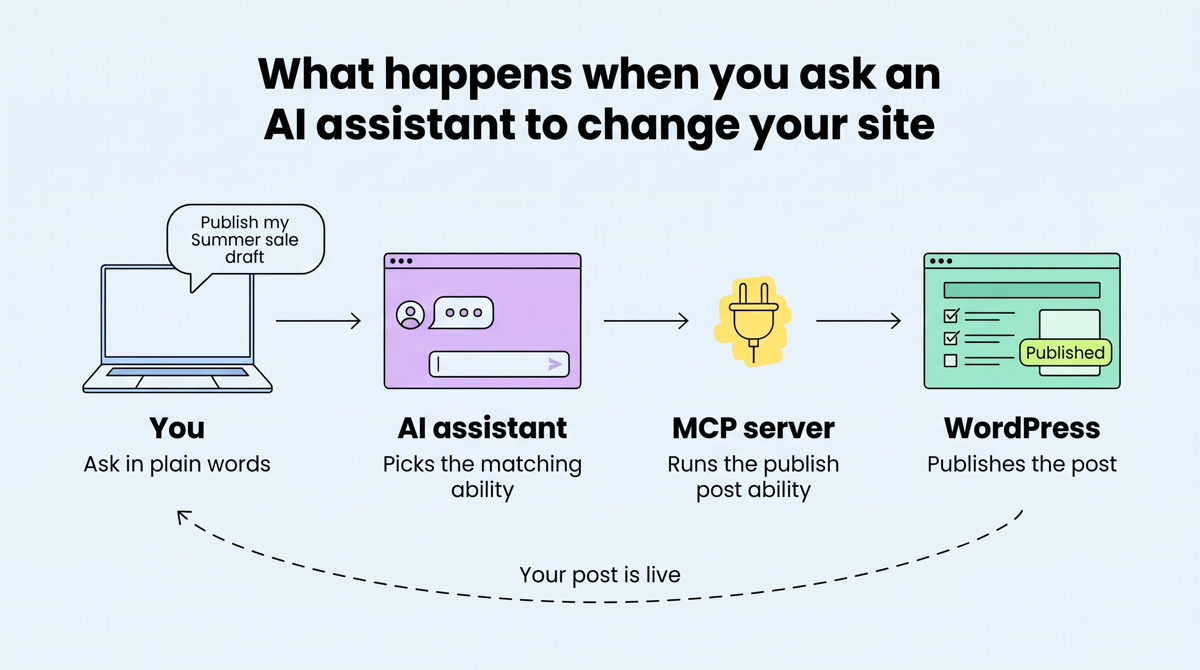
WordPress MCP works by placing an MCP server between an AI assistant and your WordPress site. The assistant asks the server what the site allows, then asks it to carry out the actions you request.
The pieces involved
Four pieces work together:
- The AI assistant, such as Claude or ChatGPT. In MCP terms, it’s the client: the app you type your requests into.
- The MCP server, which runs on your site and passes requests between the assistant and WordPress. WordPress’s official MCP server is the MCP Adapter plugin, published by WordPress.org.
- The abilities, the individual actions your site makes available, such as reading site details or editing a post.
- WordPress itself, which carries out each action with the permissions of the user the assistant signs in as.
MCP itself isn’t specific to WordPress. Anthropic introduced it in November 2024, and since December 2025 it has been developed under the Agentic AI Foundation, a Linux Foundation project, so it isn’t tied to one AI company.
The Abilities API and the MCP Adapter
The WordPress Abilities API is the list of actions a site can perform, and it has been part of WordPress core since version 6.9. Each ability is a single action, such as reading a post or updating a setting, registered by WordPress core or by a plugin. It’s one of the building blocks behind WordPress’s AI capabilities.
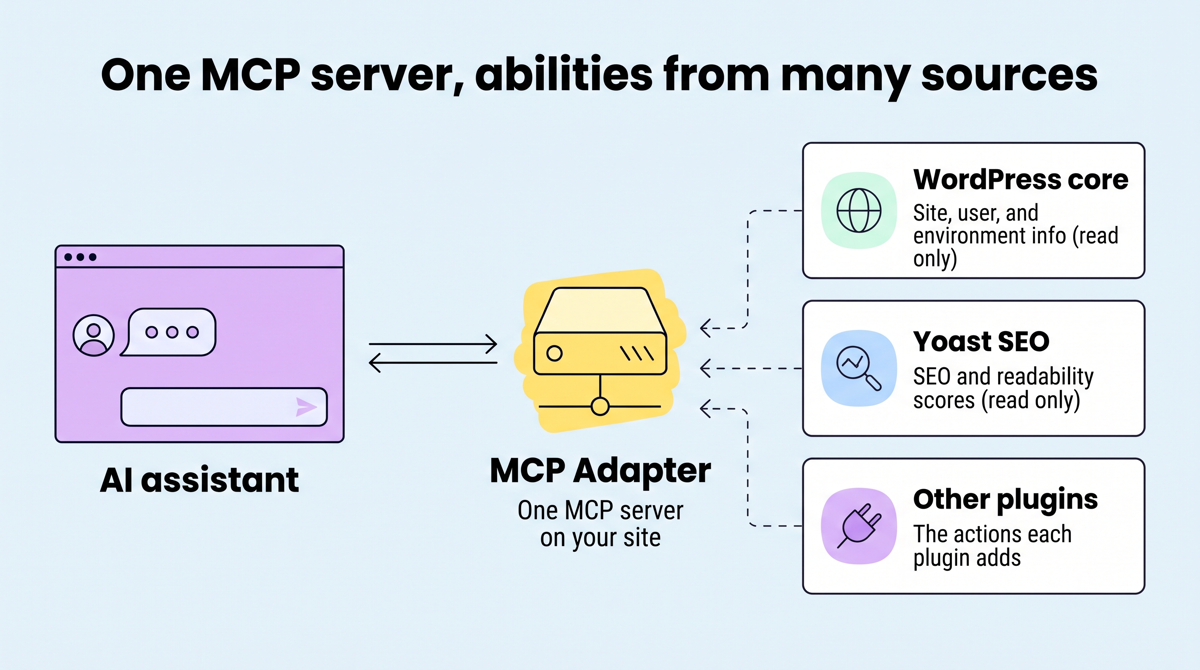
An assistant can only use the abilities a site makes available to it. WordPress core includes three, and all three only read information: details about the site, the signed-in user, and the server environment. Plugins add their own. Yoast SEO, for example, registers abilities that return the SEO, readability, and inclusive language scores of recently modified posts (as of October 2026). With Yoast installed, an assistant can report those scores, but it still can’t read the meta title and description of every post.
The MCP Adapter is the bridge. It takes the abilities a site marks as available and hands them to the assistant, which can then look them up and run them. Two points often cause confusion:
- A site still has one MCP server. Other plugins add abilities to it; they don’t add new servers.
- The Adapter on its own does very little. Without other plugins, an assistant can read basic information about the site, the user, and the server, and not much more.
Good to know: the Connectors screen that WordPress 7.0 added under Settings isn’t MCP. Connectors let WordPress call an AI model with your own API key. MCP works the other way around, letting an outside AI assistant work with your site.
The official WordPress MCP Adapter: What setup involves
WordPress does have an official MCP server: the MCP Adapter plugin, published by WordPress.org. WordPress keeps the Adapter outside core on purpose, so it can change quickly along with the MCP standard.
Setting it up takes several steps:
- Install and activate the MCP Adapter plugin.
- Install plugins that register the abilities you need, since the Adapter only passes along what’s available.
- Create an Application Password in your WordPress user profile. The assistant signs in with it as that user.
- Connect the assistant to your site’s MCP address with that password. Some assistants also need a small proxy program that runs on Node.js, set up in a configuration file.
It’s a solid foundation for developers, and a fair amount of setup for everyone else.
What can a WordPress MCP server do?
An MCP server for WordPress lets Claude, ChatGPT, or another MCP-compatible assistant manage your site in plain language, within the abilities your site exposes. Depending on the server and the plugins you use, that can include:
- Drafting, editing, and publishing posts and pages
- Uploading media and updating image details
- Listing installed plugins and checking for updates
- Looking up WooCommerce products and orders
Each of these works only if something on your site registers it. The MCP Adapter on its own reaches WordPress’s three read-only core abilities, so an assistant can tell you your site’s name or PHP version, and little else, until a plugin adds more. MCP plugins often come with a set of abilities of their own.
What are the limitations of WordPress MCP?
WordPress MCP lets an AI assistant use the WordPress tools a connected server exposes, but the experience has practical limits. Available actions depend on the server and the plugins you’ve installed, while setup, permissions, connection reliability, and review controls vary by implementation.
Setup takes technical steps
The official route asks for an Application Password, extra plugins, and sometimes Node.js and a configuration file. That’s routine for a developer and a real hurdle for many site owners.
What it can do depends on what’s installed
MCP doesn’t add features to WordPress. If no plugin registers an ability for a task, the assistant can’t do it, however clearly you ask. Plugins have been adding abilities gradually since the Abilities API arrived in WordPress 6.9, and some start with read-only ones, as Yoast SEO does.
Permissions and security
The assistant acts with the rights of the WordPress user it signs in as. If that user is an administrator, a misunderstood request can change a live site. WordPress’s own guidance is to connect through a dedicated user with limited rights and expose only the abilities you need. Whether you get an approval step or a log of changes depends on the assistant and the implementation, so check before you connect a live site.
What users report
Community threads on Reddit and WordPress forums describe recurring problems: the assistant picking the wrong tool, connections dropping, security plugins or firewalls blocking requests, and AI usage costs adding up. These are user reports rather than tested findings, but they show where setups tend to break.
Easier ways to use AI in WordPress
Besides the developer route, there are two simpler options: MCP plugins that handle the setup for you, and AI agents that work inside the WordPress admin.
WordPress MCP plugins that handle the setup for you
WordPress MCP plugins bundle an MCP server with settings you manage in the WordPress admin, so you skip most of the manual configuration. Some also add their own chat, which uses an API key from an AI provider you choose. AI Engine is one example: it offers a chat workspace in the WordPress admin and an MCP server for outside assistants. These are still MCP setups, so you manage the API key and the usage costs that come with it.
WordPress AI agents that work inside the admin
A WordPress AI agent built into a plugin takes a different approach. You install the plugin and talk to the agent in the WordPress admin like any AI assistant, with no MCP server to set up and no outside assistant to connect.
SiteGround’s AI Agent for WordPress works this way. You describe a task in your own words, and it works out the steps, carries them out, and tells you what it changed. It manages posts and pages, media, plugins, users, settings, and WooCommerce stores, and you can see the full list of what SiteGround’s AI Agent can do.
It works on any host and needs no API keys. Sites without SiteGround hosting can start with a 14-day free trial, and SiteGround hosting customers get 20,000 free tokens a month. Power Mode is off by default, so the agent asks before actions that need it; read more about permissions and Power Mode.
AI Agent for WordPress isn’t an MCP server, and it doesn’t connect outside assistants to your site. It’s a different route to the same goal. Angie, Elementor’s AI agent, is another example of an agent that works inside the WordPress admin.
WordPress MCP server vs AI Agent for WordPress: What’s the difference?
A WordPress MCP server connects compatible external AI assistants, such as Claude and ChatGPT, to tools that can interact with a WordPress site. SiteGround’s AI Agent for WordPress provides an integrated AI chat within WordPress, with built-in actions for managing the site. Both approaches can support AI-powered WordPress management, but they differ in setup, interface, and how the available tools are provided.
| Consideration | WordPress MCP | SiteGround’s AI Agent |
| Where you interact | Compatible external AI assistant | Integrated WordPress chat |
| Available operations | Depend on exposed tools and permissions | Product’s supported WordPress actions |
| Integration | Configured MCP connection | Managed product connection |
| Setup | Plugins, an Application Password, and often a configuration file | Install the plugin and start chatting in the admin |
| Best suited to | External AI flexibility and custom integrations | Integrated site-management workflows |
Neither route is more capable across the board, but they ask very different things of you. Setting up an MCP server isn’t hard for a developer, yet it’s often too technical for site owners and admins who’d rather not deal with Application Passwords and configuration files. AI Agent for WordPress is built for anyone who manages a site: you install it, open the chat in your WordPress admin, and describe what you need.
Example: a draft post from one prompt
A typical request to AI Agent for WordPress, with Power Mode off:
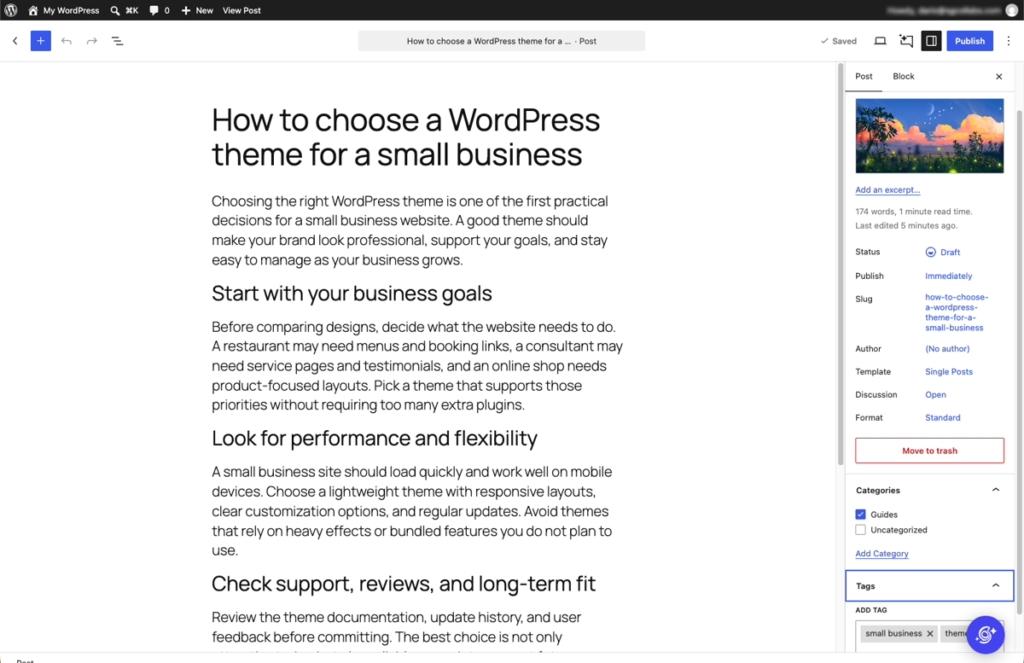
Create a draft post titled “How to choose a WordPress theme for a small business” with a short intro and three sections. Put it in a new category called Guides, add the tags “themes” and “small business”, and set anime1-scaled.jpg from the Media Library as its featured image.
AI Agent for WordPress writes the draft, creates the Guides category, adds both tags, and sets the featured image, all from that one request. Its reply lists every change, so you can review the result before you publish. A draft like this doesn’t need Power Mode.
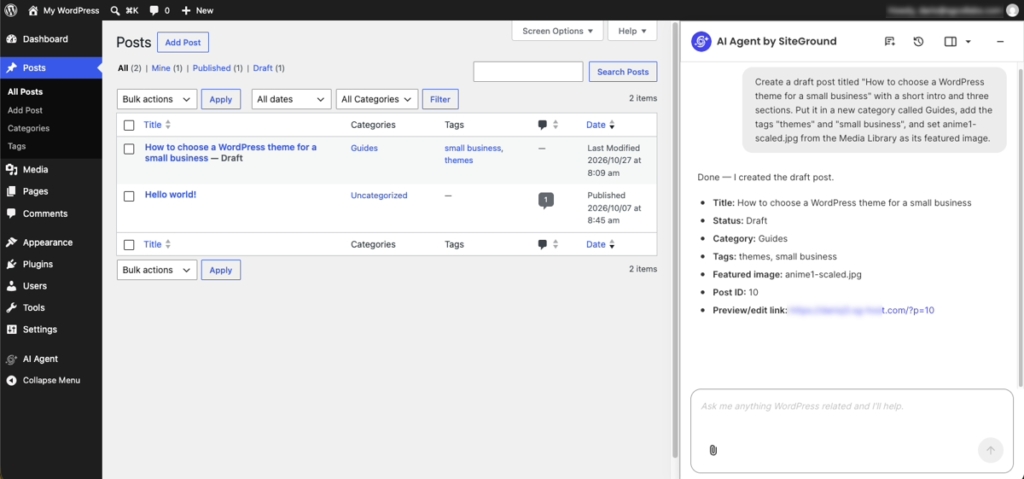
In the block editor, the draft has its category, tags, and featured image in place.
The same approach covers other WordPress content management workflows. The agent has limits too: it can’t schedule a post for a future date or edit theme files, for example, and the full list is in the limitations of SiteGround’s AI Agent. For ideas on what to ask, start with these practical AI Agent prompts.
Do you need an MCP server to manage WordPress with AI?
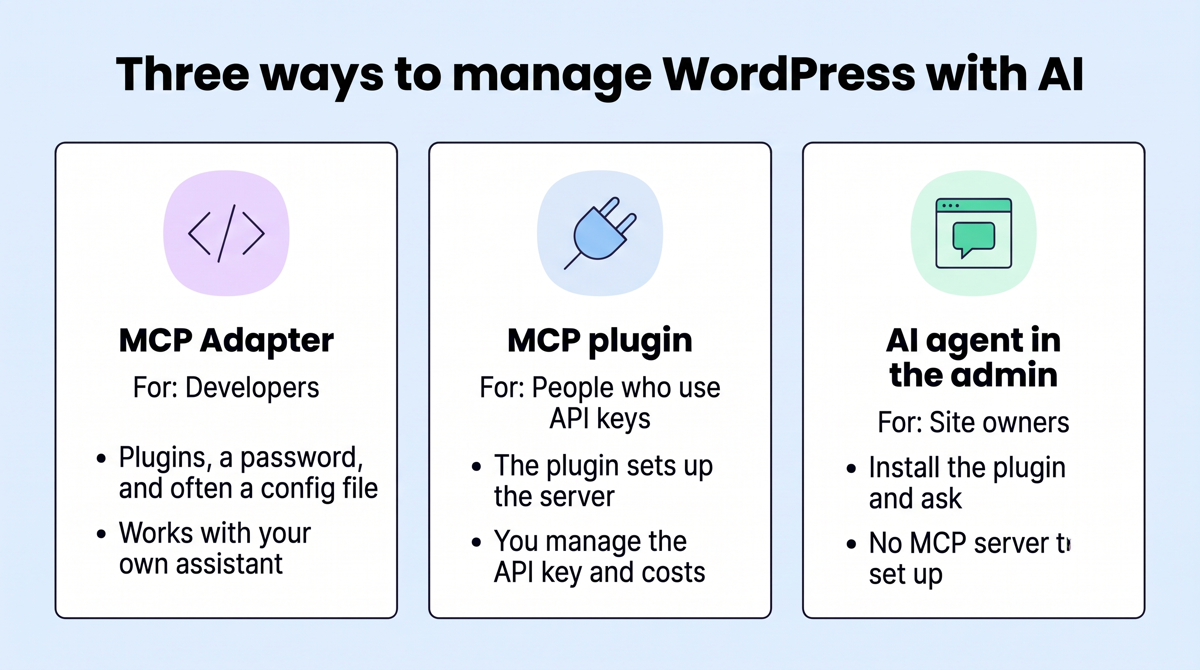
No, you don’t need an MCP server to manage WordPress with AI, though it’s the right choice for some people. Each route suits a different kind of user:
- You’re a developer who wants full control. The MCP Adapter lets you decide exactly which abilities an assistant gets, and it works with the assistant you already use.
- You’re comfortable managing API keys. An MCP plugin gives you an MCP setup without building it yourself.
- You want to manage your site by asking. An AI agent in the WordPress admin needs no MCP setup, so you install the plugin and describe what you need.
Choose how you want AI to work with your site
WordPress MCP gives AI assistants such as Claude and ChatGPT a standard way into your site. The official MCP Adapter is free and flexible, and it suits developers who want to configure exactly which abilities an assistant gets.
Connecting an assistant isn’t the same as having an AI agent that manages WordPress for you, though. If you’d rather describe a task and have it done inside your admin, a ready-to-use agent such as AI Agent for WordPress gets you there with no MCP setup.
FAQs
WordPress MCP is the use of the Model Context Protocol to connect AI assistants such as Claude and ChatGPT to a WordPress site. An MCP server on the site tells the assistant what it can do there, such as reading or editing content, and the assistant carries out the tasks you describe in plain language.
Yes. WordPress’s official MCP server is the MCP Adapter plugin, published by WordPress.org and available in the plugin directory since October 2026.
Yes. You can use Claude, ChatGPT, or another MCP-compatible assistant once your site runs an MCP server, but what the assistant can do depends on the abilities that server exposes. The MCP Adapter’s announcement shows setups for Claude Desktop, Claude Code, Cursor, and VS Code.
Yes, the protocol and the official MCP Adapter plugin are free. Costs come from elsewhere: the AI assistant’s subscription, and with some MCP plugins, usage charges on your own AI provider’s API key.
No. You don’t need to write code to use WordPress MCP, but connecting your site through the MCP Adapter takes technical steps, such as creating an Application Password and, for some assistants, editing a configuration file and installing Node.js. MCP plugins take fewer steps, and AI agents in the WordPress admin need no MCP setup at all.
The main security risk of WordPress MCP is that the assistant acts with the rights of the WordPress user it signs in as, so a misunderstood request can change a live site. WordPress’s own guidance is to connect through a dedicated user with limited rights, expose only the abilities you need, and keep backups.
No. SiteGround’s AI Agent for WordPress is not an MCP server, and it doesn’t connect outside assistants to your site. It’s a plugin with its own AI agent, which you use from a chat inside the WordPress admin, with no MCP server to set up.
No. You don’t need to set up an MCP server to manage WordPress with AI. A dedicated WordPress AI agent, such as SiteGround’s AI Agent for WordPress, provides built-in management tools through its own chat. MCP is useful when you want to connect an external assistant, such as Claude or ChatGPT, to your site.




Comments ( 0 )
Thanks! Your comment will be held for moderation and will be shortly published, if it is related to this blog article. Comments for support inquiries or issues will not be published, if you have such please report it through our official channels of communication.
Leave a comment
Thanks! Your comment will be held for moderation and will be shortly published, if it is related to this blog article. Comments for support inquiries or issues will not be published, if you have such please report it through our official channels of communication.