Web hosting free trial: How to test a new host with your real site
-
- Web hosting free trial vs. free plan vs. money-back guarantee
- How to copy your site to the new host
- Two ways to see the copy before your visitors can
- What you can check on a temporary URL
- What you can’t check until the domain points to the new host
- How to fit your test inside the trial or refund window
- Test before you commit
- Frequently asked questions about web hosting free trial
A web hosting free trial, a free plan, or a money-back guarantee lets you try a host before you commit. The test only counts if your real site runs on it, and you can set that up without visitors noticing. Your domain’s DNS decides which server visitors reach, so they stay on your current host until you change it. The new copy stays private while you check it.
Key takeaways:
- Free trials, free plans, and money-back guarantees differ in what you pay upfront and what happens on the last day.
- SiteGround doesn’t offer a free trial. It offers a 30-day money-back guarantee on shared hosting plans and 14 days on cloud hosting.
- Copying your site leaves the live version untouched, and SiteGround Migrator gives each copy a temporary URL that stays active for 48 hours.
- A hosts-file entry shows your real domain on the new server from one computer, without changing DNS for anyone else.
- SSL for your domain, email routing, and domain-tied integrations can only be fully confirmed after the DNS switch.
- DNS changes can take up to 48 hours to reach every network, so keep your old host running until post-switch checks pass.
Web hosting free trial vs. free plan vs. money-back guarantee
A web hosting free trial gives you a paid plan at no cost for a set period.That’s what trial web hosting usually means: temporary access to a plan you’d otherwise pay for. A free plan has no end date but comes with tighter limits. A money-back guarantee charges you upfront and refunds you if you cancel within the window.
All three answer the same question: will this host run my site well? They differ in what you risk while you find out.
| Offer | Pay upfront? | How long it lasts | What happens at the end | Good for testing a real site? |
| Free trial | No, though some trials ask for a card | A fixed period set by the host | It converts to a paid plan or closes | Yes, if the trial includes the features your site uses |
| Free plan | No | Open-ended | Nothing changes, and neither do the limits | Rarely, since storage, domain, and support limits skew the results |
| Money-back guarantee | Yes | A fixed refund window | You keep the plan or cancel for a refund | Yes, because you test the exact plan you’d keep |
Can you host a website completely for free? Yes, free hosting plans exist, and they suit a practice site or a class project. For a business site, they tell you little. Free plans may run on a subdomain, cap storage, and offer limited support, so the test doesn’t match the plan you’d pay for.
Free hosts can also close. 000webhost, a long-running free hosting service, shut down in 2024 after 17 years. Its users got about five weeks’ notice to move their sites before the platform went offline.
Your own domain name isn’t free either way. Registration is billed separately, whichever hosting offer you pick.
The fine print decides which offer actually protects you. The checklist below applies to any trial or guarantee, including a shared hosting free trial.
Terms to check before you sign up
Read these five terms before day one. Each one changes how much time you really have to test.
- “Payment method required.” This line means the trial takes your card upfront. Paired with “automatic renewal,” it can turn into a paid plan on the last day unless you cancel first. A web hosting free trial with no credit card doesn’t carry that risk.
- “From the date of service activation.” This phrase sets when the clock starts. It counts from the day your account goes live, not from the day your migration finishes.
- “Non-refundable fees.” This section lists what a refund leaves out. Domain registrations and paid add-ons commonly appear here, so read it before you buy extras.
- “Termination requests must be submitted through…” This clause names the cancellation route that counts. It might be a dashboard button, a ticket, or a phone call, so find it before you need it.
- “Regular price.” This is the rate that applies once the promotional term ends. Check the renewal price next to the first-term price, since that’s what you’ll pay from year two.
SiteGround backs its plans with a money-back guarantee. You get a full refund within 30 days of activation on shared hosting plans and within 14 days on cloud hosting. Claiming it takes one step: cancel the plan in your Client Area.
The refund covers your hosting plan, and your domain stays active in your account until it expires. Because you keep the domain, its fee stays with it. That includes a domain you got free in a promotion, which may be charged when you cancel.
How to copy your site to the new host
Copy your site rather than moving it. A copy leaves the live version running on your current host while you test, so visitors never see a half-finished move.
- Back up the current site. A full backup has two parts, and you need both:
- Files: Download your site’s main folder, often named public_html or www, as a compressed .zip or .tar.gz archive. Use your current host’s file manager or an FTP client.
- Database: Open phpMyAdmin in your current host’s control panel, select your site’s database, and use the Export tab. The Quick method with the SQL format gives you a single .sql file.
Your host’s control panel may also offer a one-click full backup that bundles both. Save the files on your computer or in cloud storage, not on either host.
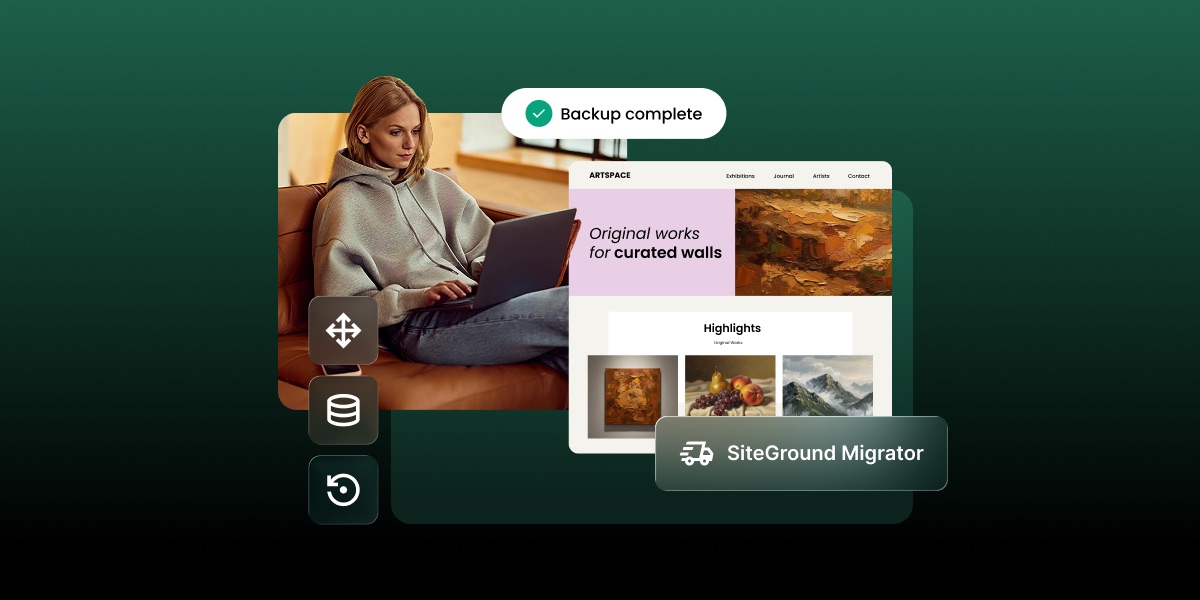
- Make the copy. For WordPress, use SiteGround Migrator, which copies the live site with no downtime, at no extra cost. In Site Tools, go to WordPress > Migrator and generate a migration token. Then install the SiteGround Migrator plugin on your current site, paste the token, and start the transfer. For any other site, order a professional migration from your Client Area: Help Center > Contact Us > Transfer or set up a new site > Transfer Website. It’s a paid service, and SiteGround’s team moves your files and database, then configures the site for the new server.
- Save the two details you’ll test with. When the copy finishes, note the temporary URL the Migrator gives you. Also note the new server’s IP address, shown in Site Tools on the Dashboard under Site Information. You’ll use both in the next section.
Freeze changes once the copy starts. Any post, order, comment, or form entry made on the old site after the copy won’t appear on the new host. For a store, run the copy during your quietest hours and pause content updates until you’ve switched.
For the full move, including DNS cutover and post-launch checks, follow our website migration guide.
Two ways to see the copy before your visitors can
You can preview the copy on a temporary URL or on your real domain through a hosts-file entry. Start with the temporary URL for a first pass. Then use the hosts file for checks that need your actual domain.
Preview on a temporary URL
A temporary URL is a placeholder address that loads the copy from the new server. SiteGround Migrator creates a temporary URL for each transferred site, and it stays active for 48 hours. Plan your first round of checks inside that window.
This isn’t the same as SiteGround’s temporary domain option, which you pick when setting up a brand-new site. Once you replace a temporary domain with your real one, you can’t reuse it for that site.
The limit of any temporary URL is simple: it isn’t your domain. Anything tied to your domain name may behave differently there.
See your real domain with a hosts-file entry
A hosts-file entry tells one computer to load your domain from the new server’s IP address. Everyone else still reaches your old host, so you can test on the real domain in private.
- Find the new server’s IP address in your new hosting account.
- Open the hosts file as an administrator. On Windows, it’s at C:\Windows\System32\drivers\etc\hosts. On macOS, open /etc/hosts with sudo in Terminal.
- Add a line with the IP address, a space, and your domain. Add a second line for the www version.
- Save the file and flush your DNS cache. On Windows, run ipconfig /flushdns. On macOS, run sudo dscacheutil -flushcache; sudo killall -HUP mDNSResponder.
- Load your domain in a private browser window and run your checks.
- Delete both lines when you’re done. Otherwise, this computer keeps ignoring real DNS and can hide problems later.
What you can check on a temporary URL
A temporary URL lets you check almost everything visitors touch: pages, forms, logins, checkout, and plugins. It’s the same routine you’d use to test a website before going live, run on a copy instead.
| Check | How to test it | What “pass” looks like |
| Page templates | Open the homepage, a page, a post, a category archive, and a 404 page | Each loads with the right layout and no missing styles |
| Older media | Open three posts from different years | Images and downloads appear, with no broken icons |
| Forms | Submit your contact and sign-up forms | The entry is saved and the notification arrives |
| Logins | Log in as an admin and as a customer or member | The session holds as you move between pages |
| Checkout | Place an order with your payment plugin in test mode | The order completes and shows in your dashboard |
| Plugins and theme | In WordPress, open Tools > Site Health | No critical issues after the move to the new PHP version |
| Admin speed | Open the editor on your longest page | It loads as fast as on your old host, or faster |
| Support | Open a ticket with a real question about your site | You get a specific answer, and you note how long it took |
Watch for false passes. If the copy still loads images or scripts from your old domain, pages look fine while depending on the old host. Open your browser’s developer tools, check the Network tab, and confirm files load from the new address.
Treat the support ticket as a real test, too. Response quality is one of the main factors when you choose a web hosting partner, and a trial window is the cheapest time to find out.
What you can’t check until the domain points to the new host
Anything tied to your domain name can only be fully confirmed after the switch, because a temporary URL isn’t that domain. Plan a short post-switch check for each item below, and use the hosts file for an early look where you can.
- SSL certificate. Free certificates that validate over HTTP need your domain to point to the new server first. Check for a valid padlock within the first hour after the switch.
- Email routing. If your mailboxes live with your old host, a nameserver change can redirect mail before the mailboxes move. Check your MX records first, and read why email stops working after a DNS change.
- Payment and login integrations. Payment gateway webhooks and “Sign in with Google” buttons are often registered to your exact domain. Run one real transaction and one social login after the switch.
- Analytics and tags. Tracking set up for your domain may not fire on a temporary URL. Confirm visits appear in the Google Analytics real-time report after the switch.
- Search visibility. In WordPress, go to Settings > Reading on the new site. Make sure “Discourage search engines from indexing this site” is unchecked before visitors arrive.
None of these checks takes long. Skipping them is how a smooth-looking move turns into lost orders or missing email a week later.
How to fit your test inside the trial or refund window
Plan the whole test to finish at least a week before your trial or refund window closes. With a 30-day window, that leaves time for a rollback and a second attempt.
- Day 1: Back up and copy. Take a fresh backup, then run the copy during your quietest hours.
- Days 1–2: Temporary URL checks. Work through the checklist above inside the 48-hour window.
- Days 2–3: Hosts-file checks. Repeat the critical tests on your real domain.
- Day 4: Switch DNS. Point your nameservers or A record to the new host.
- Days 4–6: Post-switch checks. Run the domain-tied checks while the old host stays active.
- By day 20: Decide. Keep the plan, or cancel inside the window for a refund.
On a 14-day window, such as SiteGround cloud hosting, the same schedule still works through day 6. Switch DNS by day 4 and make your decision by day 10, leaving a few days of buffer.
How long does DNS propagation take?
DNS changes usually reach most networks within a few hours, but some take up to 48 hours. During that time, some visitors still land on the old host.
That’s why the old host stays on until the new site has run cleanly for a few days. It’s your fallback, and canceling it early removes the safety net you’re paying for.
Test before you commit
A web hosting free trial, a free plan, or a money-back guarantee only helps if you use the window to test your real site. Copy it, check it on a temporary URL and through your hosts file, and switch the domain last.
If you’re moving a WordPress site, SiteGround Hosting for WordPress comes with a 30-day money-back guarantee on shared plans, and you can copy your site with SiteGround Migrator. You test on a full plan, and your current site keeps running until you’re sure.
Get fast, reliable web hosting
Don't let slow hosting hold back your business growth. Join thousands of entrepreneurs who've chosen SiteGround to power their success: from startup to scale-up, we grow with you. 
Frequently asked questions about web hosting free trial
No, SiteGround doesn’t offer a web hosting free trial. It offers a money-back guarantee instead: 30 days on shared hosting plans and 14 days on cloud hosting. You test a full paid plan and get a refund if you cancel within the window.
It depends on the provider. Some trials ask for a card upfront and bill it automatically when the trial ends, while others don’t ask for payment details at all. If a trial takes your card, set a reminder before the last day. Also check whether canceling ends your access right away or at the end of the trial.
Yes, some hosts offer a WordPress hosting free trial, though length and included features vary by provider. A money-back guarantee is the alternative: you test the exact WordPress plan you’d keep. Check that any trial includes the caching, backups, and support your site relies on.
A free 30-day web hosting trial is available from some providers, and a 30-day money-back guarantee works much like one. You pay upfront, then get your money back if you cancel in time. Set a reminder for day 25, since the window counts from activation.
If the site breaks after the domain switch, point your domain back to your old host, which should still be running. How fast that works depends on how you switched. If you changed the A record and lowered its TTL to 300 seconds a day before, the rollback takes effect within minutes. If you changed nameservers, the rollback can take as long as the original switch, often up to 48 hours. Nameserver records are cached at the registry level, so your TTL setting doesn’t shorten that. To keep a quick rollback option, switch by A record when you can.
When a trial or refund period ends with a cancellation, the provider deletes the account and its files on its own schedule. Download a full backup before you cancel. Your live site isn’t affected, because it never left your old host.
Yes. The hosts-file method works for any site, because it changes where your computer looks up your domain, not how the site is built. For the copy, SiteGround’s professional migration moves your files and database and configures your main application on the new server. If your site runs more than one application, name each one in the transfer request.




Comments ( 0 )
Thanks! Your comment will be held for moderation and will be shortly published, if it is related to this blog article. Comments for support inquiries or issues will not be published, if you have such please report it through our official channels of communication.
Leave a comment
Thanks! Your comment will be held for moderation and will be shortly published, if it is related to this blog article. Comments for support inquiries or issues will not be published, if you have such please report it through our official channels of communication.