Should you switch web hosting? How to tell when it's time to move

-
- Three questions to ask before you switch web hosting
- Your WordPress site is slow
- Your site keeps going down
- Your host’s support isn’t helping
- Your renewal price jumped
- Your site was hacked
- Your hosting plan is ending, or your host is closing
- Your developer recommends a new host
- When staying is the better choice
- What switching hosts involves
- When to call in help
- When to switch web hosting: The bottom line
- FAQs
You can switch web hosting without losing your WordPress site, your email or your place in search results. But a new host only fixes problems your current host causes. If the real cause is the site itself, the problem moves with you. This guide helps you tell the difference, one reason at a time, so you know whether to fix things where you are or start planning a move.
Key takeaways:
- A slow WordPress site is often caused by the way the site itself is set up, so check before you move.
- Switch web hosting when a problem keeps coming back after you’ve tried the fixes your current host controls.
- You can move hosts without transferring your domain.
- Keep your old hosting until the new site is tested, and point your domain last.
- Most WordPress sites can be copied to a new host and checked before visitors see them, so a move doesn’t have to mean downtime.
- Plan email as its own step, because your mailboxes may live with your current host.
Three questions to ask before you switch web hosting
Before you switch web hosting, ask yourself three questions:
- Is it really the host? Some problems come from the server. Others come from the WordPress site itself: its plugins, its theme or how it was built.
- Can it be fixed where you are? A cleanup, a support escalation or a plan change can solve some problems in a day.
- Is moving worth the effort? A move is manageable, but it still takes planning. It should solve a problem you can name.
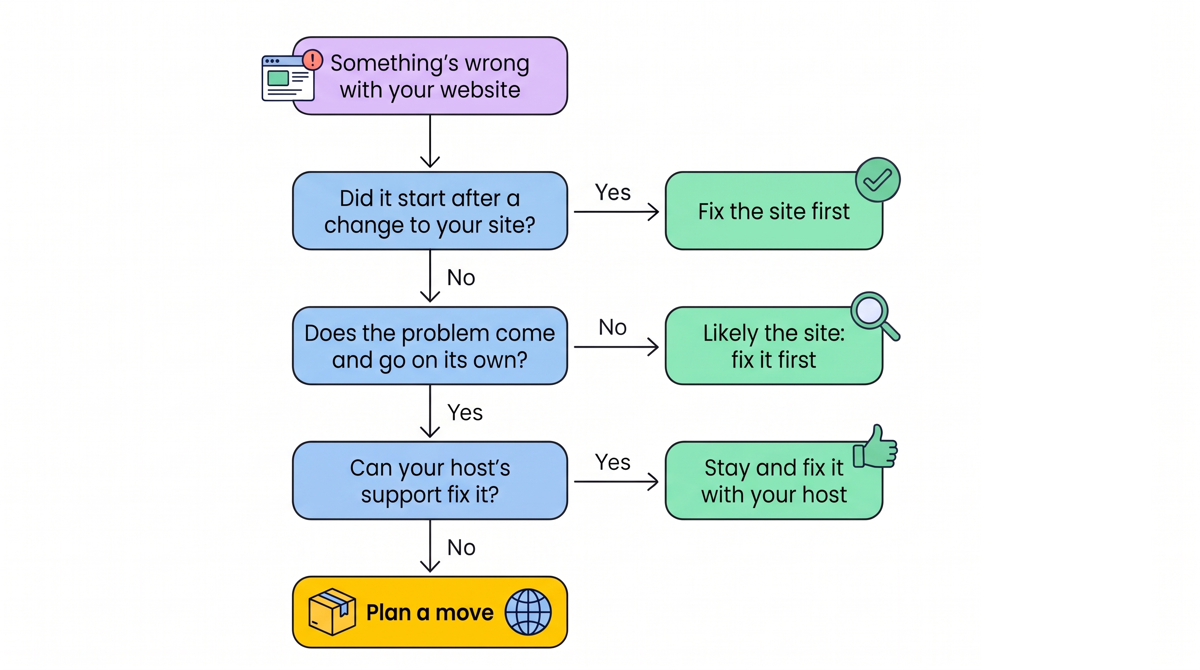
Here’s a quick overview of the seven most common reasons businesses switch hosting providers, and what to check for each one. Below, we go through them one by one.
| Reason | It’s likely the host when | Try this first |
|---|---|---|
| Slow site | Even simple pages are slow, and nothing changes after a cleanup | Remove unused plugins, shrink large images, ask support to check the server |
| Site keeps going down | Outages happen with no change on your side, and support can’t explain them | Track your uptime with a free monitor for a few weeks |
| Support isn’t helping | Replies take days, or basic fixes cost extra | Escalate in writing and keep a record |
| Renewal price jumped | The new price is out of line with what you get | Check other plans or billing periods, and compare total cost |
| Site was hacked | It happens again after a full cleanup | Clean the site and change every password first |
| Plan ending or host closing | Your plan ends soon, or the host is closing | Renew short term, or start the move weeks before the end date |
| Developer recommends a move | They can name the problem the move solves | Ask who will own and pay for the new account |
Your WordPress site is slow
If your WordPress site is slow, check your plugins and images before you blame your host. Plugins are usually the first suspect. It’s not only how many you have: a single slow or badly built plugin can drag down every page on your site. Large images and heavy page builders are the other common causes, and all of them slow a site down on any server.
Start with what you can check without technical skills:
- Do you have plugins you no longer use?
- Are the photos on your pages straight from a phone or camera?
- Did the slowness start after a plugin was added or updated?
Your host’s support or a developer can check which plugin is slowing things down. Our list of common reasons a site loads slowly covers the usual suspects.
Example: it’s Monday morning in tax season, and clients of a four-person accounting practice complain that the contact page crawls. The office manager checks and finds three photos straight from a camera on that page. After they’re resized, the page loads normally. No move needed.
The host is more likely to blame when even simple pages are slow, or when nothing changes after a cleanup. A free speed test, such as Google PageSpeed Insights, helps you tell which it is. Test a plain page first, like your privacy policy, then the page that feels slow. Look at how long it takes before anything appears on the screen (the tool calls this “First Contentful Paint”). If the plain page is also slow, the server is the likely cause. If only the heavy page is slow, the problem is on the site.
And if your host’s only answer is a much more expensive plan, get a second opinion first.
Your site keeps going down
If your site keeps going down, first find out whether the site or the server is failing. They look the same to a visitor, but they have different fixes.
A simple test is whether the problem goes away on its own. If the site is the cause, it won’t fix itself. For example, if a plugin update breaks the site, it stays down or keeps showing an error until someone fixes it. If the server is the cause, the site usually comes back by itself once the host fixes the problem on their side, with no change from you. Outages that keep coming and going like that are a host problem.
One exception: if the outages line up with your busiest times, your site may be outgrowing its plan. Heavy plugins, traffic spikes or bots can push a site past its plan’s limits. Ask your host’s support whether your site is hitting its resource limits. If it is, the fix may be a bigger plan or a lighter site, not a new host.
It also helps to know what an uptime guarantee really promises. A 99.9% guarantee still allows about 43 minutes of downtime a month, so a few short outages can be within the promise. Days offline are not.
Before you decide, track your site with a free uptime monitor for a few weeks, so you have dates and times to show support. If outages keep happening and support can’t explain them, that’s a host problem.
One WordPress site owner on Reddit went through exactly that. Their site was down for days, and the host didn’t even notice. They only found out because a business they advertised with told them.
Your host’s support isn’t helping
If your host’s support takes days to answer or charges for basic fixes, escalate in writing first, and switch hosts if it still doesn’t improve. Poor support is one of the most common reasons owners move, and a fair one.
Poor support usually looks like this:
- Replies that take days
- Being passed from agent to agent
- Answers that don’t fix the problem
- Extra charges for basic fixes
One owner on Reddit woke up to an error on their site. Their host offered to restore it for a fee, and to find out what caused it for a second fee.
Here’s how to give your host one real chance: escalate in writing, ask for a senior agent, and keep a record of each ticket with its date.
If support still doesn’t improve, it’s time to change WordPress hosting. Just don’t swap one slow support team for another. Test a new host’s support before you commit, for example by asking a pre-sales question about moving your site.
Your renewal price jumped
If your renewal price jumped, check your options with your current host before you decide to move. A longer billing period or a different plan can sometimes lower the cost.
A low first-year price followed by a higher renewal is common across hosting companies, SiteGround included, so moving won’t escape that pattern.
To compare fairly, look at what you’ll pay over two or three years, not just the first-year price. Ask any host you’re considering one simple question: “What will I pay when this plan renews?” Then weigh that against what you get, such as support, speed, and backups.
The cheapest plan isn’t always the best deal. Saving a few dollars a month rarely makes up for a slow site or support that takes days to reply.
Moving makes sense when the renewal price is clearly out of line with what you’re getting, and your host has no better option. Before you decide, add up the full cost of a move, including what you’ll pay after the first year.
Your site was hacked
If your site was hacked, clean it up before you decide where it should live. Moving an infected site just brings the problem to your new host.
Here’s the order that matters:
- Clean the site or restore a backup from before the hack. Your host’s support or a developer can help with this.
- Change every password: your hosting account, your WordPress admin users and your email.
- Then decide whether to stay or move.
A single hack doesn’t automatically mean your host failed. Outdated plugins and weak passwords are common causes on any host. The host becomes the question when the site gets hacked again after a full cleanup, when support can’t help you clean it, or when every fix comes with an extra bill.
If you do move, move the clean copy, never the infected one.
For the cleanup steps, read what to do when your site has been hacked.
Your hosting plan is ending, or your host is closing
If your hosting plan is about to end, decide whether to renew or move before the end date, and don’t let it run out in the middle of a move. When a plan ends, your website goes offline, and so does any email hosted there. If your domain is registered with the same company, it can lapse too.
A plan ending is a natural moment to ask whether you’re happy with your host. If you are, renew. If you’d rather move:
- Start a few weeks before the end date, so you have time to copy the site, check it and plan your email.
- If time is short, renew for the shortest term your host offers, such as one month, to buy yourself time.
- Or ask your new host to do a professional transfer, so their team moves the site while you focus on email and logins.
If your plan has already expired, contact your old host right away and ask whether your site and email can still be recovered.
A host closing down is rarer, but it leaves you no choice. As soon as you hear the news, get a copy of your site and your email. Then move in the usual order: copy the site, check it, move your email and point your domain last.
Your developer recommends a new host
If your developer recommends a new host, ask what problem the move solves before you agree. A recommendation is a good reason to ask questions, not a reason to say no.
Before you agree, ask three things:
- Will the new hosting account be in your business’s name? It should be. If the developer moves on, the account stays with you.
- Who pays for it, you or the developer? Ideally you. If the developer pays and bills you, make sure the account is still in your name.
- Will you have your own logins, not just the developer? You should, even if you never use them.
These questions keep you in control after the move. One business owner on Reddit described exactly this: their developer said the site was theirs, but in practice they couldn’t change anything without his approval, and they felt stuck. That’s the situation to avoid.
Example: the accounting practice’s site was built by a freelancer in 2019, and only the freelancer has the hosting login. Before agreeing to the move, the practice asks for the new account in its own name, with its own login. If the freelancer moves on one day, the practice still controls its site.
On SiteGround, for example, you can give a developer collaborator access to work on your site without giving them access to billing.
When staying is the better choice
Sometimes the honest answer is to stay. If the problem started after a change to your site, a new host probably won’t fix it. A slow, overloaded site moved to a new server is still a slow, overloaded site.
Many owners ask the same question before a move: would their site’s problems simply follow them to a new host? These questions help you answer that without technical knowledge:
- Did the problem start after a change to the site, such as a new plugin, theme or feature?
- Does support fix things once you reach them, even if it takes a while?
- Is the renewal price still fair for what you get?
- Is there a fix you haven’t asked your host about yet?
If you answered yes to most of these, fixing things where you are is likely faster and cheaper than moving. If you answered no, keep reading.
What switching hosts involves
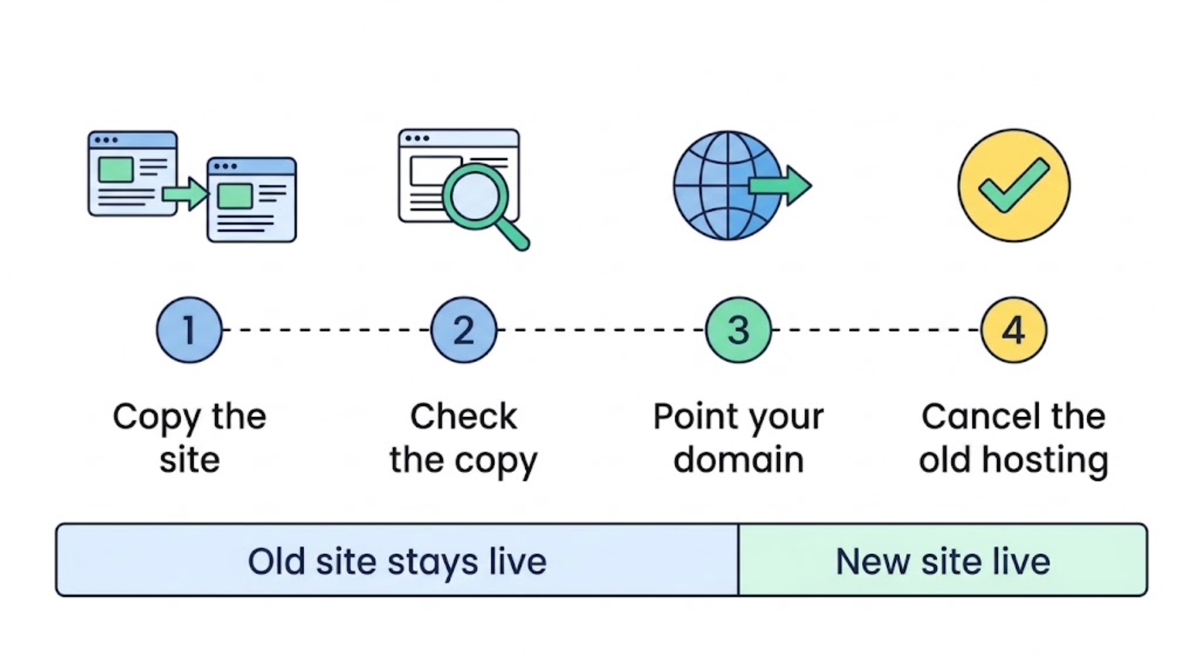
Switching hosts sounds bigger than it is. For a typical business WordPress site, the move has four steps, and the order is important:
- The site is copied to the new host. Your live site stays online and unchanged while this happens.
- You check the copy. Click through the pages, send a test message through your contact form, and make sure everything looks right before any visitor sees it.
- You point your domain to the new host. This means changing a setting where your domain is registered, so it sends visitors to the new host instead of the old one. From then on, visitors reach the new site.
- You cancel the old hosting, but only once everything works.
Example: on a Thursday afternoon, the accounting practice’s office manager clicks through the copied site on the new host. She sends a test message through the contact form and checks that it arrives. Only when everything works does the practice point its domain to the new host.
Because your old site stays live until step 3, there’s no need for your site to go offline. Our step-by-step switching guide walks through the steps in order.
Three things need a bit more care:
- Email. If your business email is with your current host, it needs its own plan. The mailboxes and the messages in them have to be moved, not just recreated. Changing your nameservers (the setting that tells the internet where to find your website and email) can also affect email if it isn’t planned. Our guide to keeping your business email working when you change hosts explains how. For the accounting practice, that means five mailboxes full of client emails, so the move needs to include the messages, not just the addresses.
- Your domain. You don’t have to transfer your domain to change hosts. You can keep it where it’s registered and simply point it to the new host.
- Your SSL certificate. This is what keeps your site secure and stops browsers from labeling it “Not secure”. Your new host needs to set it up for your domain, usually around the time you point your domain to them. If it isn’t ready, visitors may briefly see a security warning, so ask your new host how they handle it. If you paid for a certificate with your old host, see how to transfer the SSL from your previous host.
You also don’t have to do the technical work yourself. Your new host’s support, a developer or a professional transfer service can handle it.
At SiteGround, for example, you have two routes:
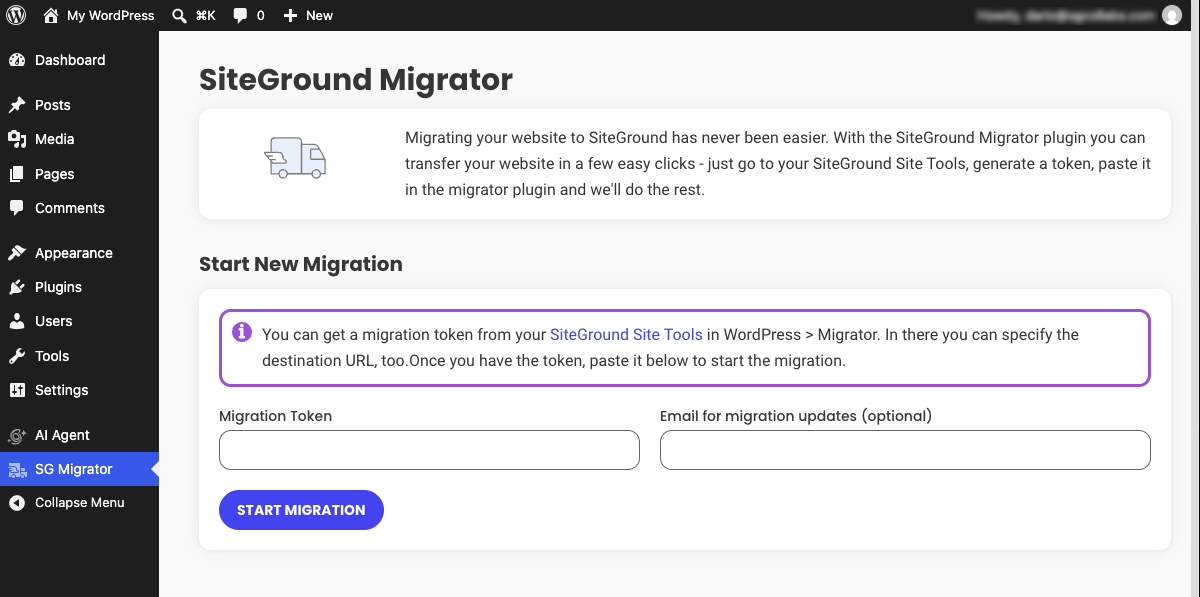
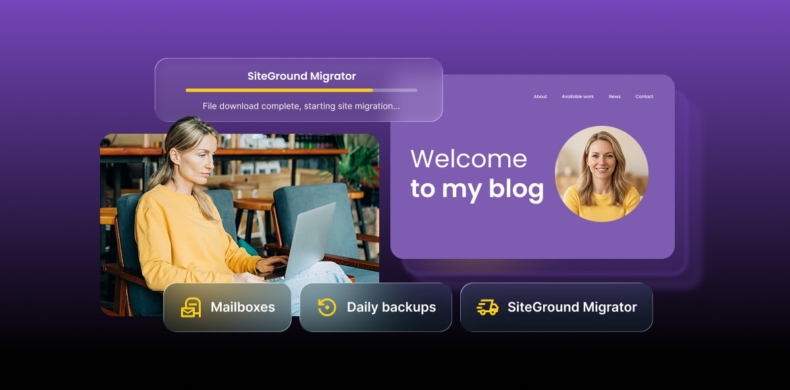
- The free SiteGround Migrator plugin copies your WordPress site in the background without affecting the live site, and you can check the copy before you point your domain. It isn’t suitable for sites running on a local computer or for full WordPress Multisite installs.
- If you’d rather not do it yourself, the support team will transfer one website for you for free when you sign up for a plan. Moving additional sites this way is a paid service. Email can be moved separately with the Email Migrator.
When to call in help
You don’t need to be technical to manage a move. You can decide whether to move, gather your logins (hosting, domain, WordPress and email), and check the copied site.
Hand the technical work to your new host’s support, a developer or a professional transfer, especially when:
- Your email is hosted with your current host and you have several mailboxes.
- Your site was custom built, or it runs on WordPress Multisite.
- You don’t have all your logins, or someone else controls them.
- Your plan ends soon or your host is closing, and time is short.
When to switch web hosting: The bottom line
Deciding whether to switch web hosting comes down to one question for each problem: is it the host, or is it the site? If it’s the site, fix that first. You’ll often solve the problem without moving at all.
When a problem keeps coming back after those fixes, moving is a reasonable, manageable step. Copy the site, check it, point your domain last and plan your email, and your visitors shouldn’t notice a thing.
If you decide to move, the next question is cost, and our guide to what switching hosts really costs covers it. And if SiteGround is on your list, the free SiteGround Migrator copies your WordPress site, and you can check everything before you point your domain.
FAQs
Yes. You can move a WordPress site to a new host and keep your content, your domain name and your email. It doesn’t have to go offline either. If the site is copied and checked before you point your domain, visitors keep seeing the old site until the new one takes over.
No. You can keep your domain where it’s registered and point it to the new host. A domain transfer is a separate step you can do later, or never.
Only if the host is what’s slowing it down. If even simple pages are slow and nothing changes after you remove unused plugins and resize images, a faster host can help. If the slowness comes from heavy plugins, large images or a page builder, the site will be just as slow on a new server.
Not if you plan email migration as its own step. If your email is with your current host, the mailboxes and the messages in them need to be moved, not just recreated. Changing nameservers can also affect email, so check where your email lives before you change anything.
Often nothing for the move itself. SiteGround’s Migrator plugin is free, and when you sign up for a plan, the support team will transfer one website for you for free. If you want the team to move more sites for you, that’s a paid service. The bigger cost question is what you’ll pay after the first year, so compare renewal prices too.
Not if the move is done carefully. Keep the same domain and page addresses, and test the new site before you point the domain. Long downtime or broken pages are what can hurt rankings. Our article on whether changing hosting affects SEO explains more.




Comments ( 0 )
Thanks! Your comment will be held for moderation and will be shortly published, if it is related to this blog article. Comments for support inquiries or issues will not be published, if you have such please report it through our official channels of communication.
Leave a comment
Thanks! Your comment will be held for moderation and will be shortly published, if it is related to this blog article. Comments for support inquiries or issues will not be published, if you have such please report it through our official channels of communication.